
Table Of Content
- How Qwen3.5 35B Runs Locally with OpenClaw?
- llama.cpp setup:
- Prerequisites:
- Install nvm
- Load nvm into current shell
- Verify and install Node LTS
- Install OpenClaw:
- Configure OpenClaw for llama.cpp:
- Vanilla to working config
- ~/.config/openclaw/config.yml
- Start the gateway:
- Swap models:
- Change model id
- Restart gateway
- Final Thoughts
How Qwen3.5 35B Runs Locally with OpenClaw?
OpenClaw Error Fixer
Paste any OpenClaw error and get the exact fix instantly — cause, steps, copy-ready commands, and related guides.
Table Of Content
- How Qwen3.5 35B Runs Locally with OpenClaw?
- llama.cpp setup:
- Prerequisites:
- Install nvm
- Load nvm into current shell
- Verify and install Node LTS
- Install OpenClaw:
- Configure OpenClaw for llama.cpp:
- Vanilla to working config
- ~/.config/openclaw/config.yml
- Start the gateway:
- Swap models:
- Change model id
- Restart gateway
- Final Thoughts
I am integrating Qwen 3.5 35B with OpenClaw, all running locally with no API key. The target is a clean setup where llama.cpp serves the model and OpenClaw routes requests to it. I have been testing Qwen 3.5 35B, Qwen 3.5 27B, and Qwen 3.5 122B and this setup has been smooth and repeatable.
The machine here is Ubuntu with a single Nvidia RTX 6000 48 GB. The model is served on localhost, and I will show the exact steps, the configuration, and how to start the gateway. Once it is up, you can hook it into your channels.
How Qwen3.5 35B Runs Locally with OpenClaw?
llama.cpp setup:
I already have Qwen 3.5 35B running with llama.cpp and served on a local port. It is being served on my local system at port 8080. If you already have llama.cpp compiled with server support, start it like this.
./llama-server \
  -m /models/qwen3.5-35b-instruct-q5_k_m.gguf \
  -c 8192 \
  -ngl 60 \
  -t 16 \
  -p 8080
This exposes an OpenAI-compatible endpoint at http://localhost:8080/v1. To verify your server, send a quick prompt with Python using the chat completions endpoint.
import requests

url = "http://localhost:8080/v1/chat/completions"
headers = {"Content-Type": "application/json", "Authorization": "Bearer no-key-needed"}
data = {
    "model": "qwen3.5-35b-instruct-q5_k_m",
    "messages": [
        {"role": "system", "content": "You are a helpful assistant."},
        {"role": "user", "content": "Give me a two-line summary of Qwen 3.5 35B."}
    ],
    "temperature": 0.2,
    "max_tokens": 256
}

resp = requests.post(url, headers=headers, json=data, timeout=120)
print(resp.json())
For another local Qwen setup, see Qwen guide. If you want to compare OpenClaw wiring with another Qwen family, check OpenClaw notes.
Prerequisites:
I am using Node and npm via nvm. Make sure nvm is installed and available in your shell.
# Install nvm
curl -o- https://raw.githubusercontent.com/nvm-sh/nvm/v0.39.7/install.sh | bash

# Load nvm into current shell
export NVM_DIR="$HOME/.nvm"
[ -s "$NVM_DIR/nvm.sh" ] && . "$NVM_DIR/nvm.sh"

# Verify and install Node LTS
nvm --version
nvm install --lts
node -v
npm -v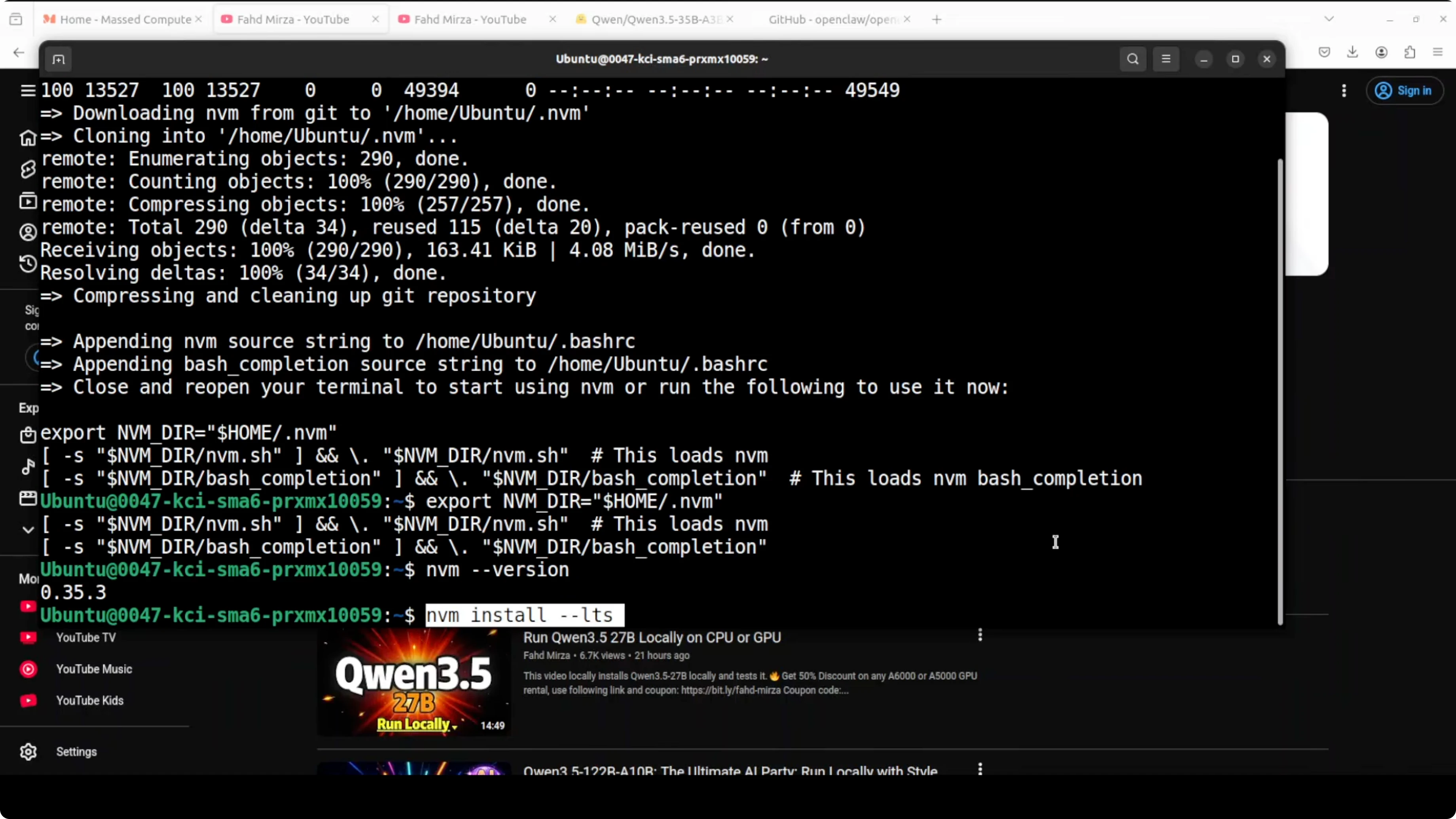
If you are experimenting with other local LLM setups, you can also check GLM 5. This keeps your environment consistent across projects.
Install OpenClaw:
With Node and npm ready, install OpenClaw globally. This pulls the latest CLI and core pieces.
npm install -g openclaw
openclaw --version
Next, onboard and initialize. This installs background services and prepares the gateway.
openclaw onboardI skip cloud providers here because I want to configure it manually for a local llama.cpp backend. Security is important in OpenClaw and you should configure credentials and access control before exposing any channels.
Configure OpenClaw for llama.cpp:
Vanilla to working config
Open the OpenClaw configuration file in your editor. The vanilla file is empty or near-empty, and I replace it with a provider pointing to my local llama.cpp server at port 8080 and a default agent bound to Qwen 3.5 35B.
# ~/.config/openclaw/config.yml


providers:
  - id: llama.cpp
    label: llama.cpp
    type: openai
    baseURL: http://localhost:8080/v1
    apiKey: no-key
    models:
      - id: qwen3.5-35b-instruct-q5_k_m
        label: Qwen 3.5 35B Instruct
        context: 8192

agents:
  - id: default
    name: Local Qwen 3.5 35B
    model: llama.cpp/qwen3.5-35b-instruct-q5_k_m
    systemPrompt: You are a helpful assistant.
    temperature: 0.2
    maxTokens: 512

gateway:
  enabled: true
  port: 3000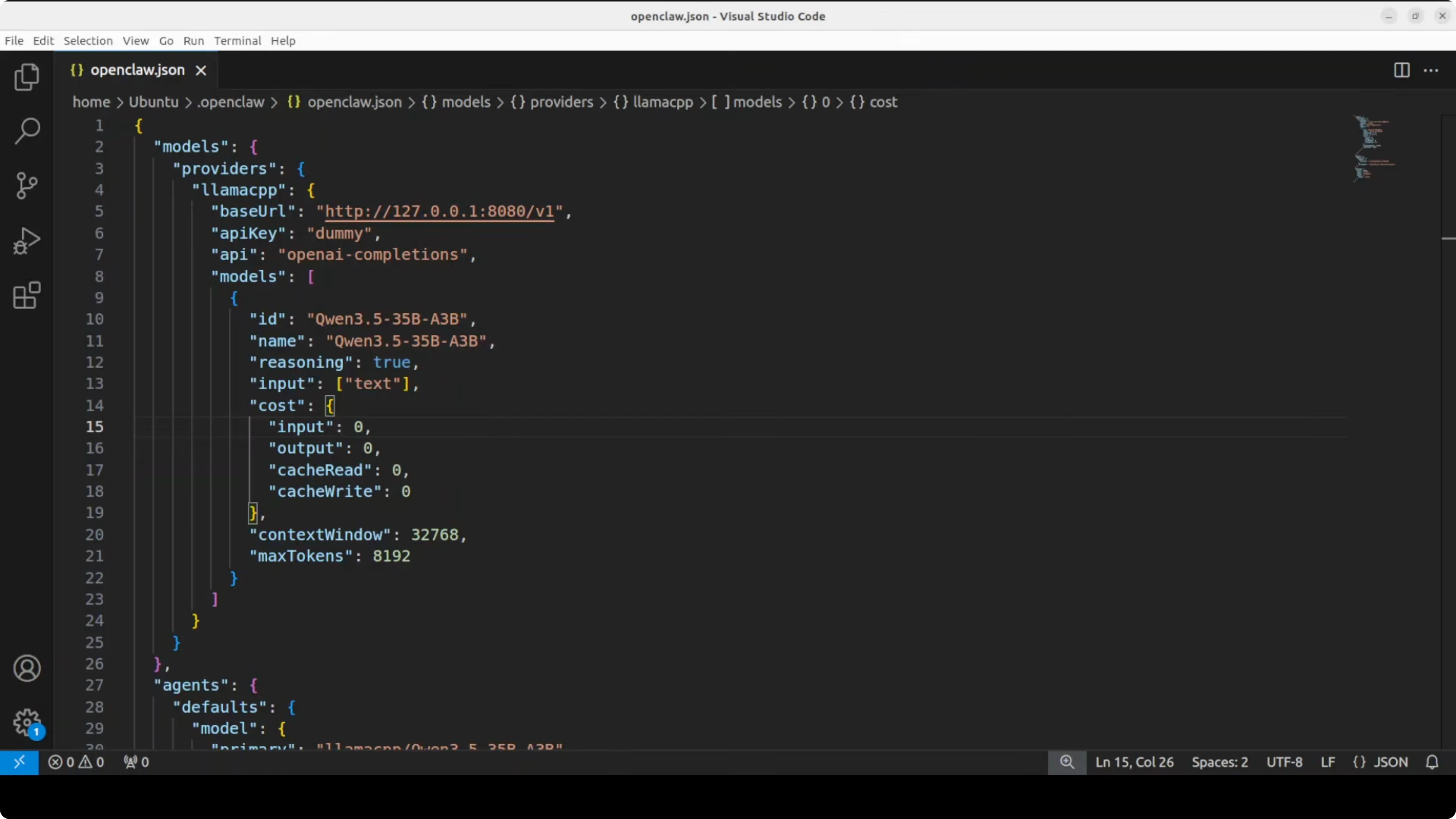
The key is the provider id llama.cpp, the baseURL pointing to the running server, and the OpenAI-compatible type. The model id matches exactly what llama.cpp is serving, and I use the llama.cpp prefix in the agent model to make routing explicit.
Start the gateway:
With the configuration in place, start the gateway service. This bridges your OpenClaw core to external channels.
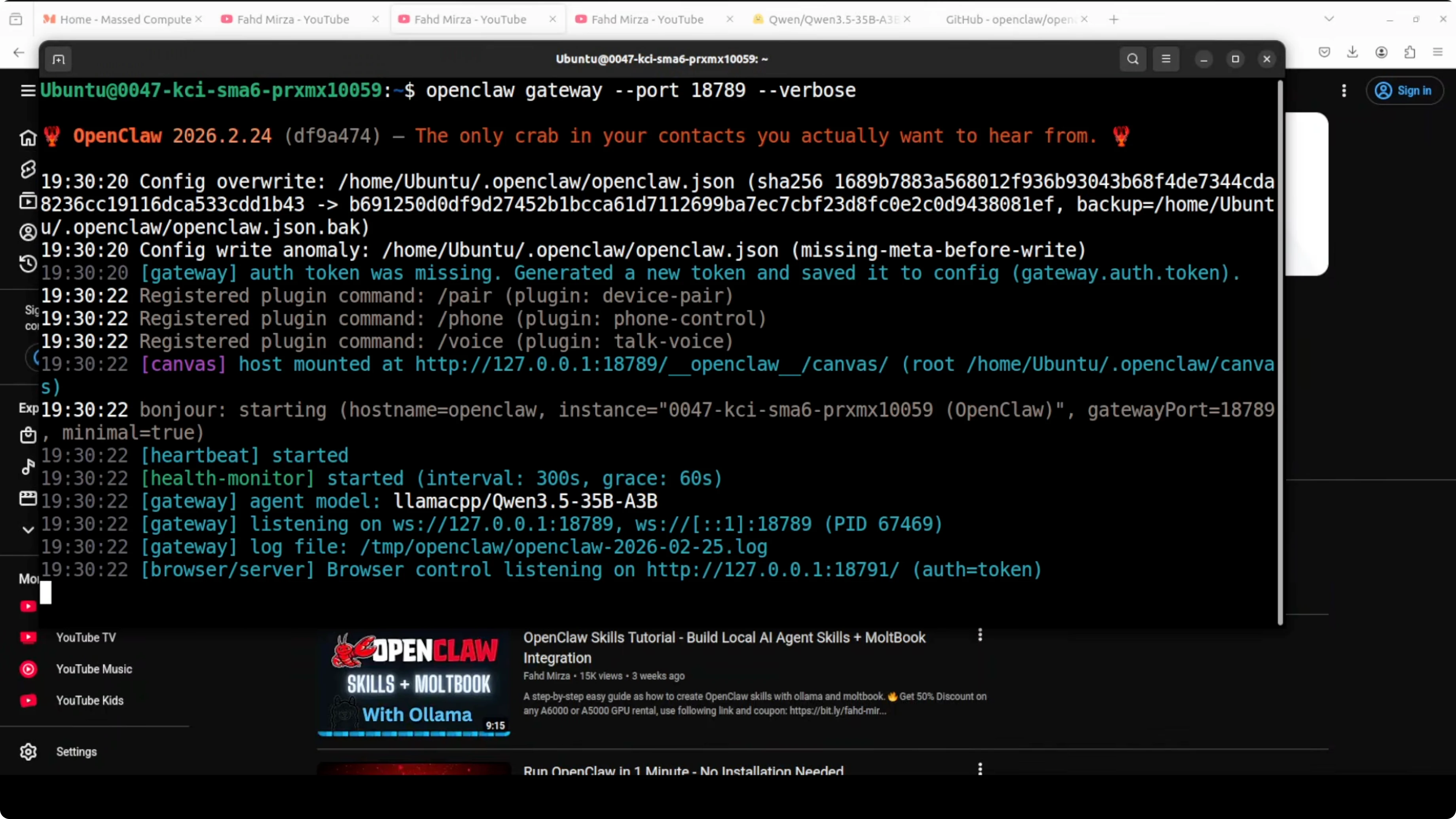
openclaw gateway startQwen 3.5 35B is now running locally behind OpenClaw and available from any endpoint you wire in. You can integrate it with Telegram or other channels and keep everything local on your GPU.
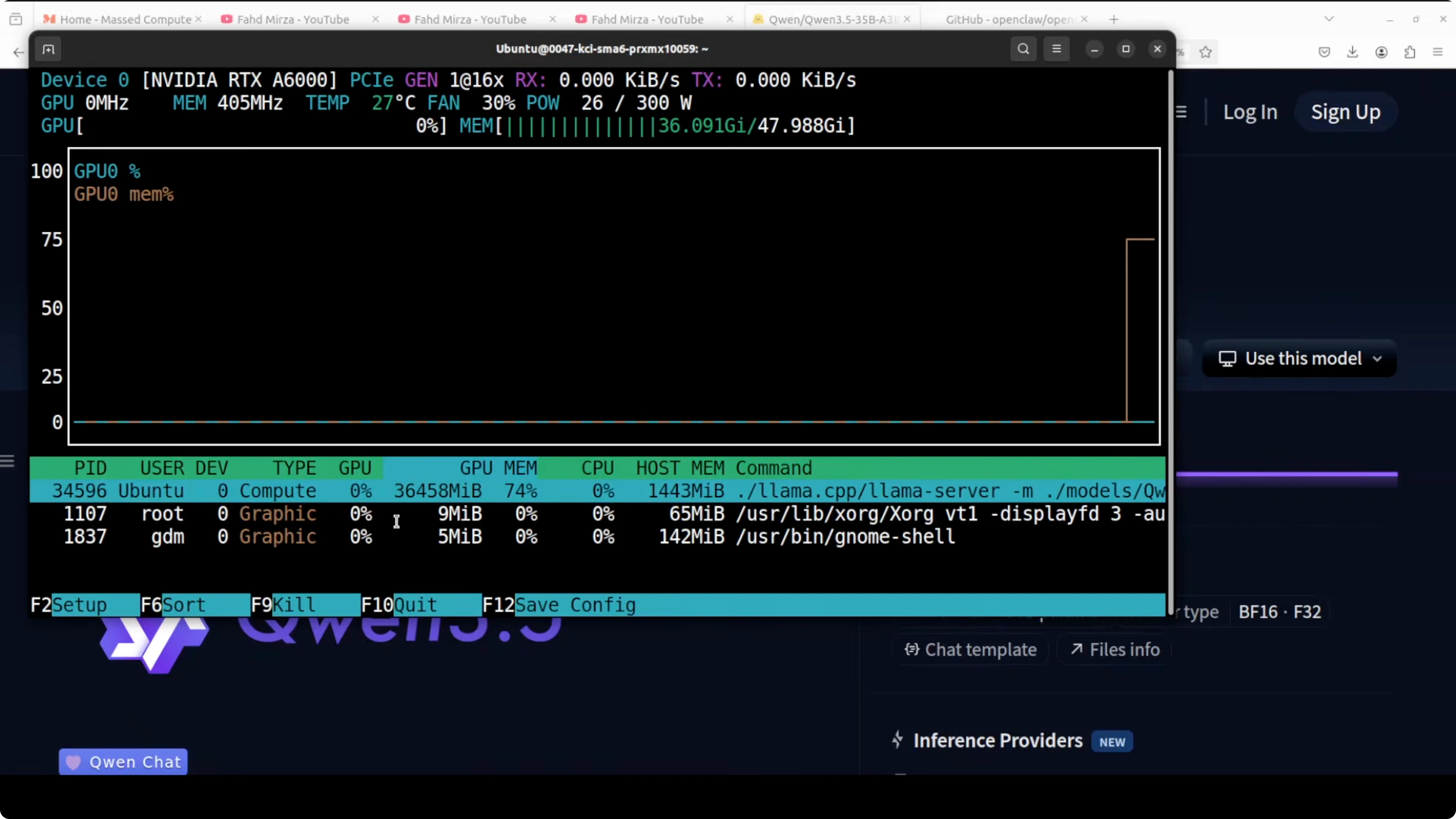
On the RTX 6000 48 GB, VRAM usage sits around 36.45 GB for this model, which is reasonable for a 35B. I have been using it since yesterday and tested it thoroughly, and it is one of the best mixture of expert models I have seen recently.
If you are comparing outputs across families for analysis, see Claude Opus. For more model variety in your lab, you might also skim Ernie 5.
Swap models:
If you want to swap Qwen 3.5 35B with 27B or any other local model, change one line in the config. Update the model id under providers and the agent model reference, then restart the gateway.
# Change model id
model: llama.cpp/qwen3.5-27b-instruct-q5_k_m

# Restart gateway
openclaw gateway stop
openclaw gateway start
I have also run similar setups with OLLama, LM Studio, and other local tooling. The OpenClaw pattern stays the same once the provider and baseURL are correct.
Final Thoughts
Running Qwen 3.5 35B locally with llama.cpp and integrating it with OpenClaw is straightforward once your Node, npm, and nvm prerequisites are ready. The core steps are to serve the model on port 8080, configure OpenClaw with an openai type provider, and start the gateway. You get a full personal AI assistant gateway with session management, tool use, workspace, and channel support, all powered entirely by a local model on your GPU.
Subscribe to our newsletter
Get the latest updates and articles directly in your inbox.

Related Posts

8 Best Claude Code Plugins in 2026 (You Need to Know)
8 Best Claude Code Plugins in 2026 (You Need to Know)

7 Best Claude Code Skills (You Need to Know)
7 Best Claude Code Skills (You Need to Know)

Claude Code Desktop IDE Features (You Need to Know)
Claude Code Desktop IDE Features (You Need to Know)