
Table Of Content
- Understanding the Issue
- Step-by-Step Solution: Fix OpenClaw Docker Install Issues Quickly?
- Step 1: Pull the latest OpenClaw code
- Step 2: Run the Docker setup script (Fix OpenClaw Docker Install Issues Quickly?)
- Run the Docker setup script provided by the repo
- Step 3: Fix the “stuck” installation (URL printed but won’t open)
- Manually create and run the OpenClaw gateway
- Step 4: Permanently prevent the stuck state by editing pending.json
- Alternative Fixes and Useful Commands
- Print a fresh dashboard URL with token
- Rerun the onboarding wizard
- Manually create and run the OpenClaw gateway
- Final Thoughts
How to Fix OpenClaw Docker Install Issues Quickly?
OpenClaw Error Fixer
Paste any OpenClaw error and get the exact fix instantly — cause, steps, copy-ready commands, and related guides.
Table Of Content
- Understanding the Issue
- Step-by-Step Solution: Fix OpenClaw Docker Install Issues Quickly?
- Step 1: Pull the latest OpenClaw code
- Step 2: Run the Docker setup script (Fix OpenClaw Docker Install Issues Quickly?)
- Run the Docker setup script provided by the repo
- Step 3: Fix the “stuck” installation (URL printed but won’t open)
- Manually create and run the OpenClaw gateway
- Step 4: Permanently prevent the stuck state by editing pending.json
- Alternative Fixes and Useful Commands
- Print a fresh dashboard URL with token
- Rerun the onboarding wizard
- Manually create and run the OpenClaw gateway
- Final Thoughts
OpenClaw runs best in Docker so it stays isolated from your system, but the newest OpenClaw release caused some people to hit install issues on Windows.
I’m going to walk through the exact steps I take to pull the new version, run the onboarding wizard, fix the “stuck” install, and share a few commands that help when you see things like “Unauthorized” on the dashboard.
Make sure Docker is open and running before you start. If Docker isn’t running, you’re going to face an error while the setup runs.
Understanding the Issue
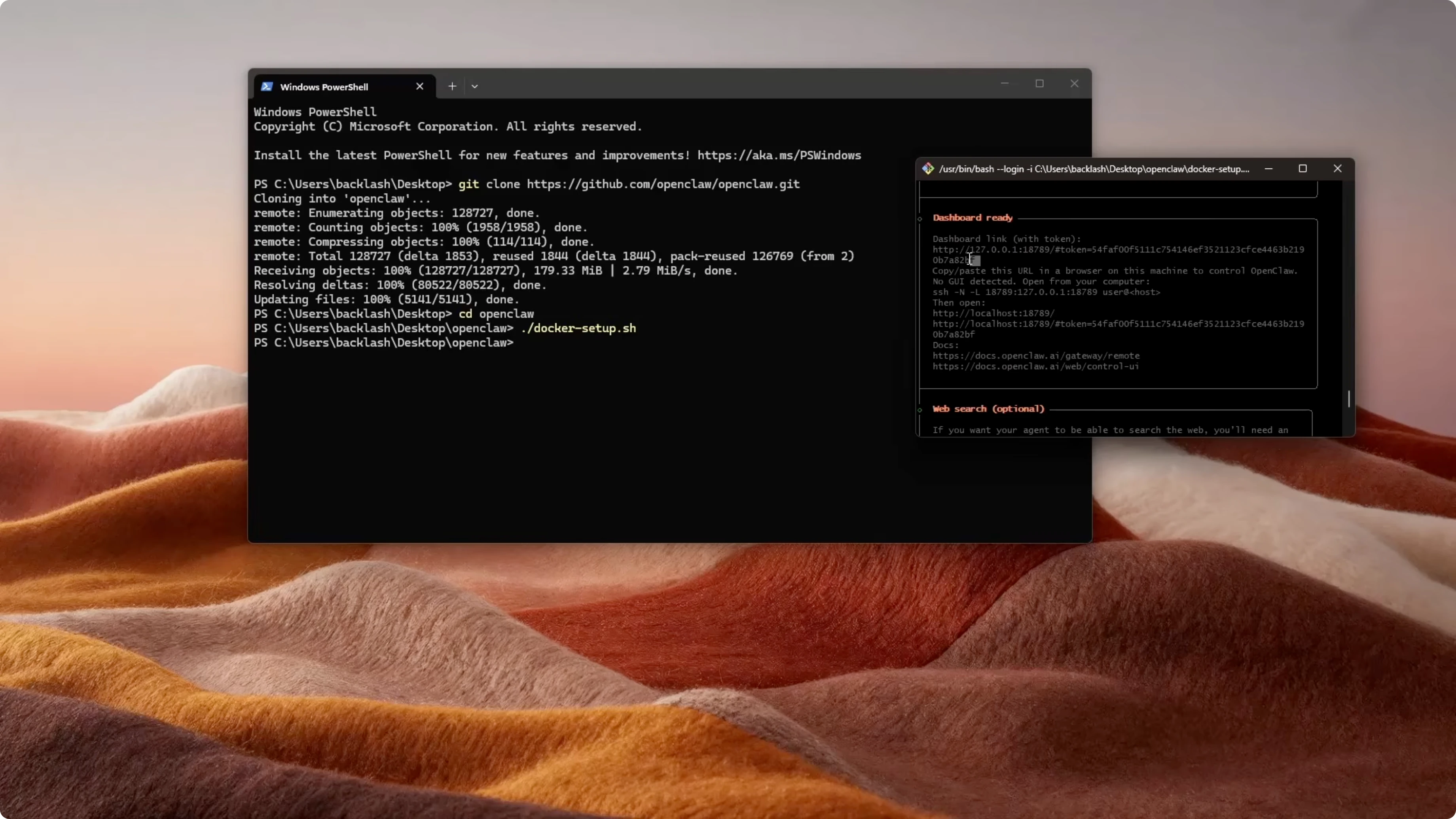
The Docker setup script builds a gateway image, runs the onboarding wizard, prints optional provider setup hints, starts the gateway with Docker Compose, and generates a gateway token (written to the environment file).
With the latest update, some installs appear to hang: you see a URL with a token printed, but the wizard never finishes and opening the URL doesn’t work until the gateway is brought up and the pending state is cleared.
Step-by-Step Solution: Fix OpenClaw Docker Install Issues Quickly?
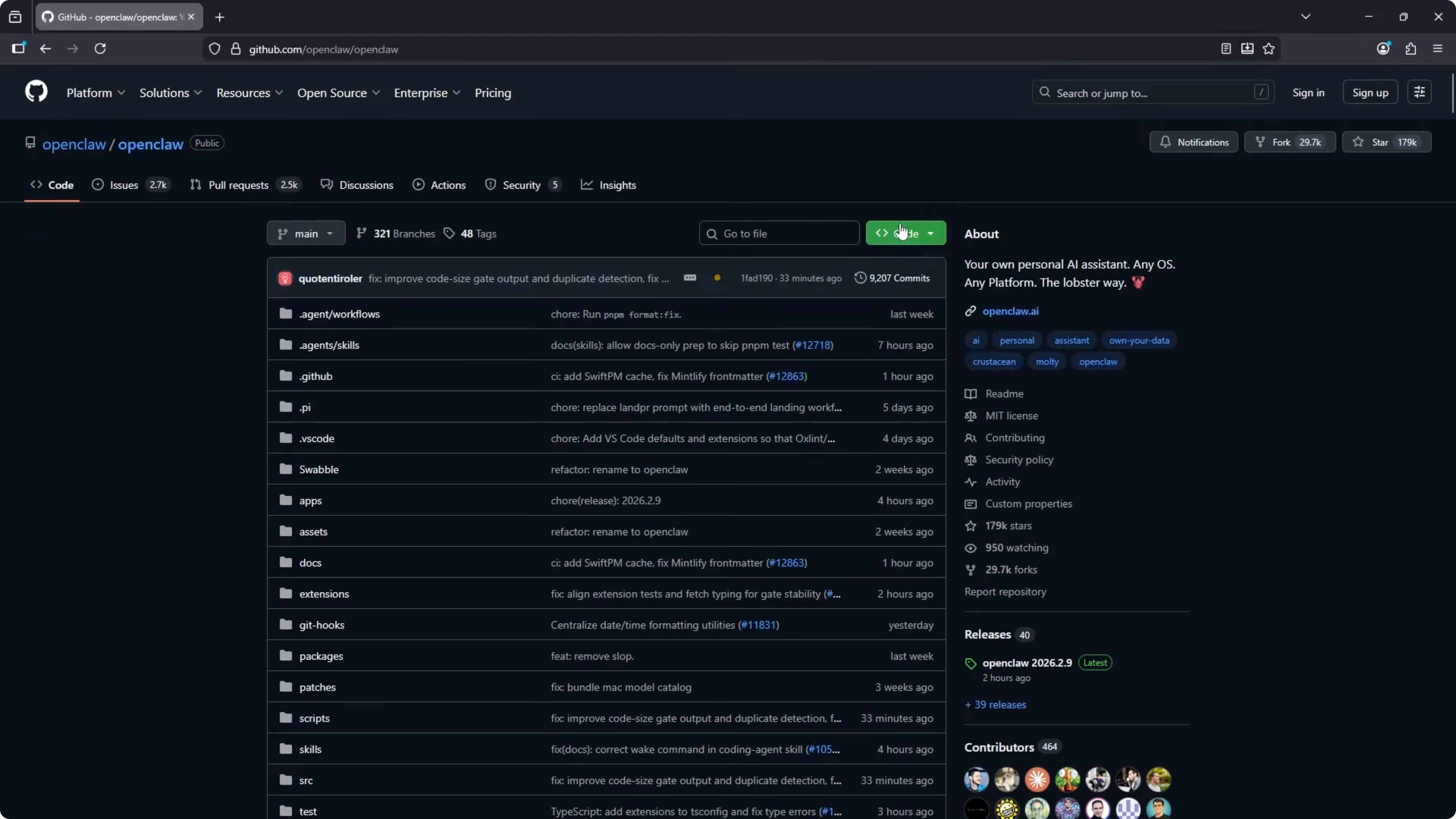
Step 1: Pull the latest OpenClaw code
- Copy the repository URL from GitHub.
- Open Command Prompt or PowerShell.
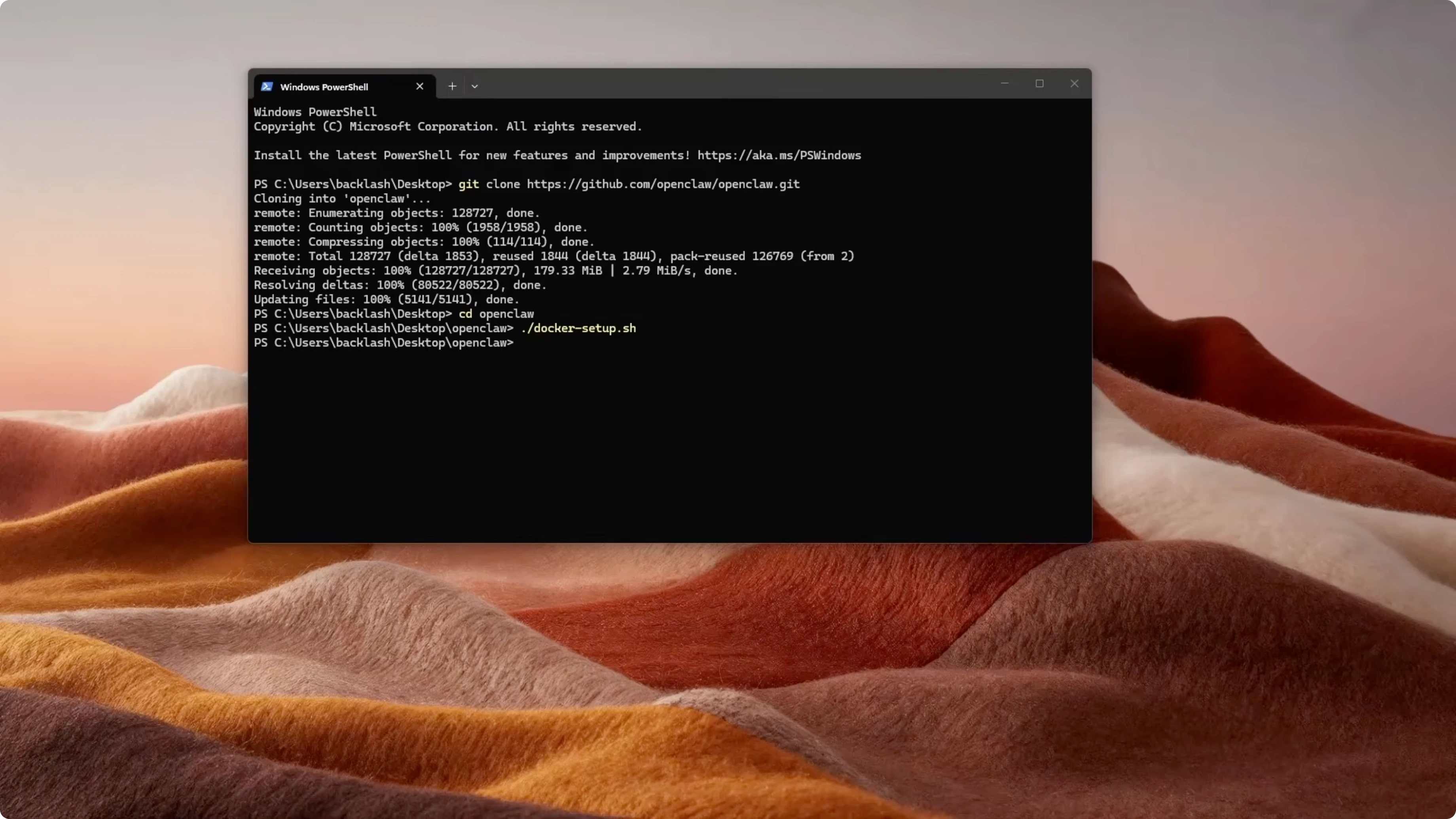
- Clone the repo and change into the project folder:
git clone https://github.com/openclaw/openclaw.git
cd <OpenClaw-folder>- Confirm Docker Desktop is running.
Step 2: Run the Docker setup script (Fix OpenClaw Docker Install Issues Quickly?)
Run the setup script in the repo to:
- Build the gateway image
- Run the onboarding wizard
- Print optional provider setup hints
- Start the gateway with Docker Compose
- Generate a gateway token and write it to the environment file
Use the command provided by the repository’s setup instructions, for example:
# Run the Docker setup script provided by the repo
<repo-setup-script-command>
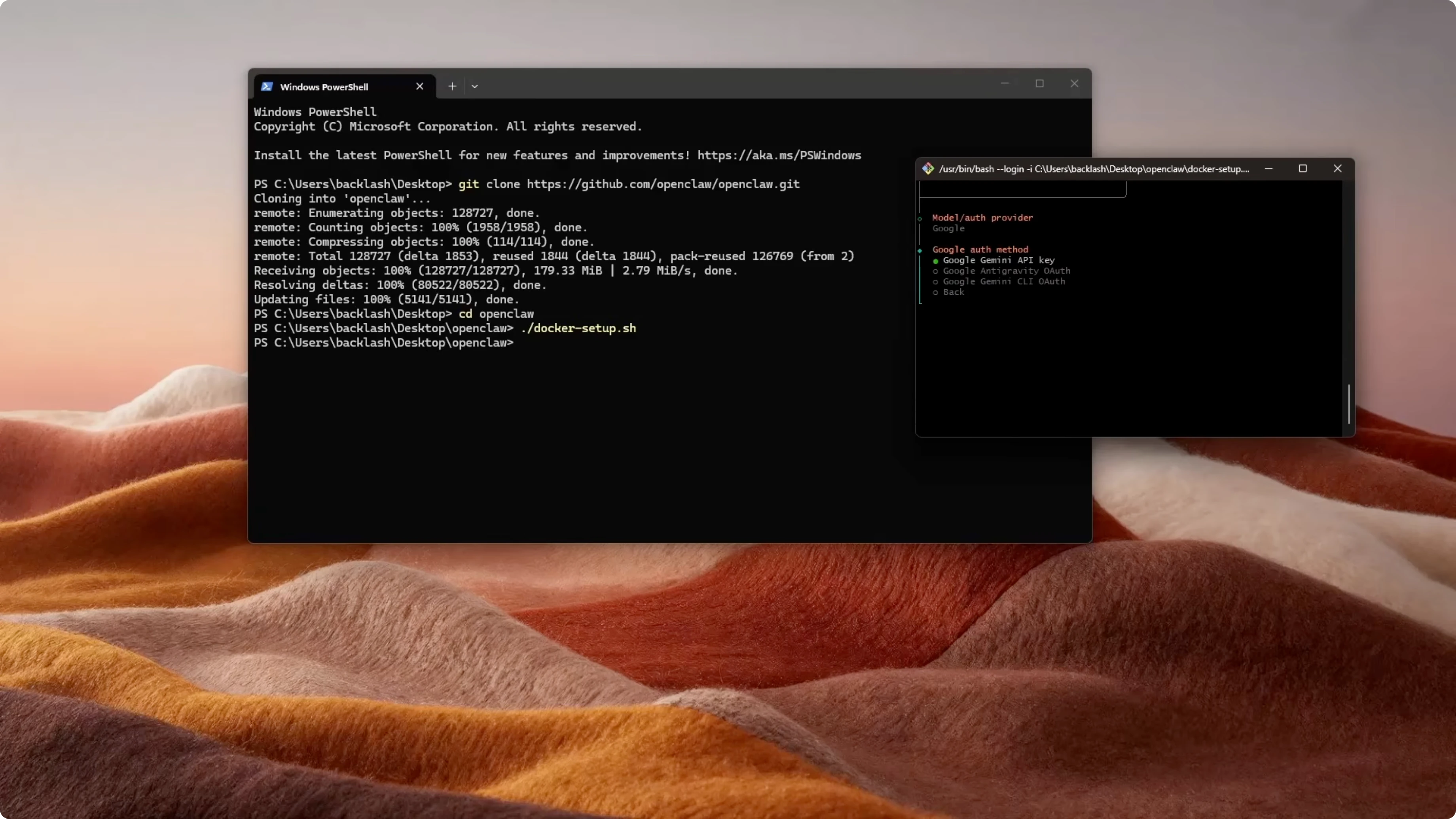
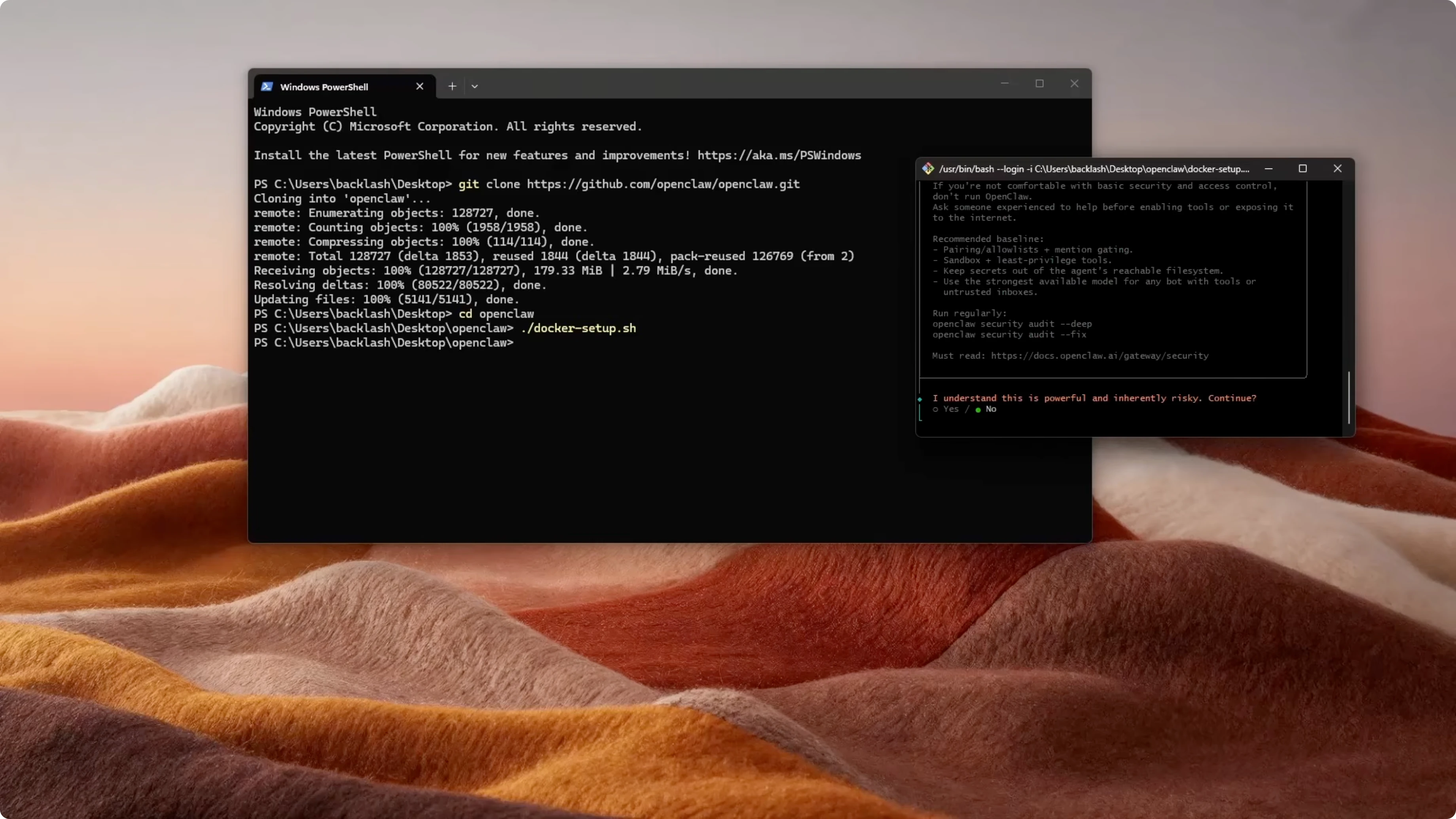
The onboarding wizard will ask a few simple questions:
- Choose Yes.
- Choose Quick Start.
- Pick your AI provider. I choose Google—you can choose whatever provider you prefer.
- Enter your API key.
- Important: If you chose Google, make sure to select this version. If you leave it on the Pro version, it will not work.
- Skip the channel for now.
- Skip the hooks for now as well.
Step 3: Fix the “stuck” installation (URL printed but won’t open)
If you see the URL with the token printed, but it looks stuck and opening the URL doesn’t work:
- Press Ctrl+C in the terminal to stop the wizard.
- Create and run the OpenClaw-gateway service:
# Manually create and run the OpenClaw gateway
<command-to-create-and-run-openclaw-gateway-service>- Open Docker Desktop → Containers and make sure the OpenClaw container is running.
- Wait 2–3 minutes, then refresh the browser. It should start working.
Step 4: Permanently prevent the stuck state by editing pending.json
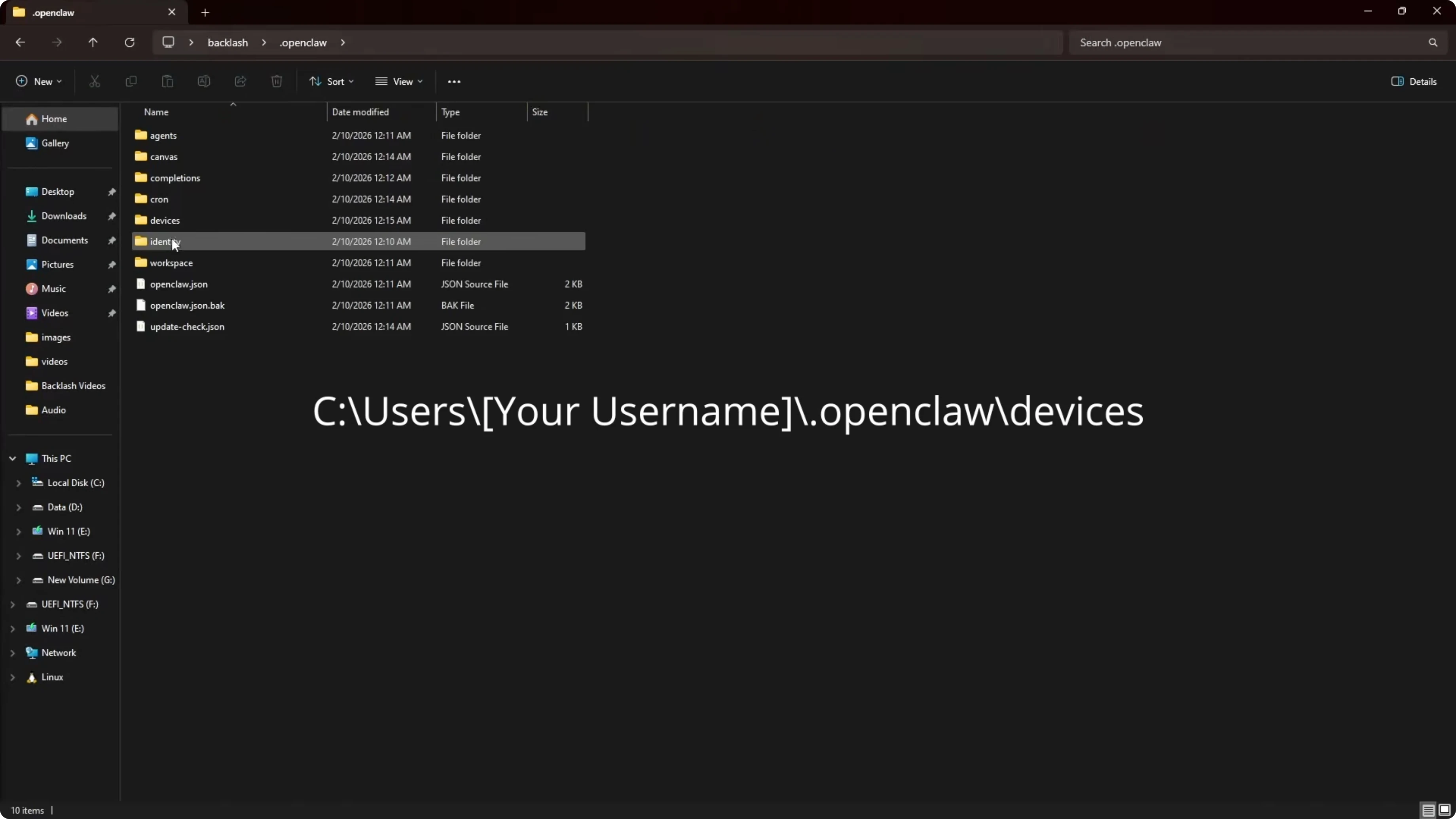
- Go to:
- C:\Users<your-username>.OpenClaw\pending.json
- Open the file with your text editor.
- Change silent to true, then save:
{
  "silent": true
}- Check the browser again—it should work. Test with a simple “Hello” to confirm.
Alternative Fixes and Useful Commands
Use these when specific problems show up. Always make sure Docker is running before you run any command.
- If you see “Unauthorized” on the dashboard page, get a URL with a token again:
# Print a fresh dashboard URL with token
<command-to-print-dashboard-token-url>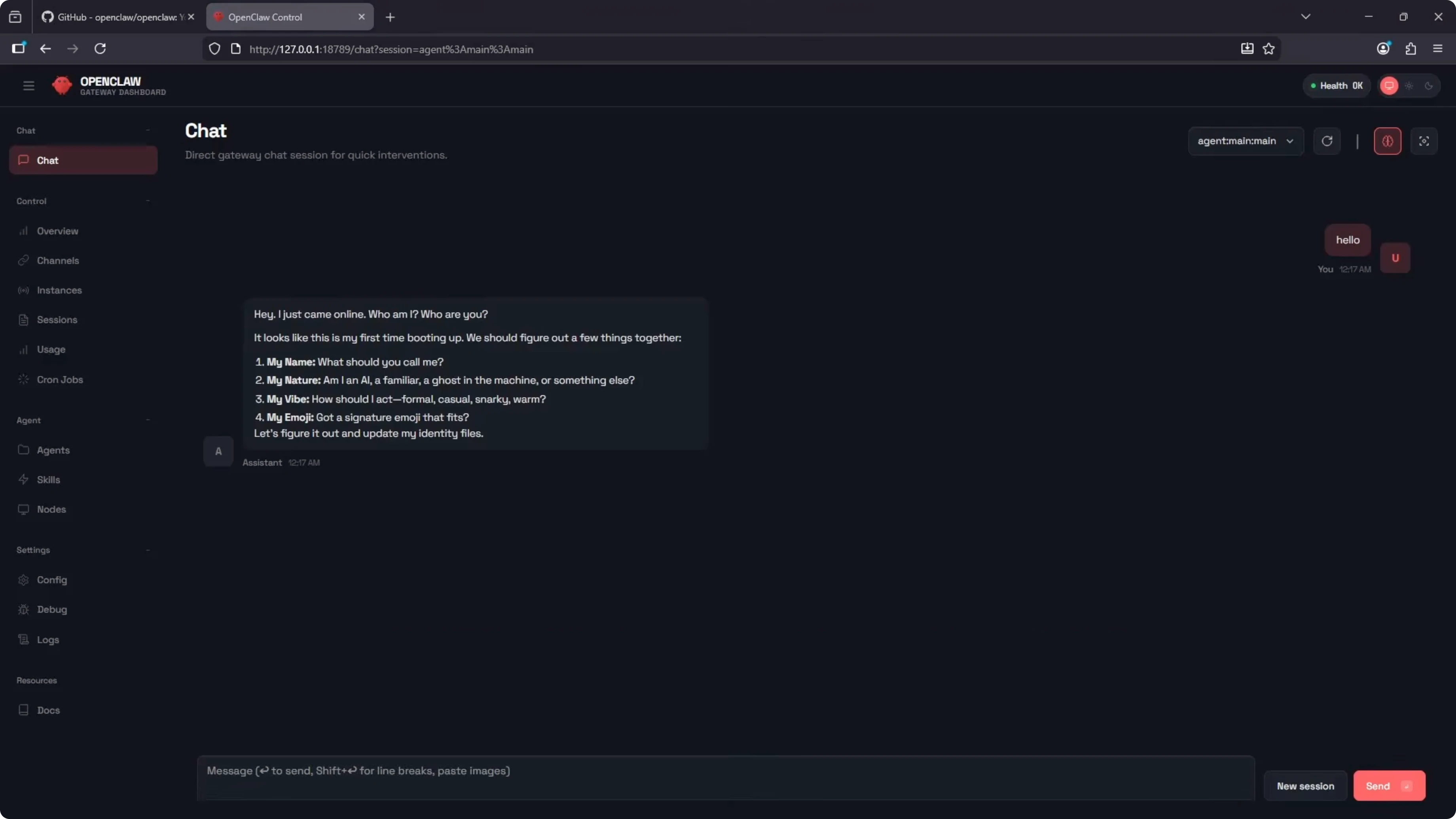
- If you want to run the onboarding wizard again:
# Rerun the onboarding wizard
<command-to-rerun-onboarding-wizard>- To manually create and run the OpenClaw gateway (same as in Step 3):
# Manually create and run the OpenClaw gateway
<command-to-create-and-run-openclaw-gateway-service>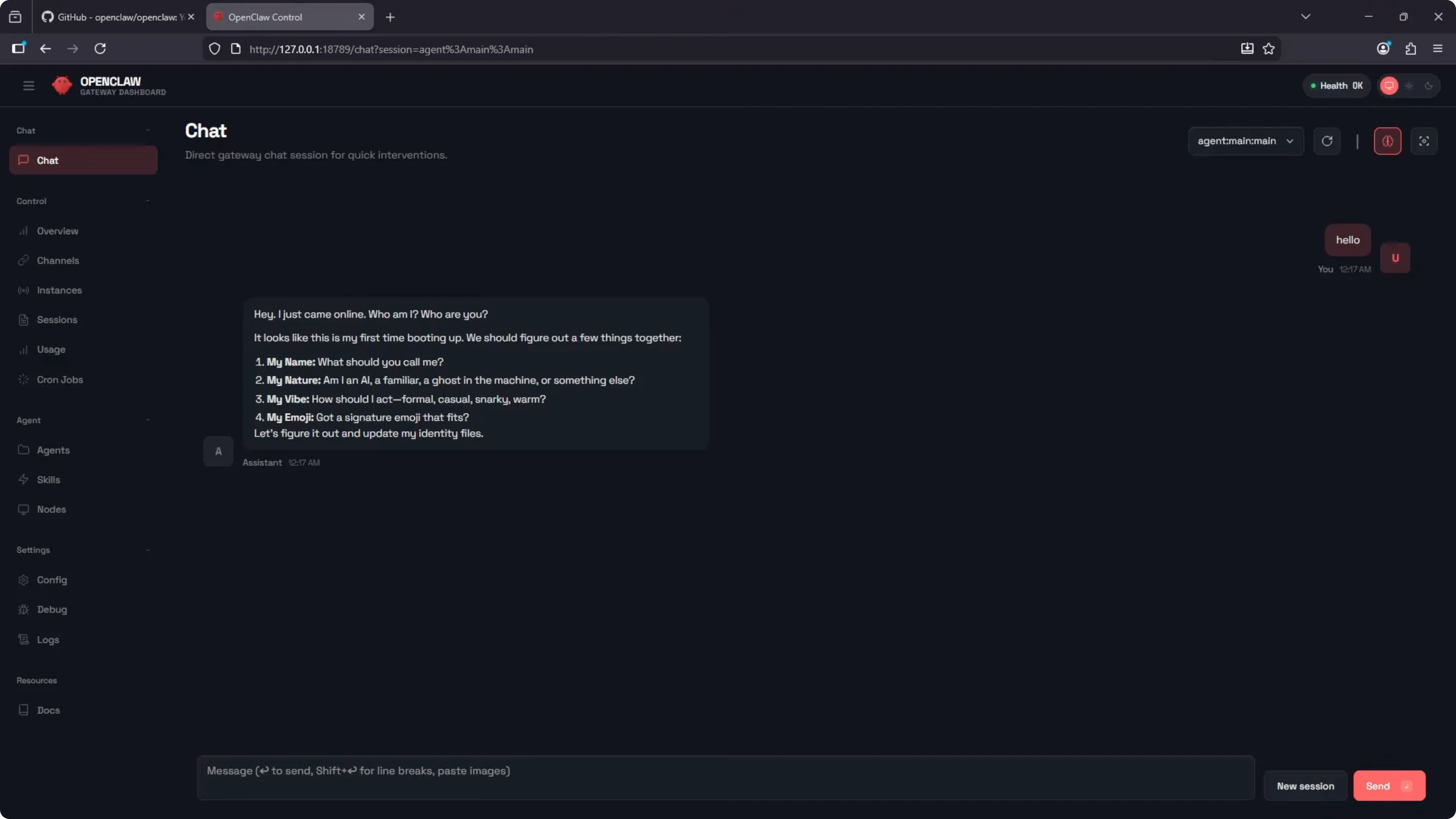
Final Thoughts
With Docker running, pull the latest code, run the setup script, answer the wizard prompts (make sure you pick the correct Google model version if you chose Google), and if it stalls after printing the token URL, create and run the gateway service, wait a couple of minutes, and set silent to true in pending.json to prevent the hang. After that, the dashboard should come up and respond normally.
Subscribe to our newsletter
Get the latest updates and articles directly in your inbox.

Related Posts

8 Best Claude Code Plugins in 2026 (You Need to Know)
8 Best Claude Code Plugins in 2026 (You Need to Know)

7 Best Claude Code Skills (You Need to Know)
7 Best Claude Code Skills (You Need to Know)

Claude Code Desktop IDE Features (You Need to Know)
Claude Code Desktop IDE Features (You Need to Know)