
Table Of Content
- How Claude Code Desktop Transforms Managing Multiple Tasks?
- Setup on your machine
- Settings and permissions
- Commands and slash actions
- Connectors
- Plugins
- Run and preview your app
- How Claude Code Desktop Transforms Managing Multiple Tasks? Sessions and worktrees
- after finishing the task and pushing a PR
- Jira tickets in parallel
- Preview, logs, and changes
- Final thoughts
How Claude Code Desktop Transforms Managing Multiple Tasks?
Table Of Content
- How Claude Code Desktop Transforms Managing Multiple Tasks?
- Setup on your machine
- Settings and permissions
- Commands and slash actions
- Connectors
- Plugins
- Run and preview your app
- How Claude Code Desktop Transforms Managing Multiple Tasks? Sessions and worktrees
- after finishing the task and pushing a PR
- Jira tickets in parallel
- Preview, logs, and changes
- Final thoughts
Claude Code Desktop is running my code, previewing my applications, managing terminals, adding plugins, and connecting MCP tools. It can execute multiple tasks across different sessions and switch between them inside the Claude Code Desktop UI. Here is how I set it up and how I work across several tickets at once.
I am using it to run a real application that manages receipts and bank statements with an OCR model and AI to extract data from PDF or CSV and match them automatically. I will walk through setup, connectors, plugins, preview, logs, and how I handle multiple Jira tickets in parallel. I will also share thoughts on how the new worktree and session model support parallel development without conflicts.
How Claude Code Desktop Transforms Managing Multiple Tasks?
Setup on your machine
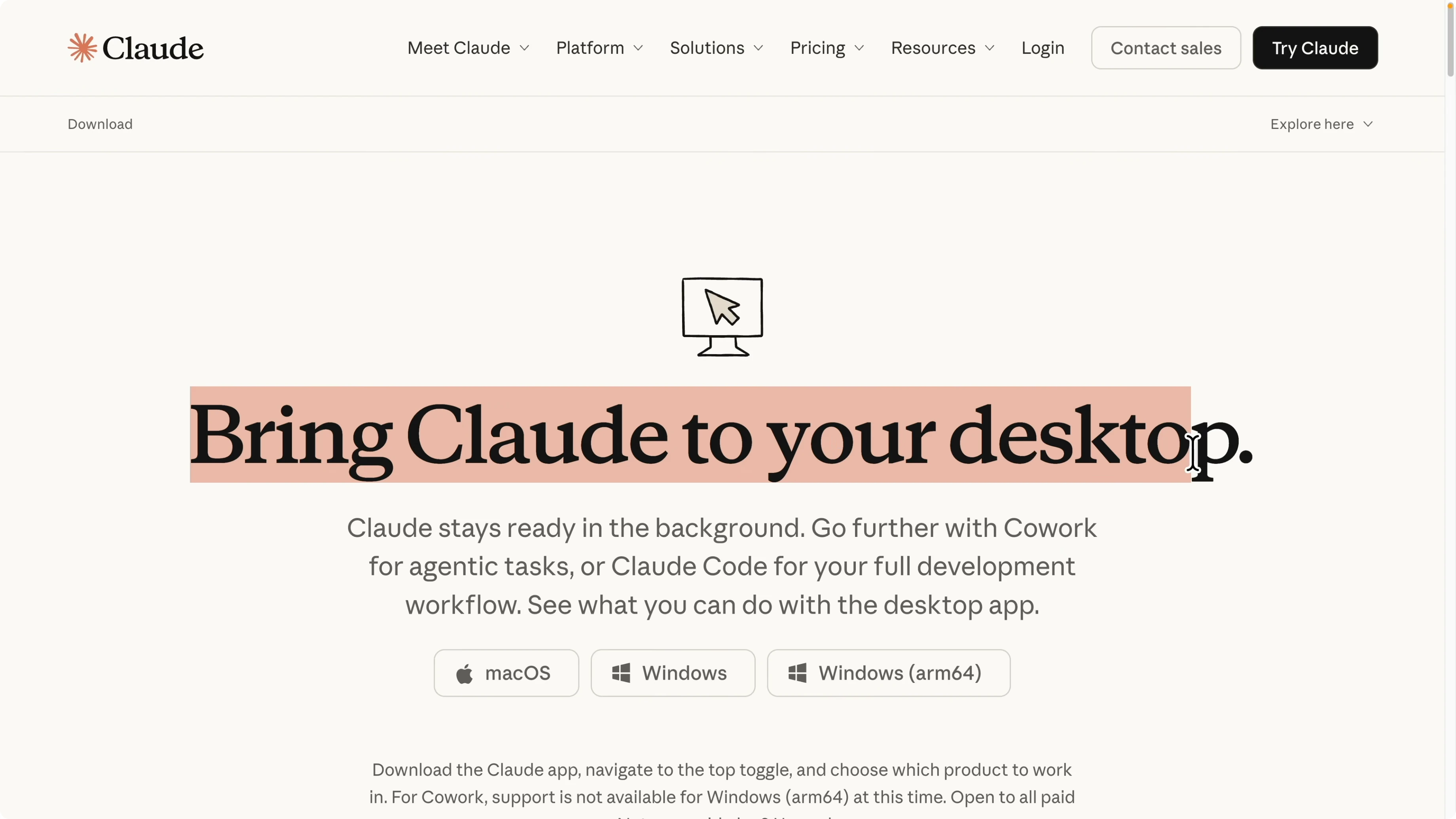
Download Claude Desktop for Mac or Windows and open it.
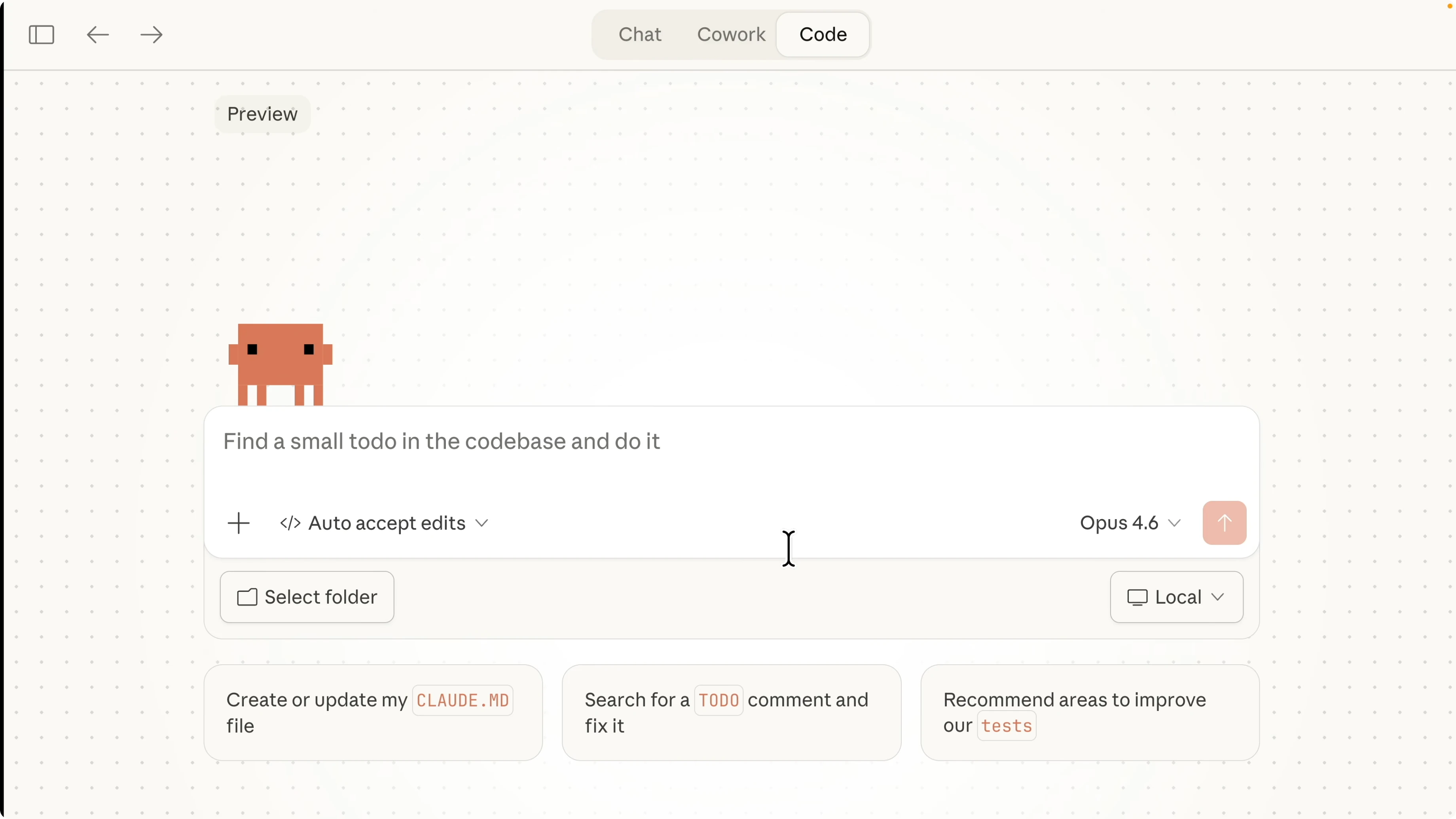
Open the Code section to use Claude Code inside the desktop app.
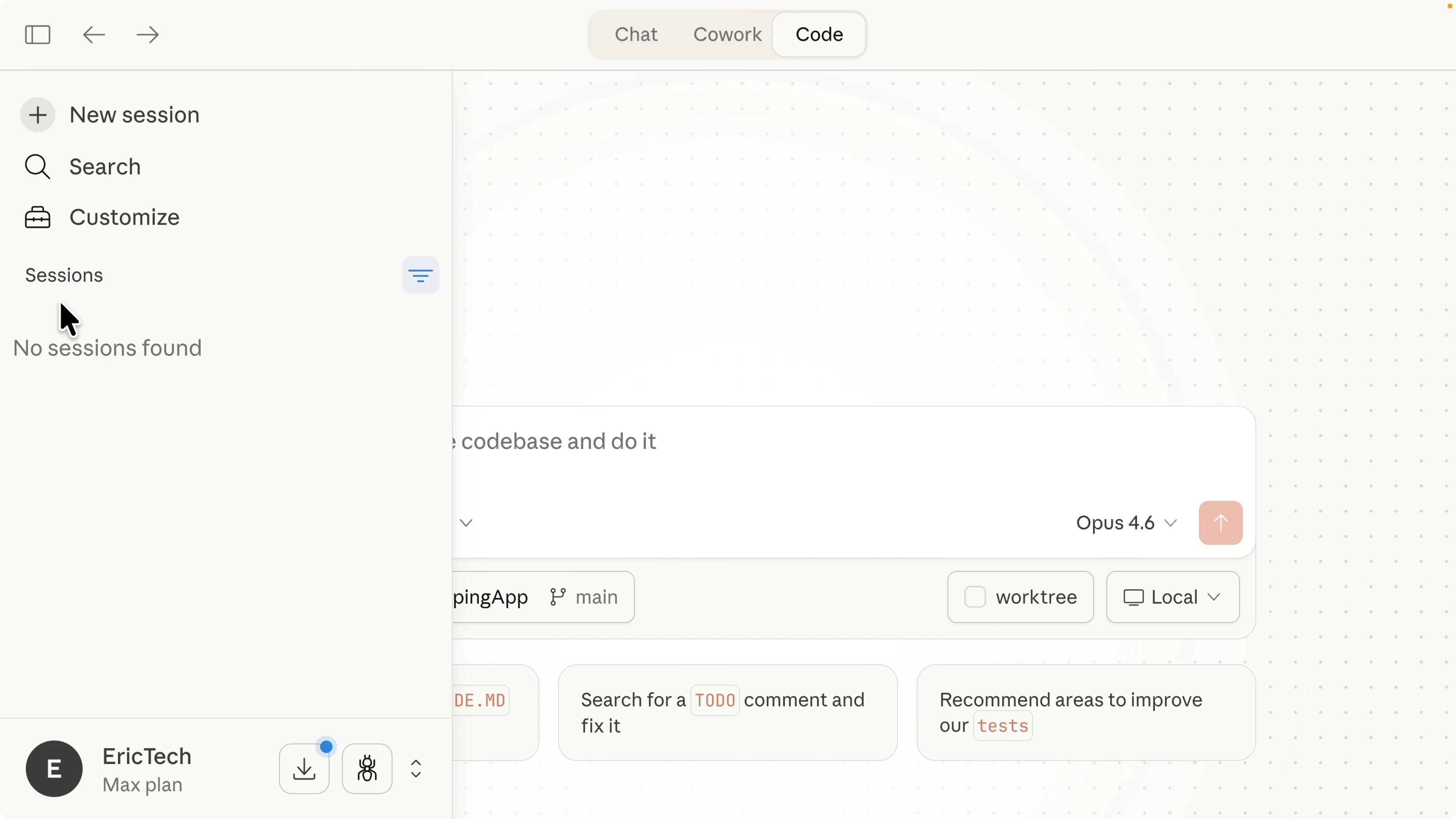
Open the sidebar to manage all sessions so you can keep multiple tasks running at the same time.
See a full setup guide for Claude Code
Settings and permissions
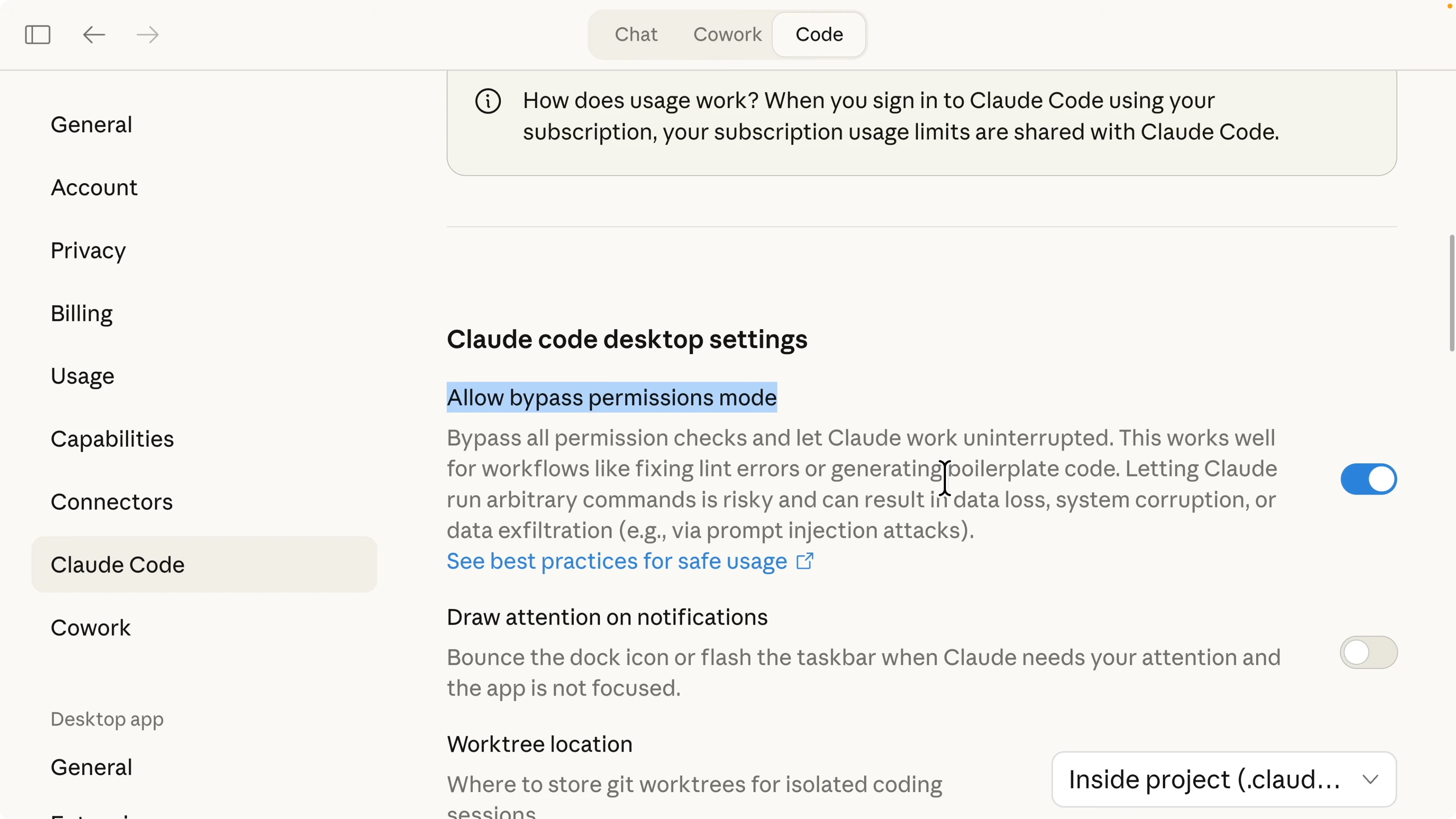
Open Settings, then the Claude Code section.
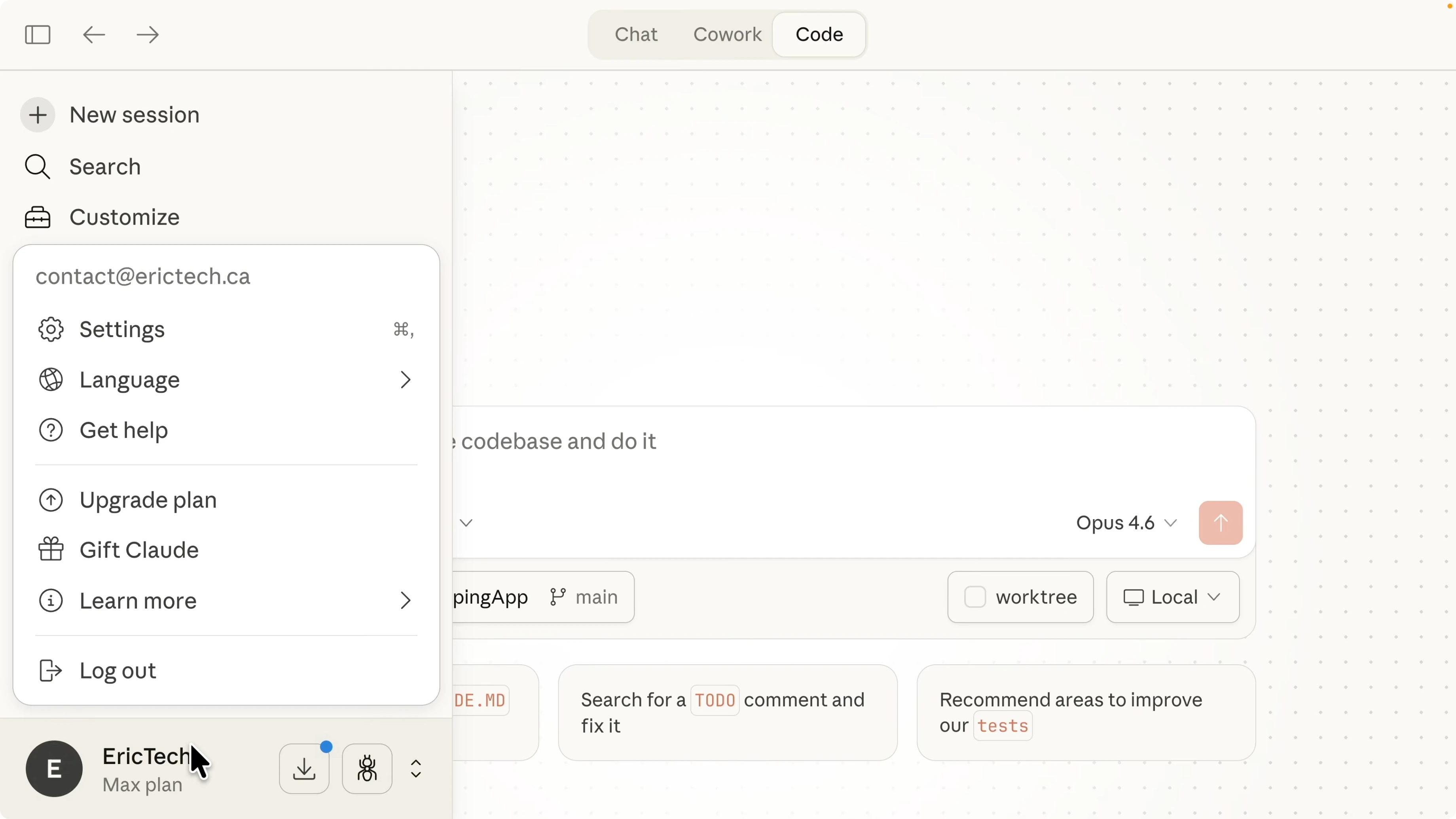
Enable Bypass Permissions to accept all permission prompts by default, similar to dangerously_skip_permissions in a terminal.
Use Ask Permissions if you want a prompt before any change, or enable Auto Accept Edits, and try Plan Mode to have Claude plan steps before applying edits.
Choose the working repository and branch from the dropdown.
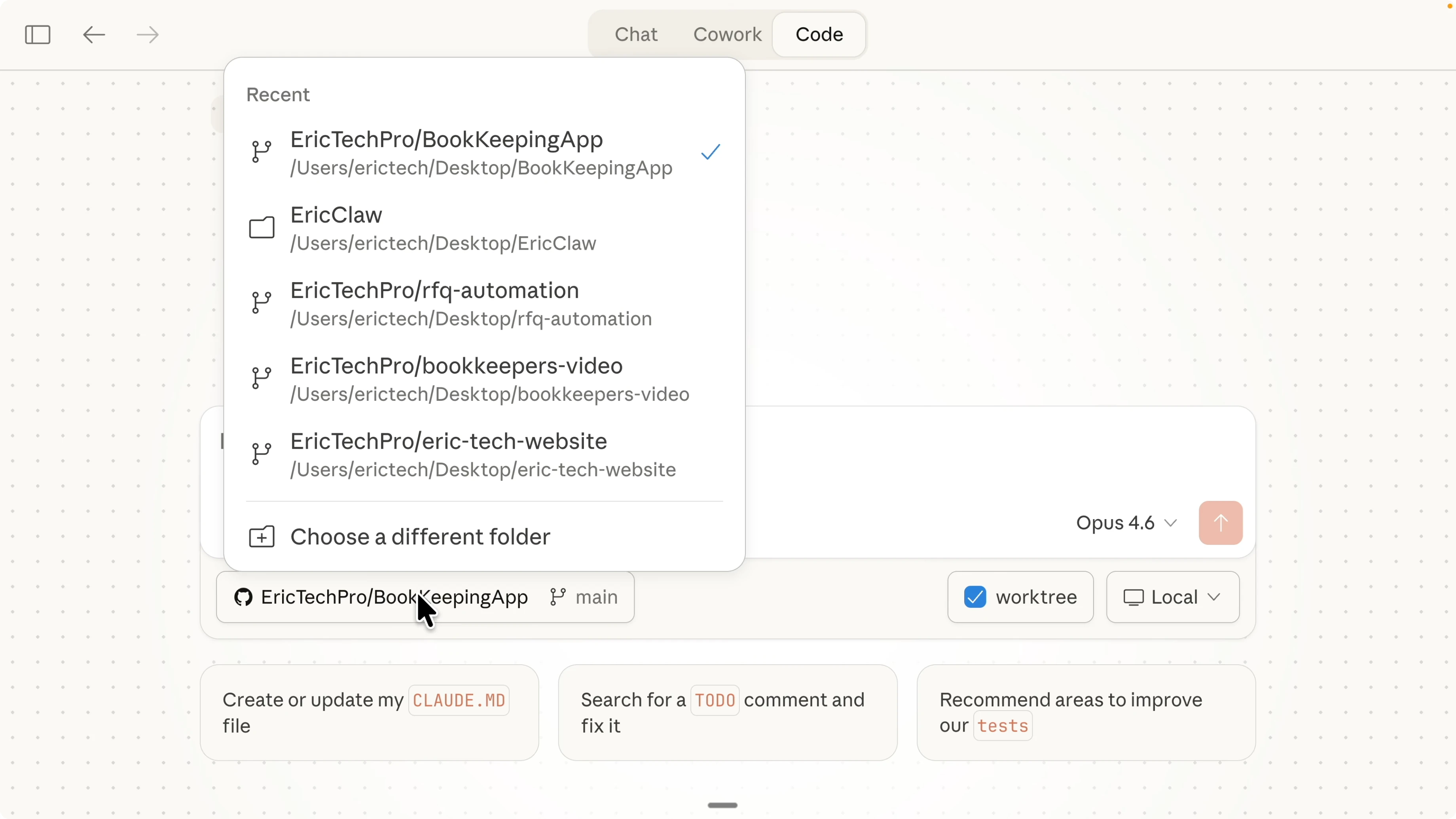
Switch branches as needed and confirm the active repository is correct.
Enable Worktree to have Claude work in an isolated environment so parallel tasks do not conflict.
Choose Local to develop on your machine or Remote to work in a cloud environment.
Commands and slash actions
View available slash commands directly in the message composer and type to see autocomplete for common tasks.
Use them to plan, edit, or inspect code without leaving the session.
Learn terminal tips for Claude Code
Connectors
Open Manage Connectors to add MCP tools that Claude can call.
Connect Gmail, Google Calendar, Slack, Sentry, Supabase, and Google Drive to let Claude read or write from those systems while coding.
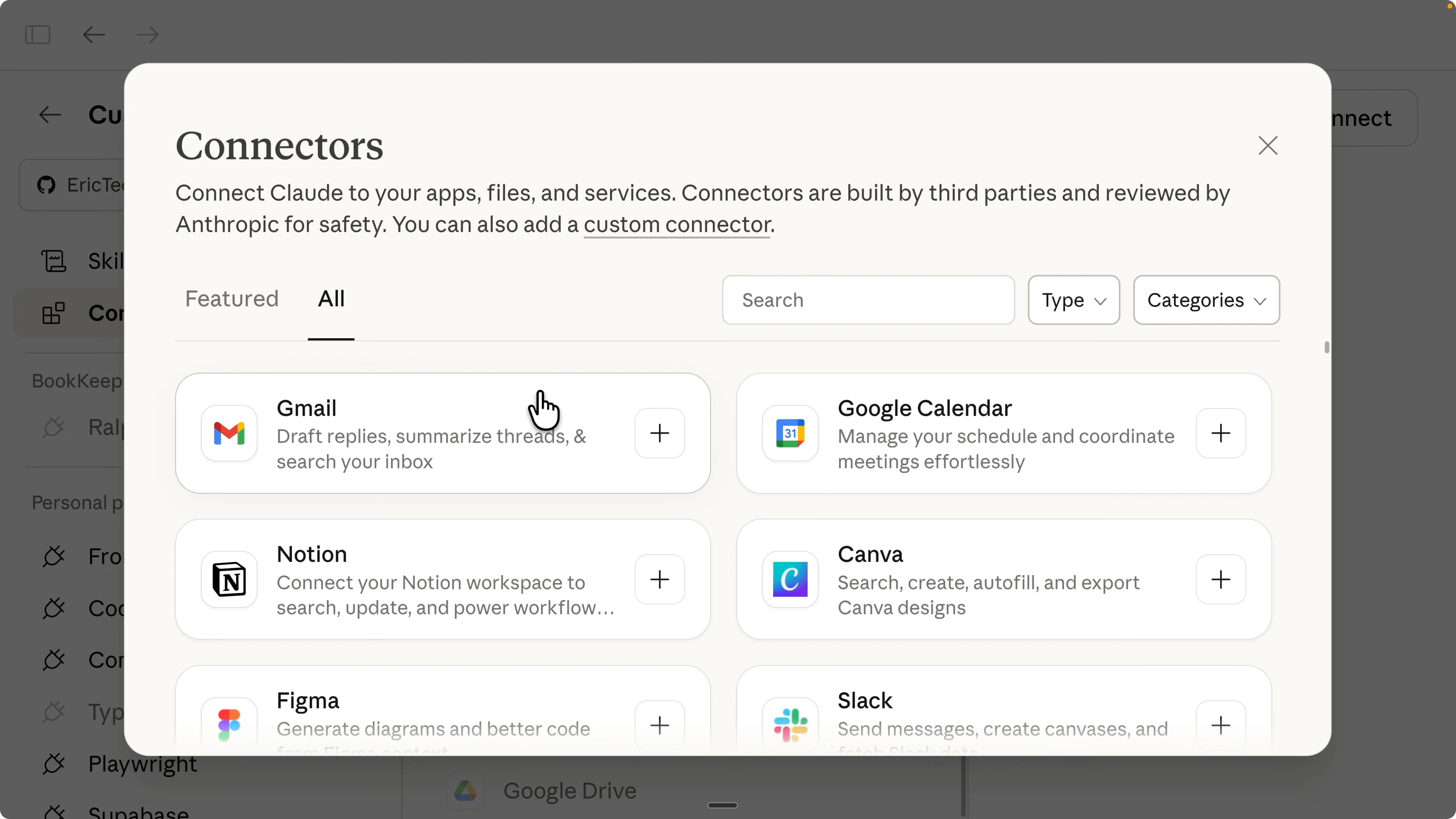
This helps Claude understand your system context and improves code actions and debugging across services.
Plugins
Open More Options to view and manage plugins.
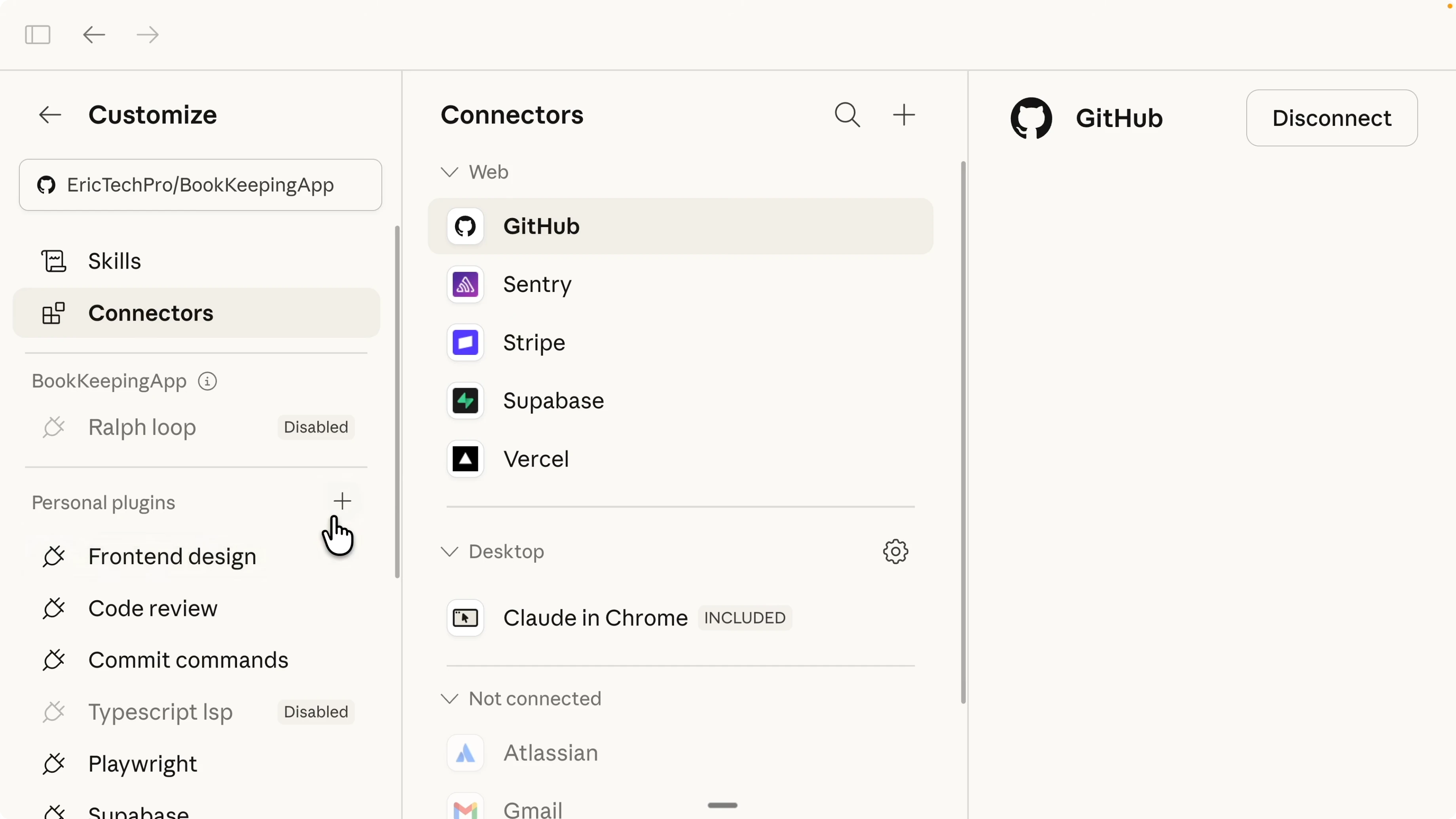
I use Frontend Design, Code Review, Commits, and PR Review toolkits and I find them helpful.
Explore plugins Anthropic recommends like Context7, Feature Dev, Playwright via MCP server for app testing, and a loop plugin that improves tasks across iterations.
See how to set up Playwright with Claude Code MCP
Read More: Claude Code Nano Banana Ai Images
Run and preview your app
I asked Claude to set up the current application and run it.
Claude requested access to my Desktop folder, then it detected that the repository did not contain .env.local, found it locally, copied it, installed dependencies, and started the dev server.
I opened the server and confirmed the landing page matched the current application.
Open the sign in page and verify authentication works.
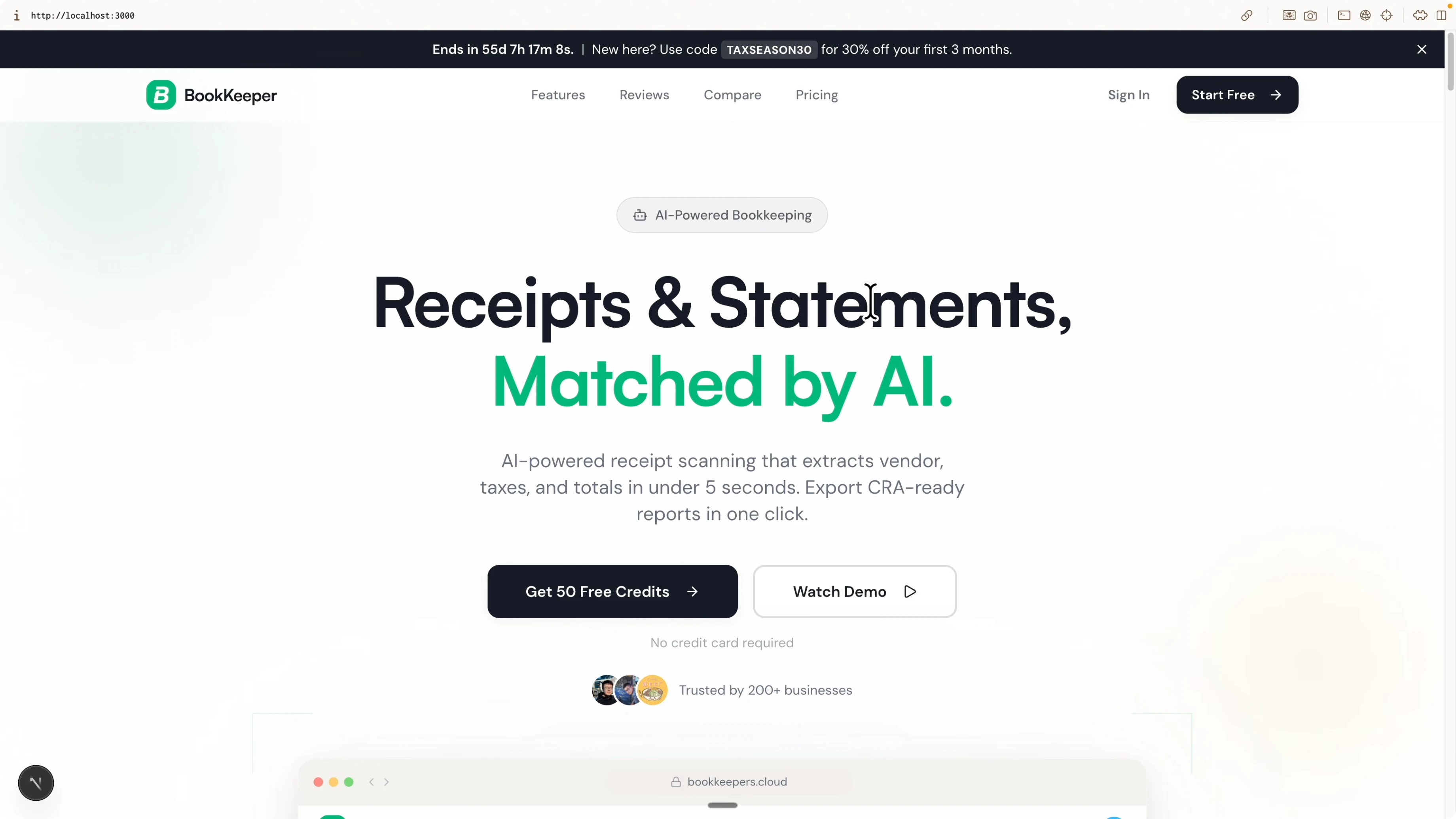
Open the receipts page and confirm the data view loads.
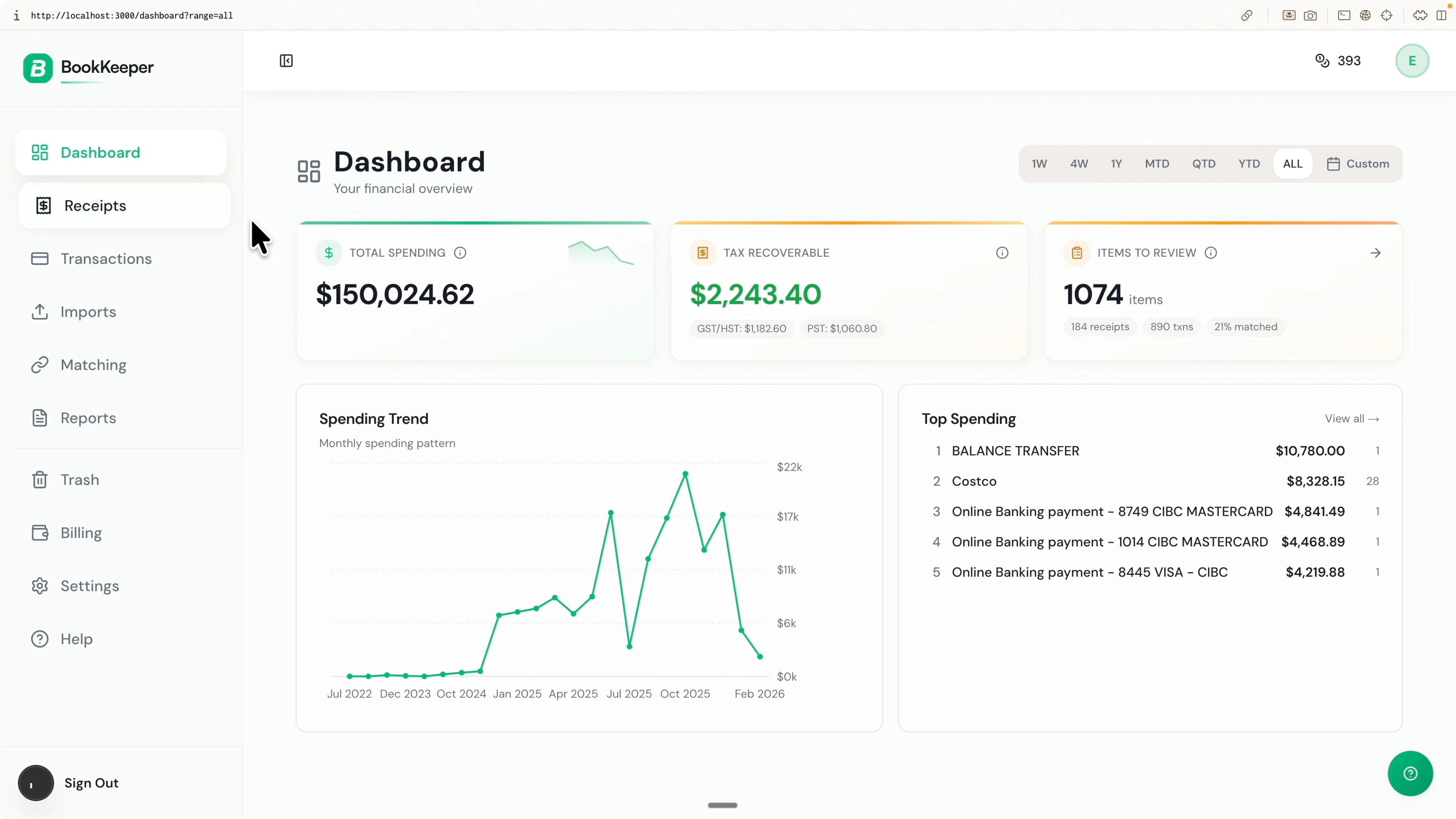
Click Preview inside Claude Code to render the app in the right panel and capture a screenshot.
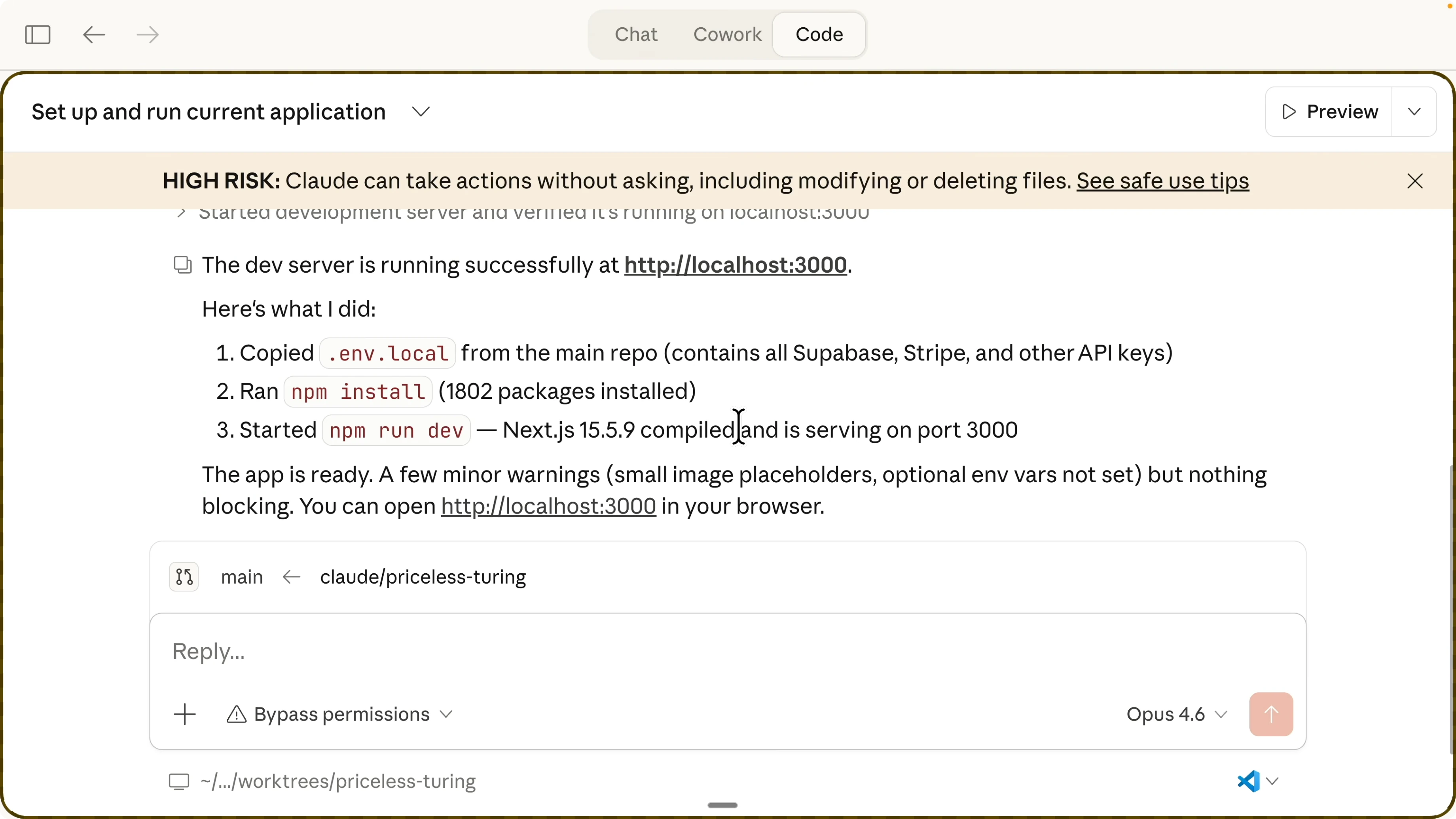
Review the terminal log for the dev server and the console log in the same view.
Because Worktree is enabled, changes are saved in the worktree and visible in the repository worktree folder.
How Claude Code Desktop Transforms Managing Multiple Tasks? Sessions and worktrees
Each session can have its own worktree that clones the main branch into an isolated folder.
You can run several sessions at once, finish a task in one worktree, merge it into main, and the other sessions can sync without conflicts.
This lets you keep independent branches and still move fast across tickets.
Example worktree workflow:
git branch feature_xyz main
git worktree add ../worktrees/feature_xyz feature_xyz

# after finishing the task and pushing a PR
git checkout main
git merge feature_xyz
Jira tickets in parallel
I open a session for each Jira ticket and name the session after the ticket number.
For example, I created a session for ticket 177 to fix the Start Free button on the pricing page that redirected to a 404.
I pasted the Jira link into Claude and asked it to investigate and propose a fix.
I also opened another session for ticket 175 about a success message icon misaligned with text.
I enabled the cloud version so that once it finishes it can create a pull request automatically.
While ticket 175 was exploring the project structure, I switched back to 177 to review findings.
For ticket 177, Claude saw the Start Free button routed to signup and the route did not exist for the intended call to action.
I clarified my requirement to use a feature flag so that if the flag is off the button redirects to sign in, and if the flag is on it redirects to signup.
I turned on Plan Mode so Claude would outline steps before editing files and it explored the feature flag implementation and all signup link usages.
Prompt example:
Fix the pricing page Start Free button routing.

If the feature flag is off, redirect to the sign in page.

If the feature flag is on, redirect to the signup page.

Use a centralized variable so I can switch behavior with the flag.
See how to run kanban boards with Claude across tickets
Preview, logs, and changes
I kept an eye on the preview panel to verify UI changes live.
The terminal log and console log side by side made it easy to spot errors from network calls or component events.
When a worktree task is complete, I merge it into the main branch and let other sessions sync updates to continue without conflicts.
Final thoughts
Claude Code Desktop makes it easy to run code, preview UIs, and manage multiple sessions at once.
The combination of Worktree, Plan Mode, Bypass Permissions, connectors, and plugins lets me tackle several tickets in parallel with clear logs and reproducible environments.
For setup, command tips, and testing workflows, check the resources above and keep sessions tied to ticket numbers so context stays focused.
Subscribe to our newsletter
Get the latest updates and articles directly in your inbox.

Related Posts

8 Best Claude Code Plugins in 2026 (You Need to Know)
8 Best Claude Code Plugins in 2026 (You Need to Know)

7 Best Claude Code Skills (You Need to Know)
7 Best Claude Code Skills (You Need to Know)

Claude Code Desktop IDE Features (You Need to Know)
Claude Code Desktop IDE Features (You Need to Know)