
Table Of Content
- Claude Code Terminal setup
- Install jq
- Create the status bar with the status line agent
- Theme and values for What If Your Claude Code Terminal Looked Like This?
- Verify and correct token accounting in What If Your Claude Code Terminal Looked Like This?
- Use across sessions in What If Your Claude Code Terminal Looked Like This?
- Automate installation with an MD file for What If Your Claude Code Terminal Looked Like This?
- Example workflow in What If Your Claude Code Terminal Looked Like This?
- Troubleshooting notes for What If Your Claude Code Terminal Looked Like This?
- Final thoughts on What If Your Claude Code Terminal Looked Like This?
What If Your Claude Code Terminal Looked Like This?
Table Of Content
- Claude Code Terminal setup
- Install jq
- Create the status bar with the status line agent
- Theme and values for What If Your Claude Code Terminal Looked Like This?
- Verify and correct token accounting in What If Your Claude Code Terminal Looked Like This?
- Use across sessions in What If Your Claude Code Terminal Looked Like This?
- Automate installation with an MD file for What If Your Claude Code Terminal Looked Like This?
- Example workflow in What If Your Claude Code Terminal Looked Like This?
- Troubleshooting notes for What If Your Claude Code Terminal Looked Like This?
- Final thoughts on What If Your Claude Code Terminal Looked Like This?
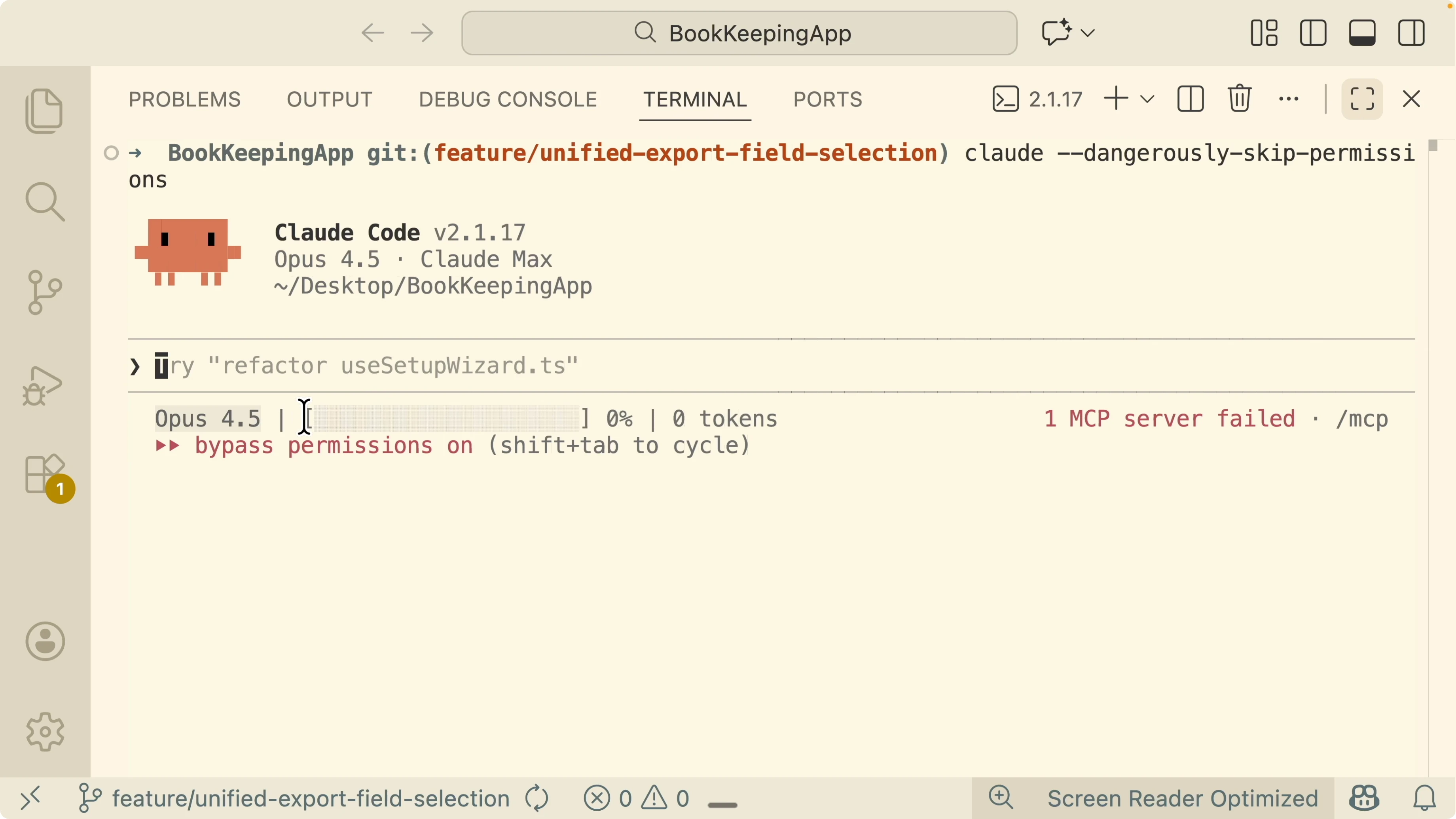
I turned my Claude Code terminal from a plain session into a session with a live status bar that shows the model, a progress bar for context usage by percentage, and the current token count consumed inside the window. I can change the theme to Solarized Light and adjust the colors of the status bar. I can also add values like versions, model ID, current directory, and project.
The goal is to stay under a safe context threshold every time I work with Claude Code. Exceeding the window often reduces generation accuracy. I still use the slash context command to check, but a live status bar makes it obvious as I work.
I am going to show how I set this up on my local machine and how I configure it. I will also walk through an example session and show how I monitor and improve Claude Code accuracy by watching the context usage. The process is straightforward once you know the key steps.
If you are setting up Claude Code from scratch, see this setup guide for a clean starting point.
Claude Code Terminal setup
I am on macOS and I want this installed globally. I also ask the agent to create a separate sh file for the script. Keeping it global makes it available across sessions.
Install jq
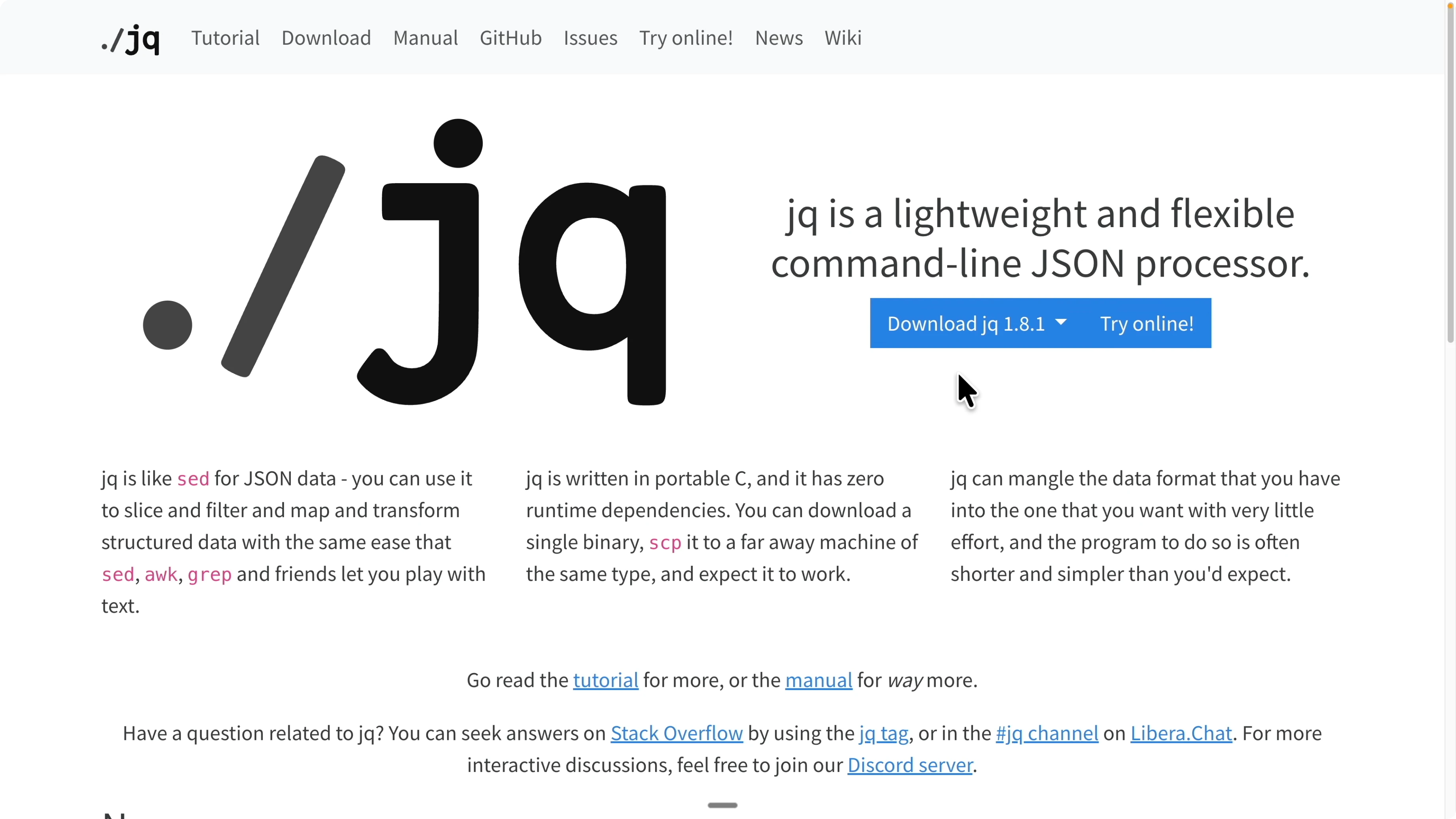
I install jq as the command line JSON processor. Homebrew is the quickest way to add it on macOS.
brew install jq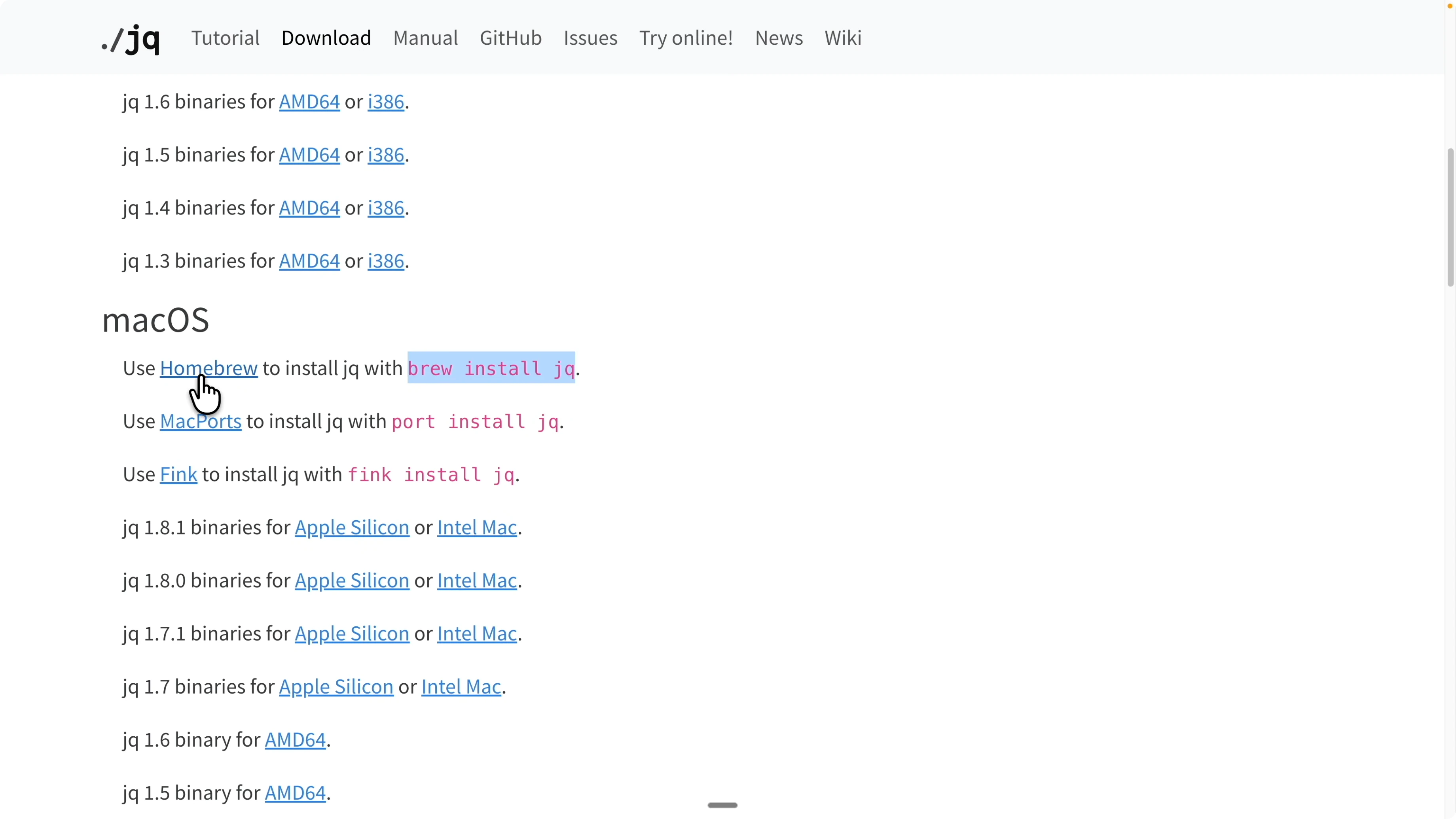
Create the status bar with the status line agent
I start a Claude Code terminal session. I use the status line command and provide a prompt that specifies my environment and preferences.
I am on macOS.
Install globally.
Create a separate .sh file for the script.
The status line setup agent configures a global status line for macOS. It creates a Bash script that shows the model name, current directory, git branch, context remaining, and output style. It stores these settings globally so they apply across sessions.
To complete the setup I run the command it returns in my terminal and restart my Claude session. After restart the status bar appears automatically. I can immediately see which model I am using, the context window usage, and the tokens consumed so far.
If you prefer a full web coding environment with Claude Code inside an editor, check the web coding setup guide.
Theme and values for What If Your Claude Code Terminal Looked Like This?
I can change the theme very easily. I switched to Solarized Light for better contrast. I can also customize the status bar colors to match my preference.
I can include more values on the bar. Model version, model ID, current directories and project are all supported. Include only what you find useful and keep it readable.
If you prefer running local models, you can still keep this experience. Read More: Use Ollama models with Claude Code
Verify and correct token accounting in What If Your Claude Code Terminal Looked Like This?
With the status bar active I ask the status line command which options it supports. It responds with fields like model, context totals, session, workspace, and directory. This tells me exactly what I can surface on the bar.
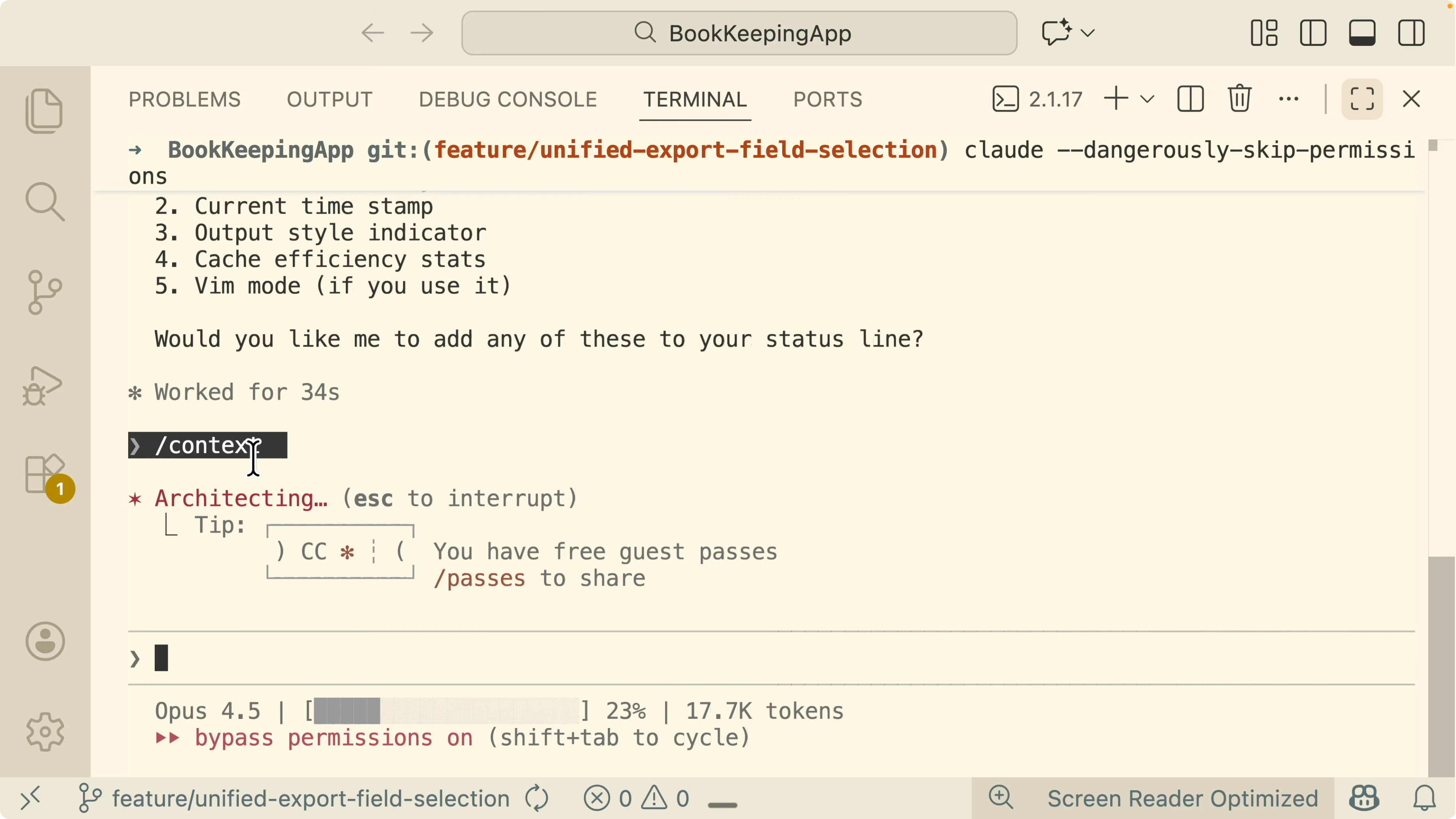
I verify accuracy using the built in context command.
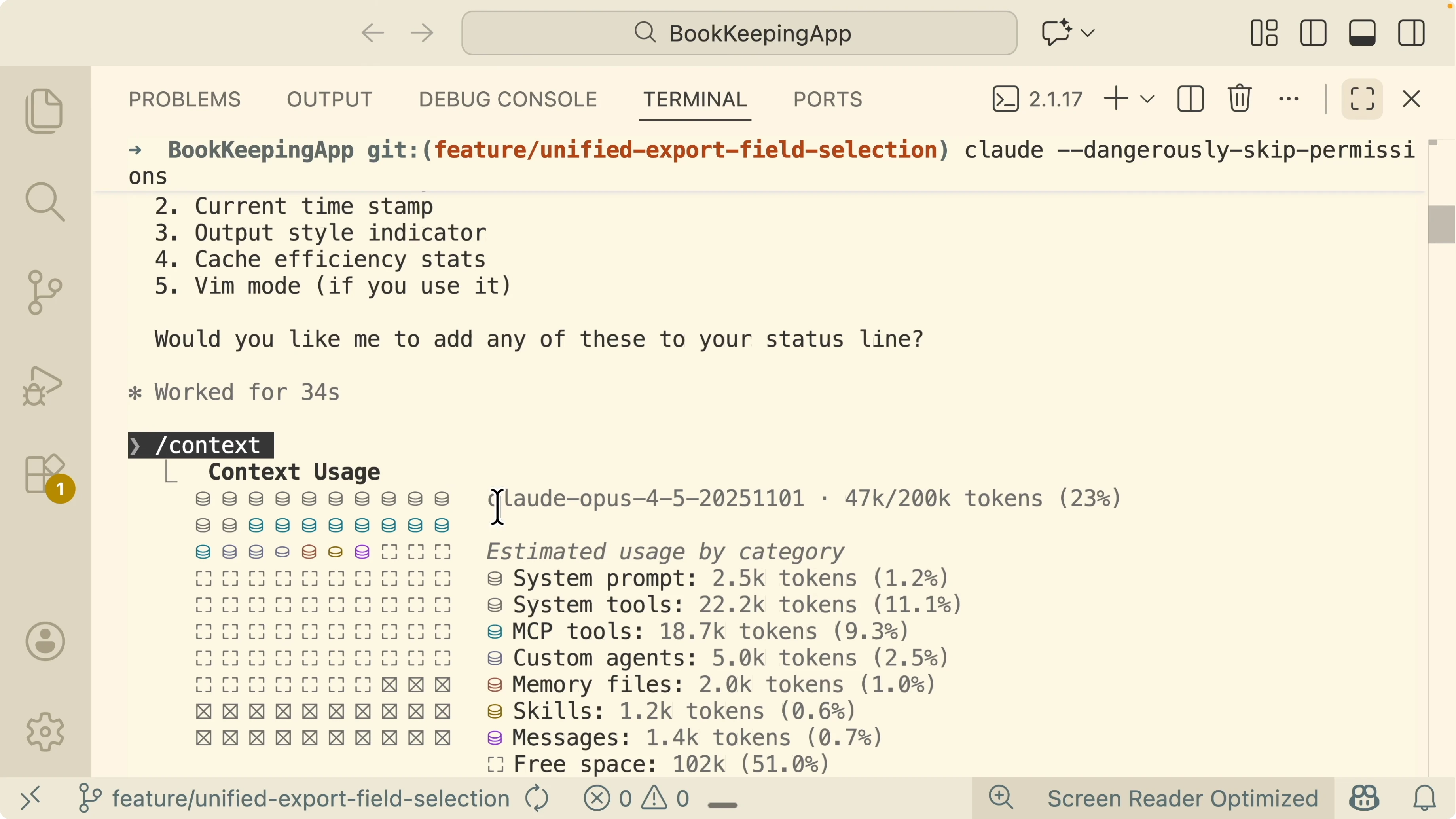
/contextIt showed 23 percent used out of a 200k context, which was 47k tokens. The percentage matched, but the token count on the bar looked off. I asked the agent to align the token count with the actual context window accounting.
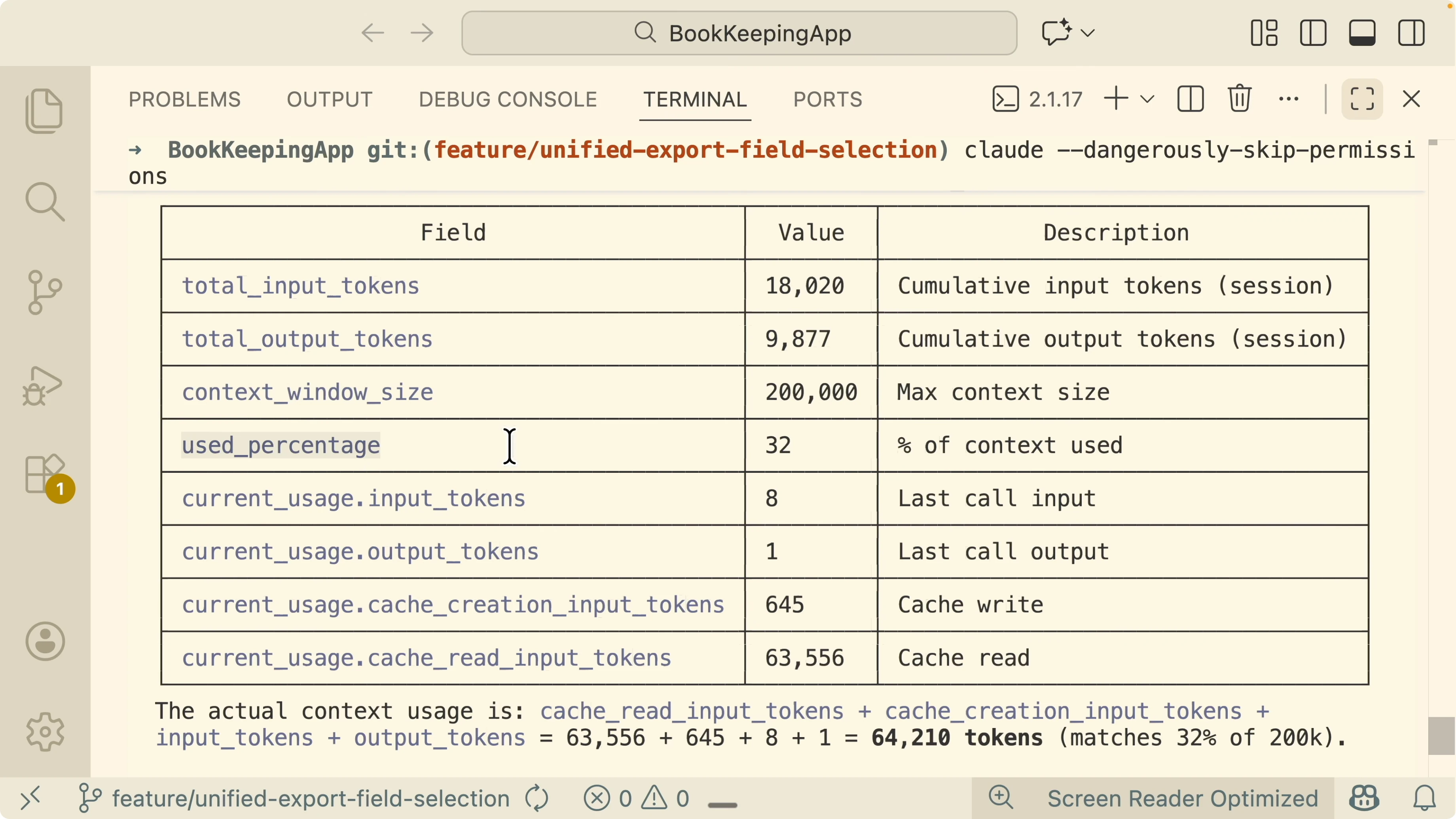
It fixed the script and the bar then showed 66k out of 200k with 32 percent used. It also surfaced total input tokens, output tokens, cached input tokens, and the full context window size of 200k. The context usage equals cached input tokens plus input tokens plus output tokens.
If you plan to connect testing or browser automation tools through MCP inside Claude Code, see this MCP integration guide with Playwright for a practical pattern.
Use across sessions in What If Your Claude Code Terminal Looked Like This?
I open a new terminal and start another Claude session. The same status bar appears. Global install keeps it consistent everywhere on my machine.
Automate installation with an MD file for What If Your Claude Code Terminal Looked Like This?
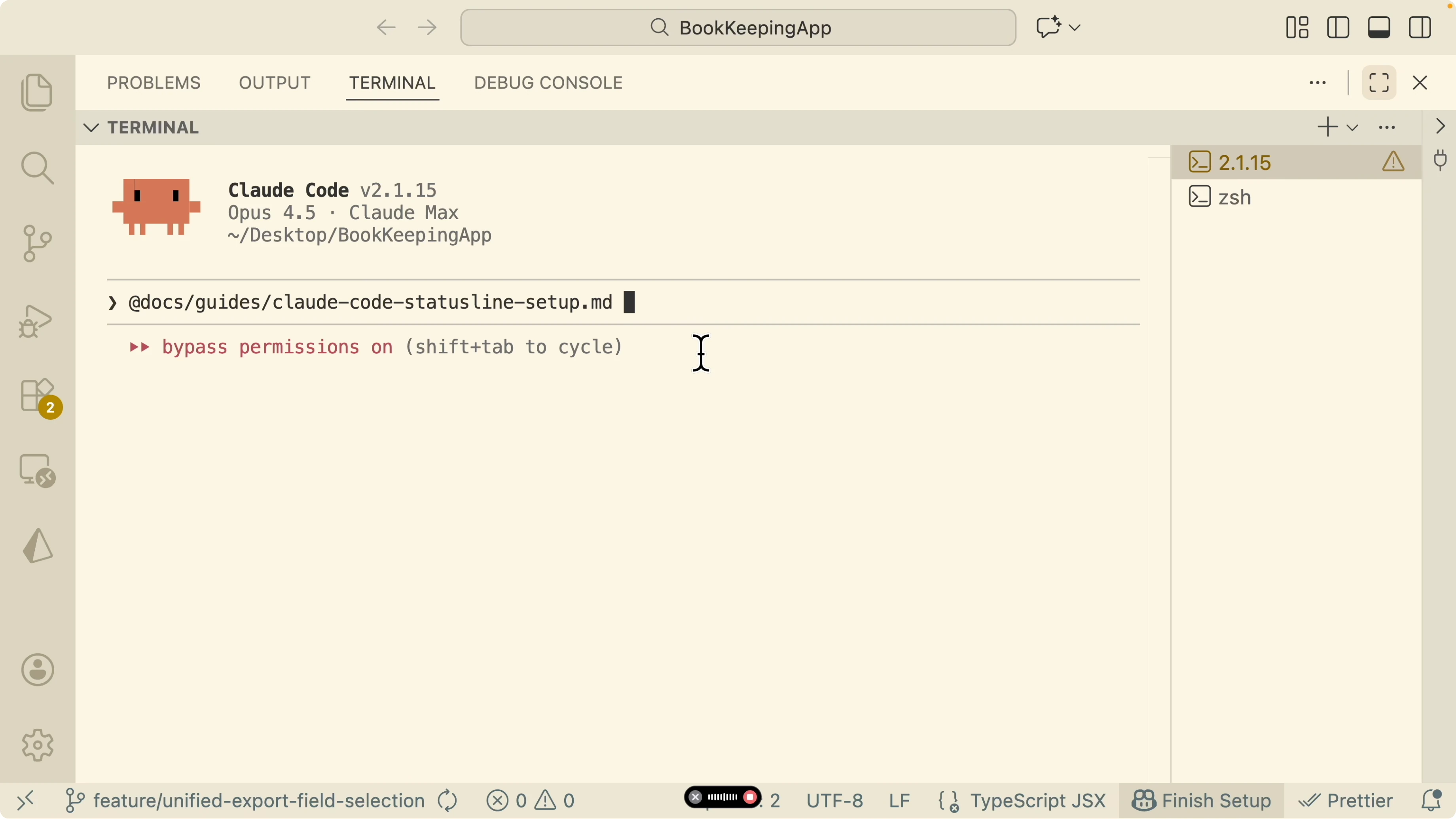
I wrote a simple MD file that documents the steps. I pass that MD file to a Claude Code session and ask it to follow the guide to set up the status bar. It installs everything without me repeating commands.
On another computer using VS Code I reference the MD file path and ask Claude Code to follow it. It executes the same steps and I get the same status bar with model and token usage. Restarting the Claude session keeps the bar active.
For organizing coding work with Claude across projects, Read More: Auto Claude Kanban Boards
Example workflow in What If Your Claude Code Terminal Looked Like This?
I start a terminal session for my application and open the dashboard. I take a screenshot and explain the issue I see in the transaction table. The source file column shows the same badge for both Google Sheets and CSV and I want them to differ.
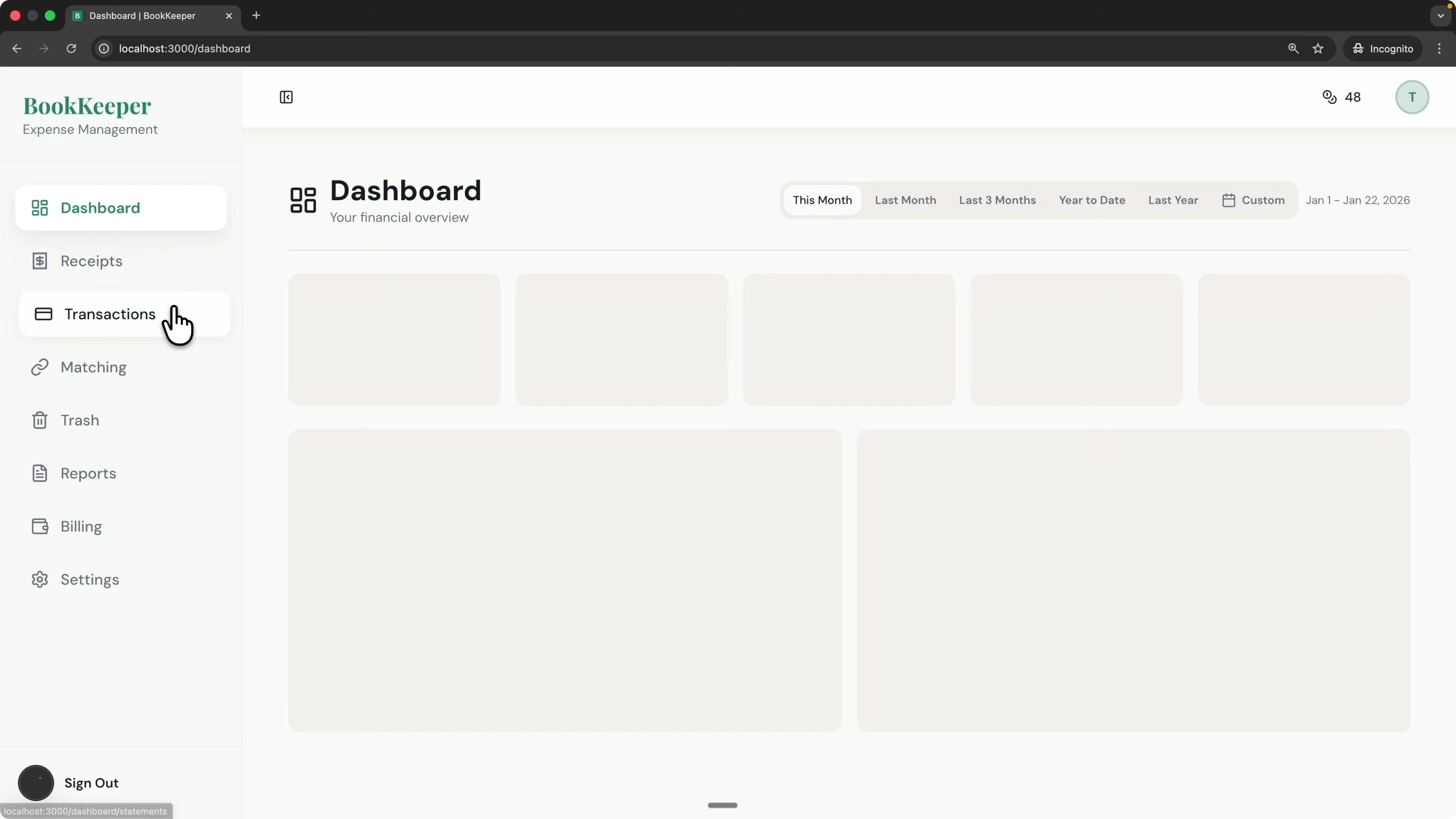
I ask Claude Code to change the badge icon for Google Sheets while keeping CSV and Excel the same. The bar shows it consumed 24 percent of the context window as it plans the change. It asks a clarification about colors and I answer that all file types can share the same color while only the icon changes.
It proposes a plan that updates the source file column to display a distinct icon for Google Sheets. I clear context and allow it to apply the changes. The table now shows a sheet icon for Google Sheets that is different from the other file icons.
I navigate back to the app to confirm the new badge behavior. I take new screenshots for different pages and ask if the two icons can be further differentiated. I suggest using a G or the Google Sheets logo to make it unmistakable.
It updates the UI and the source file badge shows a Google styled logo for Google Sheets. CSV still shows the original icon and the behavior remains correct across pages. The status bar makes it obvious how much context each step consumes.
If you are standardizing environments across machines and editors, Read More: Claude Code web coding environment
Troubleshooting notes for What If Your Claude Code Terminal Looked Like This?
If the token count on the bar looks off, ask the agent to use cached input tokens plus input tokens plus output tokens for the calculation. Verify with the slash context output after each long plan or run. Keep an eye on the percentage and reset context when planning large changes.
If you need to reinstall quickly, keep your MD file handy. Pass it to Claude Code and let it follow the guide. I restart the session to confirm the bar loads on login.
For iterative local experiments and models, Read More: Claude Code with Ollama models
Final thoughts on What If Your Claude Code Terminal Looked Like This?
A live status bar in Claude Code makes context limits visible and helps maintain accuracy. I watch the percentage and tokens while I work and adjust before hitting the threshold. The setup is quick with jq, the status line agent, and a restart, and it travels with me across sessions and machines.
If you want a complete baseline before customizing, start with this Claude Code setup. For broader workflow and test integration patterns, explore Kanban style workflows and MCP integrations. Once you have this status bar, it becomes a simple habit to stay within a healthy context window.
Subscribe to our newsletter
Get the latest updates and articles directly in your inbox.

Related Posts

8 Best Claude Code Plugins in 2026 (You Need to Know)
8 Best Claude Code Plugins in 2026 (You Need to Know)

7 Best Claude Code Skills (You Need to Know)
7 Best Claude Code Skills (You Need to Know)

Claude Code Desktop IDE Features (You Need to Know)
Claude Code Desktop IDE Features (You Need to Know)