
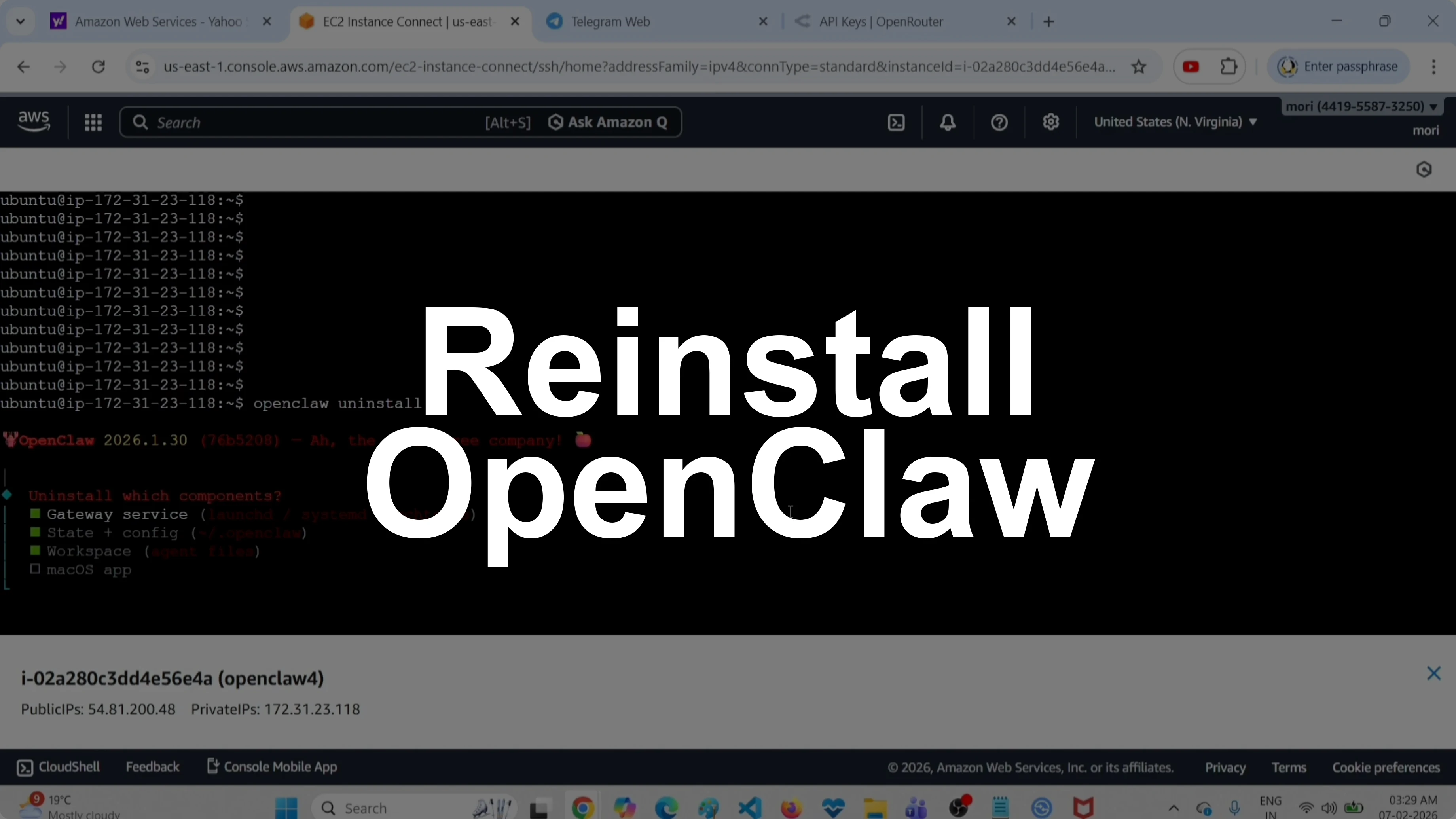
How to Uninstall and Reinstall OpenClaw with Telegram Bots?
OpenClaw Error Fixer
Paste any OpenClaw error and get the exact fix instantly — cause, steps, copy-ready commands, and related guides.
This guide shows how I uninstall OpenClaw cleanly and reinstall it with a Telegram channel using OpenRouter. I verify the reinstallation with the Terminal UI and pair the Telegram bot again. The exact commands and choices I used are below.
Uninstall and Reinstall OpenClaw with Telegram Bots?
Check status
I start by confirming the current setup is working.
openclaw status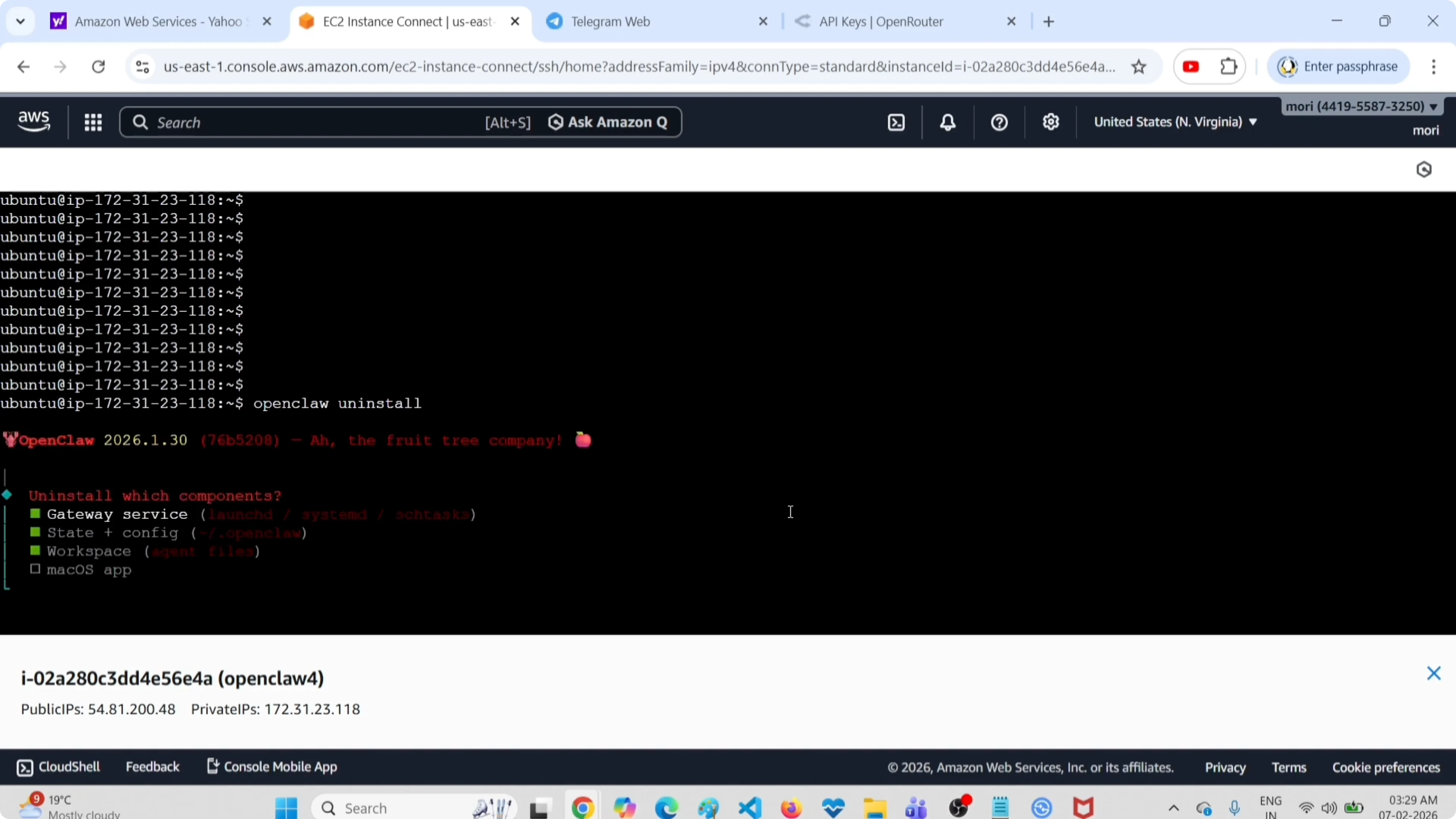
Uninstall components
Run the uninstaller and choose what to remove. I remove the gateway service, state plus config, and the workspace.
openclaw uninstall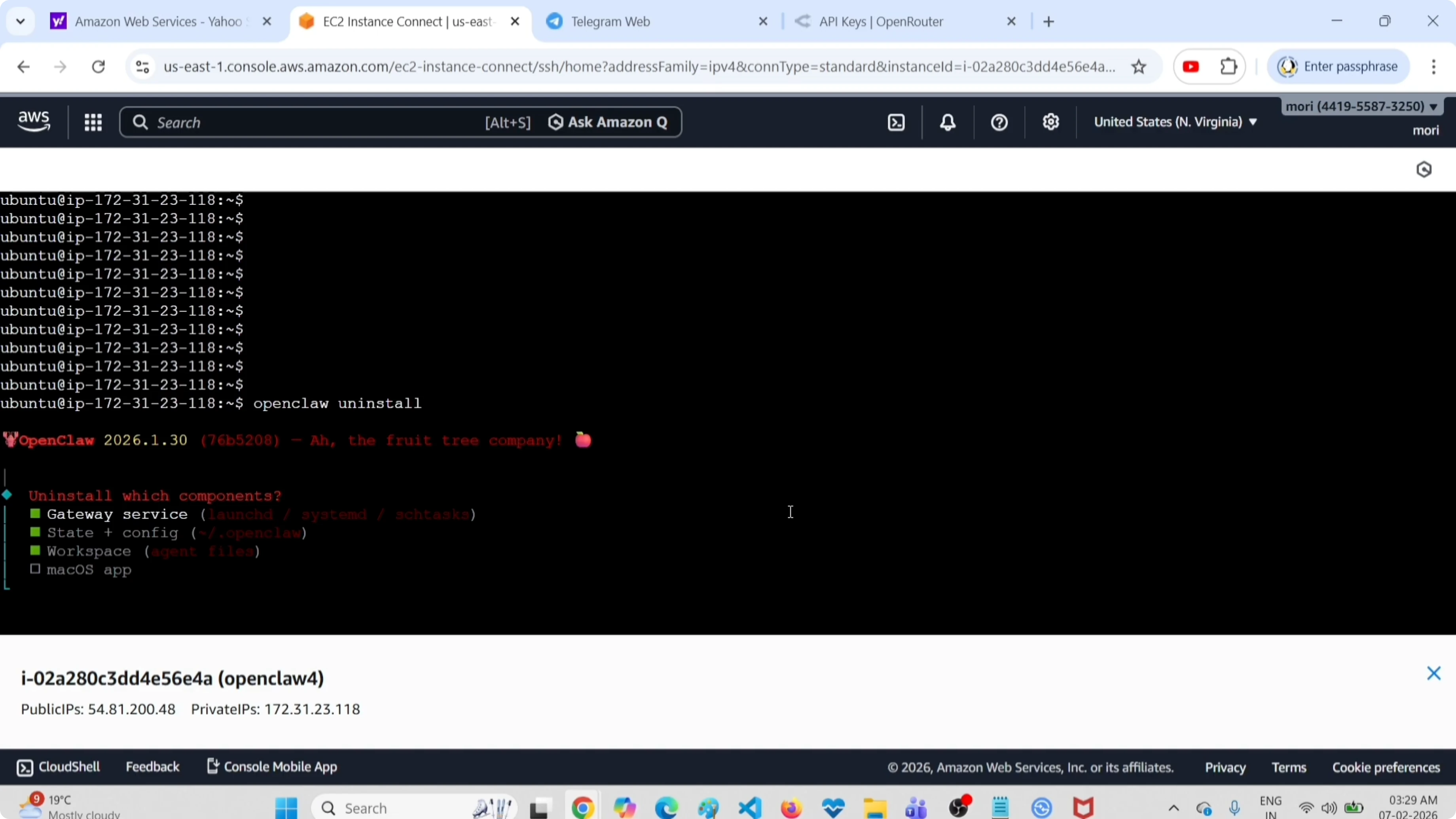
Select Gateway service
Select State + Config
Select Workspace
Press Enter
Choose Yes to proceed
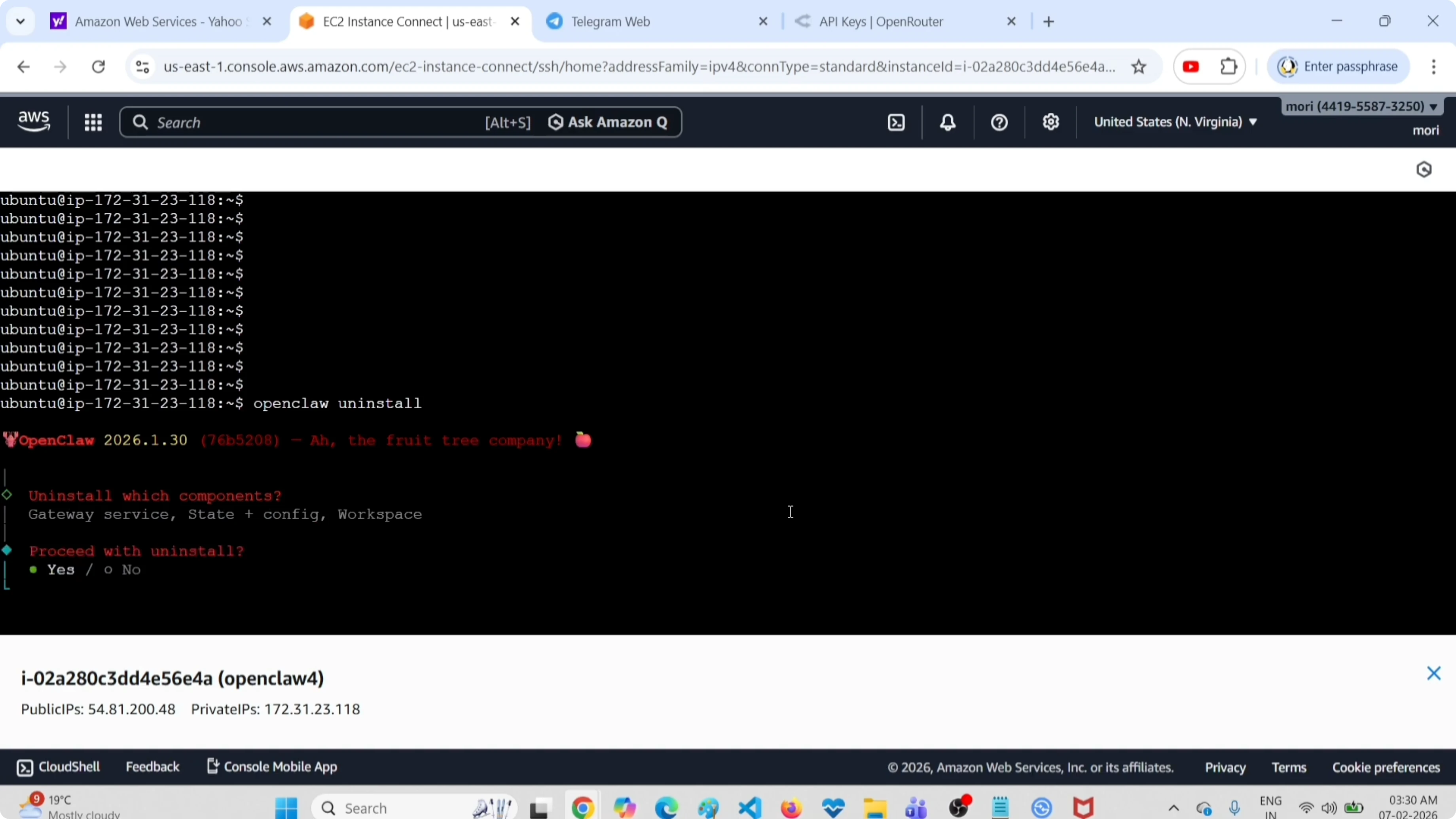
Confirm uninstall
Check the status again to confirm the gateway service is removed and previous sessions or channels are not active.
openclaw status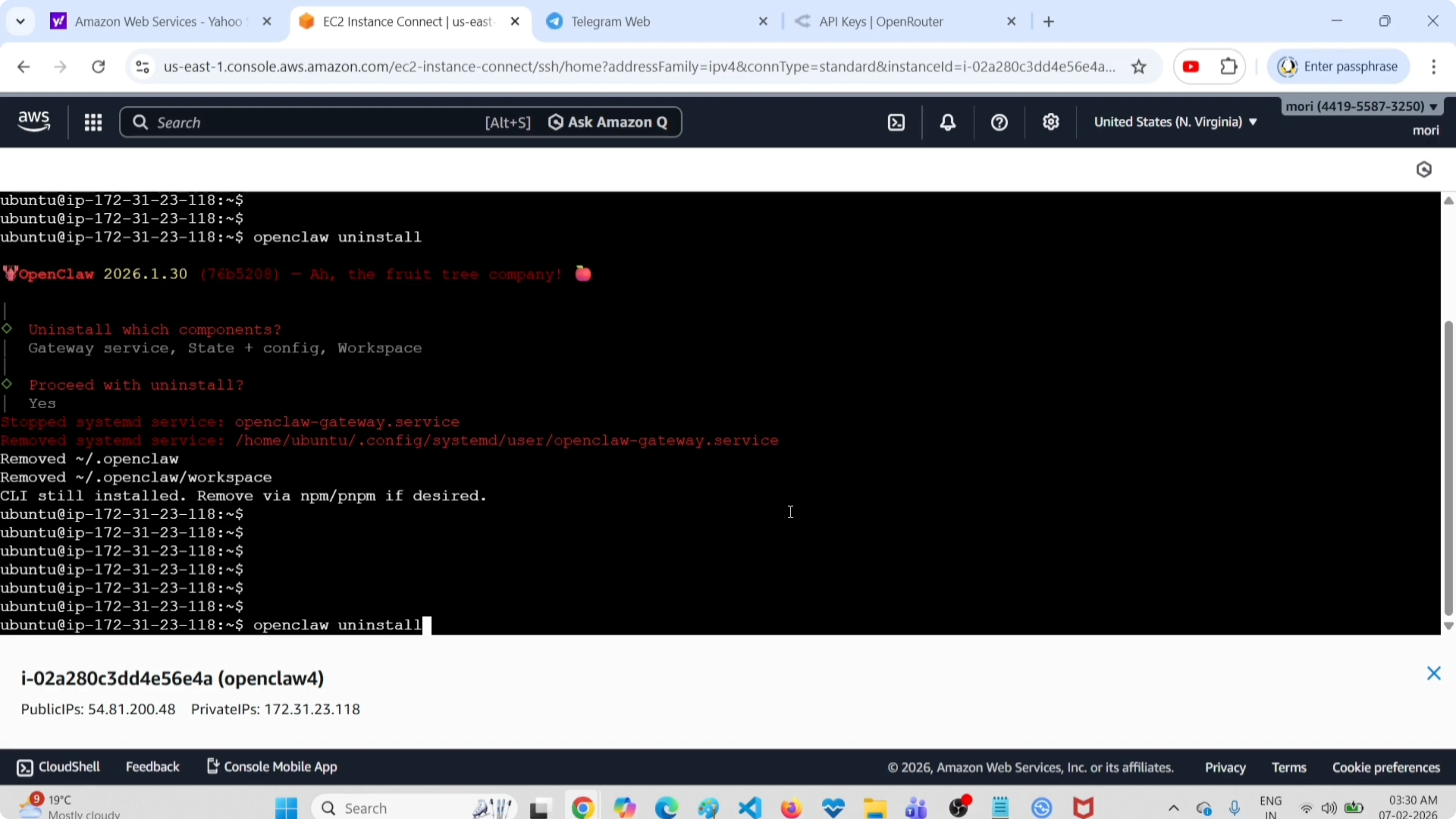
You should see that the gateway systemd is not installed. This confirms OpenClaw is uninstalled and ready for a fresh setup. For more context on cleanup, see our uninstall guide.
Onboard again
Start the onboarding wizard.
openclaw onboard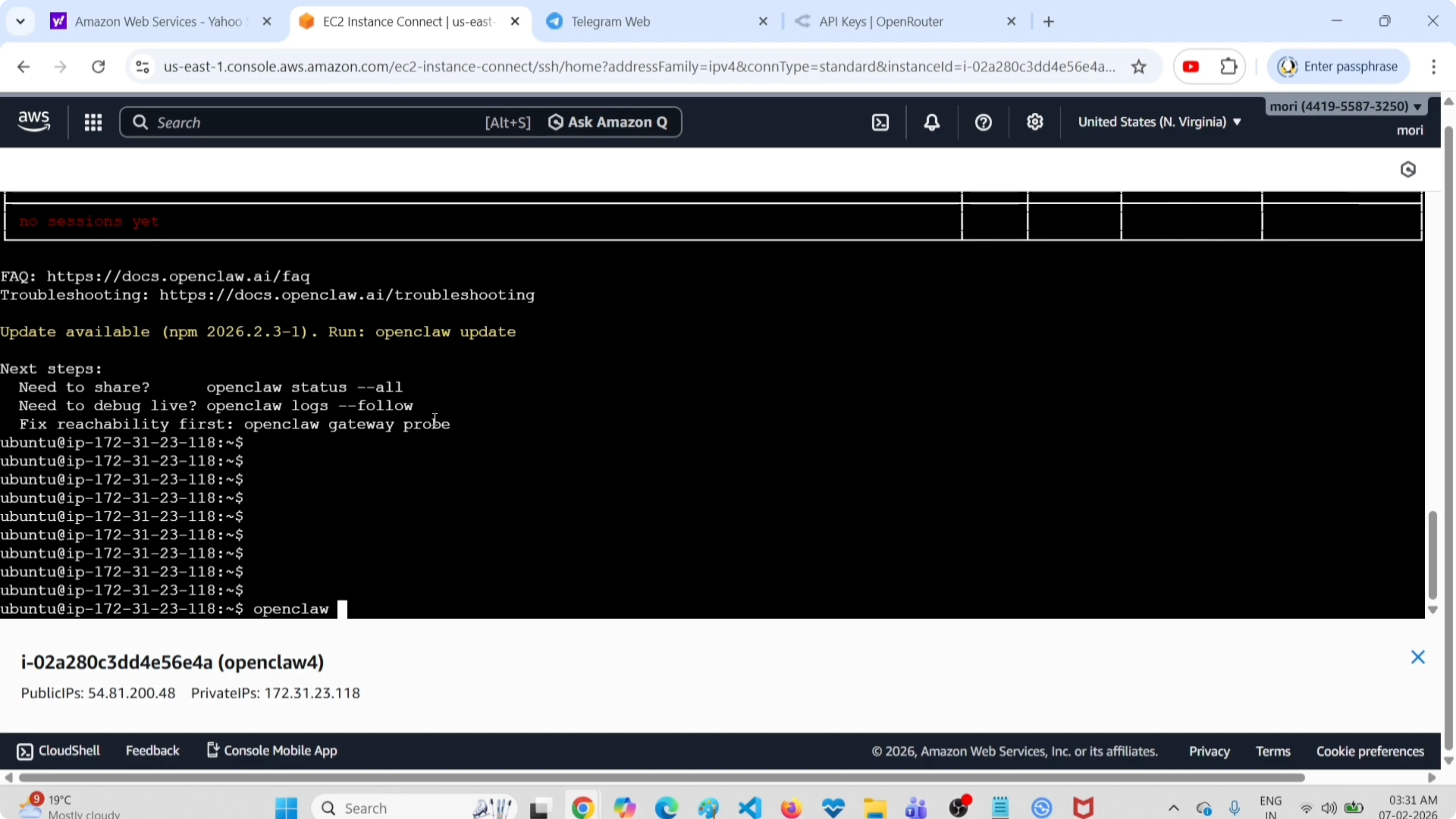
Select Quick Start: Yes
Choose provider: OpenRouter
Set the OpenRouter API key when prompted
Pick a model: google/gemini-2.5-flash-preview
Select channel: Telegram
Enter your Telegram bot token
Skip any optional prompts you do not need
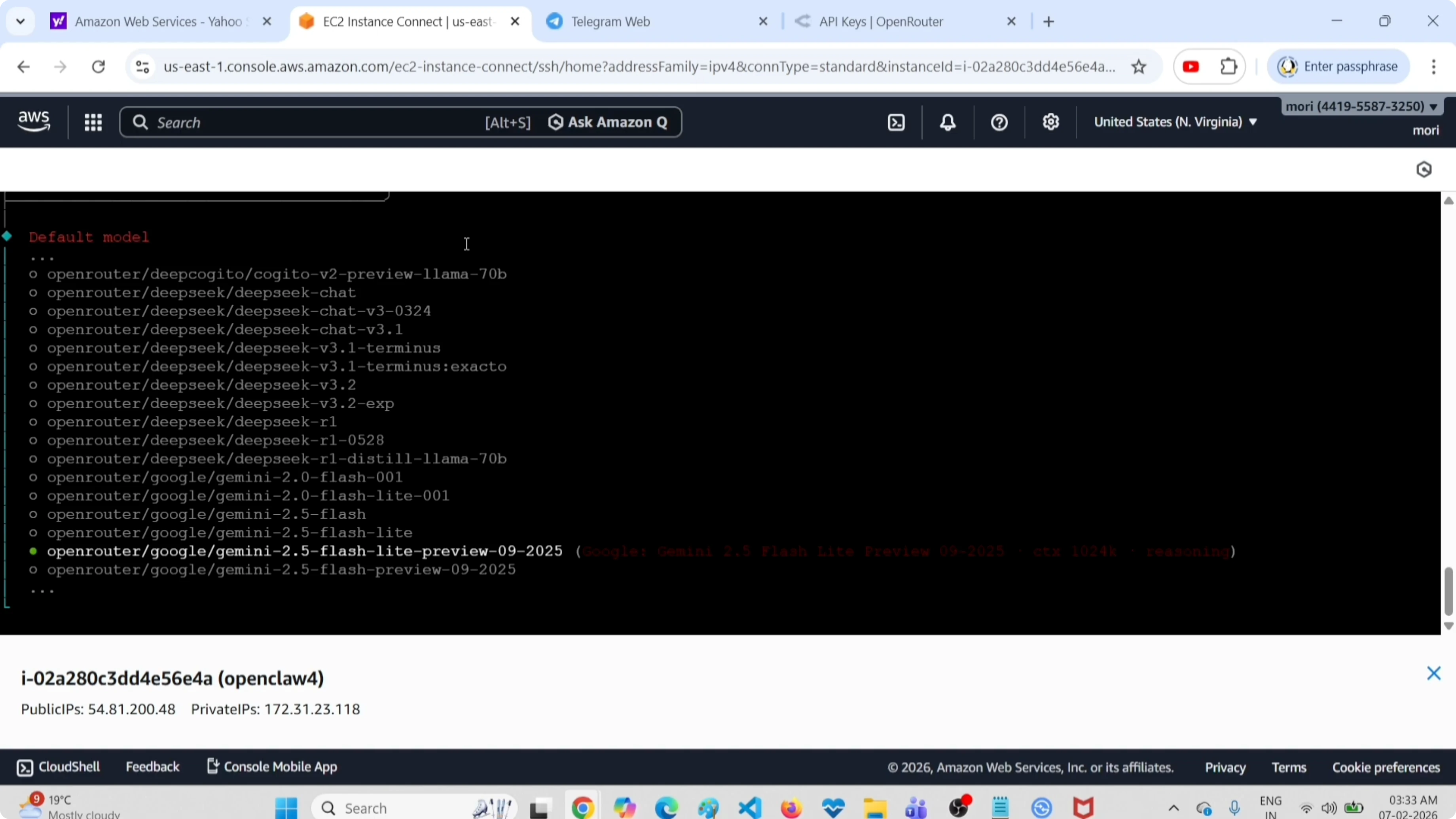
After the inputs, the gateway service installs again. If you need help with API keys or provider choices, see this OpenRouter setup.
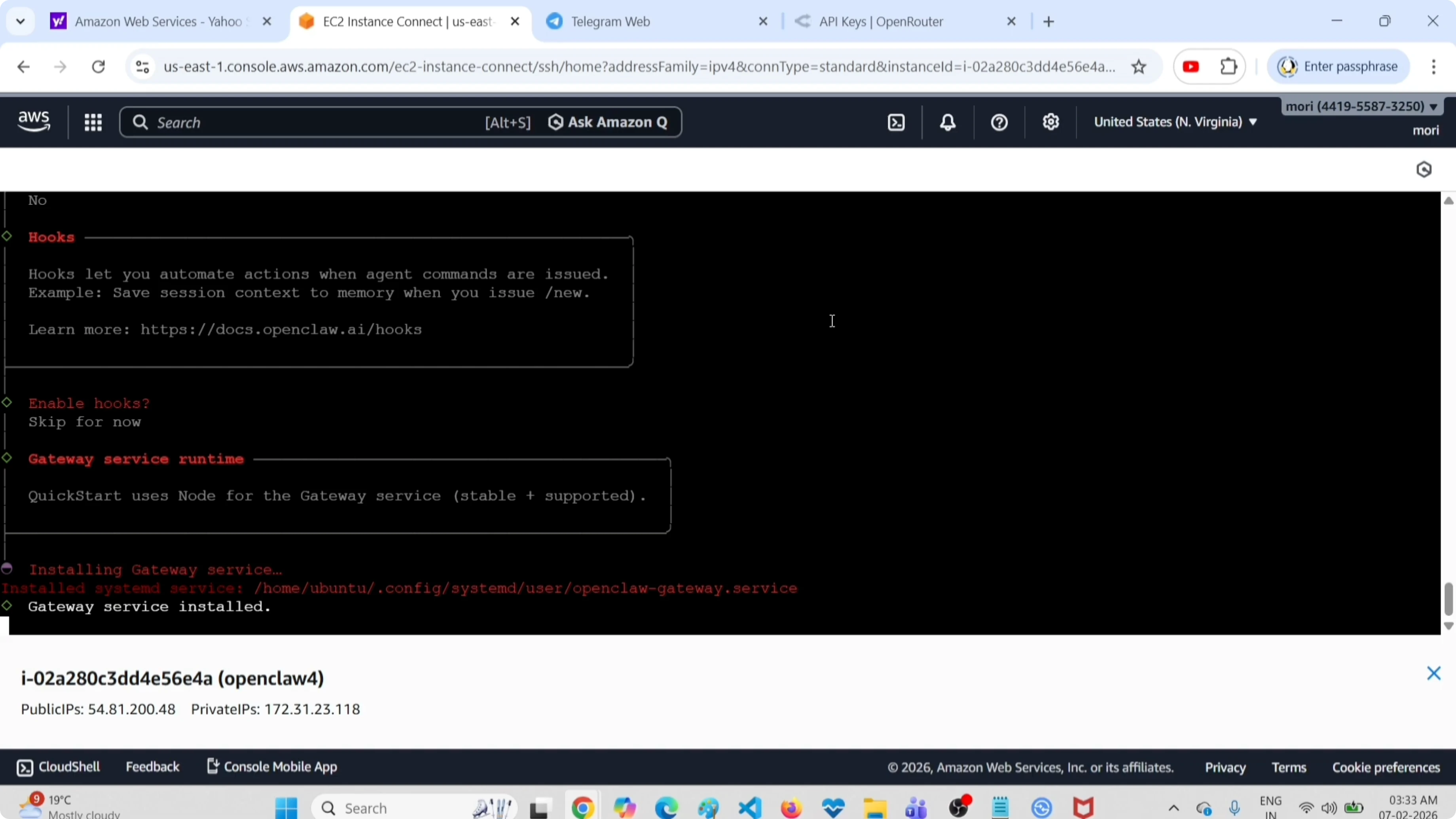
Attach and test in Terminal UI
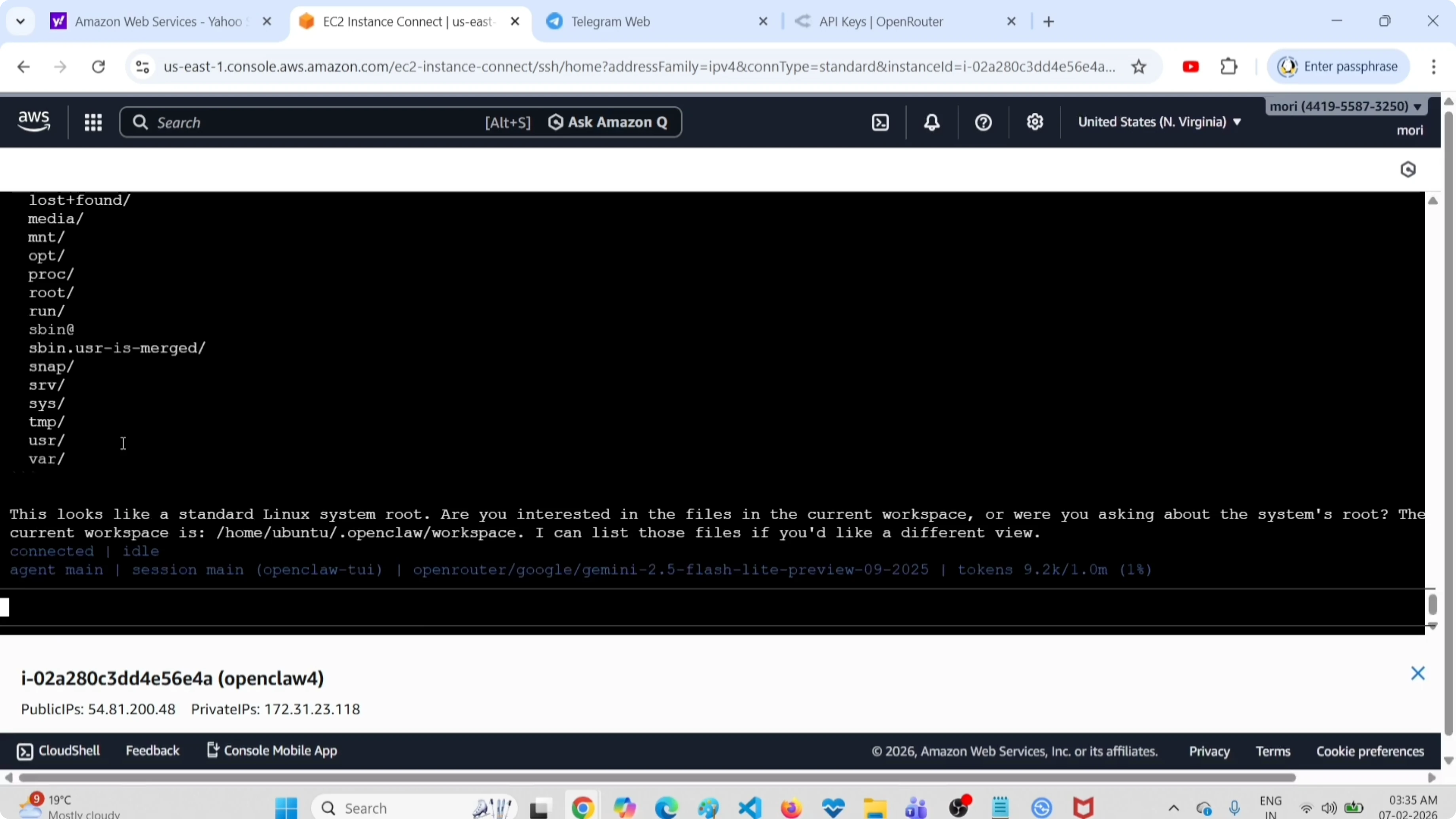
The wizard asks to attach your bot. I choose the Terminal UI to run a quick test prompt and confirm the model responds.
In the Terminal UI, I run a simple prompt that lists files under the root directory. Example prompt: List all files under the root directory. I see a valid response, which confirms the setup is working locally.
Pair Telegram and test
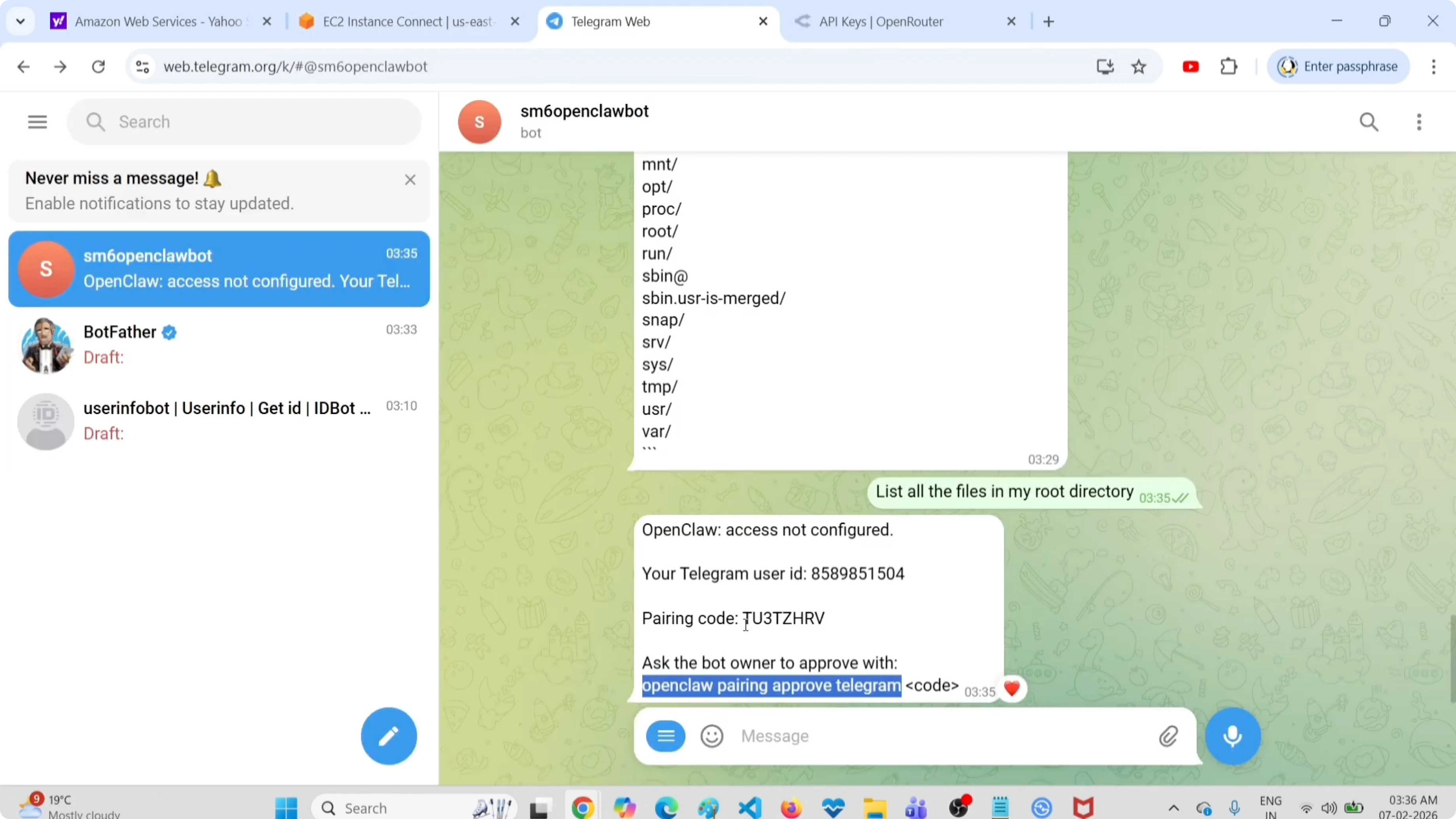
The Telegram channel requires pairing again after reinstall. The tool shows a pairing code, which I copy and use in the Telegram chat with the bot.
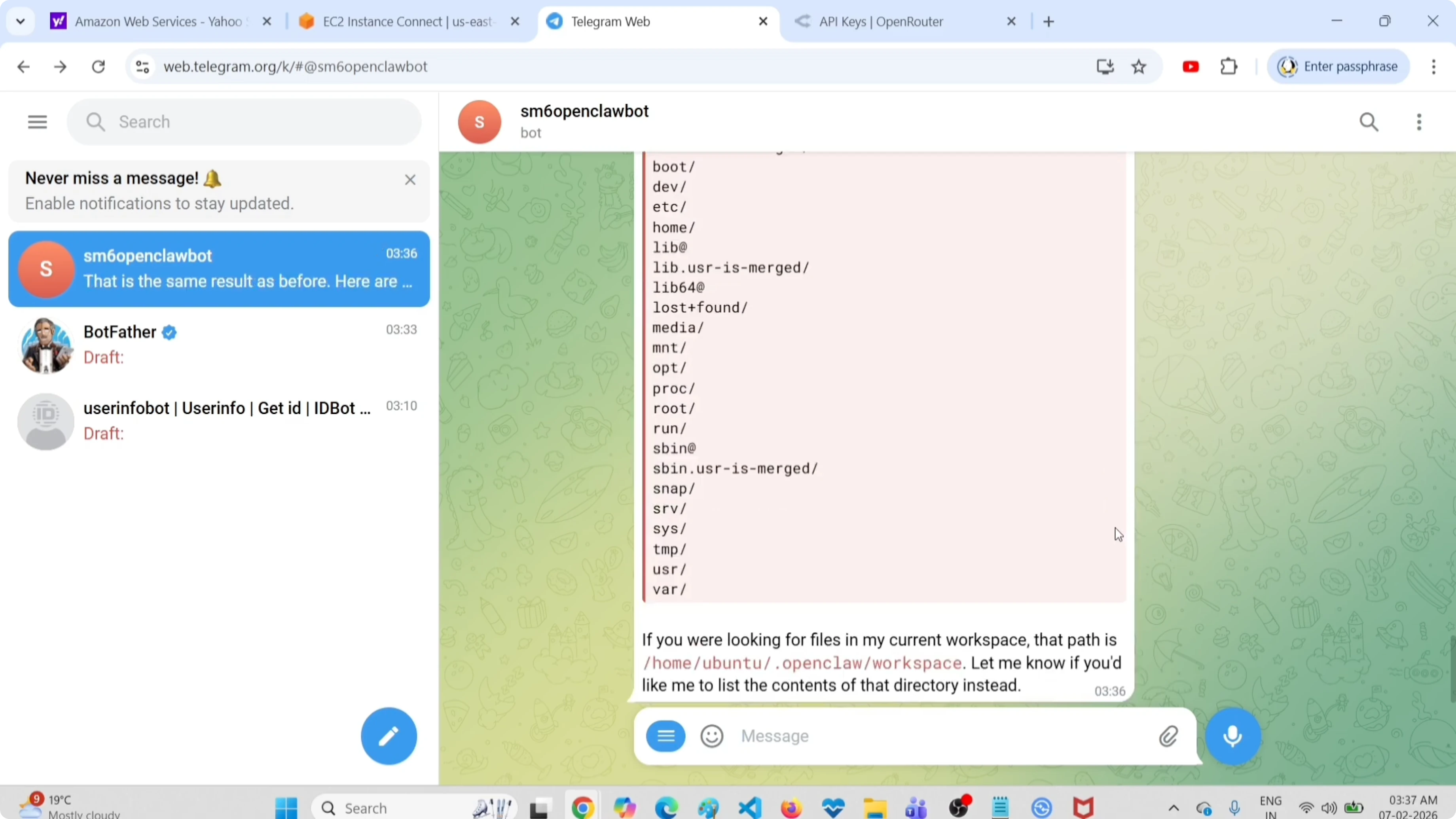
Exit the Terminal UI after copying the pairing code. Paste the pairing code in your Telegram bot chat to complete pairing. Run the same prompt from Telegram and confirm the bot responds.
For quick navigation and checks during or after setup, you can use the AI dashboard to inspect status and activity. If you face a Node.js related startup issue during the bot run, try this fix for the Node.js error. If your Telegram connection drops with code 1006, use this guide for disconnected 1006.
Final thoughts
Uninstalling with openclaw uninstall and selecting Gateway service, State + Config, and Workspace clears the setup completely. Onboarding again with openclaw onboard, OpenRouter as the provider, a valid API key, the google/gemini-2.5-flash-preview model, and the Telegram token restores the bot. Pair the Telegram bot again, run a quick test in Terminal UI and Telegram, and you are back to a working setup.
Subscribe to our newsletter
Get the latest updates and articles directly in your inbox.

Related Posts

8 Best Claude Code Plugins in 2026 (You Need to Know)
8 Best Claude Code Plugins in 2026 (You Need to Know)

7 Best Claude Code Skills (You Need to Know)
7 Best Claude Code Skills (You Need to Know)

Claude Code Desktop IDE Features (You Need to Know)
Claude Code Desktop IDE Features (You Need to Know)