
Table Of Content
- Completely Uninstall OpenClaw in Simple Steps?
- 1) Stop the gateway service
- 2) Preview what will be removed
- 3) Uninstall OpenClaw services and data
- 4) Remove the CLI
- 5) Delete residual directories and files
- 6) Verify removal
- Completely Uninstall OpenClaw in Simple Steps? - Docker Sandbox Cleanup
- Identify and stop containers
- Remove containers and images
- Final Thoughts
How to Completely Uninstall OpenClaw in Simple Steps?
OpenClaw Error Fixer
Paste any OpenClaw error and get the exact fix instantly — cause, steps, copy-ready commands, and related guides.
Table Of Content
- Completely Uninstall OpenClaw in Simple Steps?
- 1) Stop the gateway service
- 2) Preview what will be removed
- 3) Uninstall OpenClaw services and data
- 4) Remove the CLI
- 5) Delete residual directories and files
- 6) Verify removal
- Completely Uninstall OpenClaw in Simple Steps? - Docker Sandbox Cleanup
- Identify and stop containers
- Remove containers and images
- Final Thoughts
If you want to completely remove OpenClaw from your system for troubleshooting, switching to a different setup, or just cleaning up, it’s important to uninstall it properly, including the gateway service, all data, and the CLI itself. Their uninstall documentation does show a few commands, but I believe that is incomplete. Here’s how to get it removed completely so there is no trace of OpenClaw left on your machine. This walkthrough is from an Ubuntu environment with the gateway service running and data present.
Completely Uninstall OpenClaw in Simple Steps?
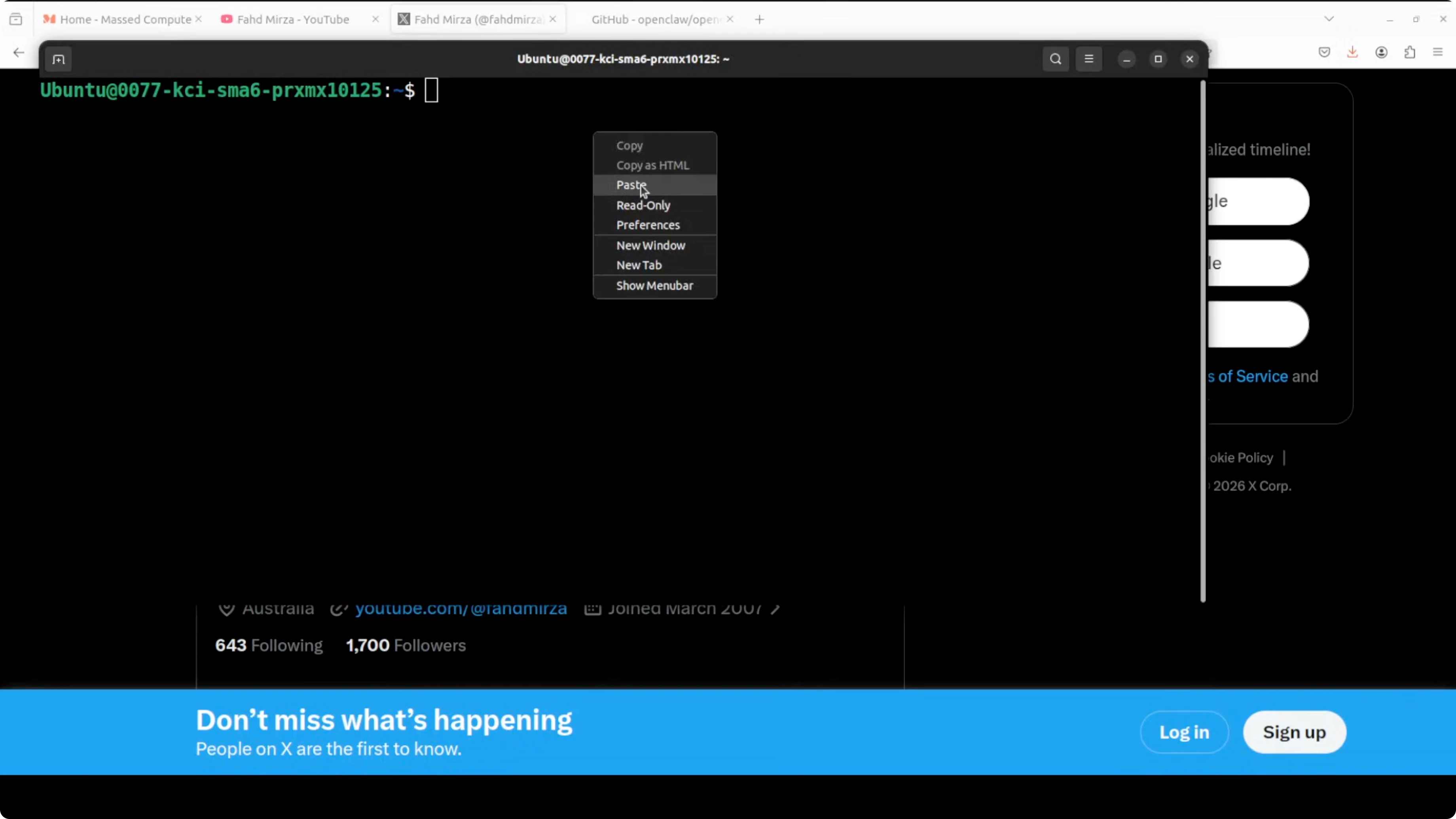
1) Stop the gateway service
- Stop the gateway service that acts as a bridge between OpenClaw and your channels.
- Confirm it has stopped before proceeding.
2) Preview what will be removed
- Run a dry run to see exactly what will be uninstalled:
openclaw uninstall dry run
- This lists what will be removed (gateway service, state, config) and prompts for confirmation. Cancel here if you’re only previewing.
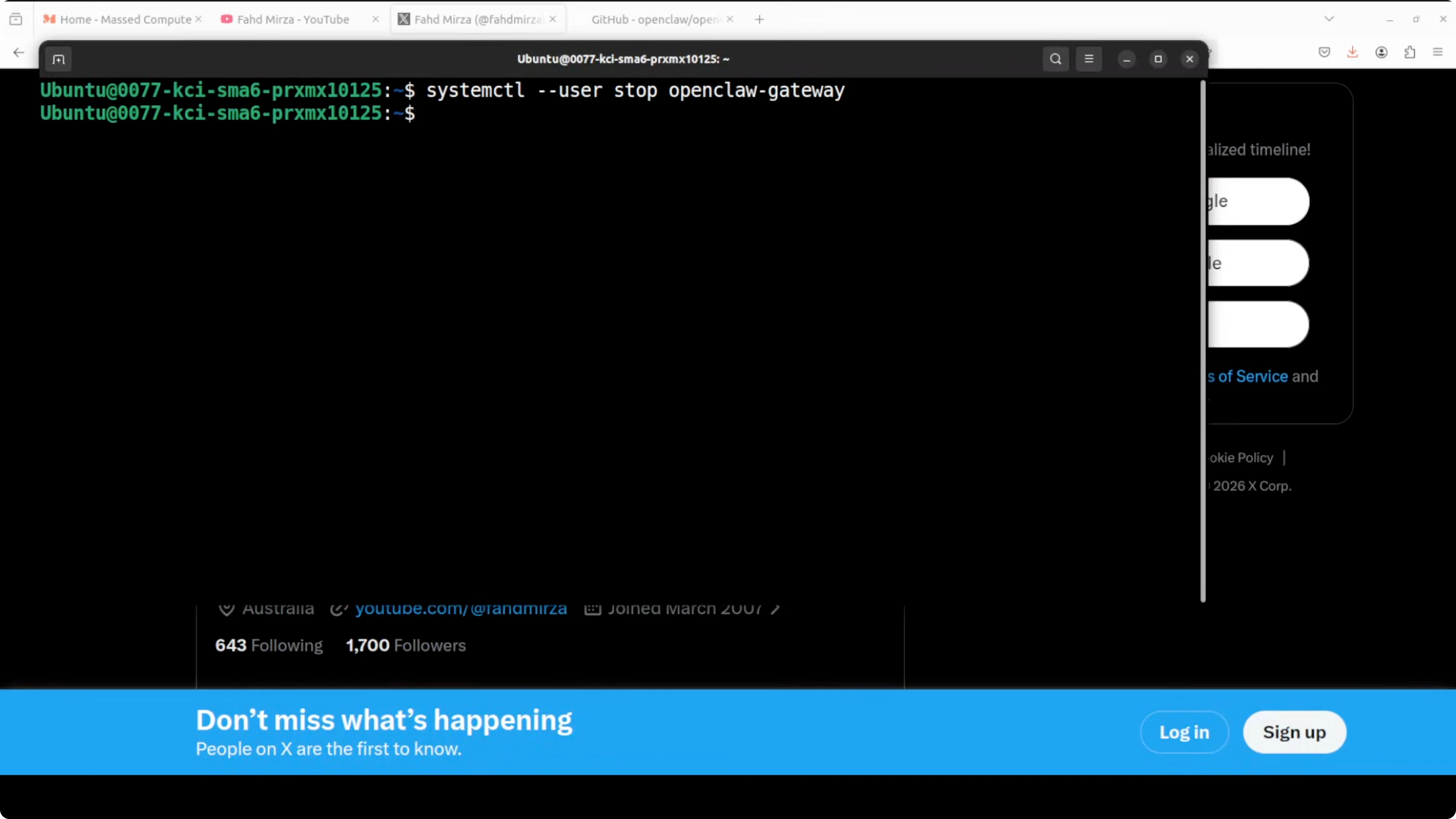
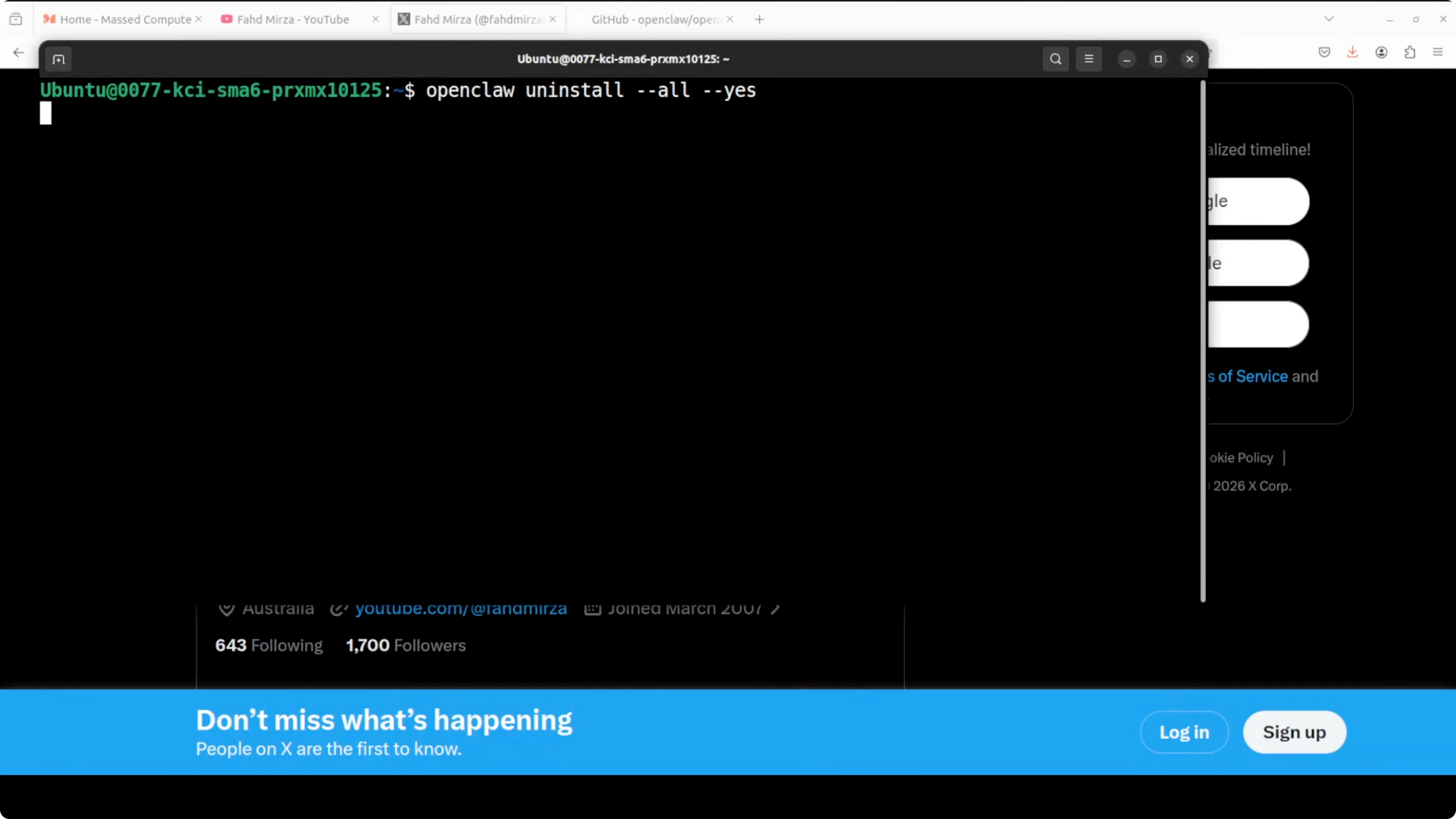
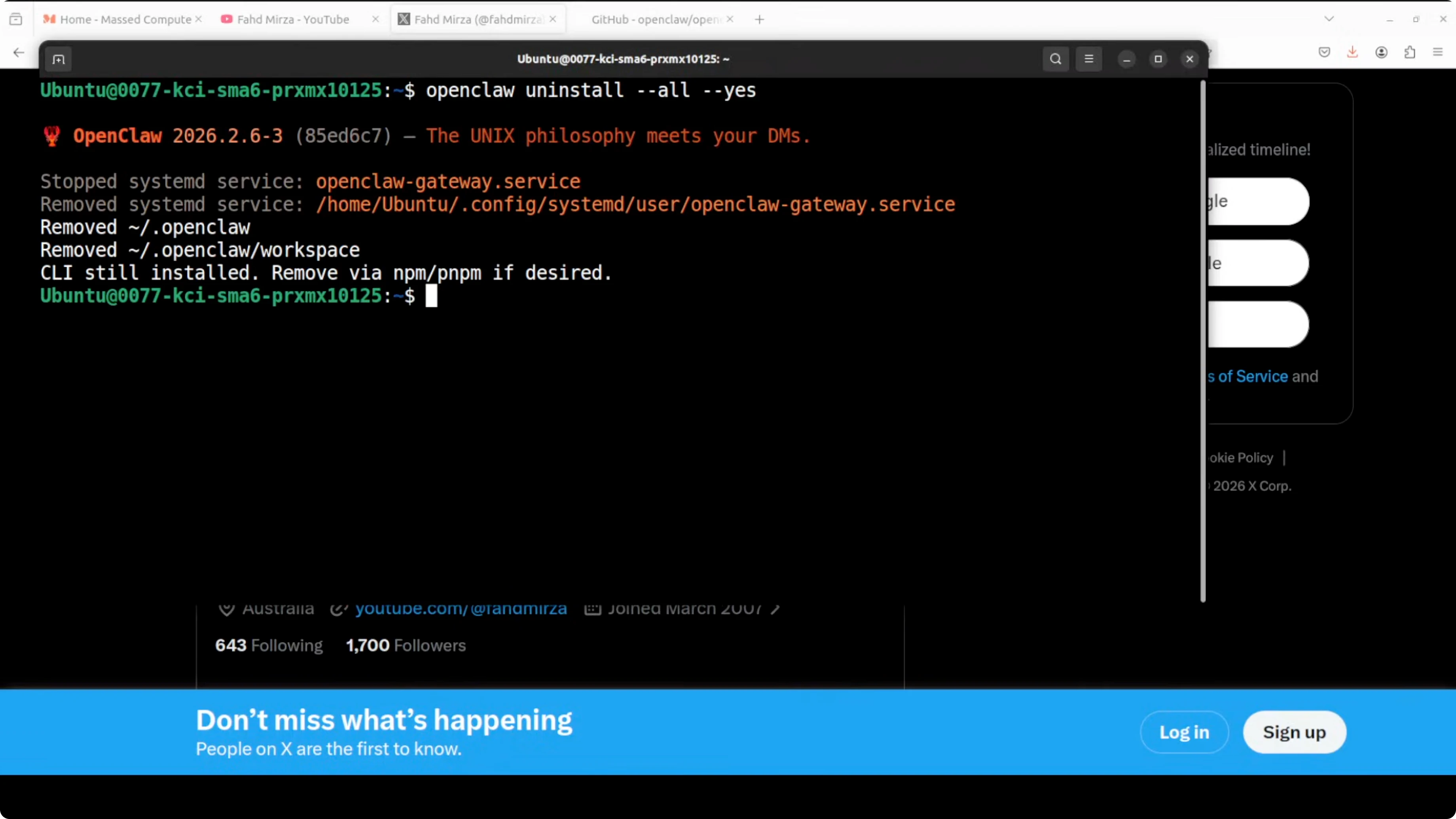
3) Uninstall OpenClaw services and data
- Run the actual uninstall command to remove everything, including the gateway service and data.
- Note: this step removes services and data, but not the CLI.
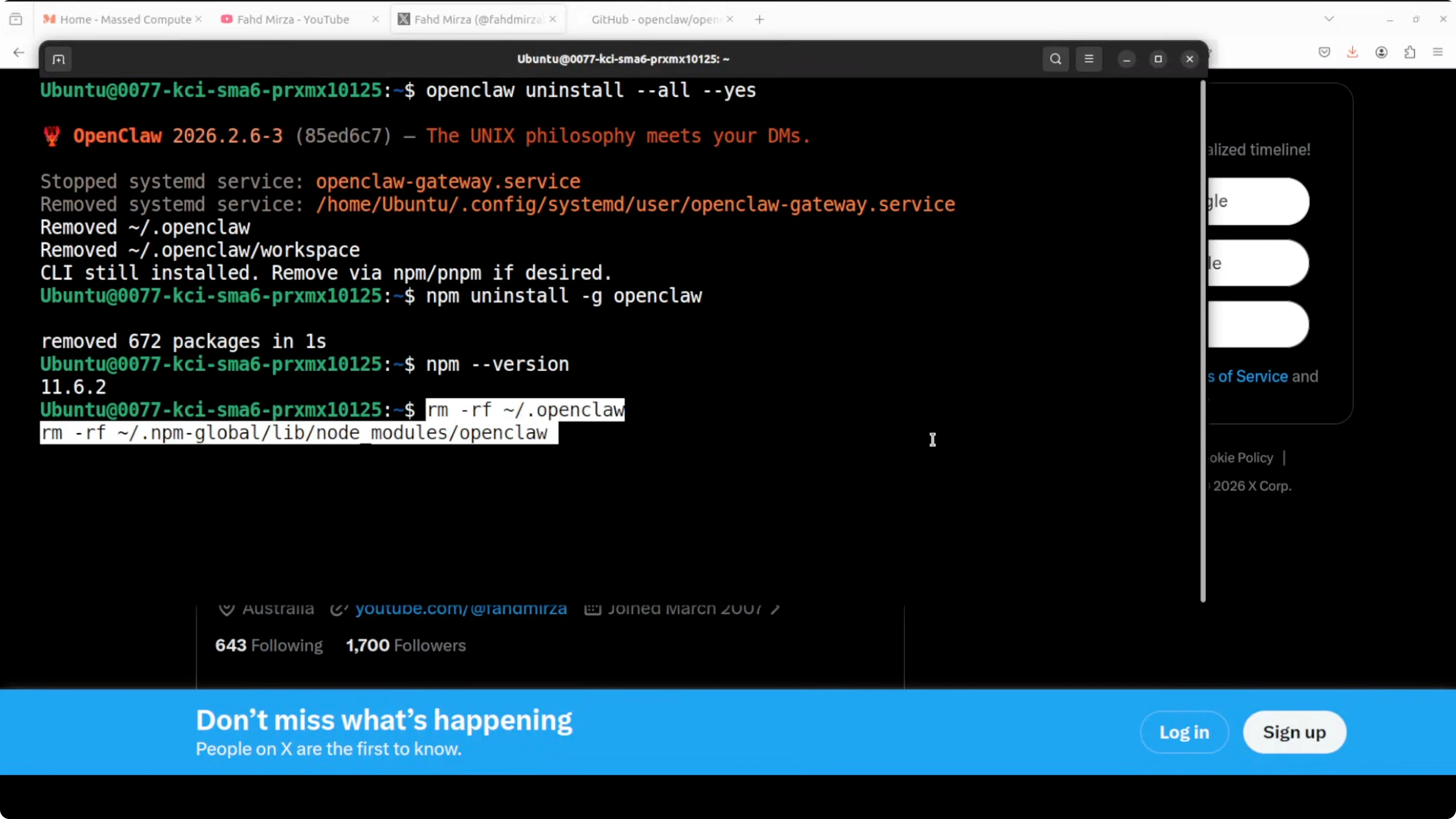
4) Remove the CLI
- Uninstall the CLI with npm:
- Use
npm uninstall(use the same scope and package name you originally used to install it).
- Use
- This assumes you already have Node and npm installed.
5) Delete residual directories and files
- Remove all OpenClaw directories to clean up any remaining state or config:
- Use
rm -rfon the relevant OpenClaw directories.
- Use
- If you added anything to your shell profile (for example,
.bashrc,.bash_profile, or similar), remove those entries too.
6) Verify removal
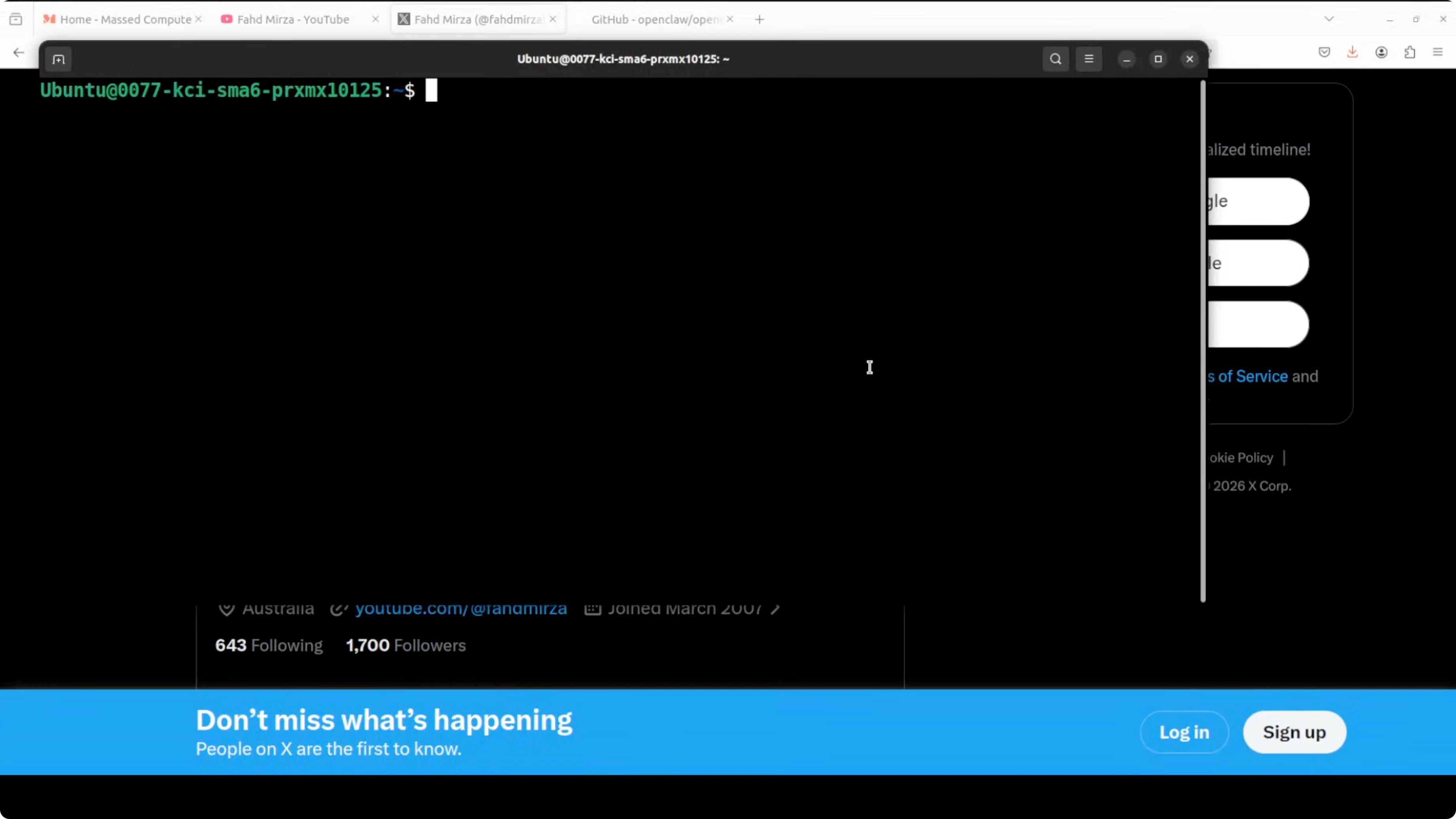
- Running the version command should now error out:
openclaw versionshould fail if everything is removed.
- Check that no OpenClaw directories remain. You should see nothing left.
Completely Uninstall OpenClaw in Simple Steps? - Docker Sandbox Cleanup
If you installed OpenClaw in a Docker-based sandbox, clean up images and containers as well.
Identify and stop containers
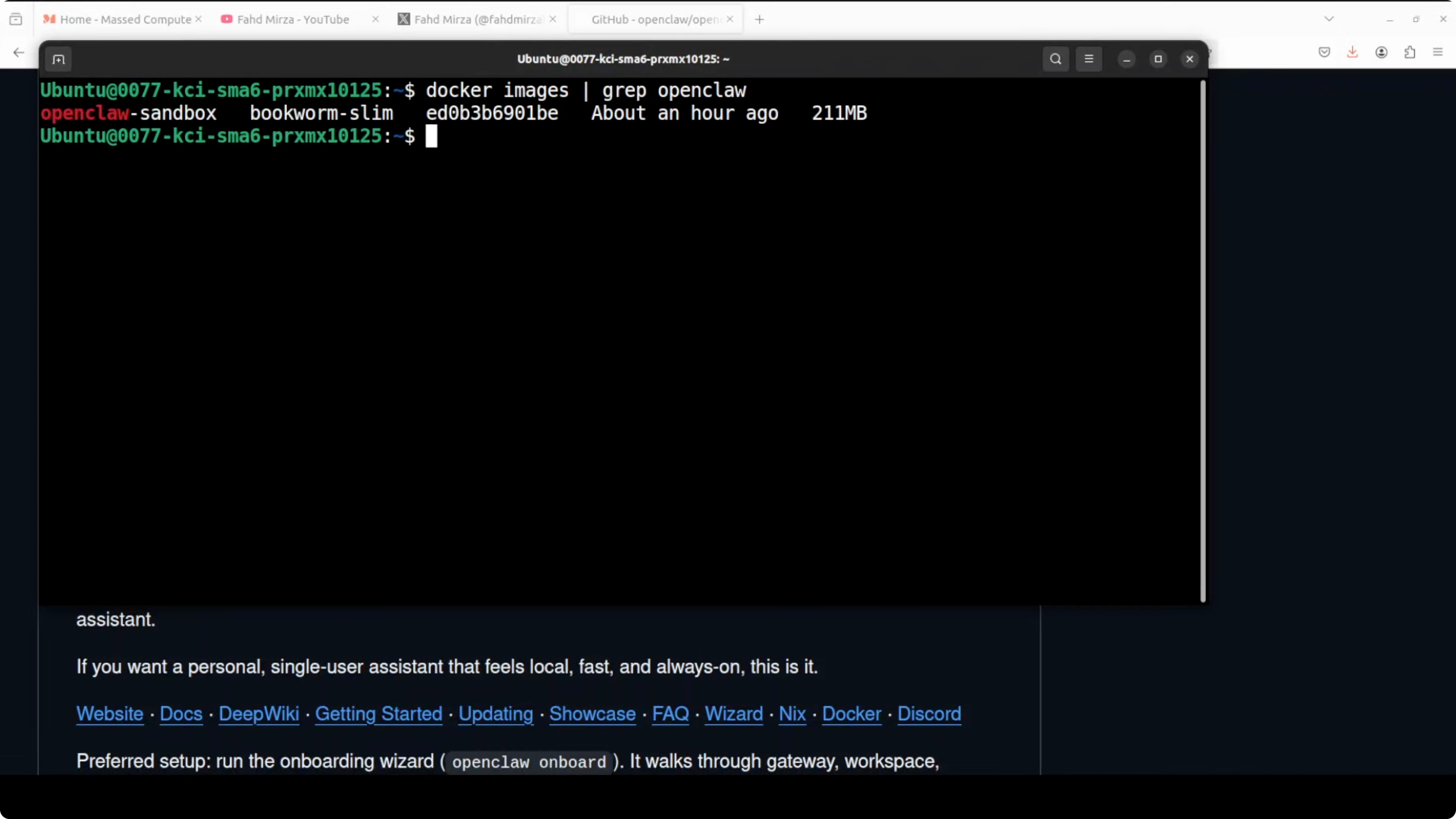
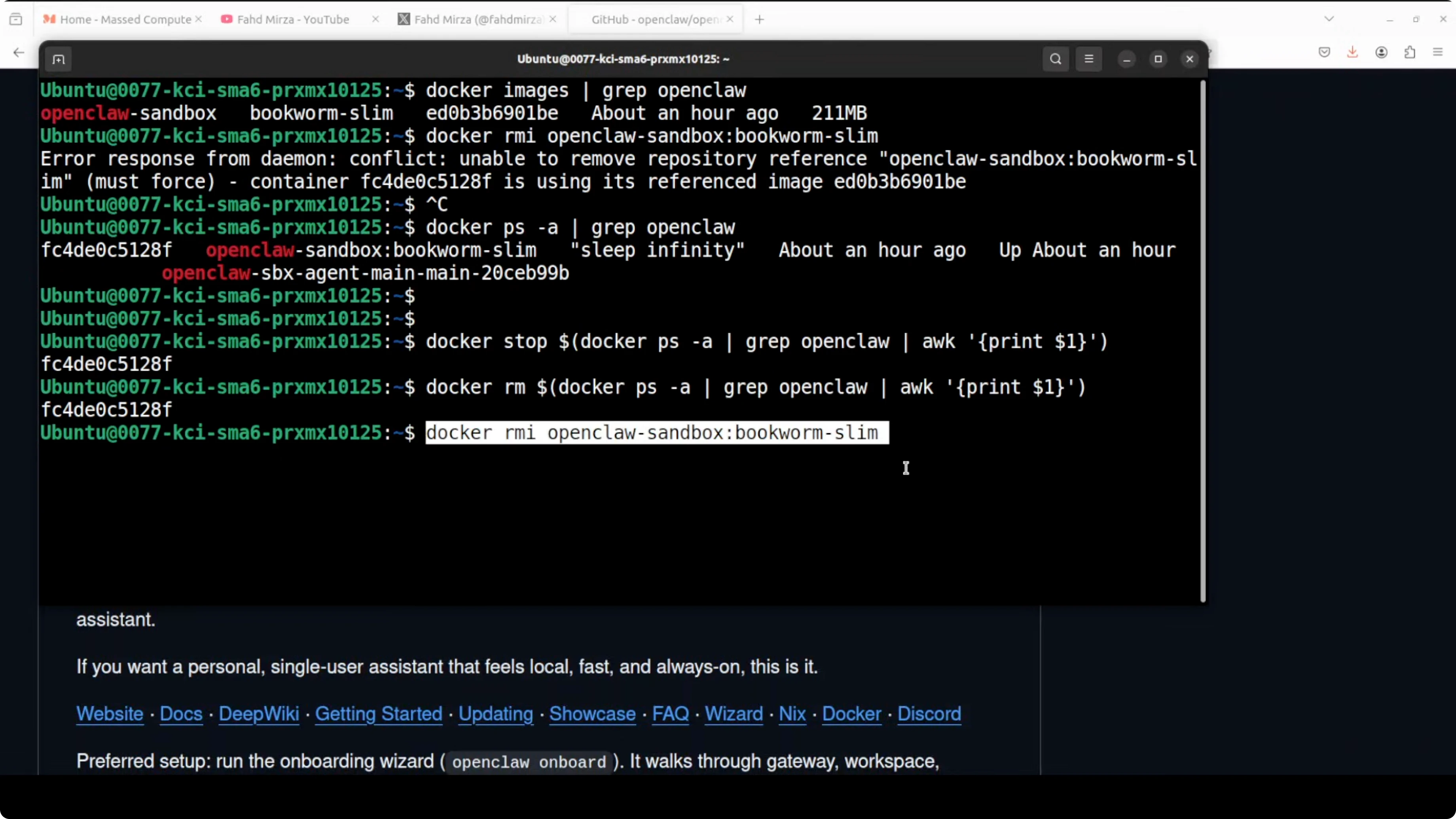
- List your Docker images to find any related to OpenClaw.
- Attempt to remove the image with the standard Docker command. If Docker reports the image is referenced by a running container, identify the container and stop it.
- Use standard Docker commands to see which containers are running or not running.
- You can also use a generic Linux script to stop all Docker containers related to OpenClaw if you have multiple.
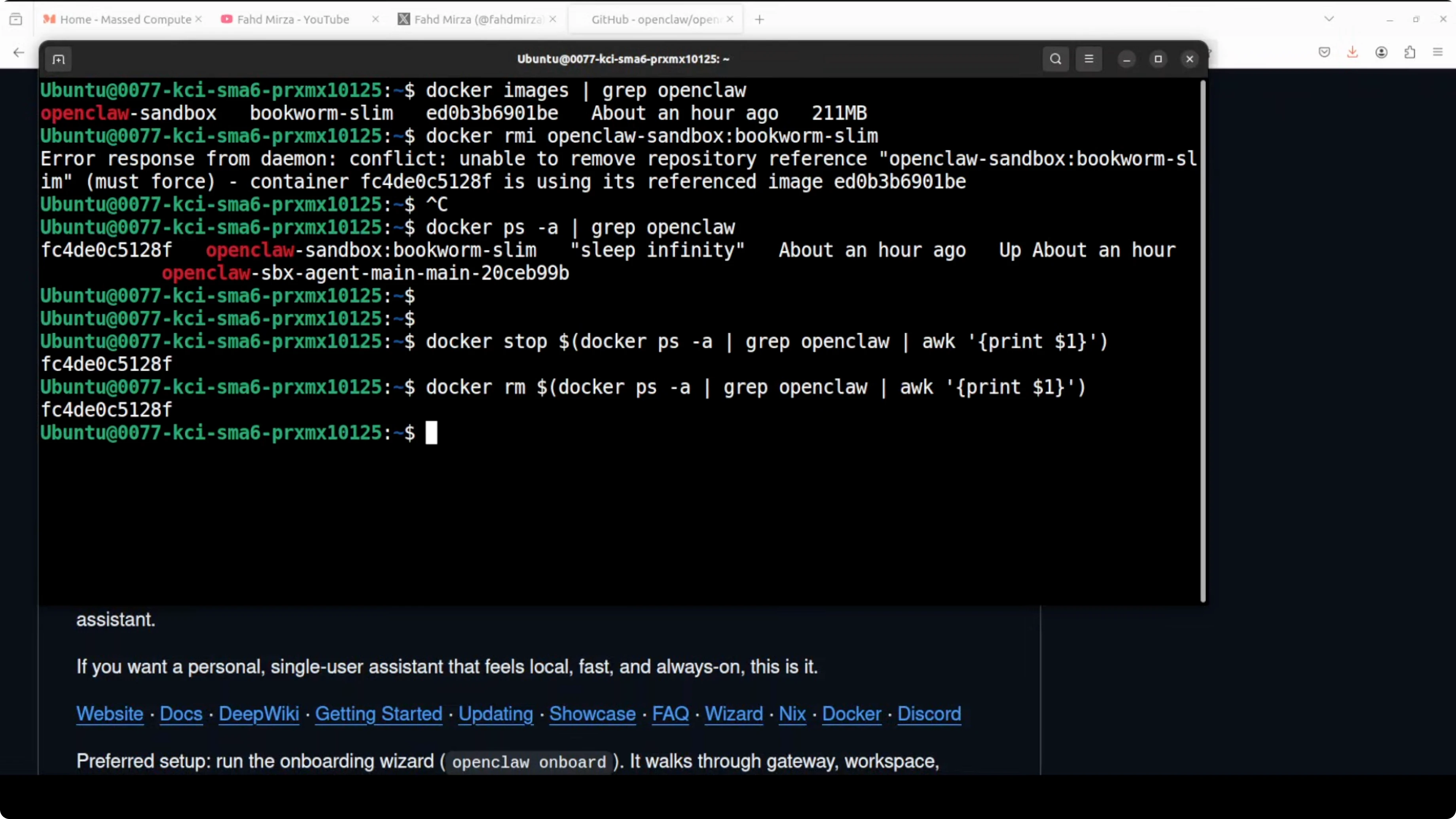
Remove containers and images
- Remove the container with the standard
docker rmcommand. - Then remove the image with
docker rmito untag and delete it. - This may take a bit of time for larger images.
Final Thoughts
OpenClaw is now completely removed from your system: the gateway service is uninstalled, all configuration and session data is deleted, the CLI is gone, and any Docker sandbox images and containers are cleaned up. Your machine is back to its pre-OpenClaw state, giving you a clean slate for reinstalling or troubleshooting.
Subscribe to our newsletter
Get the latest updates and articles directly in your inbox.

Related Posts

8 Best Claude Code Plugins in 2026 (You Need to Know)
8 Best Claude Code Plugins in 2026 (You Need to Know)

7 Best Claude Code Skills (You Need to Know)
7 Best Claude Code Skills (You Need to Know)

Claude Code Desktop IDE Features (You Need to Know)
Claude Code Desktop IDE Features (You Need to Know)