
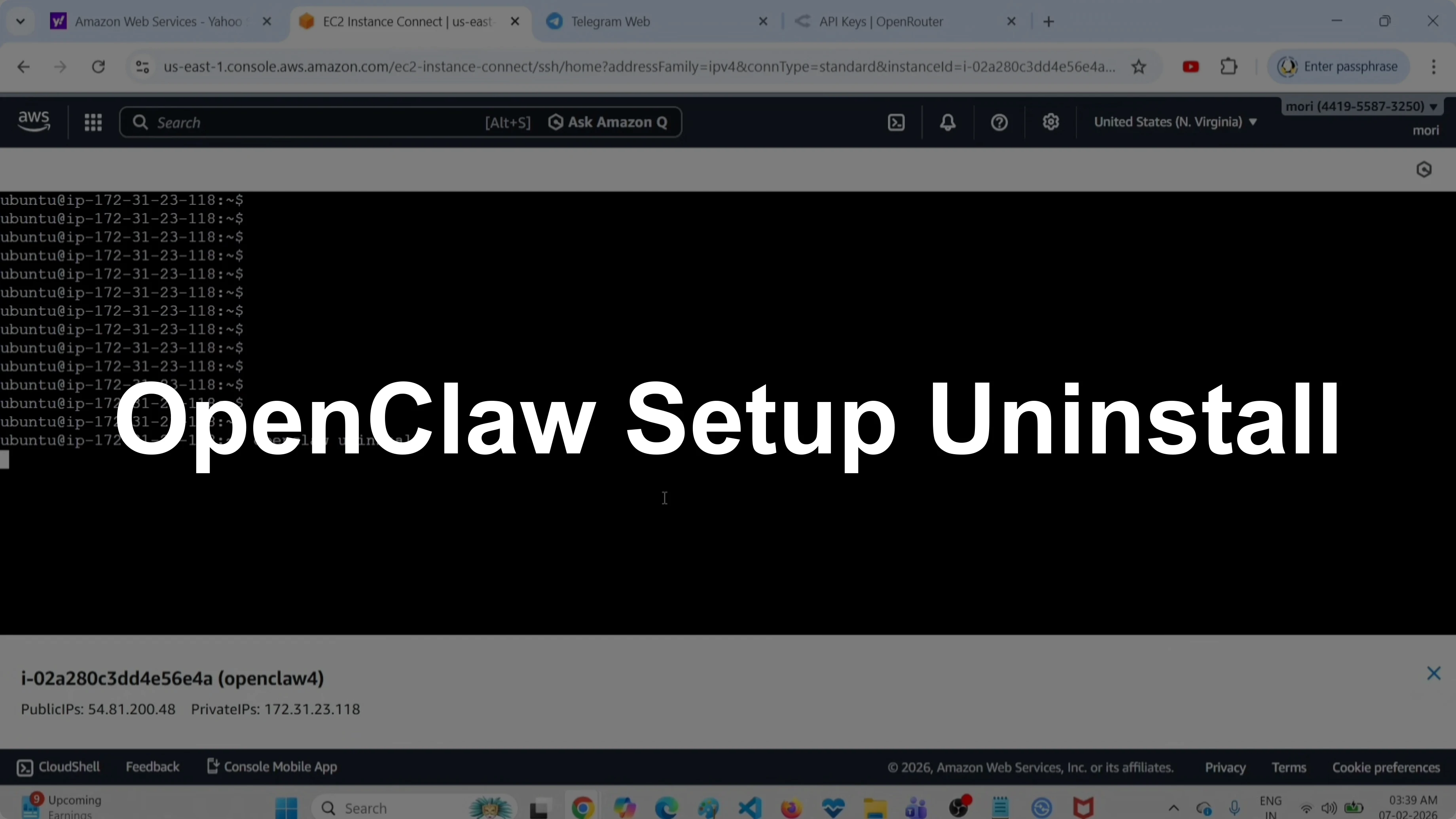
OpenClaw Setup and Uninstall Guide with OpenRouter API & Free Tools
OpenClaw Error Fixer
Paste any OpenClaw error and get the exact fix instantly — cause, steps, copy-ready commands, and related guides.
I had a working OpenClaw setup connected to a Telegram channel. It was responding correctly, and I wanted to show a clean uninstall and a fresh install with OpenRouter API and model selection. Here is the exact process I used, including the commands and prompts.
OpenClaw Setup and Uninstall Guide with OpenRouter API & Free Tools
Check current setup
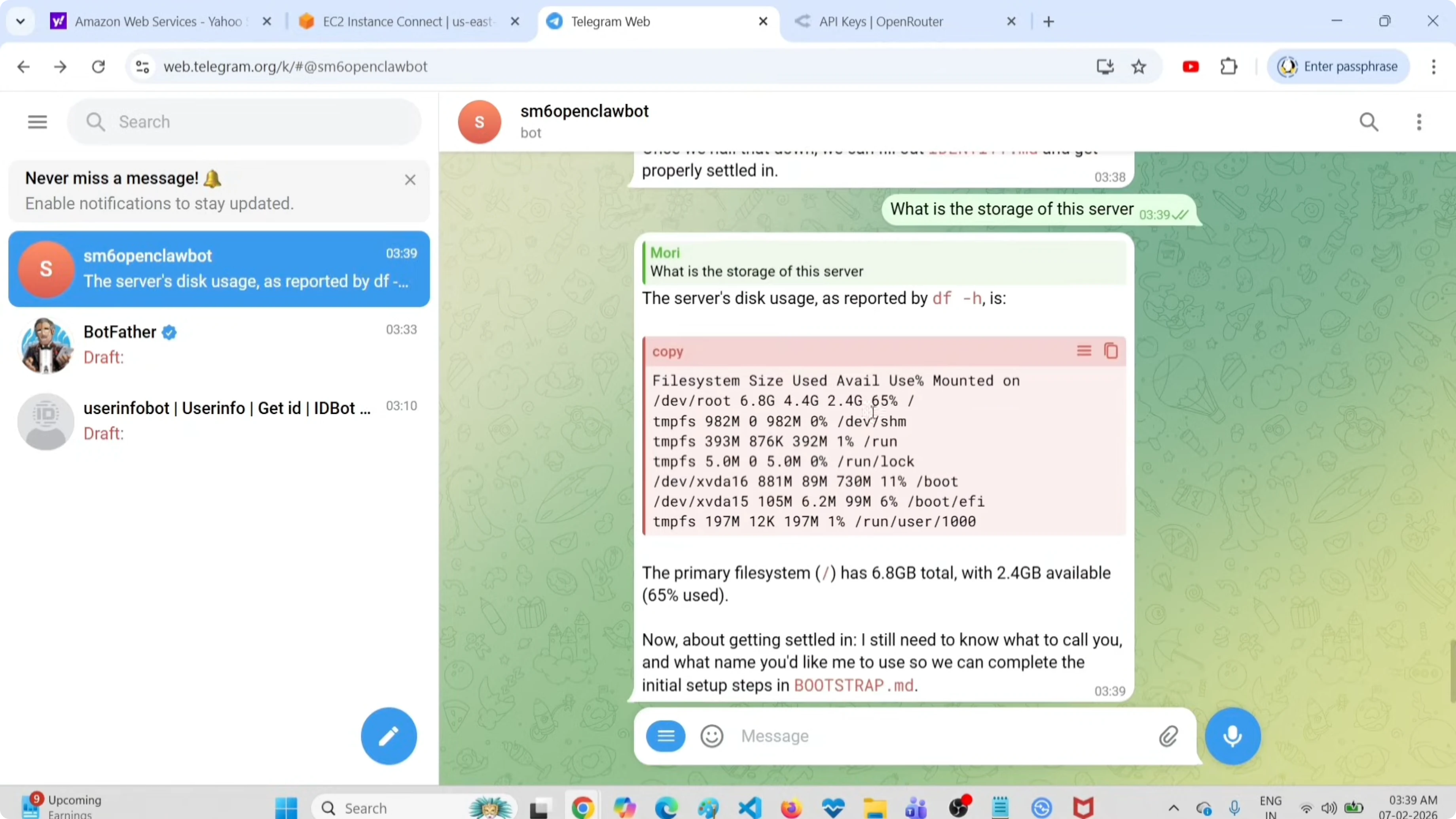
I started from a working setup and confirmed the Telegram channel was active. Messages were coming through and the bot was replying as expected. Then I moved to uninstall.
Uninstall cleanly
Run the uninstaller.
openclaw uninstall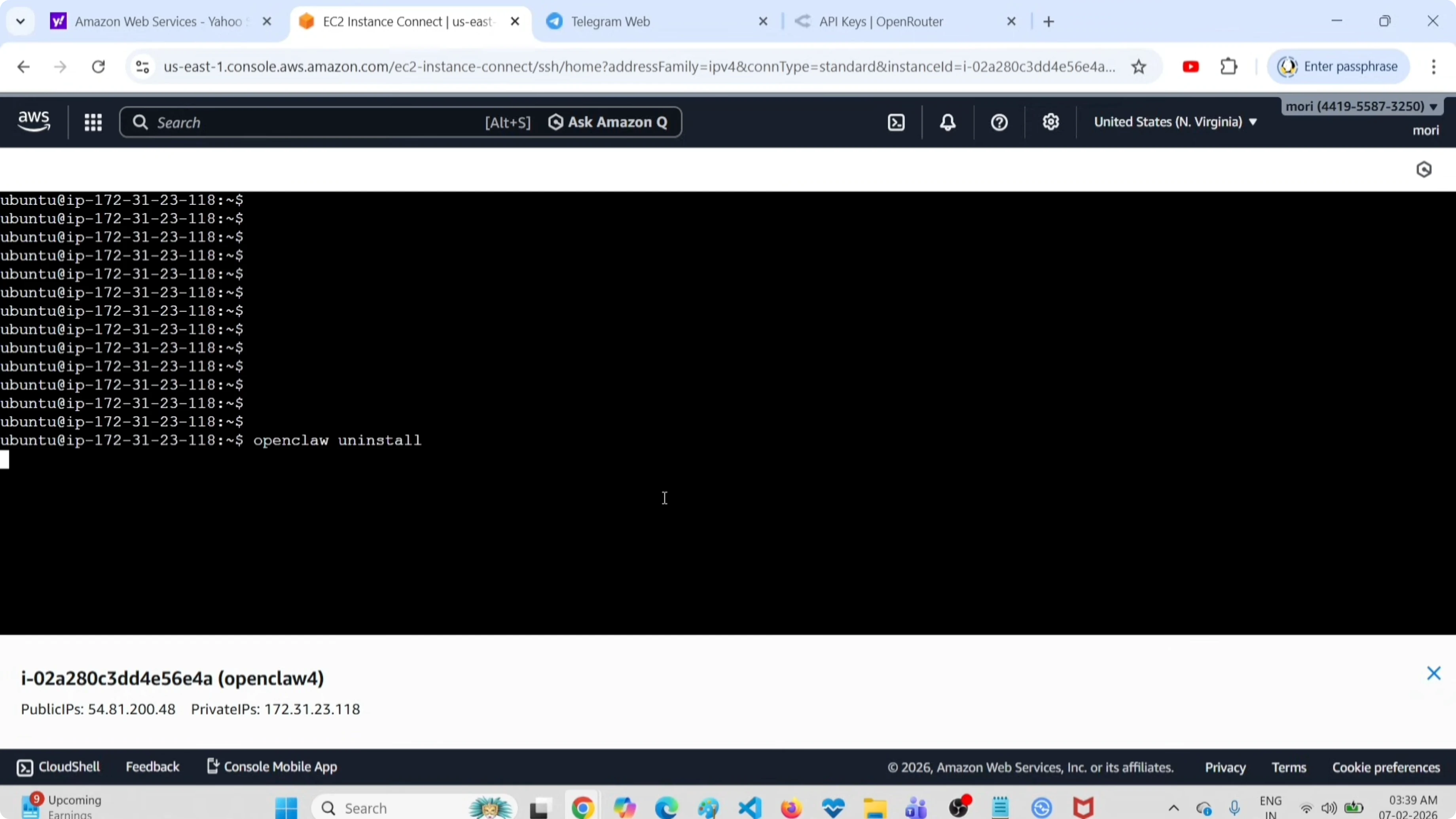
Select Gateway service.
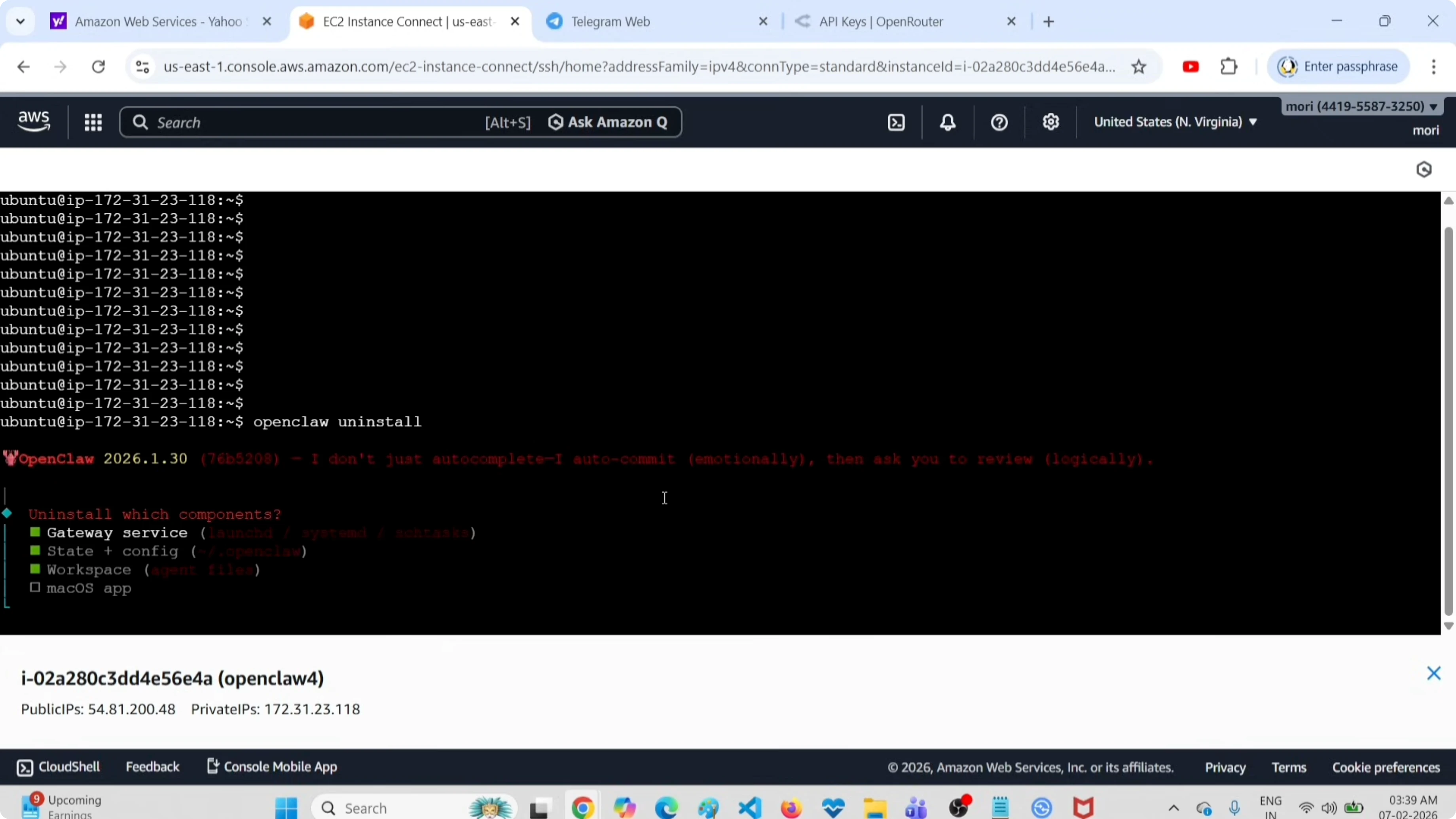
Select State + Config.
Select Workspace.
Confirm Yes to proceed.
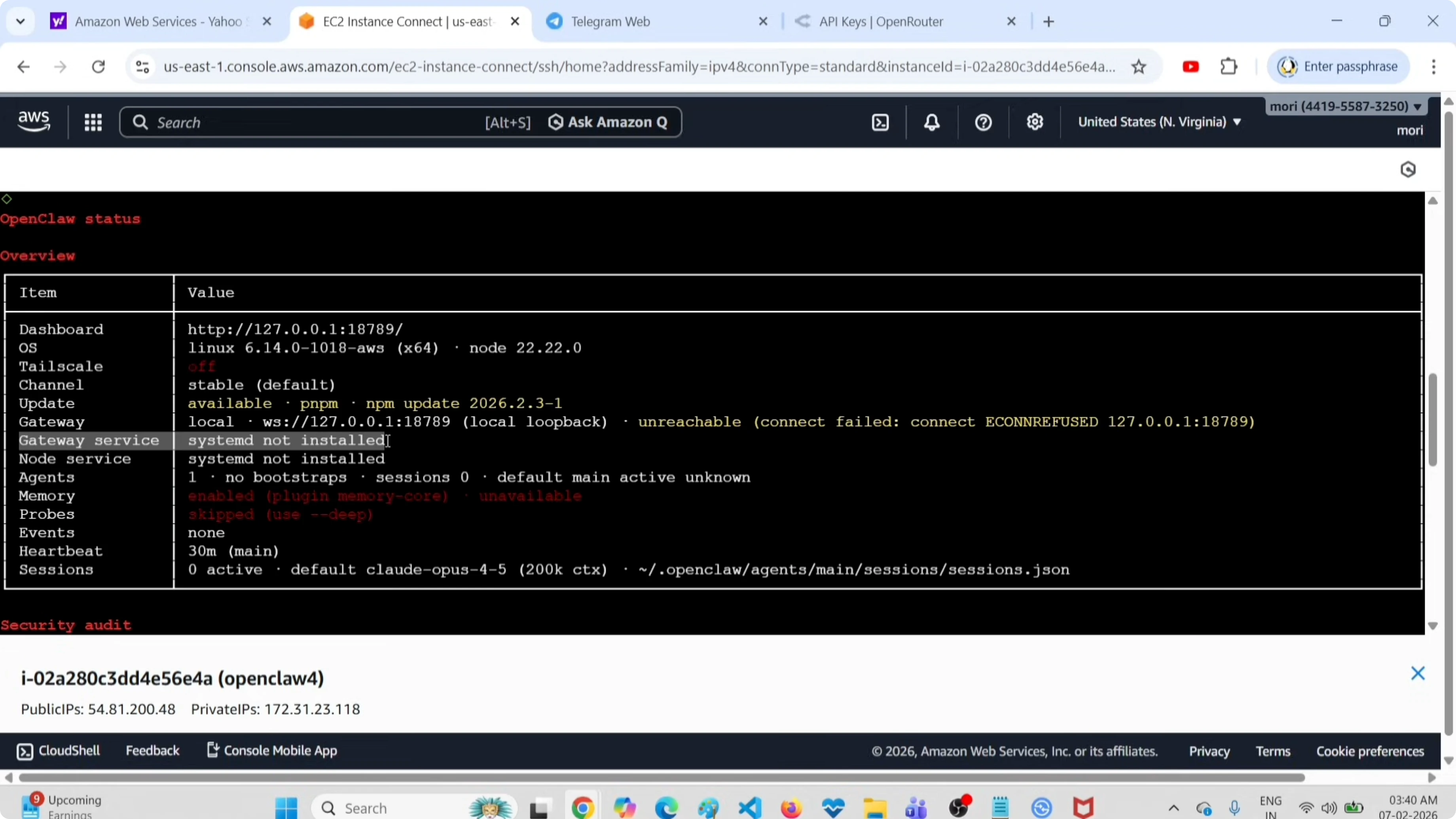
Check the status after uninstall.
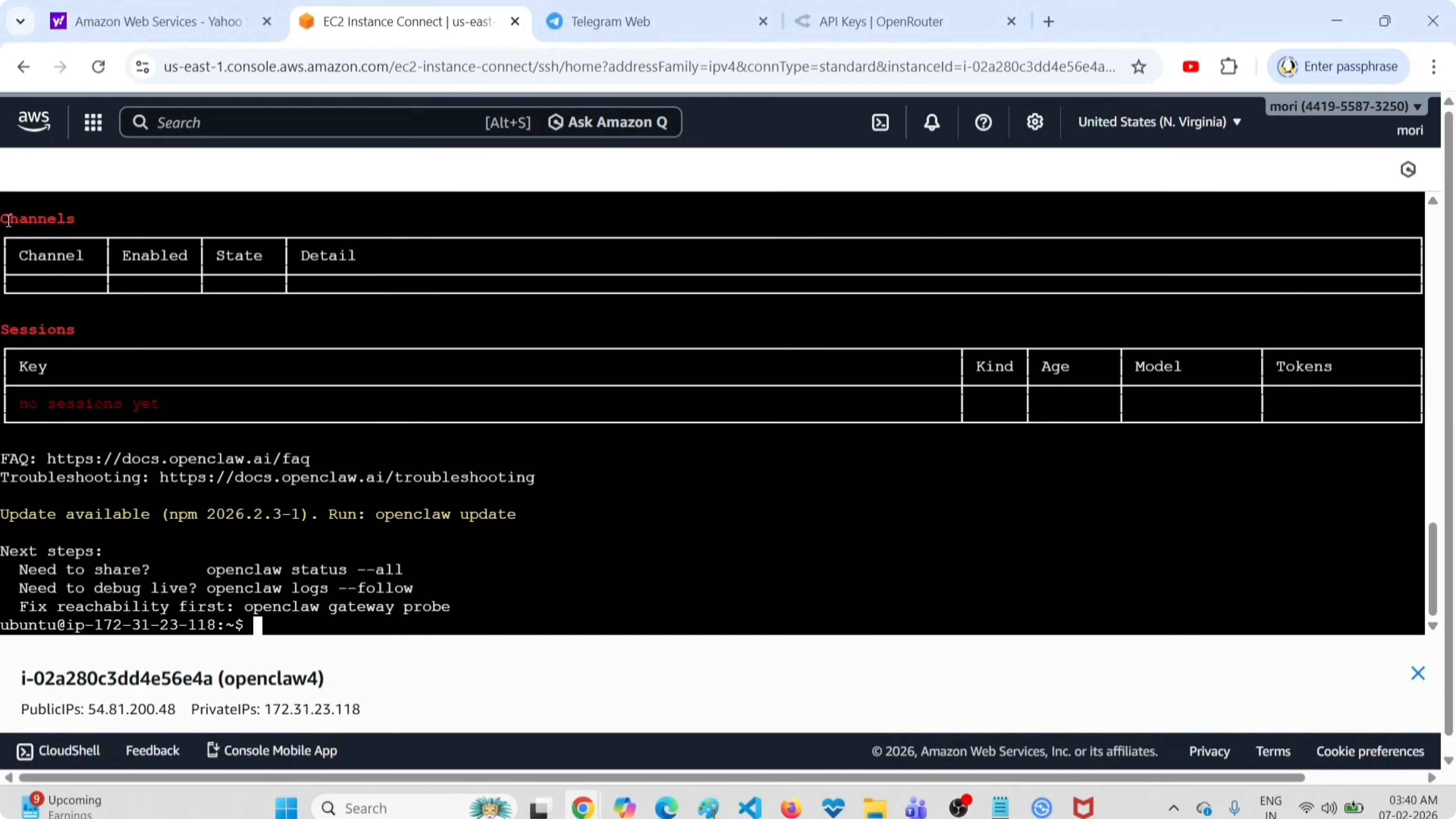
openclaw statusYou should see channels empty and sessions empty. The output also shows Gateway service systemd not installed. At this point, everything is removed and ready for a clean reinstall.
For more details on removal steps, check the uninstall guide.
Reinstall with onboarding
Start the onboarding flow.
openclaw onboard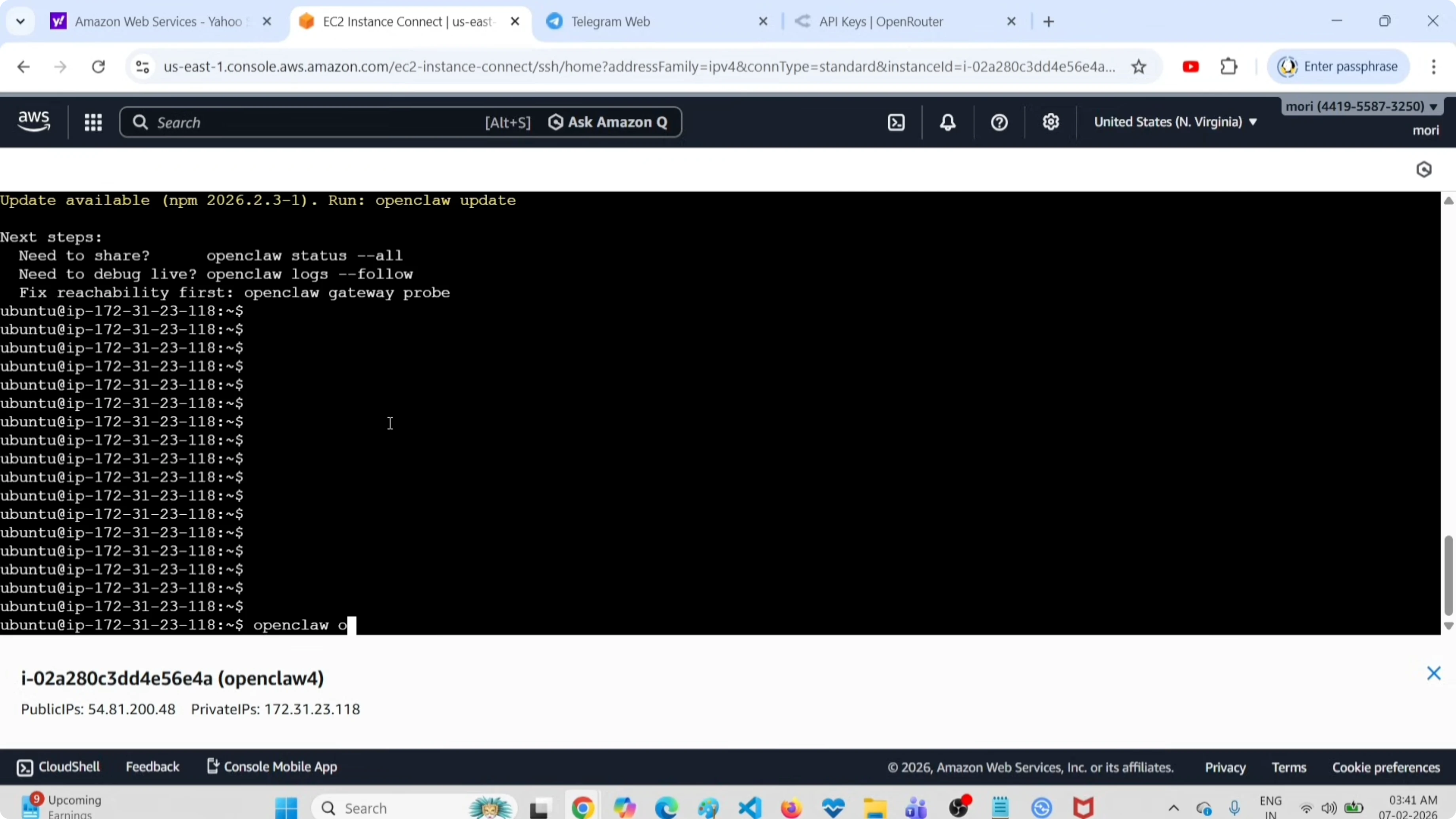
Choose Yes to proceed.
Select Quick Start.
Select OpenRouter as the provider. Enter your OpenRouter API key and submit it.
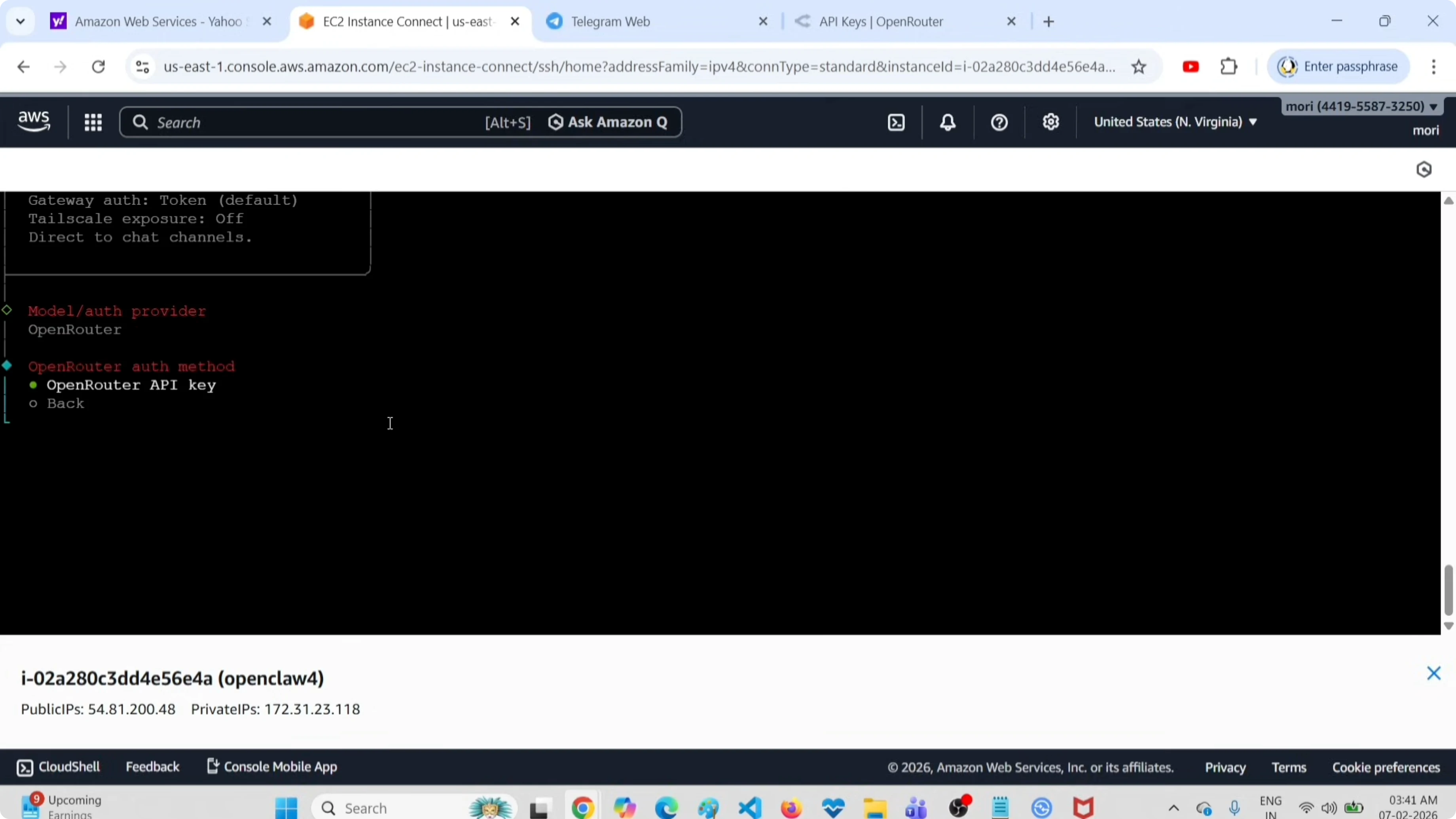
Choose a model. I selected OpenRouter Google Gemini Flash Preview.
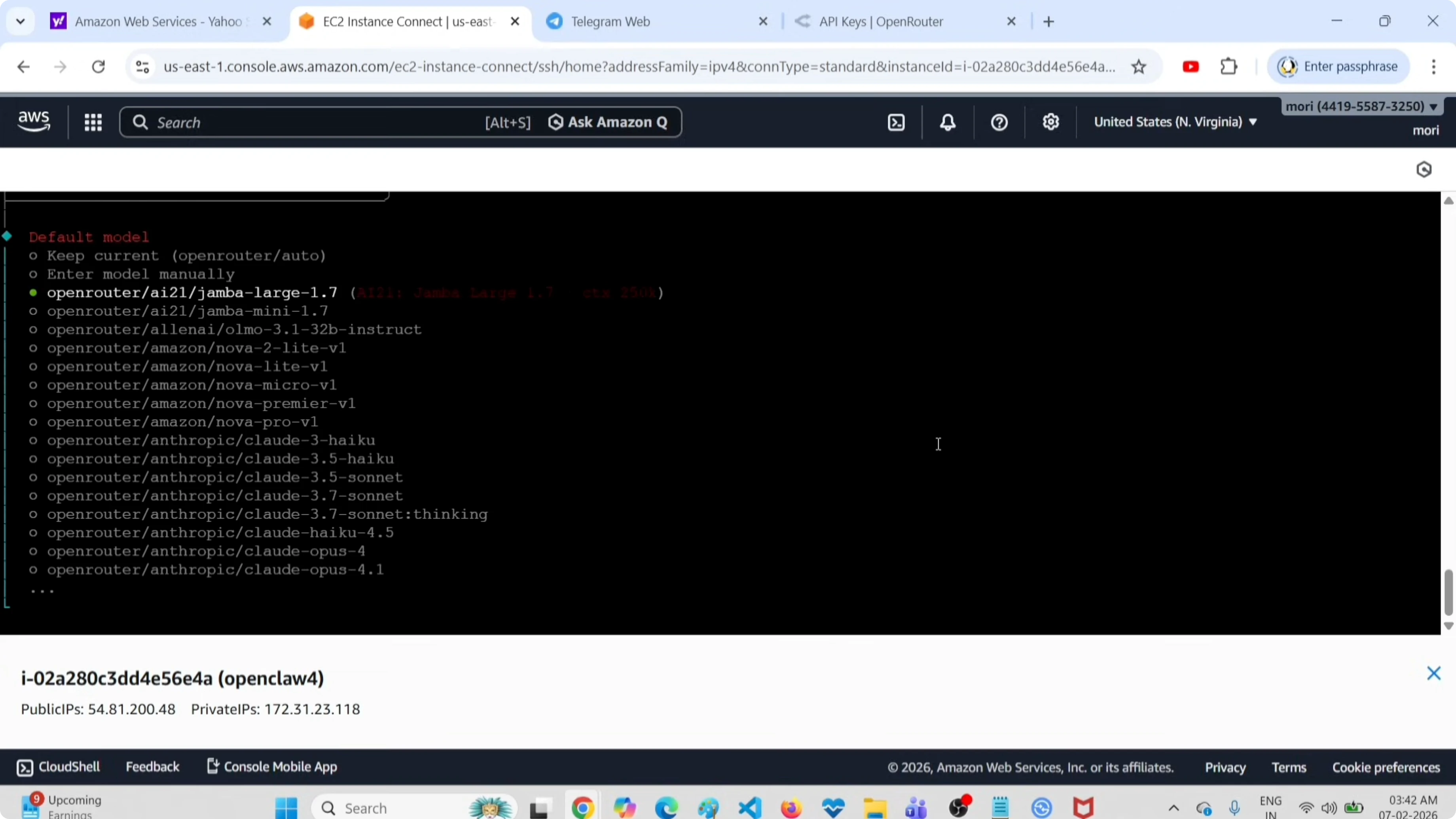
Add the Telegram bot token. Skip optional steps for now.
The installer sets up the Gateway service again and confirms Gateway service installed.
Read More: Zeroclaw setup
Attach the bot and test
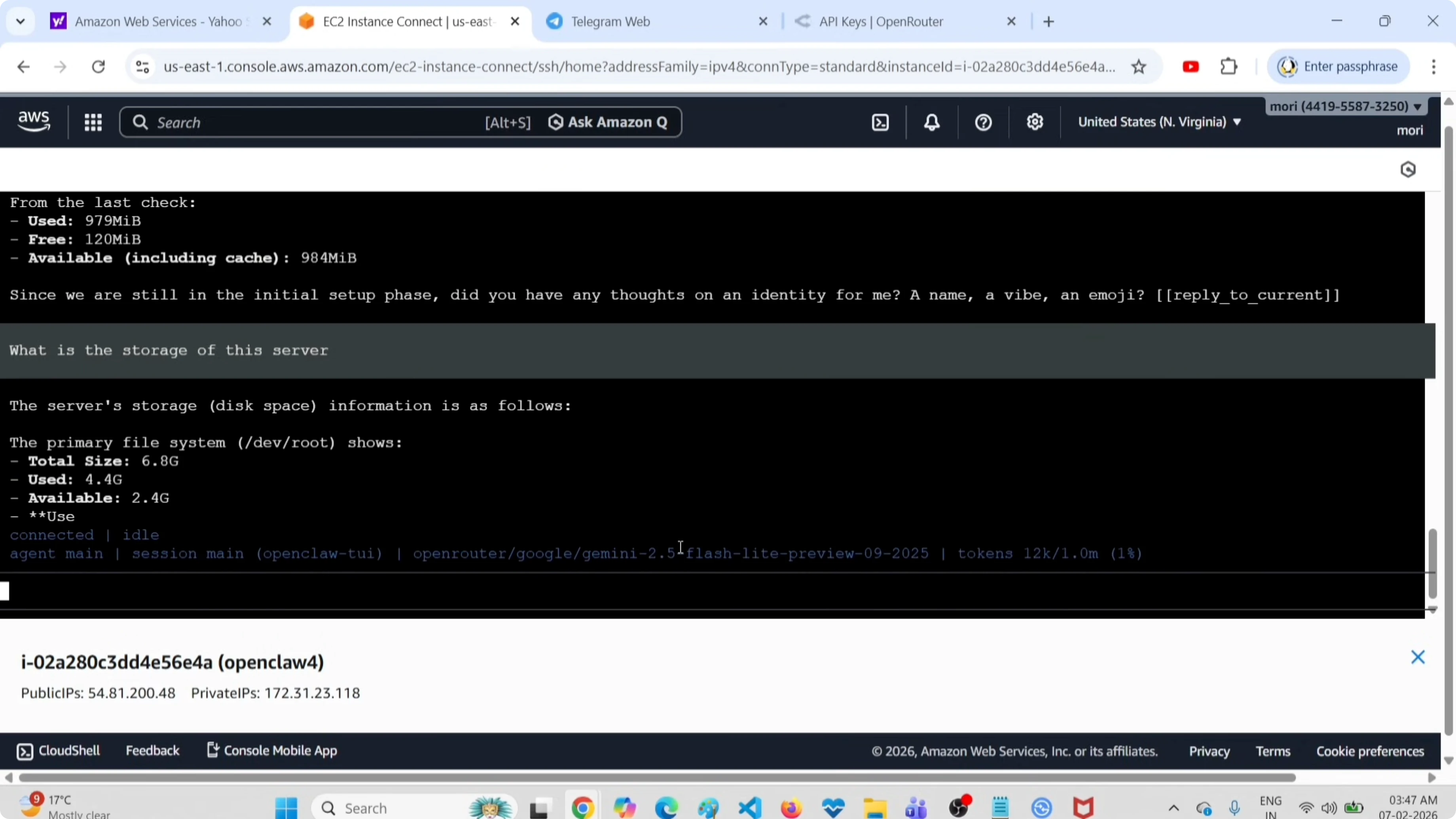
It asked to attach your bot. I used the Terminal UI for a quick test and sent the prompt: What is the storage of the server?
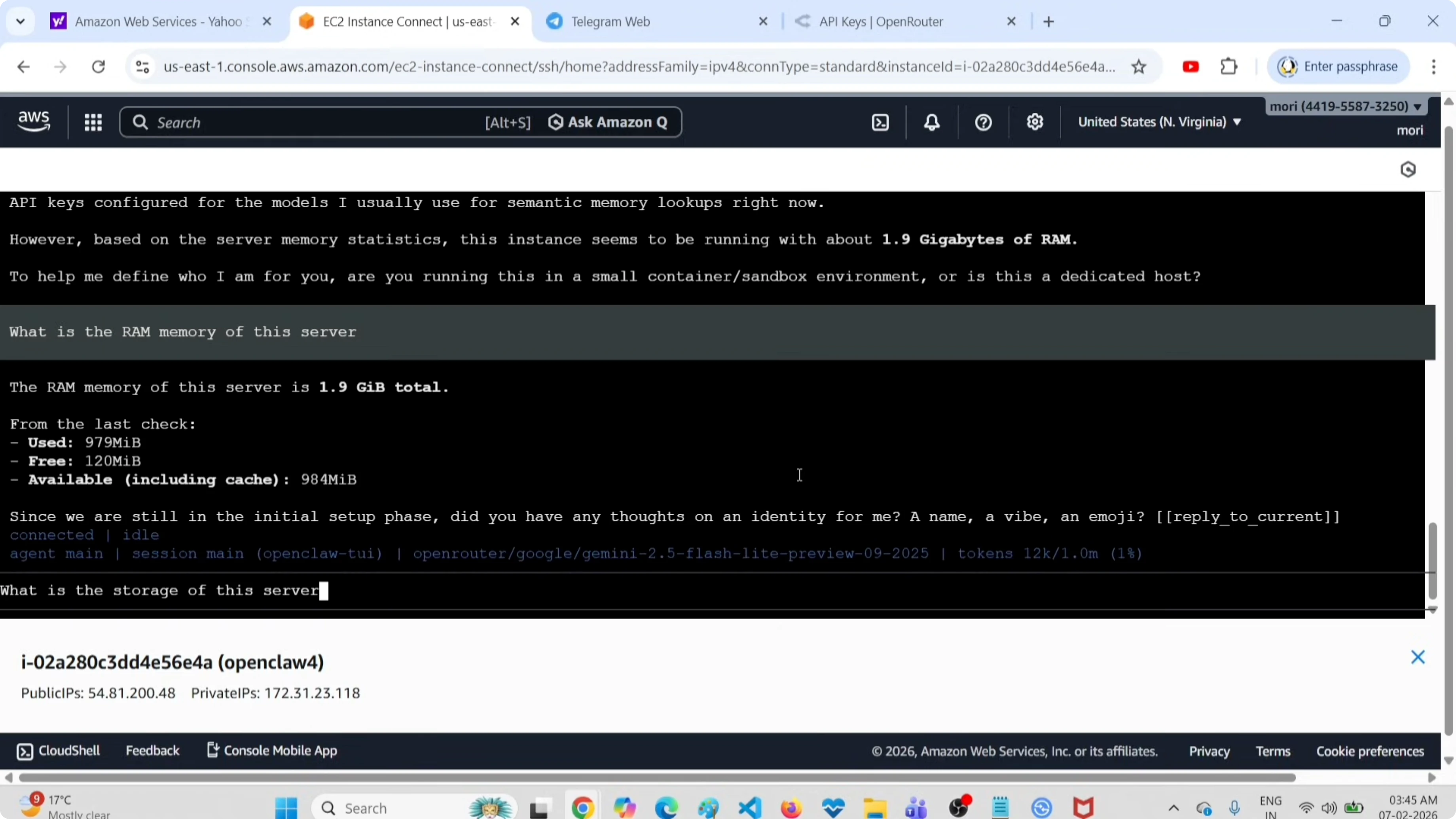
It returned disk usage details: total size 6 GB, 6.8 GB used, 4.4 GB available 2.4 GB. Then I ran the same prompt from the Telegram channel.
Telegram asked me to pair. I copied the pair command shown there, ran it in the terminal, pasted the provided token, and completed pairing.
I submitted the prompt again in Telegram and got the correct response. The setup was working end to end.
If you prefer managing it from the web UI, see the AI dashboard.
If your bot fails to start due to Node.js issues, use this NodeJS error fix.
Final thoughts
This is the exact flow I used to uninstall and reinstall OpenClaw, set OpenRouter as the provider, pick a model, and connect a Telegram channel. The key steps are a clean uninstall, onboarding with the OpenRouter key, model selection, and pairing the Telegram bot. For alternative setups and coding workflows, see Claude with Ollama for more options.
Subscribe to our newsletter
Get the latest updates and articles directly in your inbox.

Related Posts

8 Best Claude Code Plugins in 2026 (You Need to Know)
8 Best Claude Code Plugins in 2026 (You Need to Know)

7 Best Claude Code Skills (You Need to Know)
7 Best Claude Code Skills (You Need to Know)

Claude Code Desktop IDE Features (You Need to Know)
Claude Code Desktop IDE Features (You Need to Know)