
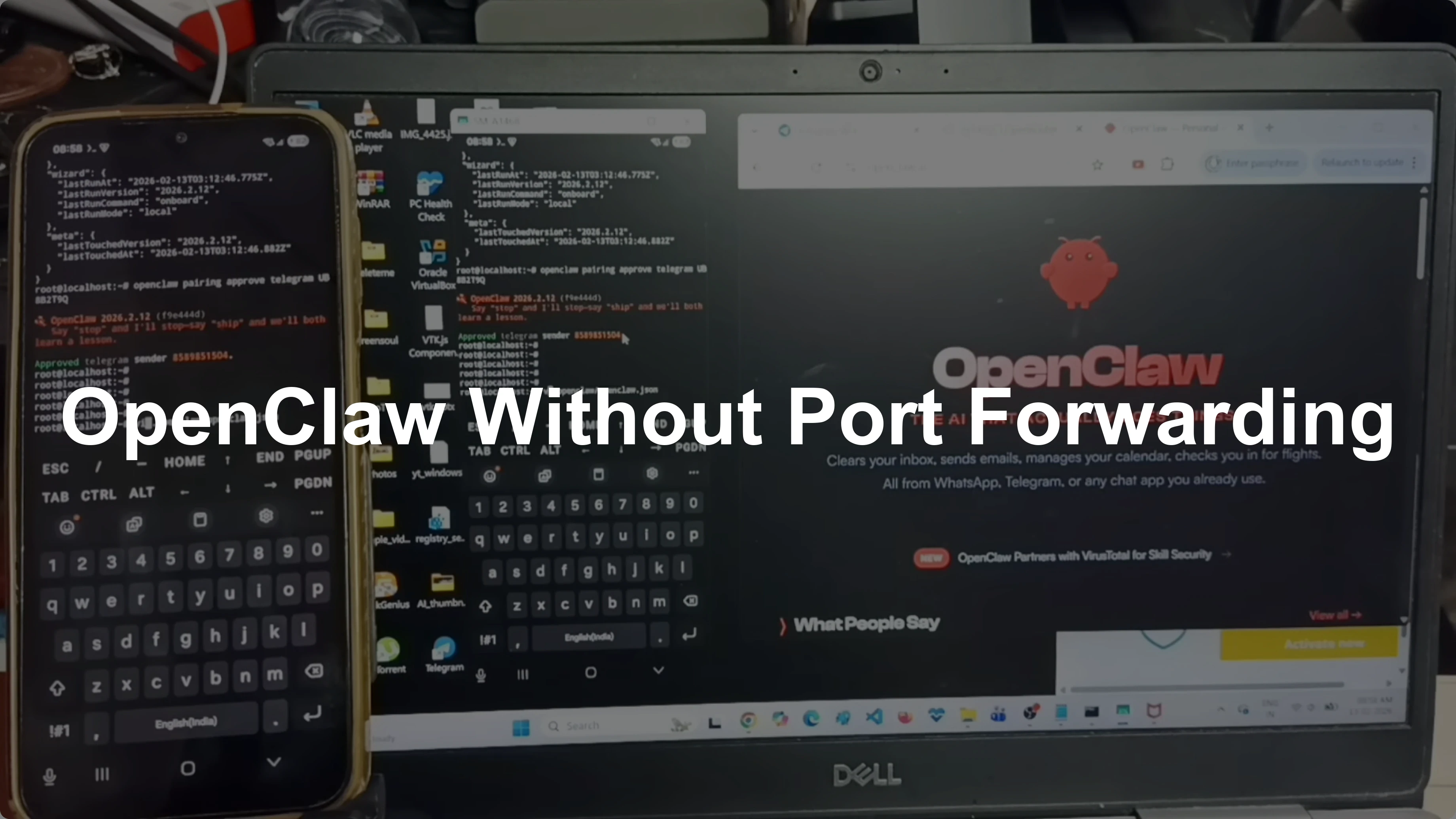
How to Access OpenClaw AI Dashboard Securely Without Port Forwarding?
OpenClaw Error Fixer
Paste any OpenClaw error and get the exact fix instantly — cause, steps, copy-ready commands, and related guides.
I am showing how to access the OpenClaw web UI running on an Android phone from another device on the same network without port forwarding. I have OpenClaw installed on this Android phone and I can access the web UI locally. I want to access this web UI from outside the phone on my Windows laptop.
If you are new to this setup, you can also check a concise intro to the OpenClaw local agent for context. I will keep the steps simple and accurate. Follow along on Termux.
Access OpenClaw AI Dashboard Securely Without Port Forwarding?
On Android with Termux
Open Termux on the Android phone where the OpenClaw gateway is running. I will edit the OpenClaw configuration JSON.
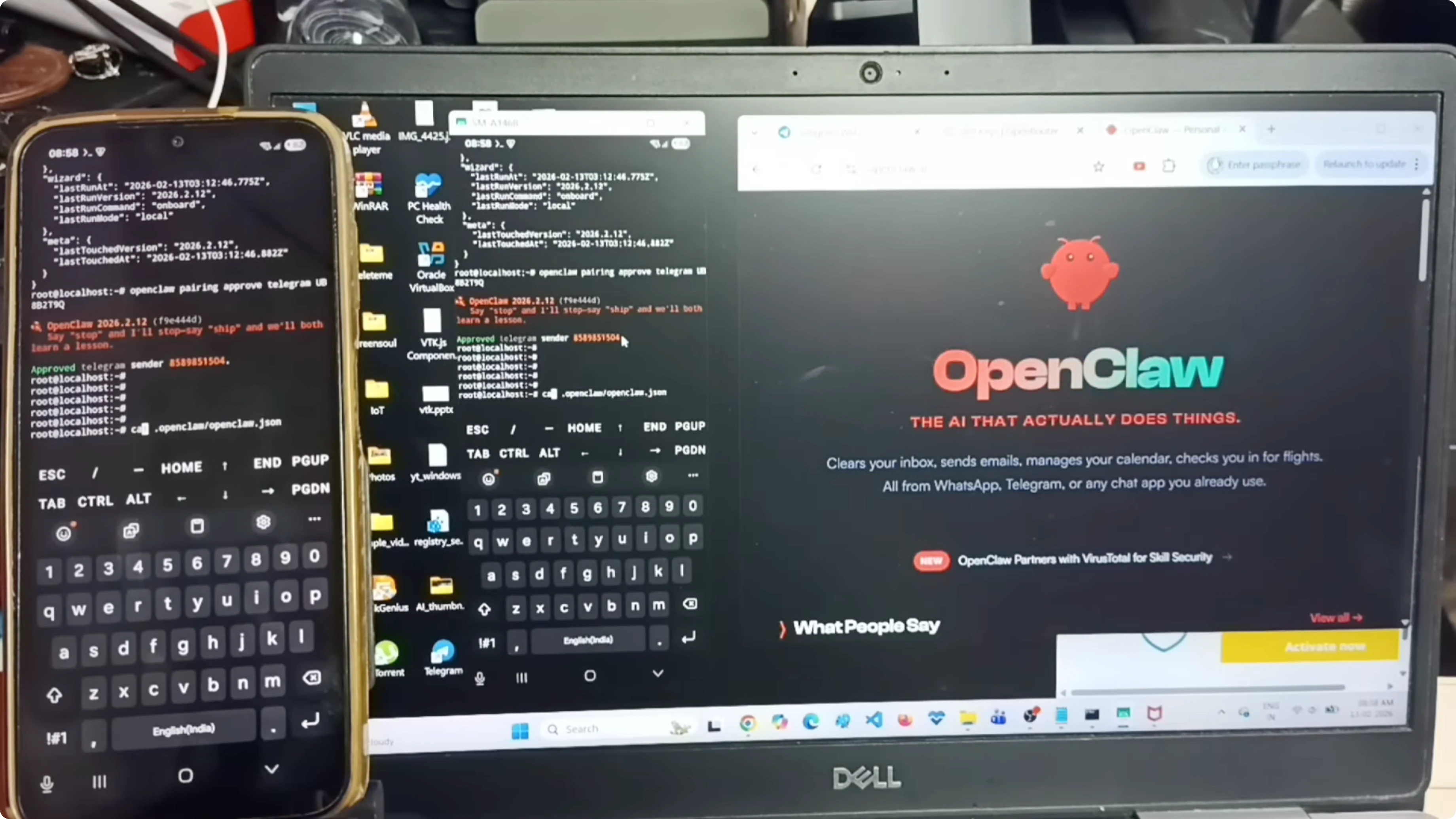
Open the OpenClaw config file named openclaw.json.
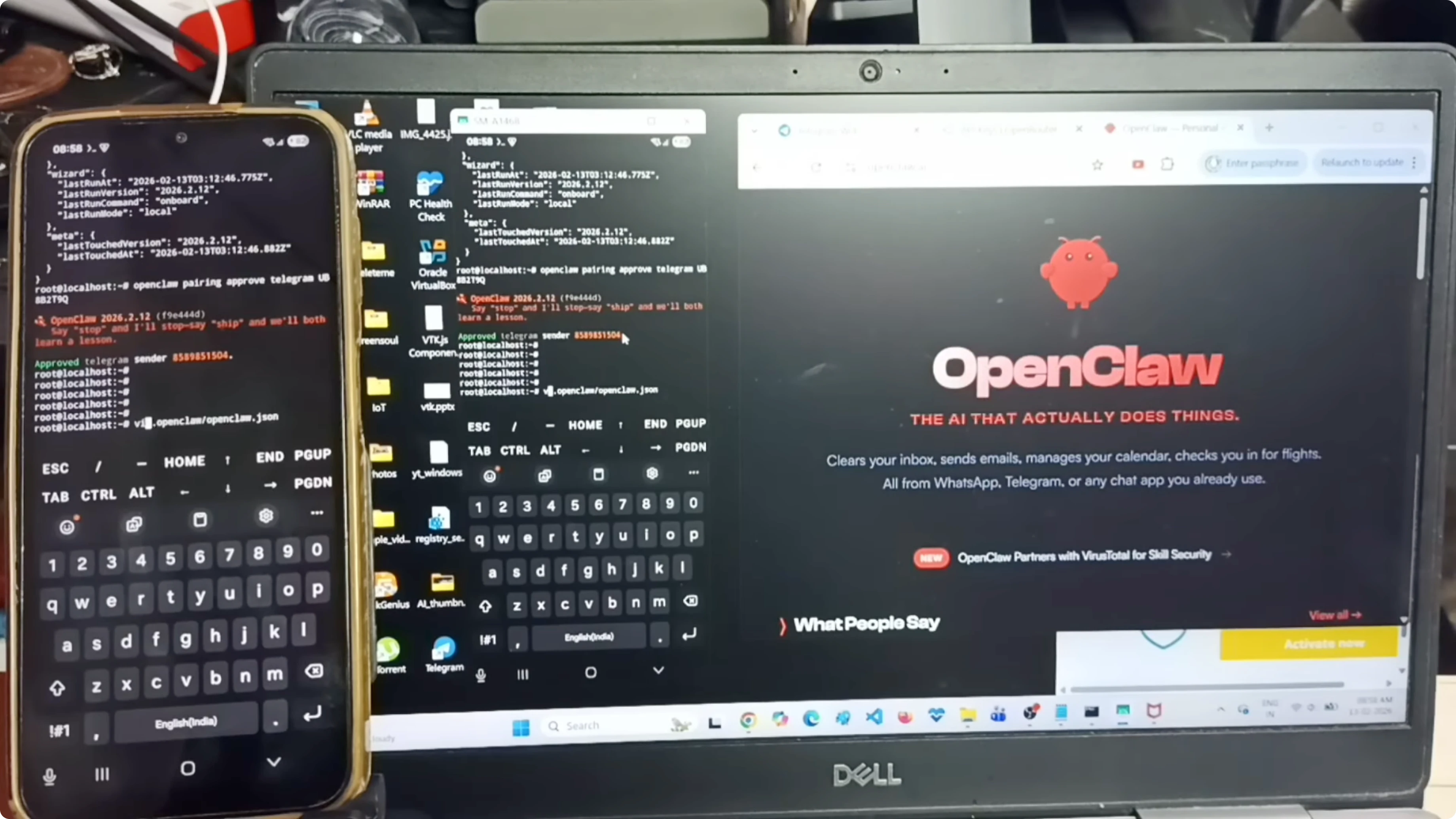
Edit config for LAN access
In the JSON, you can see a gateway section that defines the port and bind. Change bind so the gateway listens on the LAN, and allow the control UI to accept an insecure token for local testing.
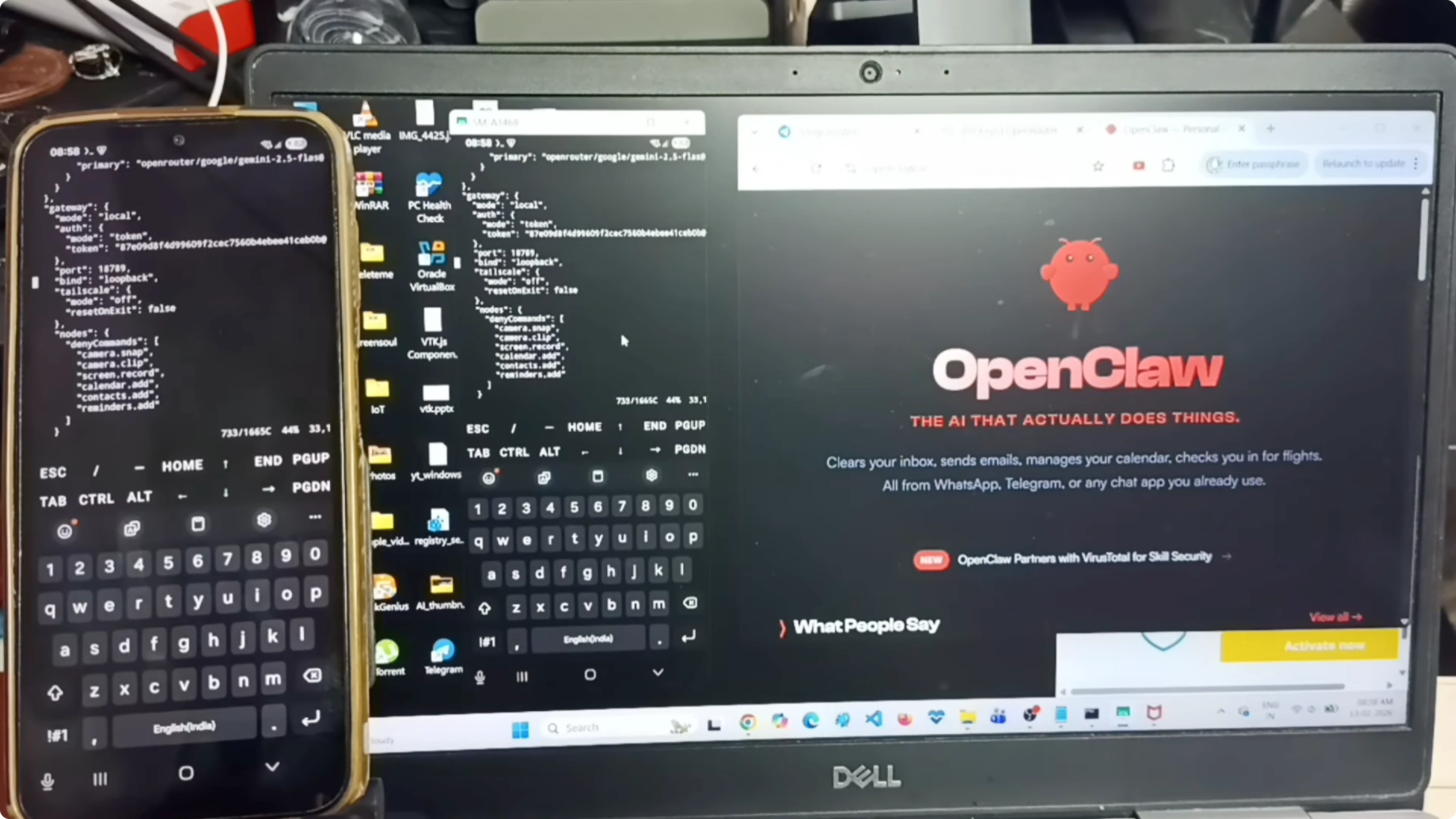
Use a minimal config like this and save the file:
{
  "gateway": {
    "port": 18789,
    "bind": "lan"
  },
  "control_ui": {
    "allow_insecure": true
  }
}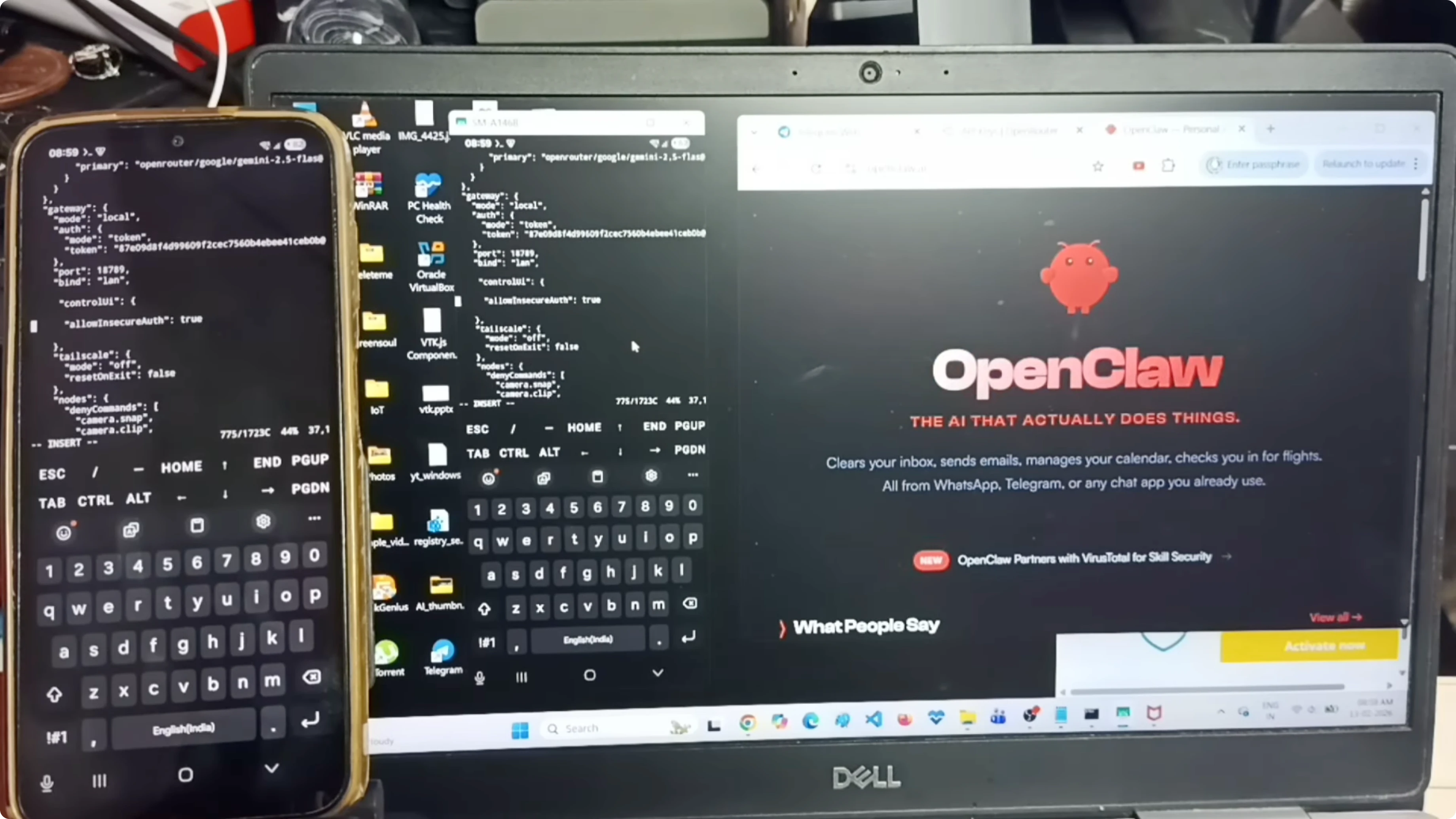
This tells the gateway to listen on your LAN and keeps the same port 18789. Save the file after making these changes.
Read More: AI tools
Restart the gateway
Go to the terminal where the OpenClaw gateway is running. Press Ctrl+C to stop the gateway, then start it again so the new settings take effect.
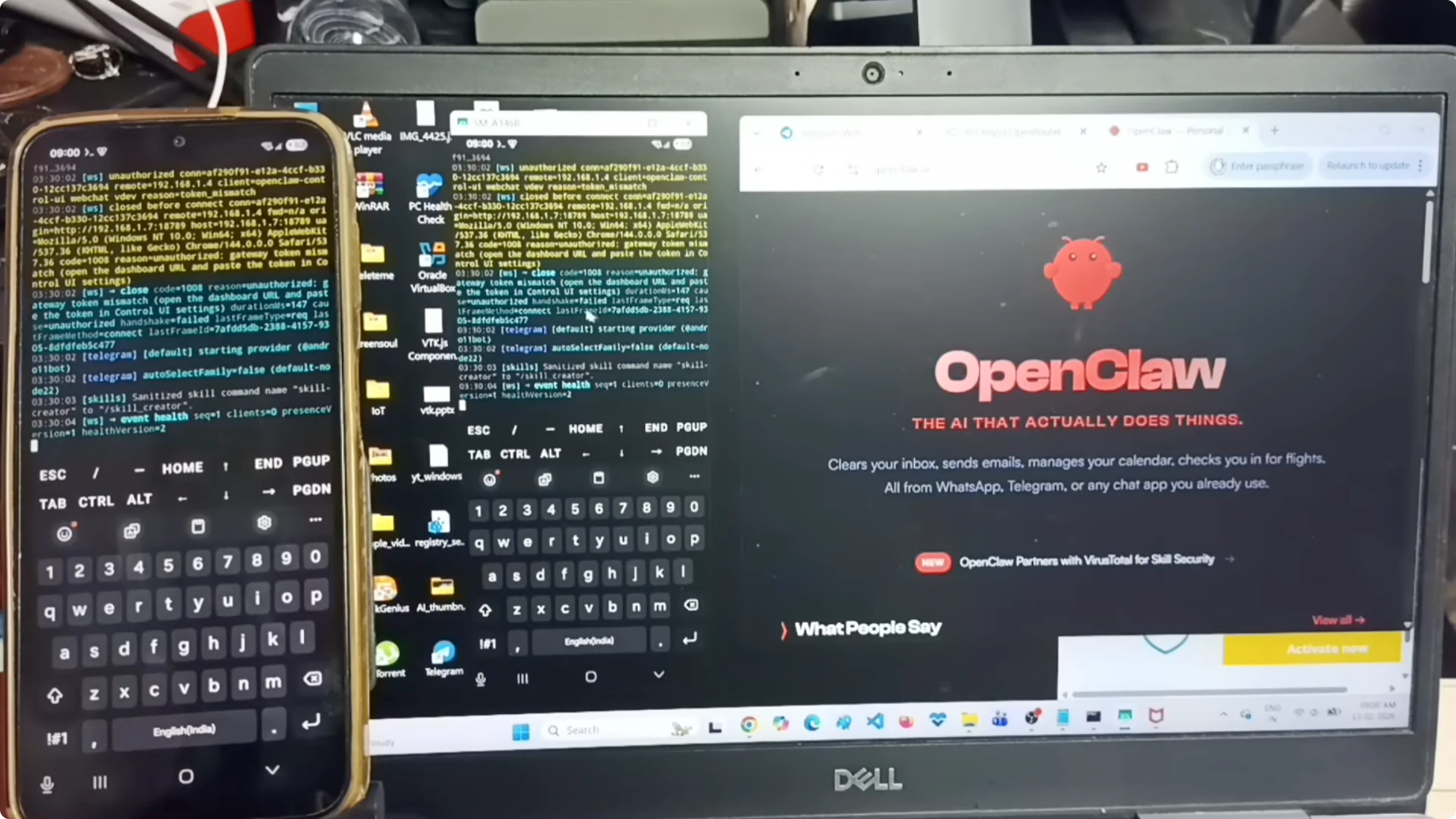
Now the gateway is running with LAN binding.
Read More: Google AI Studio
Find the phone IP address
I need the Android phone’s IP address on the Wi-Fi network. Run this command in Termux:
ip -4 addr show wlan0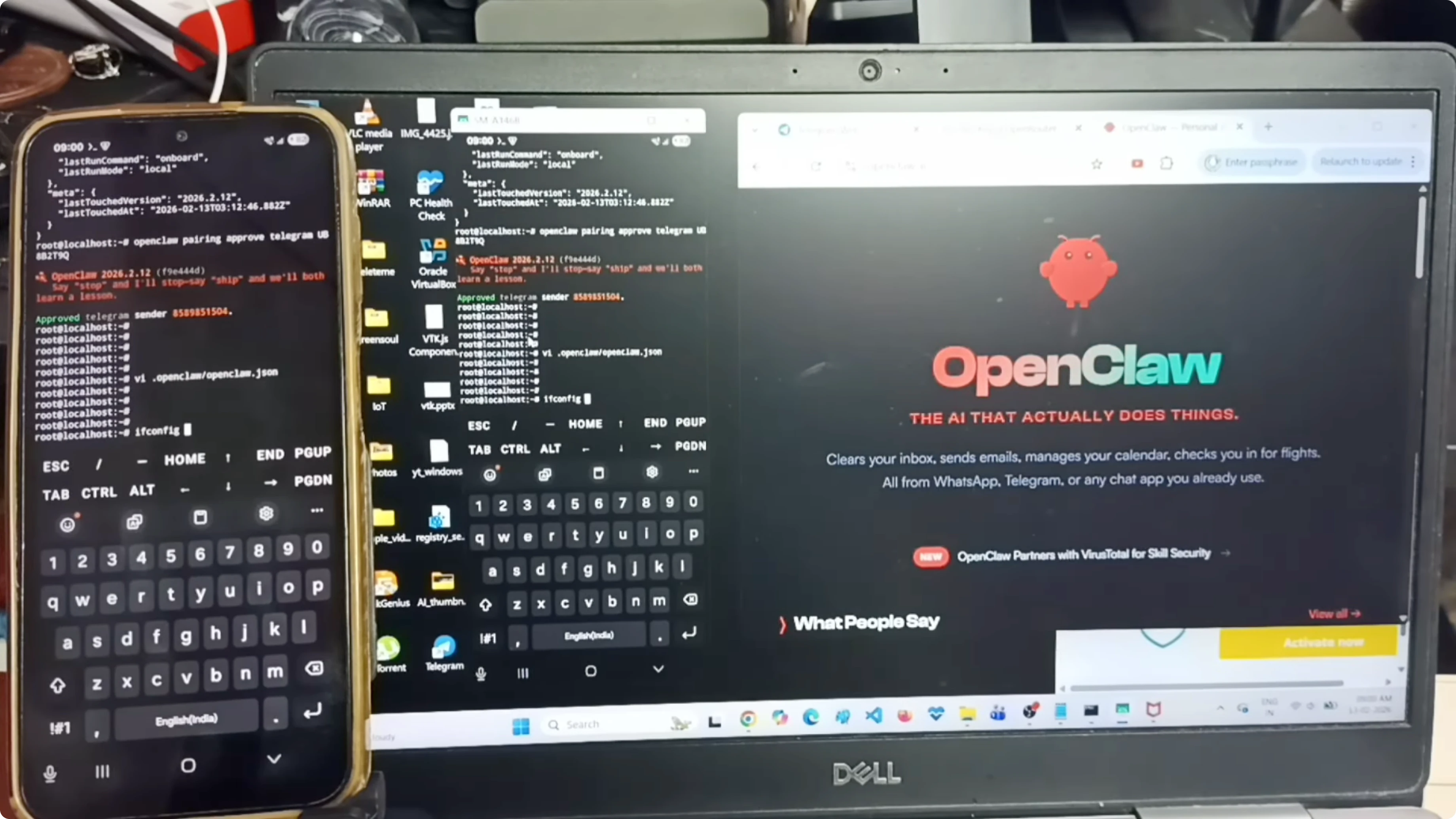
Identify the inet line for wlan0, for example 192.168.1.7.
Read More: AI text recognition
Connect from the laptop
On the Windows laptop, open a browser. Go to the URL:
http://192.168.1.7:18789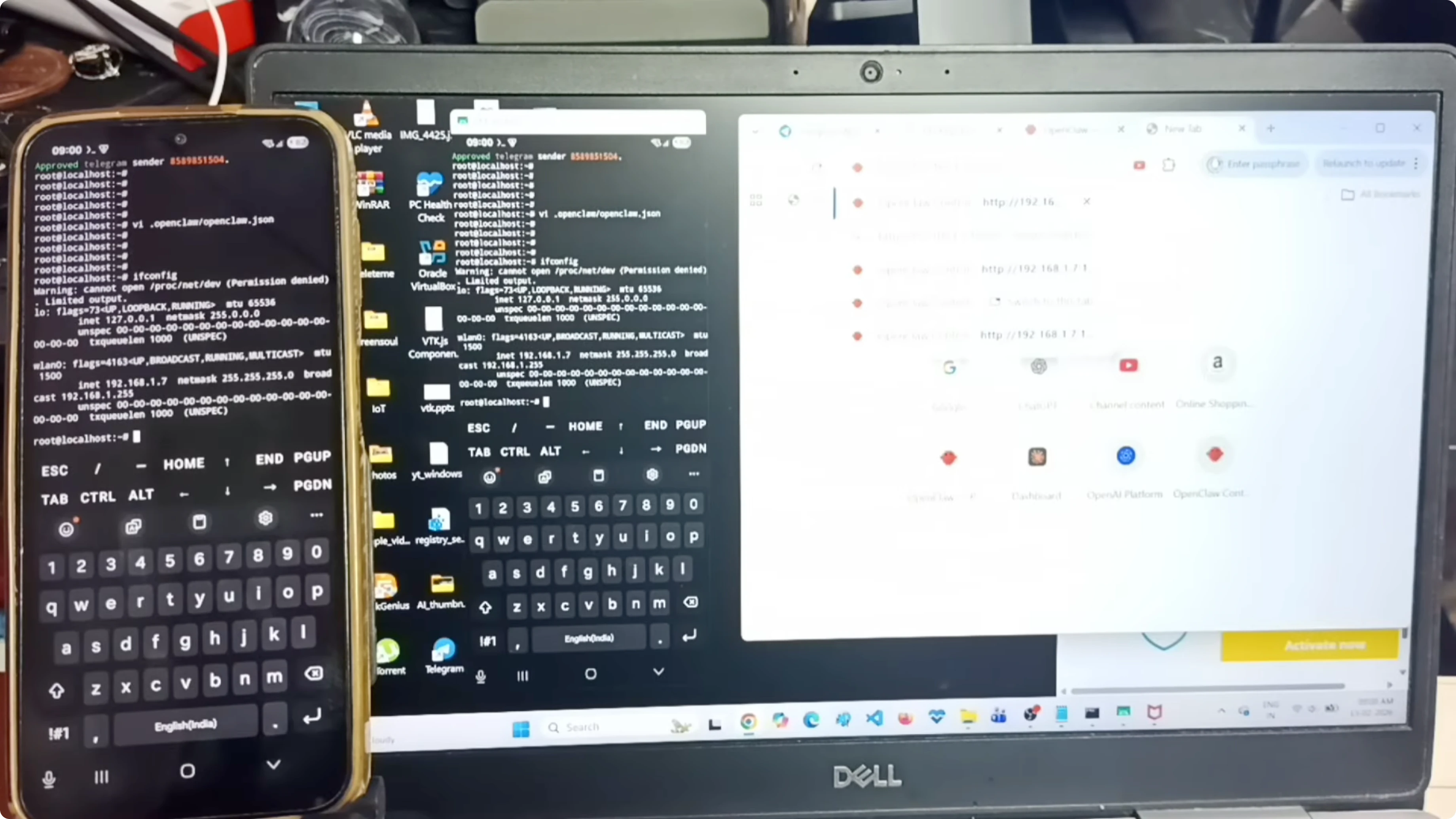
If you see that the token has changed after the gateway restart, refresh the token from the phone.
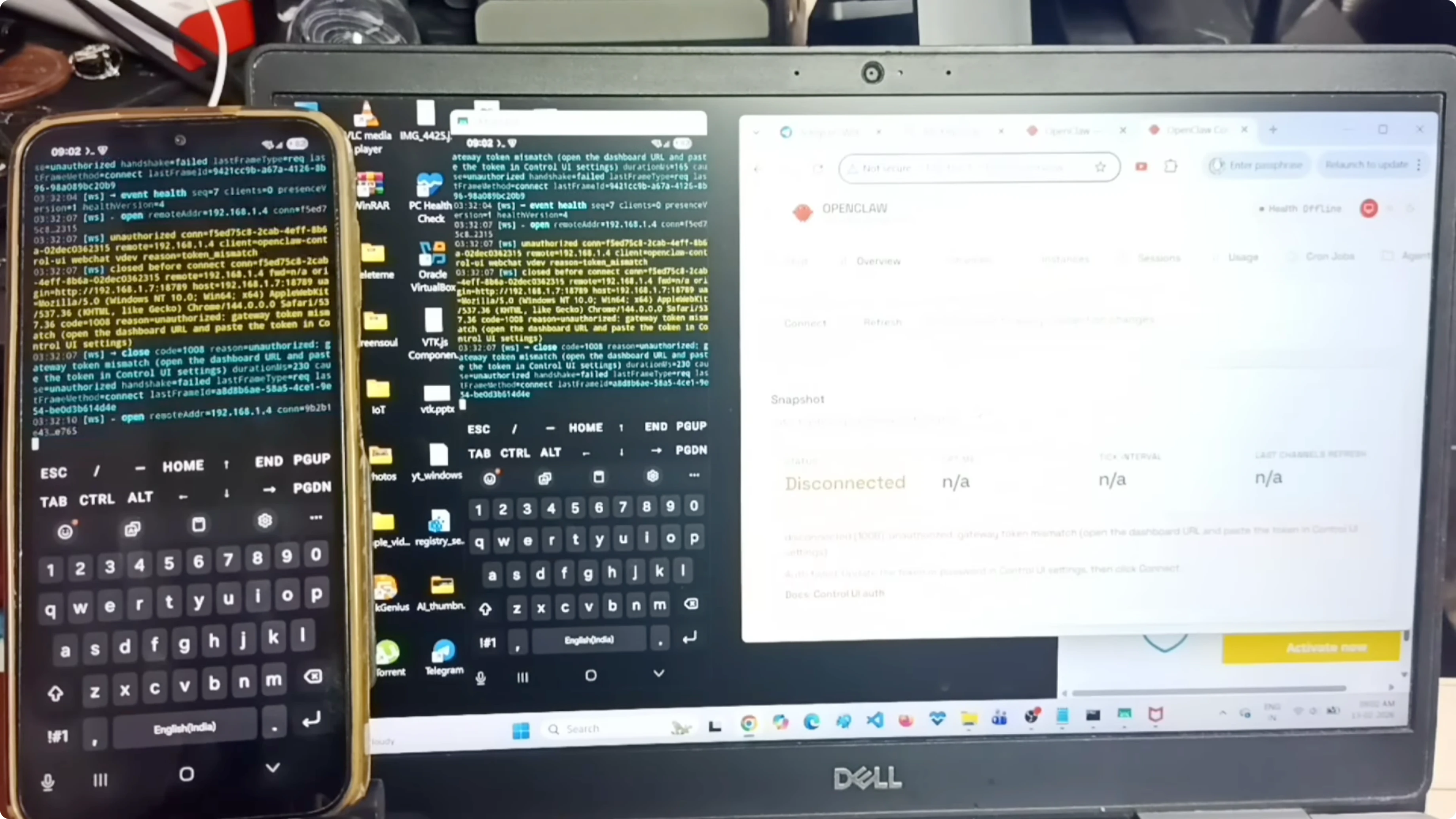
Get the new token
In Termux, print the token file so you can copy the current token value:
cat <token-file-path>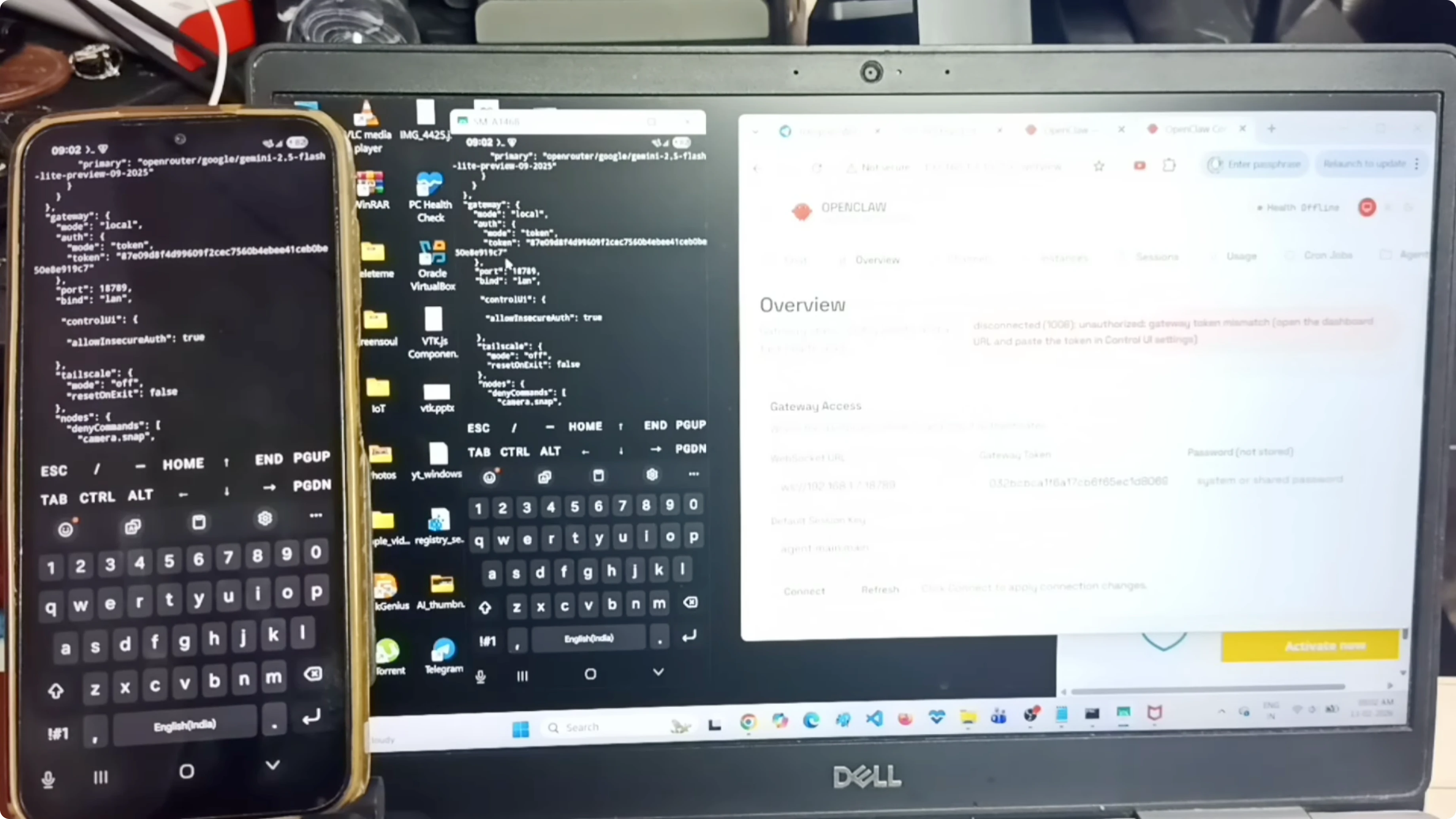
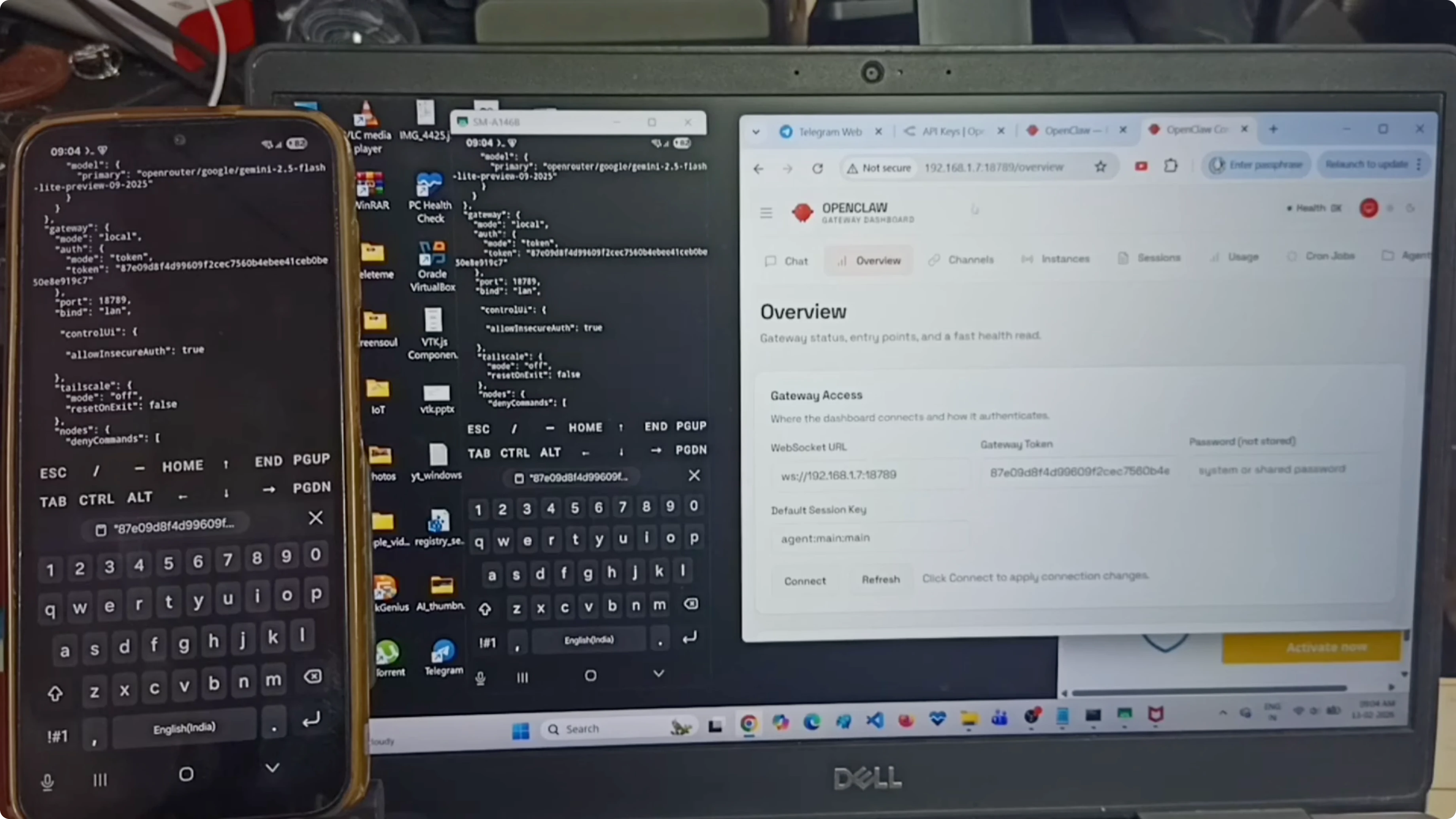
Copy the new token to the laptop’s browser UI. Remove any double quotes before pasting if present, then click Connect.
Confirm access and test
Now it is connected, and I can access the OpenClaw gateway dashboard from the Windows laptop. The gateway dashboard is running on the Android phone but accessible on the laptop.
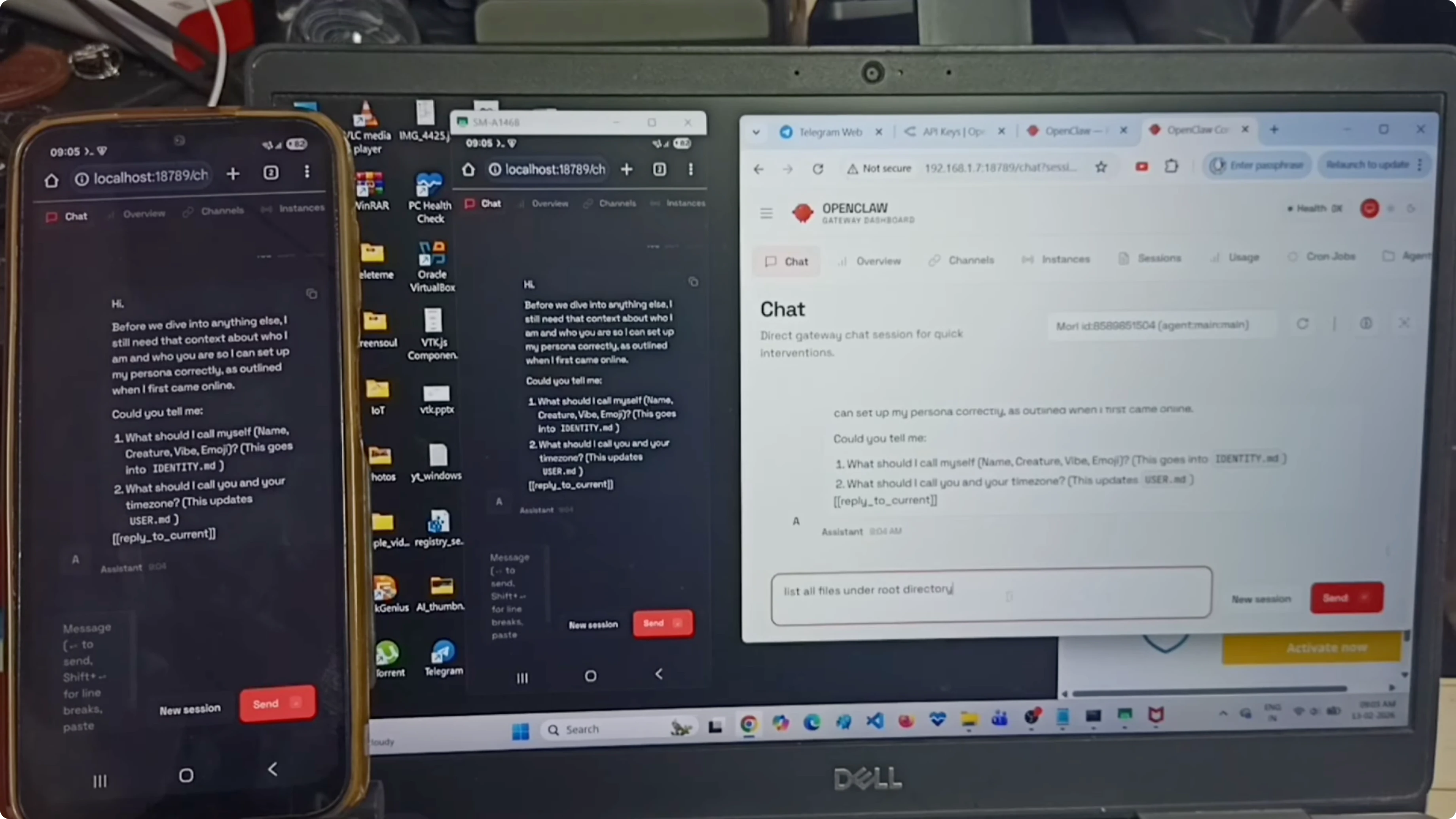
I tested by running a prompt, and I can see the same output on both the Android phone and the Windows laptop.
Read More: AI video editing
Final thoughts
This method lets you access the OpenClaw gateway dashboard on your LAN without any router port forwarding. Edit the config to bind to LAN, restart the gateway, find the phone’s IP, and connect using the phone’s IP with the gateway port. If the token changes after a restart, retrieve it from the token file and connect again.
Subscribe to our newsletter
Get the latest updates and articles directly in your inbox.

Related Posts

8 Best Claude Code Plugins in 2026 (You Need to Know)
8 Best Claude Code Plugins in 2026 (You Need to Know)

7 Best Claude Code Skills (You Need to Know)
7 Best Claude Code Skills (You Need to Know)

Claude Code Desktop IDE Features (You Need to Know)
Claude Code Desktop IDE Features (You Need to Know)