
Table Of Content
- Why Set Up Claude Code Remote Control Workflow?
- Start Set Up Claude Code Remote Control Workflow?
- Manage multiple sessions in Set Up Claude Code Remote Control Workflow?
- Plan mode in Set Up Claude Code Remote Control Workflow?
- Verify changes in Set Up Claude Code Remote Control Workflow?
- Attach mid conversation to Set Up Claude Code Remote Control Workflow?
- Terminate a session in Set Up Claude Code Remote Control Workflow?
- Final thoughts on Set Up Claude Code Remote Control Workflow?
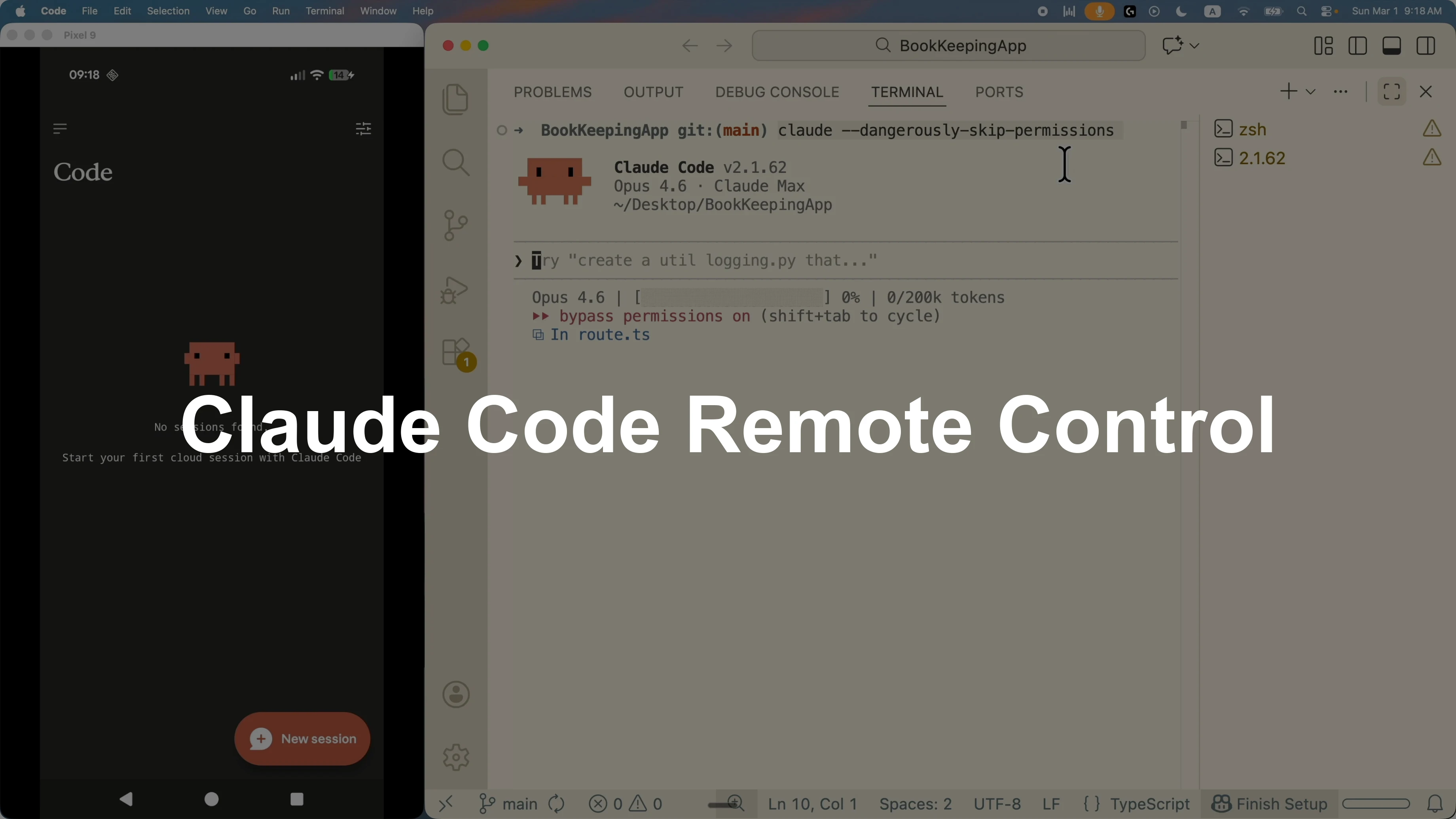
How to Set Up Claude Code Remote Control Workflow?
Table Of Content
- Why Set Up Claude Code Remote Control Workflow?
- Start Set Up Claude Code Remote Control Workflow?
- Manage multiple sessions in Set Up Claude Code Remote Control Workflow?
- Plan mode in Set Up Claude Code Remote Control Workflow?
- Verify changes in Set Up Claude Code Remote Control Workflow?
- Attach mid conversation to Set Up Claude Code Remote Control Workflow?
- Terminate a session in Set Up Claude Code Remote Control Workflow?
- Final thoughts on Set Up Claude Code Remote Control Workflow?
I am going to show you how I use Claude Code remote control on the go with my phone. I control active terminal sessions, trigger skills and MCP tools, switch across multiple sessions, and verify changes from a mobile view. The goal is to keep your coding session moving even when you are away from your desk.
You can call different sessions inside the mobile app and control what is running in the terminal. This includes skills, MCP, sub agents, and more. I will also show simple ways to verify changes so you can guide the AI on the right track.
If you have not set up Claude Code yet, start here for a quick install and configuration guide.
Why Set Up Claude Code Remote Control Workflow?
Remote control lets you attach your current CLI session to the Claude app. You can pick up where you left off and keep the session synced across desktop and mobile. Messages and actions stay in sync across both ends.
This makes it easy to monitor progress and send prompts while you are out. If you need to switch focus, you can jump between remote sessions by name. It feels like managing your IDE from your phone.
See how the Claude Code terminal experience works end to end so you understand how the session ties back to your local environment.
Start Set Up Claude Code Remote Control Workflow?
Open the Claude app on mobile and navigate to the Code section.
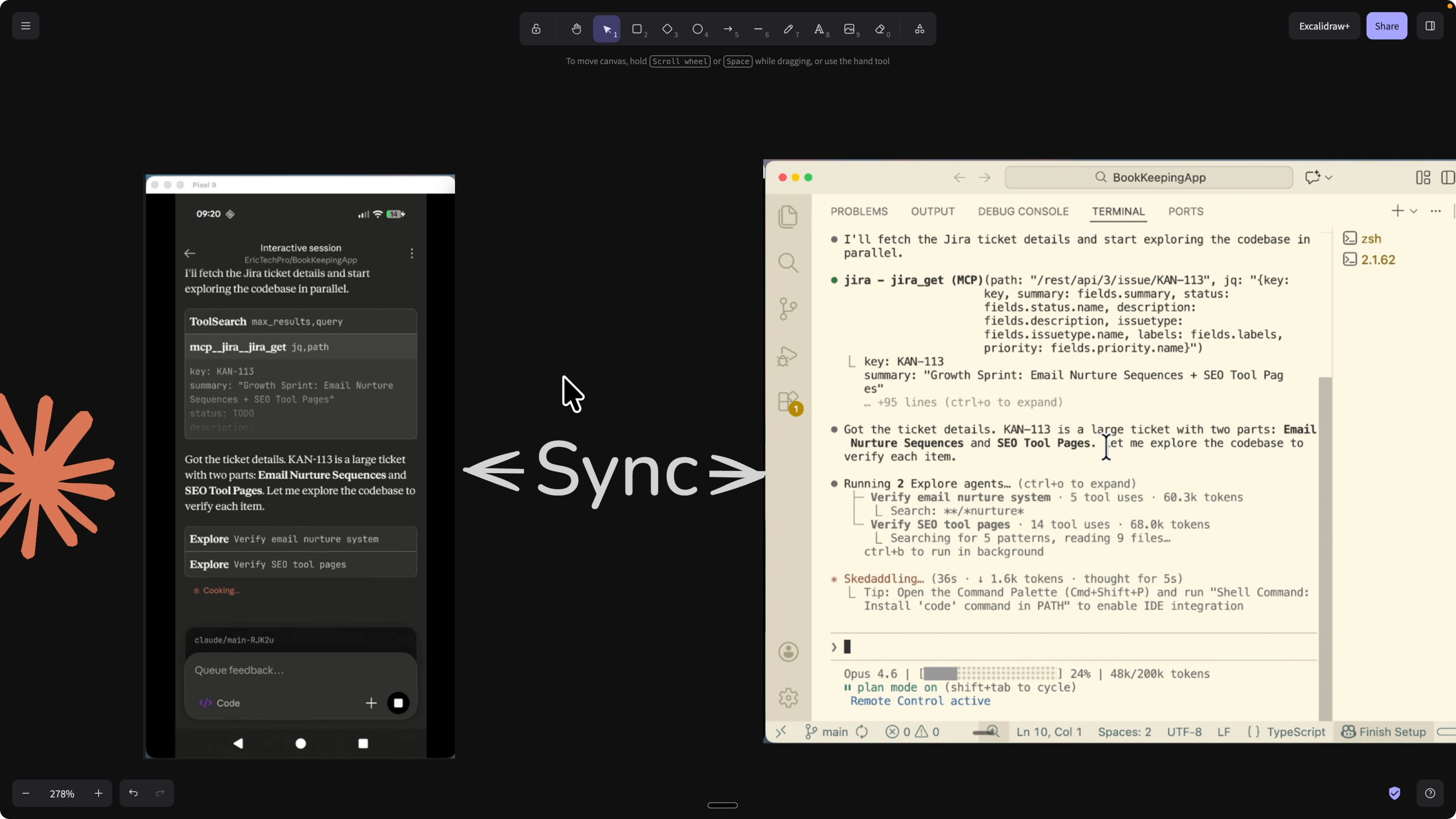
On your computer, open your project and start a Claude Code session in the terminal.
In the Claude Code terminal, type the following and press Enter:
remote control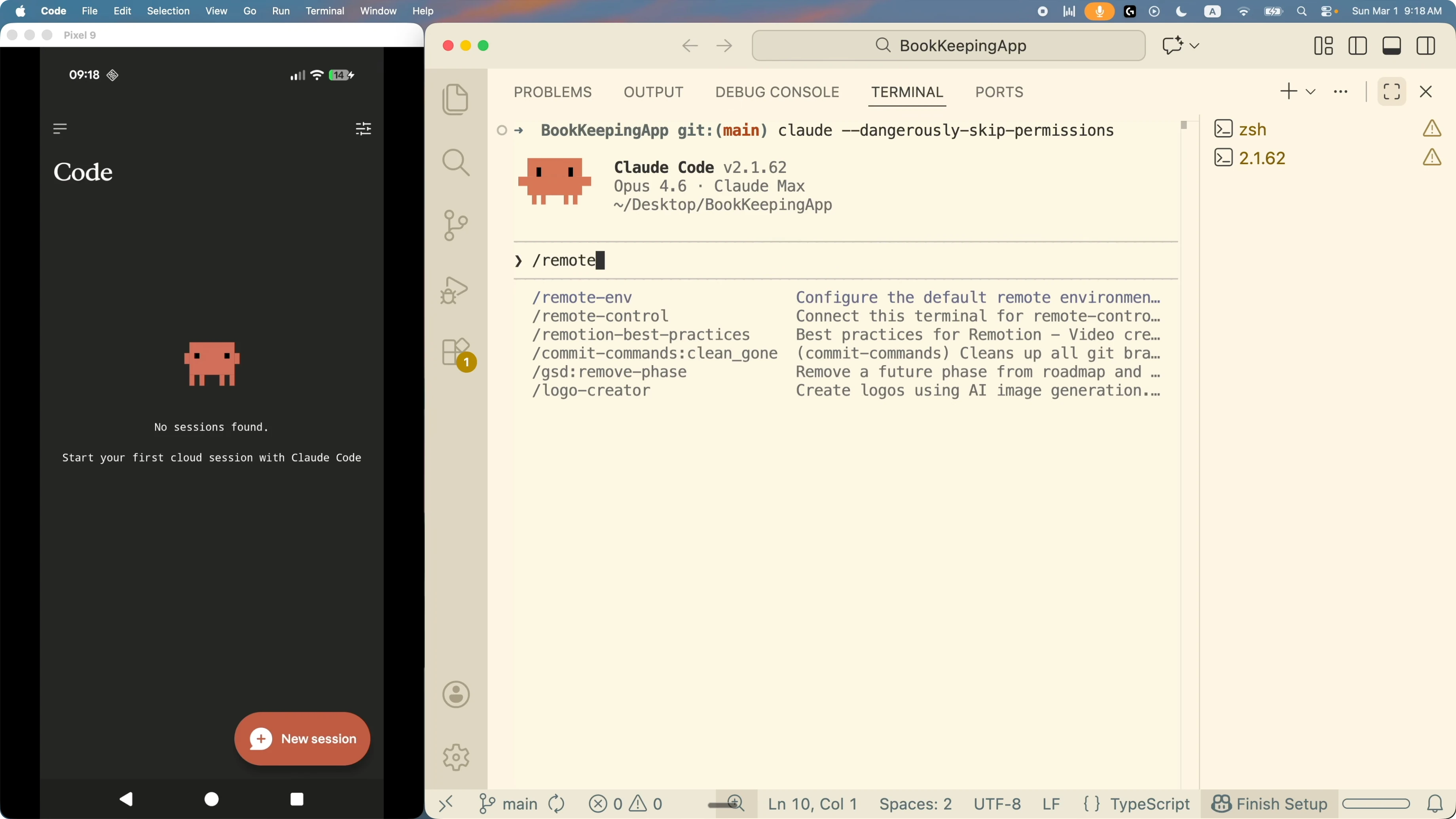
Confirm to enable remote control for the current session.
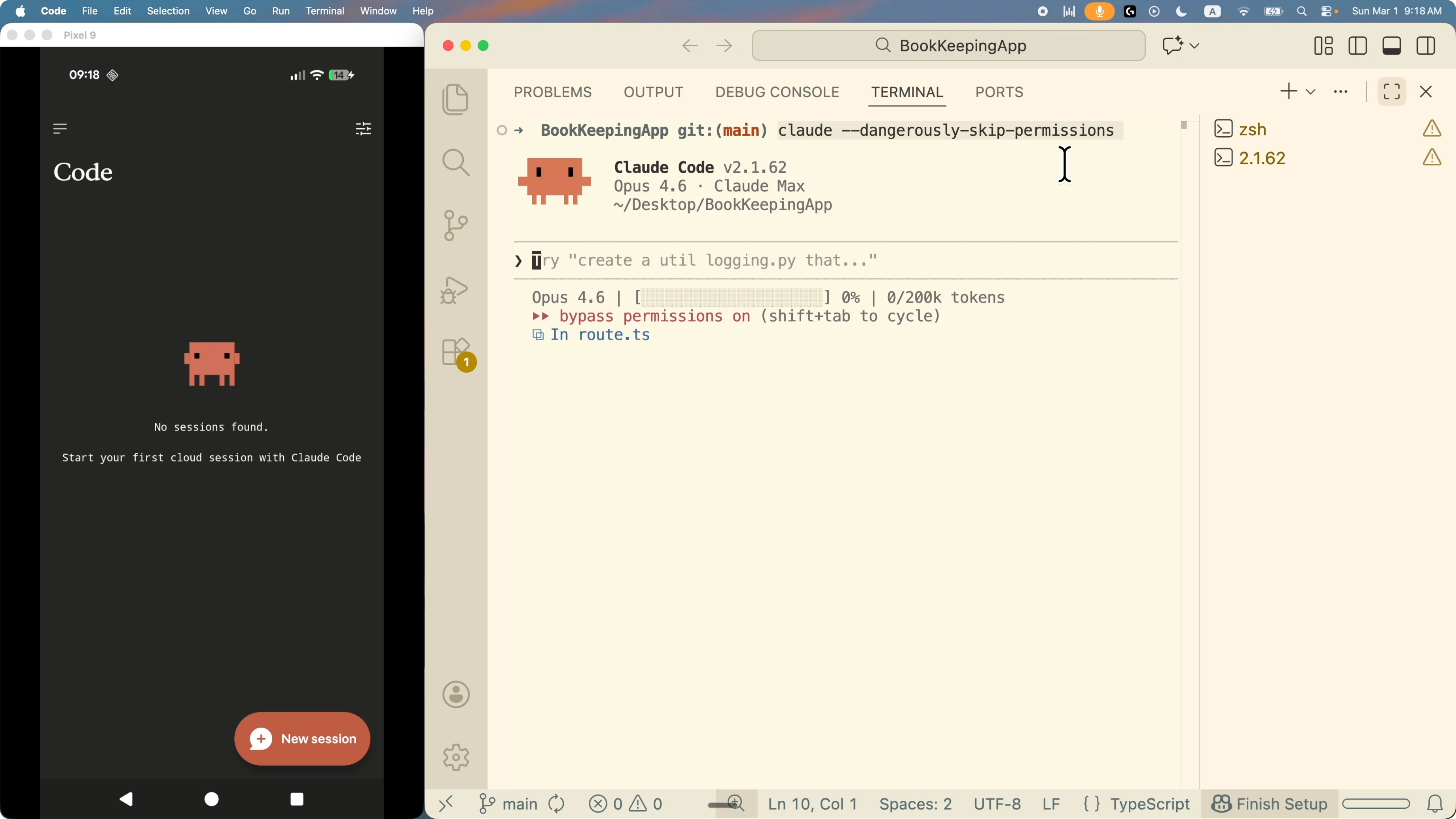
An interactive session appears in the Claude app. Tap it to enter and you can interact just like you do in the terminal, with messages synced both ways.
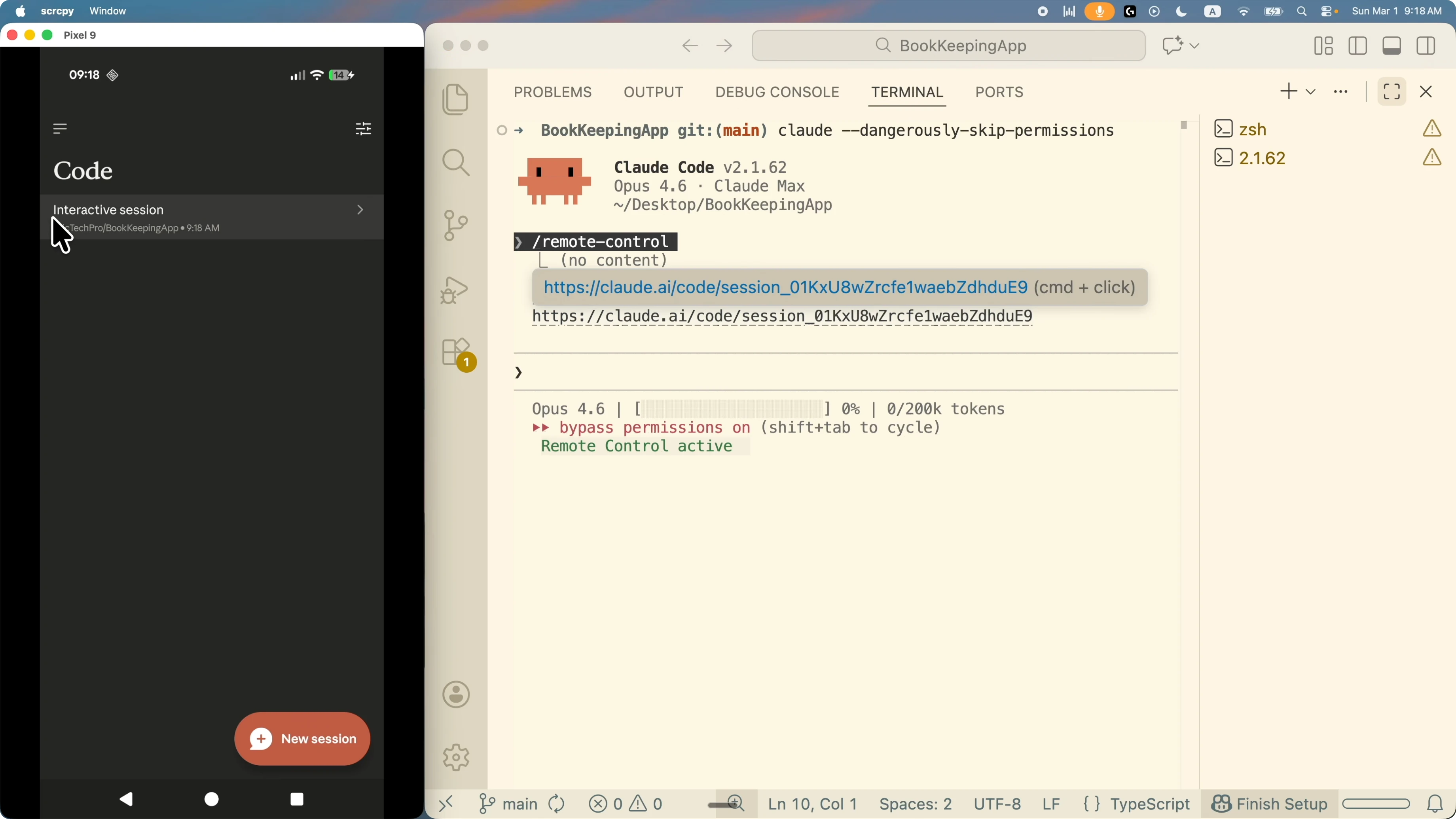
If you have a Jira ticket, paste it into the session and ask Claude to verify completion across the codebase. For example, paste the ticket details and say:
Based on this ticket, verify if the work is complete in this project.Claude will call your local tools, for example a Jira MCP server, read the ticket, and scan the codebase. You will see progress synced on mobile and desktop.
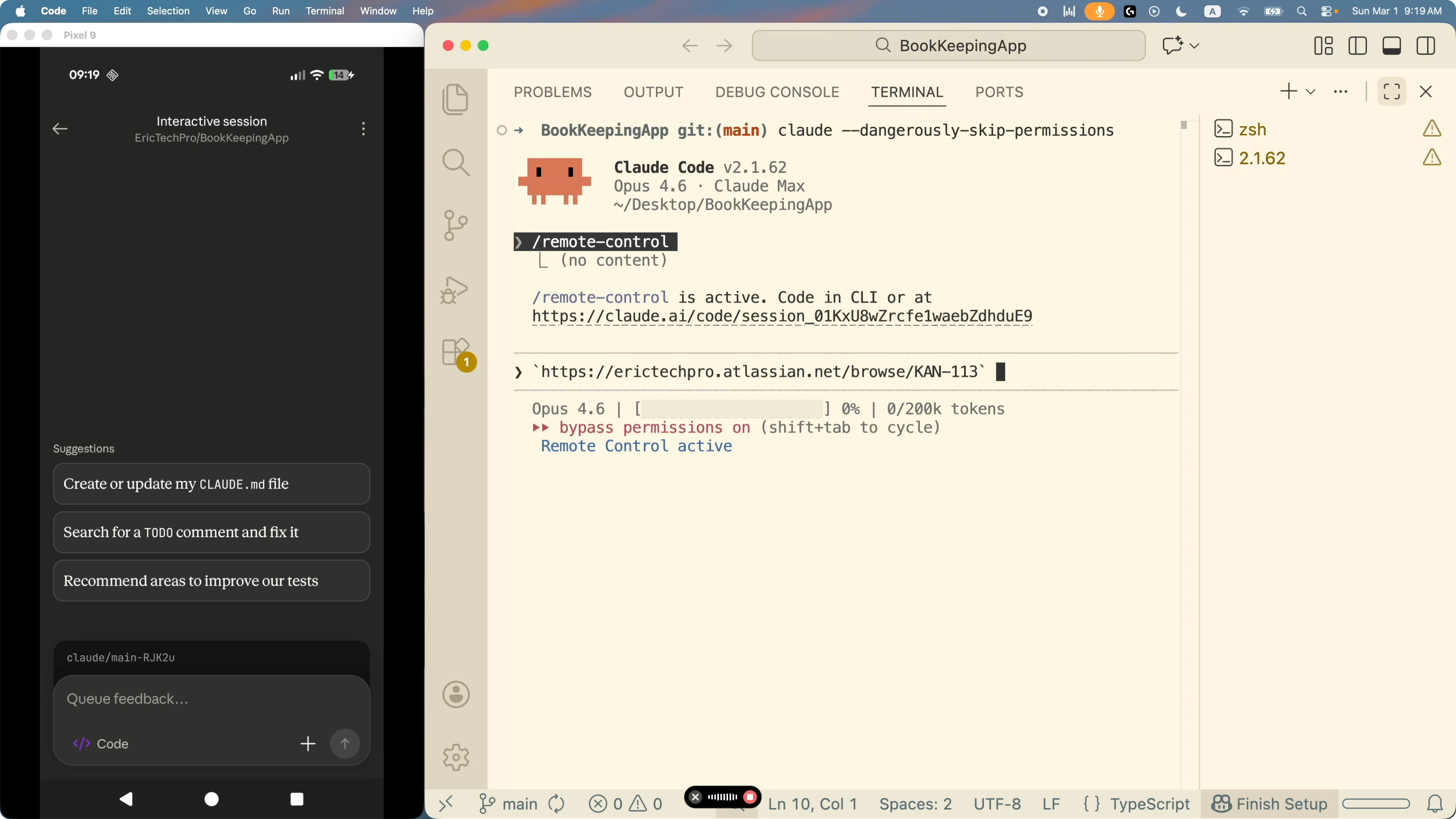
If you are evaluating code and outputs, this guide explains how Claude Code structures plans and changes so you can interpret results quickly.
Manage multiple sessions in Set Up Claude Code Remote Control Workflow?
You can open multiple terminal sessions and attach remote control to each one.
In another terminal window, start a new Claude Code session.
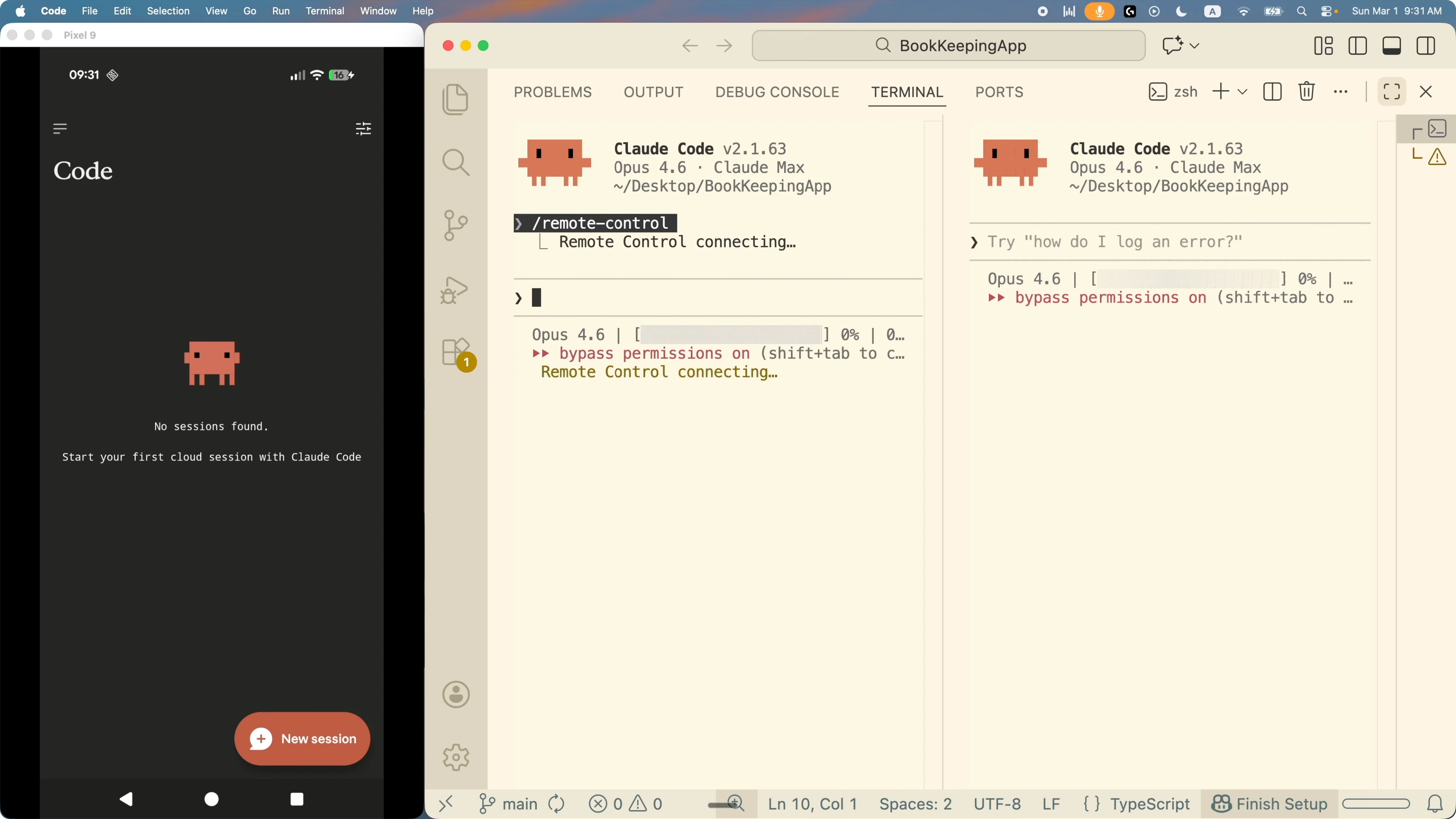
Type the same command:
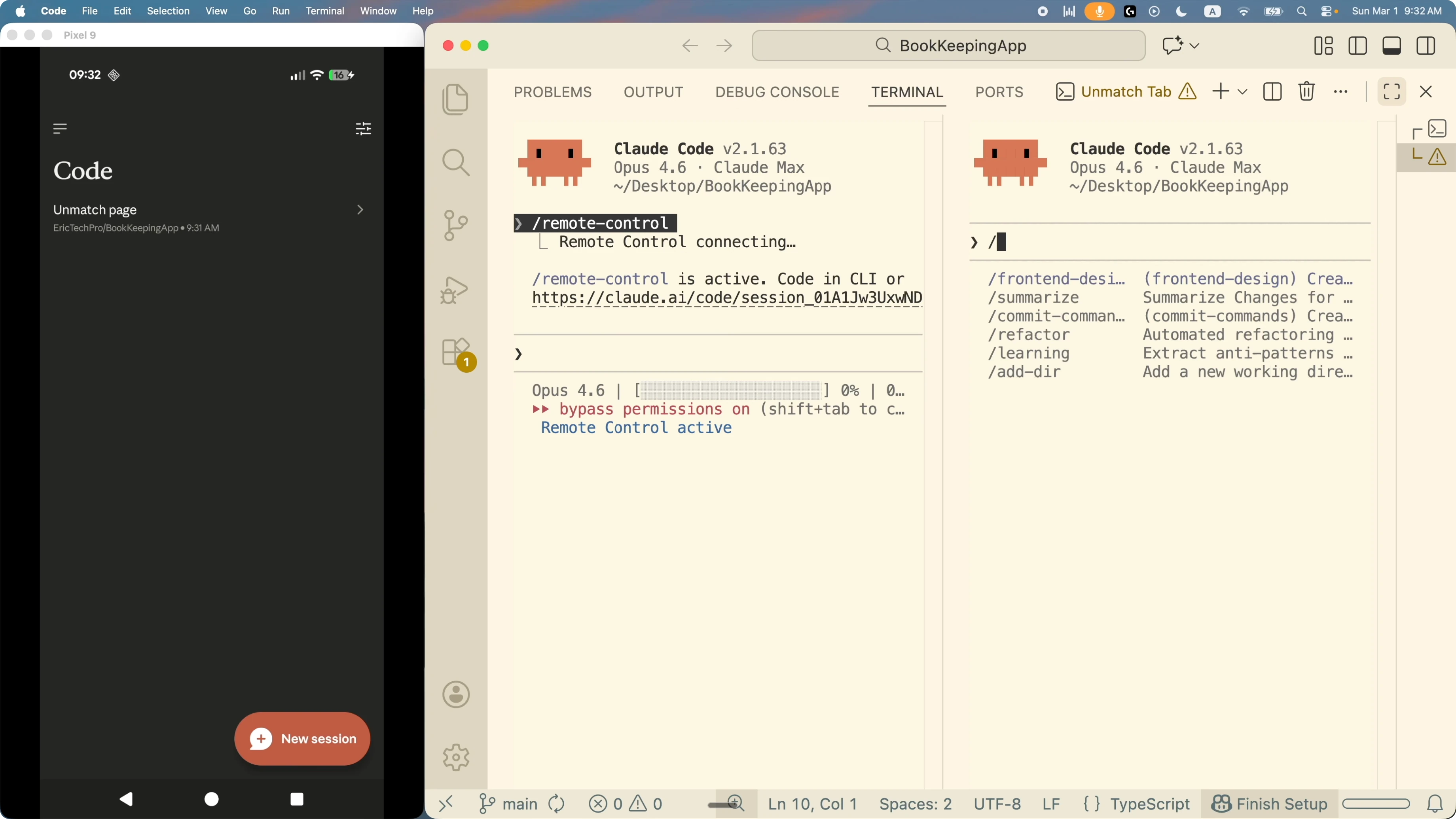
remote controlRefresh the mobile app and you will see both sessions. Rename each session for clarity, for example one for planning the unmatched page and another for a Jira ticket such as CAN 148. Clear names make switching tasks easy on mobile.
Plan mode in Set Up Claude Code Remote Control Workflow?
For a UX improvement task, prompt Claude with a clear instruction. Here is an example you can paste:
Based on the current changes in our application, first understand the codebase and propose how to improve the user experience to match more items to the right records between receipts and transactions. Users currently see two columns for receipts and transactions and must match one by one. Trigger the front end design skill to explore better matching flows.Switch the mode from code to plan if you want a plan before edits. Send the prompt again if needed and let it produce a high level plan and an architecture diagram.
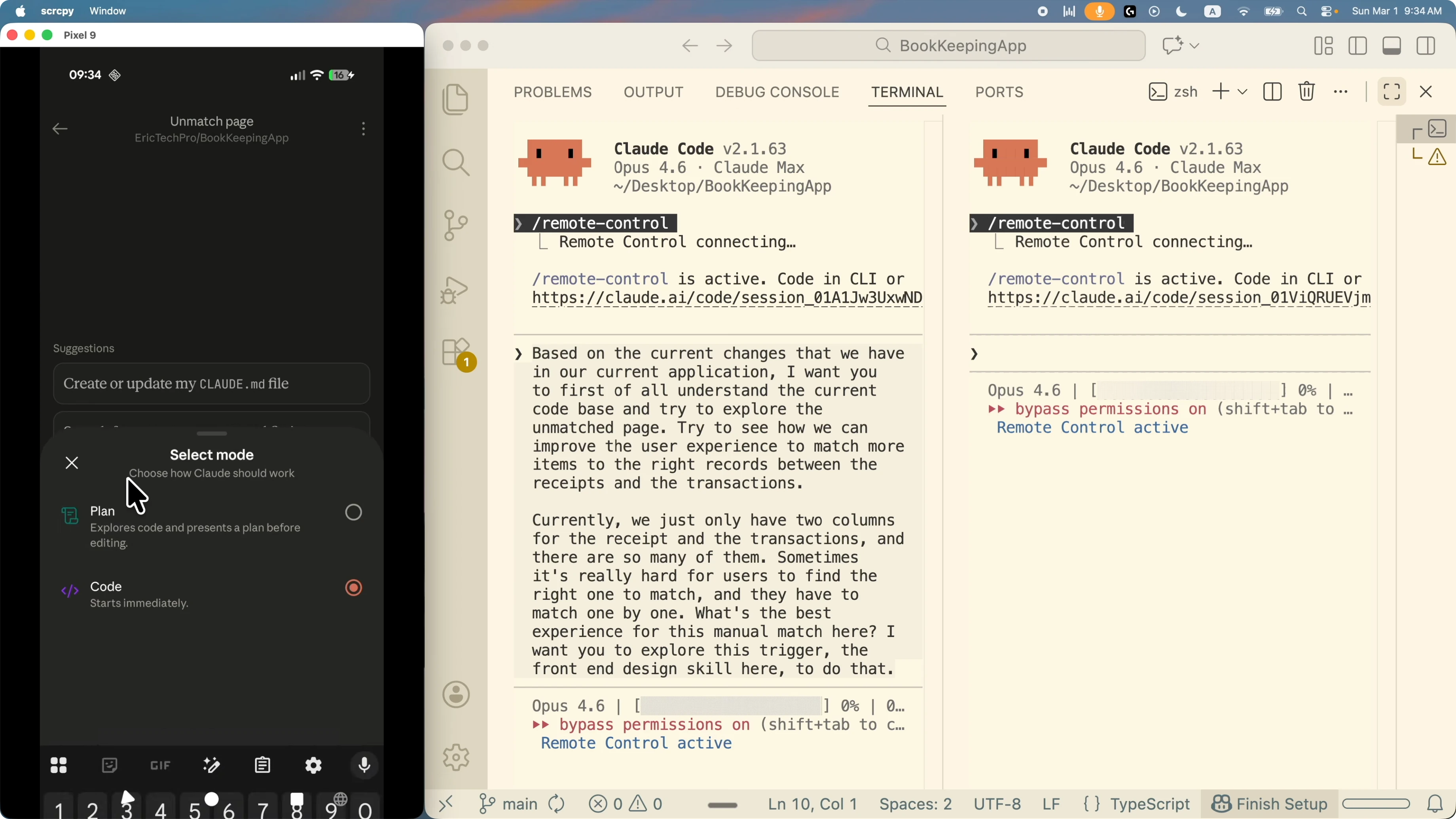
You can scroll to view the full diagram, which usually includes the database, API layer, autocomplete, and UI. Continue planning by asking for changes or improvements.
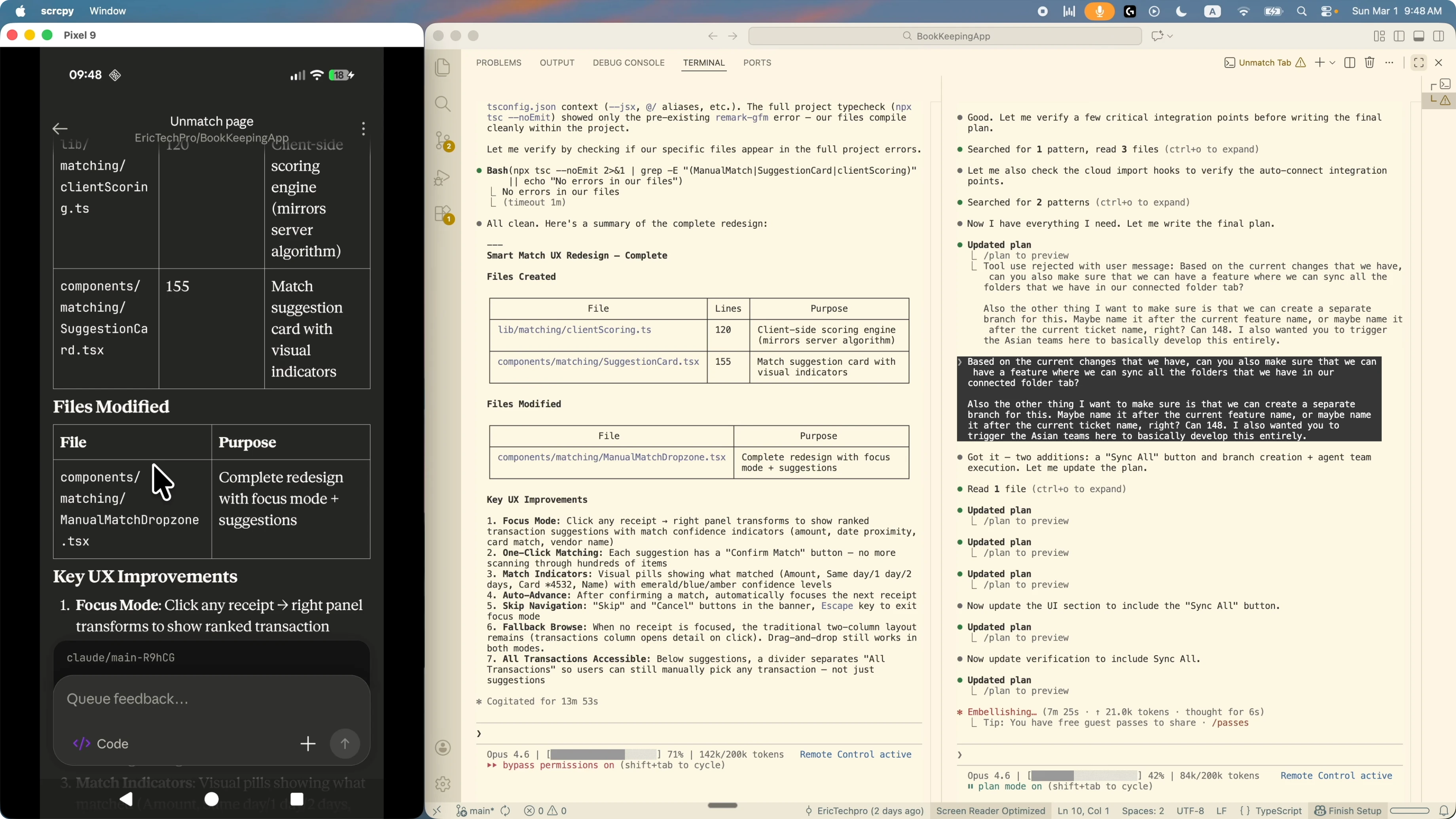
Use the suggest edit box to refine the plan. For example:
Based on the current plan, also include a feature to sync all folders in the connected folders tab for the Google Drive sync feature. Create a separate branch for this work. Trigger the agent teams to develop the full implementation.Click send and let Claude replan with the new requirements. You can also click improve plan to have it refine and execute next steps.
Read More: Use automated kanban to keep planning and coding in sync
Verify changes in Set Up Claude Code Remote Control Workflow?
When a plan produces UX updates, you can validate them from mobile in two helpful ways. Ask Claude to produce an ASCII diagram of the target UI so you can confirm layout and flows. For example:
Generate a terminal diagram that shows what the matching page UI will look like.Review the ASCII diagram on mobile. If the layout is not what you expect, prompt for changes and request another 2D view to confirm before coding.
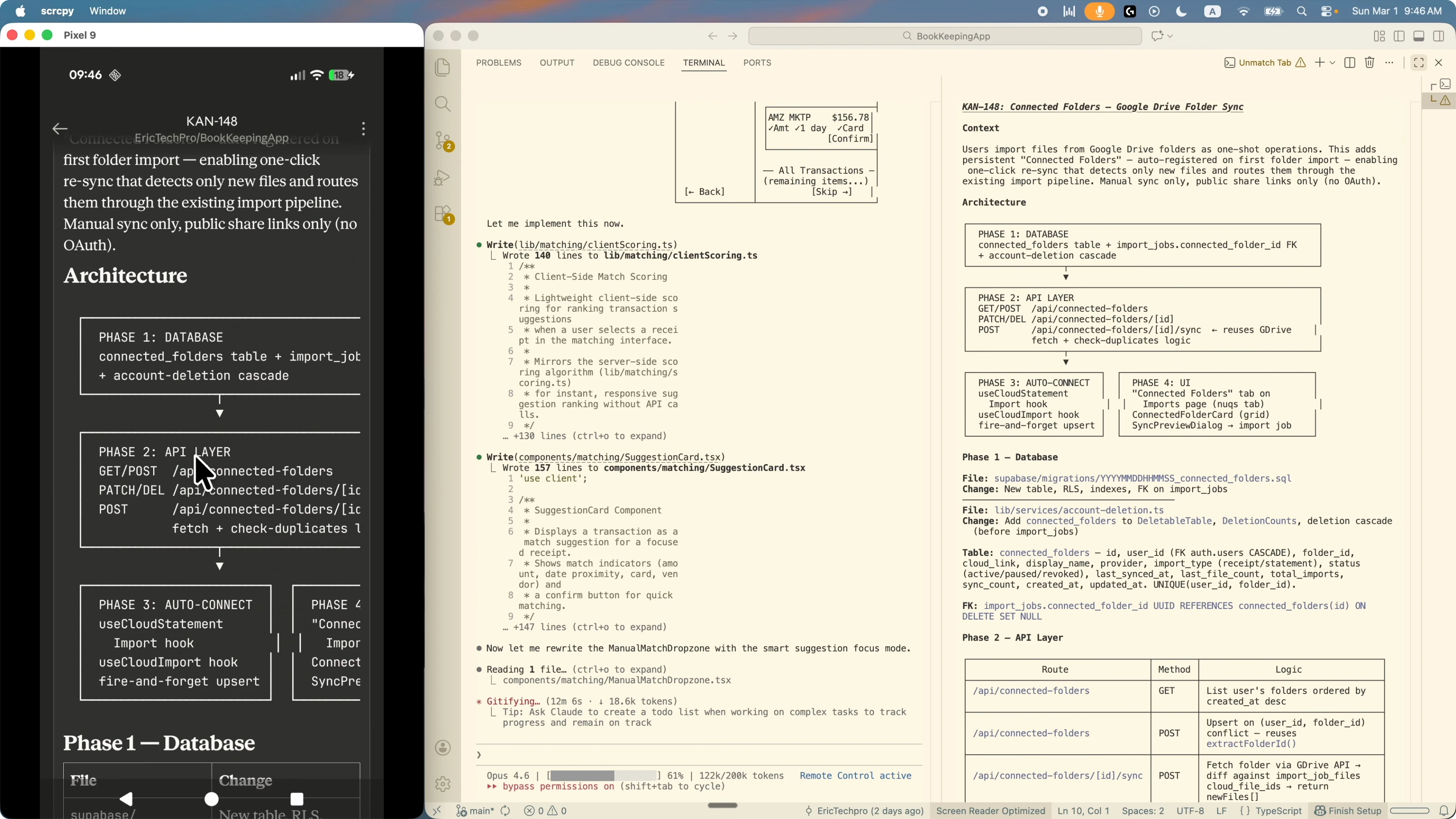
To validate in a real browser, trigger the Playwright MCP to open the app, navigate to the page, take a screenshot, and compare it to the ASCII diagram. You can ask Claude to run the Playwright MCP from the terminal session so the browser opens on your machine and results still sync to mobile.
See how to connect Claude Code with Playwright MCP for UI checks and screenshot validation.
Attach mid conversation to Set Up Claude Code Remote Control Workflow?
If you already have a Claude Code conversation going, you can attach remote control in the middle.
In the active Claude Code terminal, type:
remote controlChoose Continue or show a QR code to connect. I usually choose Continue to connect directly to the mobile app view.
Once active, refresh the Claude app and you will see the session with full history. Everything stays in sync even if you attach partway through a conversation. Keep the computer awake so Claude Code can apply changes to your local project.
You can scroll through the entire past conversation on mobile and continue sending prompts. This lets you monitor progress from anywhere without losing context.
Terminate a session in Set Up Claude Code Remote Control Workflow?
Open the Claude Code terminal where remote control is active.
Use the down arrow key to select the remote control active item.
Press Enter to view details, then select disconnect and press Enter again.
The session disconnects and is removed from the mobile list. You can terminate any time to end mobile control.
Final thoughts on Set Up Claude Code Remote Control Workflow?
Remote control keeps your Claude Code sessions accessible from your phone, with synced prompts, plans, and code actions. You can switch across multiple sessions, run MCP tools, validate UI with ASCII diagrams, and confirm behavior with Playwright. It is a simple way to keep momentum when you are away from your desk.
If you want to go deeper on setup and terminal use, check these next.
Complete setup for Claude Code and how the terminal session works.
For planning and outputs, see how Claude Code structures coding output.
Subscribe to our newsletter
Get the latest updates and articles directly in your inbox.

Related Posts

8 Best Claude Code Plugins in 2026 (You Need to Know)
8 Best Claude Code Plugins in 2026 (You Need to Know)

7 Best Claude Code Skills (You Need to Know)
7 Best Claude Code Skills (You Need to Know)

Claude Code Desktop IDE Features (You Need to Know)
Claude Code Desktop IDE Features (You Need to Know)