
How to Run Qwen3.5 0.8B with OpenClaw and Ollama Locally?
OpenClaw Error Fixer
Paste any OpenClaw error and get the exact fix instantly — cause, steps, copy-ready commands, and related guides.
I am going to install and integrate Qwen 3.5 0.8 billion running through Ollama with OpenClaw. I am on Ubuntu and running everything on CPU only. No GPU involved.
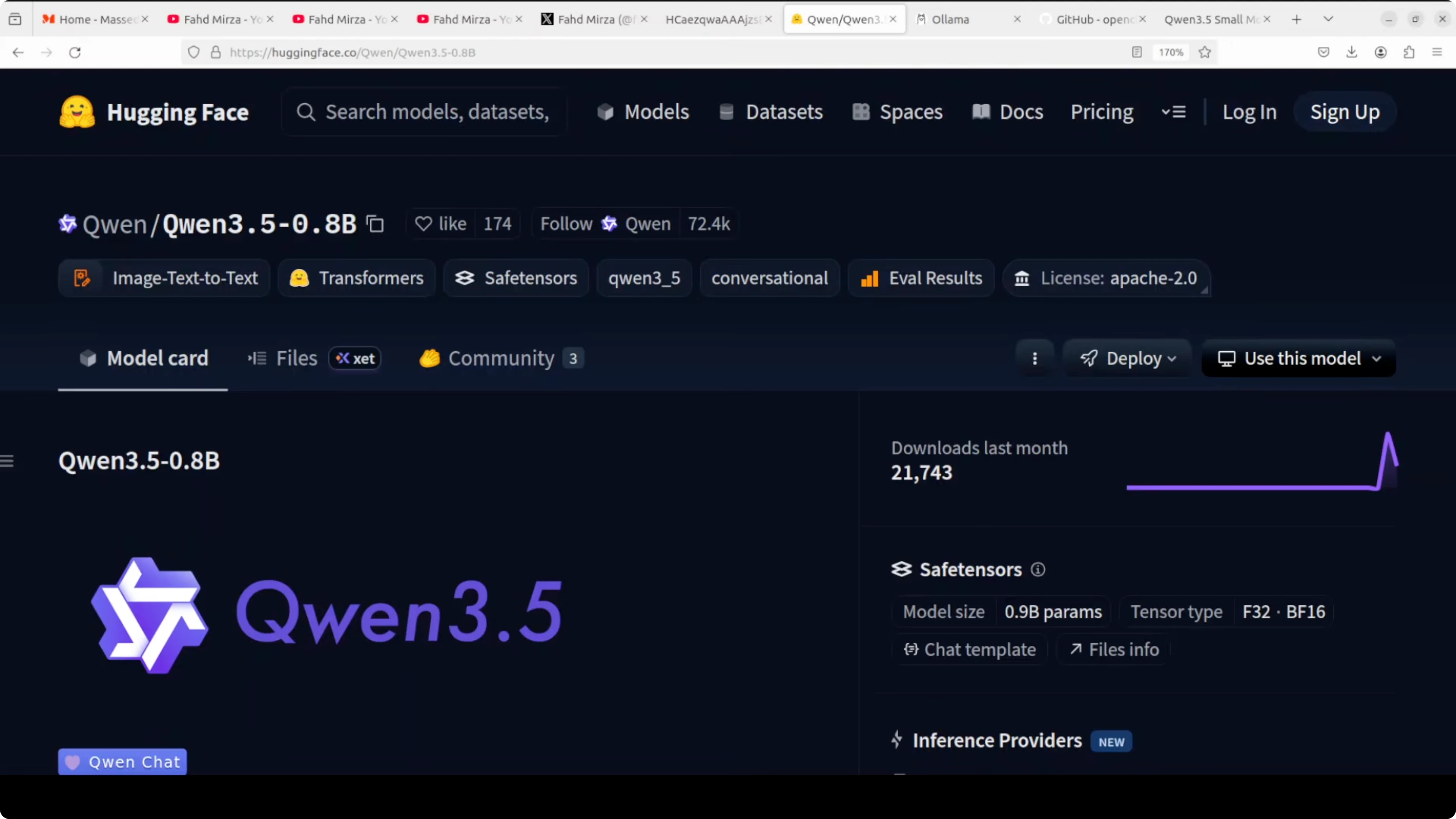
Make sure Ollama is installed and updated to the latest version on your system. I already have the latest Ollama on Ubuntu, and I am using it to pull and run the smallest Qwen 3.5 model locally. I will configure OpenClaw to talk to Ollama through the local API and wire it to Telegram.
If you are exploring other small models on CPU, take a look at this local GLM setup guide for a similar workflow.
Run Qwen3.5 0.8B with OpenClaw and Ollama Locally? - prerequisites
I am using Ollama to download and run the Qwen 3.5 0.8B model locally. Verify your Ollama version first.
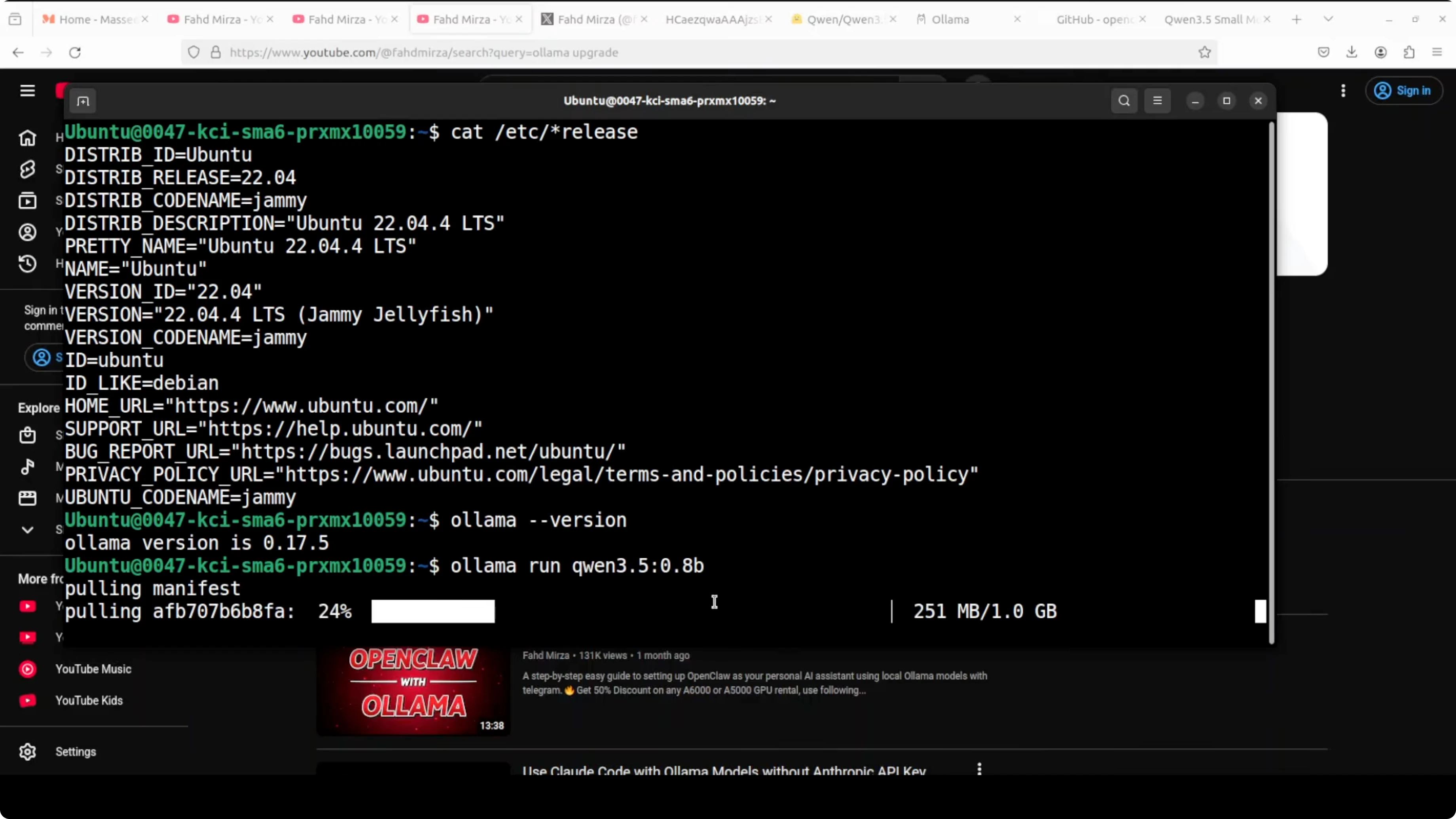
ollama --versionPull and run the model. Replace MODEL_ID with the exact tag you plan to use, and confirm the tag with the list command.
ollama pull MODEL_ID
ollama run MODEL_ID
ollama list
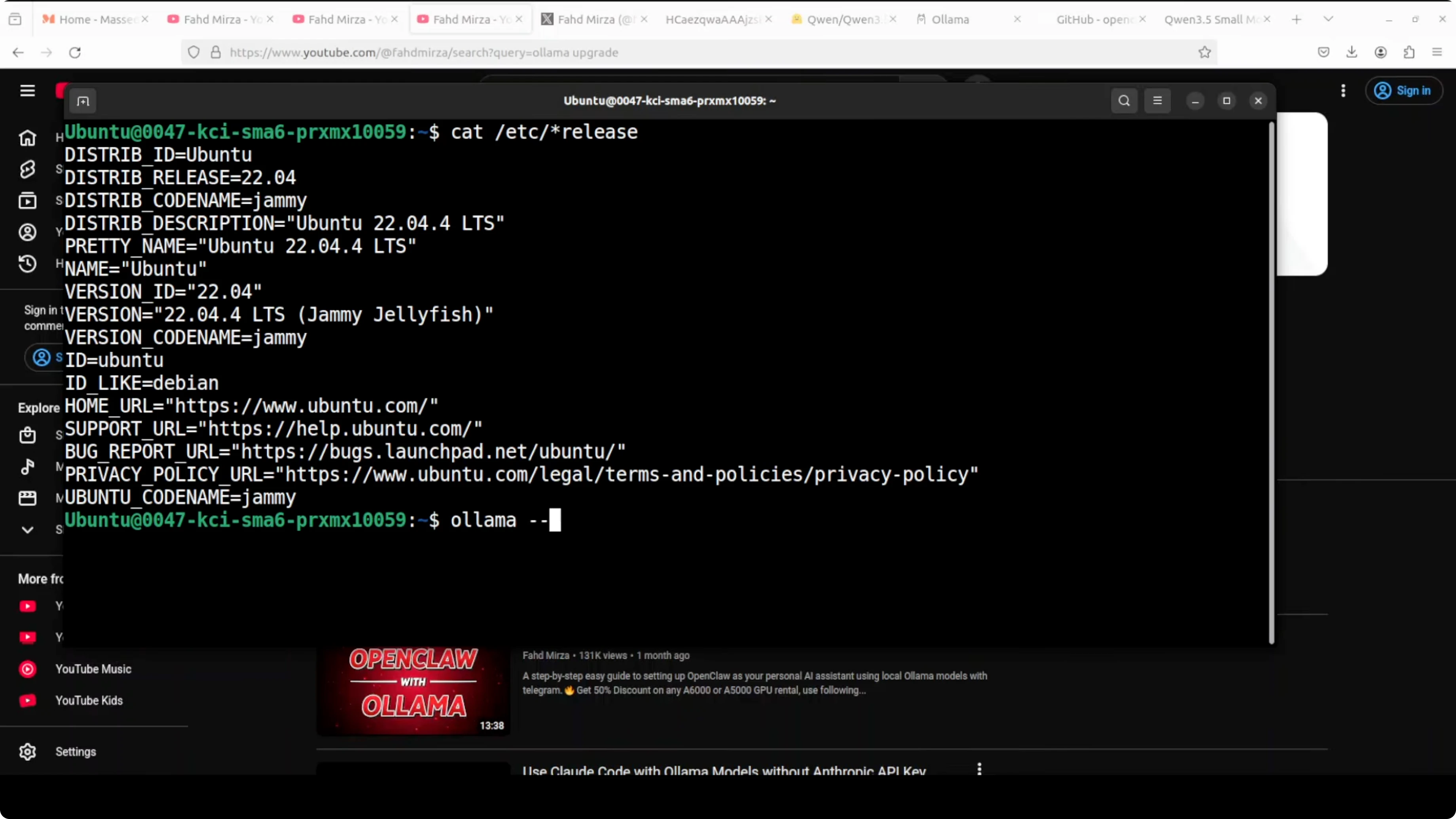
I run the 3.5 0.8B variant and the size on disk is around 1 GB in my setup. It downloads, verifies the checksum, and starts responding when prompted. Exit the interactive session once you see responses are coming back.
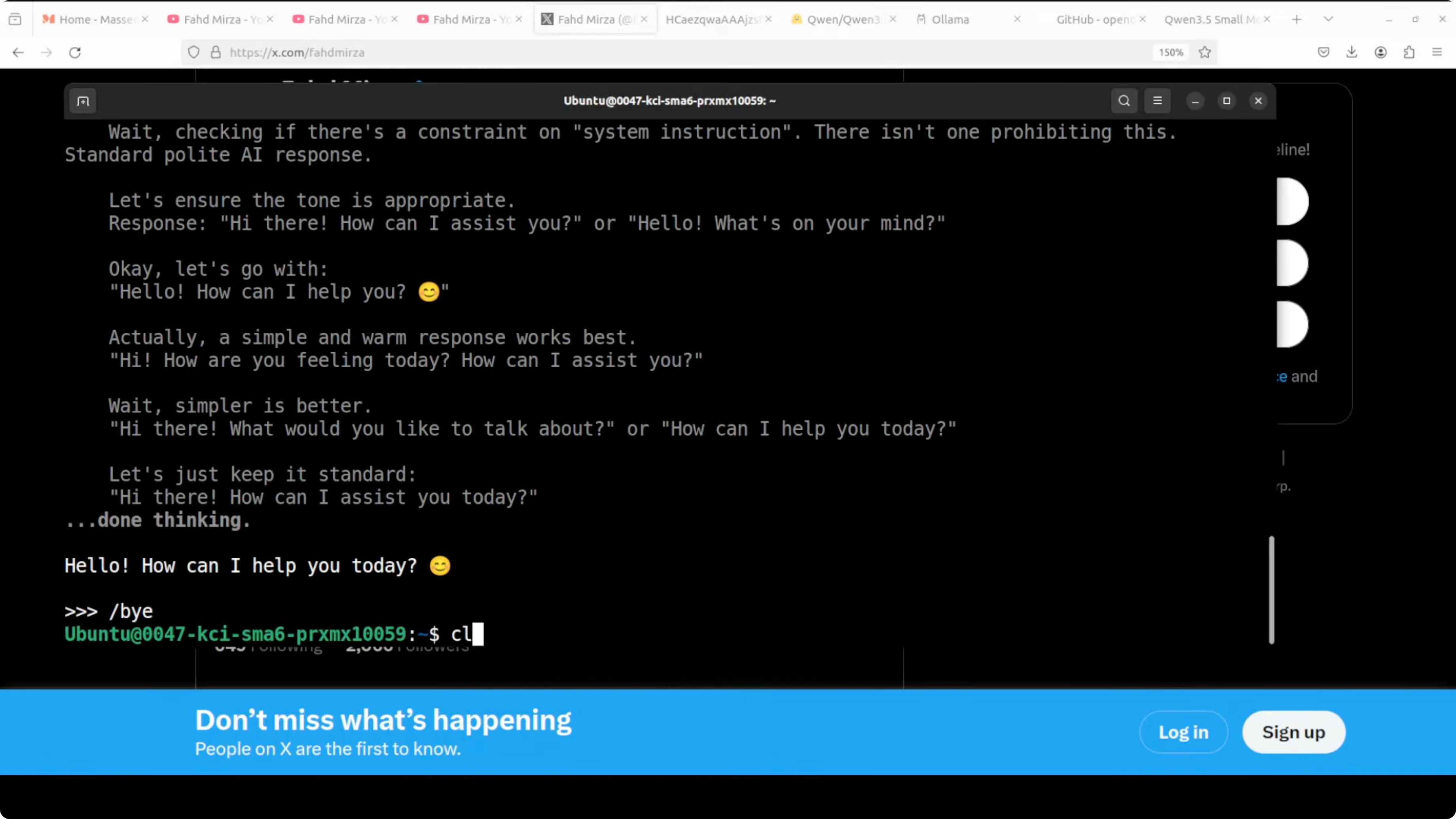
For a deeper look at pairing these tools together, see the full OpenClaw and Ollama integration overview.
Install OpenClaw
I already have OpenClaw installed, but I am reinstalling it clean. Install or update it from the official repository to get the newest changes.
Open the repo here in a new tab: github.com/openclaw/openclaw.
The installer prepares the environment and updates components and plugins. It can take a minute since updates are frequent. Start OpenClaw once the setup finishes.
Configure the gateway
I update the gateway service and start it. If you see an unauthorized token error, do not worry, we will set the token next. Restart the service after configuration changes.
Example commands if your install exposes them:
openclaw gateway update
openclaw gateway restart
If your token is missing, generate or set it, and the CLI will place it in the config file.
openclaw token createIf you prefer code-focused local work, you may also like this guide on running Qwen3 Coder Next locally.
Point OpenClaw to Ollama
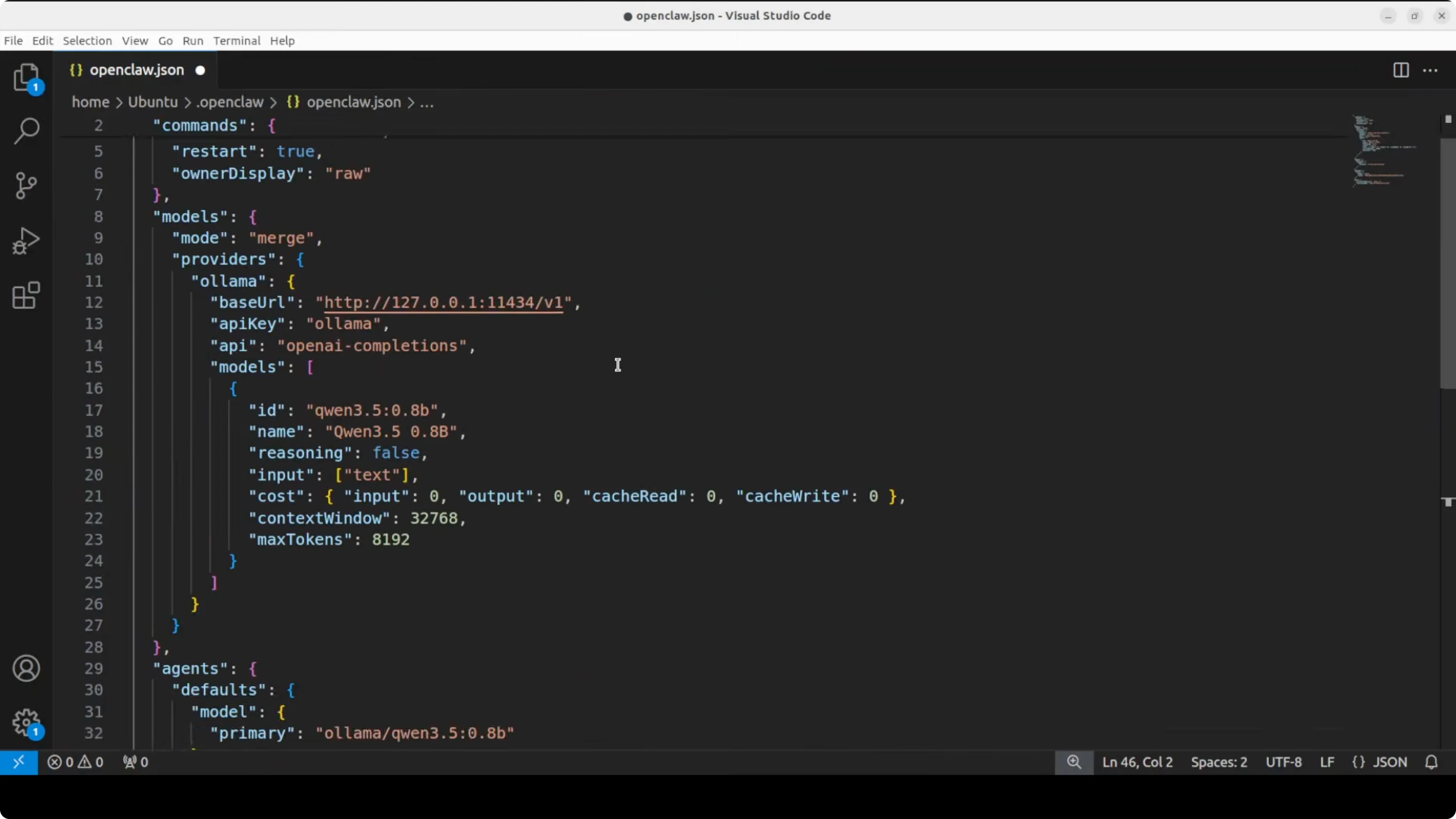
Open the OpenClaw config and set the Ollama local endpoint and the model ID that is already pulled in Ollama. The model ID must match what you see in the output of ollama list.
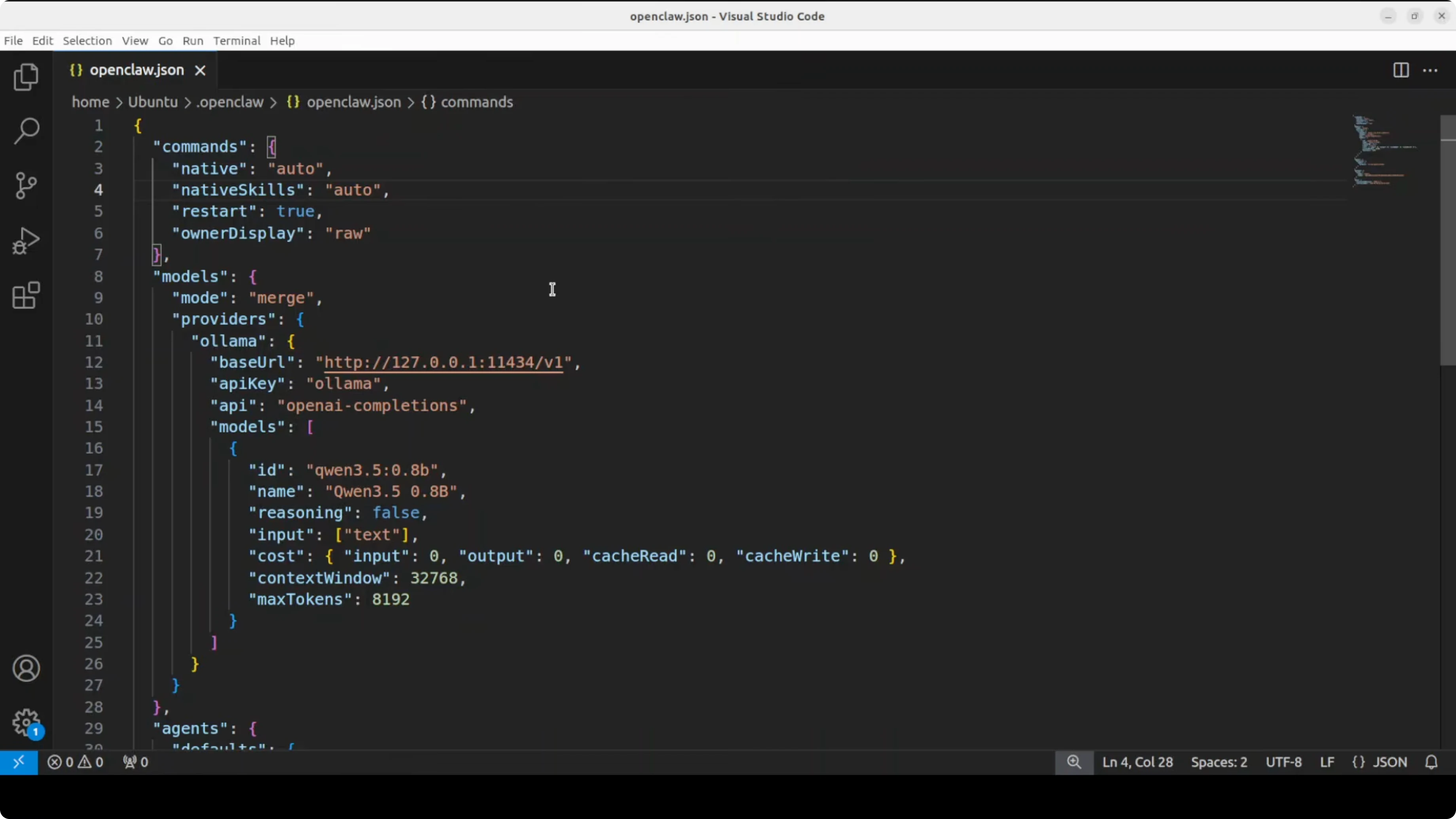
A minimal example config looks like this. Adapt the paths and sections to your installation.
# ~/.config/openclaw/config.yaml

gateway:
  host: 127.0.0.1
  port: 3000

providers:
  ollama:
    type: ollama
    base_url: http://localhost:11434
    model: qwen3.5-0.8b

agents:
  default:
    provider: ollama
    system_prompt: You are a helpful assistant.

channels:
  telegram:
    bot_token: YOUR_TELEGRAM_BOT_TOKEN
I am using Ollama’s local endpoint at http://localhost:11434 and I set the model to the 3.5 0.8B variant. Double check the exact model tag with ollama list so the provider maps correctly. Save the file and keep your token in place or let the CLI populate it.
For another end to end example with OpenClaw plus a Qwen family model, see this Qwen3 Coder Next with OpenClaw walk-through.
Telegram setup
Open Telegram and talk to BotFather. Create a new bot with newbot, set the name and a unique username, then copy the token. I will rotate my token after use, and you should keep yours private.
Run the OpenClaw configure flow and paste the Telegram token. Choose local for the gateway when prompted if it is not running yet, then select the channel configuration and pick Telegram.
openclaw configure
Paste the bot token, press Enter, and finish the wizard. Keep the default pairing if you are just testing locally.
If you are building more CPU only workflows, you can also check this quickstart on running Ace Step locally.
Restart and pair
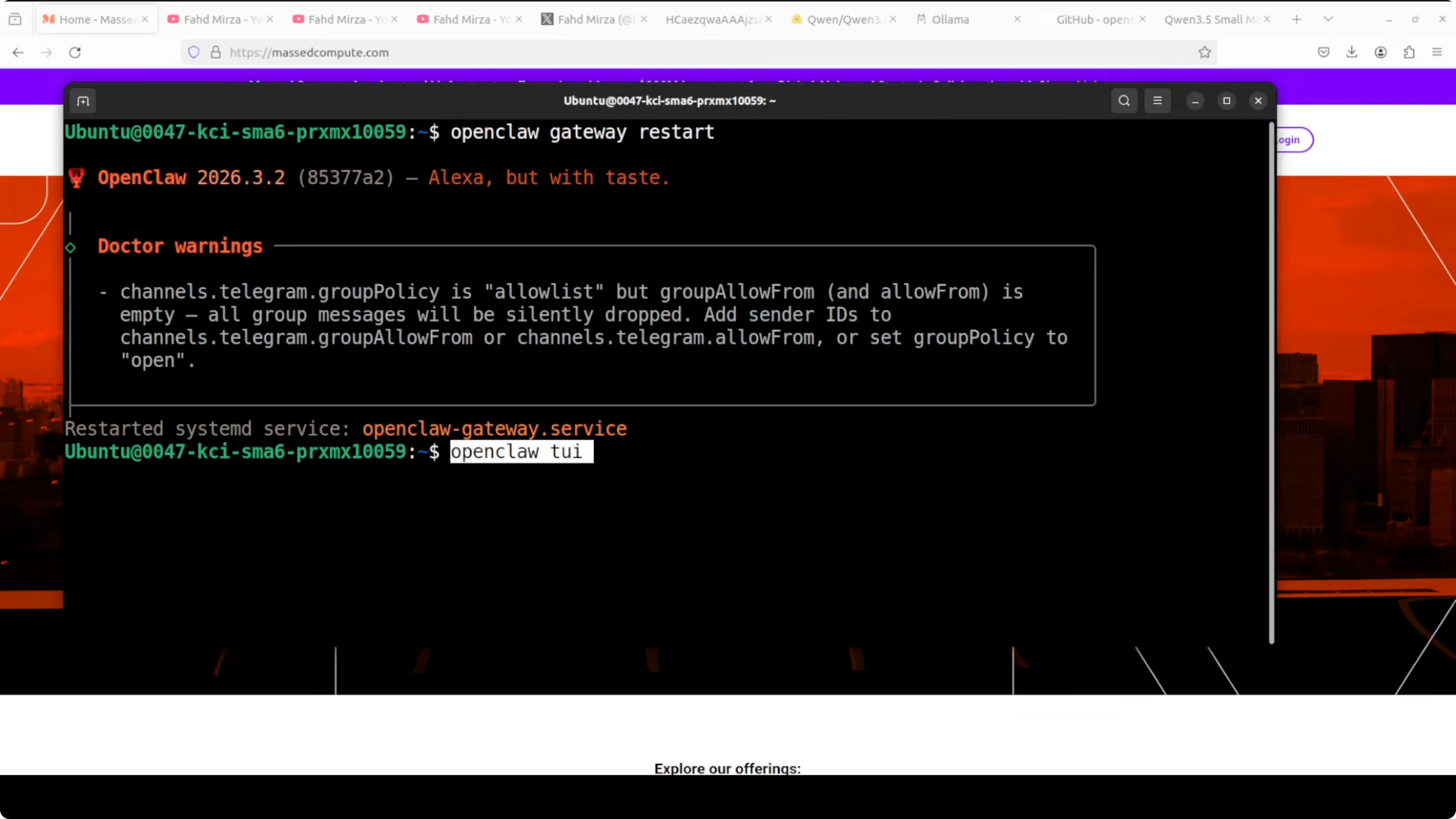
Restart the gateway service so the Telegram channel and provider settings take effect. You may see a warning in development that you can ignore for quick tests. For production, review the security guidance and harden your setup.
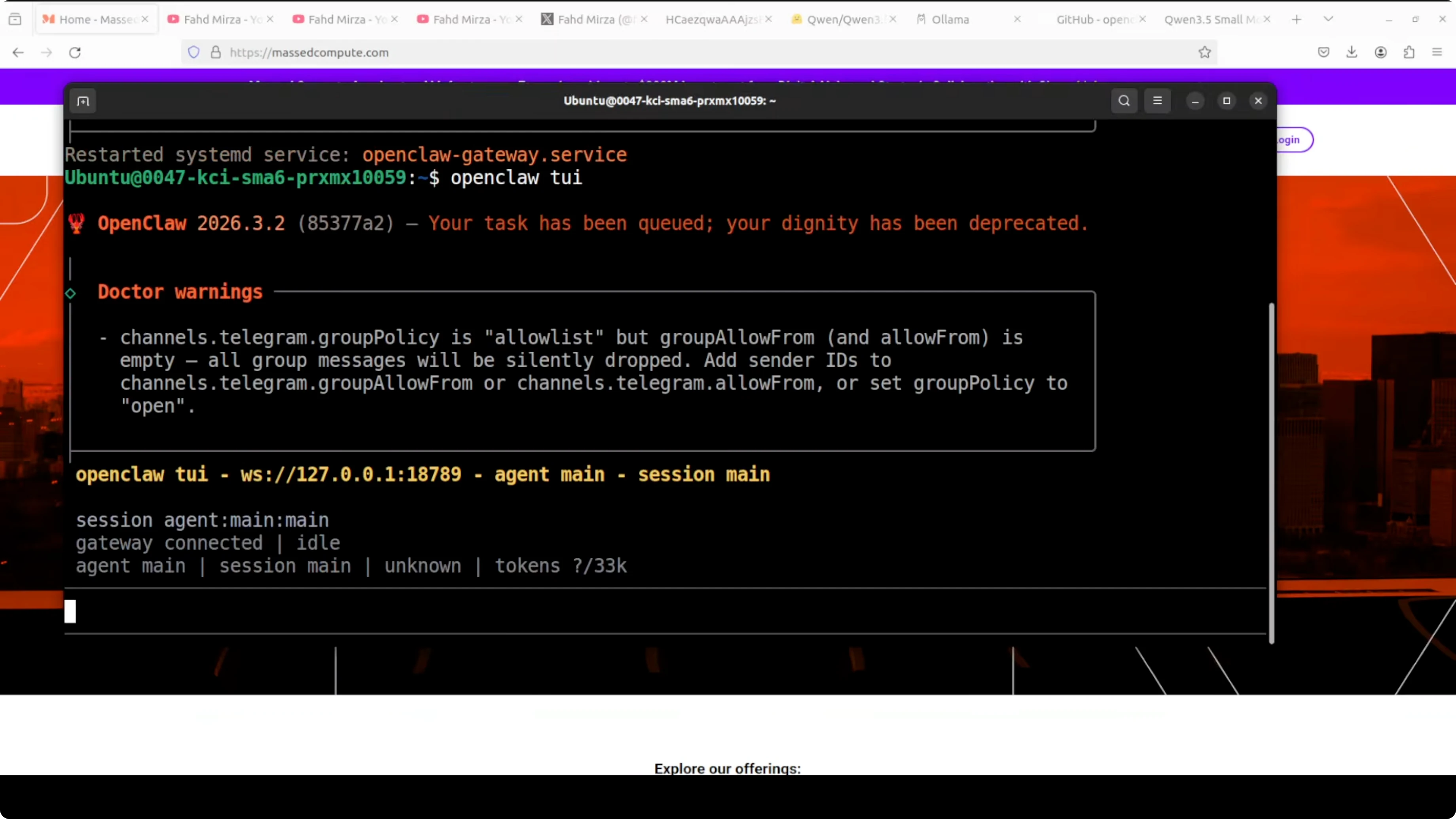
openclaw gateway restartStart the terminal UI. You can also use the web dashboard, but I prefer the terminal.
openclaw tuiPair the Telegram bot using the pairing link or code BotFather provides. Once paired, messages flow from the terminal to Telegram and back, and my phone receives them too.
Test the local model
Send a short message from Telegram to confirm the round trip to the local Qwen 3.5 0.8B model through OpenClaw. You should see the reply both in Telegram and in the terminal UI. That confirms the 3.5 0.8B model from Ollama is active and wired to OpenClaw.
If you want to expand your local model library, you can adapt the same steps across different models. Here is another example guide that follows the same pattern using Ollama and orchestration tools: GLM 5 on your machine.
Final thoughts
I installed and ran Qwen 3.5 0.8B on CPU through Ollama and connected it to OpenClaw. I configured the local Ollama endpoint and matched the model ID, set the token, wired Telegram through BotFather, restarted the gateway, and confirmed round trip messaging.
You can repeat these steps for any model pulled in Ollama as long as the model ID in OpenClaw matches what you see in ollama list. Keep your install updated from the OpenClaw repository and refresh the gateway after config changes.
Subscribe to our newsletter
Get the latest updates and articles directly in your inbox.

Related Posts

8 Best Claude Code Plugins in 2026 (You Need to Know)
8 Best Claude Code Plugins in 2026 (You Need to Know)

7 Best Claude Code Skills (You Need to Know)
7 Best Claude Code Skills (You Need to Know)

Claude Code Desktop IDE Features (You Need to Know)
Claude Code Desktop IDE Features (You Need to Know)