
Table Of Content
- OpenClaw and Local Ollama Models: Easy Setup Explained
- Prerequisites
- Install Ollama and a model
- Install OpenClaw
- Onboard with the wizard
- Provider and app selection
- Get your Telegram bot token
- Skip skills and hooks for now
- Restart the gateway service
- Configure Ollama in OpenClaw
- Pair Telegram and chat
- Troubleshooting and reliability
- Safety and security
- Final Thoughts on OpenClaw and Local Ollama Models: Easy Setup Explained
OpenClaw and Local Ollama Models: Easy Setup Explained
OpenClaw Error Fixer
Paste any OpenClaw error and get the exact fix instantly — cause, steps, copy-ready commands, and related guides.
Table Of Content
- OpenClaw and Local Ollama Models: Easy Setup Explained
- Prerequisites
- Install Ollama and a model
- Install OpenClaw
- Onboard with the wizard
- Provider and app selection
- Get your Telegram bot token
- Skip skills and hooks for now
- Restart the gateway service
- Configure Ollama in OpenClaw
- Pair Telegram and chat
- Troubleshooting and reliability
- Safety and security
- Final Thoughts on OpenClaw and Local Ollama Models: Easy Setup Explained
OpenClaw is a rename of Clawdbot. I have already shown how to get it integrated with local Ollama models and how to run it with Ollama launch. Here is what changed and how to get it integrated with any local model out there. My focus is on Ollama.
In one line, OpenClaw is a self-hosted AI assistant framework that connects local LLMs or API based LLMs to your everyday messaging apps. The idea is simple. Run your own AI assistant on your hardware. Chat with it through platforms you already use and keep everything private.
OpenClaw and Local Ollama Models: Easy Setup Explained
Prerequisites
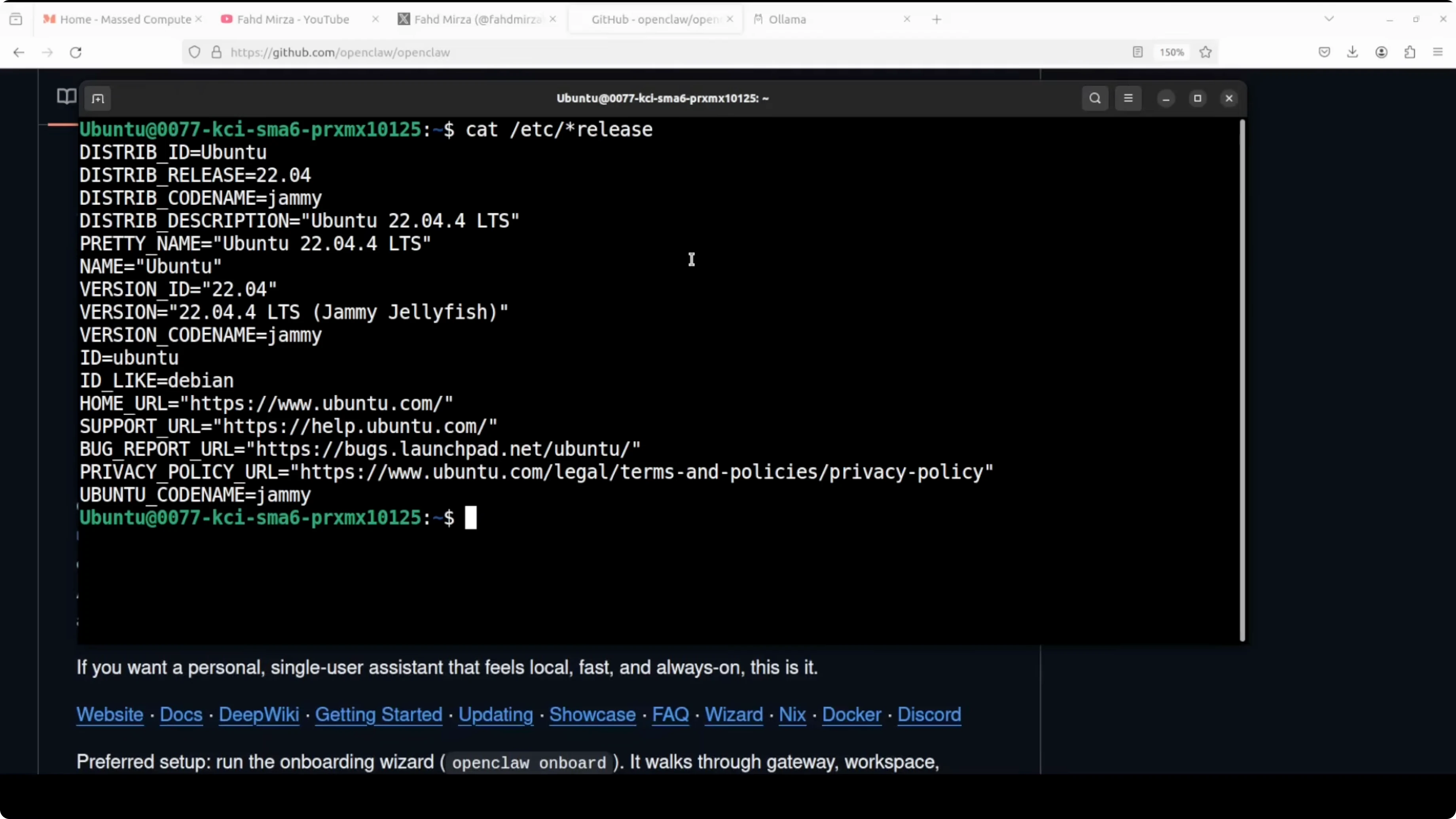
- Make sure your operating system has Python or Node installed. I am going with Node this time on Ubuntu.
- Install Node with nvm, source it so you can access the command, install the latest version of Node and npm, and verify the version is recent.
Install Ollama and a model
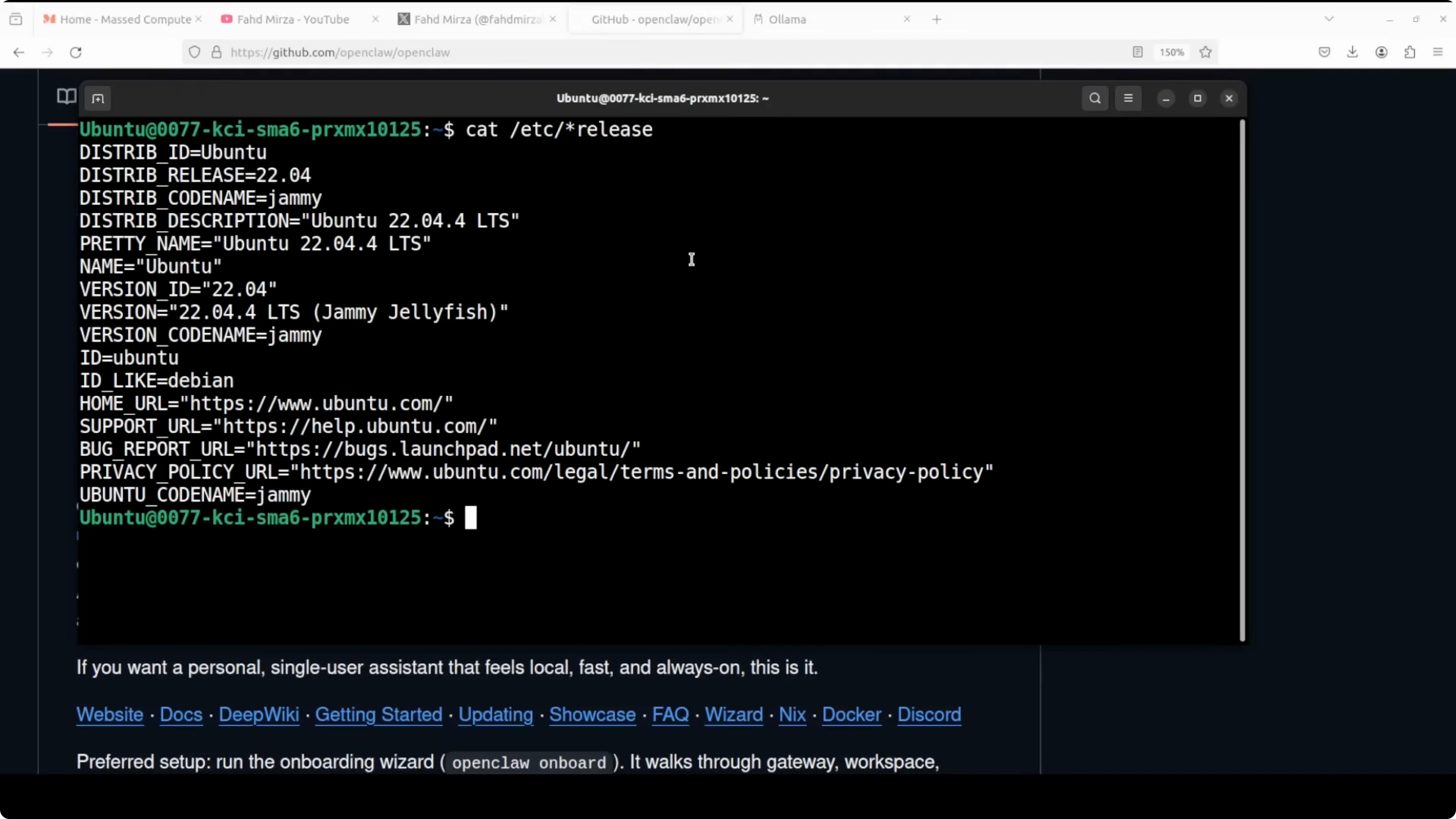
The next thing you need is models. Have Ollama installed. For this demo I am using GLM 4.7 flash.
Many people have asked which model is good for it. I have used GLM 4.7 flash, Qwen coder, GPT OSS. For production use cases, but for day to day testing and playing any one of these I have mentioned should be fine enough.
If you do not know how to install Ollama, go to their website and download it. For Linux you run a command to get it installed. For Windows and Mac there are executables to install. To grab a model, run it by name and it is going to download and run the model. You can list installed models.
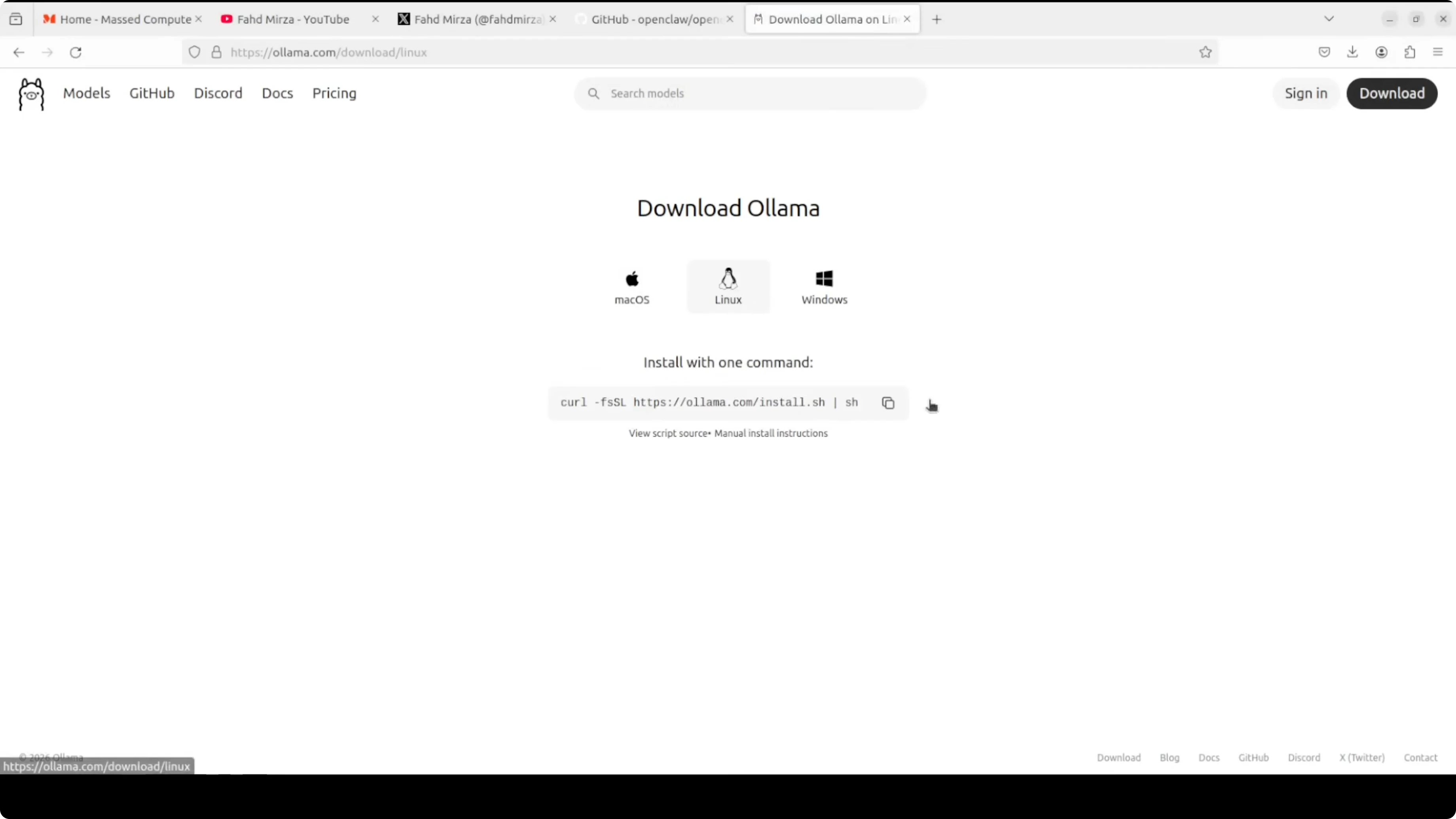
My GPU card is Nvidia RTX 6000 with 48 GB of VRAM. I would need a GPU card for this bigger model.
Install OpenClaw
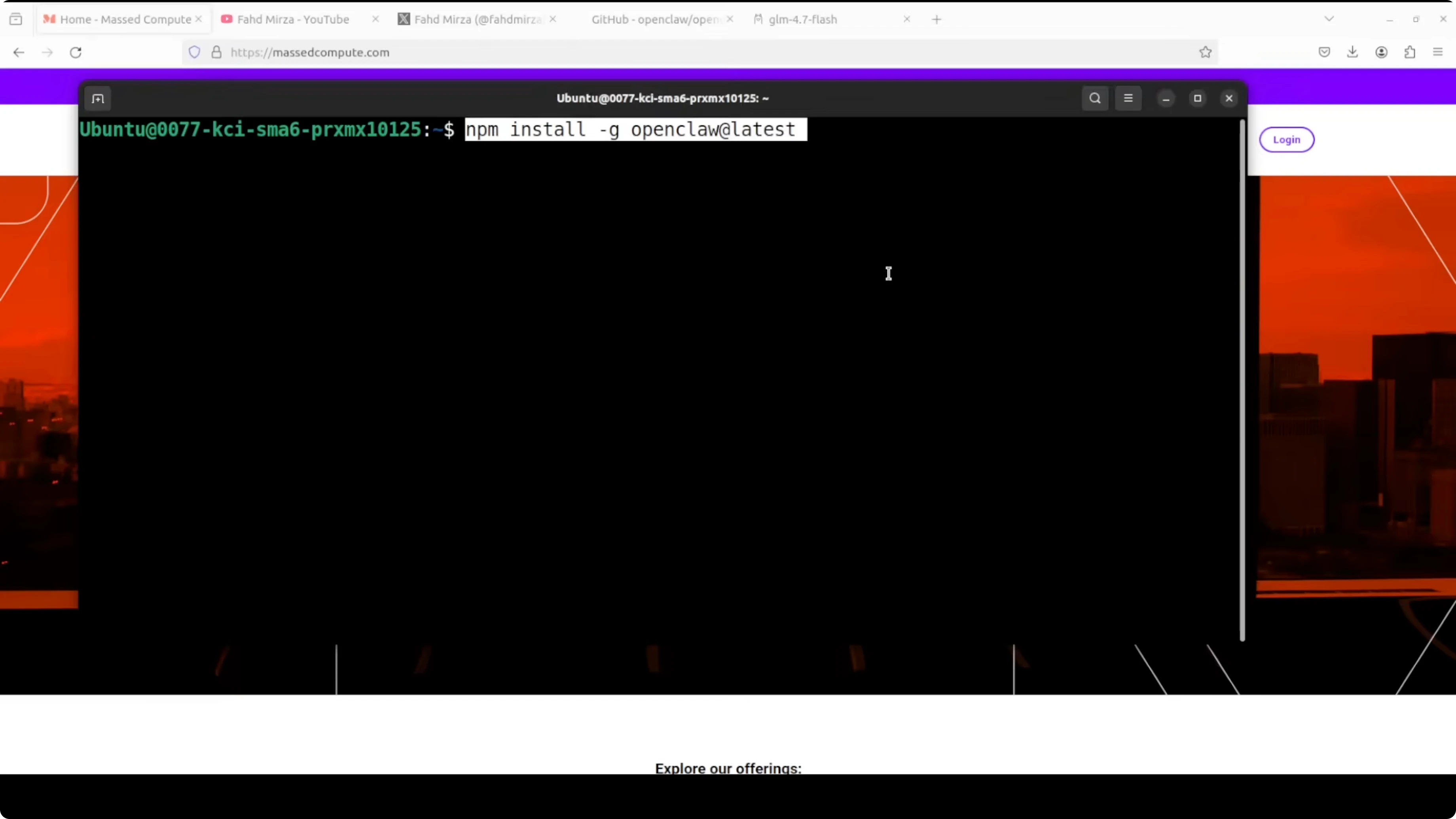
- Install OpenClaw globally with npm. It installs and then you can onboard it.
Onboard with the wizard
The renamed release provides a proper onboarding script that acts like a wizard. It installs and configures the core infrastructure like configuration files, initializes your agent workspace, and installs a background service. On Linux based systems that daemon keeps the backend process or gateway running permanently.
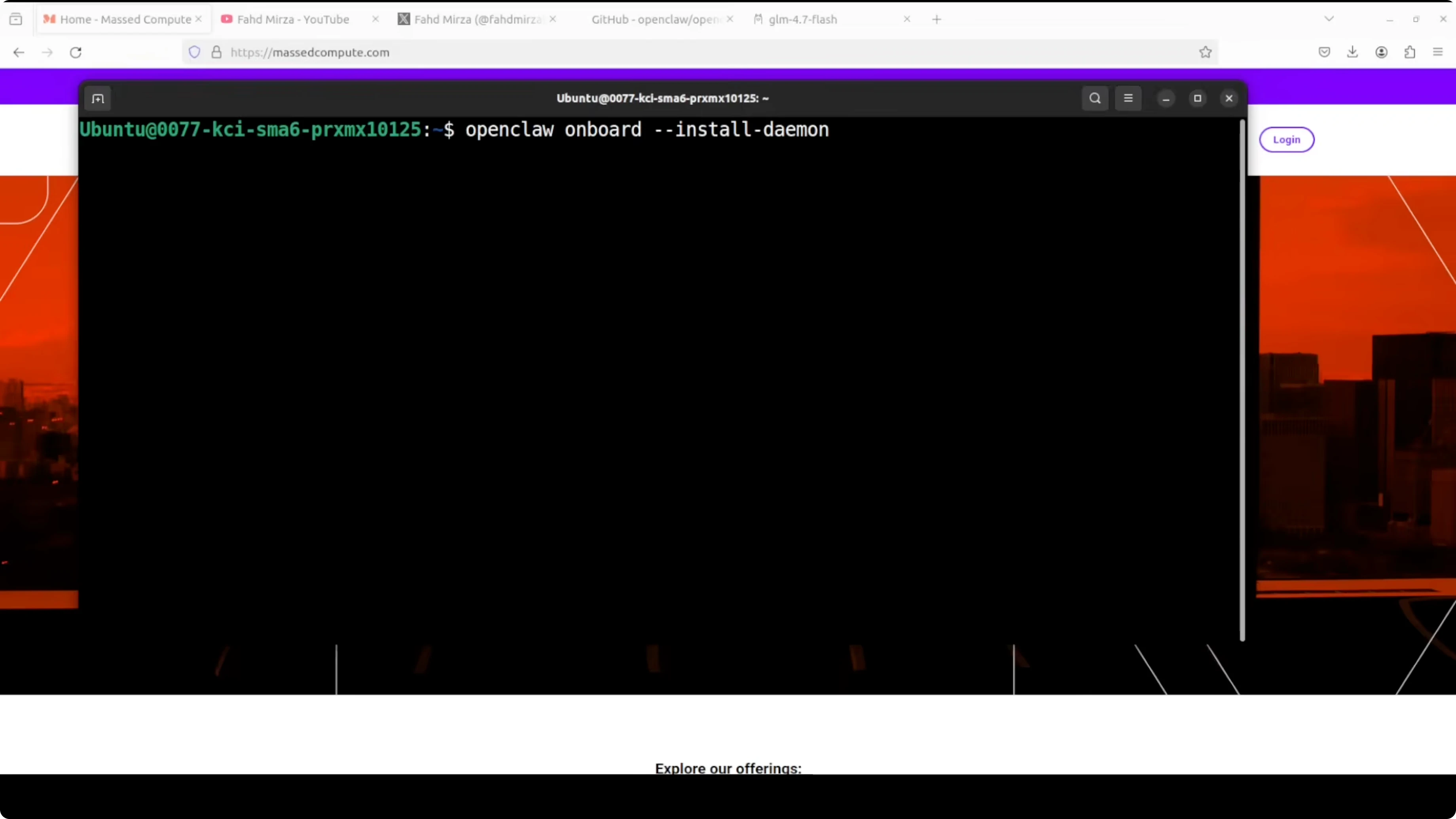
The gateway is an OpenClaw central control plane, a WebSocket server that acts as a middle man between your messaging app and the AI model. It manages all the conversation tools and routing in one place. It takes a bit of time because it is a heavy tool.
Provider and app selection
- Go with Quick Start if you want the easy path.
- Skip cloud providers for now because I want to go with Ollama based models. Choose local providers.
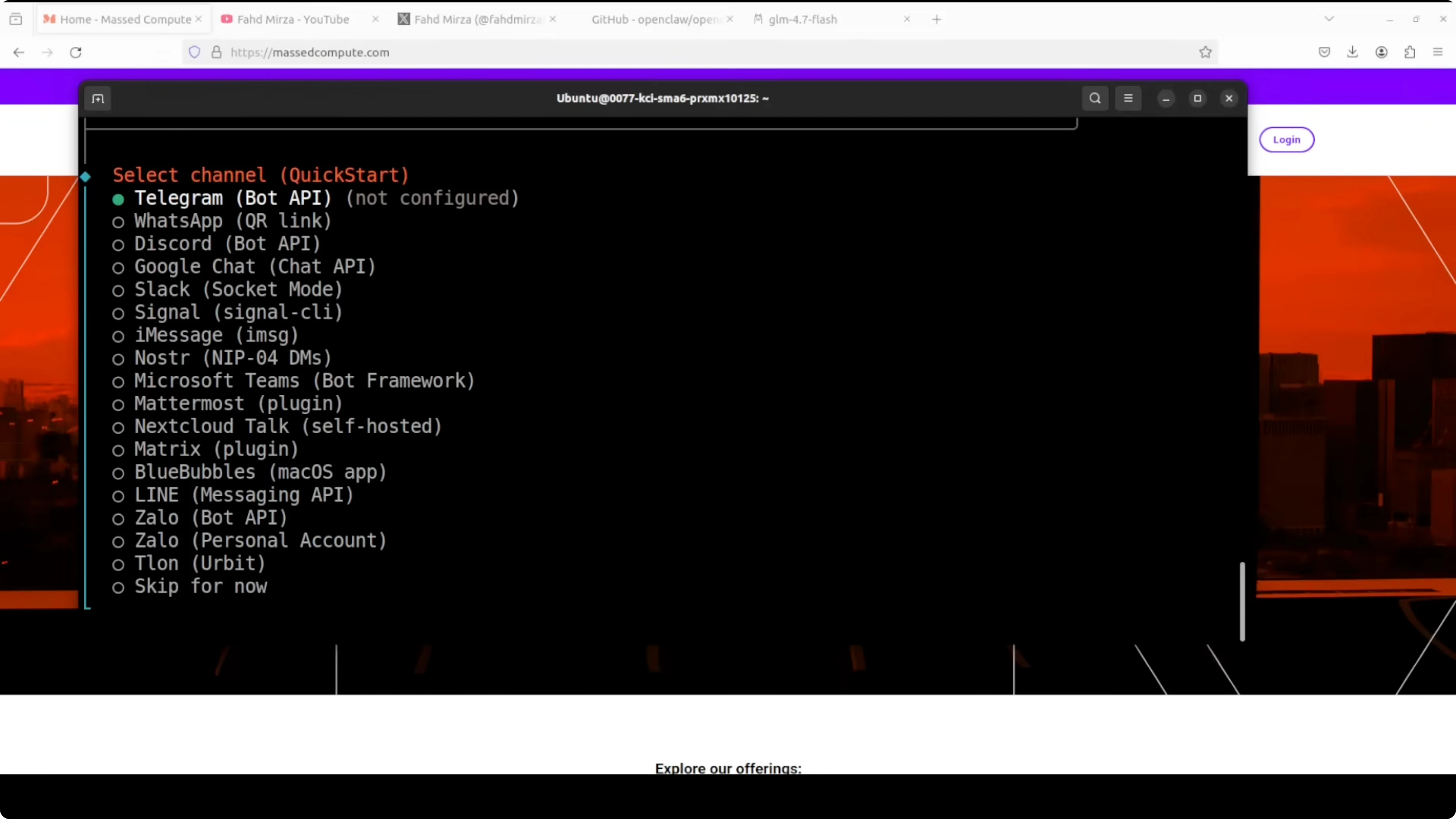
- Pick the messaging application you want to connect. I went with Telegram.
- It asks for a Telegram bot token.
Get your Telegram bot token
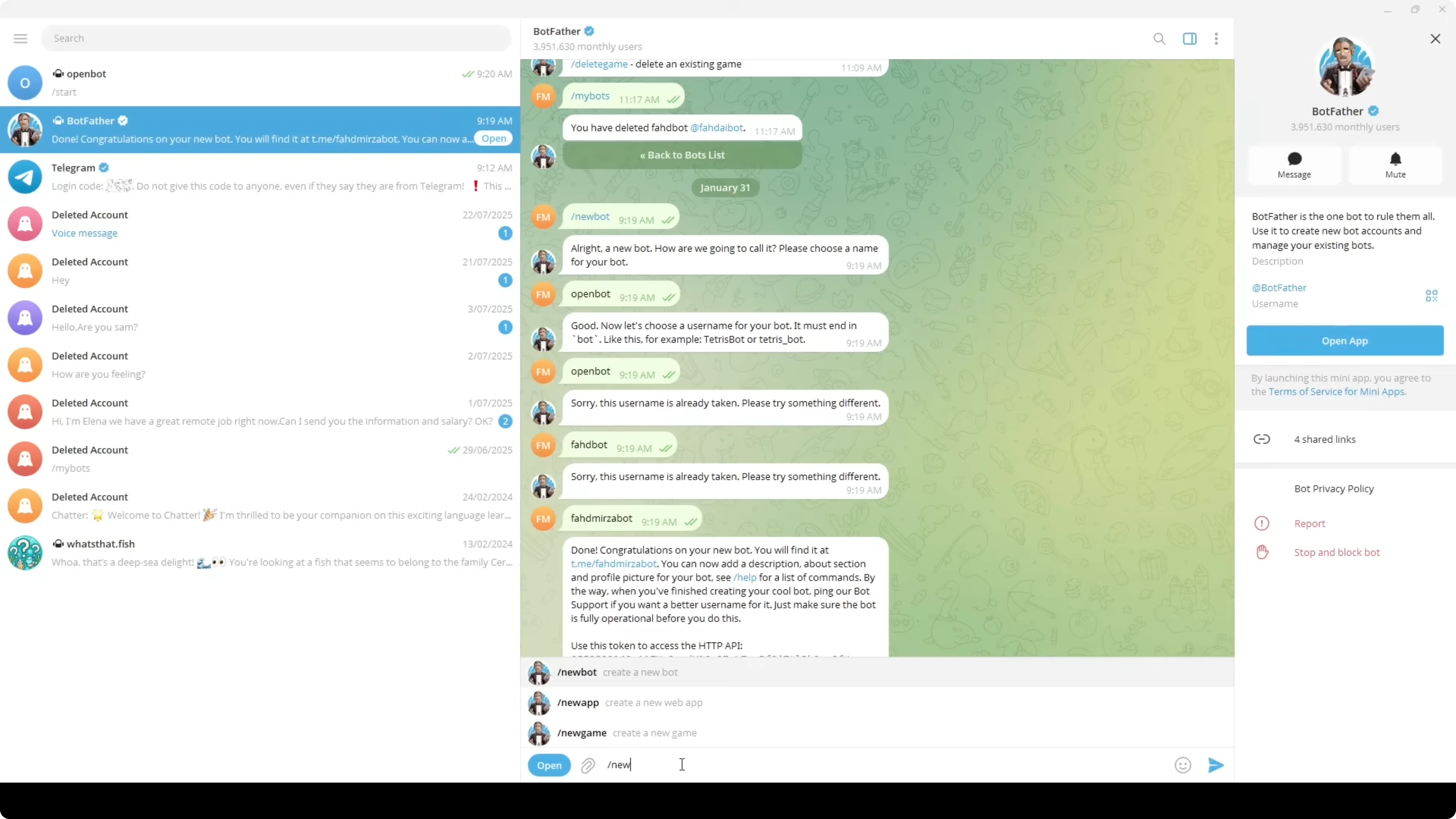
- Install Telegram desktop.
- Search for BotFather and start it.
- Create a new bot, give it a name and description, and copy the token BotFather gives you.
- Paste that token into the OpenClaw onboarding when prompted.
Skip skills and hooks for now
Skills are a broad topic. I skipped them for now. I also skipped hooks for now.
Restart the gateway service
Restart the gateway service because it is already installed. Wait for it to come up.
Configure Ollama in OpenClaw
I wanted to do it manually to show how to do it with Ollama. Everything is configured. Replace the configuration with an Ollama based configuration. In this file I am giving it the provider with an endpoint and I am specifying my model. If you are using any other model, replace the model ID. As we have changed the config file, restart the gateway with systemctl.
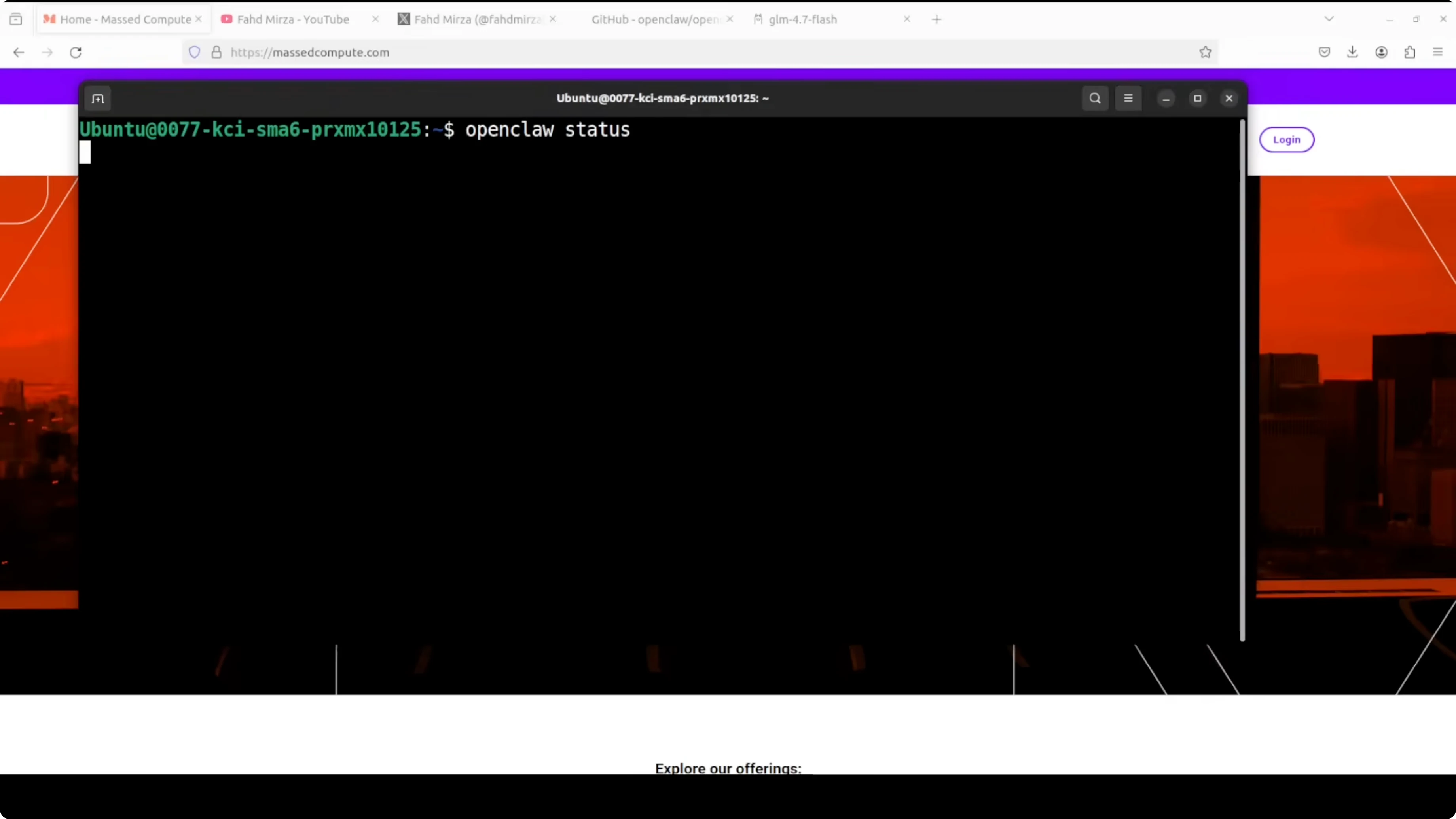
To check if everything looks good, run the status command. It tells you which model you are using and if it is connected to any channel like Telegram. You get the version and the dashboard URL and you can also access it in the browser if you like. There is a GUI, but I highly suggest going with the CLI because it is such a good experience with this tool.
Pair Telegram and chat
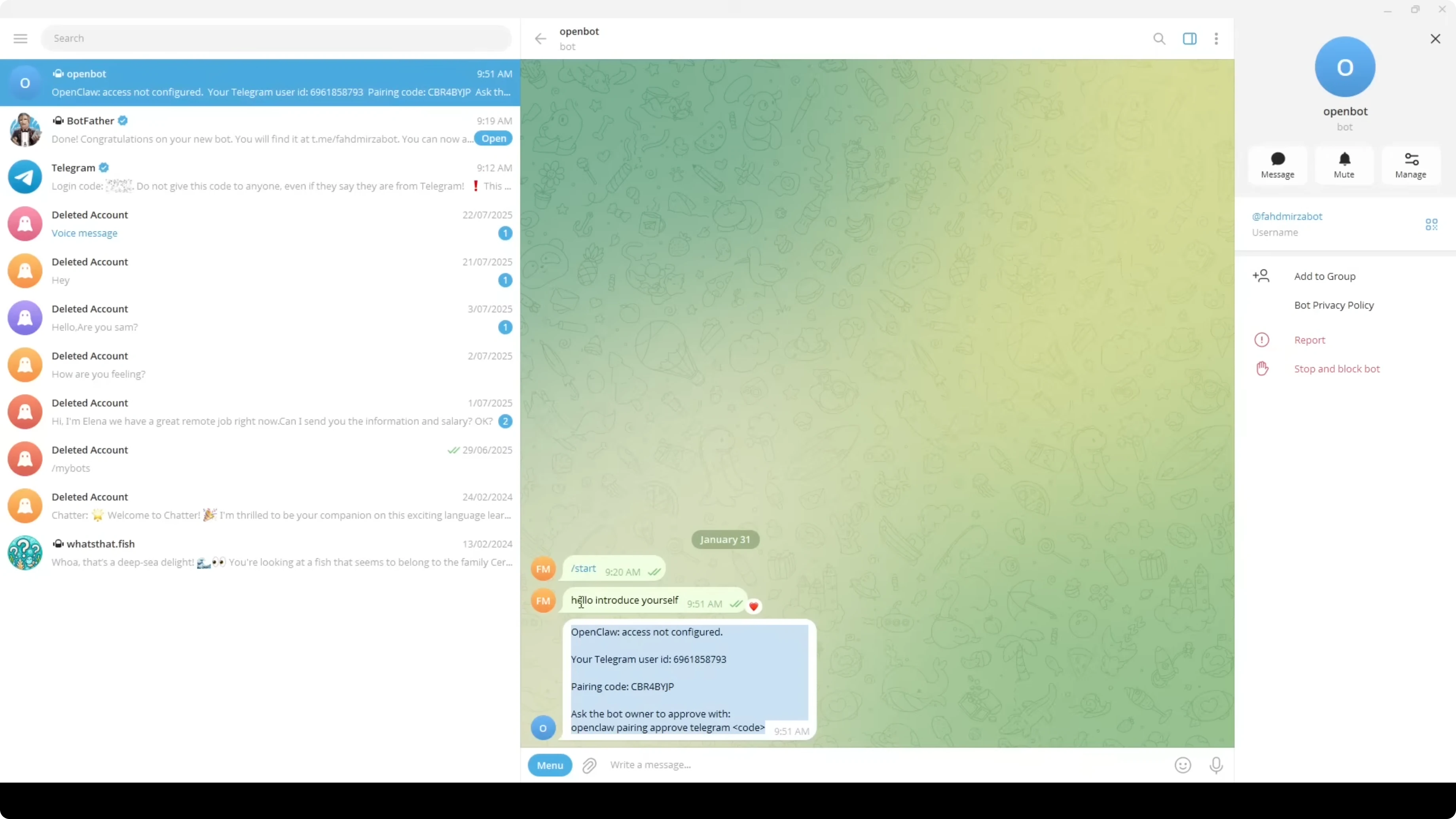
- In Telegram, go to your bot and send a message like hello introduce yourself. It will give you a pairing code.
- Take this pairing code and run the pairing approve command for Telegram with that code.
- Telegram gets paired and OpenClaw responds that it is connected.
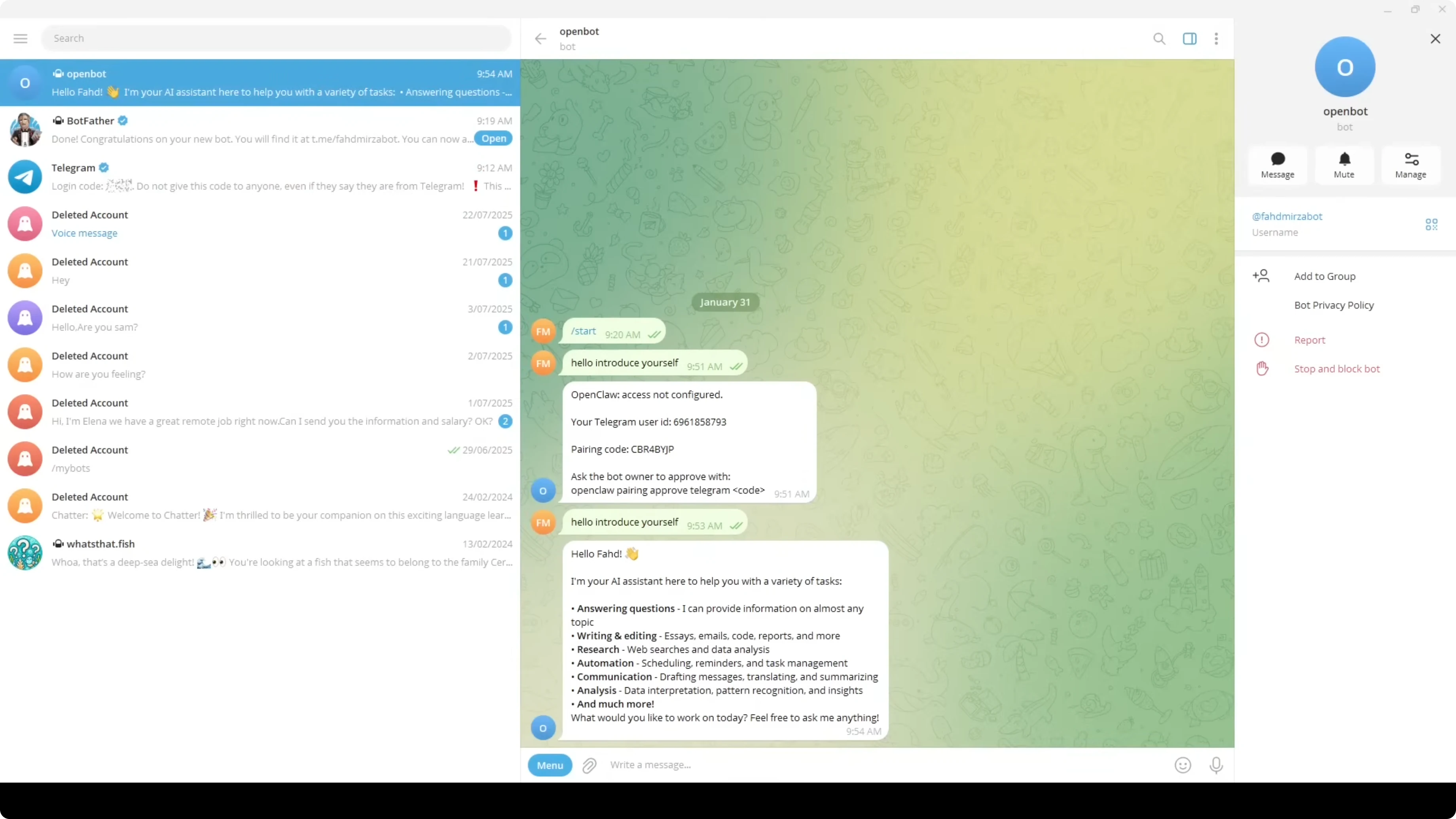
Now if you go back to your Telegram and say anything like hello introduce yourself, you will see responses from your local model. This is the GLM model running on my system where I installed OpenClaw and I am talking to it here. Ask it to tell a funny joke or anything you want to talk about.
Troubleshooting and reliability
If it does not work at times:
- Check that your primary model is Ollama.
- Restart the gateway after changes.
- It is not a perfect tool. It crashes a lot. Create a cron job to restart the gateway every 30 minutes. That will keep it fresh, but you would need to save your session if it is happening a lot.
Safety and security
Make sure you understand that you have given an AI access to execute commands and send messages on your behalf. The pairing system helps, but this is not something to run blindly in production without proper sandboxing. Do not integrate your financial stuff with these models or your medical or any personal information.
The vision of a truly local private AI assistant is compelling as we just saw. Build responsibly, understand the risks, and do not fall for every hyped tool. Let us see how long it takes for the big labs to come up with something like this because there is no moat in AI.
Final Thoughts on OpenClaw and Local Ollama Models: Easy Setup Explained
- Install Node and Ollama, and pull a local model.
- Install OpenClaw, run the onboarding wizard, choose your provider and app, and enter your Telegram bot token.
- Point the config to your Ollama endpoint and model ID, restart the gateway, and verify status.
- Pair Telegram with the provided code and start chatting with your local model.
- Expect to restart the gateway as needed, and treat security seriously before using this in any sensitive setting.
Subscribe to our newsletter
Get the latest updates and articles directly in your inbox.

Related Posts

8 Best Claude Code Plugins in 2026 (You Need to Know)
8 Best Claude Code Plugins in 2026 (You Need to Know)

7 Best Claude Code Skills (You Need to Know)
7 Best Claude Code Skills (You Need to Know)

Claude Code Desktop IDE Features (You Need to Know)
Claude Code Desktop IDE Features (You Need to Know)