
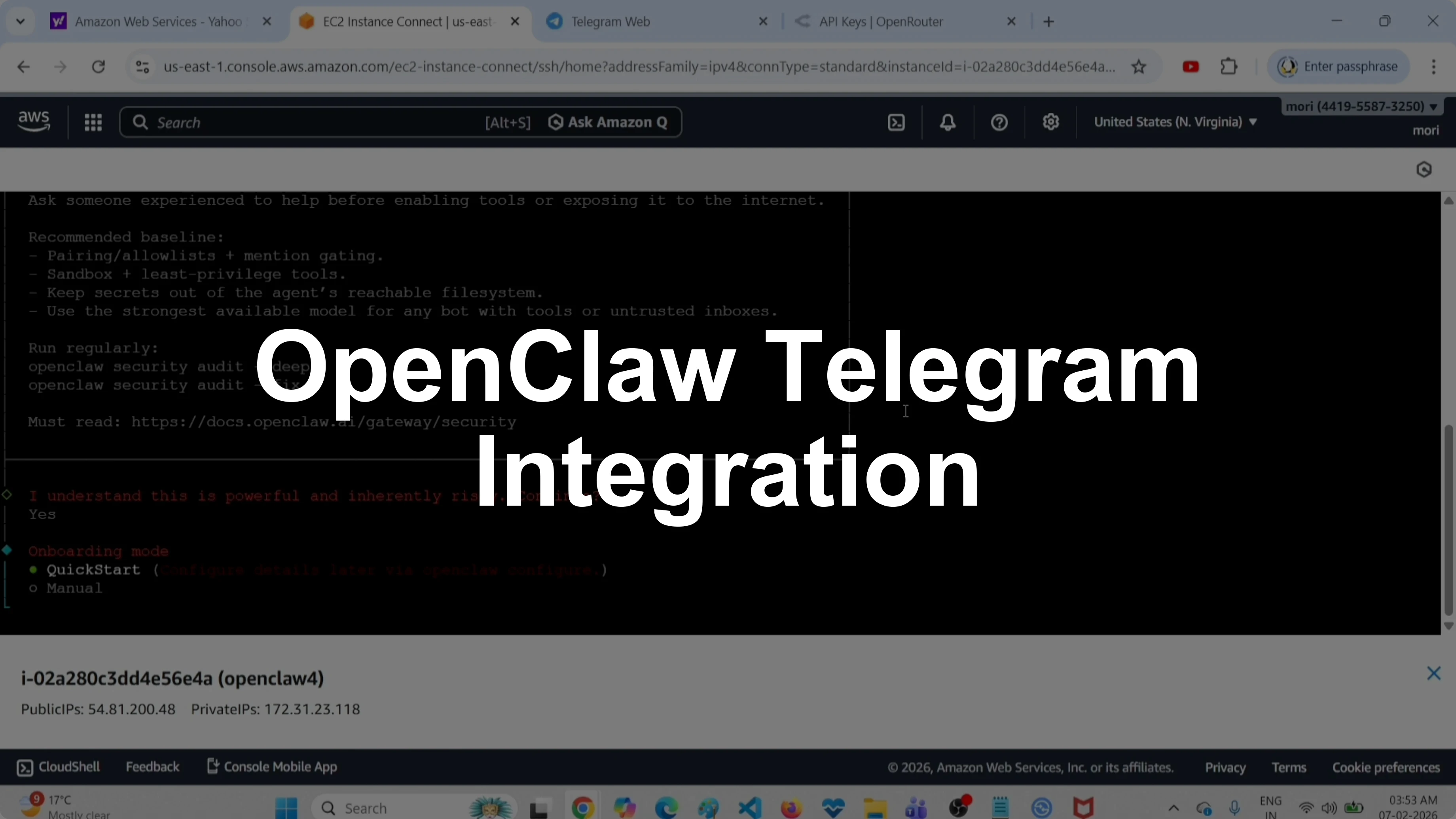
How to Connect OpenClaw with Telegram Using ClawdBot & MoltBot?
OpenClaw Error Fixer
Paste any OpenClaw error and get the exact fix instantly — cause, steps, copy-ready commands, and related guides.
I’m going to show how I set up a Telegram channel on OpenClaw from scratch. I’ll start the onboard process, add my OpenRouter API key, pick a model, and connect Telegram with a new bot token. I’ll also pair the bot and run a couple of quick tests.
Connect OpenClaw with Telegram Using ClawdBot & MoltBot?
Start onboarding
Run the onboarding command.
openclaw onboard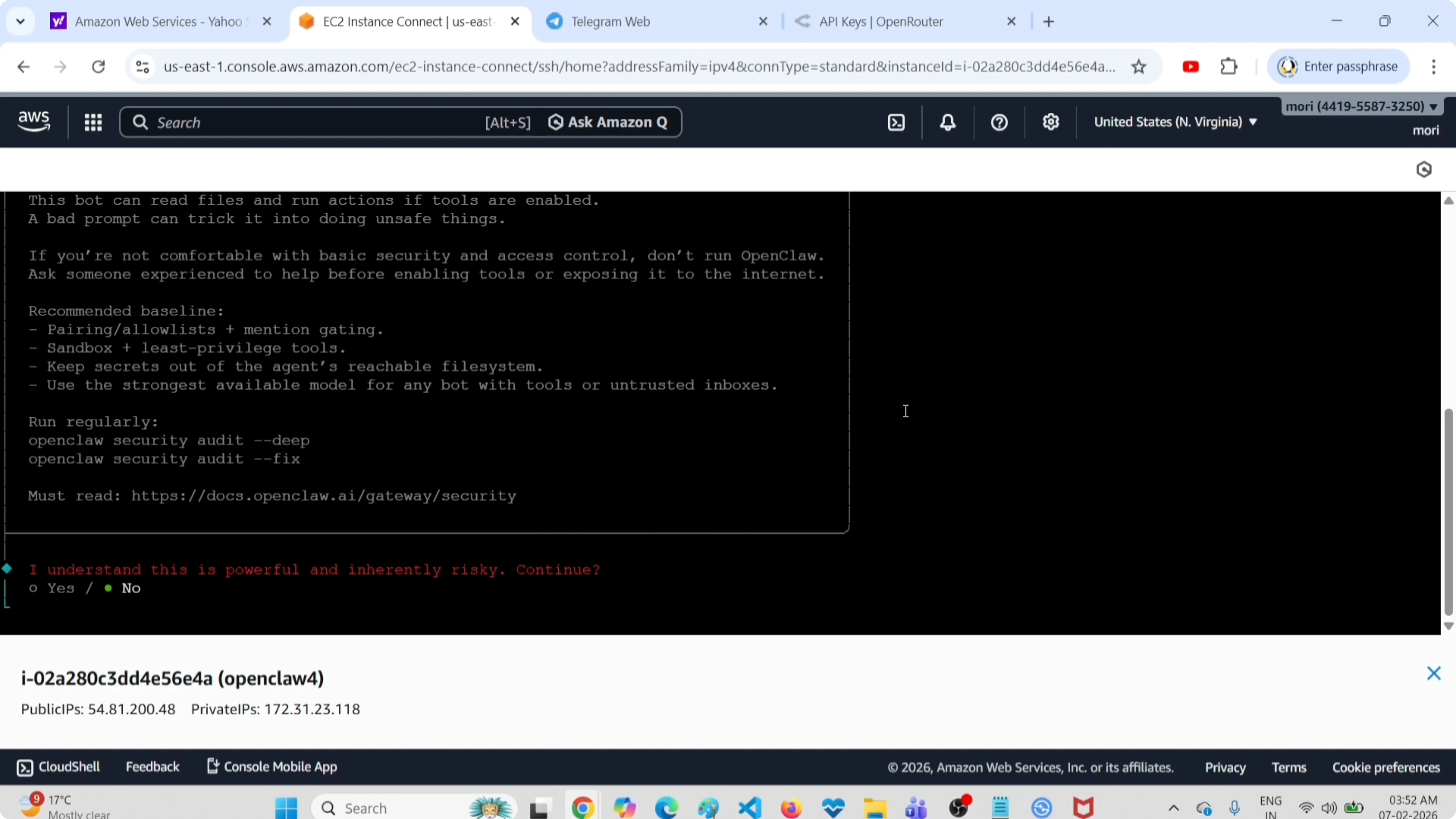
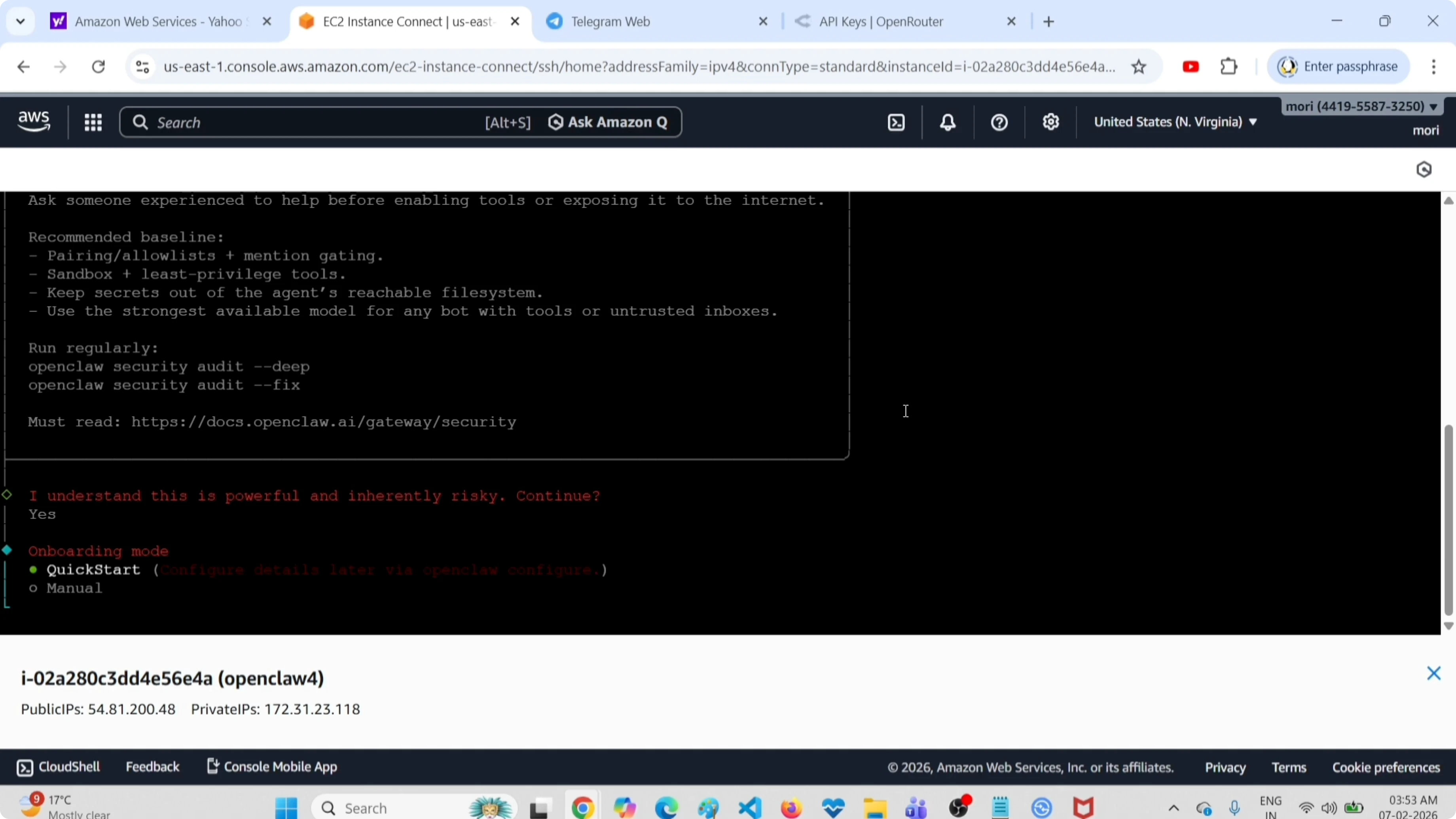
Select Yes. Choose Quick Start.
Read More: AI dashboard
Add OpenRouter
Set the OpenRouter API key. Open openrouter.ai/settings/keys, click Create API Key, and copy your key.
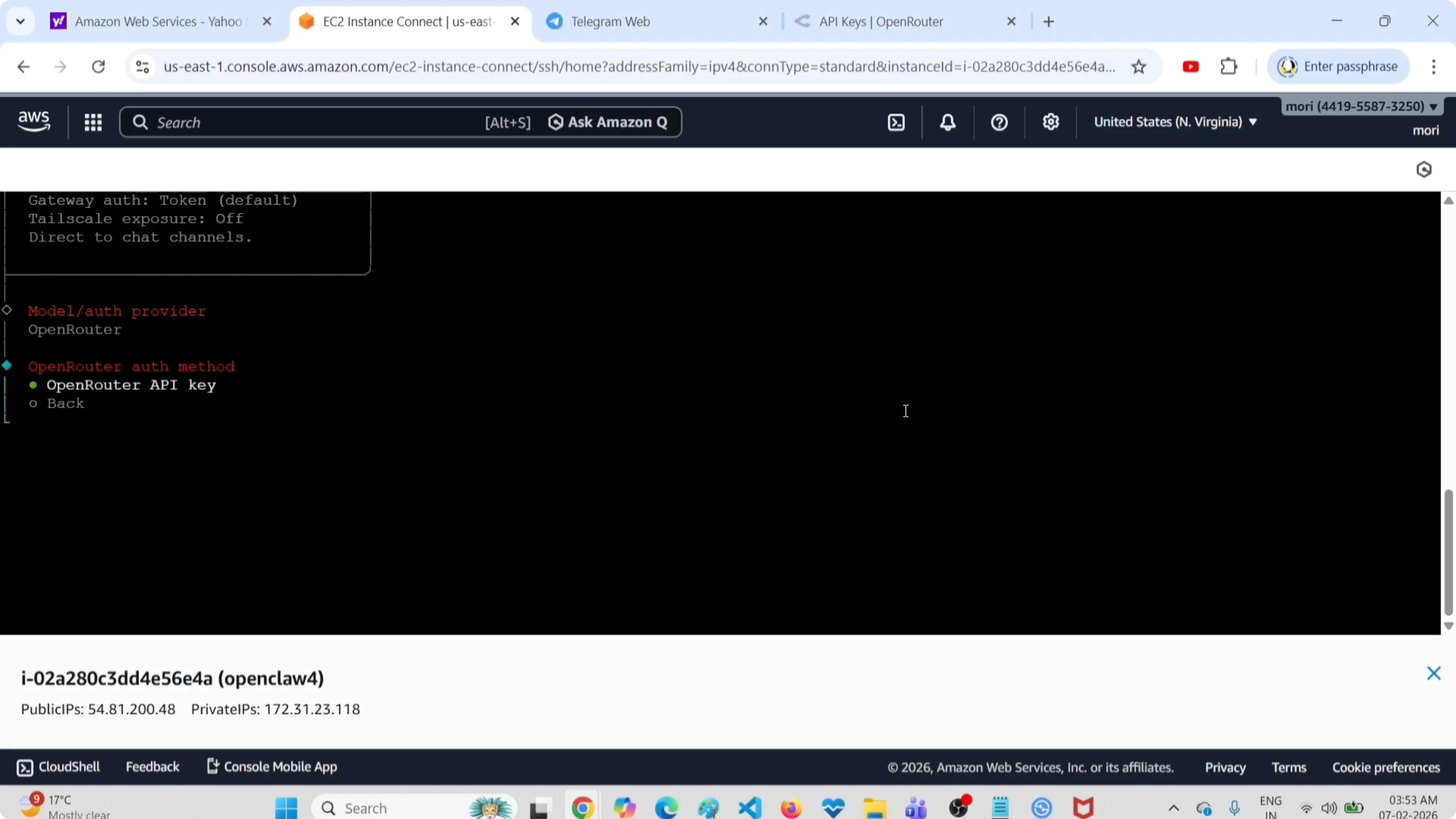
Paste the API key into OpenClaw when prompted. Press Enter to confirm.
If you hit setup issues during onboarding, see fix errors.
Choose model
Select a model. I chose OpenRouter Google Gemini 2.5 Flash Preview.
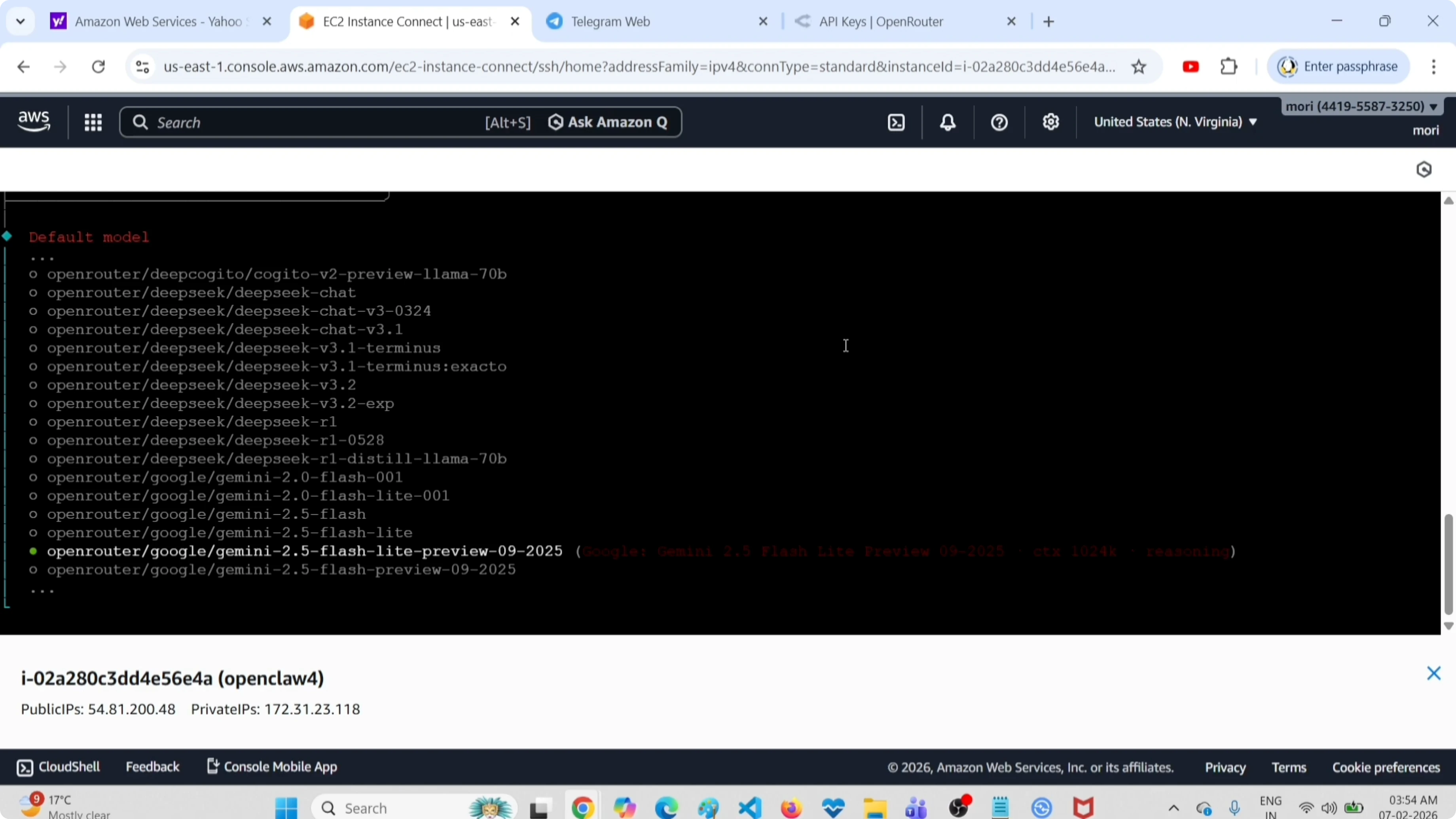
Confirm the model selection to proceed.
Enable Telegram
From the list of channels, select Telegram. You will be asked for a Telegram bot token.
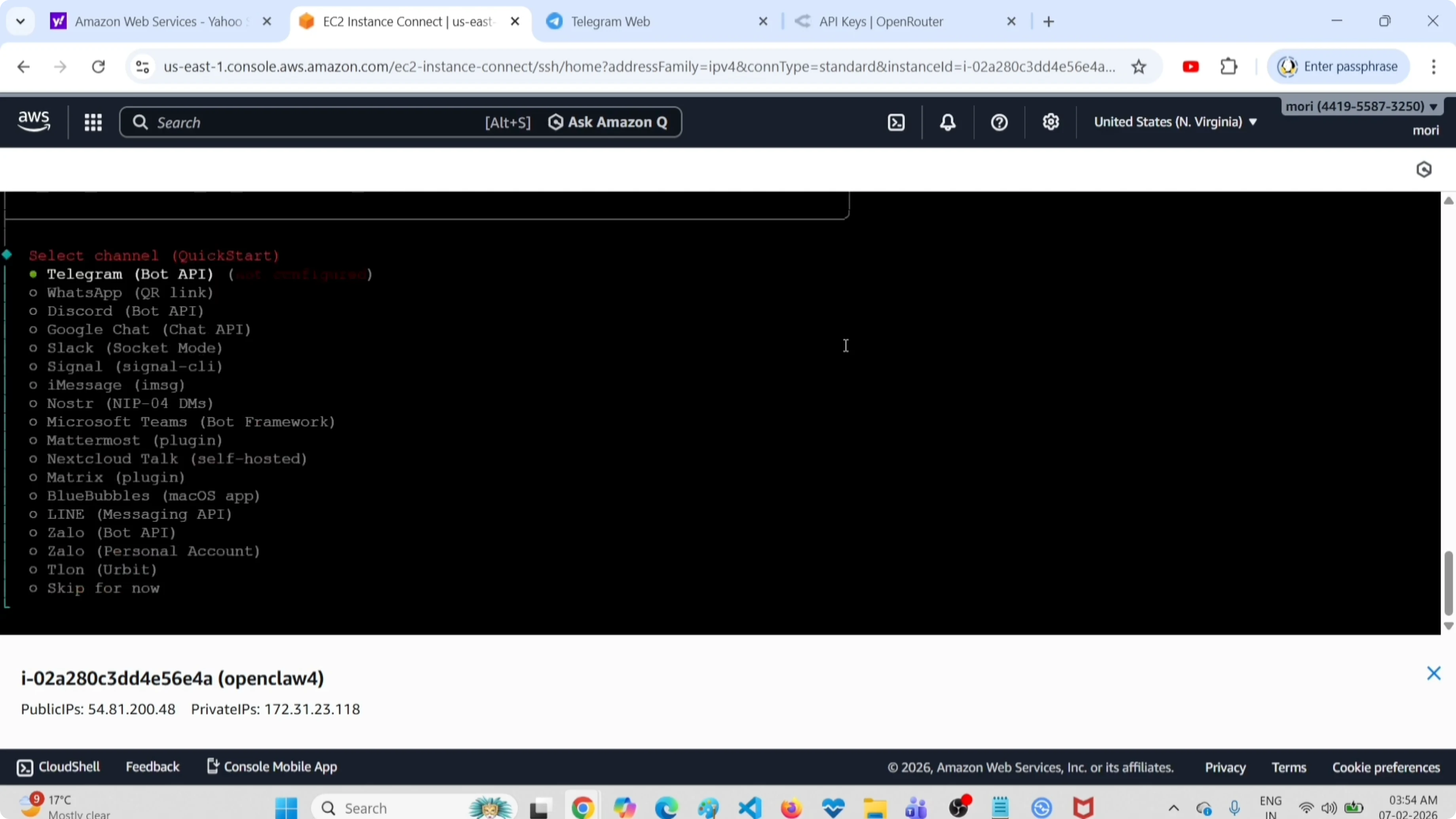
We need to create a new bot in Telegram to get that token.
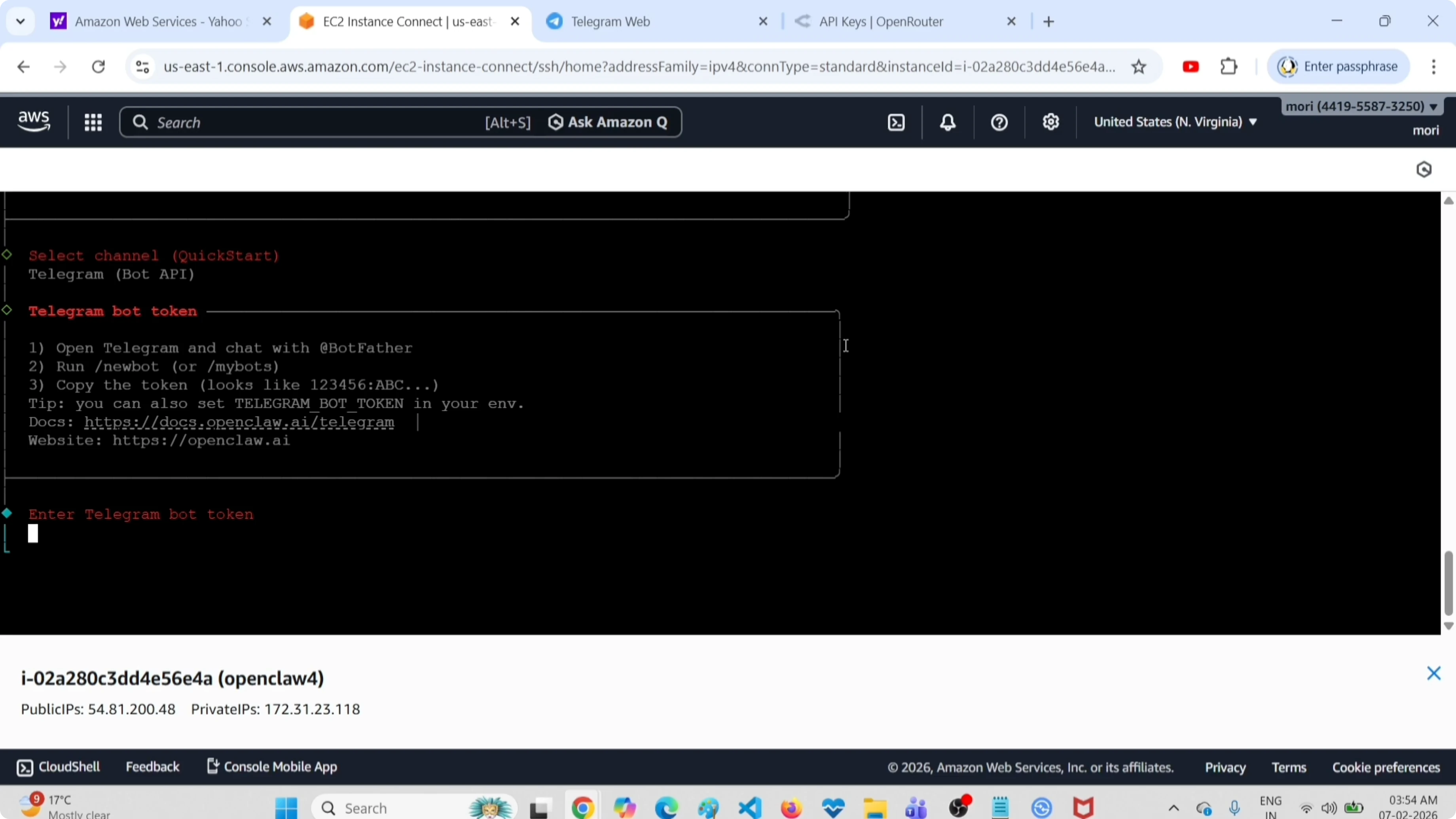
Create bot token
Open the Telegram app, search for BotFather, and tap Start.
Type the command:
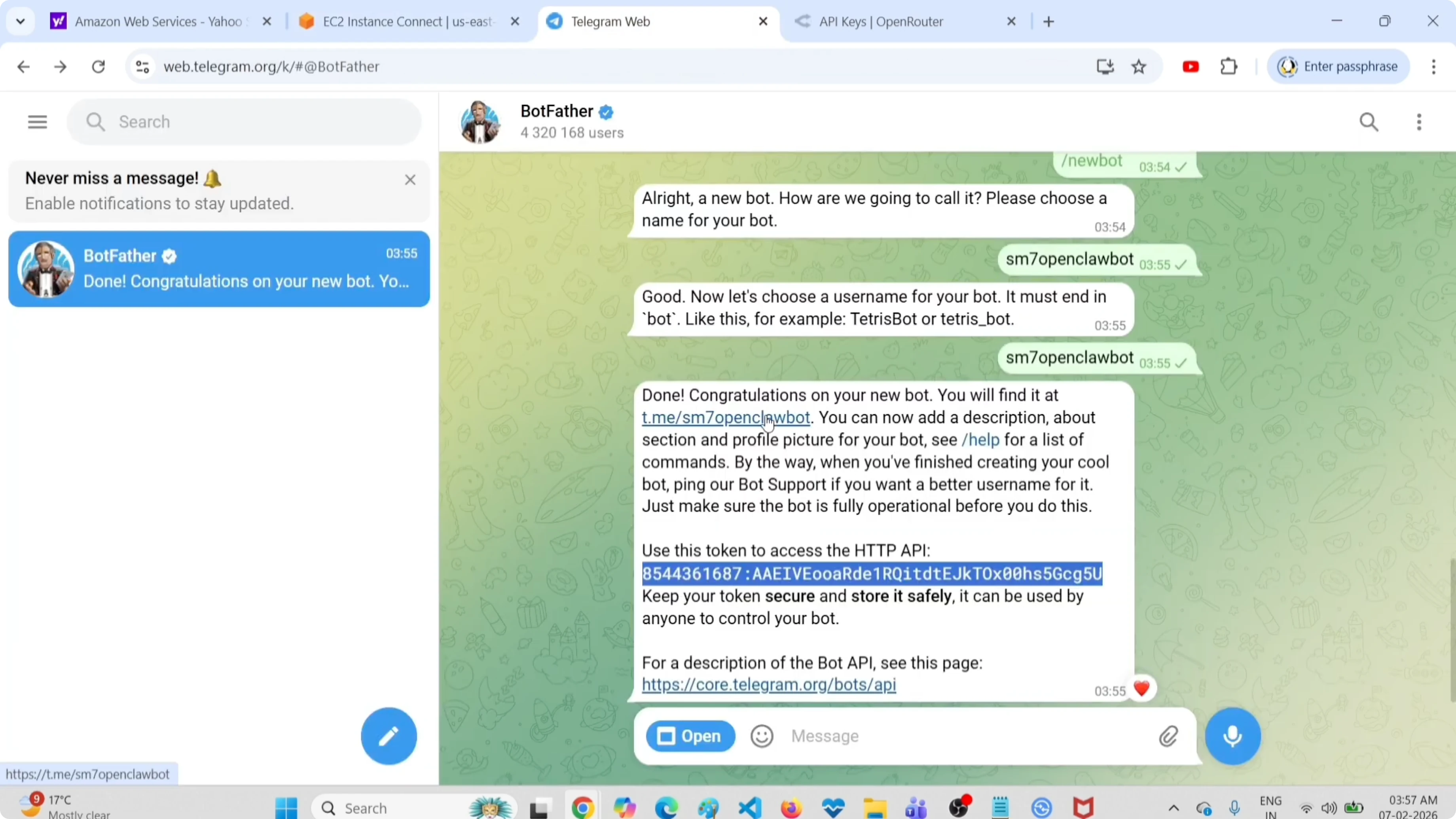
/newbotSet a name for the new bot. After creation, copy the API token shown by BotFather.
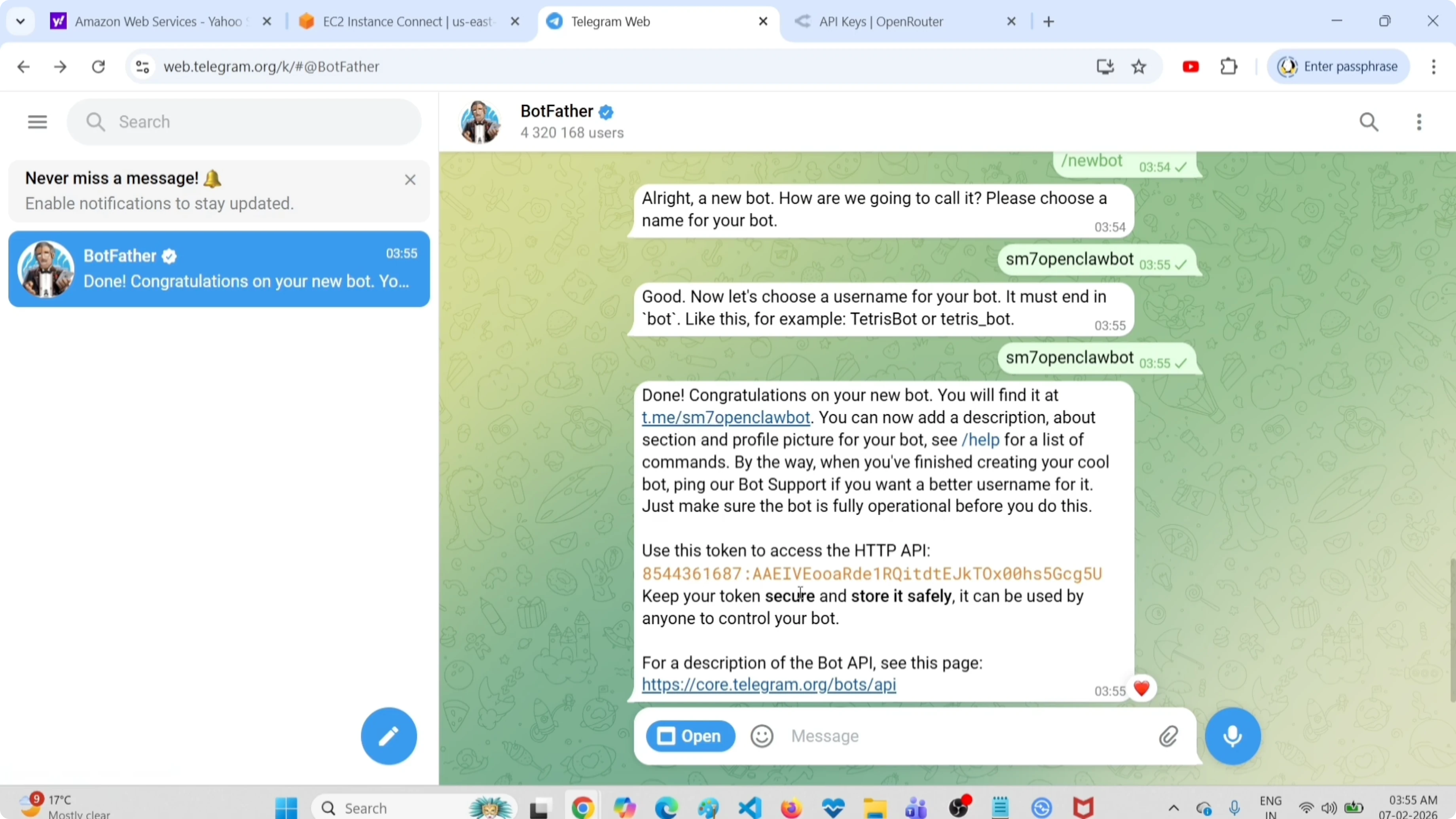
Paste the token into OpenClaw and press Enter. If Node.js throws an issue during this step, see Node.js error.
Finish onboarding
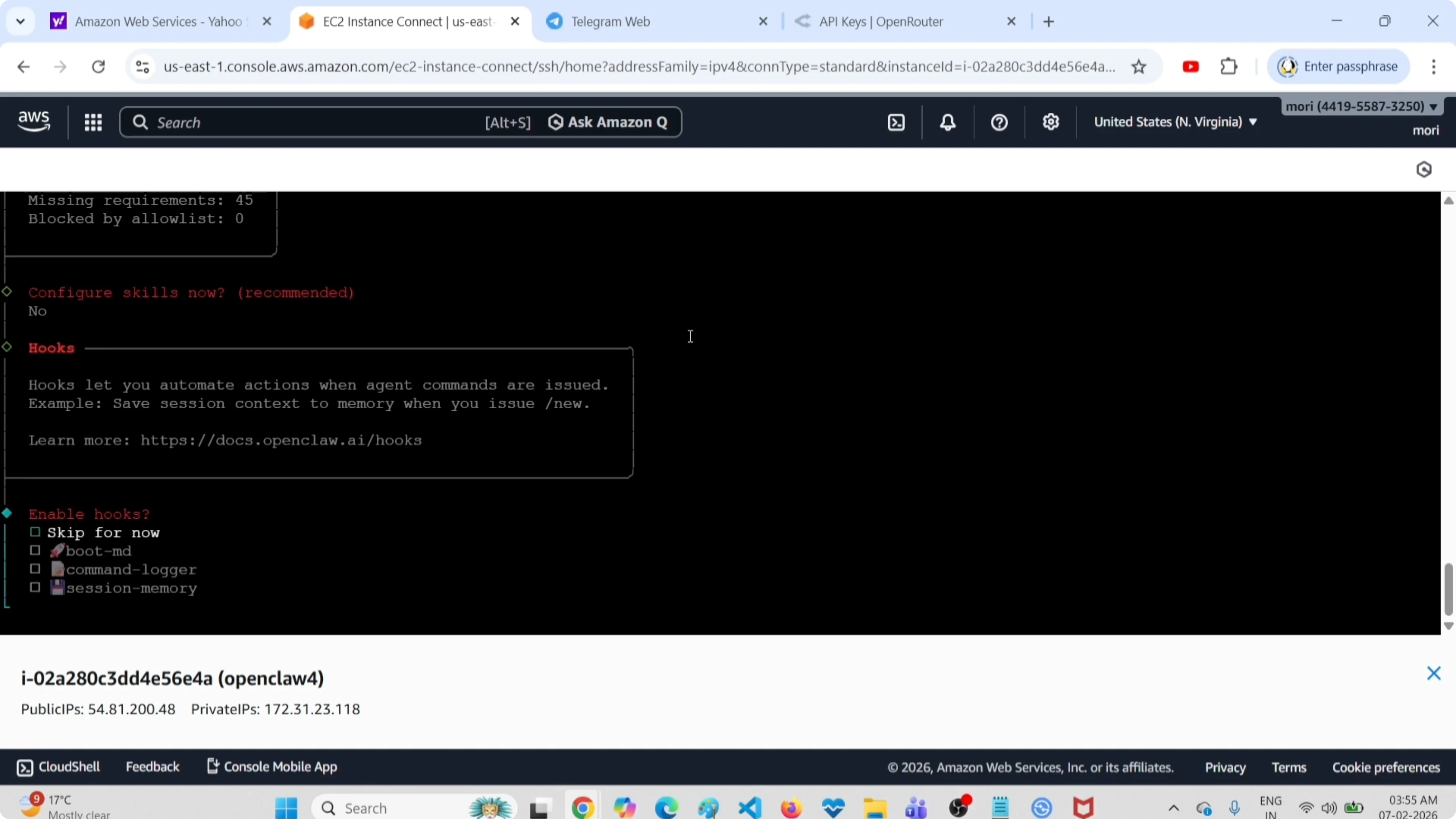
When asked to configure skills, I skipped it. Press the Space key to skip, then press Enter.
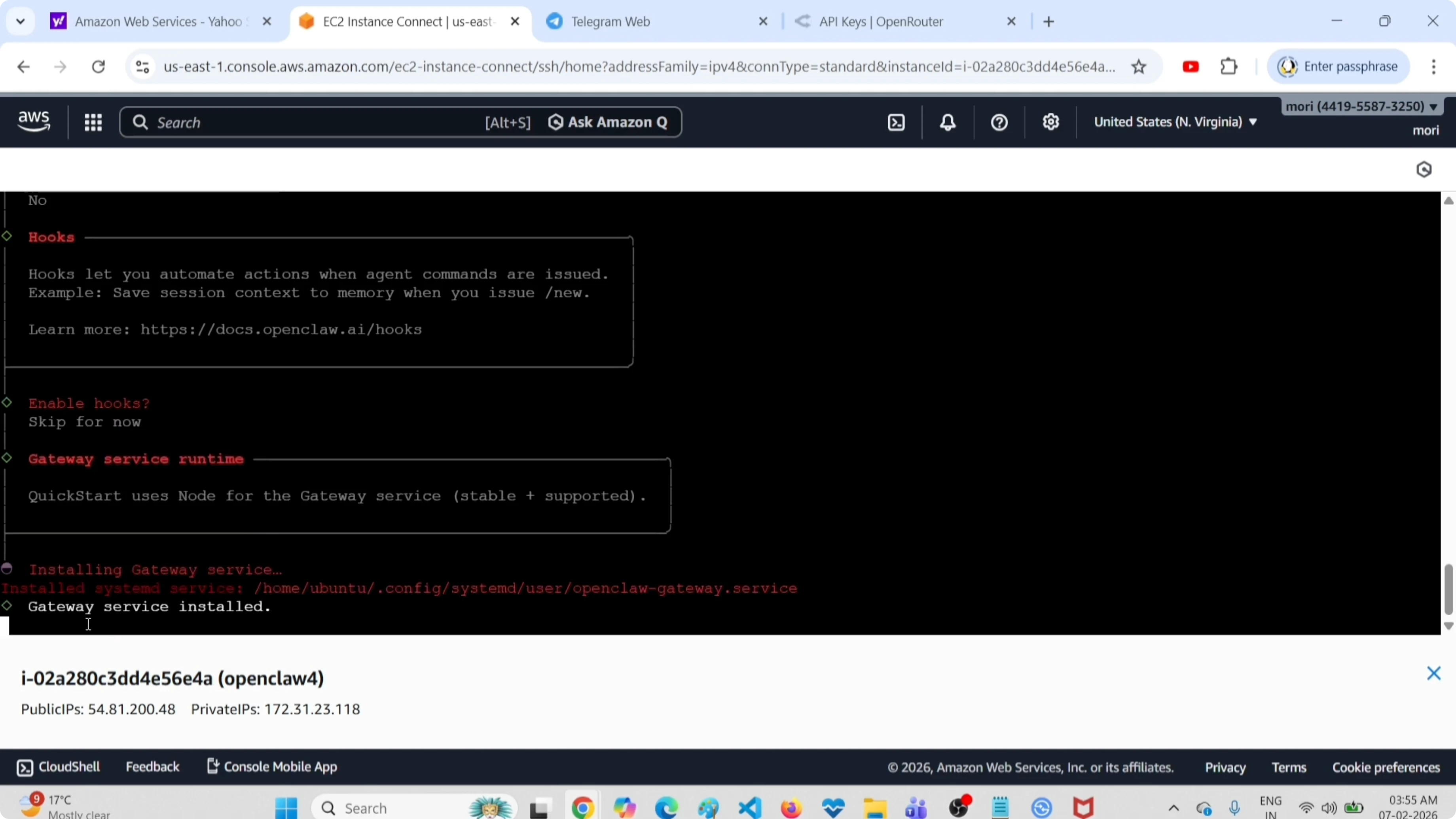
OpenClaw will set up the gateway service. When prompted for how to run the bot, select the first option to launch in the terminal UI.
Quick test in terminal UI
I tested with a prompt to confirm it’s working.
List all files in my root directory.The response came back, so the bot was up.
Pair with Telegram
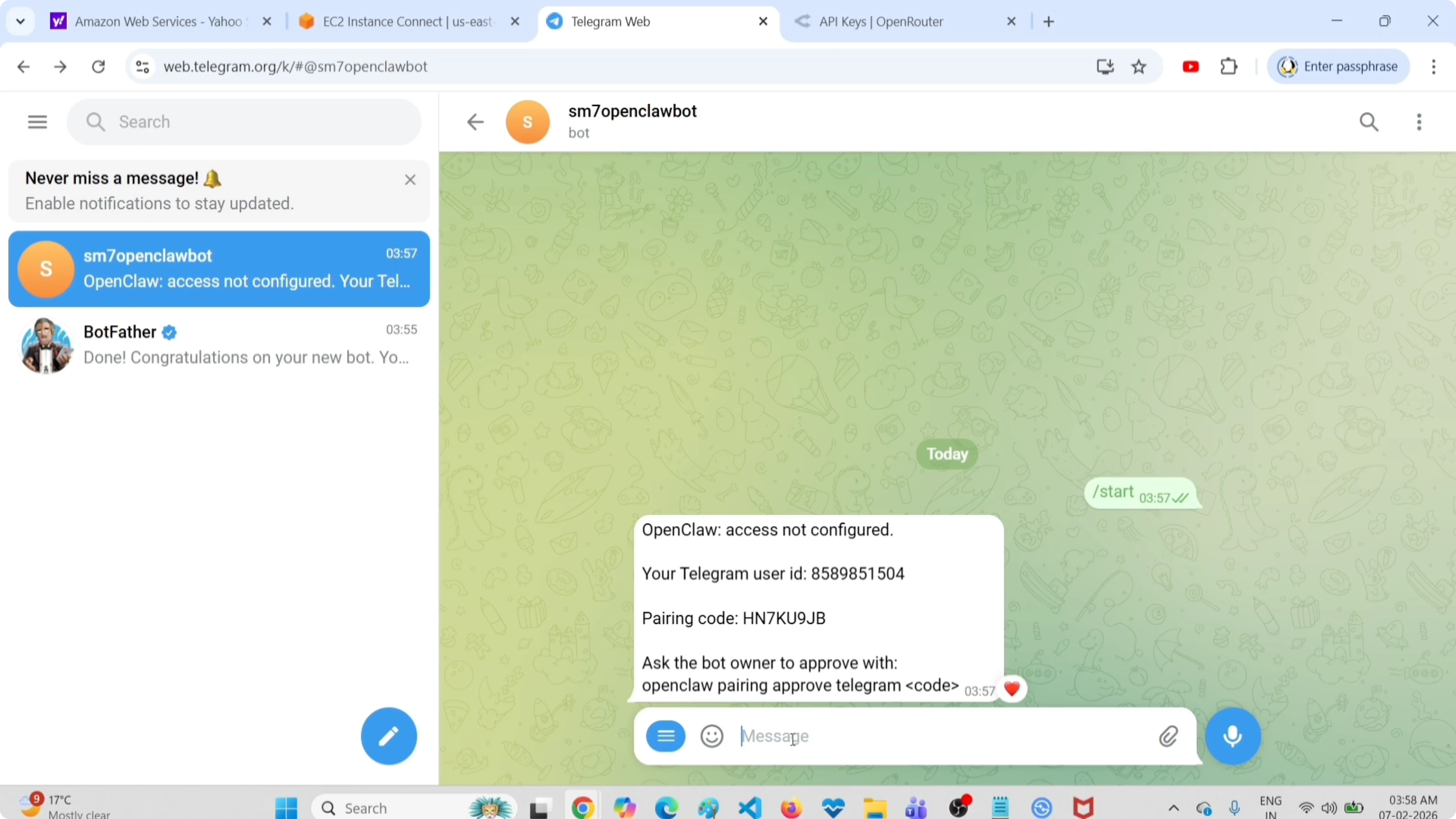
In Telegram, open the new bot and tap Start. The bot will ask you to pair.
Copy the pairing command shown in the terminal UI and run it in your shell after exiting the terminal UI. Go back to Telegram, copy the pairing code, paste it into the terminal when prompted, and press Enter.
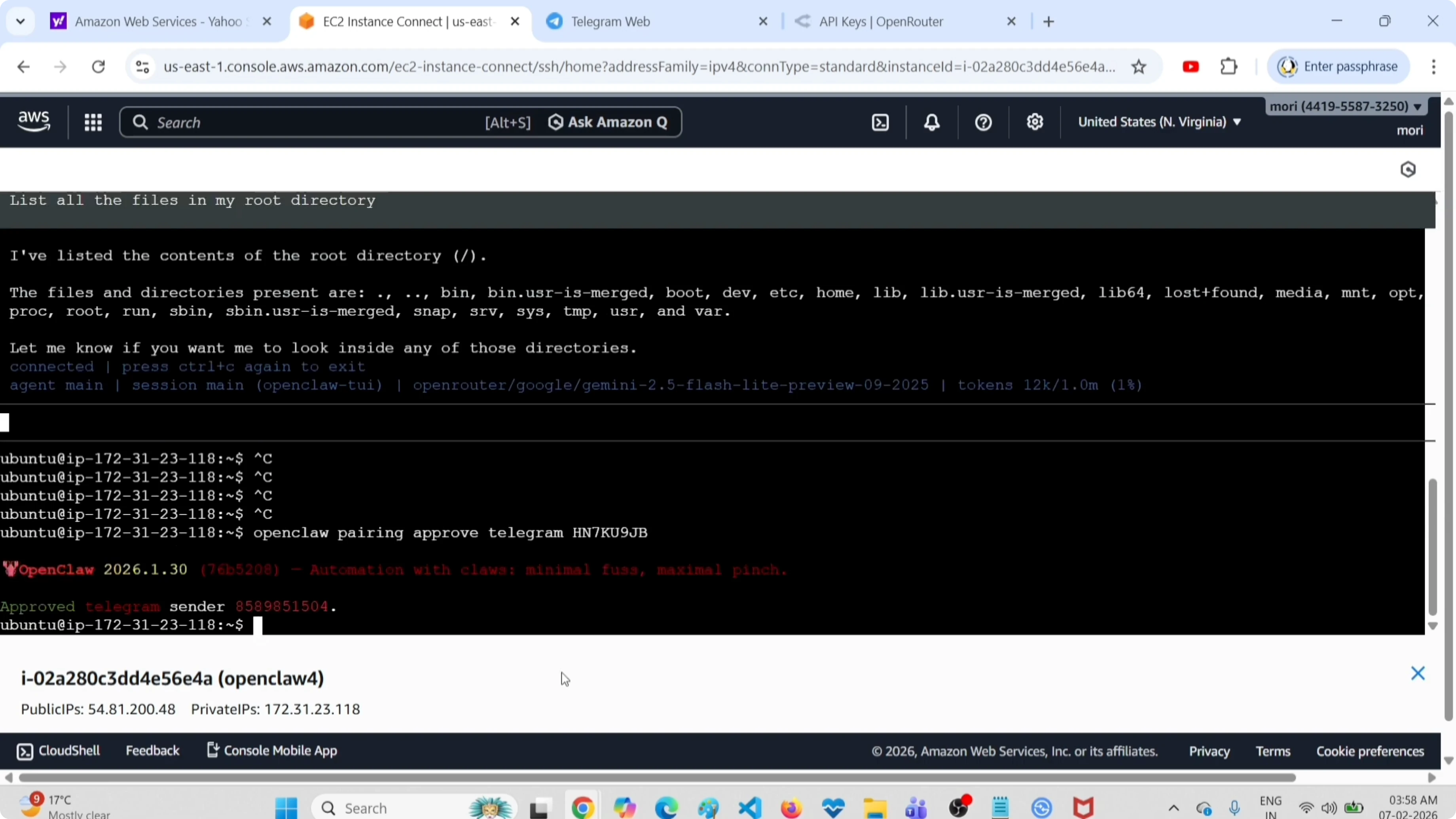
You should see a success message. If you encounter disconnects, check error 1006.
Test in Telegram
Return to the Telegram bot and try a prompt.
List all files in my root directory.I asked for the same response in a table format.
List all files in my root directory in a table format.The bot responded correctly both times.
Final thoughts
That’s how I set up the Telegram channel on OpenClaw using a new BotFather token, paired it, and verified responses from both the terminal UI and Telegram. If you ever need to reset a broken bot setup, see uninstall reinstall.
Subscribe to our newsletter
Get the latest updates and articles directly in your inbox.

Related Posts

8 Best Claude Code Plugins in 2026 (You Need to Know)
8 Best Claude Code Plugins in 2026 (You Need to Know)

7 Best Claude Code Skills (You Need to Know)
7 Best Claude Code Skills (You Need to Know)

Claude Code Desktop IDE Features (You Need to Know)
Claude Code Desktop IDE Features (You Need to Know)