
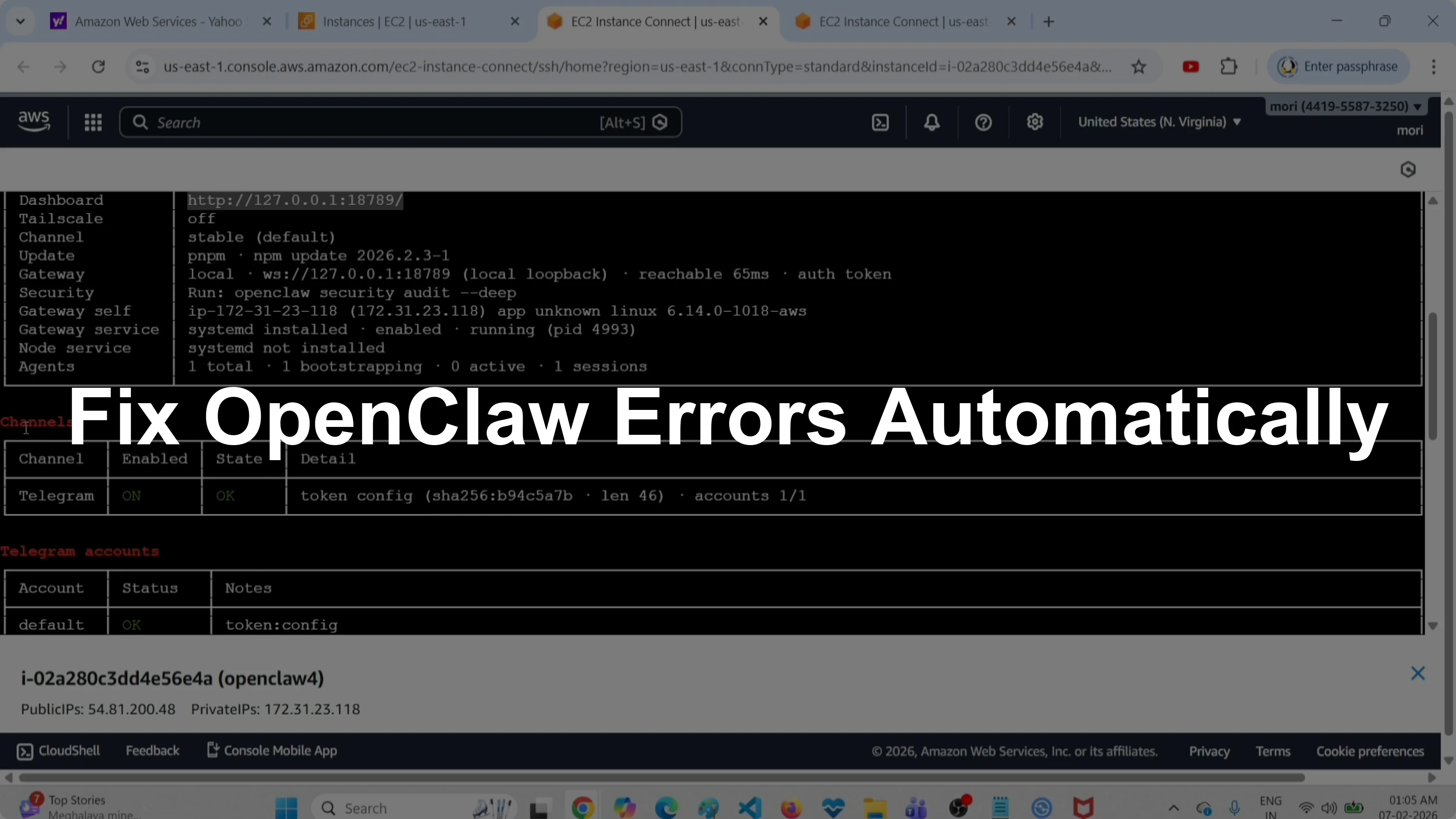
How to Automatically Fix OpenClaw Errors with ClawdBot & MoltBot?
OpenClaw Error Fixer
Paste any OpenClaw error and get the exact fix instantly — cause, steps, copy-ready commands, and related guides.
This guide shows how to automatically repair common OpenClaw configuration errors such as unrecognized keys in your configuration JSON file. I will check status first, then run the repair command, and verify the result.
If you run into other issues during setup or repair, see more fixes in How To Fix.
Automatically Fix OpenClaw Errors with ClawdBot & MoltBot?
Check status
Run the status command to see what OpenClaw reports right now.
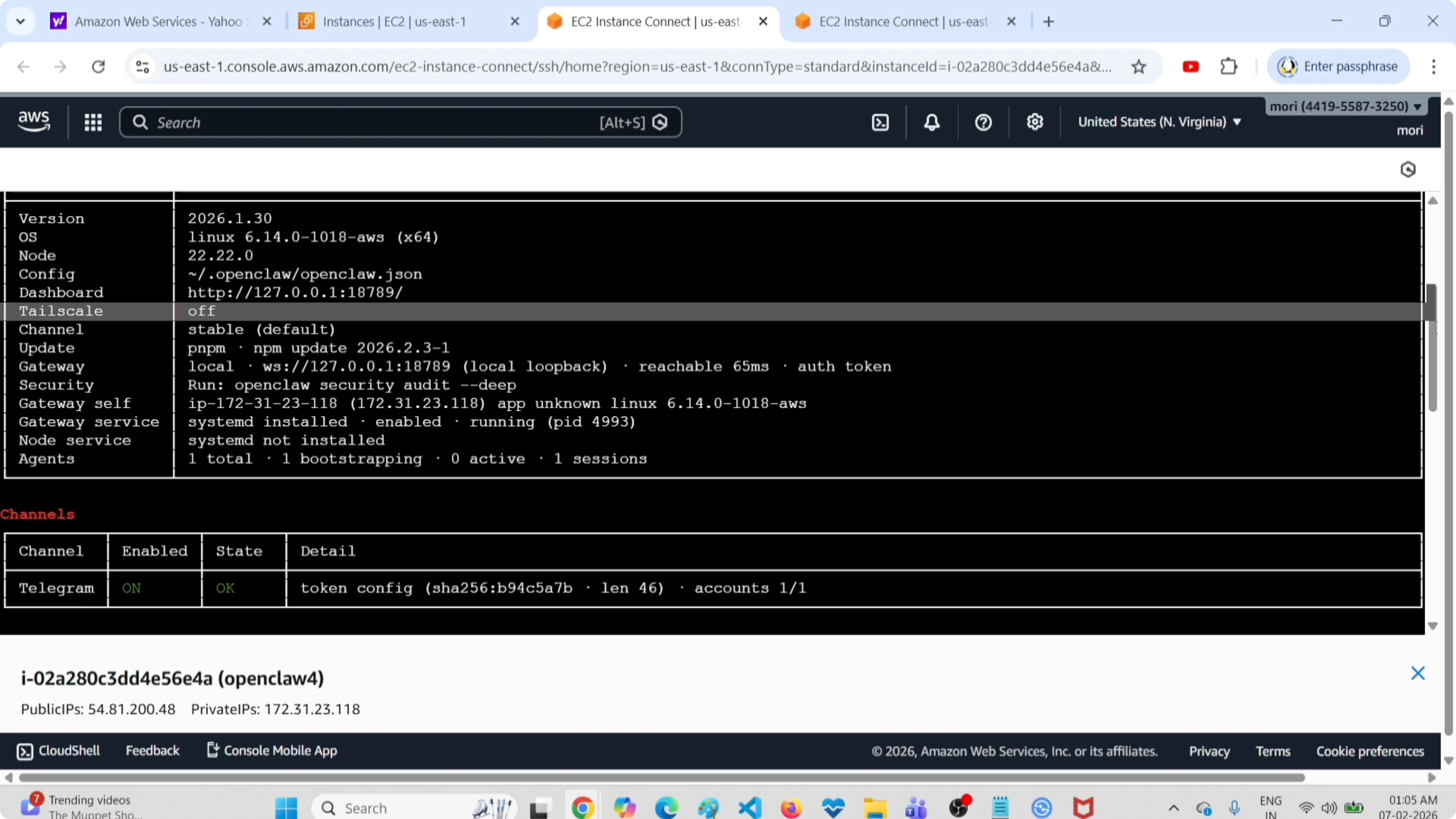
openclaw status allYou should see details like the OpenClaw version, the host OS, the dashboard URL, channels configured, which channels are enabled like Telegram, confirmation that configuration is fine, the service port, and that channel status is good.
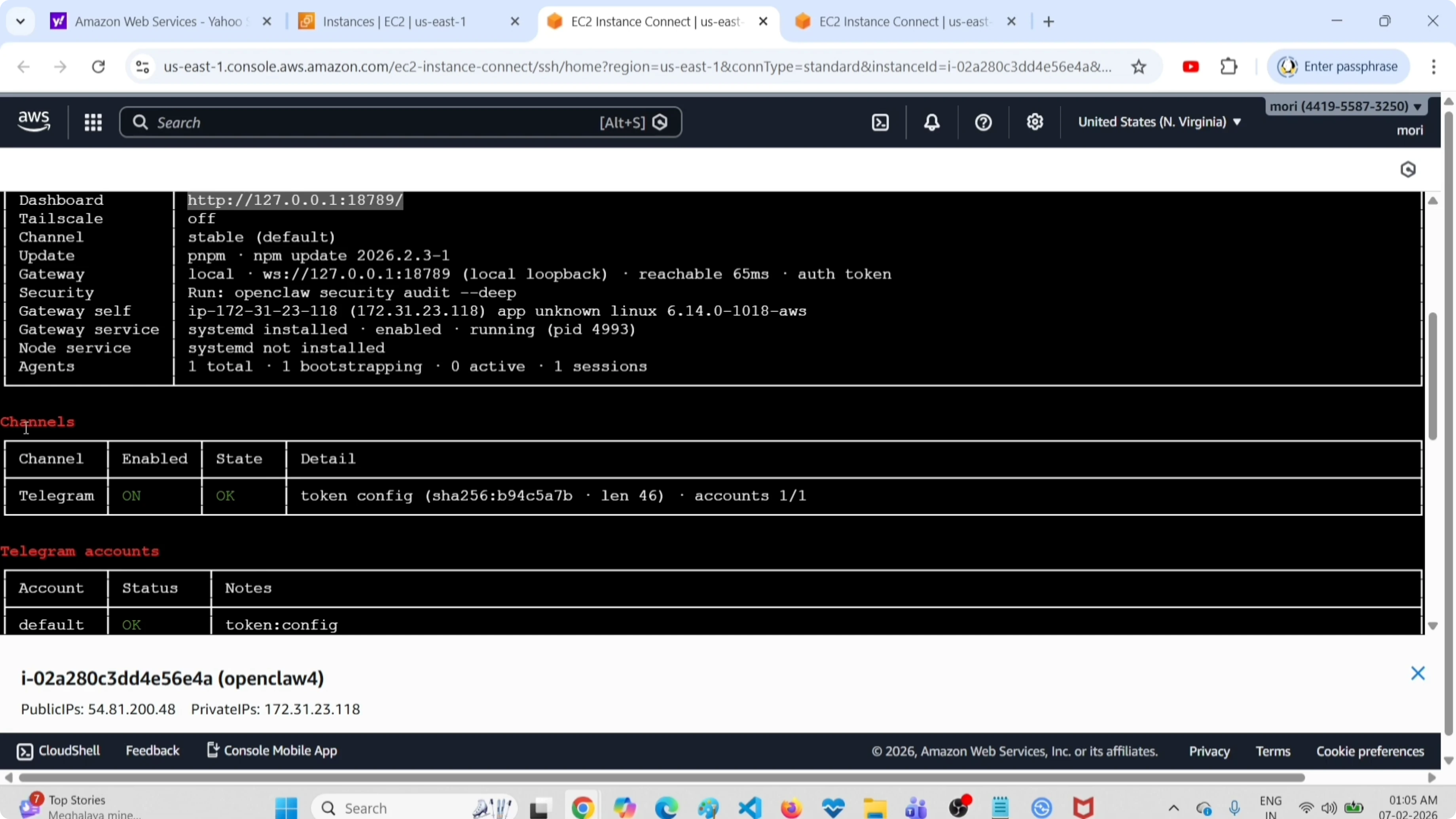
If you encounter a startup issue tied to Node.js during this step, check this quick fix for a Node.js error.
Repair configuration errors
Use the doctor command with the fix flag to automatically correct configuration problems in your JSON file.
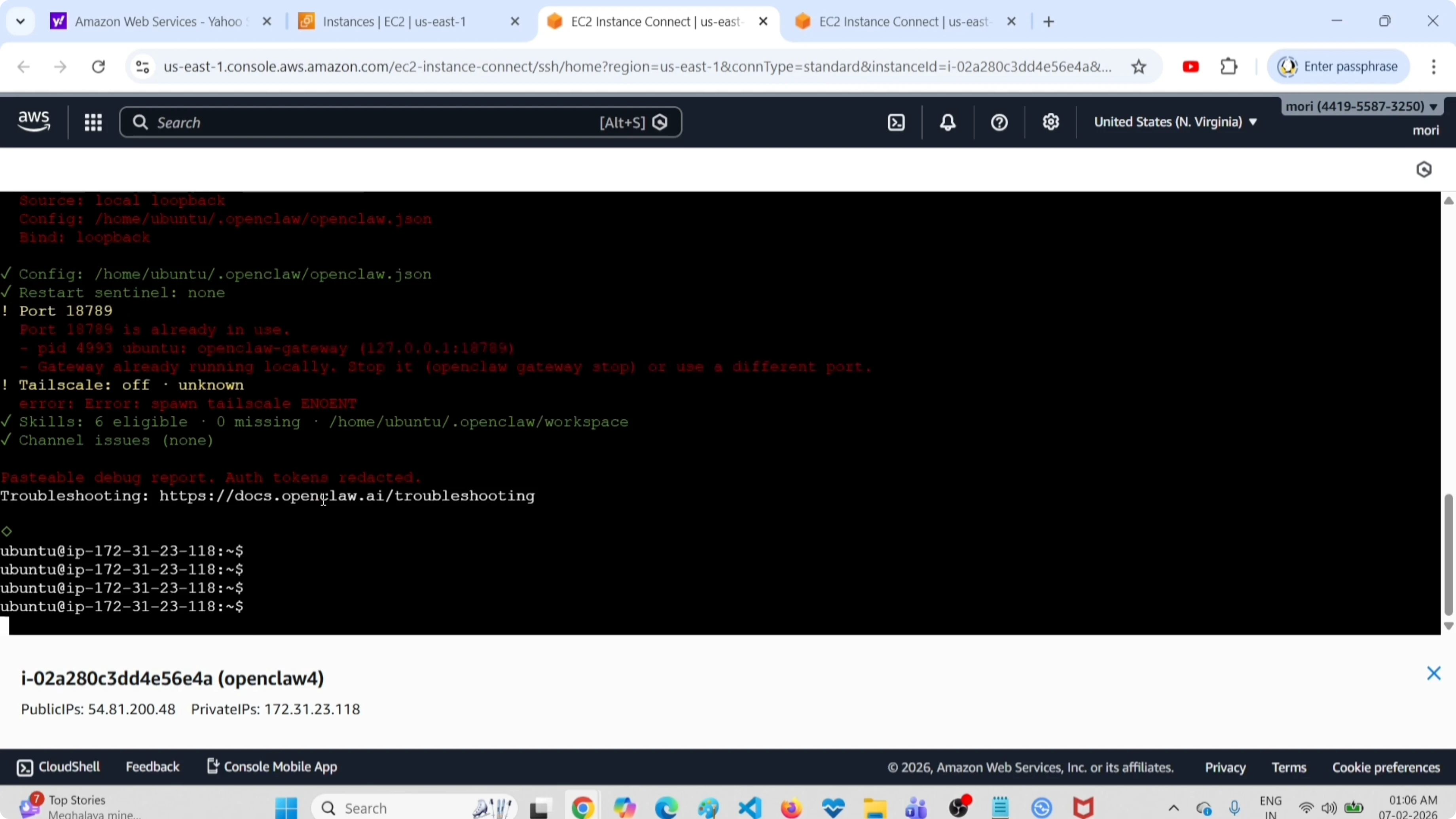
openclaw doctor --fix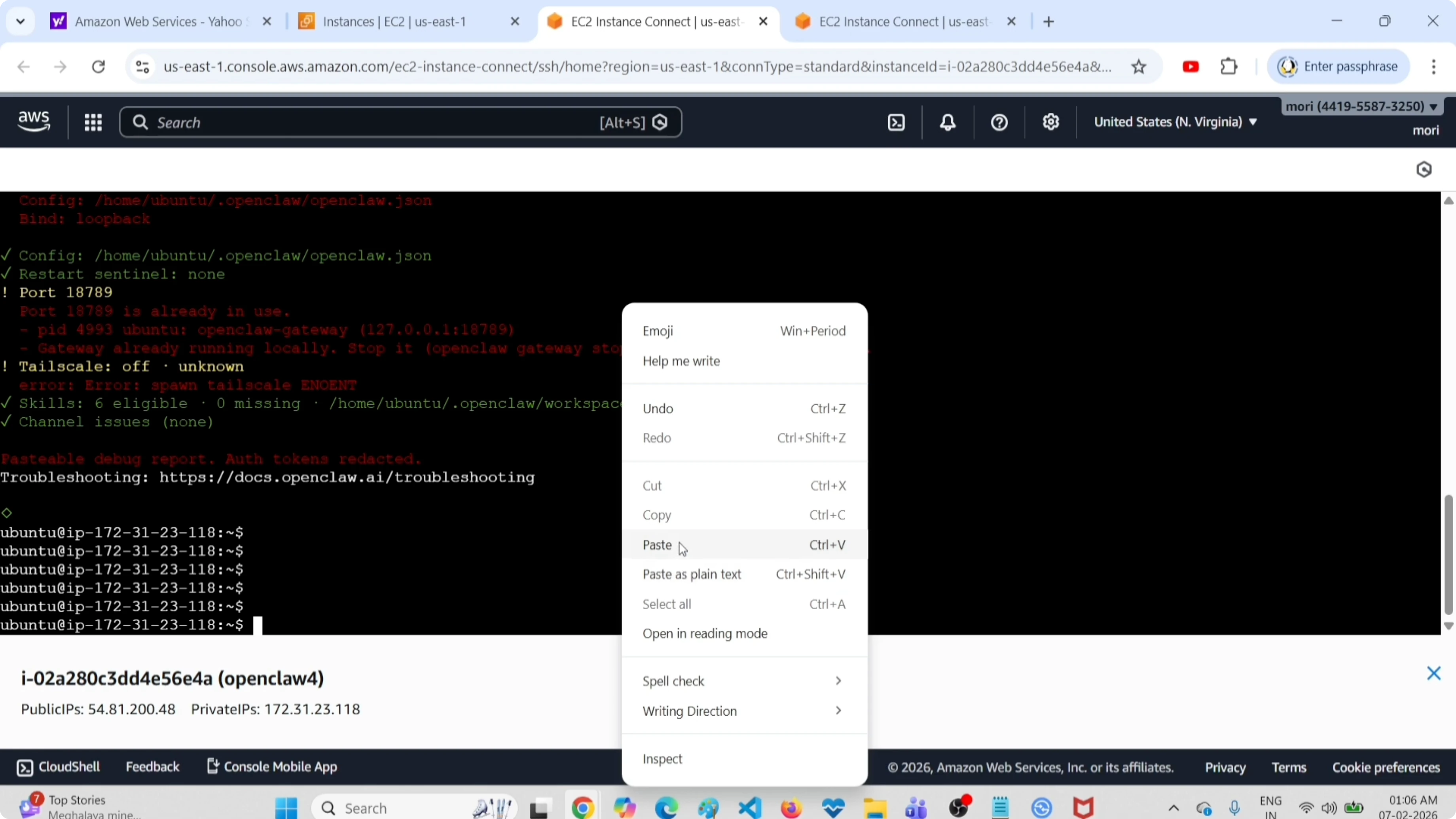
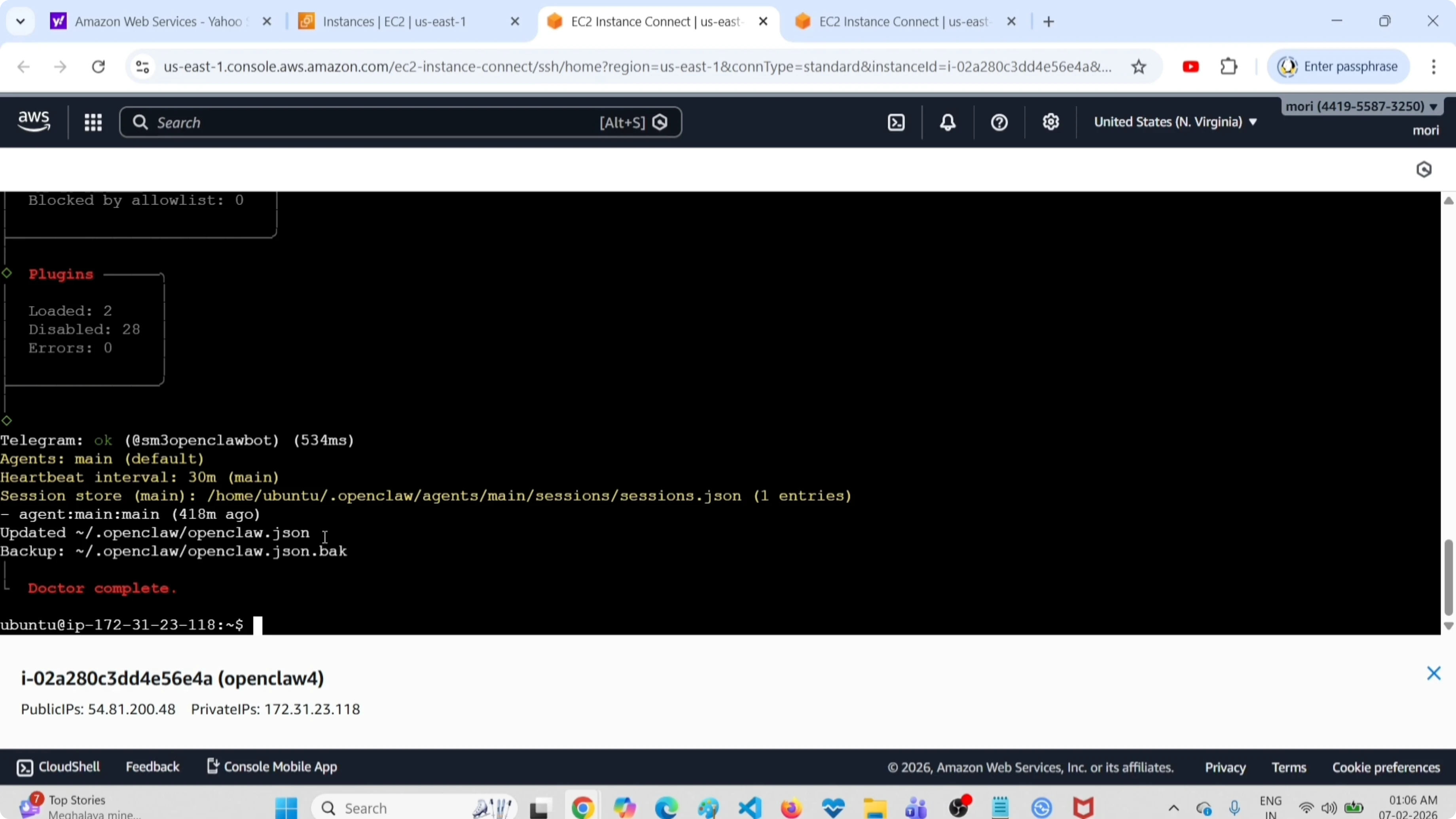
When it completes, you should see a confirmation like "doctor complete." The tool corrects entries in openclaw/openclaw.json.
If the bot still does not respond after the repair, try these steps for not responding.
Verify the repair
Run status again to confirm everything is healthy.
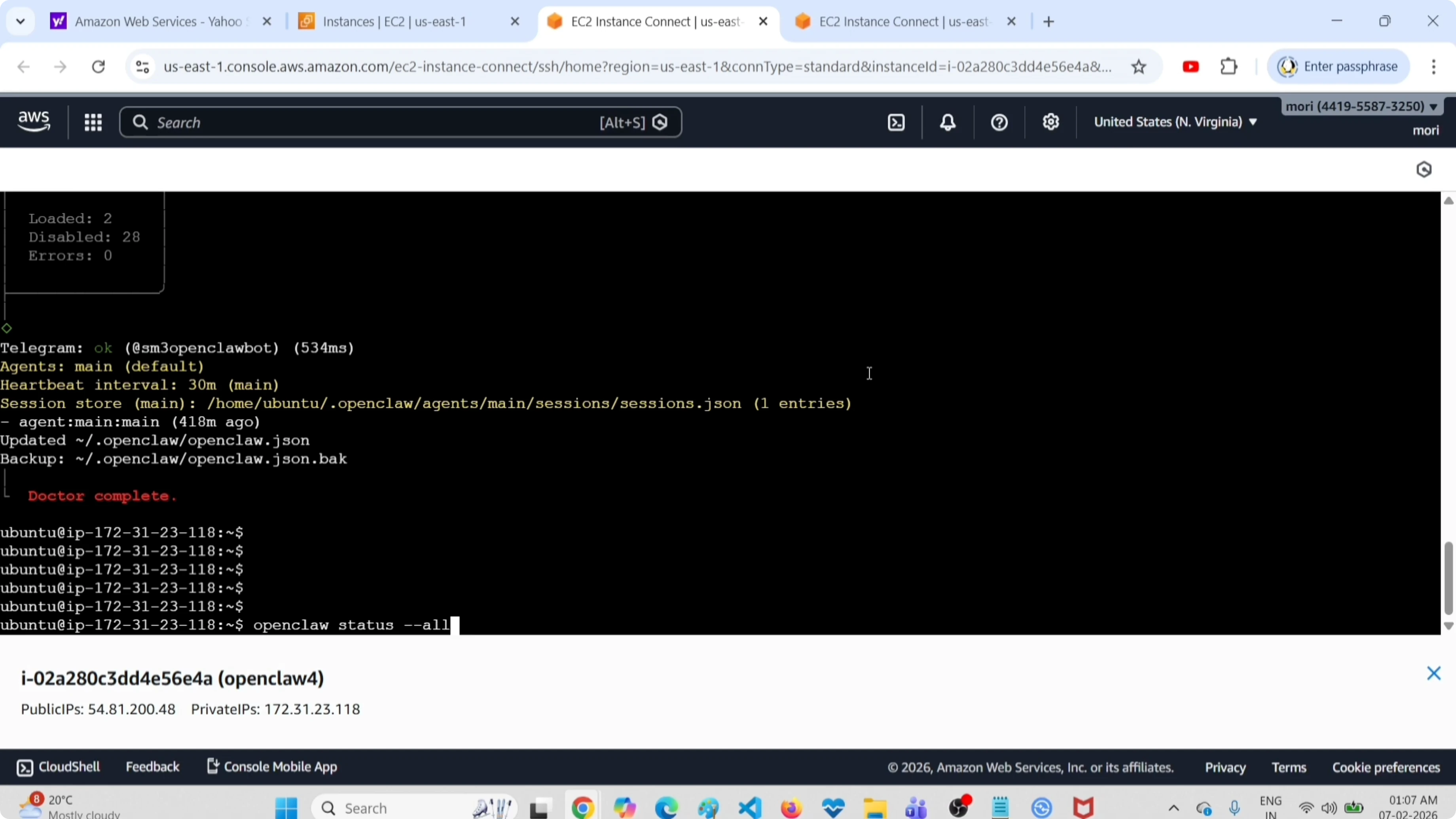
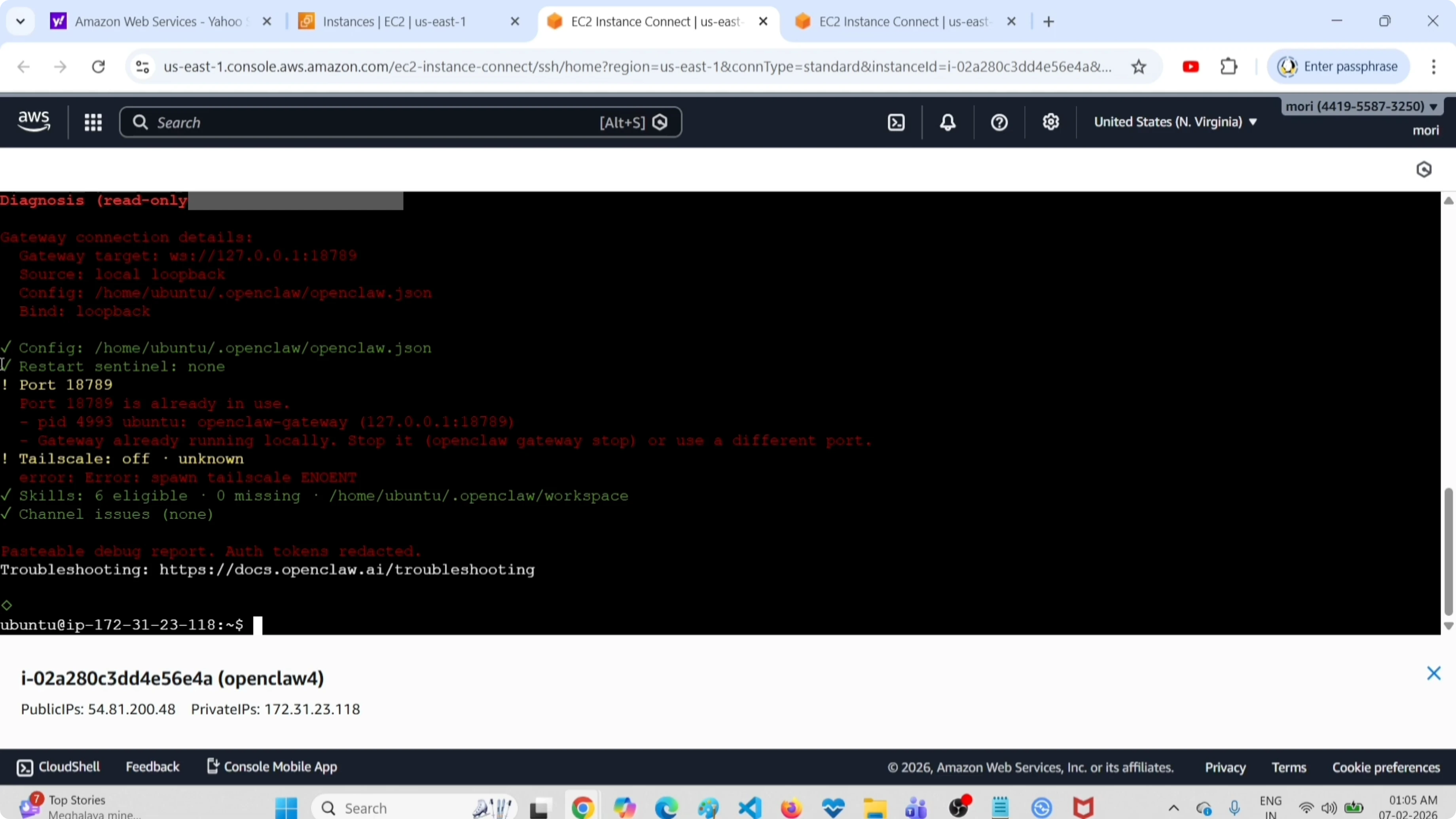
openclaw status allConfirm configuration is fine, required channels are enabled, and the service is running on the expected port. If you still see a disconnection, use this guide for the 1006 error.
Extra troubleshooting
If your environment uses containers and the install looks broken, follow this Docker install fix.
For persistent errors not covered above, revisit the full set of repair notes in How To Fix.
Final thoughts
Checking status, running openclaw doctor --fix, and verifying status again will resolve common configuration errors quickly. Keep an eye on the output fields for configuration health, channel state, and ports. For related issues, refer to Node.js error, 1006 error, not responding, and Docker install fix.
Subscribe to our newsletter
Get the latest updates and articles directly in your inbox.

Related Posts

8 Best Claude Code Plugins in 2026 (You Need to Know)
8 Best Claude Code Plugins in 2026 (You Need to Know)

7 Best Claude Code Skills (You Need to Know)
7 Best Claude Code Skills (You Need to Know)

Claude Code Desktop IDE Features (You Need to Know)
Claude Code Desktop IDE Features (You Need to Know)