
How to fix Google AI Pro subscription Antigravity quota not working as advertised?
Gemini API Pricing Calculator
Dynamically estimate your Google Gemini API costs for text, audio, images, and context caching. Covers new 3.1 Pro, Flash, and 2.5 models.
You’re paying for Google AI Pro, yet Antigravity is applying a long cooldown window — a 10‑day lockout instead of the advertised 5‑hour reset. While running a repository analysis, Antigravity threw: “You have reached the quota limit for this model. You can resume using this model at 2/1/2026, 3:36:33 PM. You can upgrade to the Google AI Ultra plan to receive the highest rate limits.” In practice, this behaves like a free‑tier weekly quota, leaving your Pro seat unusable.

How to fix Google AI Pro subscription Antigravity quota not working as advertised?
The issue presents as a prolonged cooldown timer (several days) even though your subscription is active and Antigravity shows “Your Plan: Google AI Pro.” You may also find that caching cleanup and sign‑in/out does not change the next‑reset timestamp. The message typically reads: “You have reached the quota limit for this model. You can resume using this model at 2/1/2026, 3:36:33 PM. You can upgrade to the Google AI Ultra plan to receive the highest rate limits.”
Solution Overview
| Aspect | Detail |
|---|---|
| Root Cause | Pro entitlement not being recognized by Antigravity’s quota service, leaving your account in the free‑tier quota window (cooldown timestamp pinned to days instead of hours). Often triggered by stale auth tokens, account mismatch, or a backend entitlement desync. |
| Primary Fix | Fully refresh identity and entitlements: clear Antigravity auth cache, re‑authenticate with the correct Google account, and force an entitlement/plan refresh from AI Studio billing before relaunching Antigravity. |
| Complexity | Easy |
| Estimated Time | 10–20 minutes |
How to fix Google AI Pro subscription Antigravity quota not working as advertised?
Step-by-Step Solution
- Confirm you’re on the right account and plan
- Open your browser and verify you’re signed in with the Google account that owns the Pro plan.
- Check current plans and rate‑limit expectations in the official docs: AI plans and pricing and rate limits.
- If you recently changed plans or payment method, wait a minute, then proceed.
- Sign out everywhere to flush stale tokens
- In Antigravity: Settings > Account > Sign out.
- In your browser: sign out of all Google accounts, then sign back in with only the Pro account for the next steps.
- If you manage multiple Google accounts, open a fresh browser profile for the Pro account.
- Clear Antigravity’s cached authentication data Use the exact command used by affected users (PowerShell on Windows):
Remove-Item -Recurse -Force "$env:USERPROFILE\.antigravity"On macOS/Linux:
rm -rf ~/.antigravityThis removes stale tokens that can keep you stuck in the wrong quota cohort.
- Re‑authenticate and relaunch Antigravity
- Start Antigravity, sign in with the same Google account that holds your Pro subscription.
- Verify the app shows “Your Plan: Google AI Pro.”
- Force an entitlement refresh via AI Studio billing
- In your browser session (still on the Pro account):
- Open the AI Studio billing/subscription page (see AI plans and pricing for navigation).
- Open “Manage subscription” and re‑confirm payment details; if a “Refresh” or “Recheck” option is present, use it.
- Wait 1–2 minutes to let entitlements propagate.
- Test with a small request in Antigravity
- Run a minimal prompt or code analysis to verify the quota window now reflects a 5‑hour reset.
- If the UI still shows a multi‑day cooldown, proceed to escalation.
- Escalate to Google AI Support to reset your window
- Open a ticket with exact wording: “Pro entitlement not applied in Antigravity; account appears pinned to free‑tier weekly cooldown. Please reset my quota window and repair entitlements.”
- Include: account email, subscription ID, lockout start time, exact error text, and that you cleared ~/.antigravity and re‑authenticated.
- Contact: AI Studio Help Center.
- Ask support to confirm your “quota cohort” reflects Pro and that the cooldown timestamp is recalculated.
Tip: If sign‑in itself is flaky during these steps, use our detailed Antigravity login checklist here: Antigravity login troubleshooting.
Alternative Fixes & Workarounds
- Create a new API key under the same Pro account, then sign Antigravity out/in and select the new key (helps if the specific key is pinned to a bad quota cohort).
- Switch to a different model family temporarily if your work allows it; quotas may differ per model. See rate limits.
- Short‑term: use the web UI/API directly via AI Studio while support resets the Antigravity cooldown.
- As a last resort, cancel then re‑subscribe to Pro to refresh entitlements (only after support confirms a backend quota mapping issue).
If you see permission issues instead of quota errors, review these quick fixes:
- Read More: permission denied fixes in AI Studio.
Troubleshooting Tips
- Confirm you’re not signed into multiple Google accounts in the same browser session; cross‑account cookies often misapply entitlements.
- Verify system time and timezone are correct; bad clocks can produce incorrect cooldown math.
- Update Antigravity to the latest version to pick up entitlement fixes.
- Check if your organization’s admin policies restrict third‑party app tokens; try from a personal network/profile.
- If you hit “failed to generate content — permission denied,” it’s a separate issue. See how to fix the ‘failed to generate content’ permission error.
Best Practices
- Keep a single active Google session for the Pro account when signing Antigravity.
- Monitor your usage and cooldowns regularly; adjust batch sizes to stay within Pro rate limits.
- Avoid running very large concurrent jobs right after a reset; stagger requests.
- Periodically clear local Antigravity cache after plan changes or billing updates.
- Document your Subscription ID, plan changes, and timestamps; this speeds up support resets.
For ongoing login problems that can mimic quota issues, also see: Read More: Google AI Studio permission troubleshooting.
Final Thought
The lockout happens because your Pro entitlement isn’t being honored by Antigravity’s quota service, leaving you stuck in a free‑tier cooldown. Clearing the auth cache, re‑authenticating with the correct Pro account, and forcing an entitlement refresh resolves most cases. If the cooldown timestamp still shows days instead of hours, file a support ticket to reset your quota window and fix the backend mapping. Once repaired, you’ll be back to the 5‑hour refresh you’re paying for.
Subscribe to our newsletter
Get the latest updates and articles directly in your inbox.

Related Posts
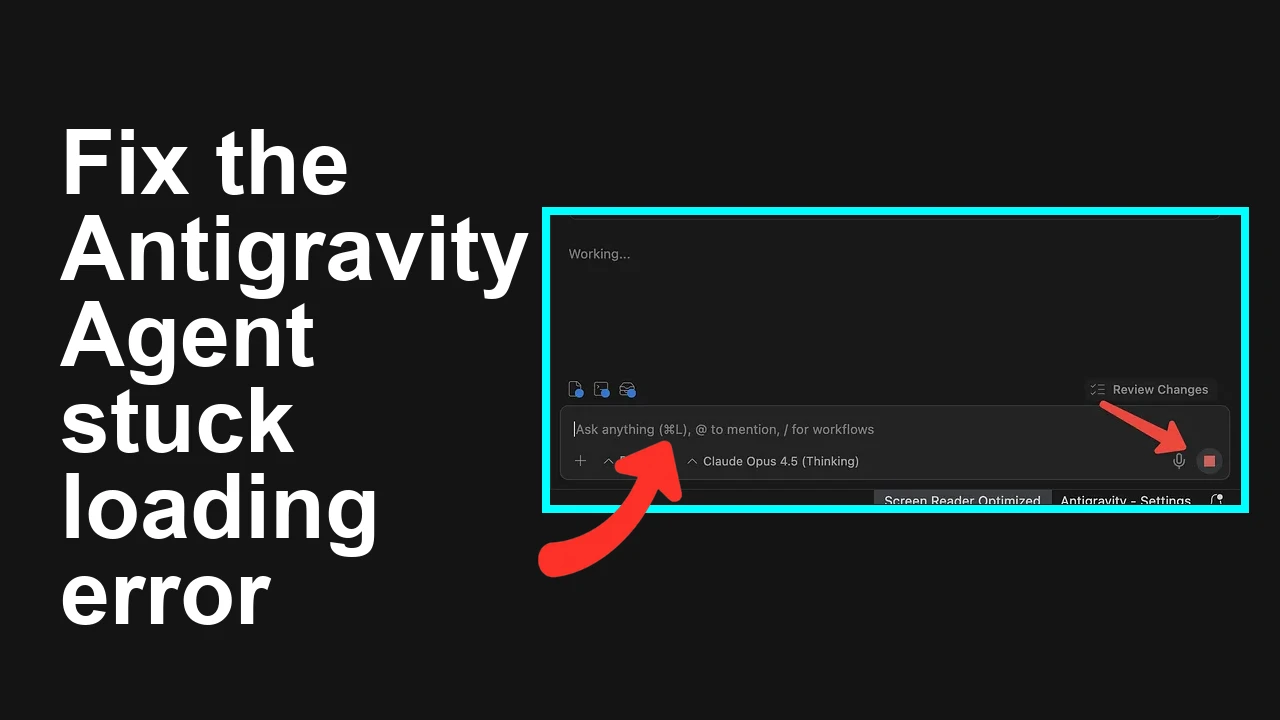
How to fix Agent stuck and can't be stopped error in Antigravity?
How to fix Agent stuck and can't be stopped error in Antigravity?
How to fix Agent is not responding error in Antigravity?
How to fix Agent is not responding error in Antigravity?
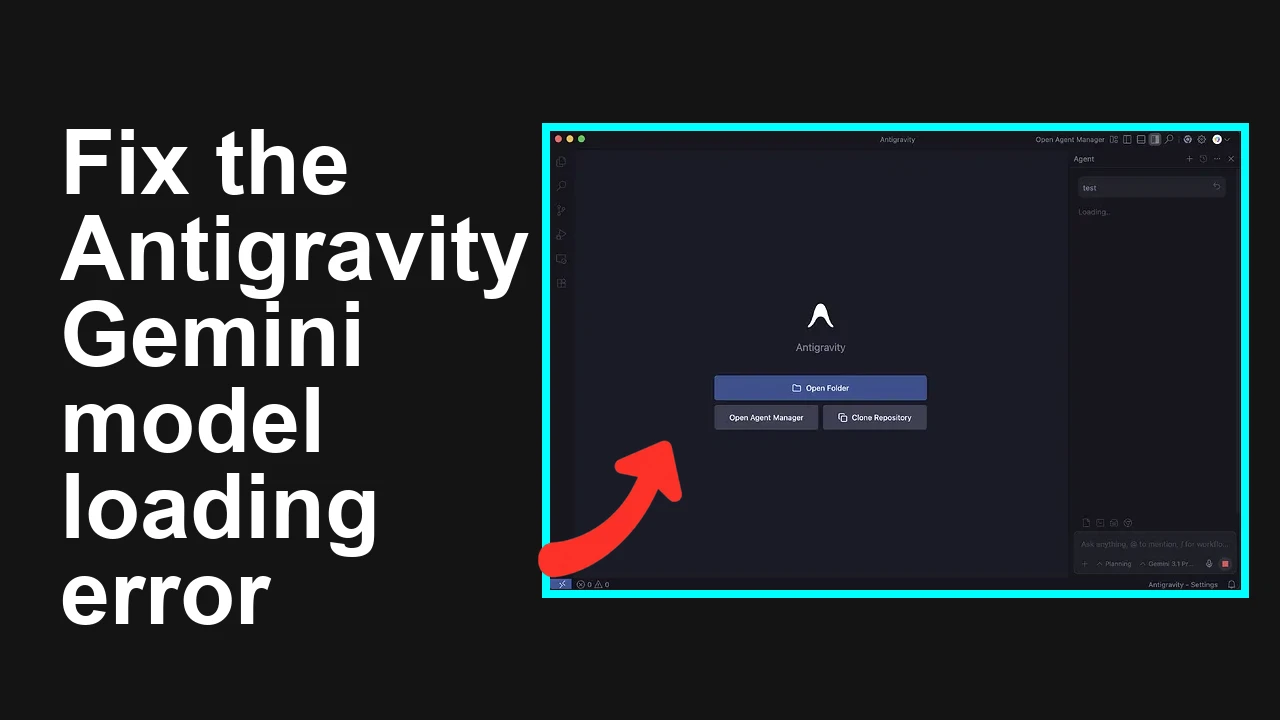
How to fix Antigravity won't work with any Gemini models error?
How to fix Antigravity won't work with any Gemini models error?