
Table Of Content
- Understanding the Issue — Fix Google AI Studio Failed To Generate Content Permission Denied?
- Step 1 — Fix Google AI Studio Failed To Generate Content Permission Denied?: Check Server Status
- Step 2 — Fix Google AI Studio Failed To Generate Content Permission Denied?: Verify Your API Setup
- Step 3 — Fix Google AI Studio Failed To Generate Content Permission Denied?: Review Safety Settings
- Step 4 — Fix Google AI Studio Failed To Generate Content Permission Denied?: Change the Gemini Account Option
- Step 5 — Fix Google AI Studio Failed To Generate Content Permission Denied?: Check Your Prompt Against Policy
- Alternative Fixes — Fix Google AI Studio Failed To Generate Content Permission Denied?
- Final Thoughts — Fix Google AI Studio Failed To Generate Content Permission Denied?
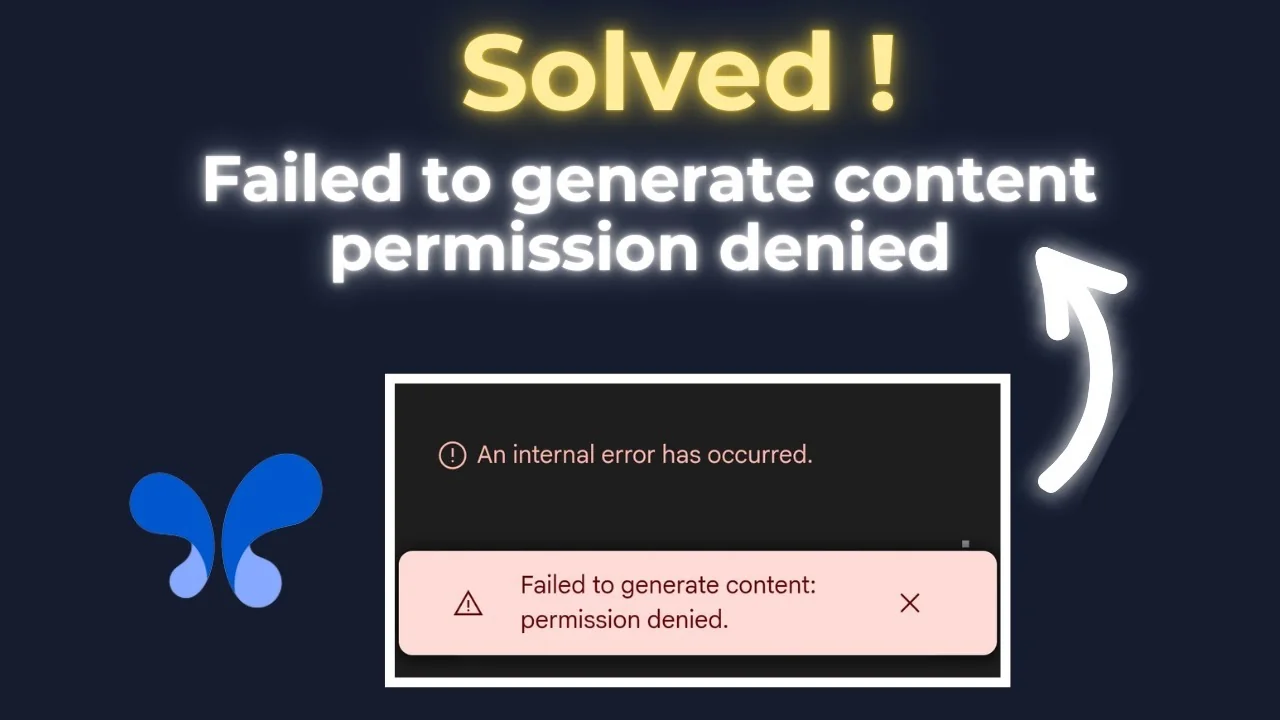
How to Fix Google AI Studio Failed To Generate Content Permission Denied?
Gemini API Pricing Calculator
Dynamically estimate your Google Gemini API costs for text, audio, images, and context caching. Covers new 3.1 Pro, Flash, and 2.5 models.
Table Of Content
- Understanding the Issue — Fix Google AI Studio Failed To Generate Content Permission Denied?
- Step 1 — Fix Google AI Studio Failed To Generate Content Permission Denied?: Check Server Status
- Step 2 — Fix Google AI Studio Failed To Generate Content Permission Denied?: Verify Your API Setup
- Step 3 — Fix Google AI Studio Failed To Generate Content Permission Denied?: Review Safety Settings
- Step 4 — Fix Google AI Studio Failed To Generate Content Permission Denied?: Change the Gemini Account Option
- Step 5 — Fix Google AI Studio Failed To Generate Content Permission Denied?: Check Your Prompt Against Policy
- Alternative Fixes — Fix Google AI Studio Failed To Generate Content Permission Denied?
- Final Thoughts — Fix Google AI Studio Failed To Generate Content Permission Denied?
Google AI Studio failing to generate content with a “Permission denied” message stops you from testing, iterating, and shipping. Here’s how to solve the issue of Google AI Studio failing to generate content due to a permission denied error. I will explain different ways in which this error is caused and you will be able to solve it.
Fix this promptly so your prompts, API tests, and prototypes can run without interruptions.
Understanding the Issue — Fix Google AI Studio Failed To Generate Content Permission Denied?
Sometimes this issue is caused by the server. If the server is working fine, the problem can come from the API you created and set up, Safety Settings blocking certain words, the Gemini account option you’re using, or a prompt that violates policy. Sometimes the results you generate contain words that are blocked and you get this error. The final reason might be that your prompt contains an error. Make sure you are not violating the content policy.
Step 1 — Fix Google AI Studio Failed To Generate Content Permission Denied?: Check Server Status
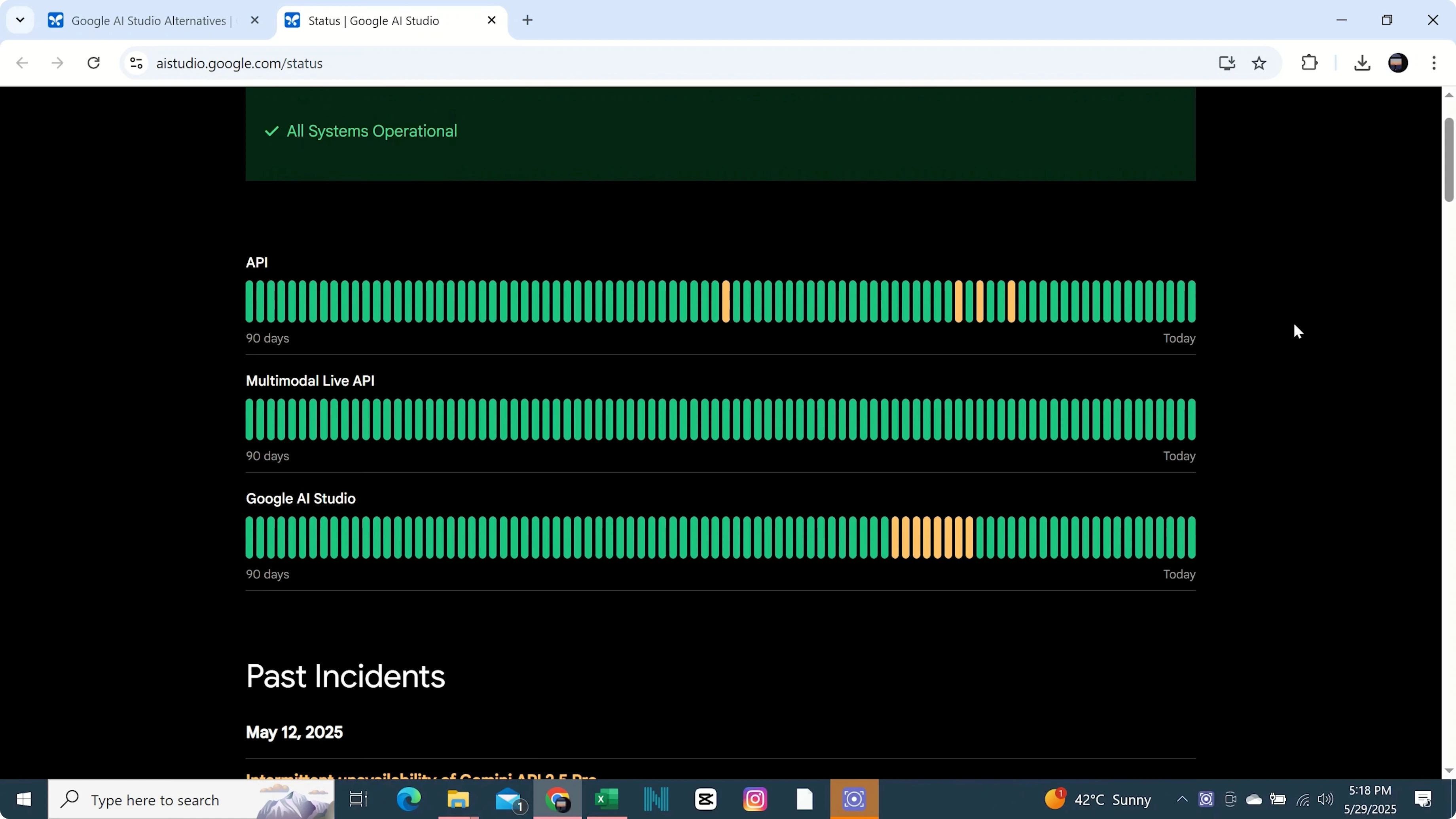
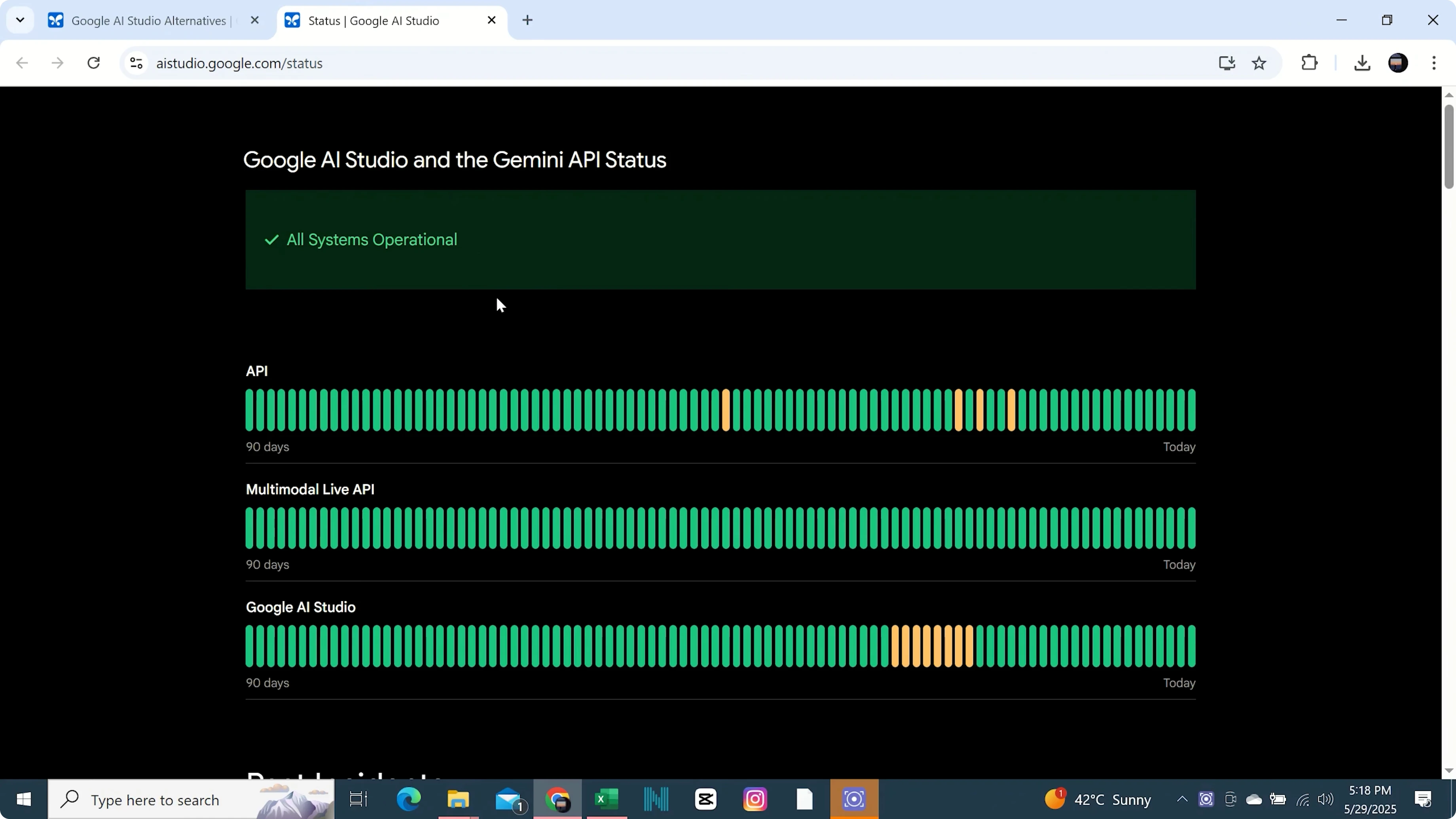
- Open https://aistudio.google.com/status.
- Check whether services are operational. Sometimes this issue is caused by the server.
- If there’s an outage or degradation, wait until it’s resolved, then try again.
Step 2 — Fix Google AI Studio Failed To Generate Content Permission Denied?: Verify Your API Setup
- Go back to Google AI Studio and check the API you created and set up.
- Confirm you’re using the correct project, model, and configuration for your test.
- Retry the generation to see if the error clears.
Step 3 — Fix Google AI Studio Failed To Generate Content Permission Denied?: Review Safety Settings
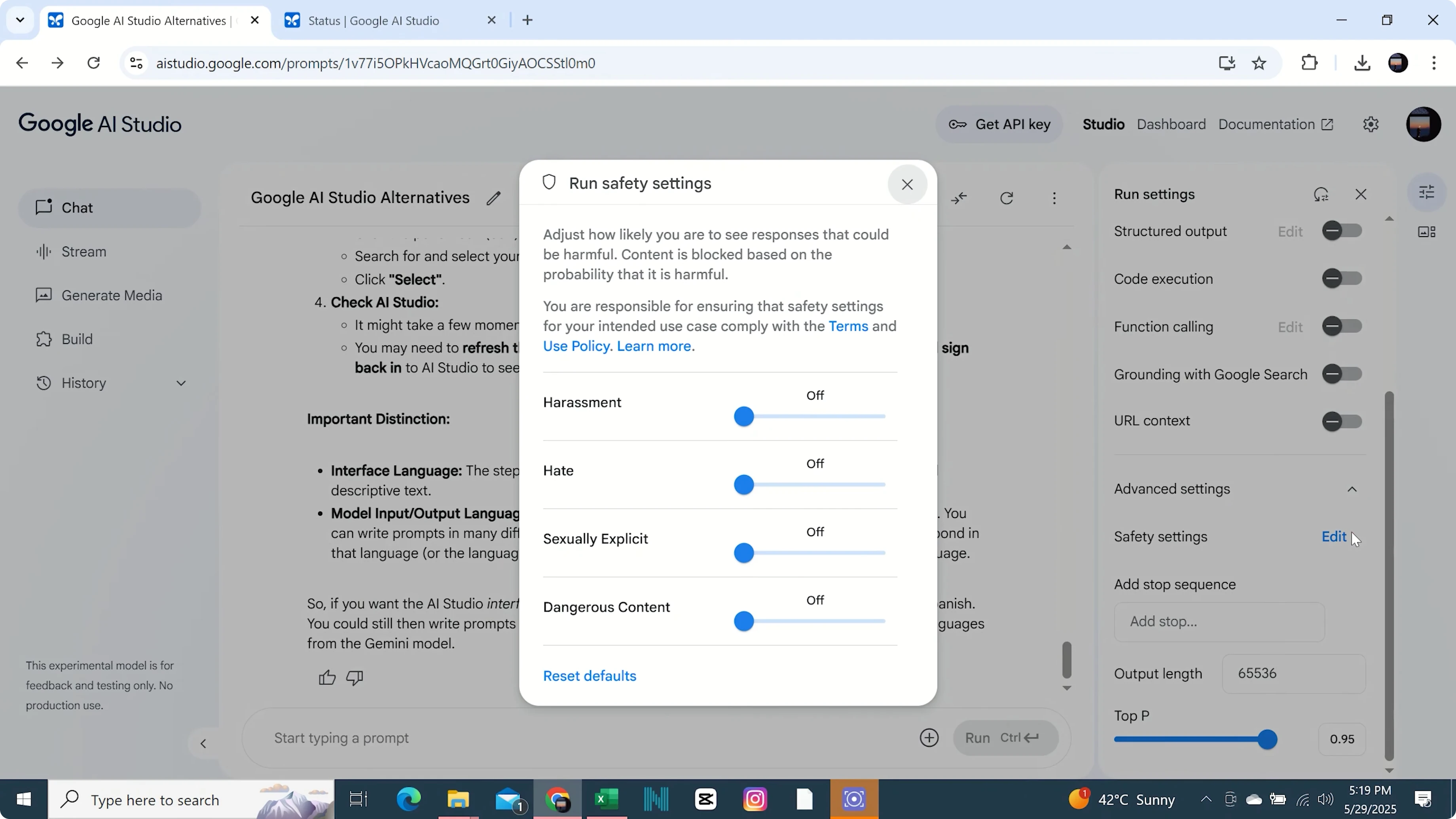
- On the right side, open Settings.
- Scroll down and click on Safety Settings.
- Make sure it is set to Off.
- Try your prompt again. Sometimes the results you generate contain words that are blocked and you get this error.
Step 4 — Fix Google AI Studio Failed To Generate Content Permission Denied?: Change the Gemini Account Option
- Change the Gemini account option.
- Try generating content again. This can sometimes help to solve this issue.
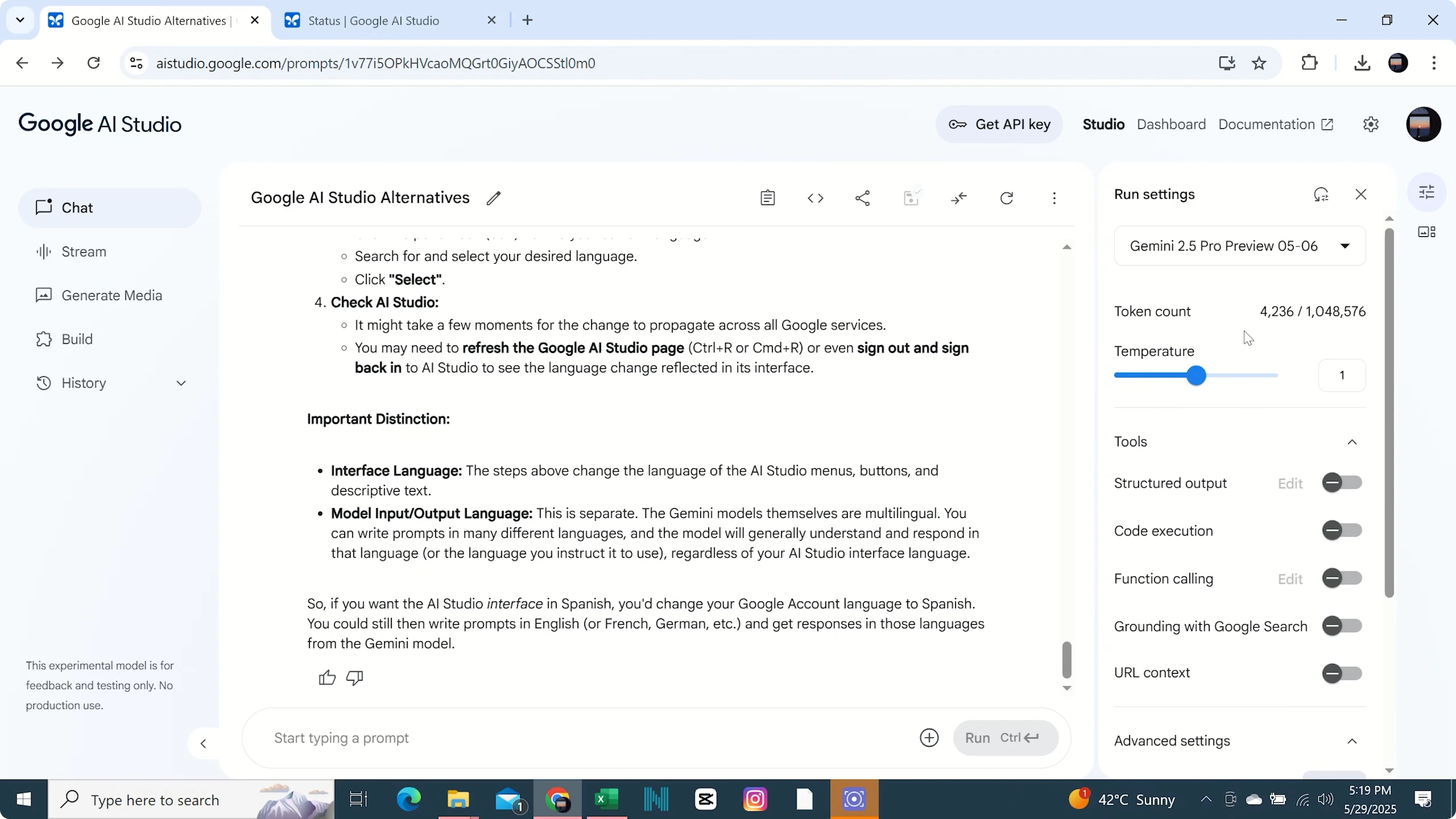
Step 5 — Fix Google AI Studio Failed To Generate Content Permission Denied?: Check Your Prompt Against Policy
- Review your prompt carefully. The final reason might be that your prompt contains an error.
- Make sure you are not violating the content policy.
- Remove or rephrase blocked or sensitive terms and try again.
Alternative Fixes — Fix Google AI Studio Failed To Generate Content Permission Denied?
- If you think one step is not the reason for this error, move on to the next: server status, API setup, Safety Settings, Gemini account option, then prompt and policy.
Final Thoughts — Fix Google AI Studio Failed To Generate Content Permission Denied?
First and most importantly, check the server status. If that’s fine, verify your API setup, turn Safety Settings to Off, change the Gemini account option, and correct any prompt or policy issues. Following these steps should clear the permission denied error and let you generate content normally.
Subscribe to our newsletter
Get the latest updates and articles directly in your inbox.

Related Posts

8 Best Claude Code Plugins in 2026 (You Need to Know)
8 Best Claude Code Plugins in 2026 (You Need to Know)

7 Best Claude Code Skills (You Need to Know)
7 Best Claude Code Skills (You Need to Know)

Claude Code Desktop IDE Features (You Need to Know)
Claude Code Desktop IDE Features (You Need to Know)