
Table Of Content
- Understanding the Issue
- Step-by-Step Solution to Fix the Login Issue in Google Antigravity
- Step 1: Confirm Requirements and Prepare a Clean Login Environment
- Step 2: Make a Clean Login Attempt
- Step 3: Fix Account Eligibility and Region Mismatch
- Step 4: The Working Solution (What Actually Fixed It for Me)
- Step 5: Re-try the Login with Matching Regions
- Alternative Fixes and Notes for Google Antigravity Login
- Final Thoughts
How to Fix the Login Issue in Google Antigravity
Table Of Content
- Understanding the Issue
- Step-by-Step Solution to Fix the Login Issue in Google Antigravity
- Step 1: Confirm Requirements and Prepare a Clean Login Environment
- Step 2: Make a Clean Login Attempt
- Step 3: Fix Account Eligibility and Region Mismatch
- Step 4: The Working Solution (What Actually Fixed It for Me)
- Step 5: Re-try the Login with Matching Regions
- Alternative Fixes and Notes for Google Antigravity Login
- Final Thoughts
Google Antigravity can block you at login in a way that looks like nothing is happening: you click Sign in with Google, a browser window opens, and then you’re just stuck. No error, no confirmation—just stuck. I’ll show you exactly what you need before you try to log in and the specific fix that actually worked for me after I tried everything else.
This matters because in many cases it’s not your PC at fault. The problem is usually your Google account eligibility or your internet location not matching what Google expects for the program.
Understanding the Issue
If you’re stuck on the login page, some users click sign in with Google, the browser opens and then nothing happens. No error, no confirmation, just stuck. If this is happening to you, don’t worry, it’s not your PC. In many cases, the issue comes from your Google account or your internet location.
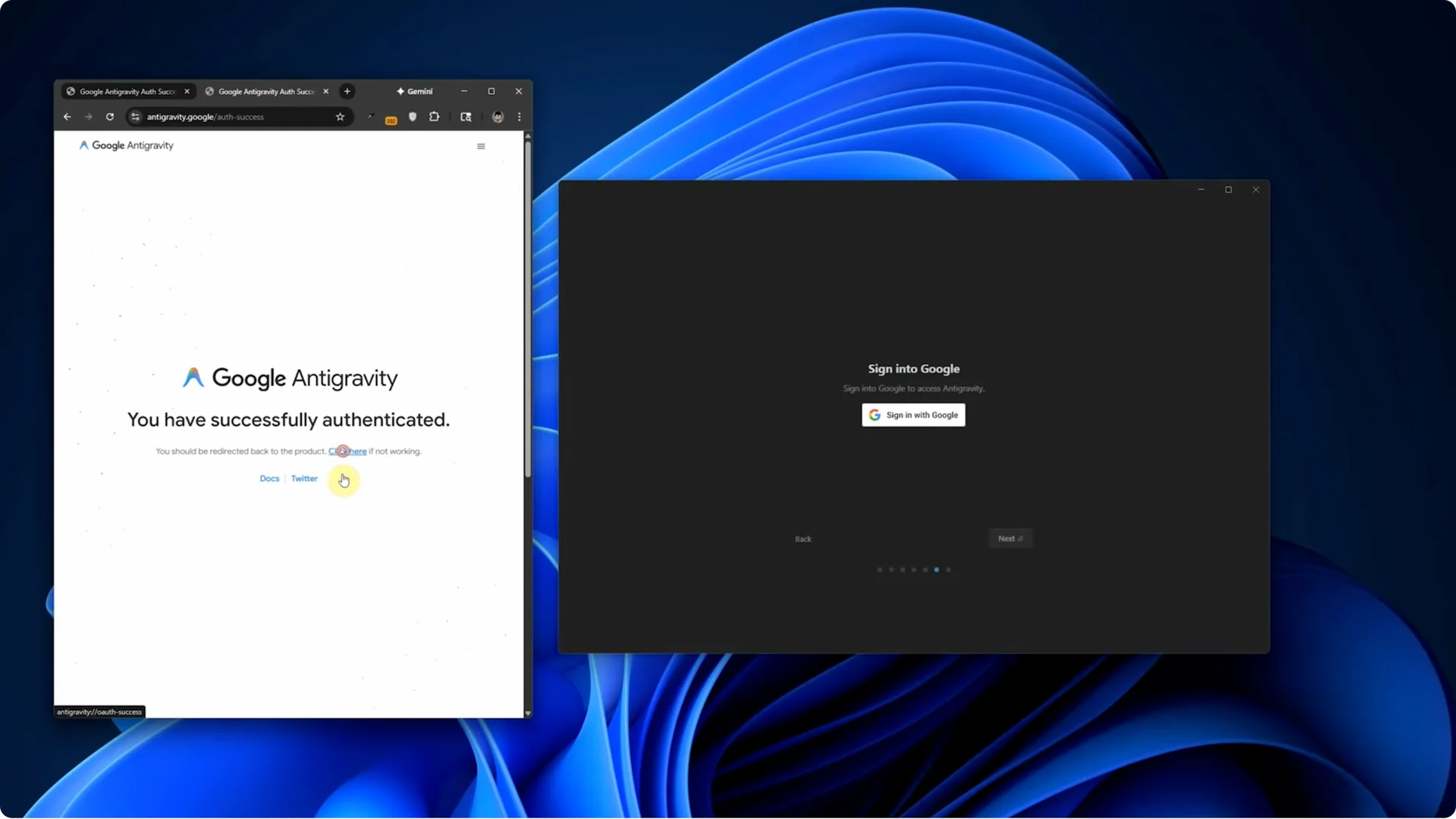
If you see this error message, “This Google account is not eligible for this application” or “Your account has not been enabled for use this application,” it simply means your Google account or your internet location is not allowed to access the app. This is an account-based restriction, not a technical problem on your computer.
There are two main reasons:
- Your Google account is not eligible. Some Google accounts, based on region, age, or verification, are blocked from using the app.
- Your internet location, IP, or region is not accepted. If your network region doesn’t match your Google account region, the login often fails. This includes mobile data IPs, carrier networks, VPN IPs from unsupported countries, and new Google accounts without proper region verification.
Step-by-Step Solution to Fix the Login Issue in Google Antigravity
Step 1: Confirm Requirements and Prepare a Clean Login Environment
- Use a supported Windows version: Windows 10 or 11.
- Make sure you’re on a 64-bit system.
- Install the correct installer: the Windows 64-bit version.
- Confirm you have a stable internet connection.
- Use a Google account that is eligible for the program.
- Set Chrome or Edge as your default browser.
- Do not use a VPN or any blocker during the first login attempt.
- Avoid aggressive firewall settings for the initial login.
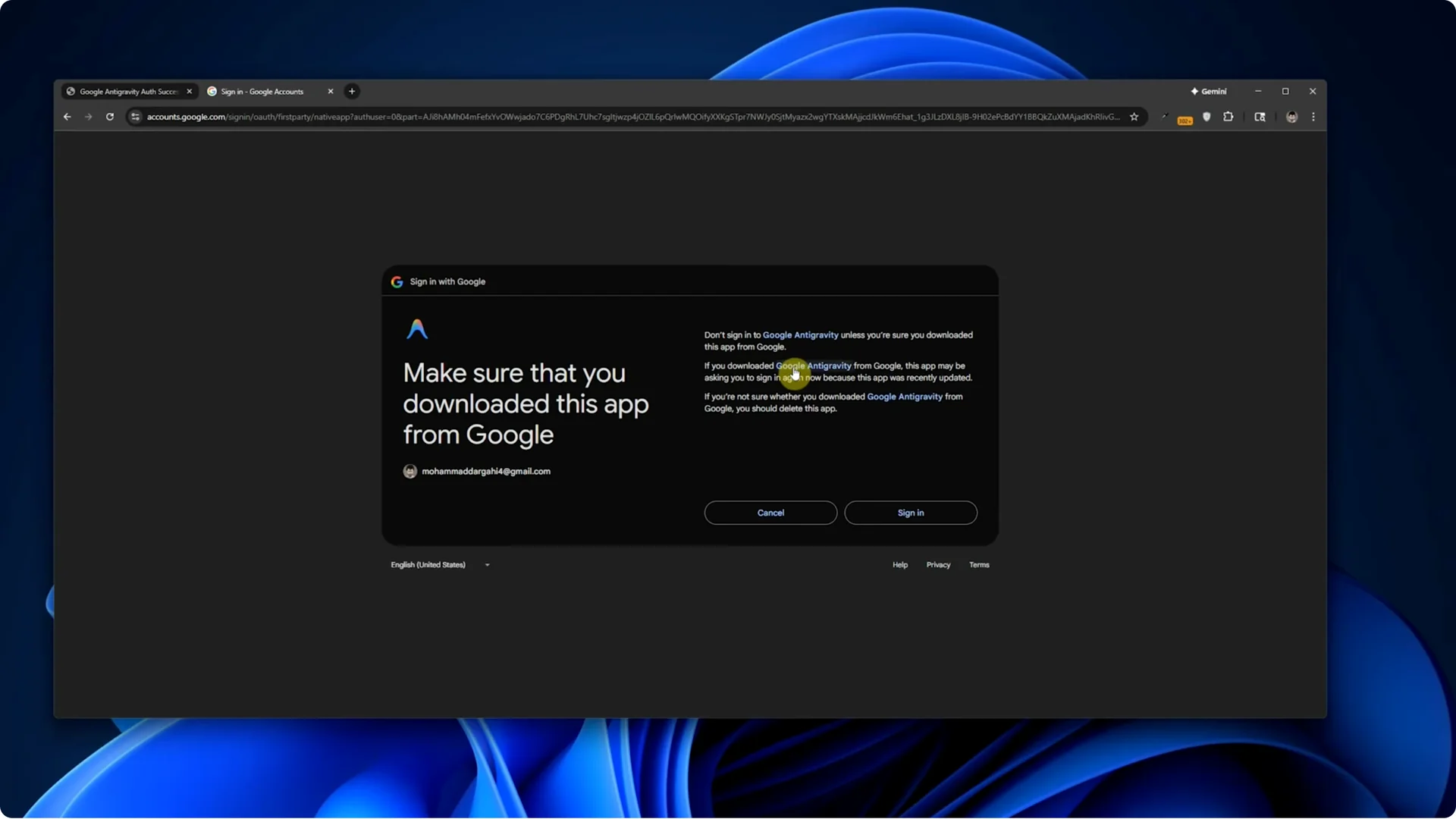
Step 2: Make a Clean Login Attempt
- Open Google Antigravity.
- Click Sign in with Google.
- When the browser opens, complete the Google sign-in in your default browser (Chrome or Edge).
- If you log in successfully, you’re done. If you get stuck with no confirmation or see an eligibility message, continue to the next step.
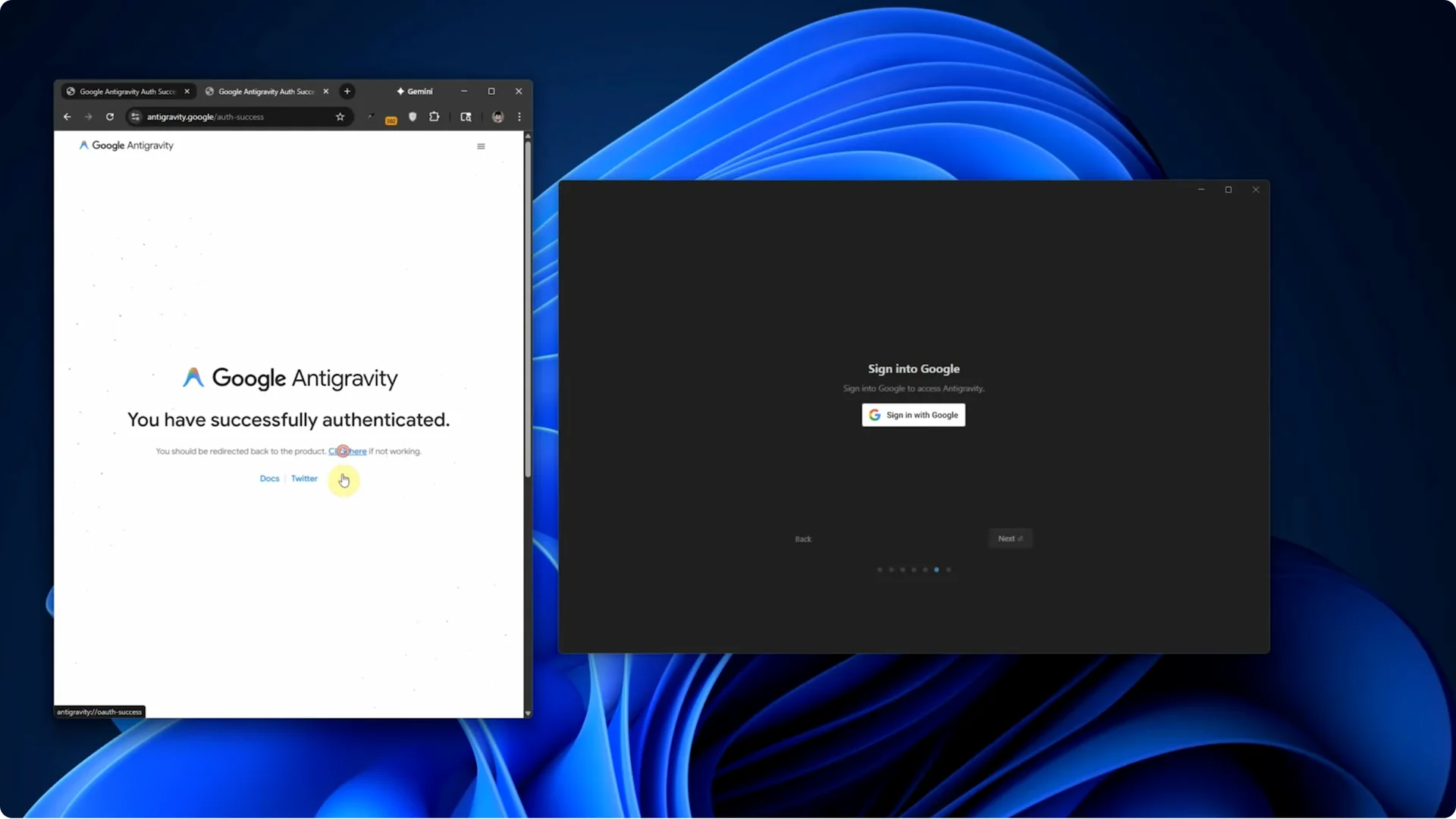
Step 3: Fix Account Eligibility and Region Mismatch
- Understand the cause: Google is checking your IP region, your Google account region, and sometimes your phone number region used for verification.
- If they don’t match, or if Google flags something as suspicious, the login fails silently or shows the not eligible error.
Step 4: The Working Solution (What Actually Fixed It for Me)
- Use a different Google account.
- Use a different internet connection (a VPS in my case).
- Use a region that matches the account.
- In my case, I connected to a VPS located in England and I used another Google account.
- The Google account was not brand new.
- The Google account’s region was also United Kingdom.
- The phone number used to verify that Google account was also from the UK.
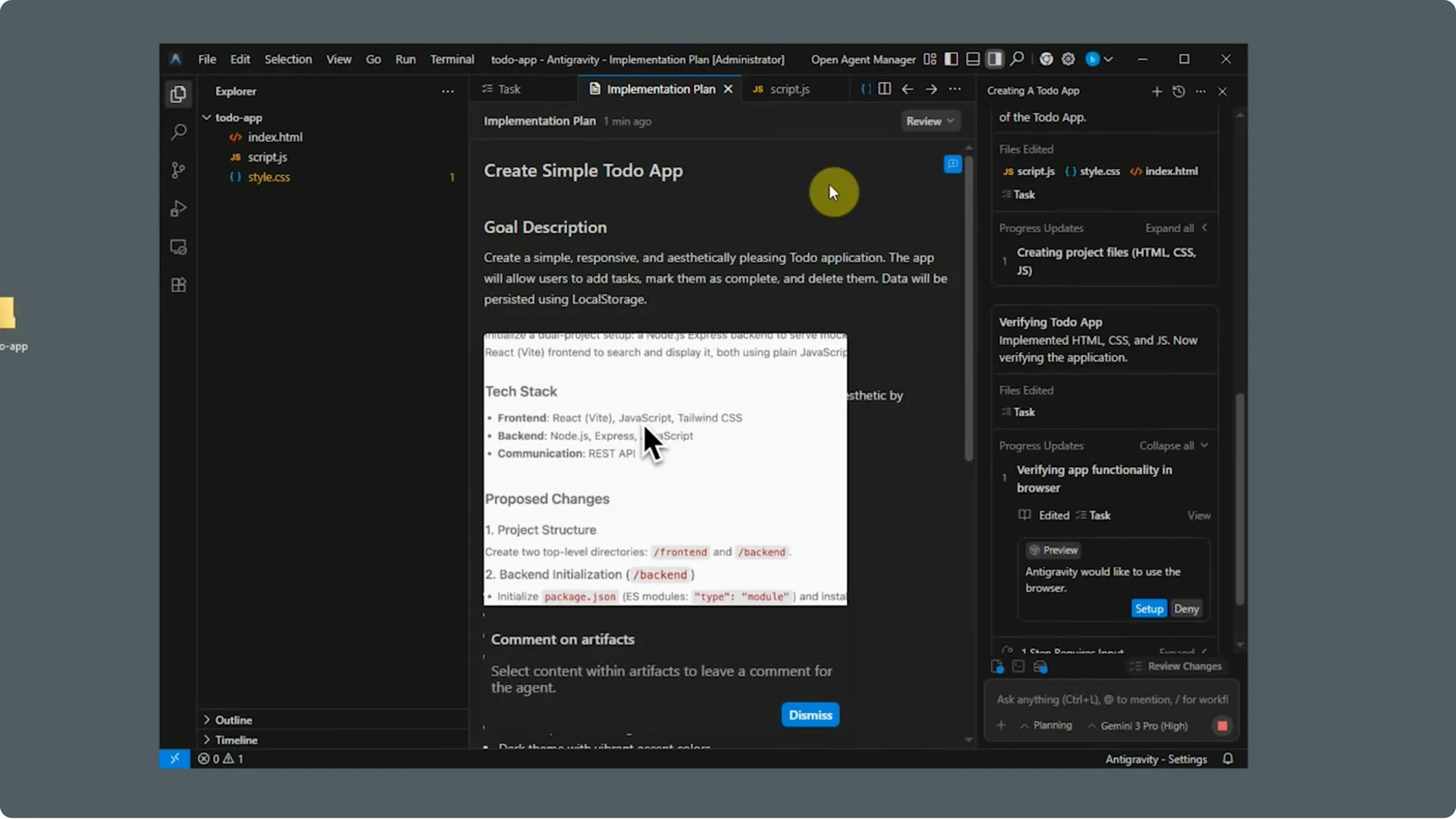
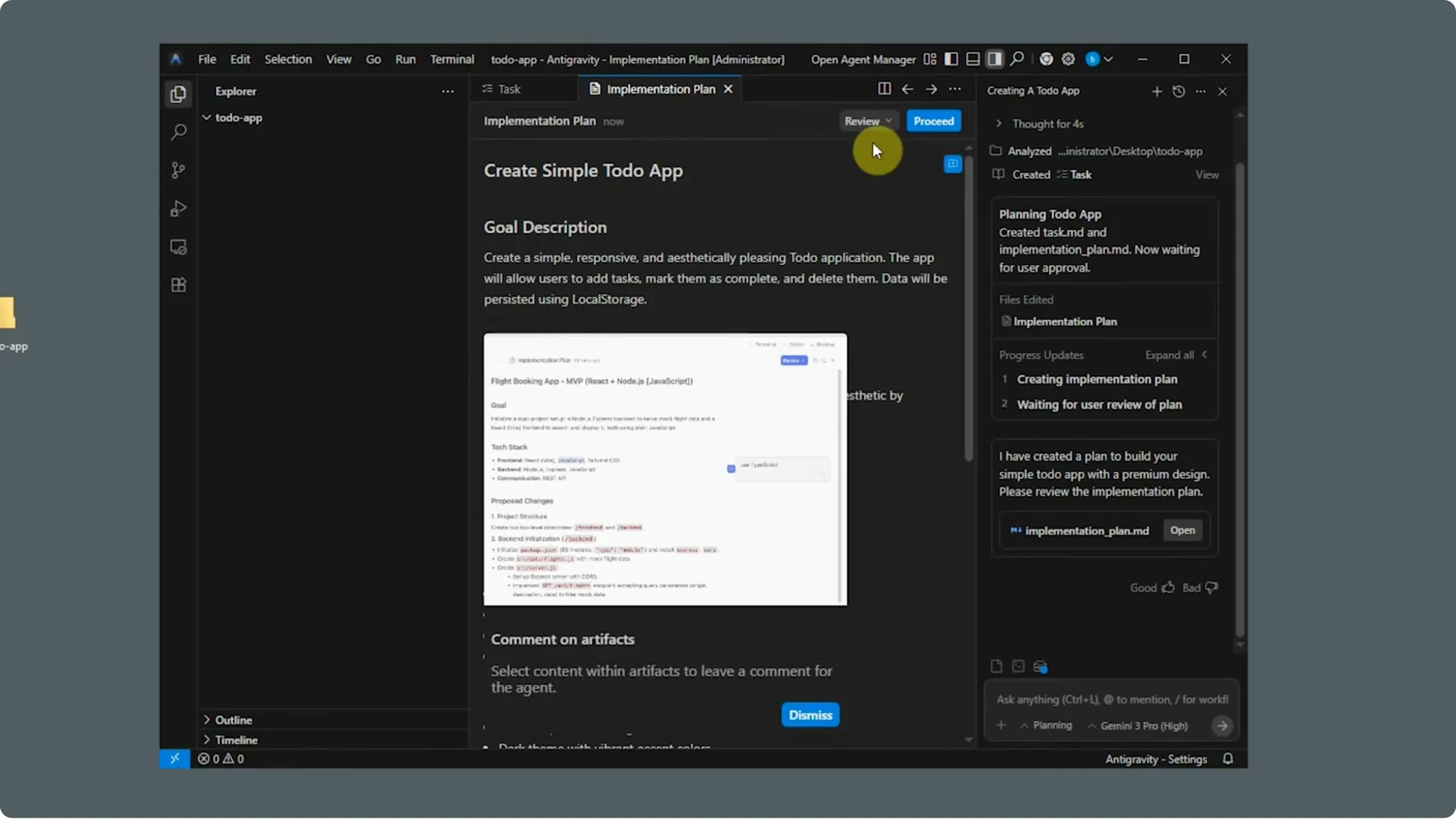
- After doing that, the login worked immediately. No issues at all.
Step 5: Re-try the Login with Matching Regions
- Connect your computer (or your browser session) to a stable IP in the same region as your Google account.
- Sign in with the properly verified Google account whose region matches the IP.
- Complete the Google sign-in flow in Chrome or Edge.
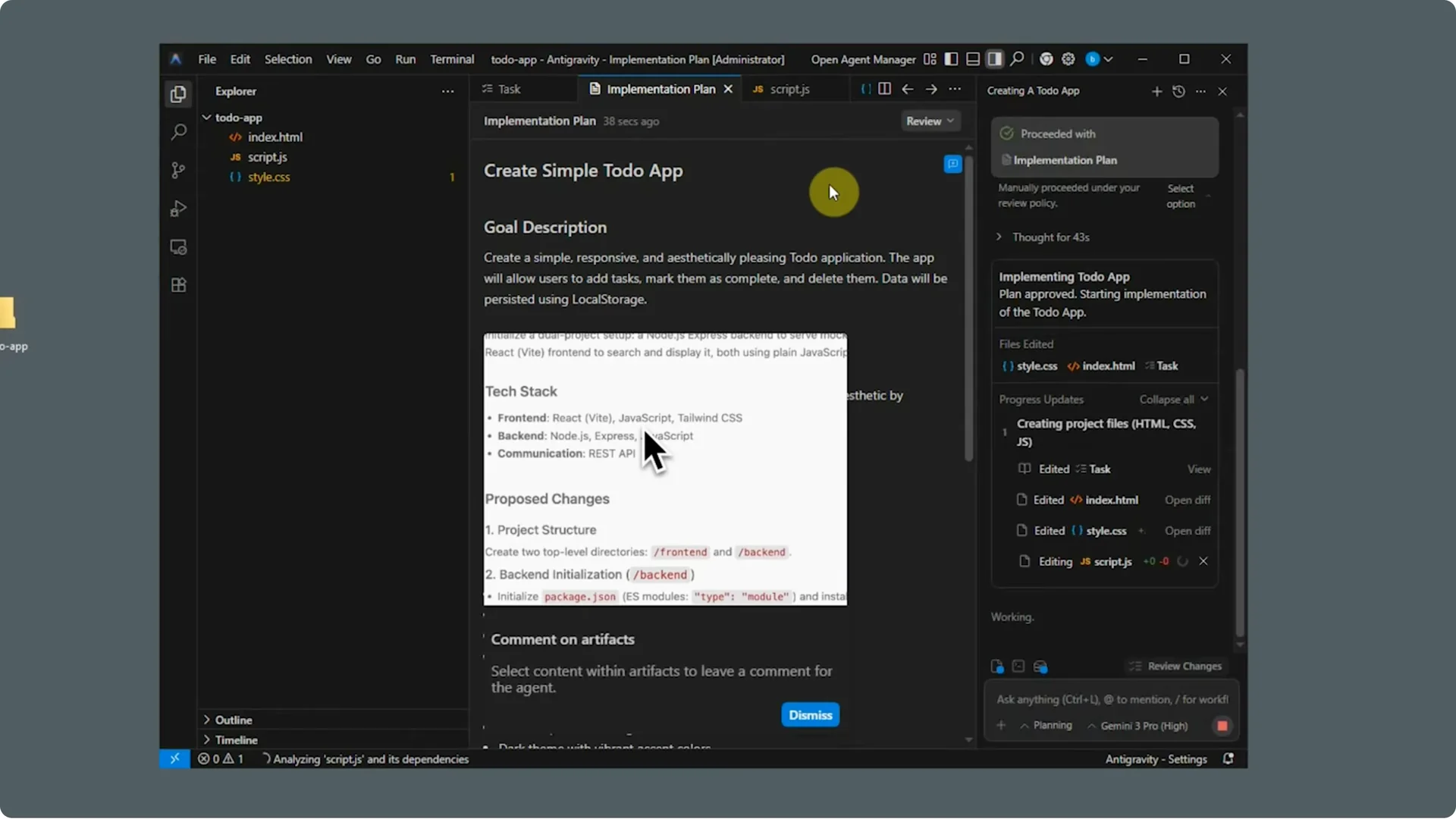
- Confirm that Google Antigravity shows you as logged in.
Alternative Fixes and Notes for Google Antigravity Login
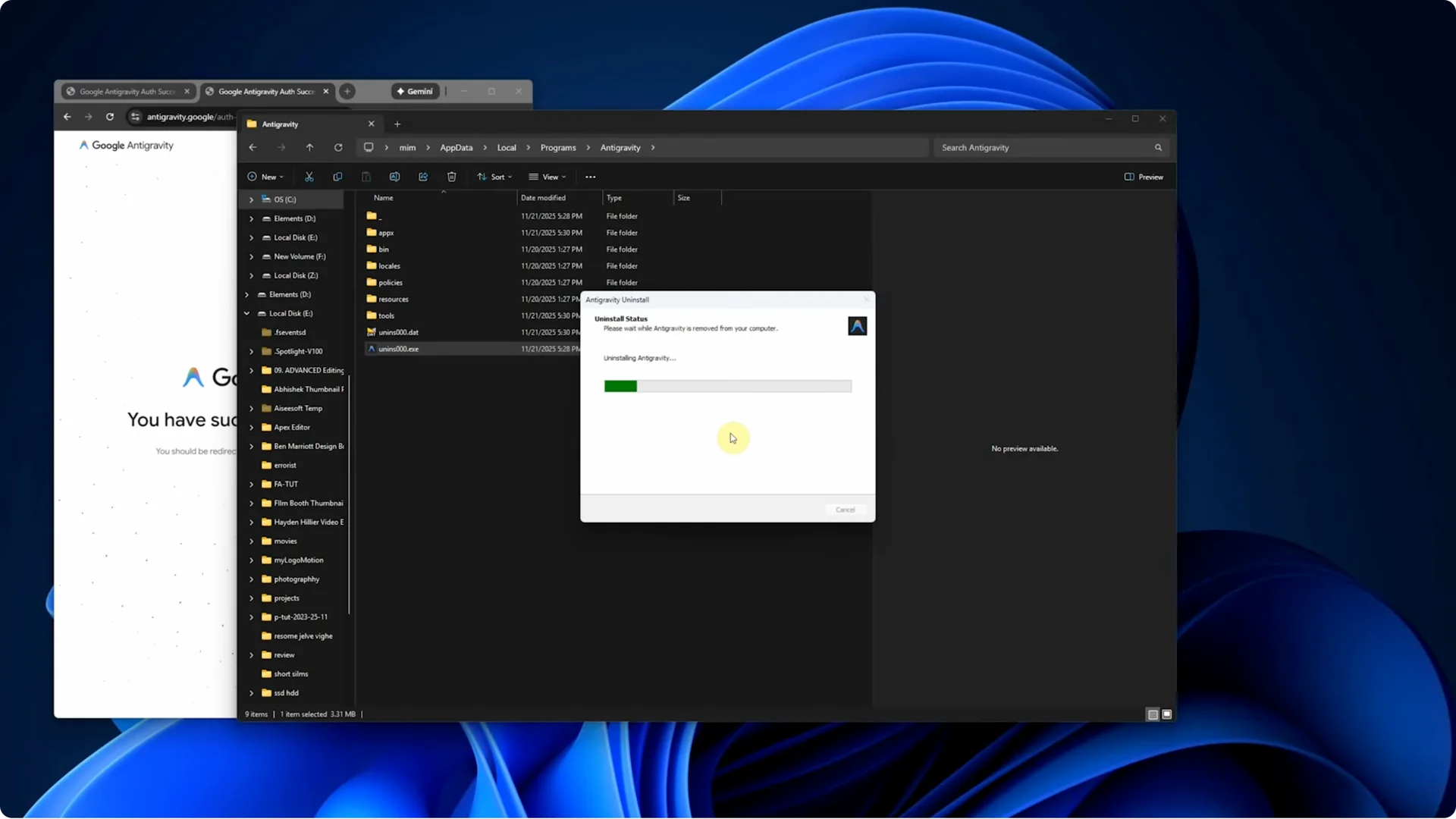
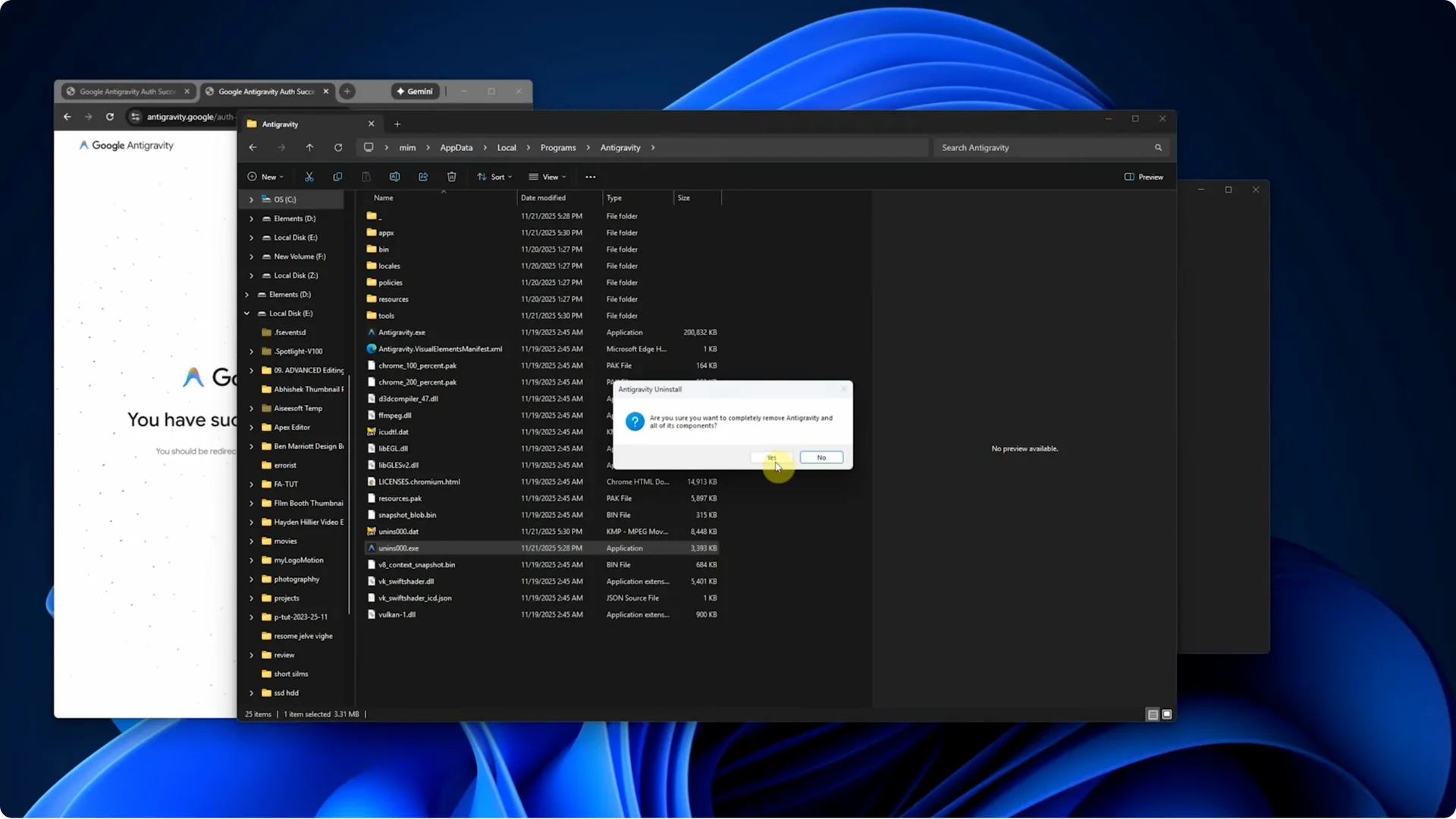
- I tried everything—reinstalling the app, resetting Chrome, changing settings—nothing worked. The only thing that fixed it was using a different Google account and a different internet connection with a region that matched the account.
- These issues usually happen only in the early release phase of the app. Google may fix this restriction soon, but right now this method is the most reliable way to log in.
Final Thoughts
If you’re stuck at login or seeing the “not eligible” message, it’s almost always an account or region eligibility restriction. By switching to a stable IP in a supported region and a properly verified Google account that matches that region (including phone number verification), the login should work immediately.
Subscribe to our newsletter
Get the latest updates and articles directly in your inbox.

Related Posts

8 Best Claude Code Plugins in 2026 (You Need to Know)
8 Best Claude Code Plugins in 2026 (You Need to Know)

7 Best Claude Code Skills (You Need to Know)
7 Best Claude Code Skills (You Need to Know)

Claude Code Desktop IDE Features (You Need to Know)
Claude Code Desktop IDE Features (You Need to Know)