
How to fix Agent is not responding error in Antigravity?
Your Antigravity app opens but the Agent is not responding, tasks never start, and the UI appears stuck. This happens mostly on Windows 11 after a recent update pushes a buggy build in the background.

How to fix Agent is not responding error in Antigravity?
This error is typically triggered by a recent Antigravity update on Windows 11 that causes the agent process to hang. Users report the app only stabilizes after rolling back to a known stable build and preventing background updates from reinstalling the broken version.
Solution Overview
| Aspect | Detail |
|---|---|
| Root Cause | A faulty recent Antigravity update on Windows 11 causes the agent process to stop responding |
| Primary Fix | Reinstall the stable build 1.19.6 for Windows x64, then disable background updates inside Antigravity |
| Complexity | Easy |
| Estimated Time | 10 to 15 minutes |
If your symptoms include token stalls during reasoning, see our guide on 1024 tokens not thinking for additional checks you can run in parallel.
How to fix Agent is not responding error in Antigravity?
Step-by-Step Solution
1. Uninstall the current Antigravity build
- Windows 11 Settings
- Apps
- Installed apps
- Antigravity
- Uninstall
If you prefer Control Panel, see Microsoft’s official guide: Uninstall or remove apps and programs in Windows.
2. Install the stable Windows 1.19.6 build
- Open the official Antigravity Releases page
- Download version 1.19.6 for Windows x64 exe
- Run the installer and complete setup
Tip: Keep the installer handy in case you need to repeat the process.
3. Disable background updates inside Antigravity
- Launch Antigravity
- Select the Settings icon in the top right beside your profile
- Open Editor Settings
- Open Application
- Open Update
- Apply the following
- Uncheck Enable Windows Background Updates
- Set Mode to None
- Restart Antigravity
This prevents the app from silently reinstalling the buggy release that triggers the agent hang.
Read More: Fix Agent Terminated Due To Error Antigravity
Alternative Fixes & Workarounds
Reset project state if you used Git worktrees with another assistant
- Some users reported that using Git worktree in another assistant disrupted Antigravity behavior
- In your project folder, review active worktrees:
- Open a terminal in the repository
- Run:
git worktree list- If you see stale or conflicting entries, prune and remove extras:
git worktree prune- Switch to the main worktree and retry in Antigravity
Reference: git worktree documentation
Quick app reset
- Sign out of Antigravity and sign back in
- Close the app and relaunch
- Reboot Windows if the agent process still does not reinitialize
If you meet account gating messages during sign in, review this guide on account not eligible checks.
Troubleshooting Tips
- Kill stuck background processes
- Open Task Manager
- End any Antigravity or agent related processes
- Relaunch the app
- Confirm you are on version 1.19.6 after reinstall
- Settings
- About or Updates page
- Verify updates remain disabled
- Settings
- Editor Settings
- Application
- Update
- Confirm the box is unchecked and Mode is set to None
- Check network and security software
- Ensure your firewall or endpoint protection is not blocking Antigravity executables or agent subprocesses
- If issues persist, repeat the uninstall and reinstall, then create a fresh project to rule out project specific corruption
For cases where the model stalls or stops thinking after a few messages, also review 1024 tokens not thinking diagnostics.
Best Practices
- Freeze on a known stable build during critical work and only enable updates when you are ready to test
- Before enabling updates again, check the release notes and early feedback from other Windows users
- Keep a backup of the stable installer and your configuration so you can roll back quickly
- Avoid changing repository layout mid session. If you need multiple worktrees, verify paths and permissions before reopening the project in Antigravity
- After major updates, restart Windows to ensure agent services start cleanly
Final Thought
The fastest path to a reliable fix is to reinstall Antigravity 1.19.6 and disable background updates. This locks you to a stable build and stops the broken update from returning, so your agent responds consistently again.
Subscribe to our newsletter
Get the latest updates and articles directly in your inbox.

Related Posts
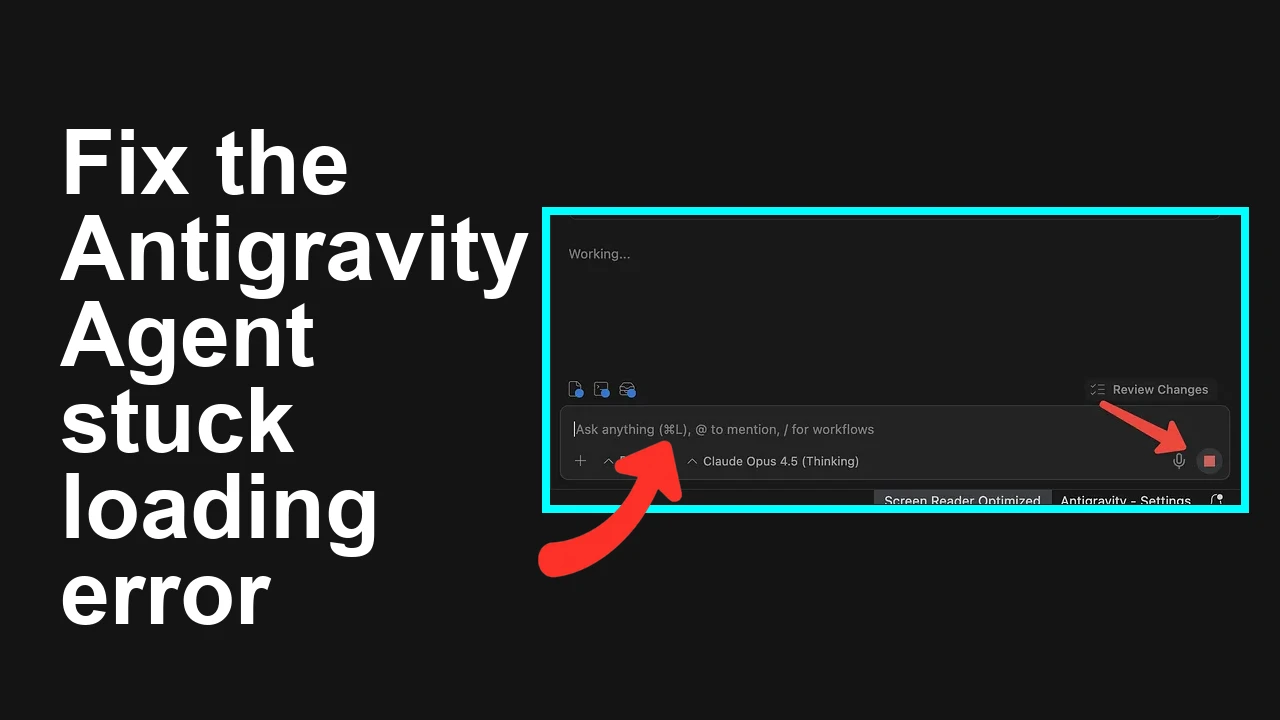
How to fix Agent stuck and can't be stopped error in Antigravity?
How to fix Agent stuck and can't be stopped error in Antigravity?
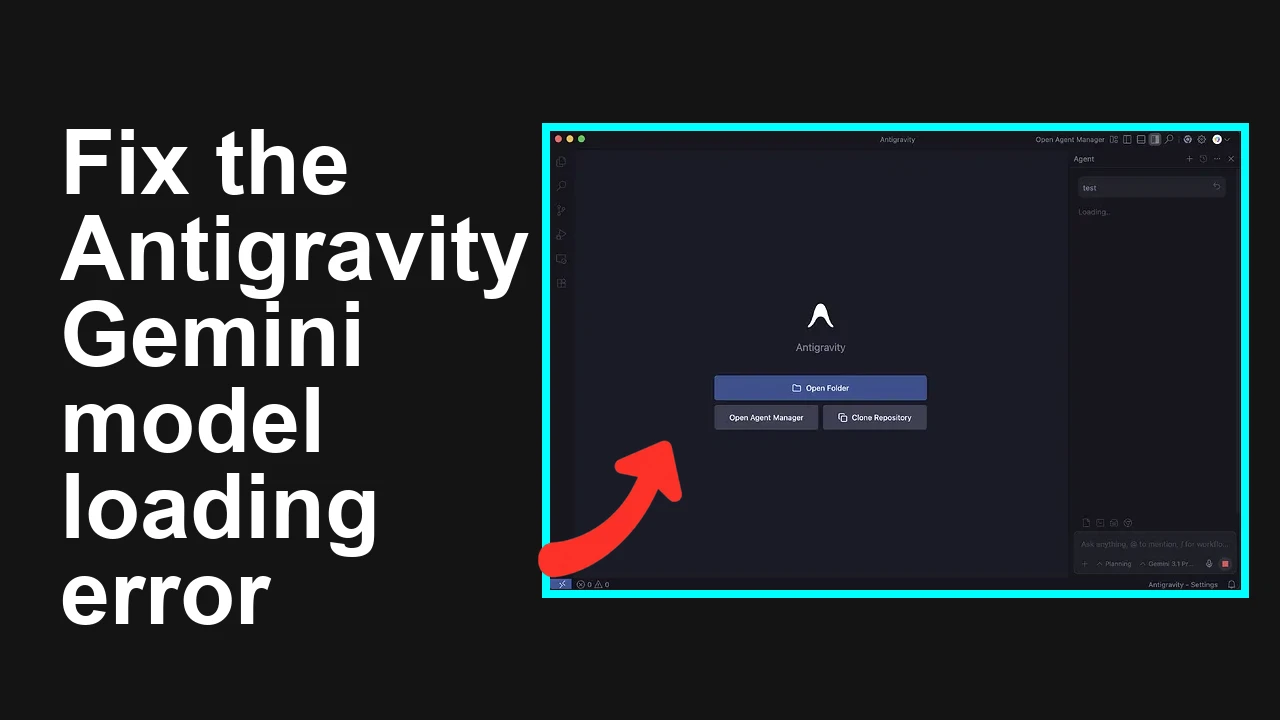
How to fix Antigravity won't work with any Gemini models error?
How to fix Antigravity won't work with any Gemini models error?
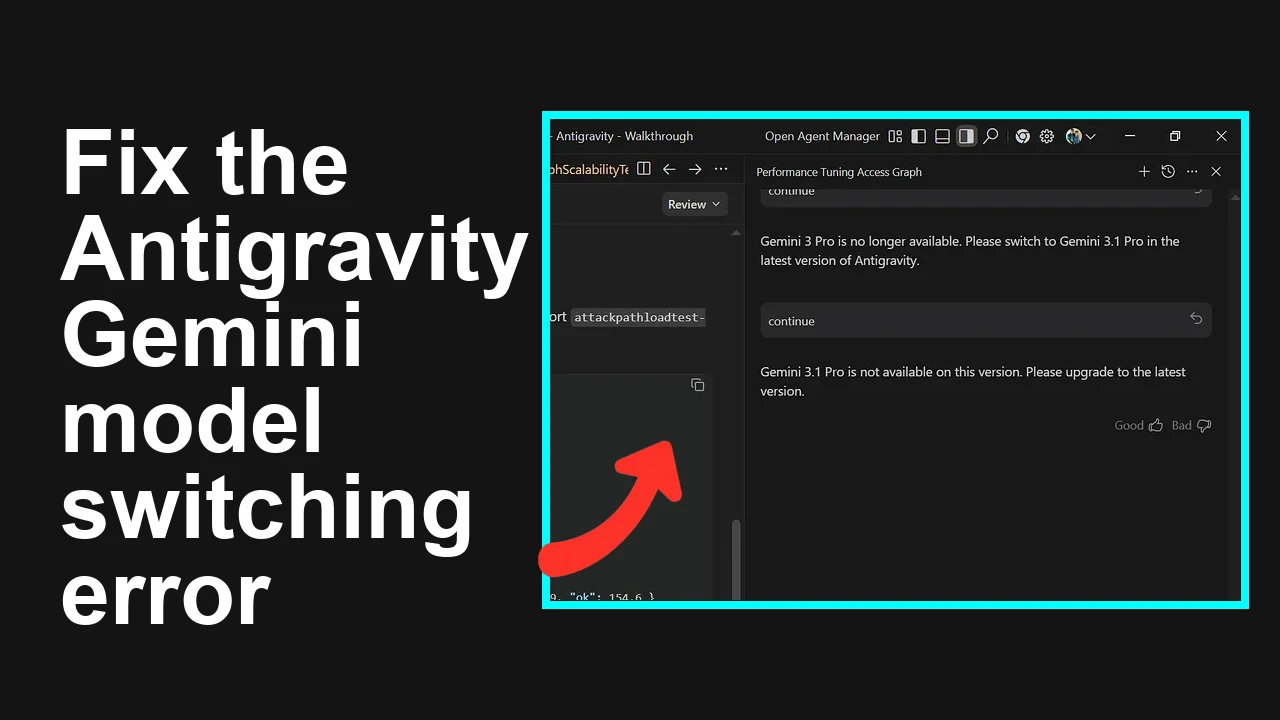
How to fix Issue switching between Gemini 3 Pro and Gemini 3.1 Pro in Antigravity?
How to fix Issue switching between Gemini 3 Pro and Gemini 3.1 Pro in Antigravity?