
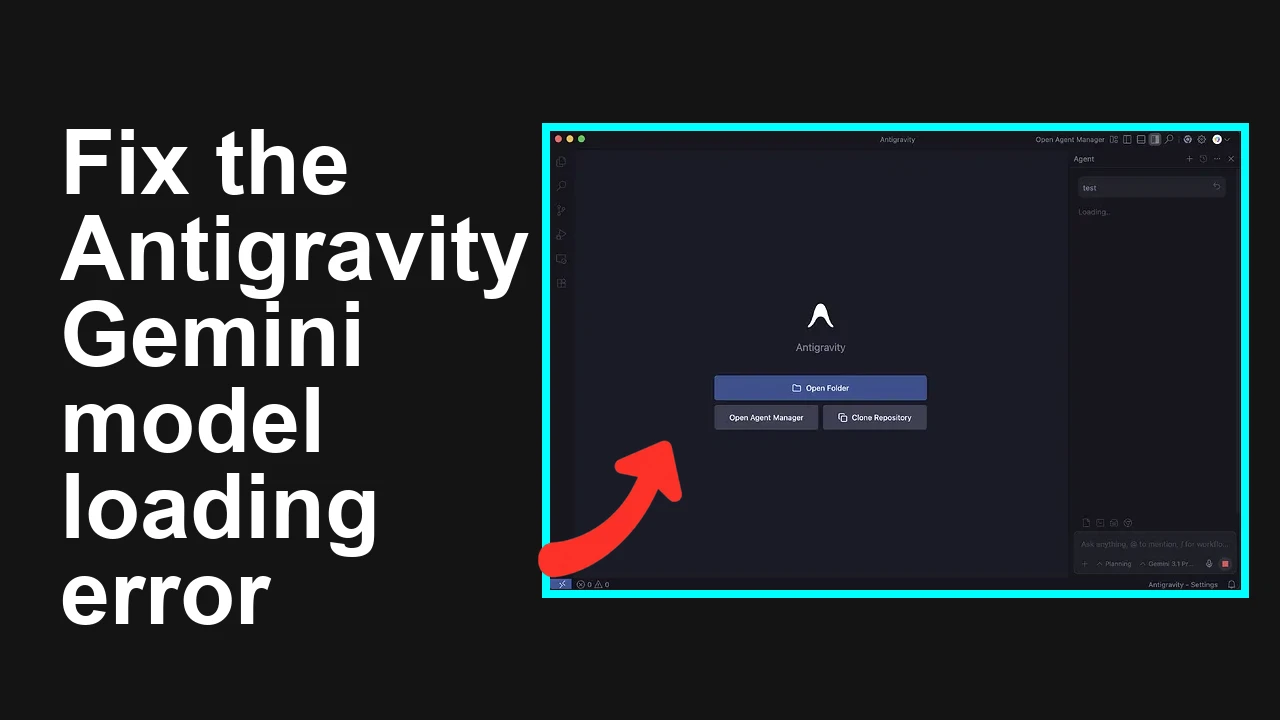
How to fix Antigravity won't work with any Gemini models error?
Gemini API Pricing Calculator
Dynamically estimate your Google Gemini API costs for text, audio, images, and context caching. Covers new 3.1 Pro, Flash, and 2.5 models.
You are trying to use Gemini models in Antigravity and only Gemini 3 Flash works. Gemini 3 Pro and 3.1 Pro either spin forever or show a small retry button, even after reinstalling and linking your Google Workspace account.
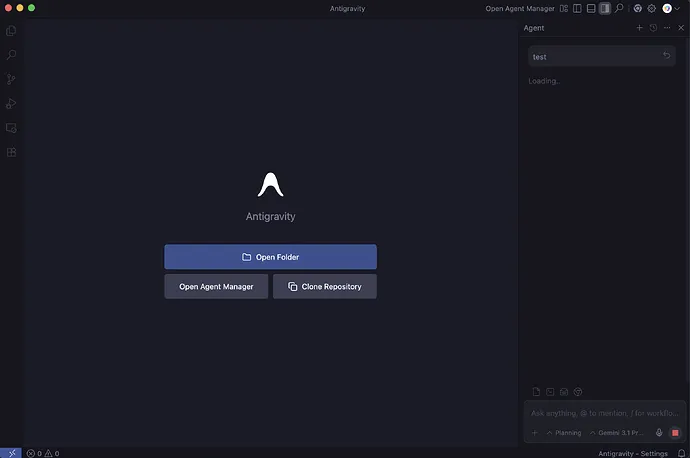
How to fix Antigravity won't work with any Gemini models error?
Antigravity connects to Google Gemini through either the Gemini API or Vertex AI. Gemini Pro tier models often require billing, specific access, and sometimes a different endpoint than Flash. When your key or project does not have permission to call a model, Antigravity appears to hang or shows a retry chip.
Common symptoms
- Gemini 3 Pro and 3.1 Pro never return a response
- A retry button appears below your prompt
- Gemini 3 Flash and Claude work
- No explicit error in the Antigravity chat window
Solution Overview
| Aspect | Detail |
|---|---|
| Root Cause | The API key or project does not have access to Gemini Pro tier models or you are calling a model that is not available through the selected API path Gemini API vs Vertex AI |
| Primary Fix | Verify model availability for your key, enable billing, test with curl, then select a supported model in Antigravity or switch to Vertex AI with a service account |
| Complexity | Medium |
| Estimated Time | 20 to 45 minutes |
How to fix Antigravity won't work with any Gemini models error?
Step-by-Step Solution
Step 1 Check which Gemini models your key can use
-
In your shell set your Gemini API key export GEMINI_API_KEY="YOUR_API_KEY"
-
List models visible to your key curl -s -H "x-goog-api-key: $GEMINI_API_KEY" "https://generativelanguage.googleapis.com/v1beta/models" | jq -r ".models[].name"
-
Confirm the exact model ids that appear. If you do not see a pro model in this list then your API key does not have access to it. Use only models present in this list when you select the model in Antigravity. Learn which models are available via the Gemini API in the official catalog: Gemini API models.
Step 2 Enable billing and unlock Pro tier where required
- Sign in to AI Studio with the same Google account you used in Antigravity.
- Create a fresh API key and ensure you have added a payment method in your AI Studio project or enable pay as you go in your Google Cloud project if you are using Vertex AI.
- Accept any pending terms in AI Studio settings and confirm your quota is active. Docs for reference: Gemini API overview.
If your organization is a Google Workspace tenant, the admin may need to allow Gemini API or Vertex AI. If you suspect account gating issues, see this quick explainer on resolving eligibility blocks here Read More: Account eligibility issues in Antigravity.
Step 3 Sanity test a Pro model over the Gemini API Run a small prompt against a Pro model id that you saw in Step 1
curl -s -X POST \
 -H "Content-Type: application/json" \
 -H "x-goog-api-key: $GEMINI_API_KEY" \
 https://generativelanguage.googleapis.com/v1beta/models/gemini-1.5-pro:generateContent \
 -d '{
 "contents": [
 { "parts": [ { "text": "Say OK if you can read this" } ] }
 ]
 }'
You should receive a valid JSON response with candidates. If you get a permission error or model not found, stay on Flash or switch to Vertex AI.
Step 4 Select a supported model inside Antigravity
- Open Antigravity then Settings then Providers then Google Gemini
- Paste your working API key from AI Studio
- From the model picker choose a model that appeared in Step 1 for your key for example gemini 1.5 pro or gemini 1.5 flash
- Save and run a short test prompt
If the spinner persists, disable tools and images for the test and try again.
Step 5 If you need a model that is Vertex only set up Vertex AI Some Pro versions appear first or only on Vertex AI. Configure Antigravity to use Vertex AI instead of the Gemini API.
A Enable the API and authenticate
-
Install gcloud and log in gcloud auth login gcloud config set project YOUR_PROJECT_ID
-
Enable Vertex AI gcloud services enable aiplatform.googleapis.com
-
Create a service account and grant Vertex AI User gcloud iam service-accounts create antigravity-vertex gcloud projects add-iam-policy-binding YOUR_PROJECT_ID
--member="serviceAccount:antigravity-vertex@YOUR_PROJECT_ID.iam.gserviceaccount.com"
--role="roles/aiplatform.user" -
Create a key and set credentials gcloud iam service-accounts keys create key.json
--iam-account=antigravity-vertex@YOUR_PROJECT_ID.iam.gserviceaccount.com export GOOGLE_APPLICATION_CREDENTIALS="$(pwd)/key.json"
B Test a Vertex AI Gemini Pro call
curl -s -X POST \
 -H "Authorization: Bearer $(gcloud auth application-default print-access-token)" \
 -H "Content-Type: application/json" \
 "https://us-central1-aiplatform.googleapis.com/v1/projects/YOUR_PROJECT_ID/locations/us-central1/publishers/google/models/gemini-1.5-pro:generateContent" \
 -d '{
 "contents": [
 { "role": "user", "parts": [ { "text": "Say OK if you can read this" } ] }
 ]
 }'
C Point Antigravity to Vertex AI
- In Antigravity choose the Vertex AI provider
- Upload the service account key json when prompted
- Select region us central 1 and choose a supported model such as gemini 1.5 pro or the exact Pro variant you require
Step 6 If you are on Google Workspace try a personal account key Some Workspace policies block AI Studio keys for Pro models. Create a key with a personal Google account in AI Studio, use it in Antigravity, and test Pro again. If it works then request your admin to allow the service or continue with Vertex AI.
Alternative Fixes & Workarounds
Use Gemini Flash temporarily If Pro is blocked or rate limited, switch the model in Antigravity to a Flash model. It is generally available on free tier keys and will let you keep working while you sort access.
Reduce features for the test Turn off tool calls, files, and long context to rule out size or tool permission errors. If you hit odd token behavior in Antigravity, this short guide can help Read More: Token thinking issues in Antigravity.
Claude or another provider as a fallback Keep a second provider enabled in Antigravity so you can keep moving during outages or quota blocks.
Troubleshooting Tips
- Check for model not found or permission denied in the raw API response using the curl tests above
- In Antigravity open the developer console and look for 403 404 or 429 on generativelanguage requests
- Regenerate the AI Studio API key then update it in Antigravity to rule out a bad key
- Verify quota in AI Studio and in Google Cloud if you use Vertex AI paid use cases can hit low default quotas
- Confirm region us central 1 for Vertex AI since some models are region bound For recurring runtime crashes in the app logs, see this quick fixer Read More: Agent terminated errors in Antigravity.
Best Practices
- Keep separate keys for test and production and label them in Antigravity
- Lock in a known good model id and do not switch to unlisted ids in your key list
- Periodically test with curl to spot access changes before they break your chat
- Keep Antigravity updated so its model catalog and provider adapters stay in sync
Final Thought
The issue is almost always access and endpoint mismatch. Verify model availability with curl, enable billing, then pick a supported id or switch to Vertex AI for Pro. This restores Gemini responses in Antigravity quickly and keeps your workspace flowing.
Subscribe to our newsletter
Get the latest updates and articles directly in your inbox.

Related Posts
How to fix Agent stuck and can't be stopped error in Antigravity?
How to fix Agent stuck and can't be stopped error in Antigravity?
How to fix Agent is not responding error in Antigravity?
How to fix Agent is not responding error in Antigravity?
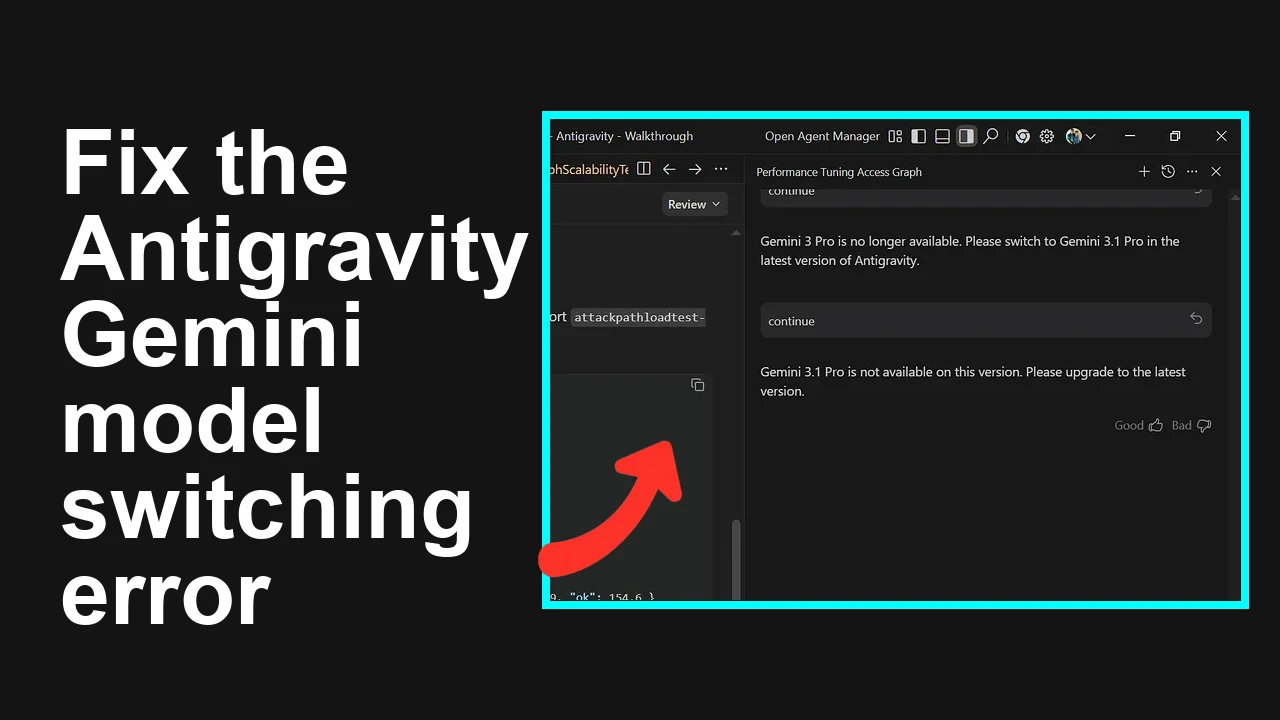
How to fix Issue switching between Gemini 3 Pro and Gemini 3.1 Pro in Antigravity?
How to fix Issue switching between Gemini 3 Pro and Gemini 3.1 Pro in Antigravity?