
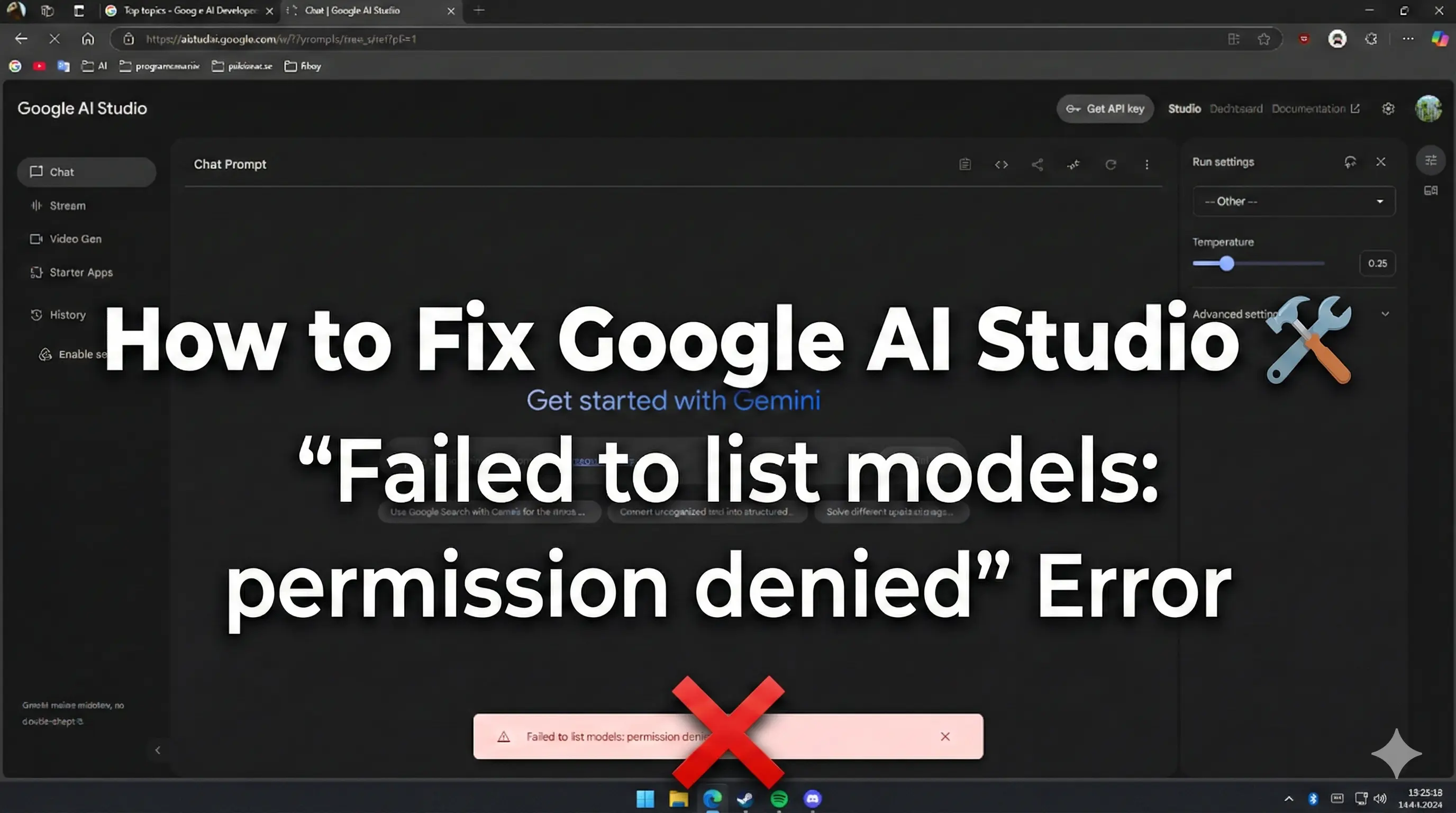
How to Fix Google AI Studio 'Failed to list models: permission denied' Error
Gemini API Pricing Calculator
Dynamically estimate your Google Gemini API costs for text, audio, images, and context caching. Covers new 3.1 Pro, Flash, and 2.5 models.
Many developers are encountering a frustrating error when trying to access Google AI Studio or create API keys. The message "Failed to list models: permission denied" appears, often followed by a redirect or a generic error screen.
This issue can happen even if you have a valid Google account. It typically stems from network settings, project permissions, or browser conflicts.
Here is a list of proven solutions to fix this problem and get back to building.
1. Disable IPv6 (Most Effective Fix)
Surprisingly, this network setting is the most common cause of the redirect loop and permission error. Many users report that disabling IPv6 immediately resolves the issue.
How to do it:
- In your OS settings: Go to your network properties and uncheck "Internet Protocol Version 6 (TCP/IPv6)".
- Temporarily: You can also try switching to a different network (like a mobile hotspot) that might force IPv4 usage to test if this is the cause.
2. Verify Google Cloud Permissions
Google AI Studio relies on the Google Cloud Platform (GCP) backend. If your account lacks specific permissions for the project, you will see a denial error.
Check your IAM Roles
- Go to the Google Cloud Console.
- Make sure you have selected the correct project from the dropdown menu at the top.
- Navigate to IAM & Admin > IAM.
- Find your email in the list.
- Check if you have the Owner role or API Keys Admin role.
If you are not the owner (e.g., it is a company or school account), you must ask your administrator to grant you the roles/serviceusage.apiKeysAdmin role.
3. Manually Enable the API
Sometimes the "Generative Language API" (which powers Gemini) is not enabled for your project, and the automatic enablement fails.
- Open the Google Cloud Console API Library.
- Search for "Generative Language API".
- Click on it and select Enable.
If it is already enabled, try disabling it and enabling it again to reset the state.
4. Alternate Way: Create API Key in Cloud Console
If the AI Studio interface continues to fail, you can bypass it entirely by generating your key directly in the Google Cloud Console.
- Go to APIs & Services > Credentials.
- Click + CREATE CREDENTIALS and select API key.
- Copy the generated key.
Security Tip: Click on the key name to edit it. Under "API restrictions", select "Restrict key" and choose "Generative Language API". This ensures your key can only be used for Gemini-related requests.
5. Basic Troubleshooting Steps
If the technical fixes above do not work, try these standard checks:
- Verify Your Age: Google restricts access to AI tools based on age. Go to your Google Account settings and ensure your birthday is set and verified (18+). Link: https://myaccount.google.com/age-verification?hl=en_EN
- Use Incognito Mode: Browser extensions or multiple logged-in accounts can cause conflicts. Open a private window and log in fresh.
- Clear Cache: Stale cookies often cause redirect loops. Clear your browser data for Google sites.
Summary
The "permission denied" error is usually a configuration mismatch rather than a permanent ban. By disabling IPv6 or manually configuring your GCP project permissions, you can solve it quickly.
Subscribe to our newsletter
Get the latest updates and articles directly in your inbox.

Related Posts

8 Best Claude Code Plugins in 2026 (You Need to Know)
8 Best Claude Code Plugins in 2026 (You Need to Know)

7 Best Claude Code Skills (You Need to Know)
7 Best Claude Code Skills (You Need to Know)

Claude Code Desktop IDE Features (You Need to Know)
Claude Code Desktop IDE Features (You Need to Know)