
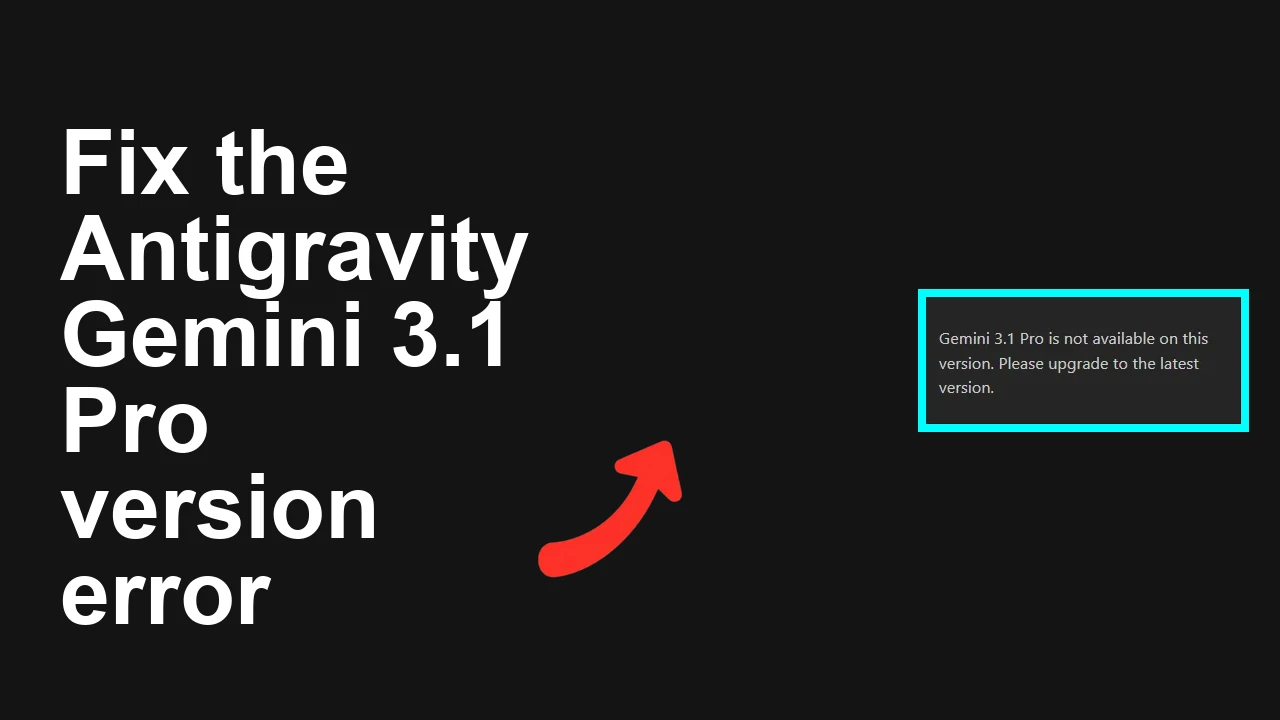
How to fix Gemini 3.1 Pro is not available on this version error in Antigravity?
Gemini API Pricing Calculator
Dynamically estimate your Google Gemini API costs for text, audio, images, and context caching. Covers new 3.1 Pro, Flash, and 2.5 models.
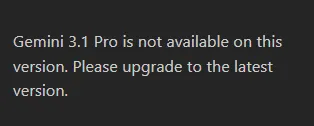
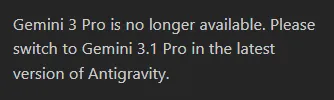
You’re trying to select Gemini 3.1 Pro inside Antigravity and you get an in‑app prompt: “Gemini 3.1 Pro is not available on this version.
Please upgrade to the latest version.” The model menu stays locked or missing, and you can’t use Gemini 3.1 Pro at all.
The fix is straightforward: install the latest Antigravity build over your current one—no uninstall needed. This preserves your settings and unlocks the model immediately for most users.
How to fix Gemini 3.1 Pro is not available on this version error in Antigravity?
This error means your Antigravity app is on an older build that doesn’t enable Gemini 3.1 Pro. Multiple users confirmed that simply installing the newest Antigravity version (e.g., v1.18.3 or newer) over the top resolved it and kept all personal settings.
If you want a refresher on what the model offers once unlocked, see our concise Gemini 3.1 Pro overview.
Solution Overview
| Aspect | Detail |
|---|---|
| Root Cause | Outdated Antigravity build without Gemini 3.1 Pro enabled |
| Primary Fix | Install the latest Antigravity version over your current install (no uninstall) |
| Complexity | Easy |
| Estimated Time | 3–10 minutes |
How to fix Gemini 3.1 Pro is not available on this version error in Antigravity?
Step-by-Step Solution
- Confirm your current version
- In Antigravity: Help > About Antigravity (note the version).
- On Windows via terminal (optional):
winget list Antigravity- Download the latest installer
- From the official site: Antigravity website
- Save it locally (e.g., Downloads).
- Install over your existing copy (do not uninstall)
- Windows: Double‑click the new installer and complete the wizard. This keeps your settings.
- Fastest Windows path via winget (recommended):
winget upgrade AntigravityIf winget reports “No applicable update,” refresh sources and try again:
winget source update
winget upgrade Antigravity- macOS: Open the latest .dmg, drag Antigravity to Applications and choose Replace if prompted. If Gatekeeper blocks it, allow it via System Settings > Privacy & Security, then Open Anyway.
- Launch Antigravity and select Gemini 3.1 Pro
- Open Antigravity.
- In the Model dropdown, choose “Gemini 3.1 Pro.”
- If the model selector was missing before, it should now appear.
- Validate it works
- Start a new chat or test prompt.
- If it still warns about the version, sign out and sign back in, then re‑select the model.
Alternative Fixes & Workarounds
-
Re-run the latest installer without uninstalling This is the confirmed fix from multiple users and preserves your settings.
-
Use winget to force the update (Windows) If you prefer terminal:
winget upgrade Antigravity-
Fresh install as a last resort If the in‑place update fails, back up any local content, uninstall Antigravity, then install the latest build from Antigravity website.
-
Temporary switch to another available model If you must proceed immediately, pick a different available Gemini model until you can update. For context on how Gemini compares to other options, see this quick side‑by‑side to compare with GPT‑5.1 Codex.
Troubleshooting Tips
-
Still seeing the version error?
-
Ensure you’re on v1.18.3 or newer (Help > About).
-
Sign out of Antigravity, close the app fully, reopen, and sign back in.
-
Winget can’t find or upgrade Antigravity
-
Update sources:
winget source update- Then retry:
winget upgrade Antigravity-
Model still missing after update
-
Check Google’s model availability and regions: Gemini API models.
-
Confirm your account has access to Gemini 3.1 Pro. If Antigravity links to your Google account, re-authenticate the session.
-
Network blocks or corporate proxies
-
Ensure your firewall/Proxy allows requests to required Google endpoints (e.g., *.googleapis.com).
-
Try on a different network to rule out filtering.
-
Antivirus or OS blockers
-
Temporarily disable real‑time scanning during the install.
-
On macOS, allow the app under Privacy & Security if it’s blocked.
Best Practices
-
Keep Antigravity updated Enable auto‑updates if available, or set a reminder to check for new releases monthly.
-
Back up settings before major upgrades Export preferences or make a copy of your config if Antigravity offers a backup option.
-
Track release notes Review release notes on the official site to see when new models require client updates.
-
Evaluate model fit for your tasks When Gemini 3.1 Pro is active, validate it against your workflows. For a broader context that includes Claude Opus comparisons, see this broader benchmark comparison.
Final Thought
The fix is simple: update Antigravity to the latest build and the Gemini 3.1 Pro lock clears. Installing over the top keeps your settings and has been confirmed by multiple users. If anything still blocks the model, the troubleshooting steps above will help you verify access, account, and network basics so you can move forward quickly.
Subscribe to our newsletter
Get the latest updates and articles directly in your inbox.

Related Posts
How to fix Agent stuck and can't be stopped error in Antigravity?
How to fix Agent stuck and can't be stopped error in Antigravity?
How to fix Agent is not responding error in Antigravity?
How to fix Agent is not responding error in Antigravity?
How to fix Antigravity won't work with any Gemini models error?
How to fix Antigravity won't work with any Gemini models error?