
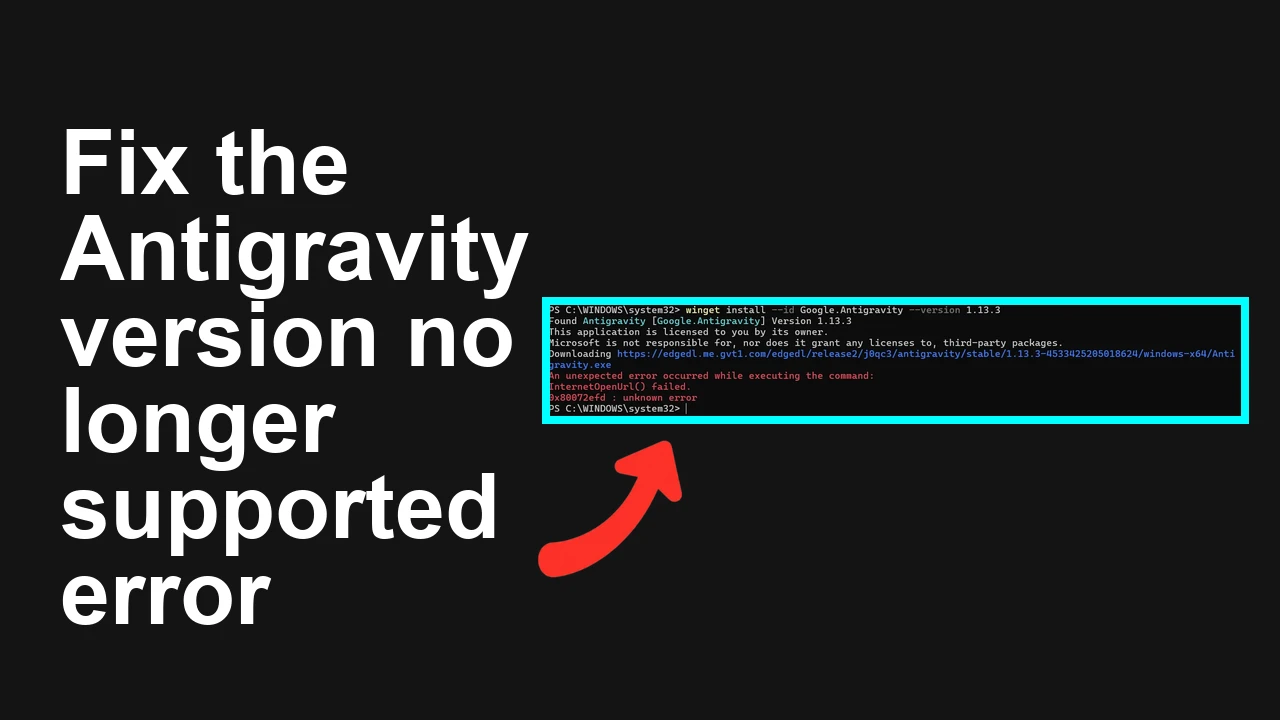
How to fix This version of Antigravity is no longer supported error?
You’re seeing the Antigravity app show “This version of Antigravity is no longer supported” and it won’t connect. The fastest fix is to remove the deprecated build and install the latest supported release.

How to fix This version of Antigravity is no longer supported error?
This error appears when the app build you installed (for example, v1.13.3) has been deprecated by the Antigravity service. Even after a normal reinstall, the banner still shows because the backend blocks outdated clients for security/API reasons.
You may see this right after installing an old APK, or when the Play Store didn’t actually deliver the newest build. In short: you’re on a version below the minimum supported client, so the app refuses to work.
For a quick primer on version blocks and related messages, see our brief version‑compatibility guide.
Solution Overview
| Aspect | Detail |
|---|---|
| Root Cause | The installed Antigravity build is deprecated and blocked by the server (below the minimum supported version). |
| Primary Fix | Fully uninstall the old app and install the latest official release from the Play Store or the Antigravity download page. |
| Complexity | Easy |
| Estimated Time | 5–10 minutes |
How to fix This version of Antigravity is no longer supported error?
Step-by-Step Solution
Method 1 — Clean uninstall and install the latest official build (recommended)
- Check the installed package and version (ADB, optional)
- Connect your device via USB with USB debugging on.
- Verify the package and version:
adb shell pm list packages | grep -i antigravity
adb shell dumpsys package com.antigravity.app | grep -i version- Back up in-app data (optional)
- If you must keep chat history/settings, back up the app data before a full reset. Example (adjust paths as needed):
adb shell run-as com.antigravity.app tar -cf /sdcard/antigravity-backup.tar .
adb pull /sdcard/antigravity-backup.tar .
Note: If run-as is not permitted, export using the app’s built‑in backup or copy any app-created export from internal storage.
- Fully uninstall Antigravity
- From device: Settings > Apps > Antigravity > Uninstall.
- Or via ADB:
adb uninstall com.antigravity.app- If you had a work-profile copy too, remove it:
adb shell pm list users
adb shell pm uninstall --user 10 com.antigravity.app
(Replace 10 with the work profile user ID shown by list users.)
- Remove leftover folders (only if the error persists after reinstall)
- These are safe to delete if you already backed up:
adb shell rm -rf /sdcard/Android/data/com.antigravity.app
adb shell rm -rf /sdcard/Android/obb/com.antigravity.app- Install the newest supported build
- Preferred: Install/update via the Play Store to guarantee the latest version:
- Open Play Store > search “Antigravity” > Update (or Install).
- If the Play Store doesn’t show an update, clear the Play Store app cache/data, then retry:
- Settings > Apps > Google Play Store > Storage > Clear cache + Clear storage.
- Settings > Apps > Google Play services > Storage > Manage storage > Clear all data.
- Sideloading (only if necessary): download the latest official APK from the Antigravity website. Verify it’s current, signed, and matches your device architecture (arm64-v8a vs armeabi-v7a). Then install:
adb install Antigravity-latest.apkTo verify an APK signature (optional):
apksigner verify -v Antigravity-latest.apk- Launch and confirm the version
- Open Antigravity > Profile/Settings > About and confirm the version is current.
- The unsupported-version banner should be gone.

Alternative Fixes & Workarounds
Force Play Store to fetch the newest build
- Sometimes Play Store caches an older variant. Do this:
- Turn off VPN.
- Settings > Apps > Google Play Store > Storage > Clear cache + Clear storage.
- Settings > Apps > Google Play services > Storage > Clear all data.
- Reopen Play Store and update Antigravity.
Leave old beta/testing tracks
- If you joined a beta that’s now closed or pinned to an outdated build, leave the beta and reinstall stable. Then check for updates again.
Resolve signature or variant conflicts
- If you previously installed a debug or differently signed APK, Play Store can’t update over it. Fully uninstall, then install the official signed build.
- If you see install errors like signature mismatch, remove and reinstall from the official source.
Fix device date/time and network
- Enable automatic date & time. Wrong time can break TLS handshakes and fail version checks.
- Try a different network (some corporate proxies block required endpoints).
If you’re also seeing send failures or session crashes on recent builds, see these deep s:
- Related: troubleshoot send failures
- Related: agent terminated error fixes
Troubleshooting Tips
- Still seeing the banner after updating?
- Confirm the exact app version in About. Compare against the latest version listed publicly.
- Ensure you didn’t reinstall the same old APK from a mirror.
- Clear app data (after backup) and relaunch:
adb shell pm clear com.antigravity.app- INSTALL_FAILED_VERSION_DOWNGRADE on install
- You’re installing an older version than what’s on device. Uninstall first, then install the latest.
- Multiple user profiles
- Remove Antigravity from all profiles (personal + work) so no old instance remains.
- Architecture mismatch
- Use the correct APK split for your CPU (arm64-v8a on most modern phones).
- WebView/Play Services
- Update Android System WebView and Google Play services; outdated components can cause auth or TLS issues.
- ADB references
- See Android ADB docs for connection/setup.
- APK signature verification
- Use apksigner to confirm a valid signature.
Best Practices
- Enable auto-updates in the Play Store: Settings > Network preferences > Auto-update apps.
- Prefer official distribution (Play Store or the developer’s download page). Avoid mirrors that host stale builds.
- Before major updates, export or back up app data using built-in tools.
- Keep device date/time automatic and keep Play services/WebView updated.
- Monitor release notes to stay above the minimum supported version.
- For persistent version issues across updates, bookmark our quick version error guide.
Final Thought
This error is a server-side block on outdated clients. Once you remove the deprecated build and install the latest official version, the banner disappears and the app reconnects normally. If problems linger, use the troubleshooting section above and the related guides for send or agent issues.
Subscribe to our newsletter
Get the latest updates and articles directly in your inbox.

Related Posts
How to fix Agent stuck and can't be stopped error in Antigravity?
How to fix Agent stuck and can't be stopped error in Antigravity?
How to fix Agent is not responding error in Antigravity?
How to fix Agent is not responding error in Antigravity?
How to fix Antigravity won't work with any Gemini models error?
How to fix Antigravity won't work with any Gemini models error?