
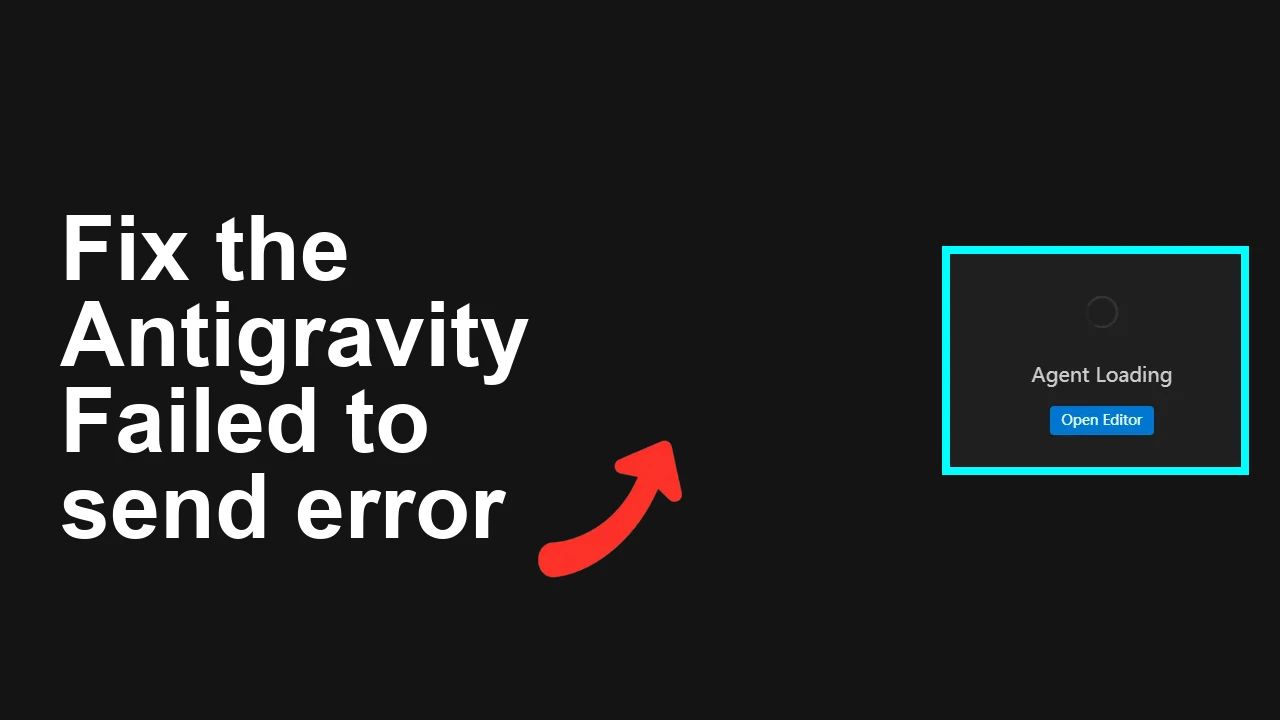
How to fix Fail to send error consistently appearing in Antigravity?
You’re running Antigravity 1.20.5 and every prompt returns a “fail to send” error while the Agent Manager is stuck on “Agent loading…” forever. Reinstalling doesn’t help, and you’re not reverse-proxying OpenClaw. This usually points to a corrupted local app state, a stuck background agent process, or a blocked network call that prevents the agent registry from initializing. The fix is to hard-reset Antigravity’s local data, restart the background processes, and verify provider/network connectivity.

How to fix Fail to send error consistently appearing in Antigravity?
The two symptoms—“fail to send” on every prompt and Agent Manager staying on “Agent loading…”—almost always share a cause: the app can’t bootstrap the agent (missing or invalid provider config, blocked WebSocket/HTTPS, or a corrupted cache/session). The UI keeps waiting for the agent to be ready, and prompt sends fail because there’s no active session.
If you’re not routing via a proxy and you’ve reinstalled, focus on clearing local state, restarting any orphaned Antigravity processes, and validating that your model provider credentials and base URL are reachable from your network.
Solution Overview
| Aspect | Detail |
|---|---|
| Root Cause | Corrupted local state and/or blocked provider calls prevent the Agent from initializing, which blocks prompt submission. |
| Primary Fix | Fully stop Antigravity, purge its app data/cache, restart, re-authenticate, and re-validate provider settings and connectivity. |
| Complexity | Medium |
| Estimated Time | 15–30 minutes |
Tip: If your agent repeatedly crashes after resetting data, see this targeted fix: agent terminated in Antigravity.
How to fix Fail to send error consistently appearing in Antigravity?
Step-by-Step Solution
Follow the steps in order. Test after Step 6 before moving on.
- Hard-quit Antigravity and kill lingering processes
- Fully close the app (quit, not just minimize).
- Kill any orphaned processes:
Windows (PowerShell):
Get-Process *antigravity* -ErrorAction SilentlyContinue | Stop-Process -ForcemacOS:
pkill -9 -f Antigravity || trueLinux:
pkill -9 -f antigravity || true- Back up and purge Antigravity’s local data
- This resets cached sessions, IndexedDB/LocalStorage, and temp GPU caches that commonly cause the “Agent loading…” loop.
Windows (PowerShell):
$ag="$env:APPDATA\Antigravity"
$agLocal="$env:LOCALAPPDATA\Antigravity"
if (Test-Path $ag) { Copy-Item $ag "$ag.bak" -Recurse -Force }
if (Test-Path $agLocal) { Copy-Item $agLocal "$agLocal.bak" -Recurse -Force }
Remove-Item $ag,$agLocal -Recurse -Force -ErrorAction SilentlyContinue
macOS:
AG="$HOME/Library/Application Support/Antigravity"
C="$HOME/Library/Caches/Antigravity"
[ -d "$AG" ] && cp -a "$AG" "${AG}.bak"
[ -d "$C" ] && cp -a "$C" "${C}.bak"
rm -rf "$AG" "$C"
Linux:
AG="$HOME/.config/Antigravity"
C="$HOME/.cache/Antigravity"
[ -d "$AG" ] && cp -a "$AG" "${AG}.bak"
[ -d "$C" ] && cp -a "$C" "${C}.bak"
rm -rf "$AG" "$C"
- Restart Antigravity cleanly
- Start the app, sign in again if prompted.
- Wait on the home screen for 10–20 seconds to allow background initialization.
- Re-validate your model/provider configuration
- Open Settings > Providers.
- Confirm:
- The correct provider is selected.
- API base URL and API key are present and valid.
- Organization/project fields (if any) are correct.
- If you use OpenClaw at any point, a bad local config commonly blocks startup. If you hit config errors, this guide helps diagnose and correct them: resolve OpenClaw config read errors.
- Test outbound connectivity from your machine
- From the same machine, verify that your provider’s base URL resolves and is reachable. Replace PROVIDER_URL with your actual base URL (keep https/wss as required).
Quick TLS reachability:
curl -I PROVIDER_URL --max-time 10Optional DNS check:
nslookup PROVIDER_HOSTNAMEIf these fail or hang, check VPN, firewall, corporate proxy rules, and certificate stores. You may need to allow-list the provider domains or disable SSL inspection for these endpoints.
- Try a minimal prompt
- In Antigravity, select a simple, known-available model and send a short prompt.
- If it still shows “fail to send,” open the in-app console (Help or View > Toggle Developer Tools in many desktop apps) and check for:
- 401/403 (auth issue)
- 404 (bad base URL/path)
- 429 (rate limit)
- 5xx (provider outage)
If you see consistent 500s from your provider (for example, Character AI or a hosted endpoint), this article covers practical mitigations while the backend is flaky: workarounds for 500 errors.
- If the Agent Manager is still stuck on “Agent loading…”
- Sign out and sign back in.
- Temporarily disable VPN or proxy software and retest.
- Switch networks (mobile hotspot) to rule out local firewall shaping.
- Recreate the app data again, then launch and immediately configure only one provider to keep the surface area small.
- Optional: Inspect logs for precise failure If Antigravity exposes logs, check common locations:
- Windows: %APPDATA%\Antigravity\logs and %LOCALAPPDATA%\Antigravity\logs
- macOS: ~/Library/Application Support/Antigravity/logs
- Linux: ~/.config/Antigravity/logs
Tail the latest log file:
# macOS/Linux
tail -n 200 -f "~/.config/Antigravity/logs/app.log"
Look for errors around agent bootstrap, provider auth, or WebSocket handshakes. If you find the agent repeatedly dying, apply the fixes here: fix agent terminated issues.
Alternative Fixes & Workarounds
- Create a fresh OS user profile and test Antigravity there to rule out profile-specific corruption.
- Temporarily set or clear proxy environment variables before launching the app:
Windows (PowerShell):
$env:HTTP_PROXY=""
$env:HTTPS_PROXY=""
Start-Process "C:\Path\To\Antigravity.exe"
macOS/Linux:
HTTP_PROXY= HTTPS_PROXY= antigravity &- If you previously experimented with OpenClaw, verify the config path, permissions, and JSON validity. A malformed config can stall initialization. See: fix OpenClaw config issues.
- Full reinstall with purge:
- Uninstall Antigravity.
- Manually delete the app data/cache folders listed above.
- Reinstall the latest version and reconfigure providers.
Troubleshooting Tips
- Certificates and SSL inspection: Corporate environments that intercept TLS often break model-provider calls. Test on a clean network to confirm.
- Time skew: If your system clock is off by minutes, request signing and TLS validation can fail. Sync your clock via NTP and retry.
- Rate limits: If logs show 429, lower concurrency, increase delay between requests, or switch to a less-busy region/model.
- Model permissions: Some providers require explicit project or org access to each model. Pick a basic model you know your key can access.
- Background agent stability: If the agent process crashes on launch, collect logs and apply steps from this Antigravity agent stability guide.
Best Practices
- Keep one provider configured and confirmed before adding more.
- After major version upgrades, clear caches if you see initialization loops.
- Store provider keys in a secret manager and rotate them regularly.
- Maintain an allow-list in your firewall for your provider’s HTTPS and WebSocket domains.
- Document your working provider base URL and model list so you can validate quickly after updates.
Final Thought
The “fail to send” + “Agent loading…” combo usually traces back to local state corruption or blocked provider connectivity. A full stop, cache purge, clean restart, and provider re-validation resolves it in most cases within minutes. If the agent continues to terminate or you hit backend 500s, the referenced guides will get you unstuck fast.
Subscribe to our newsletter
Get the latest updates and articles directly in your inbox.
