
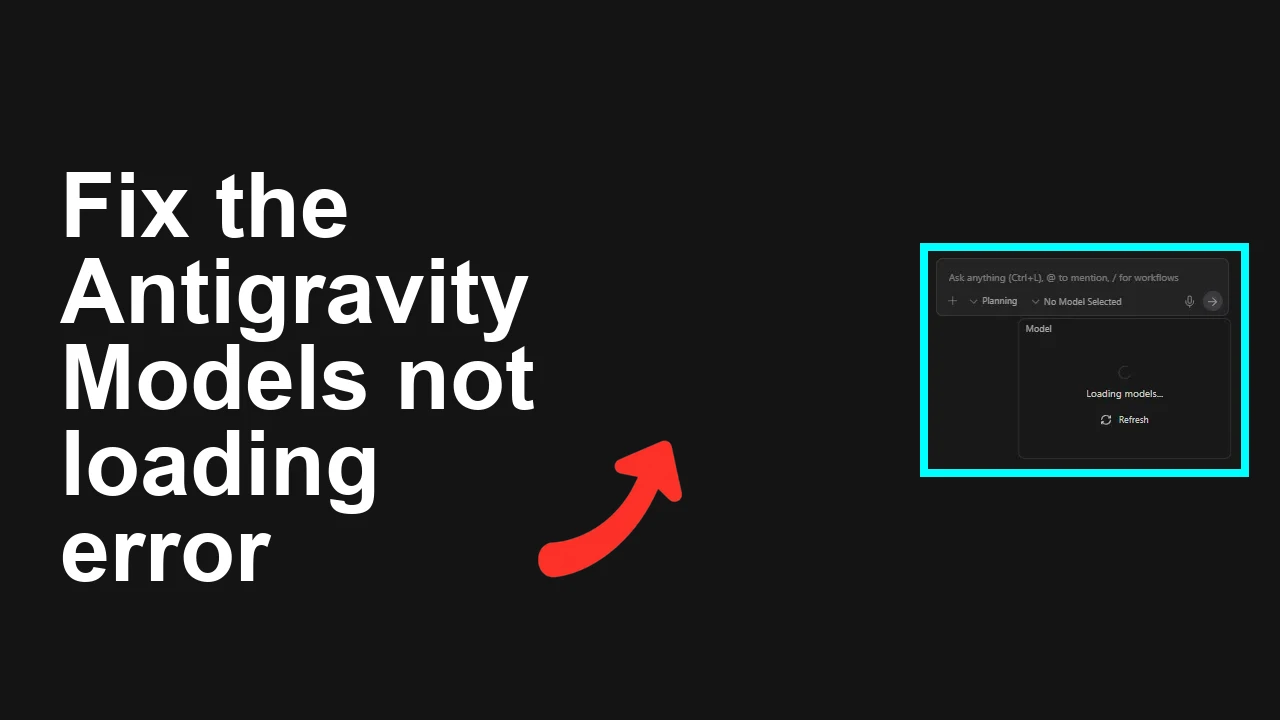
How to fix Antigravity models not loading even after successful login?
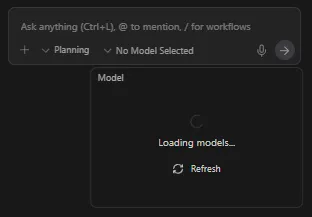
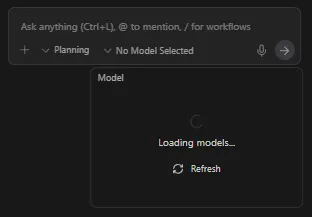
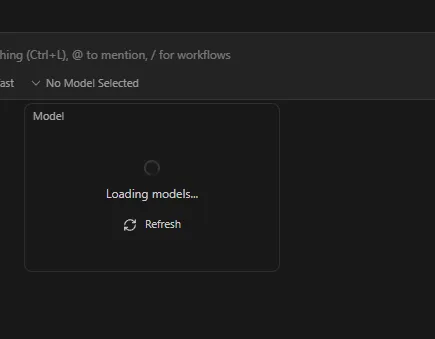
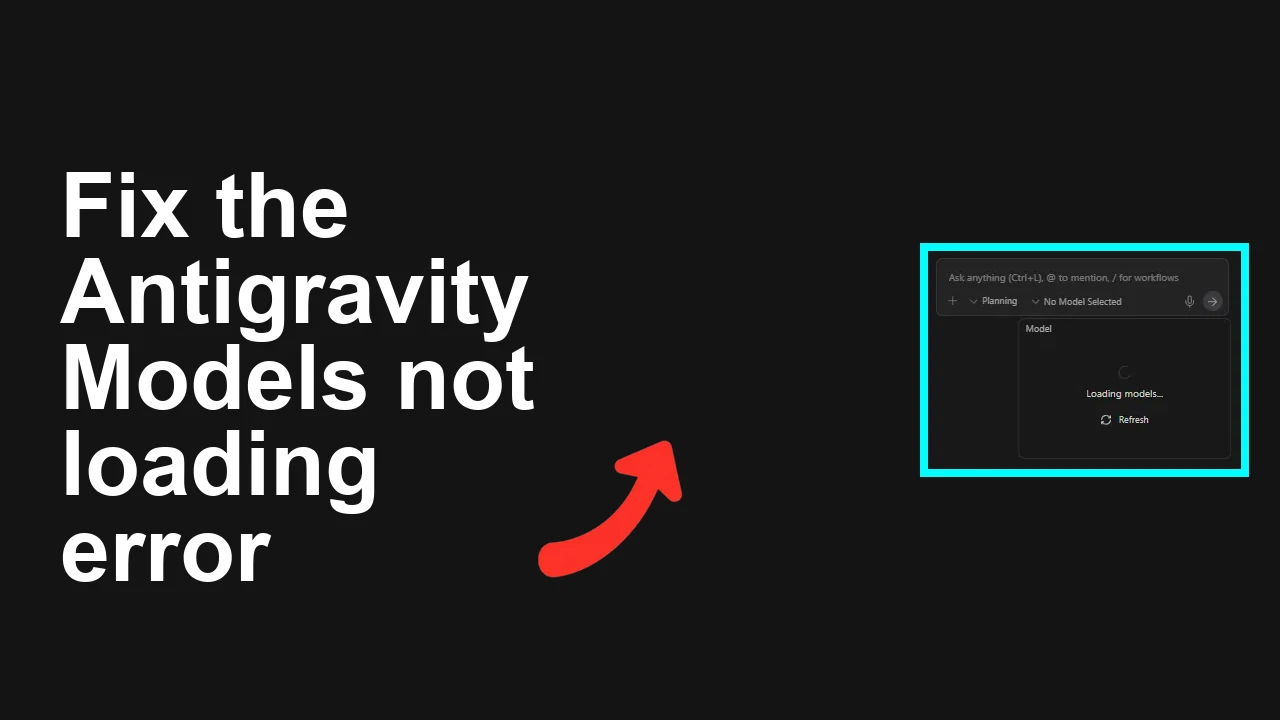
You sign in to Antigravity with your Google account just fine, but the models list never appears—only a spinner. Refresh doesn’t help.
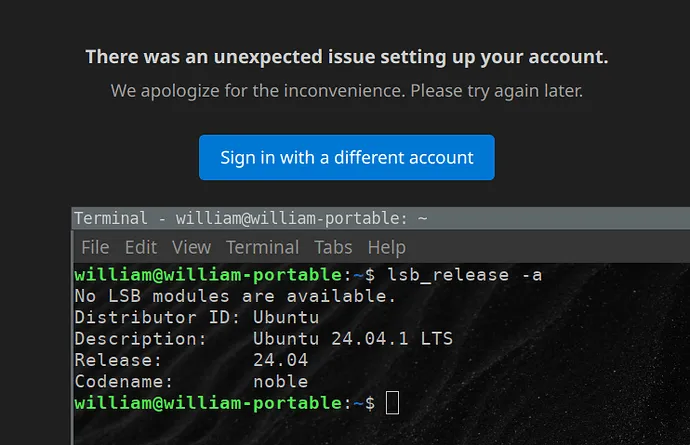
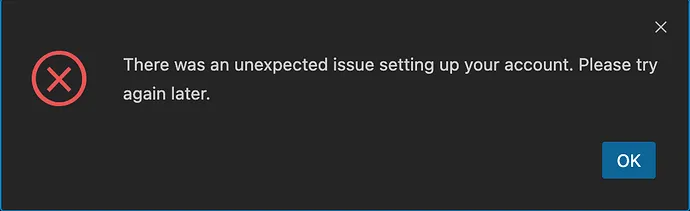
Some users then log out and get blocked on re‑login by the banner “There was an unexpected issue setting up your account. Please try again later.” OAuth seems to succeed, but the redirect back to Antigravity fails.
This shows up on Ubuntu 24.04 and other platforms. If you’re also juggling multiple Google accounts or running privacy extensions, the issue is even more likely. If your concern is broader authentication, you can also skim this focused guide: fixing sign‑in problems in Antigravity.
How to fix Antigravity models not loading even after successful login?
Antigravity shows you’re logged in, yet the model selector keeps loading forever. Hitting refresh doesn’t change anything.
Some users report that after signing out, the app now blocks them from getting back in with “There was an unexpected issue setting up your account. Please try again later.” The OAuth page completes, but on redirect back to Antigravity the app stalls or errors.
Solution Overview
| Aspect | Detail |
|---|---|
| Root Cause | Stale/corrupt site data or blocked third‑party cookies prevent the OAuth session from being persisted after redirect; extensions or strict privacy settings can also block required endpoints. In a few cases, a temporary account provisioning delay causes the “unexpected issue” banner. |
| Primary Fix | Clear site data for Antigravity and Google OAuth domains, allow third‑party cookies for Google and Antigravity, disable extensions that block redirects, then re‑login in a clean window. |
| Complexity | Easy |
| Estimated Time | 5–10 minutes |
How to fix Antigravity models not loading even after successful login?
Step-by-Step Solution
Follow these in order. After each major step, try loading Antigravity again.
- Hard refresh and close extra tabs
- Do a hard reload to bypass cached assets:
- Windows/Linux: Ctrl+Shift+R
- macOS: Cmd+Shift+R
- Close any duplicate Antigravity tabs and keep only one session open.
- Clear site data for Antigravity and Google OAuth
- Chrome or Chromium
- Open: chrome://settings/siteData
- Search for antigravity and remove all entries.
- Search for accounts.google.com and remove site data.
- Also remove data for google.com if you continue to see stale sessions.
- Edge
- edge://settings/siteData
- Repeat the same removals.
- Firefox
- Settings > Privacy & Security > Cookies and Site Data > Manage Data…
- Remove entries for Antigravity and accounts.google.com.
- Allow third‑party cookies for Google and Antigravity
- Chrome/Chromium:
- Open: chrome://settings/cookies
- Under “Sites that can always use cookies,” add these (check “Including third‑party cookies”):
- [*.]accounts.google.com
- [*.]google.com
- [*.]googleapis.com
- [Antigravity app domain]
- Edge:
- edge://settings/content/cookies
- Add the same allowlist.
- Firefox:
- Settings > Privacy & Security > Enhanced Tracking Protection: set to Standard (at least for the Antigravity site).
- Add site exceptions for cookies/trackers on Antigravity and accounts.google.com.
Tip: If your login issues are broader (e.g., stuck at sign‑in), see this targeted walkthrough: Antigravity login fixes.
- Temporarily disable extensions and try Incognito/Private
- Disable content blockers (uBlock, AdGuard), privacy tools (Privacy Badger, Ghostery), script blockers, and “HTTPS‑only” enforcers for the session.
- Open a fresh Incognito/Private window with no extensions, then sign in to Antigravity again.
- Re‑authenticate cleanly
- Close all Antigravity tabs.
- Open a Private/Incognito window.
- Navigate to the Antigravity app URL.
- Click “Sign in with Google” and choose the account that has your AI plan/entitlements.
- Complete the consent screens and wait for redirect.
If you still get the spinner, proceed.
- Fix system time and DNS cache (Linux/Ubuntu 24.04) An incorrect system clock or stale DNS cache can break OAuth redirects.
- Ensure NTP time sync is on:
timedatectl status
sudo timedatectl set-ntp true- Flush DNS cache (systemd-resolved):
sudo resolvectl flush-caches
# or, if needed:
sudo systemctl restart systemd-resolved- Test resolution/connectivity to Google OAuth:
curl -I https://accounts.google.com/o/oauth2/v2/authYou should see an HTTP 200/302 response.
- Create a fresh browser profile (isolates corrupt profiles)
- Chrome/Chromium:
- Click your profile picture > Add > Create a new profile.
- Open Antigravity in the new profile and sign in.
- Edge/Firefox: similar “Add profile” flow.
- If you see “There was an unexpected issue setting up your account” This often indicates a temporary provisioning after the OAuth handoff.
- Wait 10–15 minutes and try again in a Private window.
- Try a second browser (e.g., Chrome ↔ Firefox).
- Ensure you’re picking the correct Google account (the one with your AI plan).
- Repeat Steps 2–4 to clear stale partial sessions.
If your session errors look like background agent crashes, this related article can help: troubleshooting agent terminated errors.
- Network and enterprise checks
- Turn off VPN/Proxy temporarily; some corporate networks block OAuth redirects or Google domains.
- Allow these domains through firewalls:
- accounts.google.com, oauth2.googleapis.com, googleapis.com, fonts.gstatic.com
- The Antigravity app domain
- Last resort: Full browser cache reset (backs up your data first)
- Chrome/Chromium (Linux paths):
- Close browser completely.
- Back up profile:
cp -r ~/.config/chromium/Default ~/.config/chromium/Default.bak.$(date +%s)- Clear cache only:
rm -rf ~/.cache/chromium/Default/Cache/*
rm -rf ~/.cache/chromium/Default/Code\ Cache/*- Reopen browser and try Antigravity again.
Alternative Fixes & Workarounds
- Use a different network (mobile hotspot) to rule out DNS/content filtering.
- Try another device to confirm it’s not machine‑specific.
- Disable “Continue where you left off” so old tabs don’t restore stale sessions.
- If you see send failures after the app finally loads, this guide can help you past that hurdle: fix “fail to send” in Antigravity.
Troubleshooting Tips
- Check DevTools (F12 > Console/Network) for 401/403 on session or entitlement endpoints after redirect. 401/403 usually means cookies blocked or the wrong account.
- If multiple Google accounts are signed into the browser, try logging out of others or use a clean profile.
- Confirm your region and account are eligible for Antigravity access.
- If the spinner persists for 10+ minutes with clean cookies and allowed third‑party cookies, it’s likely a backend incident. Try again later and consider testing on another browser/profile to confirm it’s not local.
Best Practices
- Keep system time in sync with NTP; OAuth is sensitive to clock drift.
- Maintain a clean browser profile for critical apps; use extensions selectively.
- Keep third‑party cookies allowed specifically for accounts.google.com and the Antigravity domain.
- Use Private windows for account switching to avoid mixed sessions.
- Periodically clear site data for apps that rely on OAuth redirects.
Final Thought
Most “logged in but models won’t load” cases come down to blocked cookies or stale site data breaking the post‑login session. Clearing site data, allowing third‑party cookies for Google and Antigravity, and retrying in a clean window resolves the issue quickly. If you hit the “unexpected issue setting up your account” banner, give it a short cooldown and try again—after confirming the correct account and a clean browser profile.
Subscribe to our newsletter
Get the latest updates and articles directly in your inbox.

Related Posts
How to fix Agent stuck and can't be stopped error in Antigravity?
How to fix Agent stuck and can't be stopped error in Antigravity?
How to fix Agent is not responding error in Antigravity?
How to fix Agent is not responding error in Antigravity?
How to fix Antigravity won't work with any Gemini models error?
How to fix Antigravity won't work with any Gemini models error?