
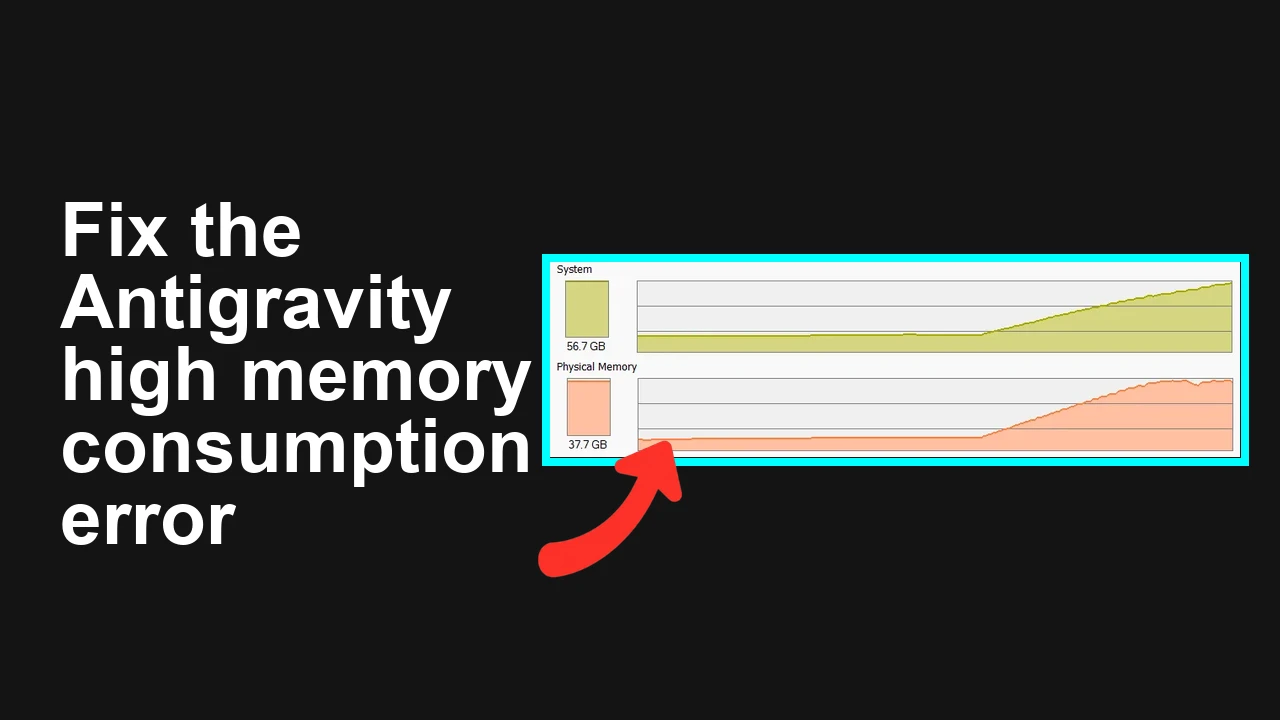
How to fix Antigravity hangs due to high memory consumption on Windows x64?
Antigravity on Windows x64 can freeze your editor and the entire system when its language server starts consuming huge amounts of memory and CPU. Users reported spikes a few minutes after a background pytest run starts.
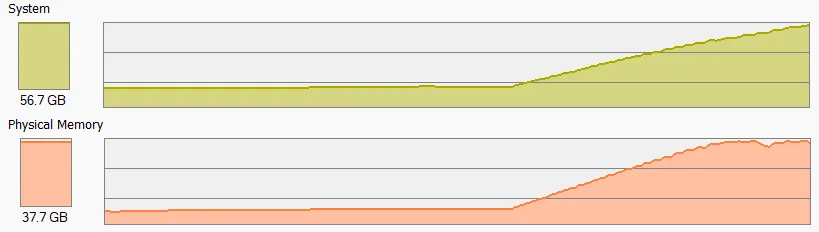
How to fix Antigravity hangs due to high memory consumption on Windows x64?
Antigravity v1.20.6 on Windows 10/11 x64 shows the process language_server_windows_x64.exe climbing in memory until the machine stalls. In the same sessions, a background pytest command kicked off by Antigravity also appears in Task Manager and grows after a short delay. The captured command seen in logs/terminal was:
- pytest --tb=short *>&1 | Out-File -FilePath pytest_full_final.txt -Encoding utf8
Users noted this continued even after removing Gemini.md and tweaking settings, suggesting a regression in the Windows language server build (Language Server CL: 884668262) and interaction with background test discovery/execution.
Solution Overview
| Aspect | Detail |
|---|---|
| Root Cause | A memory leak/regression in Antigravity’s Windows x64 language server (CL 884668262), amplified by background pytest execution and large workspace indexing. |
| Primary Fix | Update to the patched Antigravity build (or temporarily downgrade), and disable Antigravity’s language server and background test runner until patched. Add workspace excludes to cut indexing pressure. |
| Complexity | Easy |
| Estimated Time | 10–25 minutes |
How to fix Antigravity hangs due to high memory consumption on Windows x64?
Step-by-Step Solution
1) Stop the runaway processes right now
- PowerShell (Admin) to kill the leaking process and unblock your PC:
Get-Process language_server_windows_x64 -ErrorAction SilentlyContinue | Stop-Process -Force
Get-Process pytest, python -ErrorAction SilentlyContinue | Stop-Process -Force- Or with taskkill:
taskkill /IM language_server_windows_x64.exe /F
taskkill /IM pytest.exe /F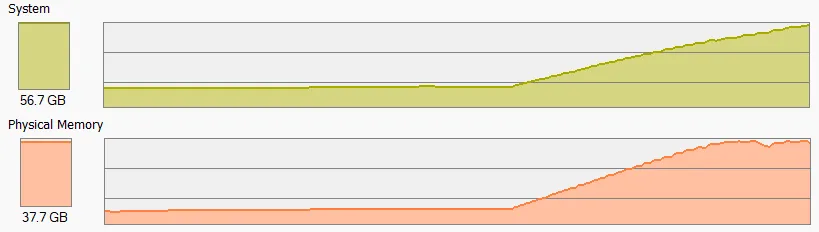
2) Update to the latest Antigravity build with the memory fix (or downgrade temporarily)
- In VS Code OSS: press Ctrl+Shift+X, search “Antigravity”, click Update.
- If the fix isn’t published yet, install a previous stable version (e.g., 1.20.5) using “Install Another Version…” in the extension’s gear menu. Steps: Install previous versions of extensions.
- CLI (with a downloaded VSIX):
code-oss --install-extension C:\path\to\antigravity-1.20.5.vsix- Restart VS Code OSS after changing versions.
If your environment is showing recurring agent failures during version flips, see our quick guidance on an agent terminated error.
3) Temporarily disable Antigravity’s Language Server on Windows
- Open Settings (Ctrl+,), search for “Antigravity Language Server”, and turn it off.
- Or add to your user settings file:
- File path (VS Code OSS on Windows): %APPDATA%\Code - OSS\User\settings.json
- Add:
{
 // …your other settings…
 "antigravity.languageServer.enabled": false
}- Restart VS Code OSS. This immediately prevents language_server_windows_x64.exe from starting while you wait for the patched build.
4) Turn off background pytest runs triggered by Antigravity Background test execution is a frequent amplifier of the leak. Disable Antigravity’s background test runner in its settings. If you also have the Python extension running autodiscovery, turn that off to avoid duplicate runs:
- Settings JSON (same path as above):
{
 // …your other settings…
 "python.testing.pytestEnabled": false,
 "python.testing.unittestEnabled": false
}
You can still run tests manually from the terminal as needed.
To reproduce and confirm stability later, the exact command that was observed in sessions is:
pytest --tb=short *>&1 | Out-File -FilePath pytest_full_final.txt -Encoding utf8Run this manually only after you update/downgrade and apply the settings above, then monitor memory.
5) Exclude heavy folders from indexing to reduce memory pressure Add excludes to limit workspace churn while the fix rolls out:
- Edit %APPDATA%\Code - OSS\User\settings.json:
{
 // …your other settings…
 "files.watcherExclude": {
 "**/.git/**": true,
 "**/.venv/**": true,
 "**/node_modules/**": true,
 "**/dist/**": true,
 "**/build/**": true
 },
 "search.exclude": {
 "**/.git": true,
 "**/.venv": true,
 "**/node_modules": true,
 "**/dist": true,
 "**/build": true
 }
}
6) Clear Antigravity cache and session state After a crash, stale indexes can restart the spill:
- Close VS Code OSS.
- Delete these folders if they exist:
- %APPDATA%\Code - OSS\User\globalStorage\antigravity.*
- %TEMP%\antigravity\
- Reopen VS Code OSS.
If you still see send/retry loops around logs or telemetry while reproducing, this guide on send failures in Antigravity can help you stabilize network-related retries.
7) Verify the fix
- Reopen your workspace.
- Confirm no language_server_windows_x64.exe is running (if you disabled the LS):
Get-Process language_server_windows_x64 -ErrorAction SilentlyContinue- If you re-enabled the LS after updating, watch memory for a few minutes:
Get-Process language_server_windows_x64 | Format-Table Name,Id,WS,PM,CPU -Auto- If stable, you can re-enable pytest and background features one by one.
Alternative Fixes & Workarounds
Run Antigravity inside WSL2 or a Linux VM temporarily
- Running your project inside WSL2 can bypass the Windows-specific language server regression until a fix lands.
Pin test scope to avoid large discovery
- Create pytest.ini at your repo root:
[pytest]
testpaths = tests
norecursedirs = .git .venv node_modules dist build
addopts = -q- You can also suppress plugins during debug:
pytest -p no:faulthandler -qCollect a dump for the maintainers (when it spikes)
- Use ProcDump to capture a hang/leak for triage: ProcDump (Sysinternals)
procdump -ma -s 5 -n 3 -w language_server_windows_x64.exe C:\dumpsTroubleshooting Tips
- Confirm only one instance of language_server_windows_x64.exe is running.
- Check antivirus exclusions for your workspace/venv to avoid IO storms during indexing.
- Trim huge folders: logs, artifacts, generated data. Keep them out of the workspace or excluded.
- Verify Python is 64-bit and up to date; mismatched environments can worsen memory fragmentation.
- If Antigravity shows account/session issues after crashes, see tips for Google login problems in Antigravity.
Helpful docs:
- VS Code settings file locations: Settings file locations
- VS Code extension troubleshooting and rollback: Extension Marketplace
- taskkill reference: taskkill
- pytest configuration: pytest ini-options
Best Practices
- Keep Antigravity on the stable channel; avoid enabling experimental language server flags in production workspaces.
- Exclude large/irrelevant directories (.venv, node_modules, dist, build, .git) from watchers and search.
- Limit background tooling: run tests on demand instead of constantly in the background for very large repos.
- Use per-project pytest.ini to guard discovery scope and output size.
- After any crash, clear globalStorage for the extension before reopening the same workspace.
Final Thought
The fastest path is simple: update (or roll back), disable the language server and background pytest, add excludes, and verify. Once the patched language server is live, re-enable features gradually and keep your workspace lean to avoid a repeat.
Subscribe to our newsletter
Get the latest updates and articles directly in your inbox.

Related Posts
How to fix Agent stuck and can't be stopped error in Antigravity?
How to fix Agent stuck and can't be stopped error in Antigravity?
How to fix Agent is not responding error in Antigravity?
How to fix Agent is not responding error in Antigravity?
How to fix Antigravity won't work with any Gemini models error?
How to fix Antigravity won't work with any Gemini models error?