
Table Of Content
- Set Up Gemma 4, OpenClaw & Ollama AI Locally for Free
- Install Ollama and fetch Gemma 4
- Fresh install of OpenClaw
- Discord setup for the OpenClaw agent
- Create the Discord application and bot
- Collect server identifiers
- Add the bot to the server
- Configure OpenClaw to use Ollama and Discord
- Pairing OpenClaw with the Discord bot
- Using the agent on Discord
- Use cases
- Final thoughts
How to Set Up Gemma 4, OpenClaw & Ollama AI Locally for Free?
OpenClaw Error Fixer
Paste any OpenClaw error and get the exact fix instantly — cause, steps, copy-ready commands, and related guides.
Table Of Content
- Set Up Gemma 4, OpenClaw & Ollama AI Locally for Free
- Install Ollama and fetch Gemma 4
- Fresh install of OpenClaw
- Discord setup for the OpenClaw agent
- Create the Discord application and bot
- Collect server identifiers
- Add the bot to the server
- Configure OpenClaw to use Ollama and Discord
- Pairing OpenClaw with the Discord bot
- Using the agent on Discord
- Use cases
- Final thoughts
I am connecting Gemma 4, Google's new open model, running locally through Ollama with OpenClaw, and using Discord as the channel. The agent runs on my own hardware with zero API cost and no data leaving the machine. You message it in Discord, it thinks, it responds, it has tools and memory.
Set Up Gemma 4, OpenClaw & Ollama AI Locally for Free
I am using an Ubuntu server with an NVIDIA H100 (80 GB VRAM). The Ollama-based Gemma 4 model is already downloaded and ready. You can pick a model that fits your VRAM and operating system.
If you want to run OpenClaw with local providers only, see this setup approach that avoids paid keys here: run OpenClaw without a paid API.
Install Ollama and fetch Gemma 4
Install Ollama on Ubuntu.
Run:
curl -fsSL https://ollama.com/install.sh | shStart the Ollama service if it is not already running.
Run:
ollama servePull a Gemma 4 build suitable for your GPU and RAM. Choose a variant that balances quality and memory needs.
Run:
ollama pull gemma4You can also bring Gemma 4 models directly in Ollama using quantized variants if your GPU VRAM is tight. Adjust the model name as per your system.
For testing OpenClaw workflows safely before wiring Discord, use this short guide: quickly test OpenClaw.
Fresh install of OpenClaw
Install OpenClaw from scratch and start its configuration flow. It will download dependencies and ask a few questions. Confirm the quick start and pick Ollama as the provider with the base URL set to local.
Select your Gemma 4 model from your local Ollama registry. Confirm the rest of the defaults as needed. Let it complete the base setup before Discord configuration begins.
If you plan to inspect the control panel once everything is online, here is how to reach the interface: OpenClaw AI dashboard access.
Discord setup for the OpenClaw agent
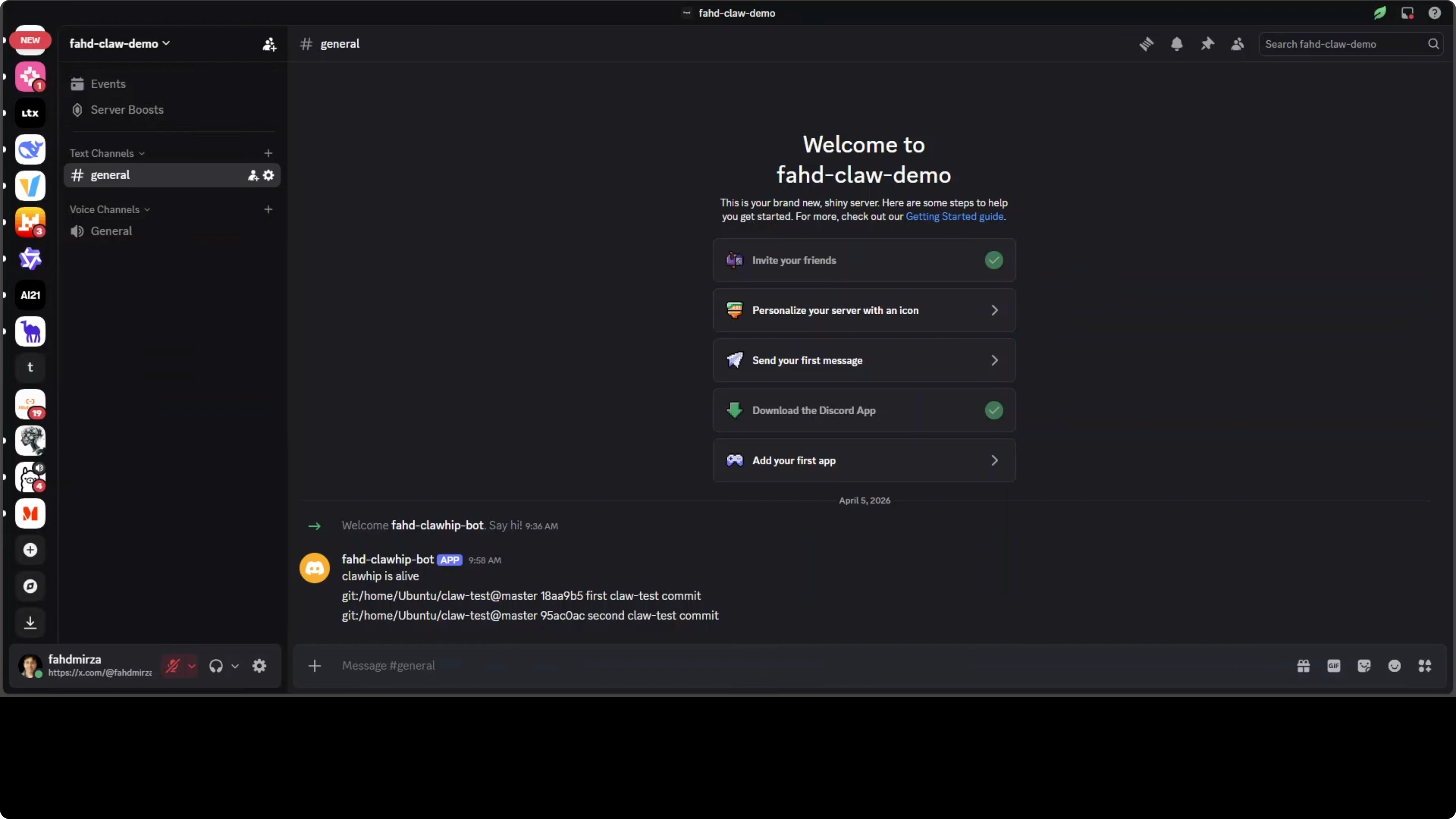
Create a new Discord server using your account. Name it anything you like. Keep it private or for your team.
Create the Discord application and bot
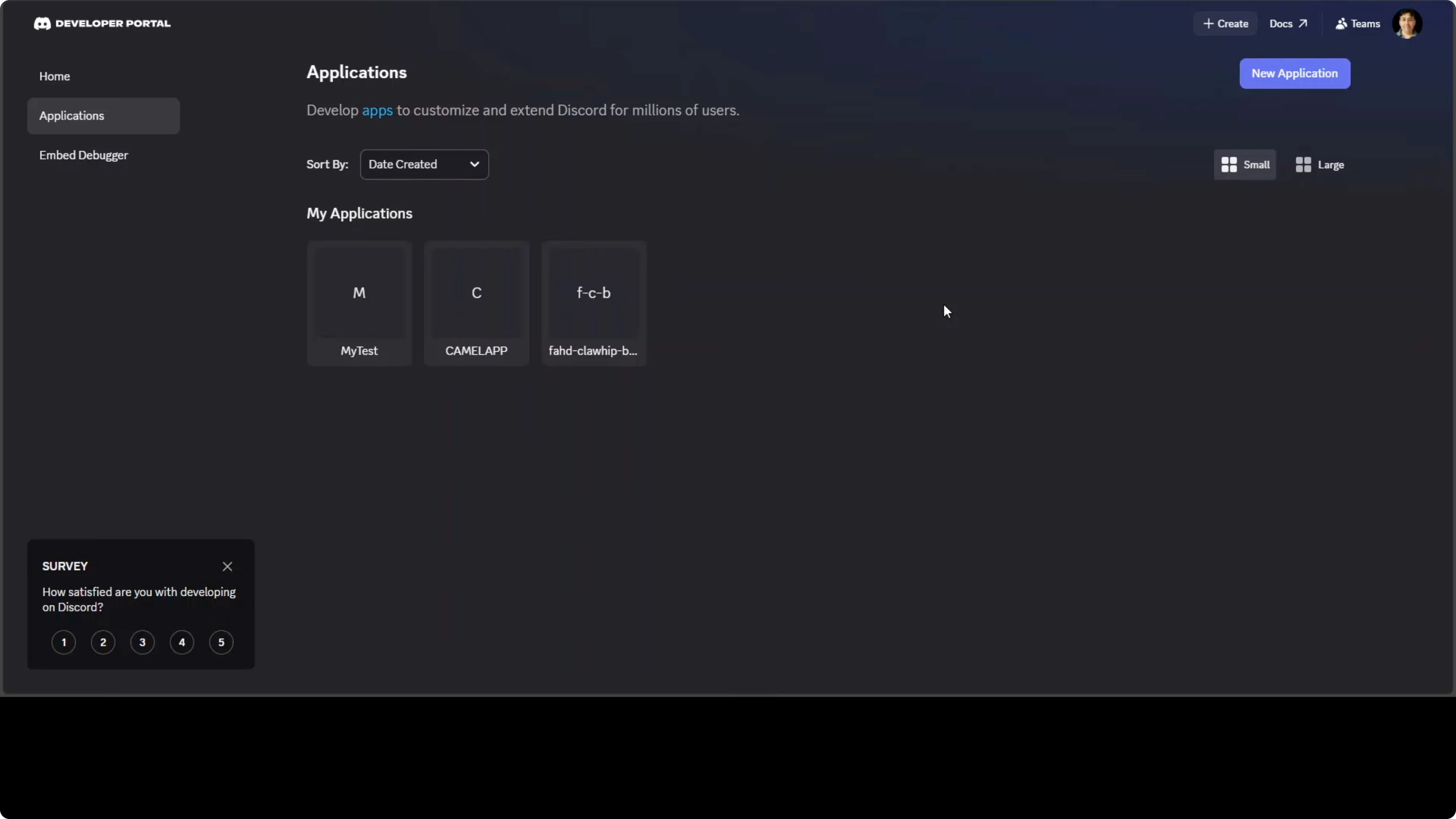
Open the Discord Developer Portal and create a new application. Go to the Bot section and reset the token to generate a new one. Copy the bot token and keep it safe.
Enable the Message Content Intent under Privileged Gateway Intents. Save the changes. Confirm that the bot is updated.
Collect server identifiers
Grab the Channel ID by right-clicking the channel (for example, general) and copying the Channel ID. Grab your User ID. Grab the Server ID by right-clicking the server name.
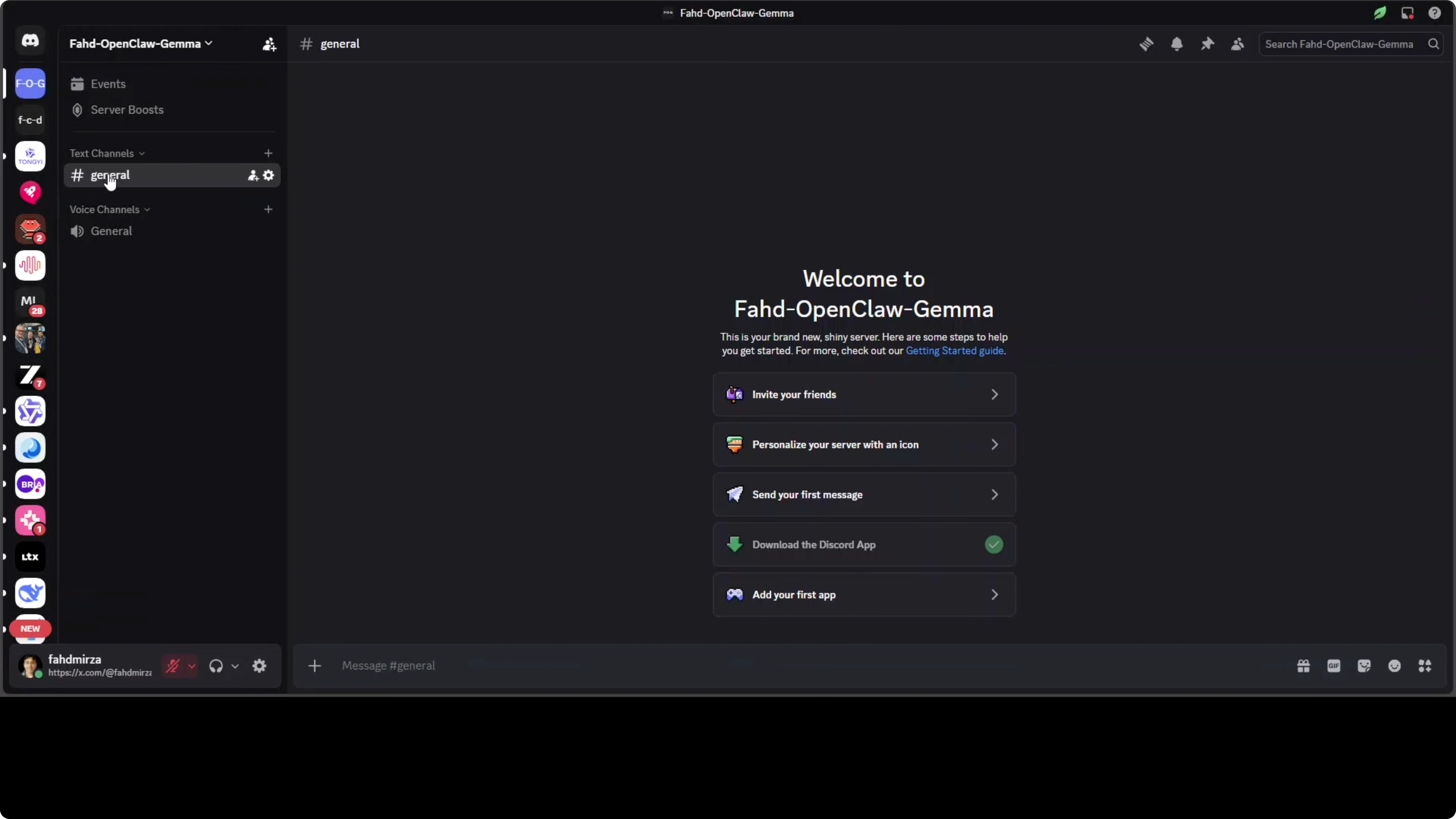
Enable Direct Messages for the server in its Privacy Settings. Make sure direct messages are turned on.
Add the bot to the server
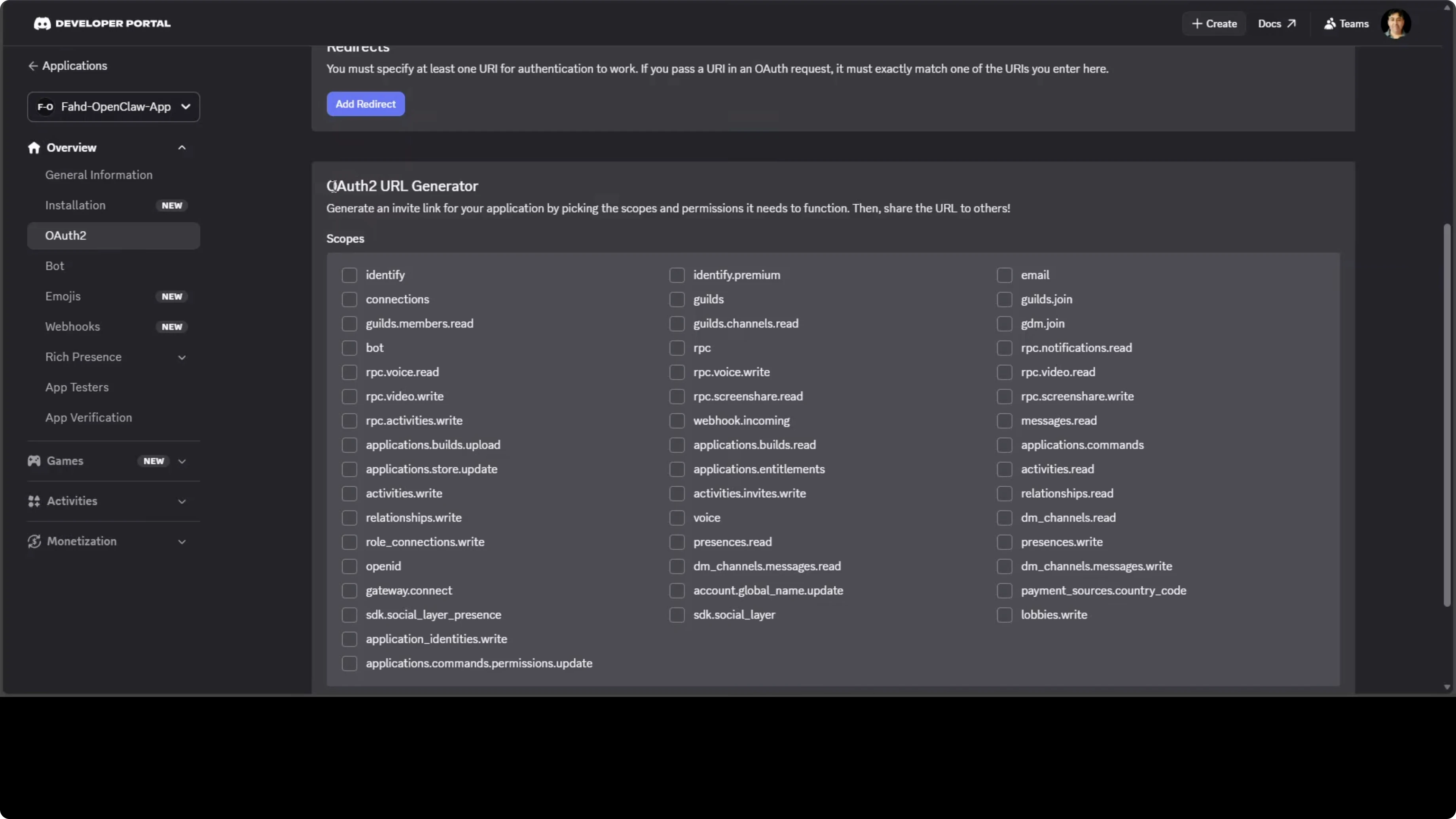
Open OAuth2 in the Developer Portal and use the URL Generator. Select the bot scope and the applications.commands scope. Under bot permissions, select Send Messages, View Channels, Embed Links, Attach Files, and Read Message History.
Copy the generated OAuth2 URL and open it in a new tab. Choose your server and authorize the bot. Confirm the bot appears in the server member list.
If you prefer a strong multilingual alternative model later, you can follow this local stack as well: run Qwen 3.5 with OpenClaw and Ollama.
Configure OpenClaw to use Ollama and Discord
Start the OpenClaw configuration prompt after the installation completes. Choose Ollama as the provider and confirm the local base URL. Pick your Gemma 4 local model.
Select the Discord bot integration. Paste the bot token you generated. Choose to restrict access with an allow list.
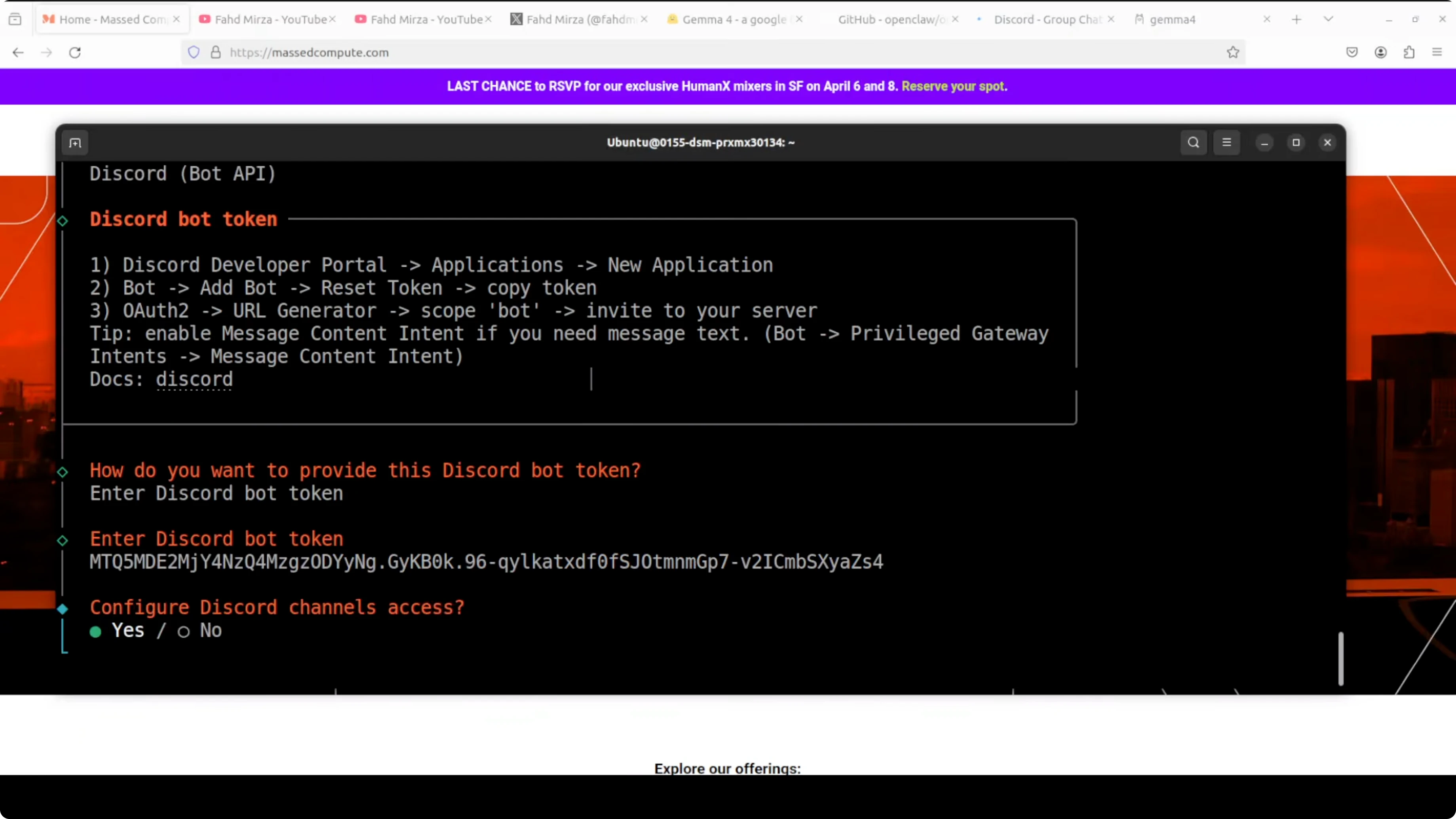
Add your Discord User ID and Server ID to the allow list. Confirm the prompts so OpenClaw can install the gateway service that connects to Discord. Wait for the gateway to finish installing.
If you prefer environment-based configuration for repeatable setups, create an .env file with your values.
Example:
DISCORD_BOT_TOKEN=YOUR_BOT_TOKEN
DISCORD_GUILD_ID=YOUR_SERVER_ID
DISCORD_CHANNEL_ID=YOUR_CHANNEL_ID
DISCORD_USER_ALLOWLIST=YOUR_USER_ID
OPENCLAW_PROVIDER=ollama
OLLAMA_BASE_URL=http://127.0.0.1:11434
OPENCLAW_MODEL=gemma4
Pairing OpenClaw with the Discord bot
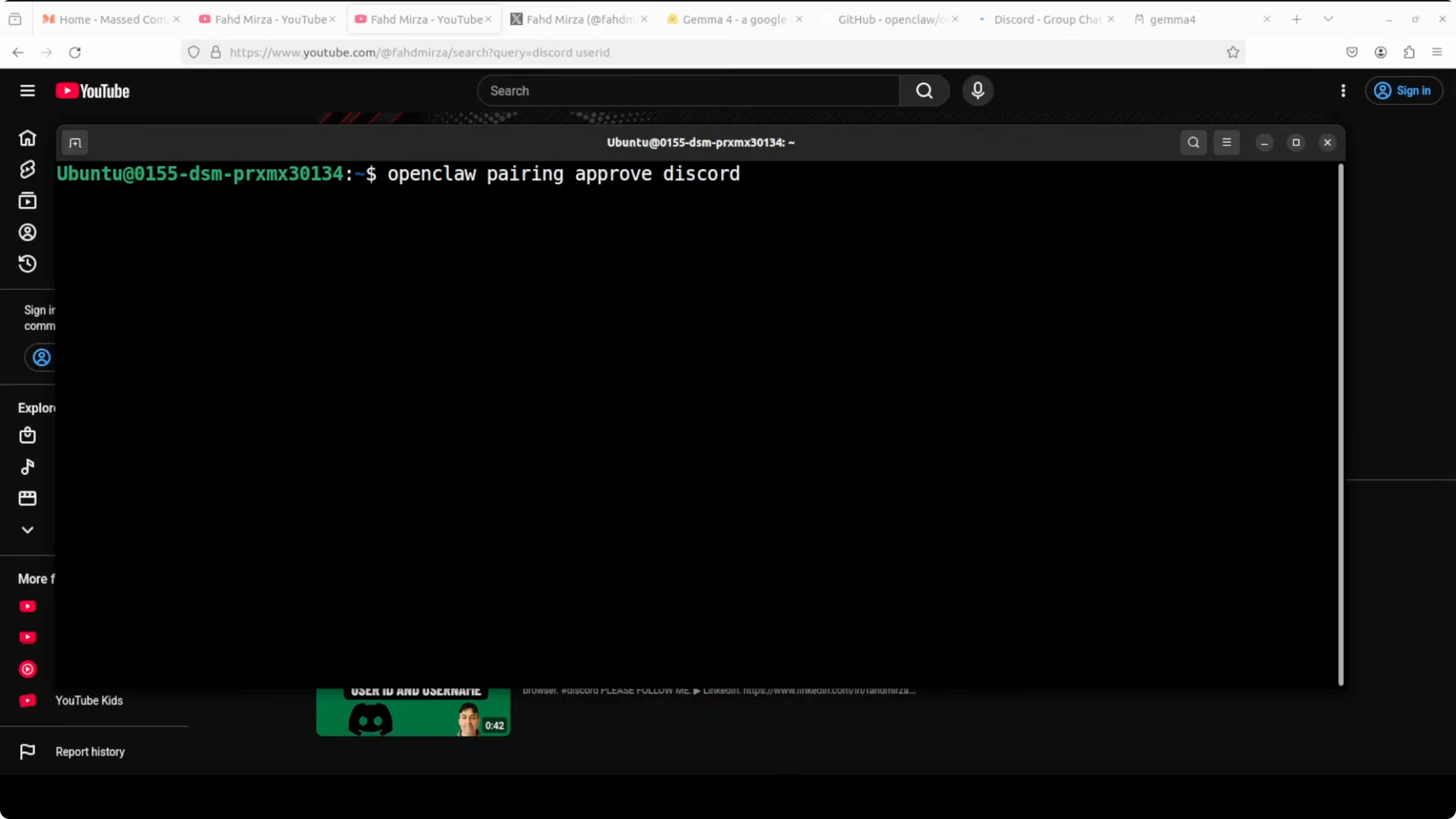
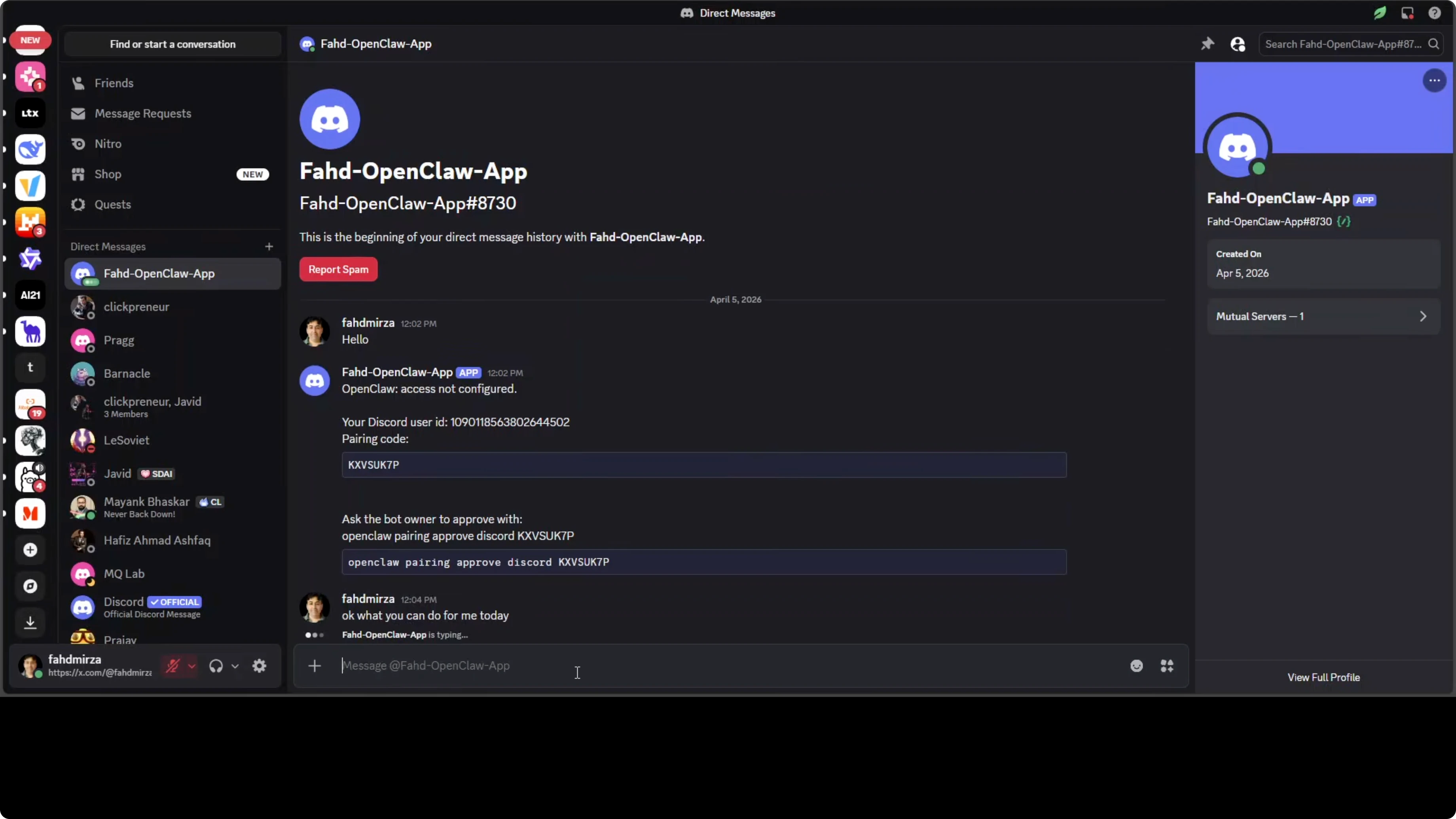
Run the OpenClaw pairing command as prompted by the installer. Send a direct message to your bot in Discord to trigger the pairing message. Copy the short pairing code from that message.
Paste the pairing code into the OpenClaw pairing prompt. If your shell session does not recognize the OpenClaw command yet, reload your profile.
Run:
source ~/.bashrcRepeat the pairing step and confirm it is approved. Once paired, you can start chatting with the agent in the channel or via DMs.
If you see account or permission restrictions during model setup in OpenClaw, use this fix: resolve restricted account errors for Google AI models in OpenClaw.
Using the agent on Discord
Ask it what it can do for you and start assigning tasks. You can schedule tasks, run coding tasks, and ask questions as you would with any assistant. It supports tools and memory for ongoing work.
For trial runs and validation across channels, keep your testing scripts small and confirm responses before adding more tools. You can extend the agent with custom commands once the core is stable. Keep your IDs and tokens saved securely for future maintenance.
Use cases
Set up a personal assistant that schedules reminders, summarizes threads, and keeps lightweight notes. Run coding help in a shared developer channel to inspect snippets and propose fixes. Create a research channel that handles Q&A, link expansions, and quick references.
Route routine requests like FAQ responses and onboarding checklists. Use the agent to track small tasks and status updates for a small group. Add tools for email checks or calendar summaries if you already manage those integrations locally.
Final thoughts
This is a full local stack: Gemma 4 through Ollama, orchestrated by OpenClaw, and accessible on Discord. It runs entirely on your hardware, with no API spend and no data leaving your machine. Once paired, you can extend it with tools, add guardrails, and turn it into a daily-use assistant.
If you need a simple process to validate your install again or migrate it, this quick reference helps: test OpenClaw quickly. For a setup approach that focuses on local providers only, refer back to this path: OpenClaw without a paid API.
Subscribe to our newsletter
Get the latest updates and articles directly in your inbox.

Related Posts

8 Best Claude Code Plugins in 2026 (You Need to Know)
8 Best Claude Code Plugins in 2026 (You Need to Know)

7 Best Claude Code Skills (You Need to Know)
7 Best Claude Code Skills (You Need to Know)

Claude Code Desktop IDE Features (You Need to Know)
Claude Code Desktop IDE Features (You Need to Know)