
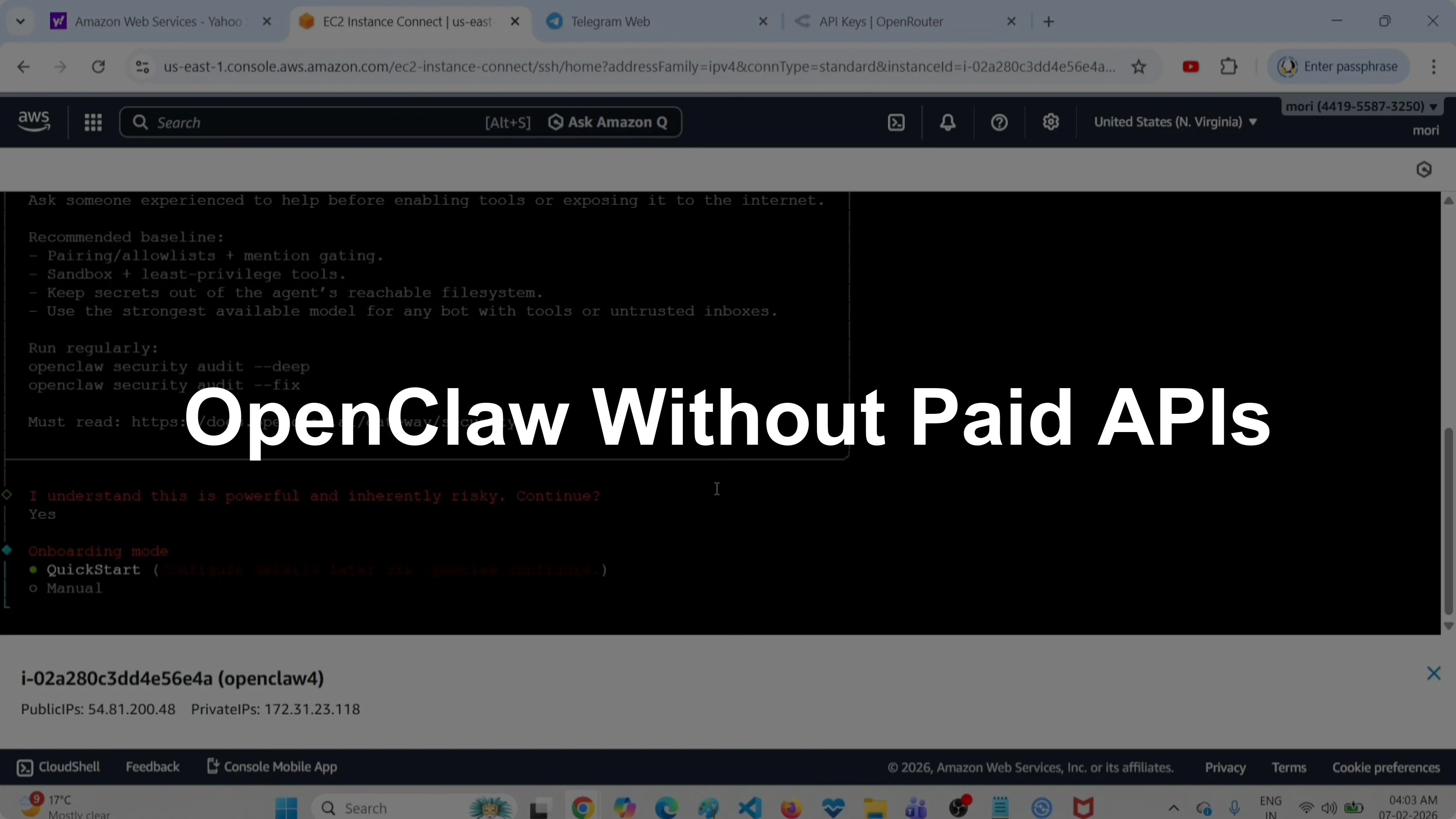
How to Set Up OpenClaw Without a Paid API Key or Providers?
OpenClaw Error Fixer
Paste any OpenClaw error and get the exact fix instantly — cause, steps, copy-ready commands, and related guides.
I set up OpenClaw without paid API keys by using a free OpenRouter key and a free model. The whole setup runs through the onboard wizard, then I connect a Telegram bot and test prompts end-to-end. For more background on related tooling, see OpenClaw posts.
Set Up OpenClaw Without a Paid API Key or Providers?
Install and onboard
First install OpenClaw on your machine. After installation, run the onboard wizard and follow the prompts.
Run:
openclaw onboard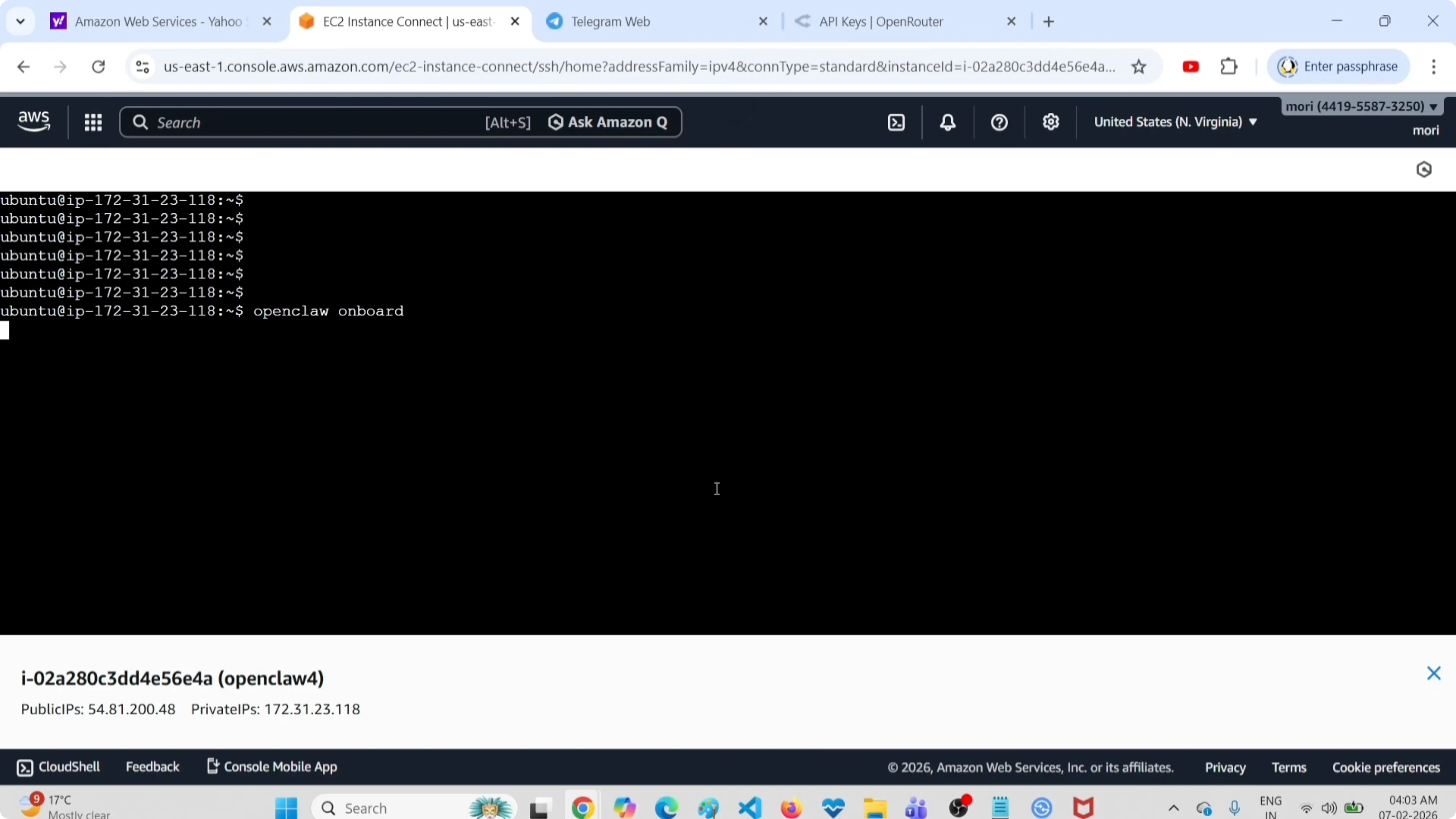
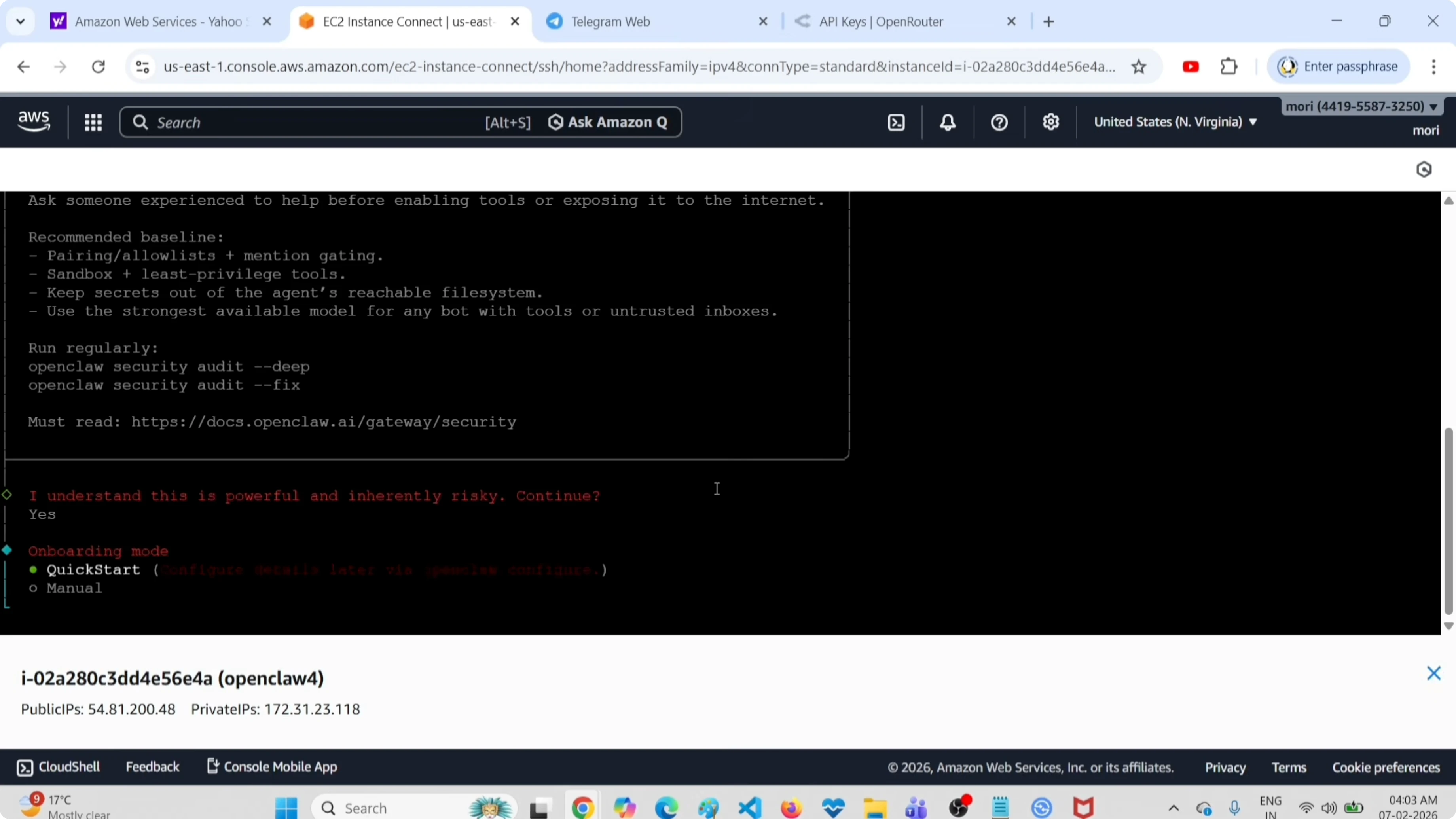
When prompted, answer Yes to start setup. Select Quick Start to keep things simple. If you need extra help with provider setup and cleanup, check OpenRouter setup.
Set the provider and free API key
Select the provider OpenRouter. Choose OpenRouter API key in the wizard.
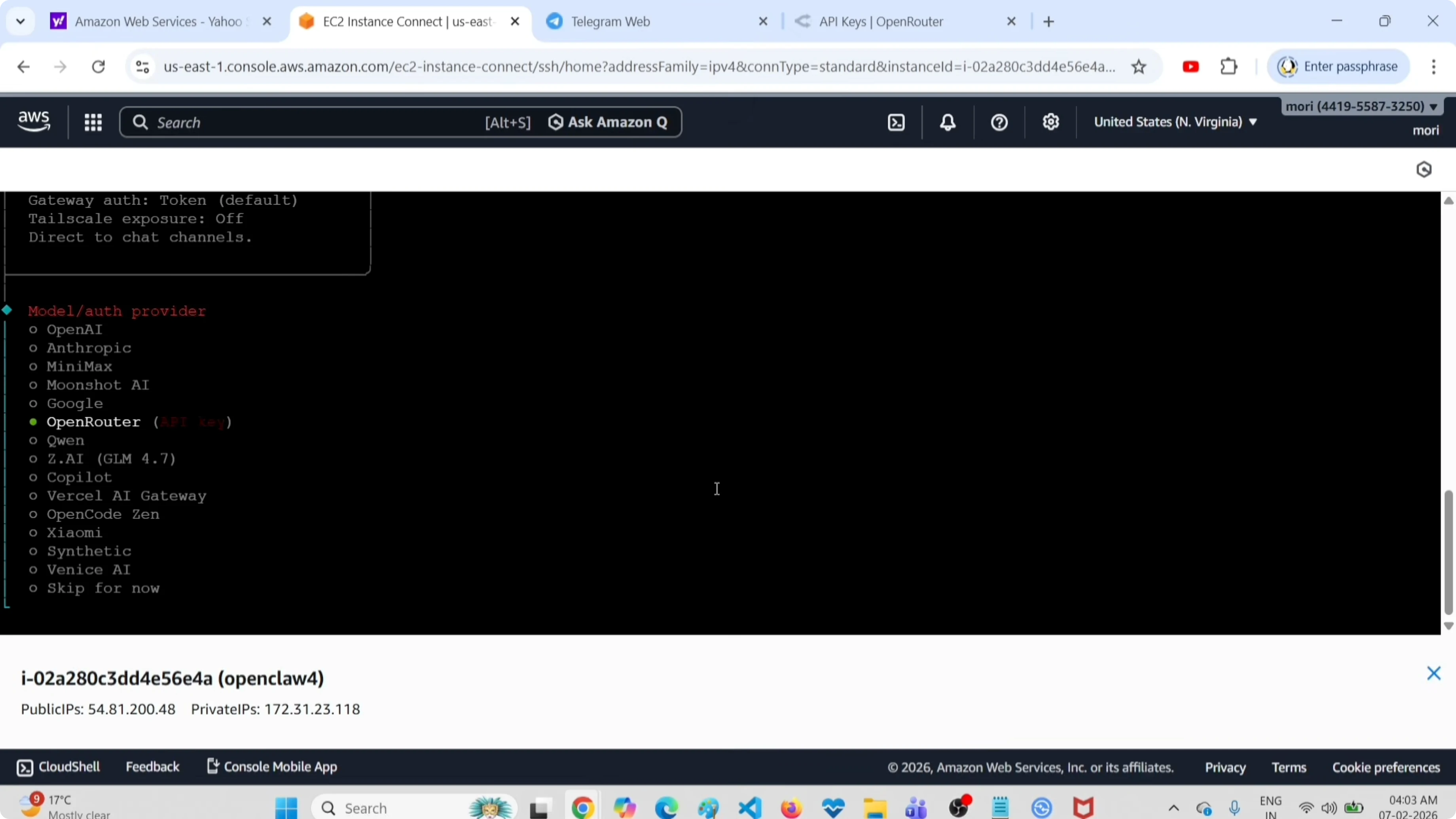
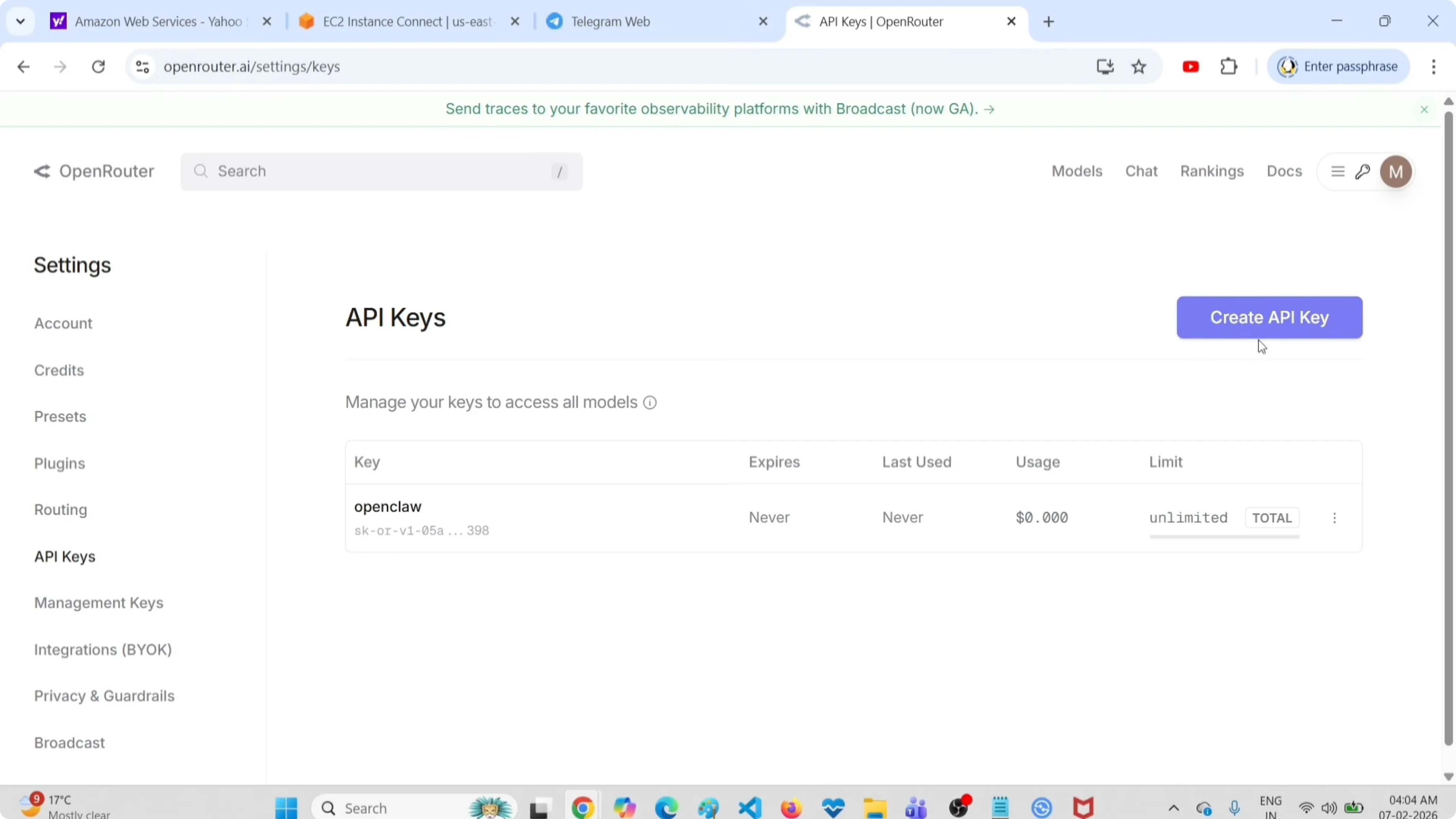
Go to https://openrouter.ai/settings/keys. Click Create API Key and generate a free key. Paste the API key into the onboard prompt and continue.
Choose a free model
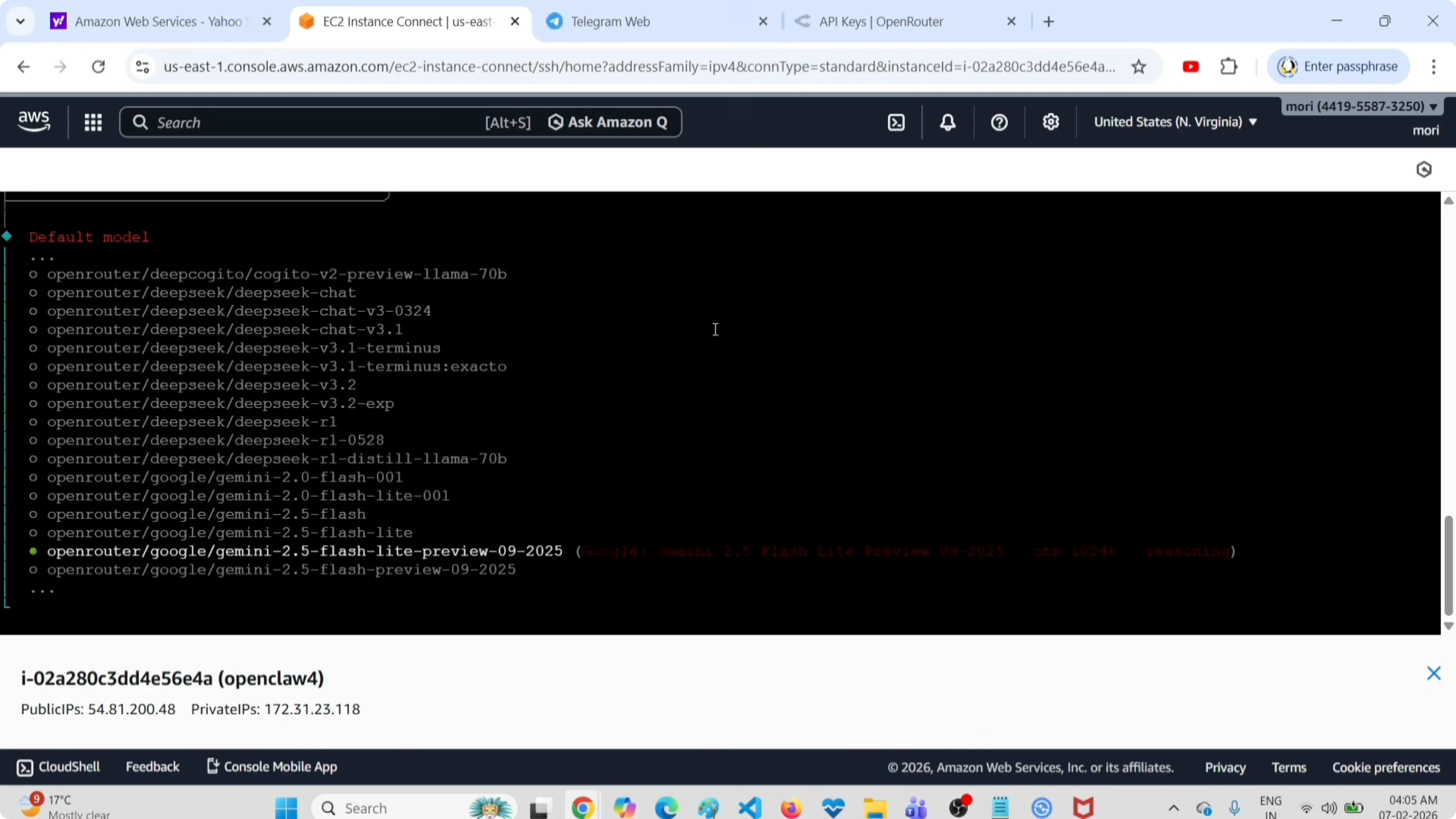
Pick a free model in the provider list. I selected:
google/gemini-2.5-flash-previewThis model worked without paid credit for my tests. If you want to read more about these models, see the Gemini API notes.
Select the channel
Choose the channel Telegram in the wizard. You will be asked for a Telegram bot token.
Create a Telegram bot and get the token
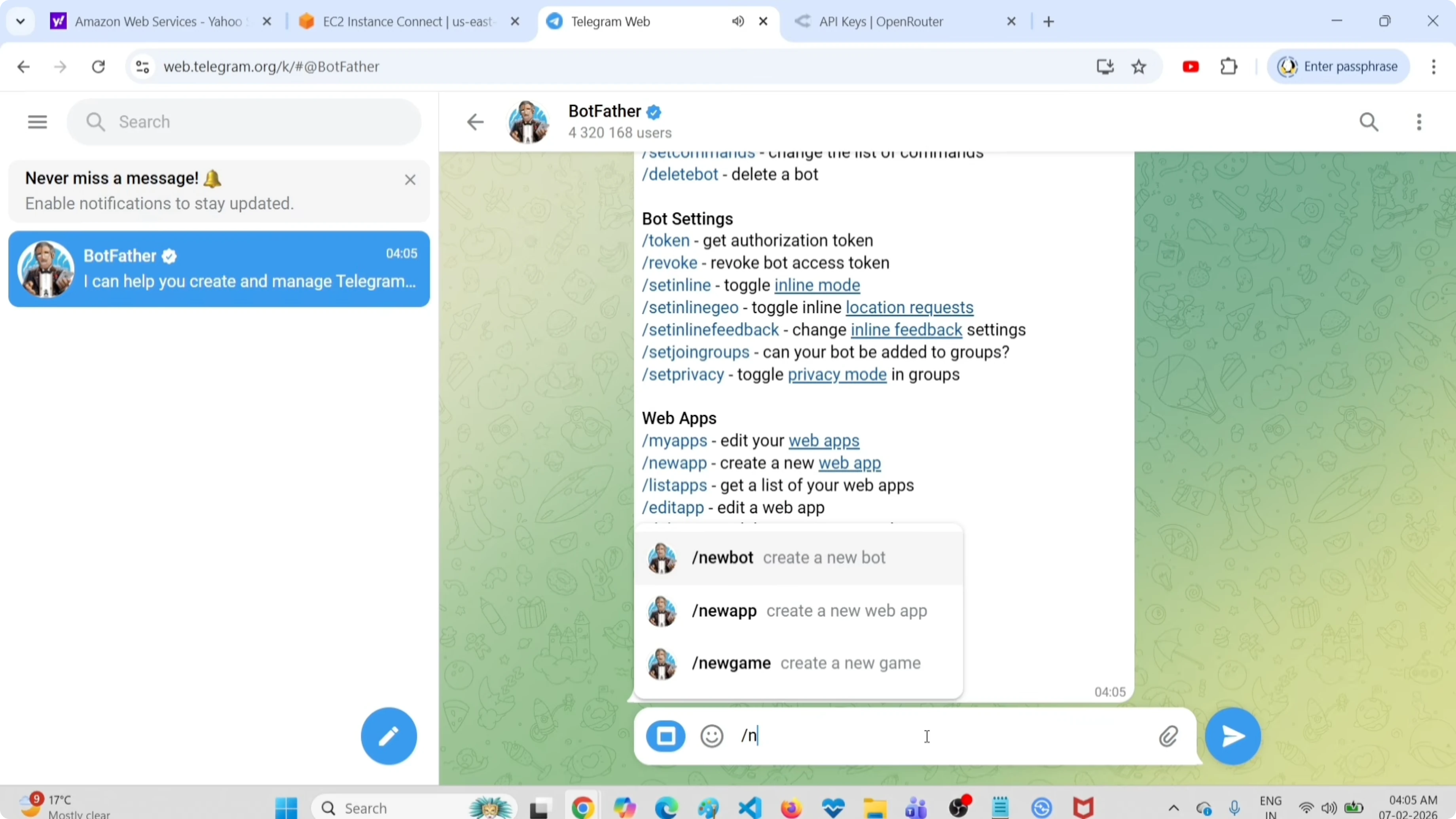
Open the Telegram app and search for BotFather. Start the chat, then send:
/newbotSet a name for your new bot, then confirm the username. Copy the bot token BotFather returns and paste it into the OpenClaw wizard.
Finish the onboard prompts
When asked Configure skills now, choose No. If you see Skip for now, select it and press Enter. When prompted Do you want to attach your bot, pick Do this later, and when asked to install shell completion scripts, choose No.
The wizard will set up the gateway service. Wait for it to complete. Setup is done.
Use the terminal UI
Start the terminal UI to run quick prompts.
Run:
openclaw tuiType a prompt to verify interaction. I tested:
install files in my root directoryCheck the output to confirm responses are coming through. If you prefer a browser view later, see the AI dashboard.
Pair the Telegram bot
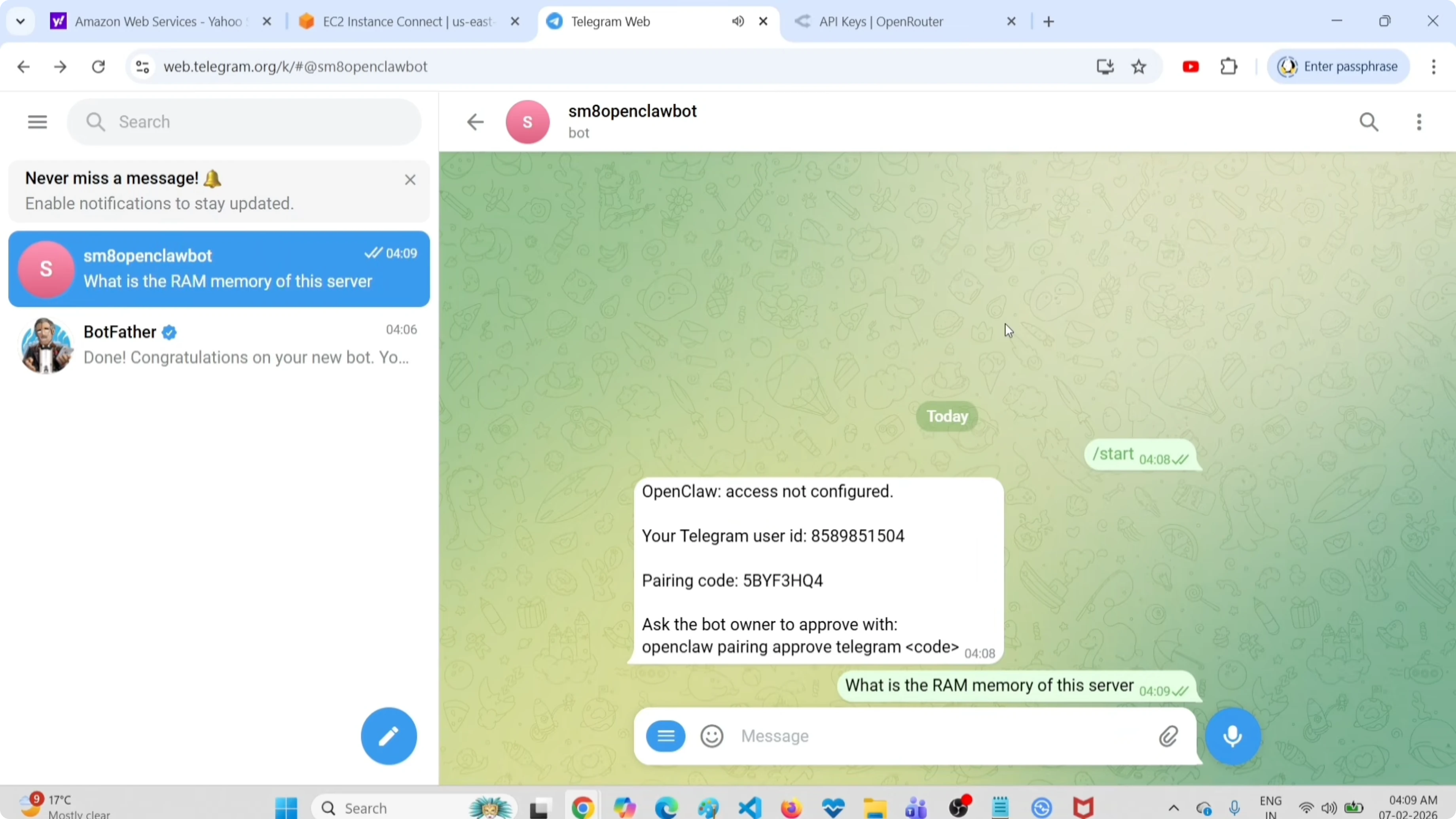
Open Telegram and start your new bot. It will ask to complete pairing.
Copy the pairing command shown in the OpenClaw terminal UI. Paste that command into the Telegram bot chat and send it. Copy the pairing code returned in Telegram, paste it back into the terminal UI, then press Enter.
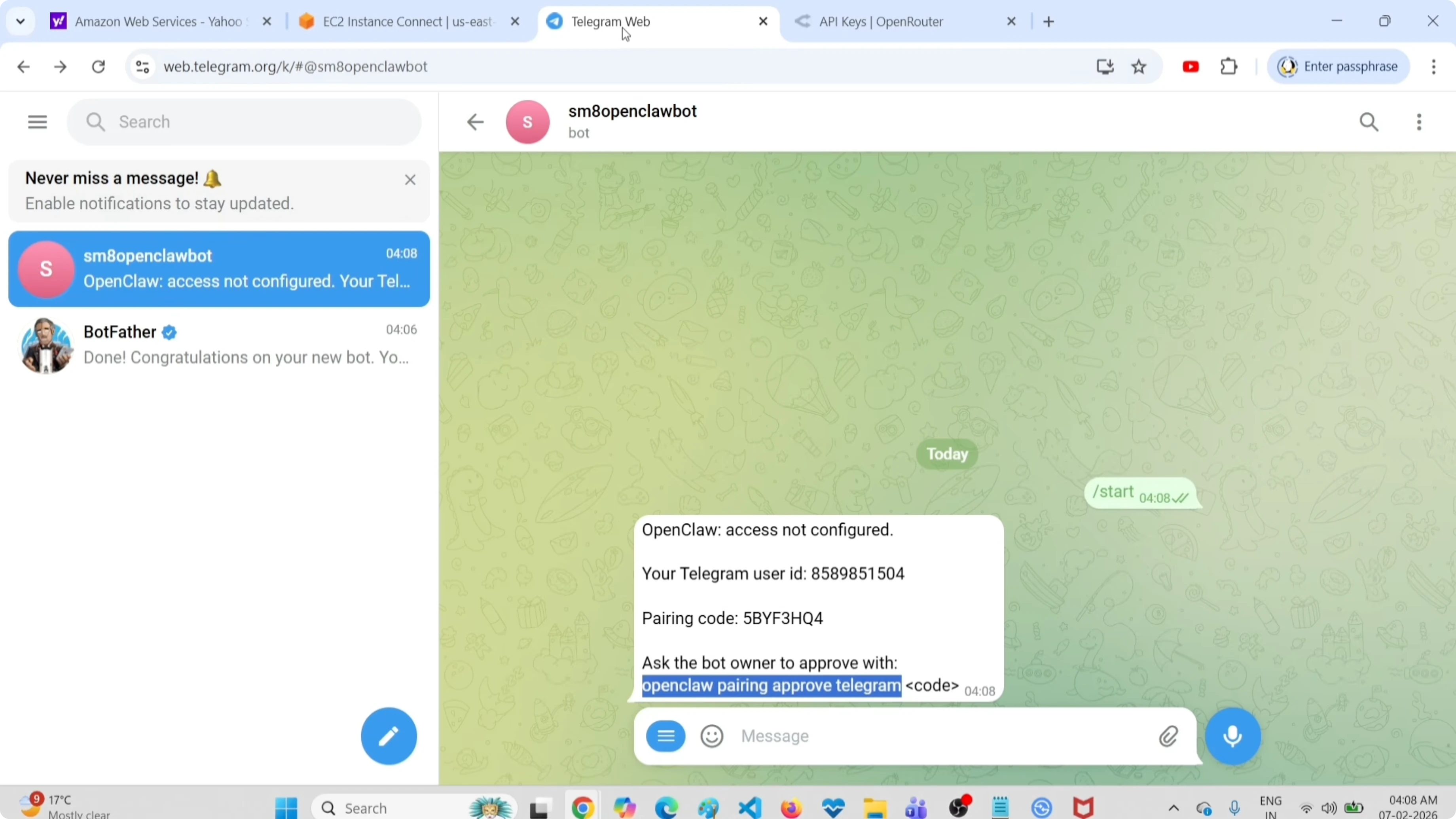
Approve the Telegram sender when prompted. The bot is now connected. Return to Telegram to test messages.
Test the setup
In Telegram, I asked:
What is the RAM memory of this server? OpenClaw server.The bot returned system memory details like total, used, free, available, and swap. That confirmed the full path from OpenClaw to Telegram works with a free provider and model.
If you plan to run local coding models instead of cloud keys, check this Ollama guide for a no-key path.
Final thoughts
This setup uses OpenRouter with a free key and the google/gemini-2.5-flash-preview model, plus a Telegram bot for chat. The steps are install, onboard, set provider and model, connect Telegram, run the terminal UI, pair, and test. Keep these pieces in place and you can run OpenClaw without paid API keys.
Subscribe to our newsletter
Get the latest updates and articles directly in your inbox.

Related Posts

8 Best Claude Code Plugins in 2026 (You Need to Know)
8 Best Claude Code Plugins in 2026 (You Need to Know)

7 Best Claude Code Skills (You Need to Know)
7 Best Claude Code Skills (You Need to Know)

Claude Code Desktop IDE Features (You Need to Know)
Claude Code Desktop IDE Features (You Need to Know)