
PicoClaw: How to Run an AI Agent Locally with Ollama & Telegram
Local LLM Hardware Calculator
Enter your GPU VRAM and system RAM to see which LLMs you can run in Ollama — at Q4, Q8, or full precision — with estimated tokens-per-second speed.
I am going to show you how you can install PicoClaw and get it integrated with local free models based on Ollama. I am using an Ubuntu system with an Nvidia RTX 6000 and 48 GB of VRAM, which I am renting at the moment. I already have Ollama installed and I am running the GLM 4.7 flash model, but you can select any model of your choice as long as it supports tool use.
What is PicoClaw?
PicoClaw is inspired by Nanobot, and Nanobot is inspired by OpenClaw. OpenClaw is a full enterprise grade framework that is powerful but heavy. Nanobot came along as a Python-based ultra lightweight alternative and dropped RAM usage from over 1 GB down to around 100 MB.
PicoClaw takes it even further. It is built in Go, bootstrapped almost entirely by an AI agent, and runs in under 10 MB of RAM with a 1 second startup time even on a 6 GHz single core. You are talking about running a fully functional AI agent on a $10 piece of hardware.
It keeps the same core ideas: multiple LLM providers, Telegram integration, tool execution, memory, and scheduled tasks. It is portable as a single binary across RISC, ARM, and x86 architectures. That is the key difference of PicoClaw compared to Nanobot and OpenClaw.
Run an AI Agent Locally with PicoClaw, Ollama & Telegram
Prerequisites on Ubuntu
I am on Ubuntu with Ollama already installed and an Ollama model running locally. Any local model is fine as long as it supports tool use.
Confirm Ollama is up and the model is available.
ollama list
ollama run glm-4.7-flash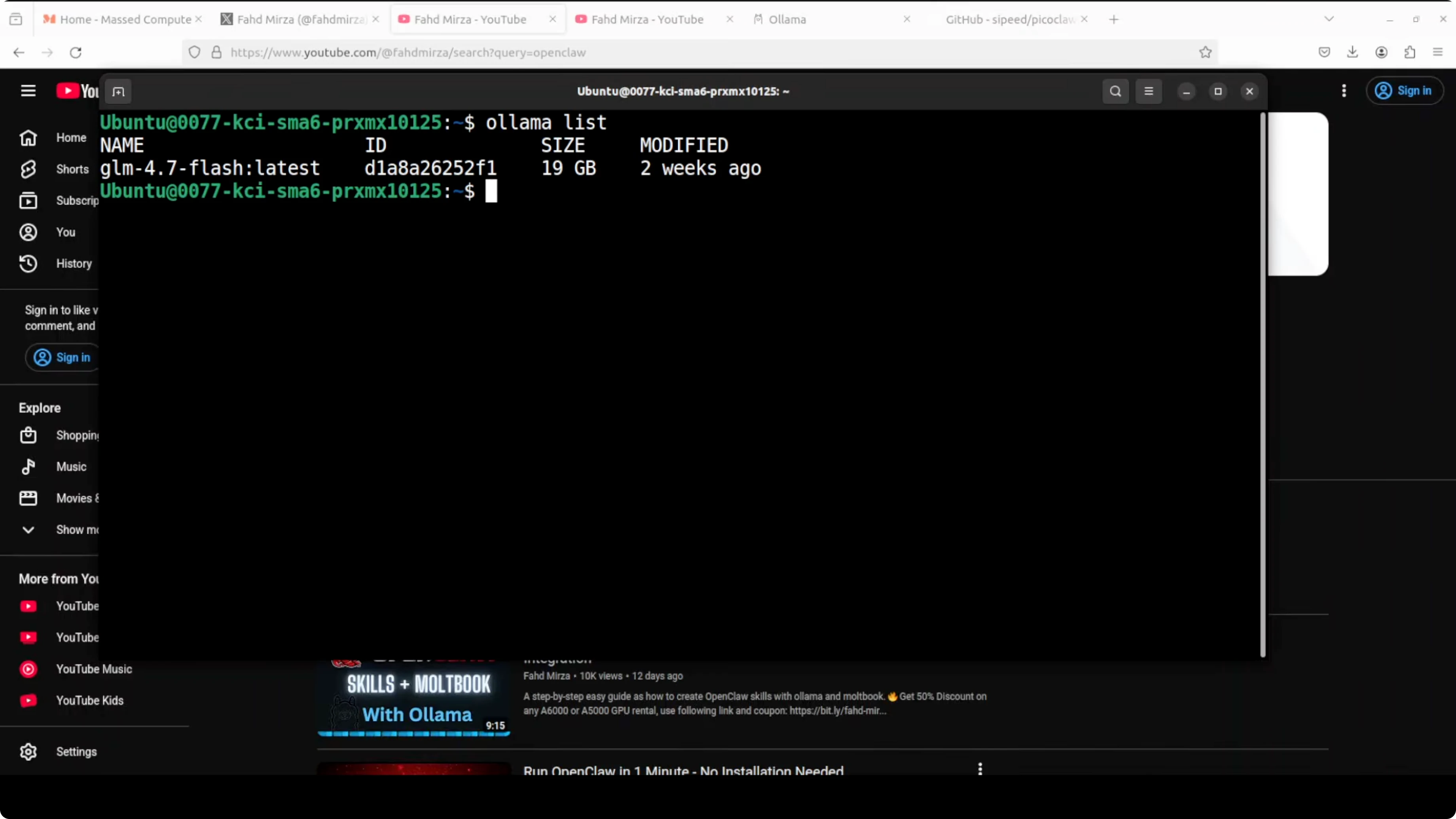
Install PicoClaw from source
There are various ways to install it, and you can also get a release file. I highly encourage you to clone the repo and build from source so you get the most recent and stable version, because it is changing quite rapidly.
Clone the repository.
git clone https://github.com/OWNER/picoclaw.git
cd picoclaw
Build from source. If you see an error that Go is not installed, install Go and try the build again.
go versionIf Go is missing on Ubuntu, install it.
sudo apt update
sudo apt install -y golang-go
Build PicoClaw.
go build -o picoclaw ./cmd/picoclawYou will see it compile and finish quickly. It is very lightweight and installs fast.
Initialize PicoClaw and review the config
Start the onboarding to generate the default files and folders PicoClaw needs. It creates a config file you will change shortly.
Open the config and review the defaults. You will replace them with your Ollama settings and Telegram integration.

Here is a simple config example to mirror what I am using.
# config.yaml
llm:
  provider: ollama
  model: "glm-4.7-flash"
  endpoint: "http://localhost:11434"

tools:
  web_search:
    provider: "duckduckgo"

telegram:
  enabled: true
  bot_token: "REPLACE_WITH_YOUR_TELEGRAM_BOT_TOKEN"
This sets the base model running on my local Ollama, the Ollama endpoint, DuckDuckGo for web search, and Telegram integration. Replace the token with your actual bot token.
Set up a Telegram bot
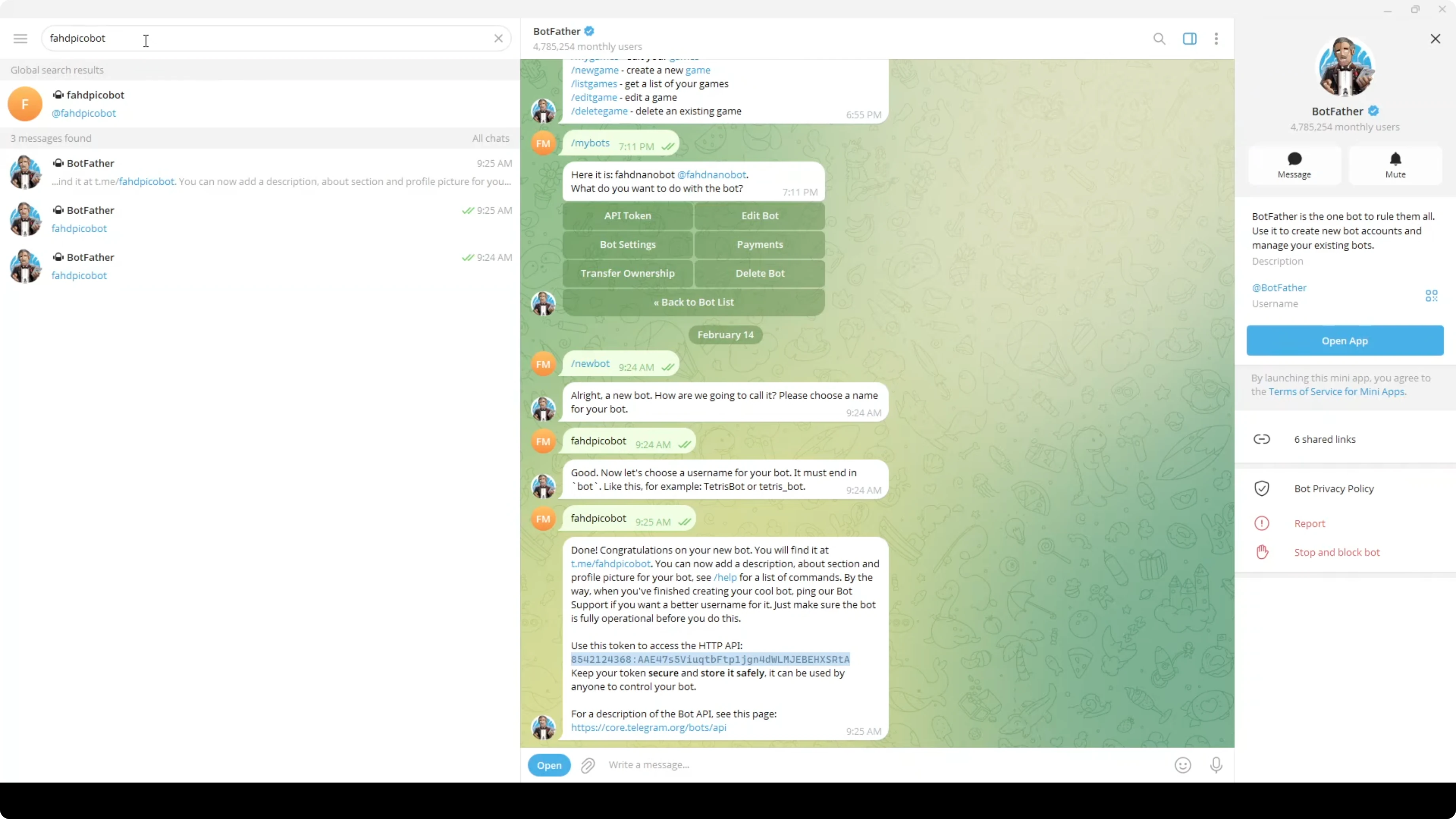
Open Telegram on your system. In the top left, search for BotFather.
In the chat with BotFather, send /newbot. Choose a name for your bot.
Choose a unique username for the bot. BotFather will return a token.
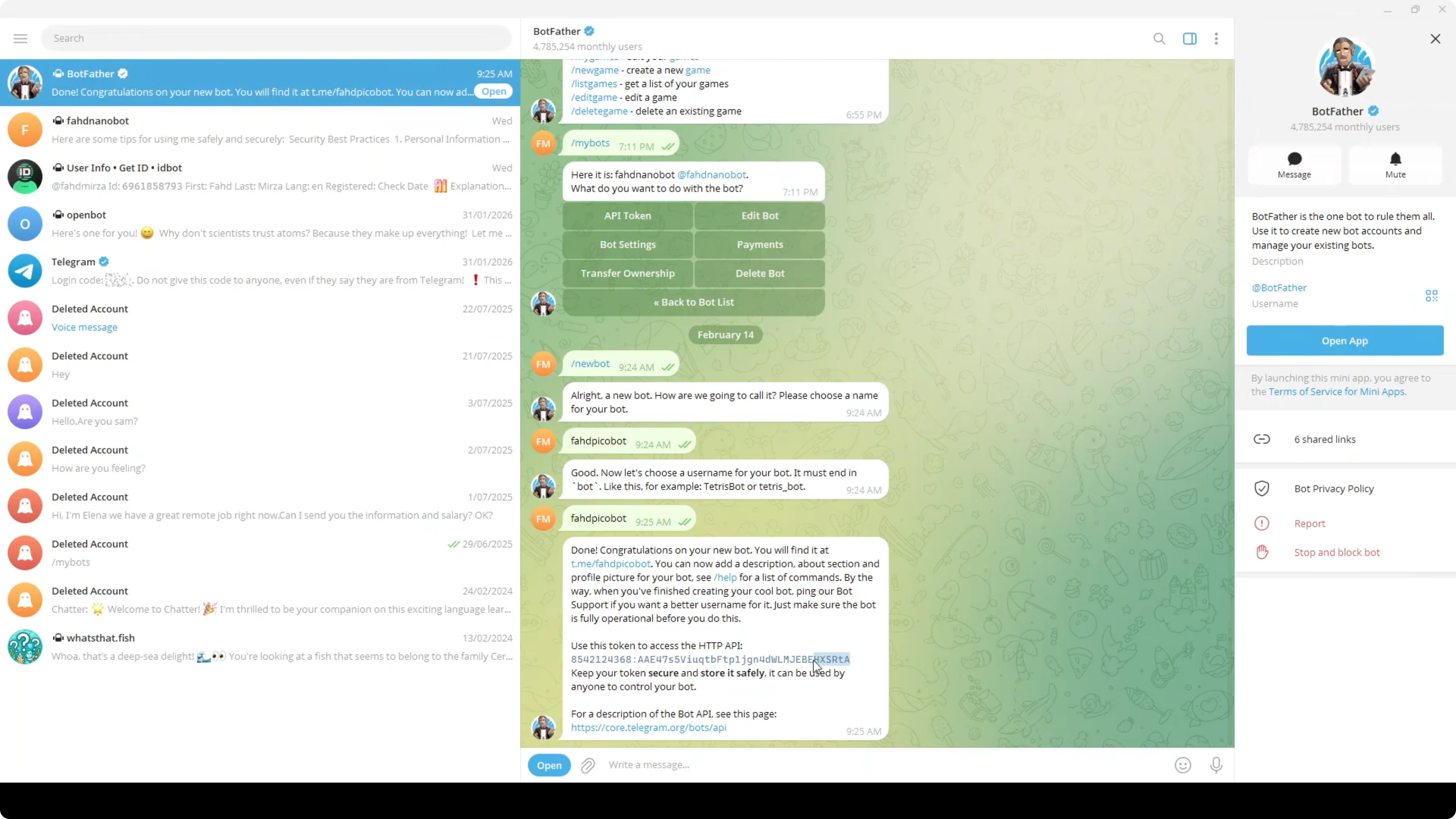
Copy the token. Paste it into the config file in the telegram.bot_token field and save the file.
Start the gateway and connect Telegram
You do not need to restart a system service because this does not run as a systemd service. It runs in your terminal.
Start the gateway.
./picoclaw gateway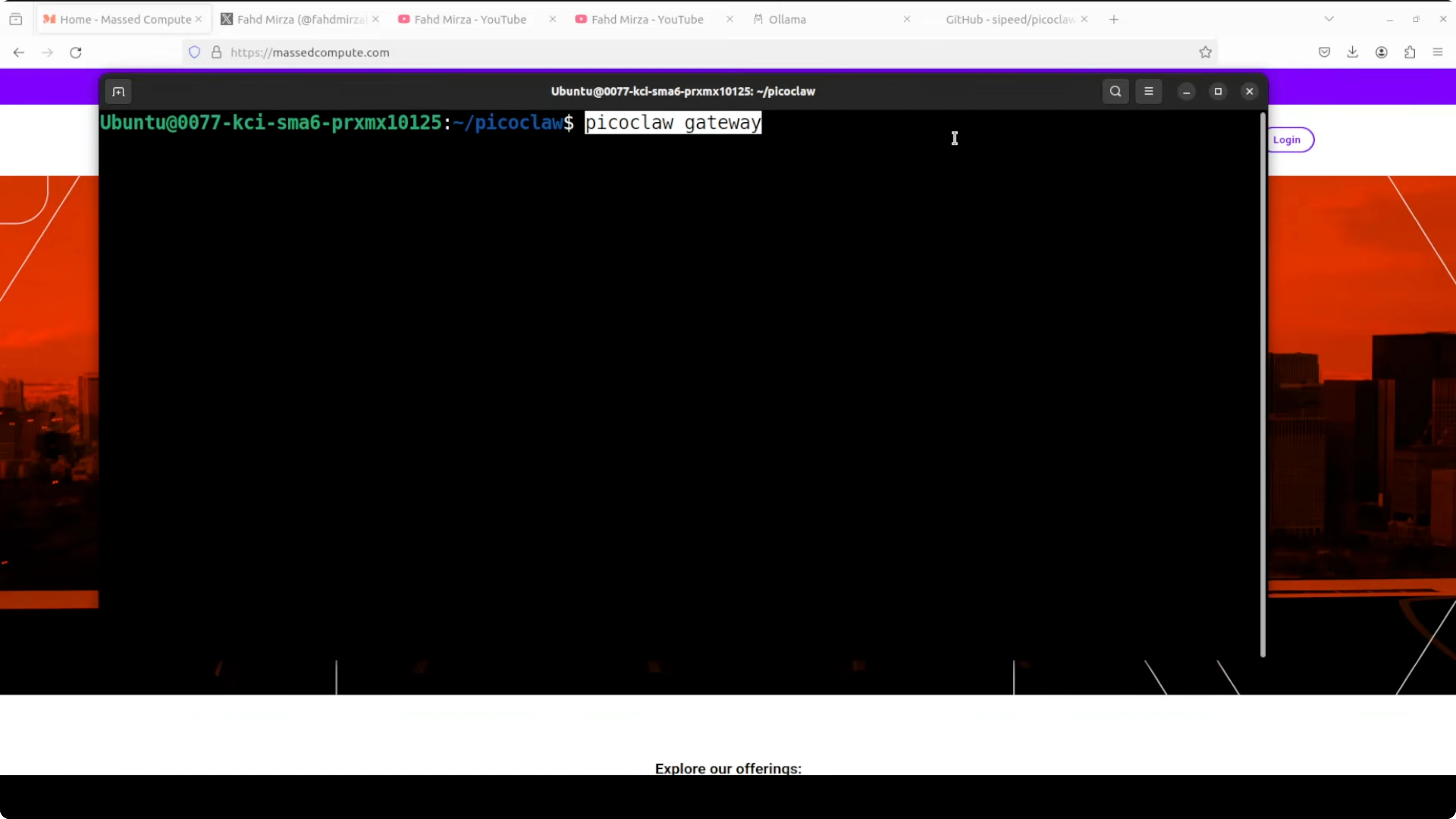
It will load the tools and show that the Telegram bot is connected. Leave this running.
Open a new terminal or go to Telegram. Search for your new bot by the username you picked and open it.
Click Start in the bot chat. It will greet you and you can start chatting with it.
I asked it something like, I am in Pune, India. Any recommendations for breakfast. It replied with local options, and I could continue the chat from there.
Notes on running locally
It is very easy to integrate a messaging app, especially Telegram. You can run this on your system or on a small server and use it from anywhere via Telegram. It is very lightweight, all local, and private.
Final Thoughts
PicoClaw gives you a tiny, fast Go-based agent that works with local Ollama models and connects cleanly to Telegram. Compared to OpenClaw and Nanobot, it keeps the same core ideas but shrinks memory and startup time dramatically. If you want a local, portable agent that you can run on minimal hardware and access from your phone, this setup works well.
Subscribe to our newsletter
Get the latest updates and articles directly in your inbox.

Related Posts

8 Best Claude Code Plugins in 2026 (You Need to Know)
8 Best Claude Code Plugins in 2026 (You Need to Know)

7 Best Claude Code Skills (You Need to Know)
7 Best Claude Code Skills (You Need to Know)

Claude Code Desktop IDE Features (You Need to Know)
Claude Code Desktop IDE Features (You Need to Know)