
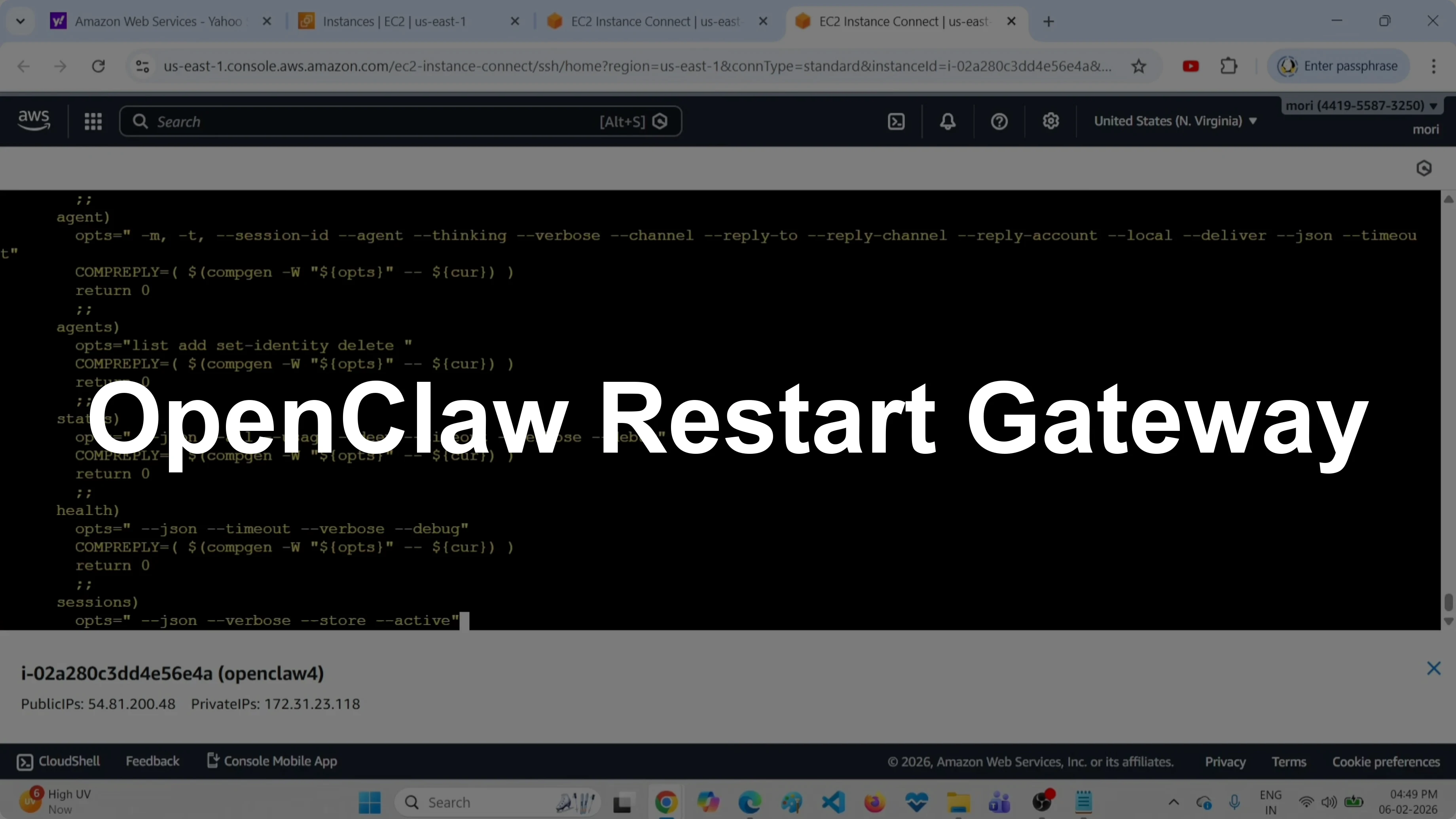
How to Restart OpenClaw Gateway and Verify Its Status?
OpenClaw Error Fixer
Paste any OpenClaw error and get the exact fix instantly — cause, steps, copy-ready commands, and related guides.
I installed OpenClaw in an Ubuntu virtual machine running on AWS cloud. Here is how I restart the OpenClaw gateway and check its status with live logs. I also show the start, stop, and full status commands.
Restart OpenClaw Gateway and Verify Its Status?
Environment
I am running all commands from a terminal on Ubuntu. Keep a logs terminal open to watch what happens during restart. It helps confirm the service is healthy.
Follow logs
Run the live logs and keep this terminal open.
openclaw logs --follow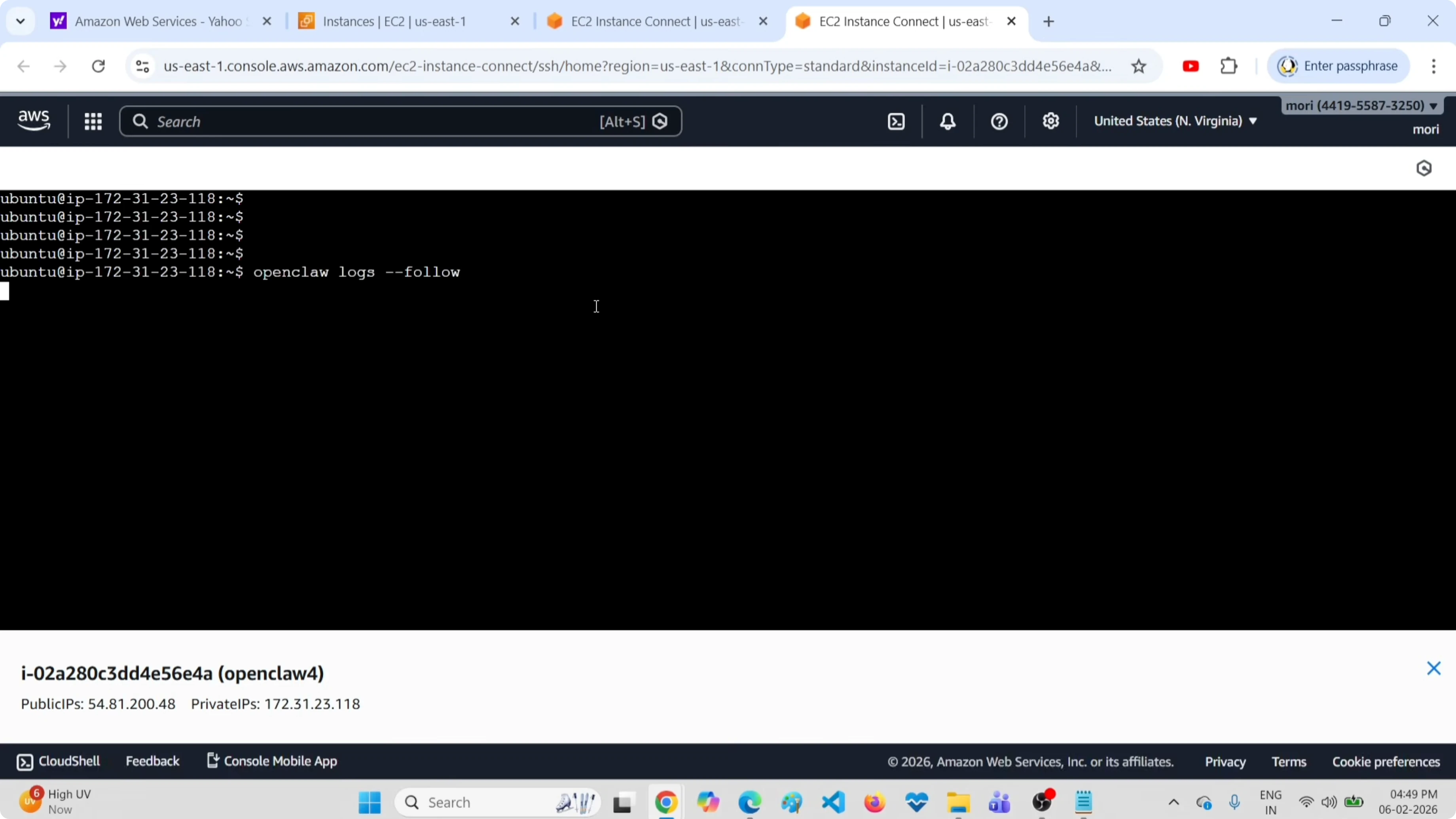
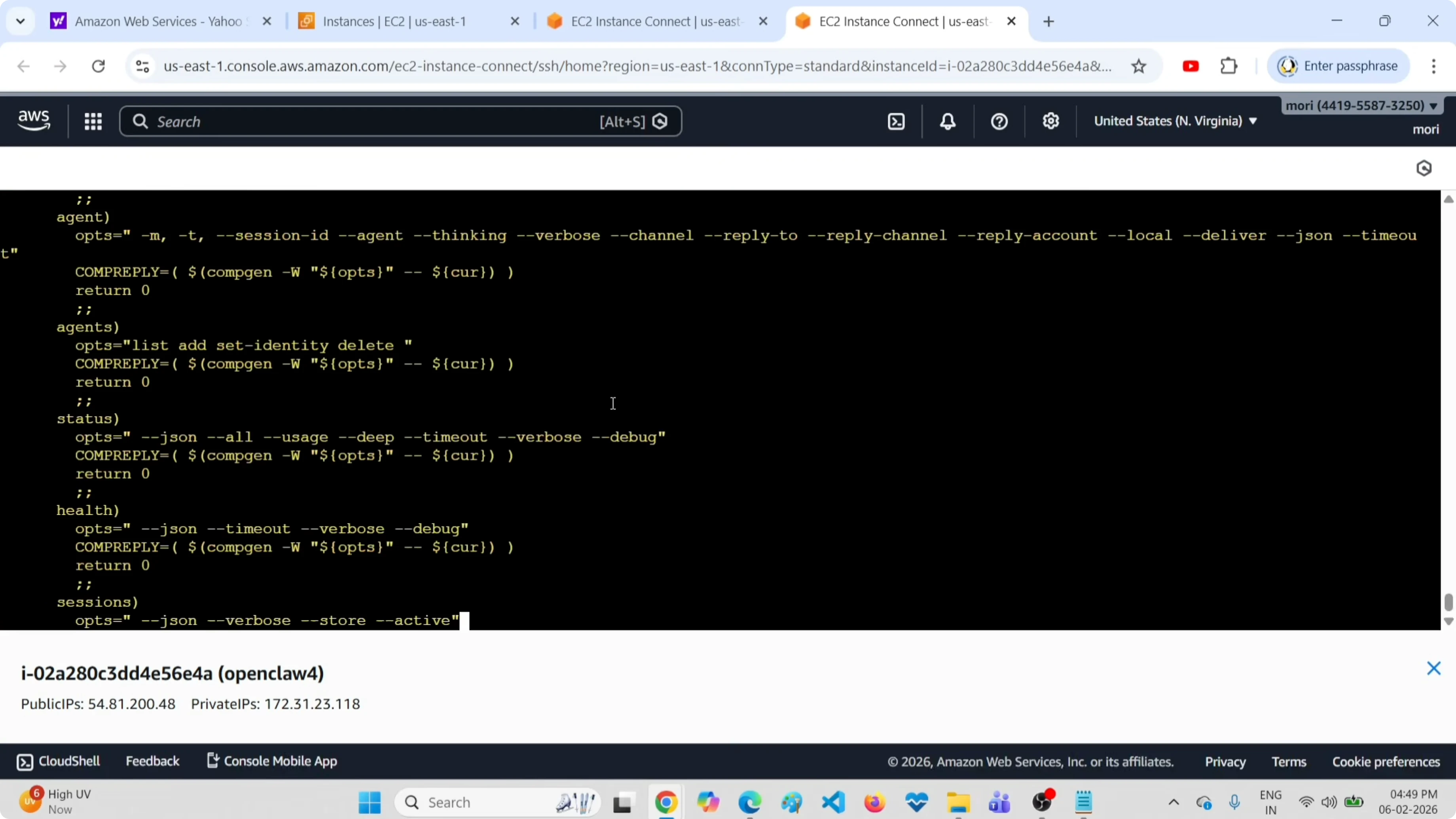
You will be able to see the logs as they stream. Leave this running while you restart the gateway.
For connection problems or timeouts, see not responding.
Restart gateway
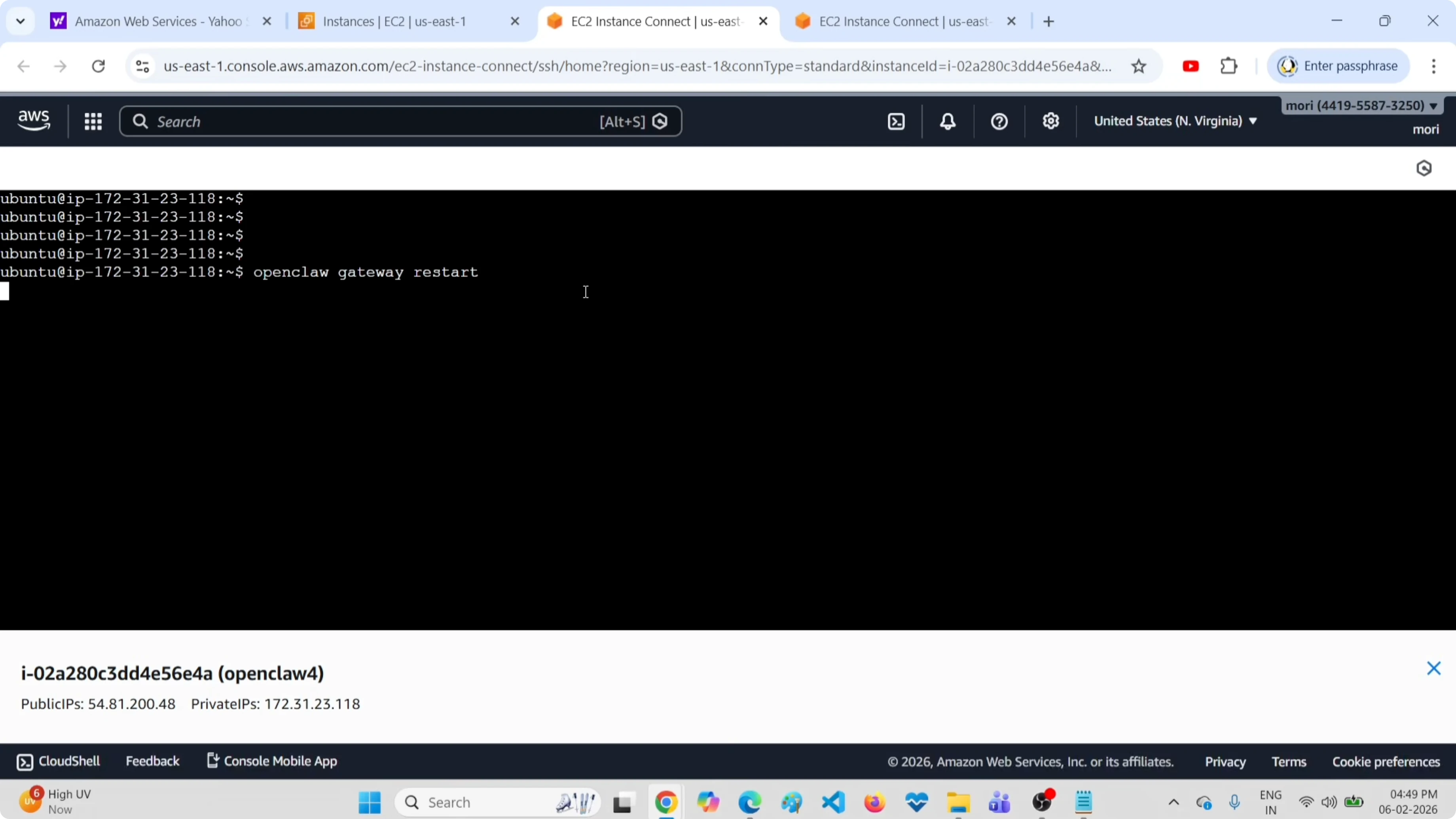
Open a second terminal and run the restart command.
openclaw gateway restart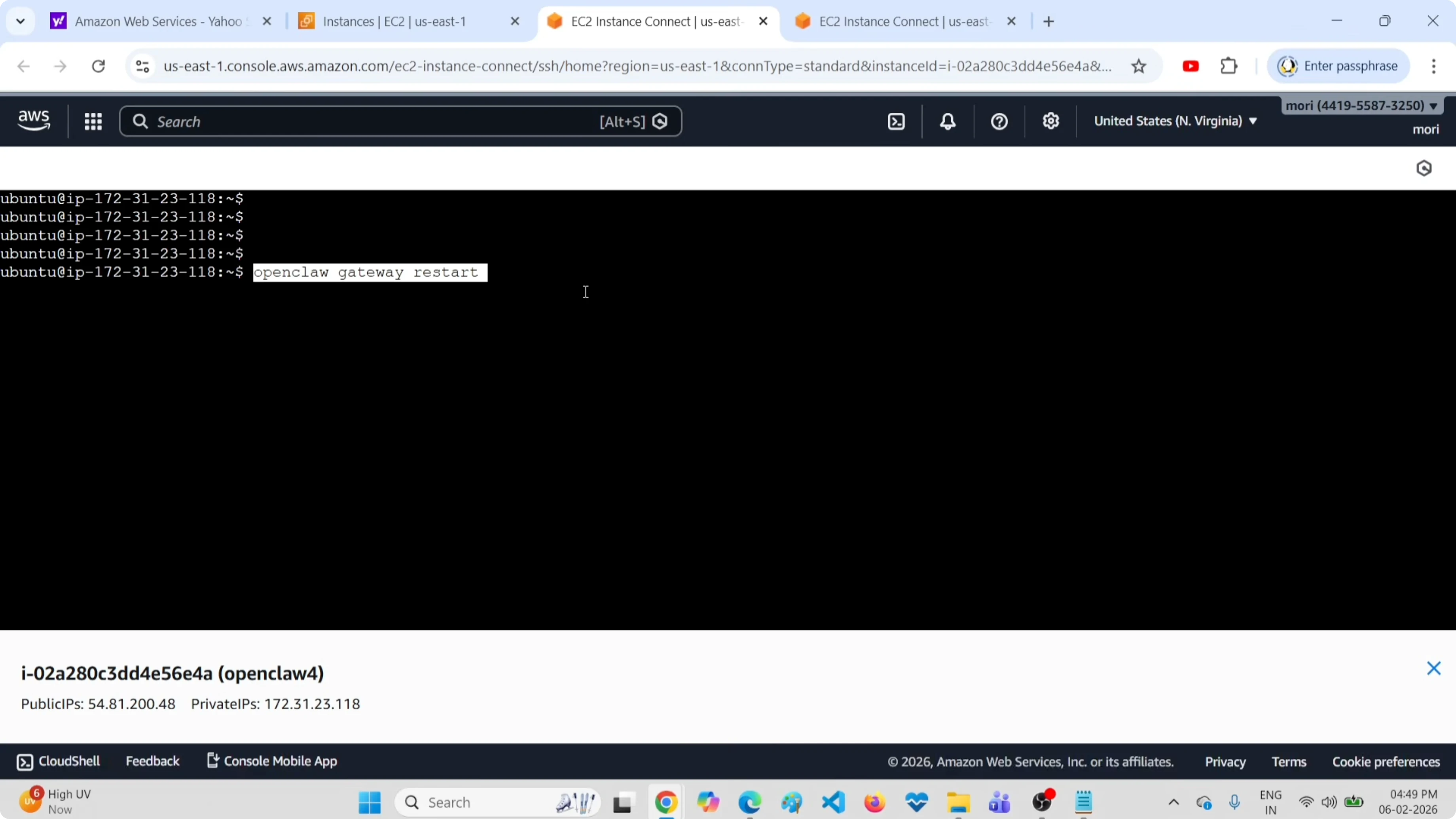
This command restarts the OpenClaw gateway. To check the output, look at the logs terminal.
If you see Node.js stack traces in bot logs, check Nodejs error.
Start and stop
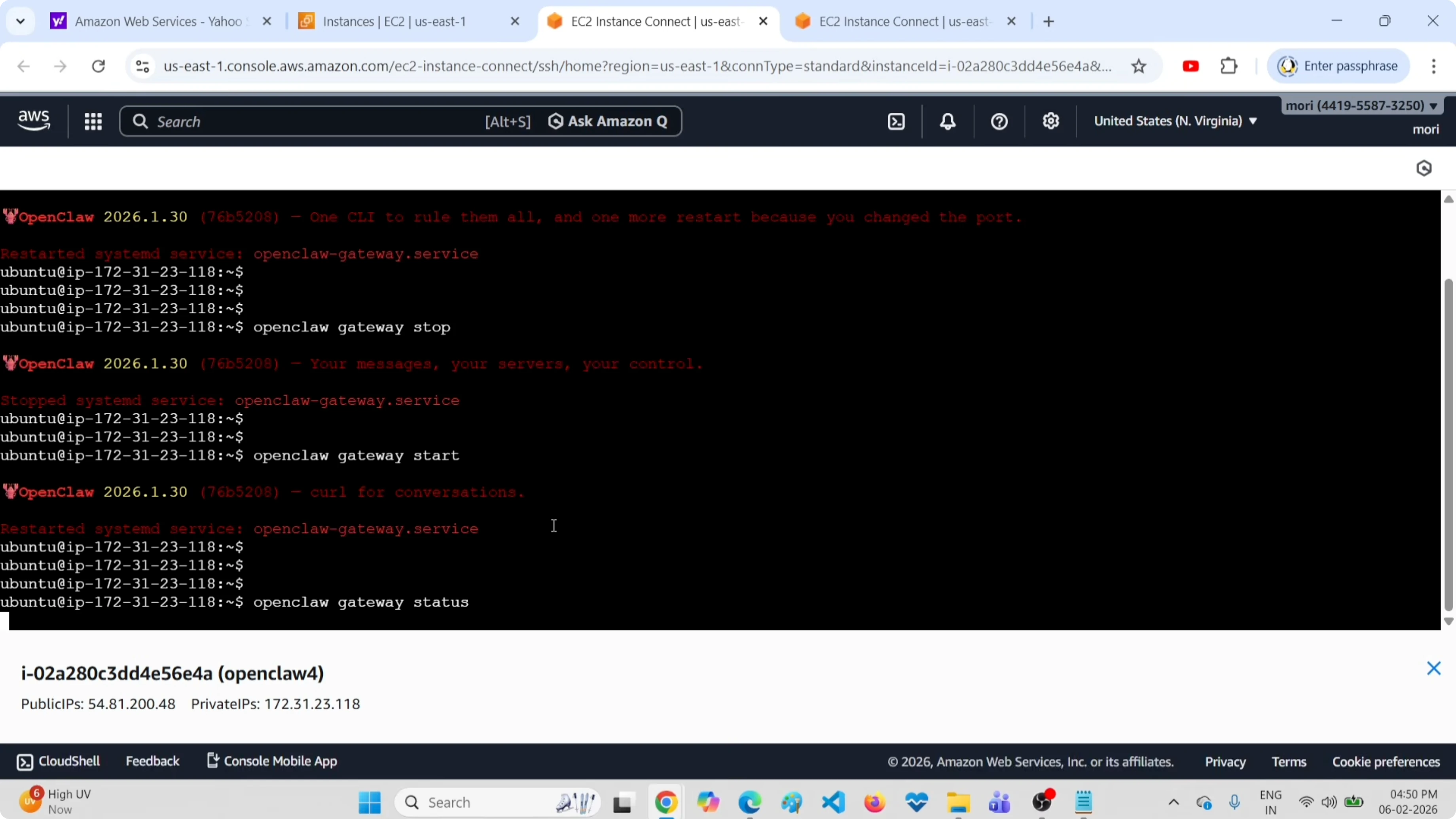
You can stop the gateway.
openclaw gateway stopThen start it again.
openclaw gateway startGateway status
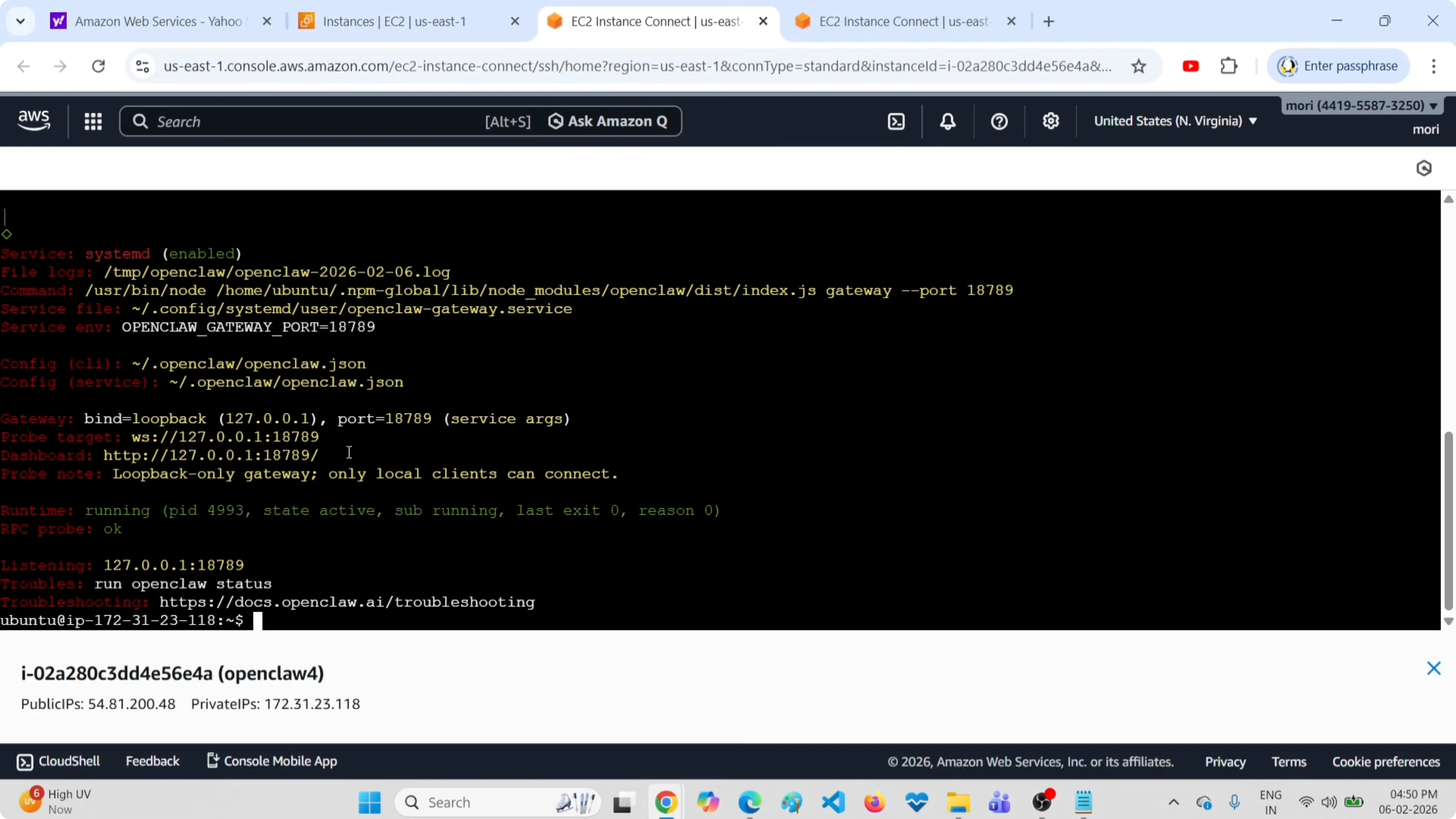
To check the gateway status, use the status command.
openclaw gateway statusYou should see lines that indicate systemd is enabled and the OpenClaw gateway is running. That confirms the service is up.
If you meet intermittent disconnects like code 1006, review disconnected 1006.
Full status
There is another command that shows overall status, channels, and models.
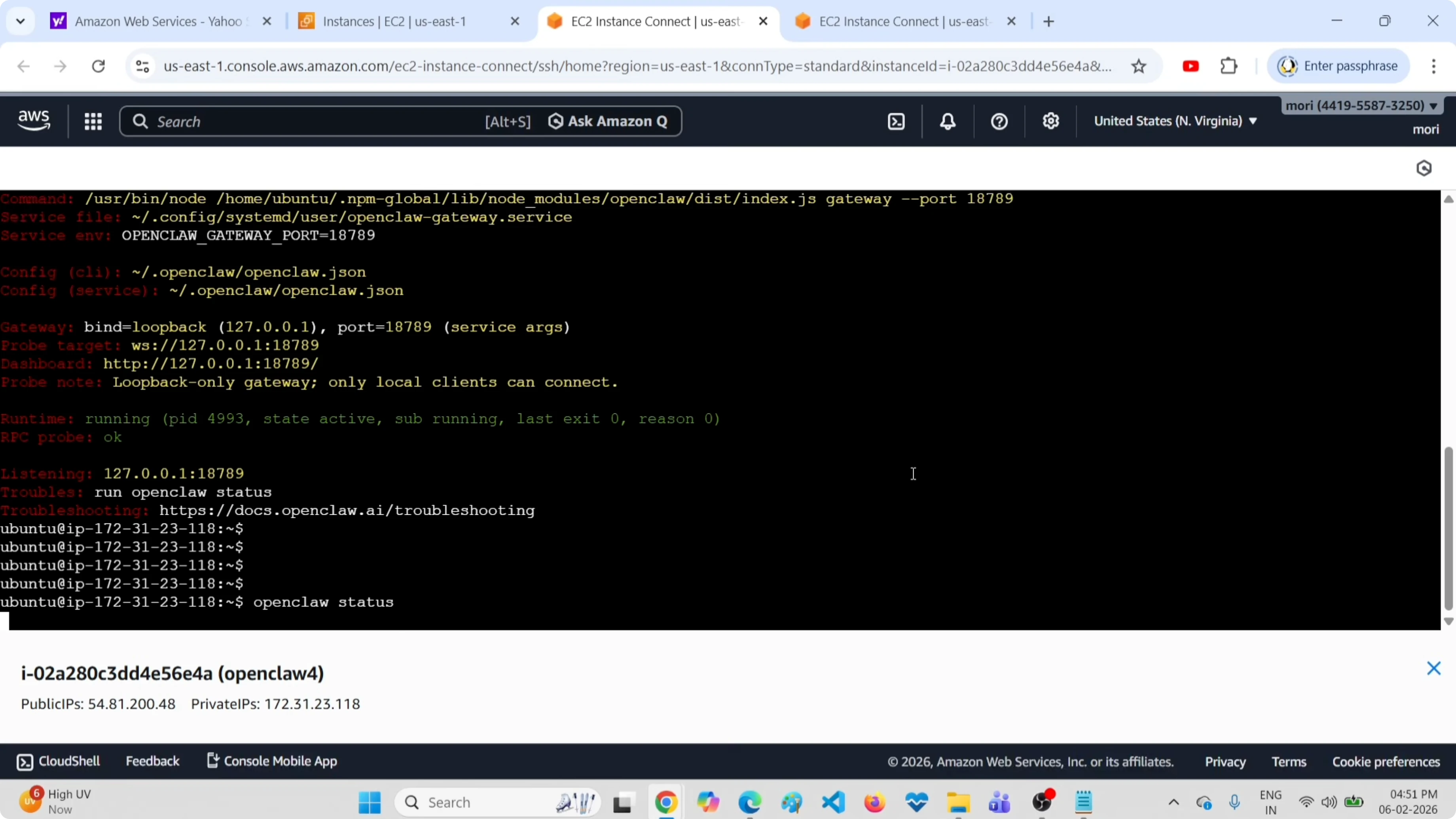
openclaw statusHere you can see the URL where the OpenClaw dashboard is available and the Linux install path. You will also see the channel configured, for example Telegram enabled, and the model configured like GPT-4.1 mini.
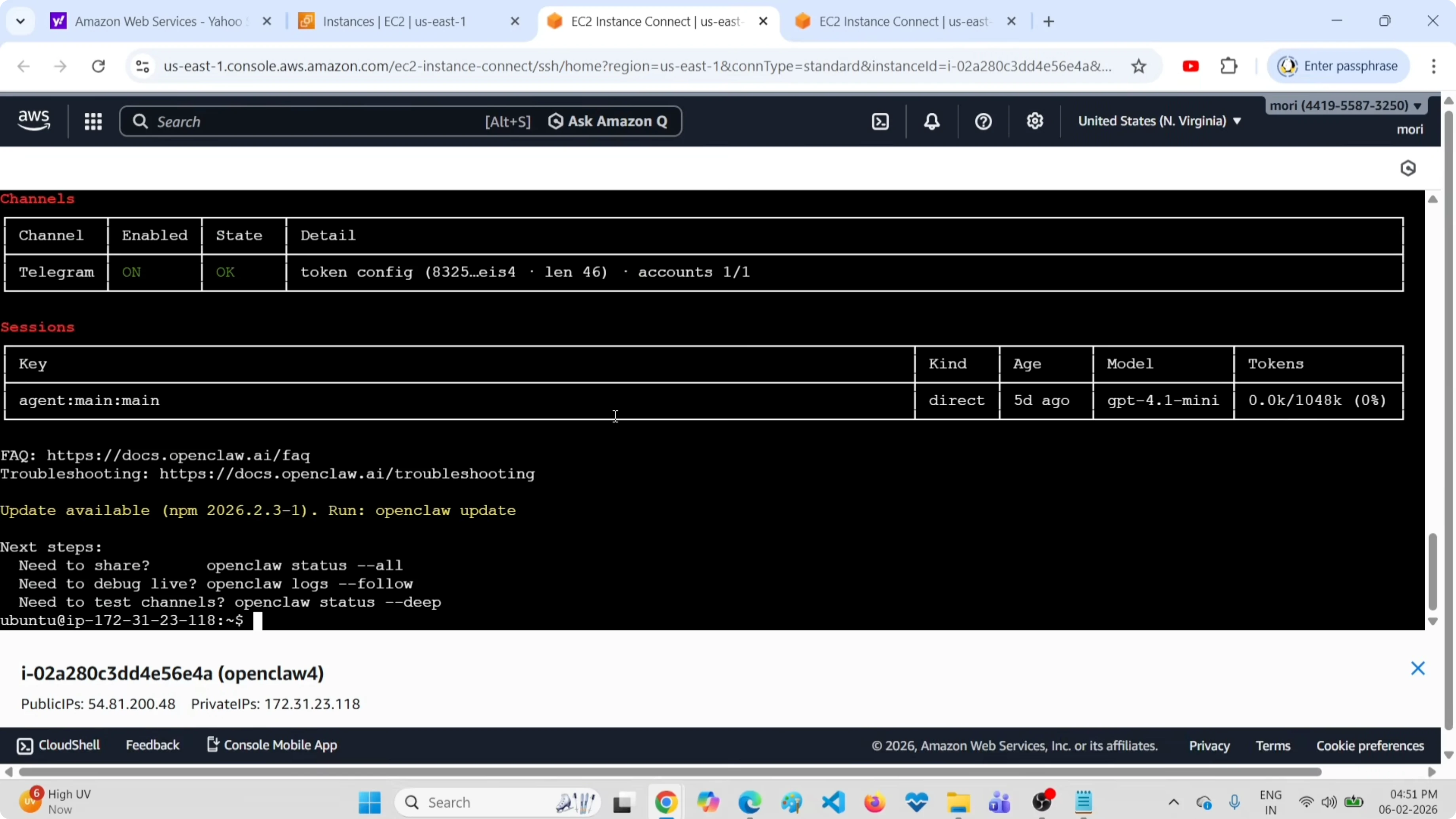
If your install was done with containers and things look broken, try broken Docker install.
Step-by-step
Open one terminal for logs and run:
openclaw logs --followOpen a second terminal to control the gateway and run:
openclaw gateway restartReturn to the logs terminal to confirm activity and healthy startup. Check service health with:
openclaw gateway status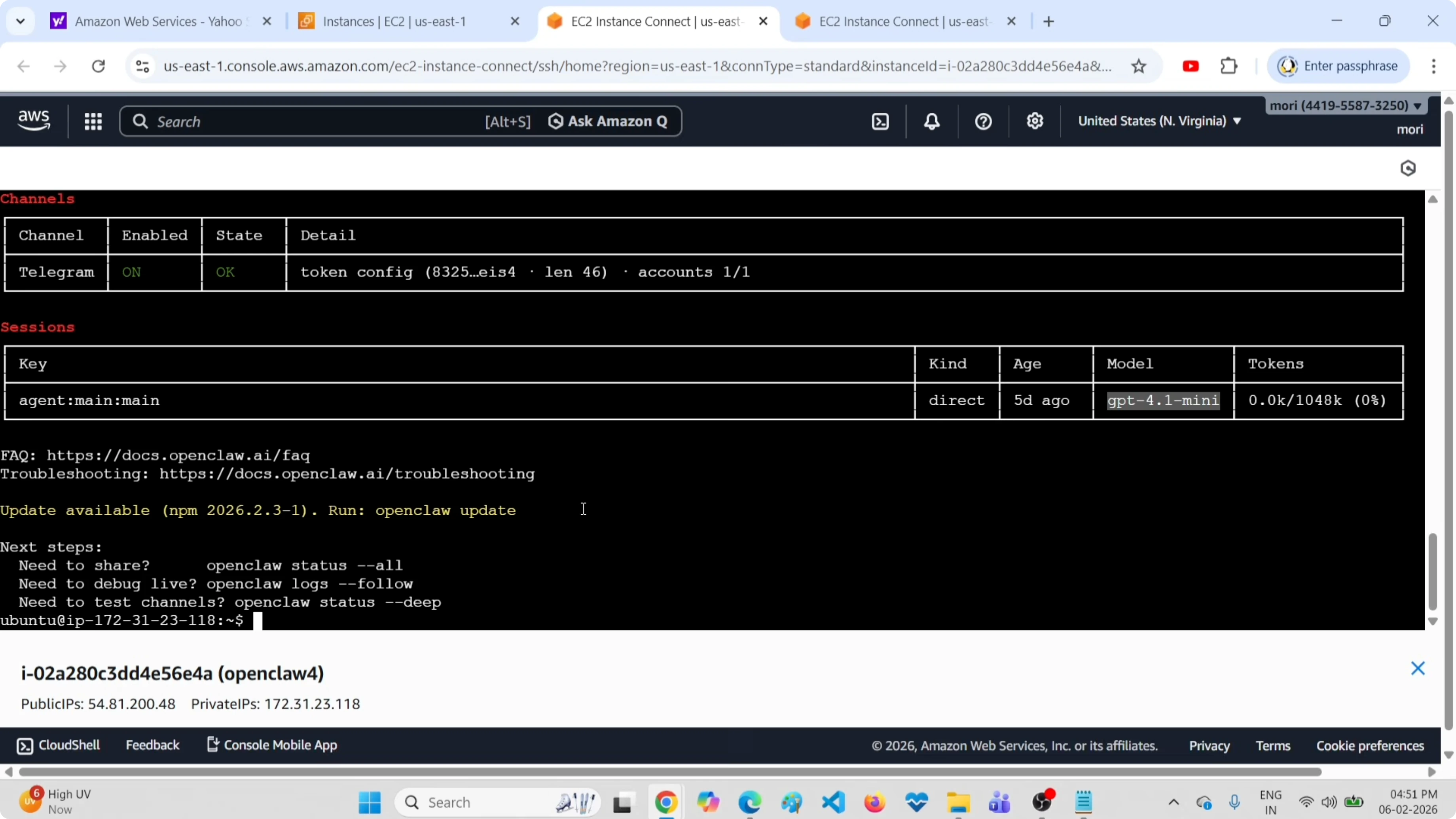
Inspect the full system status, dashboard URL, channels, and models with:
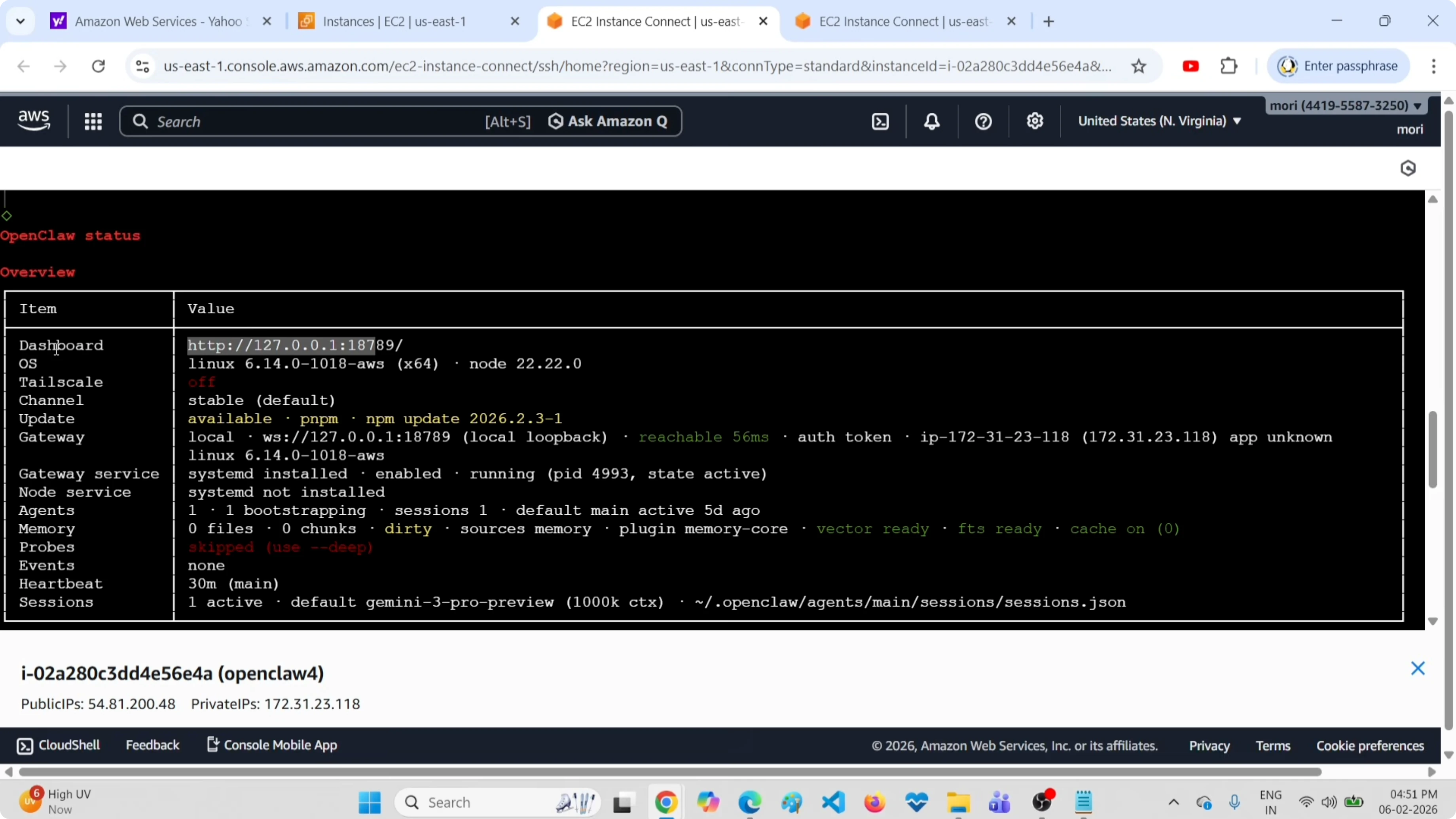
openclaw statusCommand summary
View live logs.
openclaw logs --followRestart the gateway.
openclaw gateway restartStop the gateway.
openclaw gateway stopStart the gateway.
openclaw gateway startCheck gateway status.
openclaw gateway statusCheck full OpenClaw status, channels, and models.
openclaw statusFinal thoughts
Using live logs while restarting makes it easy to confirm the gateway is healthy. The status commands show systemd state, running status, the dashboard URL, channels, and models. If you need to remove the setup entirely, see our uninstall guide.
Subscribe to our newsletter
Get the latest updates and articles directly in your inbox.

Related Posts

8 Best Claude Code Plugins in 2026 (You Need to Know)
8 Best Claude Code Plugins in 2026 (You Need to Know)

7 Best Claude Code Skills (You Need to Know)
7 Best Claude Code Skills (You Need to Know)

Claude Code Desktop IDE Features (You Need to Know)
Claude Code Desktop IDE Features (You Need to Know)