
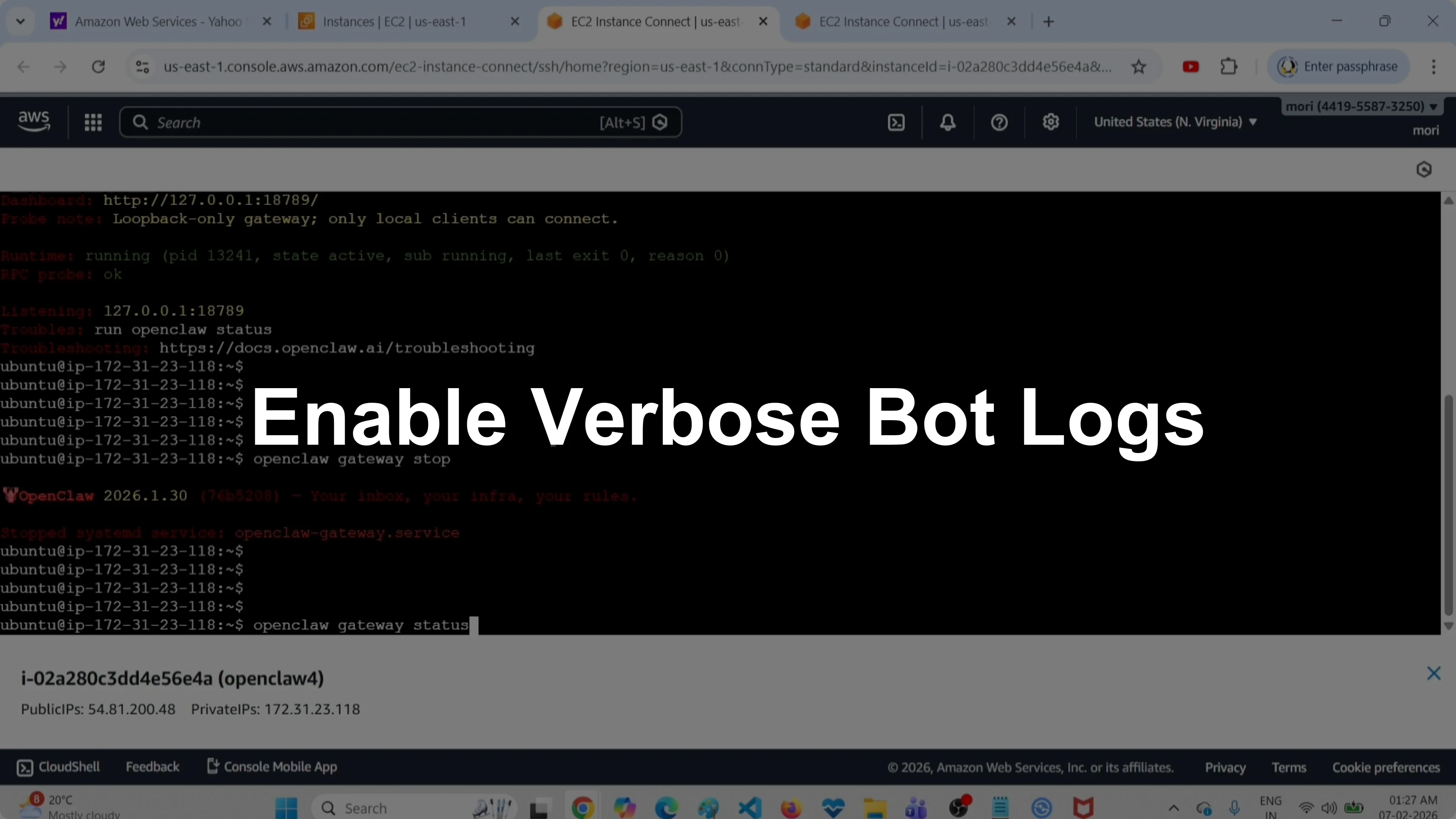
OpenClaw: How to Enable Verbose Mode for ClawdBot & MoltBot Logs?
OpenClaw Error Fixer
Paste any OpenClaw error and get the exact fix instantly — cause, steps, copy-ready commands, and related guides.
If OpenClaw is not starting or it is stuck, you can start it in verbose mode and read the logs to debug the issue. I will show how I check the service status, stop it, start the gateway in verbose mode, read the logs for ClawdBot and MoltBot, and switch back to normal mode. On Ubuntu, systemd manages OpenClaw, so I use systemctl for service control.
If your goal is a normal startup and not debugging, see this guide on the gateway first: how to run the OpenClaw gateway.
OpenClaw: Verbose mode for ClawdBot & MoltBot logs
Check service status
I first check the status of OpenClaw on this machine. On Ubuntu with systemd, use this:

systemctl status openclaw-gatewayIf it is running, you will see active status. This confirms the service is up under systemd control.
Stop the service
Stop OpenClaw before starting it manually in verbose mode. I run:
sudo systemctl stop openclaw-gatewayVerify it stopped:
systemctl status openclaw-gateway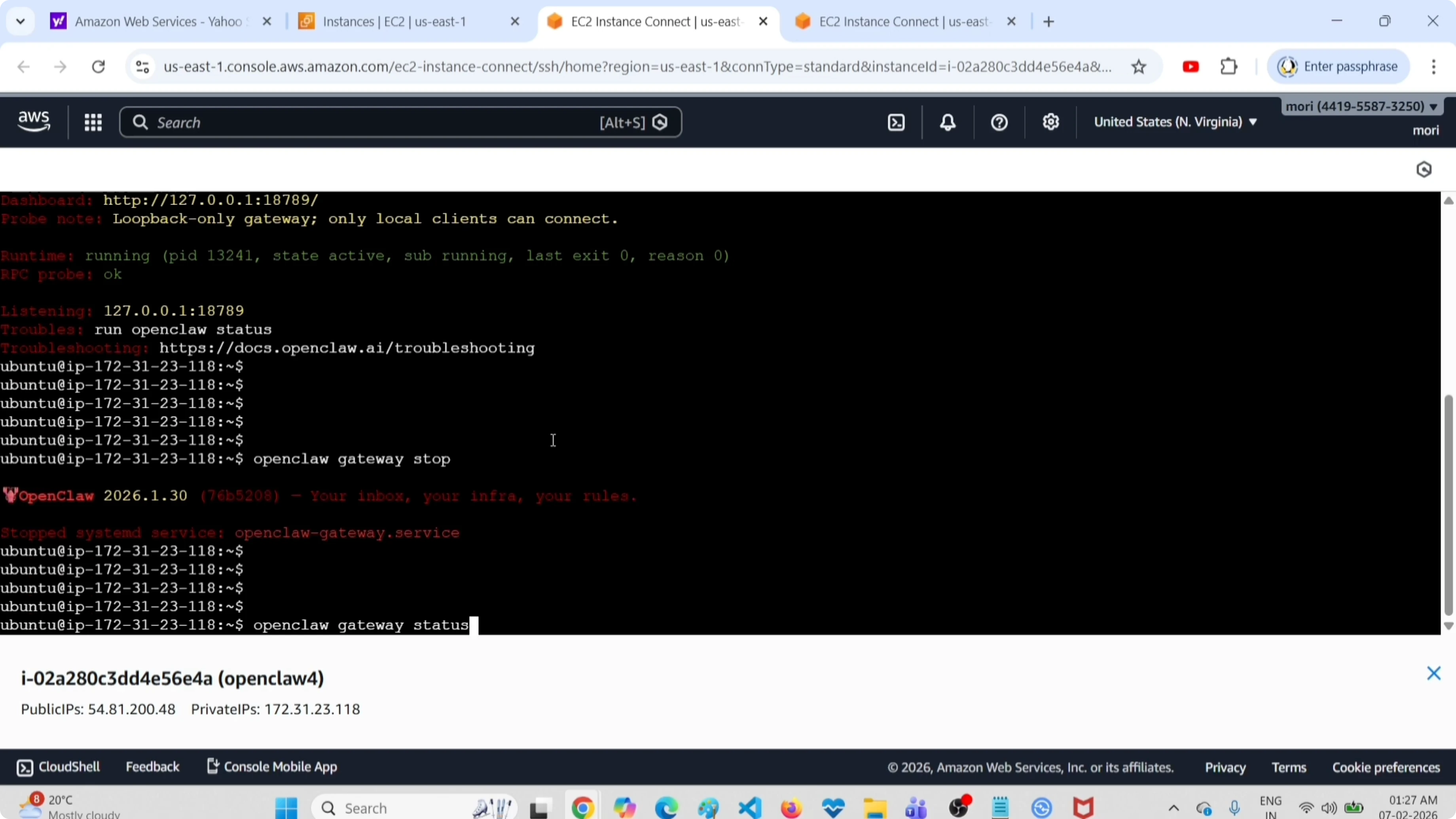
Start gateway in verbose mode
I start the gateway in verbose mode from the terminal. You can pick the port you want, and pass the verbose flag:

openclaw gateway --port 3000 --verbose
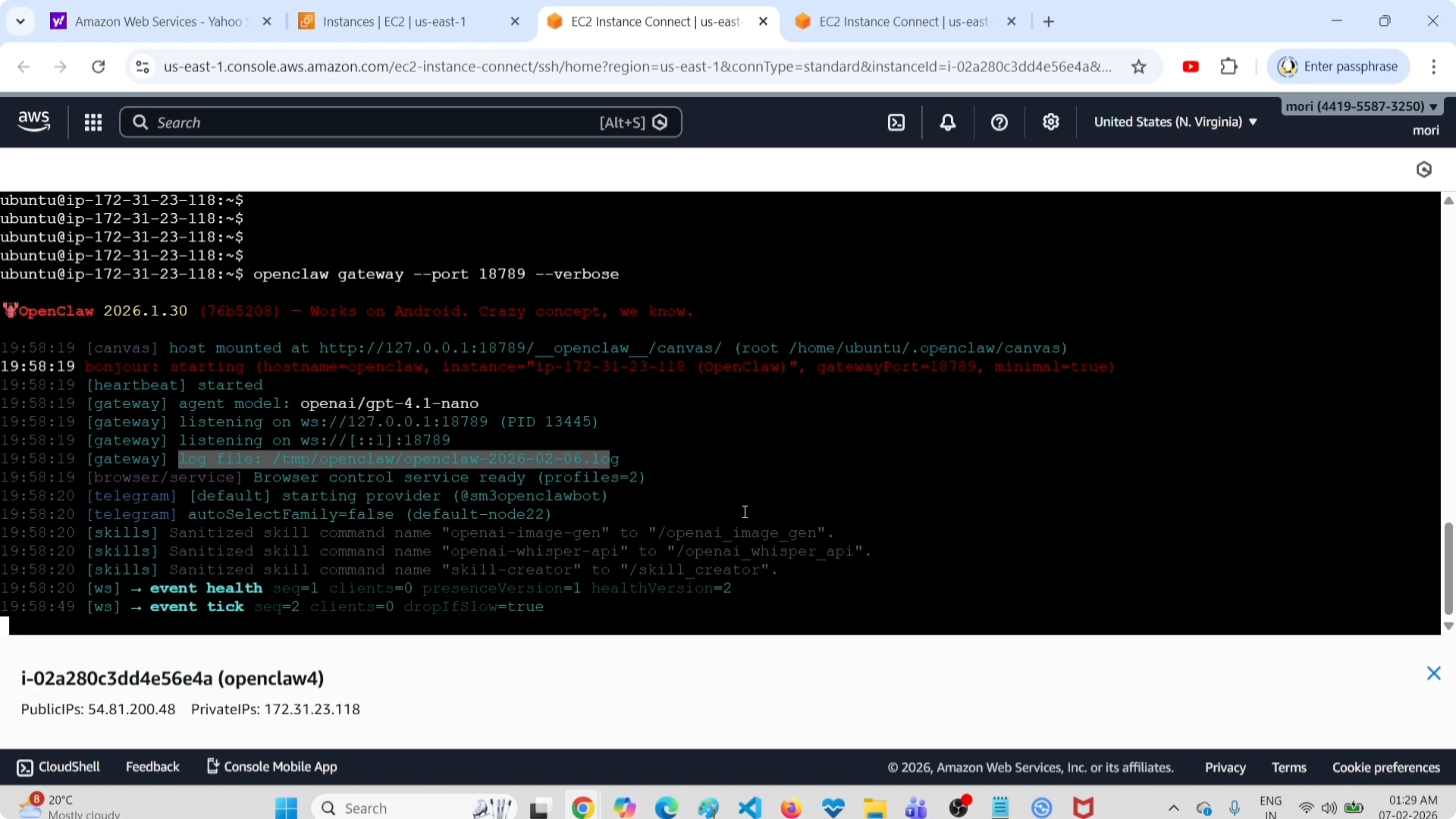
You can change 3000 to any open port. When it starts, you will see lines like the primary agent model, for example OpenAI GPT-4.1 Nano, the WebSocket listener, and the log file path.
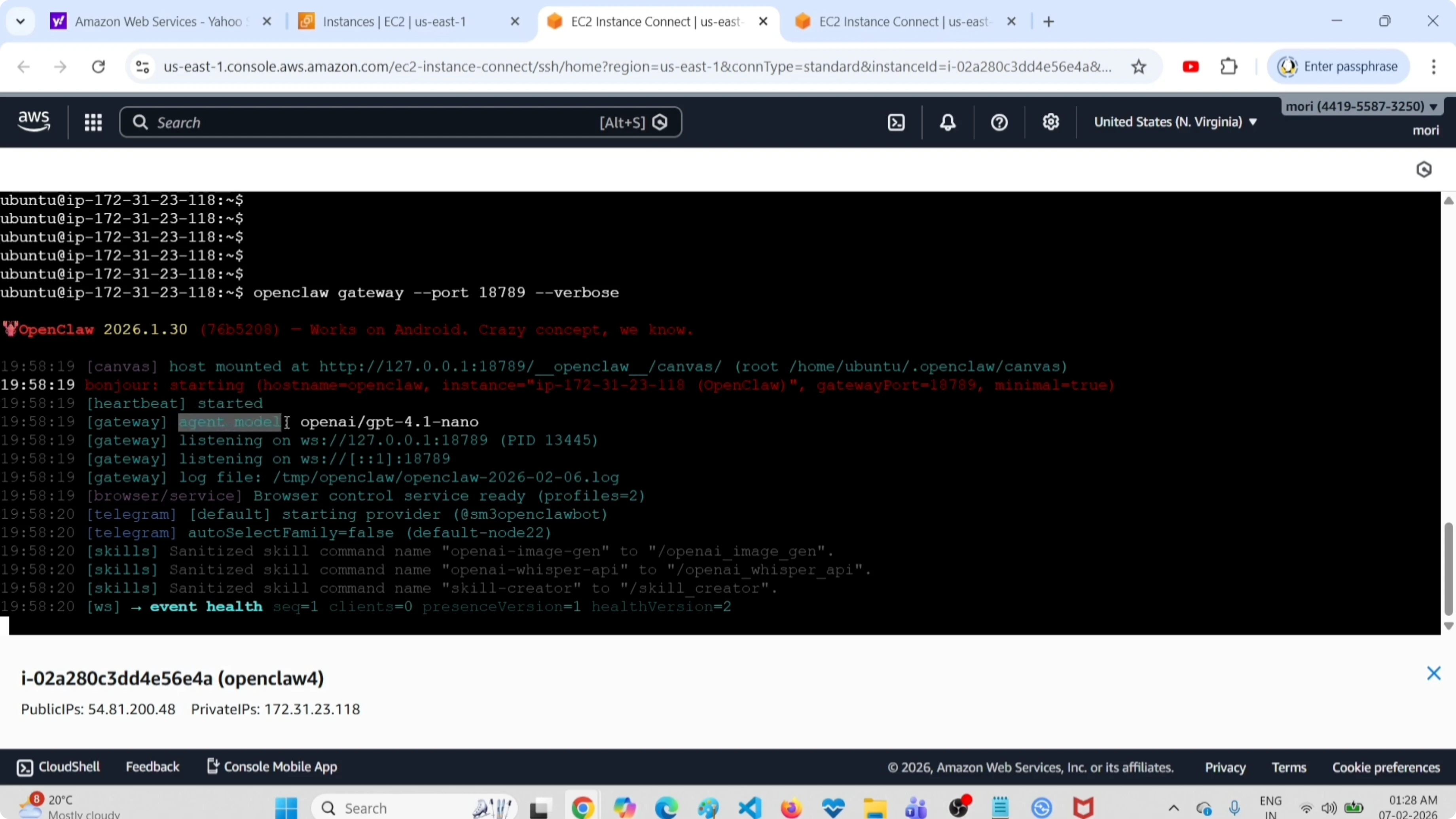
If there is an issue, you will see error lines in this output. That makes it easy to debug startup and runtime problems for ClawdBot and MoltBot. For deeper troubleshooting steps, see this error guide: fix common OpenClaw errors.
Exit verbose and return to normal
To stop the verbose run, press Ctrl+C in the terminal. Then start the managed service again:
sudo systemctl start openclaw-gateway
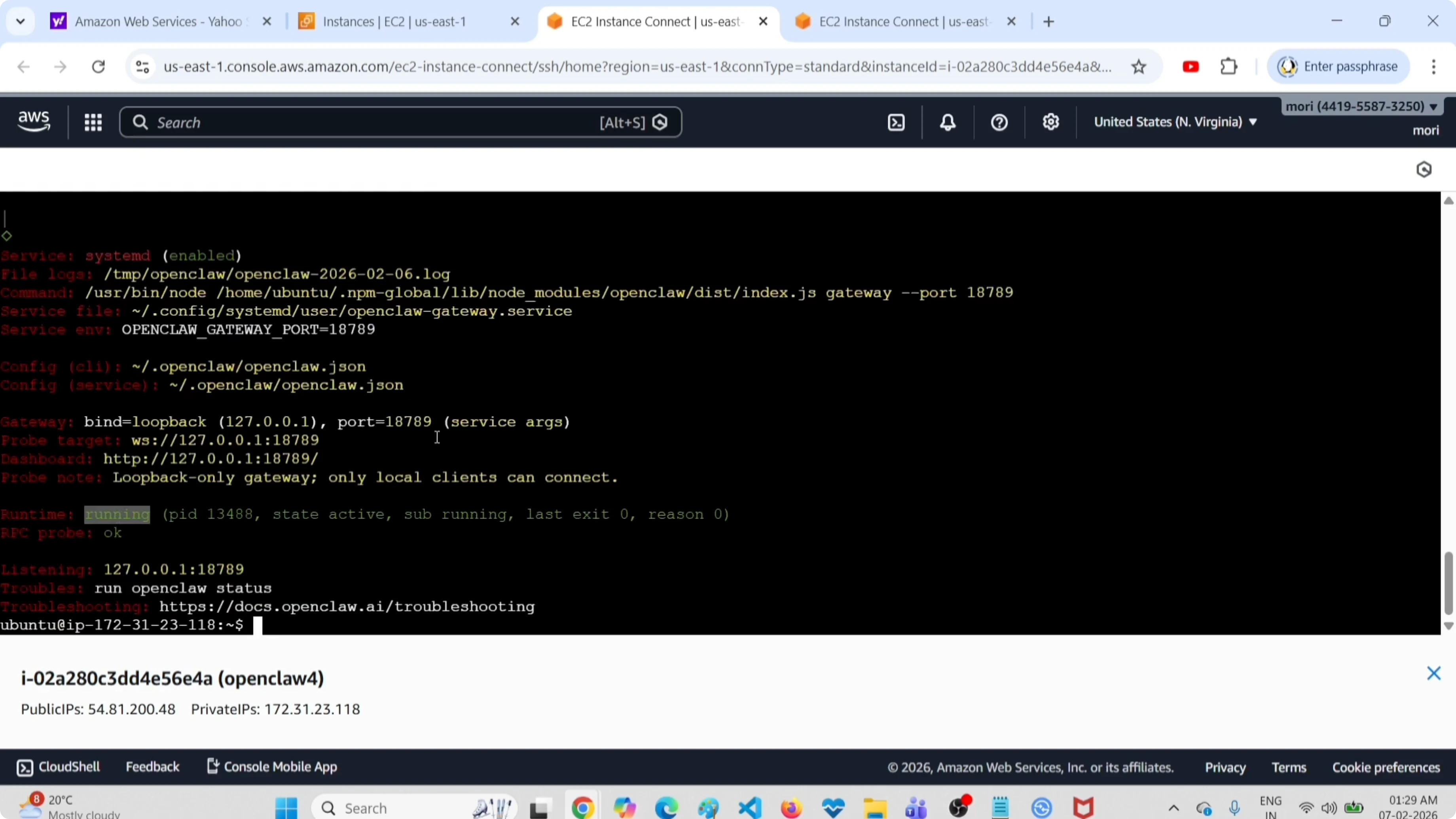
Confirm it is back in normal mode:
systemctl status openclaw-gateway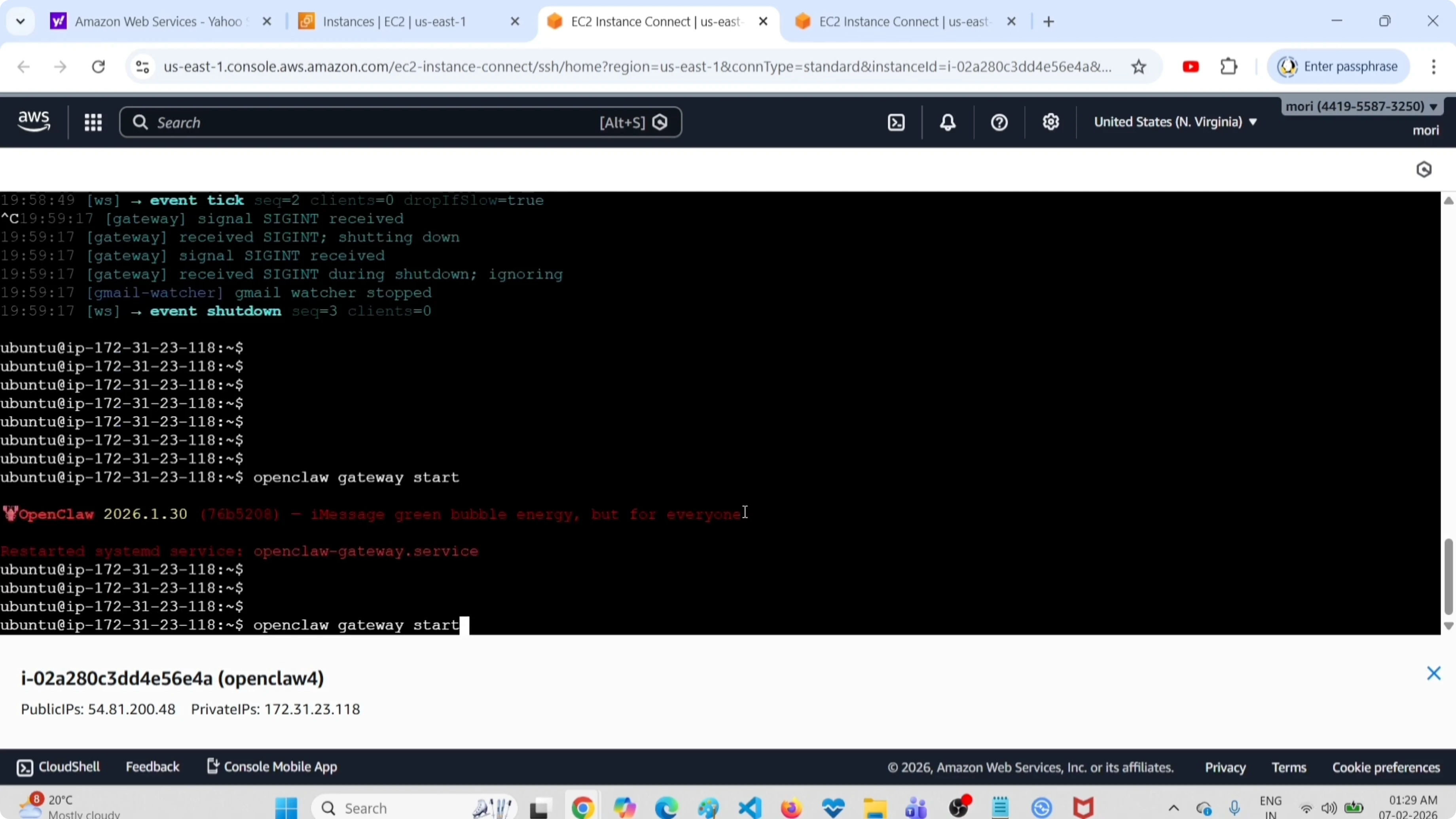
If you want to verify end-to-end, open the web UI once the service is running. You can follow these steps to reach the panel: access the OpenClaw AI dashboard.
Notes for bots and models
Verbose mode will print bot initialization details, including ClawdBot or MoltBot handlers and model assignments. If you need to attach Telegram after confirming logs are clean, follow this setup: connect the Telegram Clawdbot.
If a bad model configuration is causing startup errors, clean up that entry and try again. Here is a quick reference on removing an unwanted model cleanly: delete a model in OpenClaw.
Final thoughts
Verbose mode is the fastest way to see what OpenClaw is doing when it stalls or fails to start. Stop the service, launch the gateway with --verbose on your chosen port, read the logs, and then return to normal mode with systemd.
Keep this flow handy as part of your routine checks, and confirm the gateway from the UI or bot integrations once logs look healthy.
Subscribe to our newsletter
Get the latest updates and articles directly in your inbox.

Related Posts

8 Best Claude Code Plugins in 2026 (You Need to Know)
8 Best Claude Code Plugins in 2026 (You Need to Know)

7 Best Claude Code Skills (You Need to Know)
7 Best Claude Code Skills (You Need to Know)

Claude Code Desktop IDE Features (You Need to Know)
Claude Code Desktop IDE Features (You Need to Know)