
How to fix crashes and bugs in Antigravity with temporary workarounds?
Antigravity users are reporting sudden crashes, “Agent terminated due to error,” quota-limit popups, and failed requests right after an update. The stable December 2025 build appears to run better, but the “older versions” page is down and auto-update keeps reapplying the broken release.
How to fix crashes and bugs in Antigravity with temporary workarounds?
![How to fix crashes and bugs in Antigravity with temporary workarounds?: ]
Many users hit issues like app crashes, frozen UI, and “All models have reached query quota limit,” shortly after an auto-update. Others ask how to roll back to the December 2025 version and how to disable auto-updates. One critical note from the thread: don’t delete app data.
Solution Overview
| Aspect | Detail |
|---|---|
| Root Cause | A recent auto-update shipped a buggy build; the “older versions” download page is down, causing users to get stuck on the bad version. |
| Primary Fix | Disable auto-updates, uninstall the current build, then install the December 2025 version (1.13.3) via winget or your saved installer. |
| Complexity | Medium |
| Estimated Time | 15–30 minutes |
How to fix crashes and bugs in Antigravity with temporary workarounds?
Step-by-Step Solution
1) Disable Antigravity auto-updates first (to stop the bad build from returning)
- Open Antigravity, then open Settings. Look for an Updates or About section.
- Toggle off Auto-update if the option is present.
If the in-app toggle is missing or greyed out, apply a temporary OS-level block to prevent silent updates while you roll back:
- Set your network as metered (Windows) to reduce background update checks: Set a metered connection in Windows.
- Pause updates in your endpoint management tool (if managed).
- Keep this only as a short-term measure.
2) Uninstall the broken build cleanly (do NOT delete user data)
- Use Apps & Features to uninstall Antigravity. When prompted, avoid removing your profile or cache. The community emphasized: don’t delete app data.
On Windows you can also check the installed package with winget:
winget list Google.AntigravityThen uninstall:
winget uninstall Google.Antigravity3) Reinstall the December 2025 version (1.13.3) using winget The forum-confirmed command is:
winget install --id Google.Antigravity --version 1.13.3This pins you to the December 2025 build that users reported as stable.
If winget isn’t available or the install fails:
- Check your Downloads folder for the original installer you previously used, as one user did.
- Use an offline installer shared within your team (verify SHA256 and source).
4) Confirm stability and keep auto-update off temporarily
- Launch Antigravity and verify your workflows no longer crash.
- If you were seeing “Agent terminated due to error,” confirm it doesn’t reoccur after rollback. For additional remediation steps and logs to check, see this focused guide: common causes of the “Agent terminated” failure.
5) Address “All models have reached query quota limit” prompts
- This is typically a server/account quota issue that coincided with the bad client release. After rollback, sign out and sign back in, then test again.
- If rate limits persist across models (including Gemini Pro), wait for quota reset windows or validate your org’s allocation. If requests still fail, see this playbook: resolving send failures and blocked requests.
Alternative Fixes & Workarounds
Use a portable/offline installer from your Downloads If you saved the Antigravity installer earlier, reinstall from that file. This matched what a user reported for quickly restoring the December build. Keep a checksum log and move the installer into a versioned backup folder.
Temporarily block background updates during the fix window If the app lacks an Auto-update toggle, keep updates paused at the OS/policy level while on 1.13.3. Remove the block after the vendor confirms a fixed release.
Re-authentication for stubborn sessions Some crashes cascade into auth/session faults. If you still get odd errors after rollback, sign out and back in, or reset the session. For persistent sign-in loops, follow this checklist: login fixes for Antigravity.
Troubleshooting Tips
- Verify the installed version:
winget list Google.AntigravityEnsure it shows 1.13.3 after rollback.
-
Keep your data intact: do not delete app data during uninstall/reinstall. Many settings and tokens live there.
-
If “older versions” download links are down, rely on the winget versioned install shown above or your saved installer.
-
If the “Agent terminated” error persists on 1.13.3, collect logs and compare against the causes in this troubleshooting guide.
-
If messages won’t send after rollback, review network, proxies, and request size limits here: fixing send errors.
Best Practices
- Pin a known-good version during active incidents. Keep auto-update off until a stable hotfix is confirmed by release notes.
- Archive trusted installers in a secured, versioned folder with checksums.
- Test new releases in a non-production profile before rolling out widely.
- Maintain a lightweight rollback playbook with exact commands:
winget uninstall Google.Antigravity
winget install --id Google.Antigravity --version 1.13.3
Final Thought
Rolling back to the December 2025 (1.13.3) build, while keeping auto-updates disabled, stops the crashes and quota popups for most users. Keep the block in place only until the vendor ships a confirmed fix, then update forward confidently.
Subscribe to our newsletter
Get the latest updates and articles directly in your inbox.

Related Posts
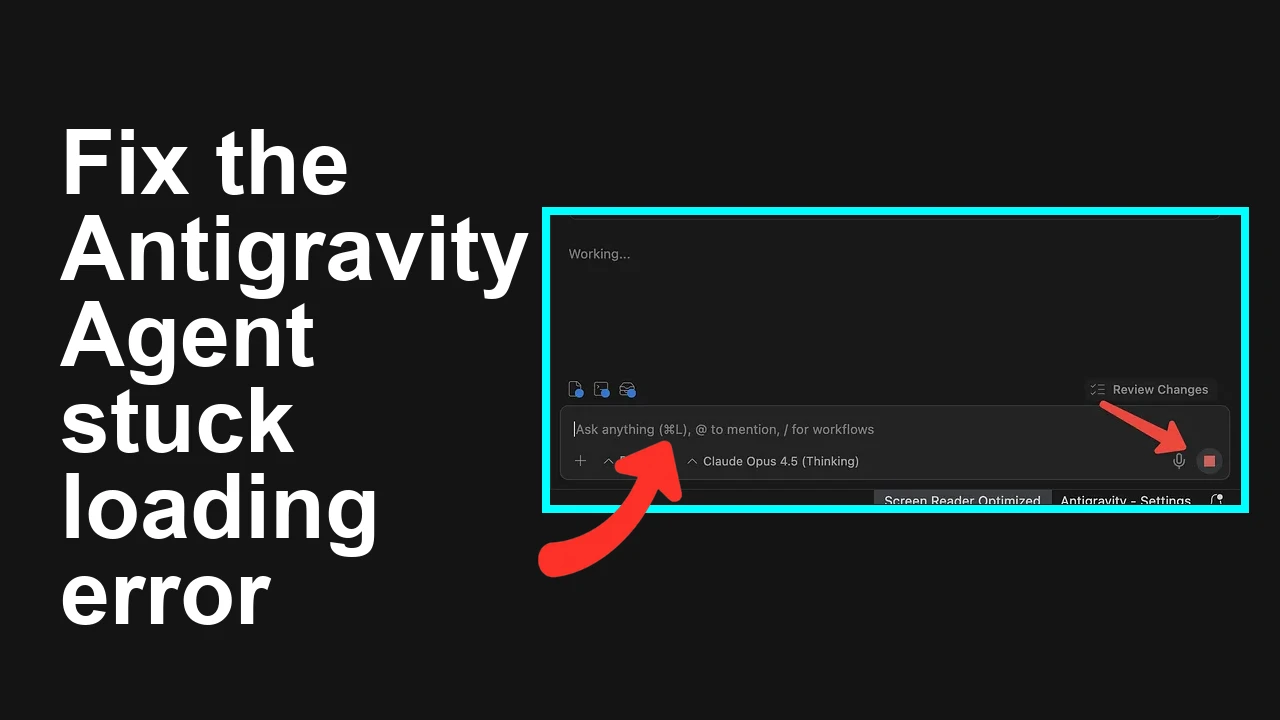
How to fix Agent stuck and can't be stopped error in Antigravity?
How to fix Agent stuck and can't be stopped error in Antigravity?
How to fix Agent is not responding error in Antigravity?
How to fix Agent is not responding error in Antigravity?
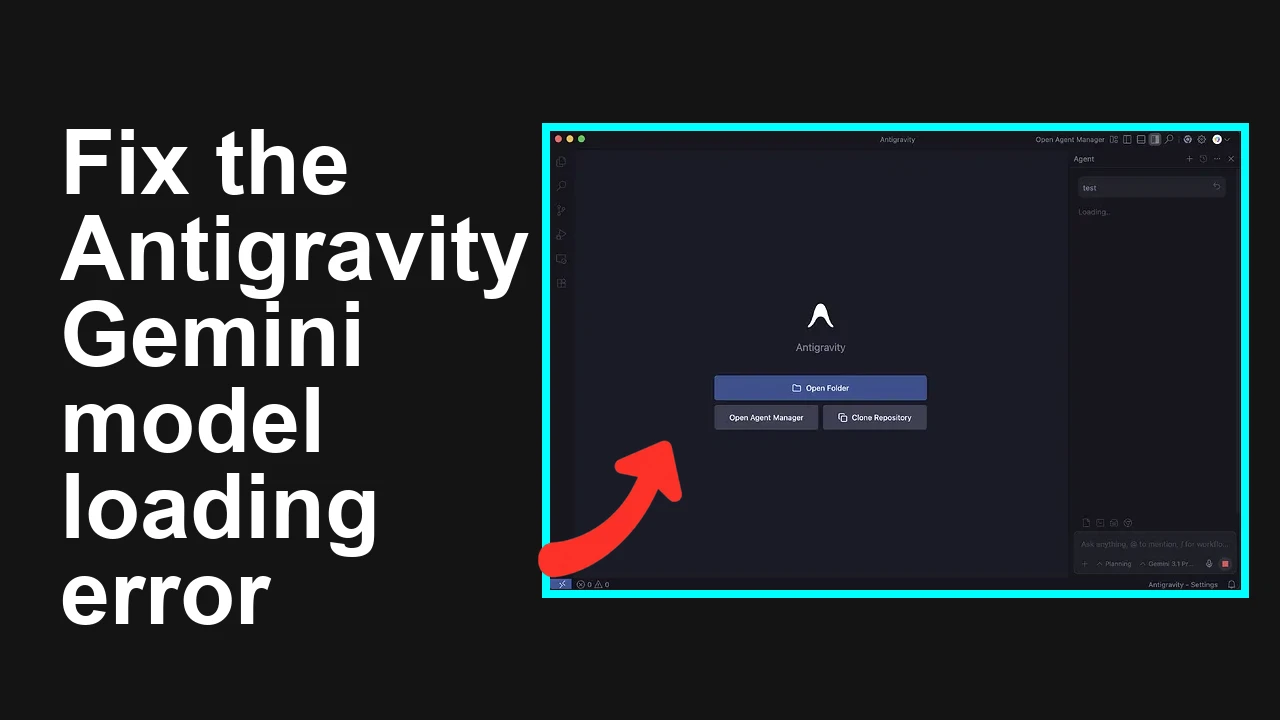
How to fix Antigravity won't work with any Gemini models error?
How to fix Antigravity won't work with any Gemini models error?