
How AutoClaw Integrates AI Agents into Telegram on Windows
Team GLM has released AutoClaw. Your AI assistant just moved into your chat app. AutoClaw is a desktop application by the AutoGLM team, the same people behind the GLM models I use constantly.
I have been covering OpenClaw and its variants for quite some time, along with these GLM models. AutoClaw is different from OpenClaw and its variants. It sits inside your existing chat apps like Telegram, WeChat, and WhatsApp and turns them into a full AI agent interface.
No terminal, no config files, no dashboard to learn. You send a message describing what you want done and AutoClaw breaks it down, executes it using real tools, and sends the results back into the same conversation. It handles web browsing, file operations, code execution, and complex multi-step tasks all triggered from a chat message. For background on setting up the older stack, see our OpenClaw dashboard guide.
How AutoClaw Integrates AI Agents into Telegram on Windows
AutoClaw is a zero-friction entry point. OpenClaw is powerful, but it lives inside a terminal. AutoClaw lives where most people already spend their day - inside a chat window.
This makes Telegram a natural integration target. I connect AutoClaw to Telegram and trigger jobs from a simple chat. The results return in the same thread on desktop and mobile.
Read More
Read More: Step3 VL Stepfun AI
Install on Windows
Install Telegram Desktop from telegram.org for your operating system. Launch it and sign in to your Telegram account.
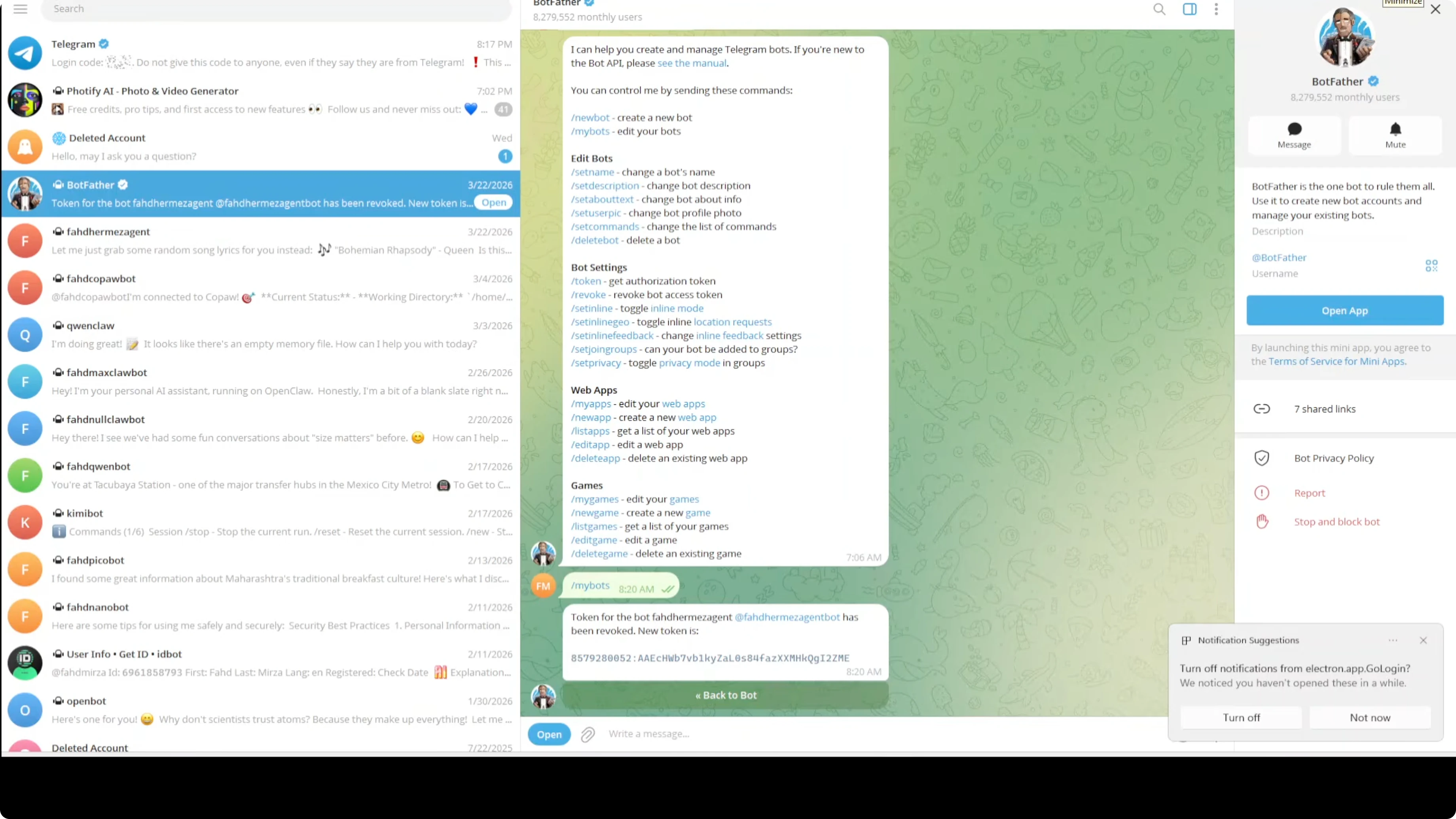
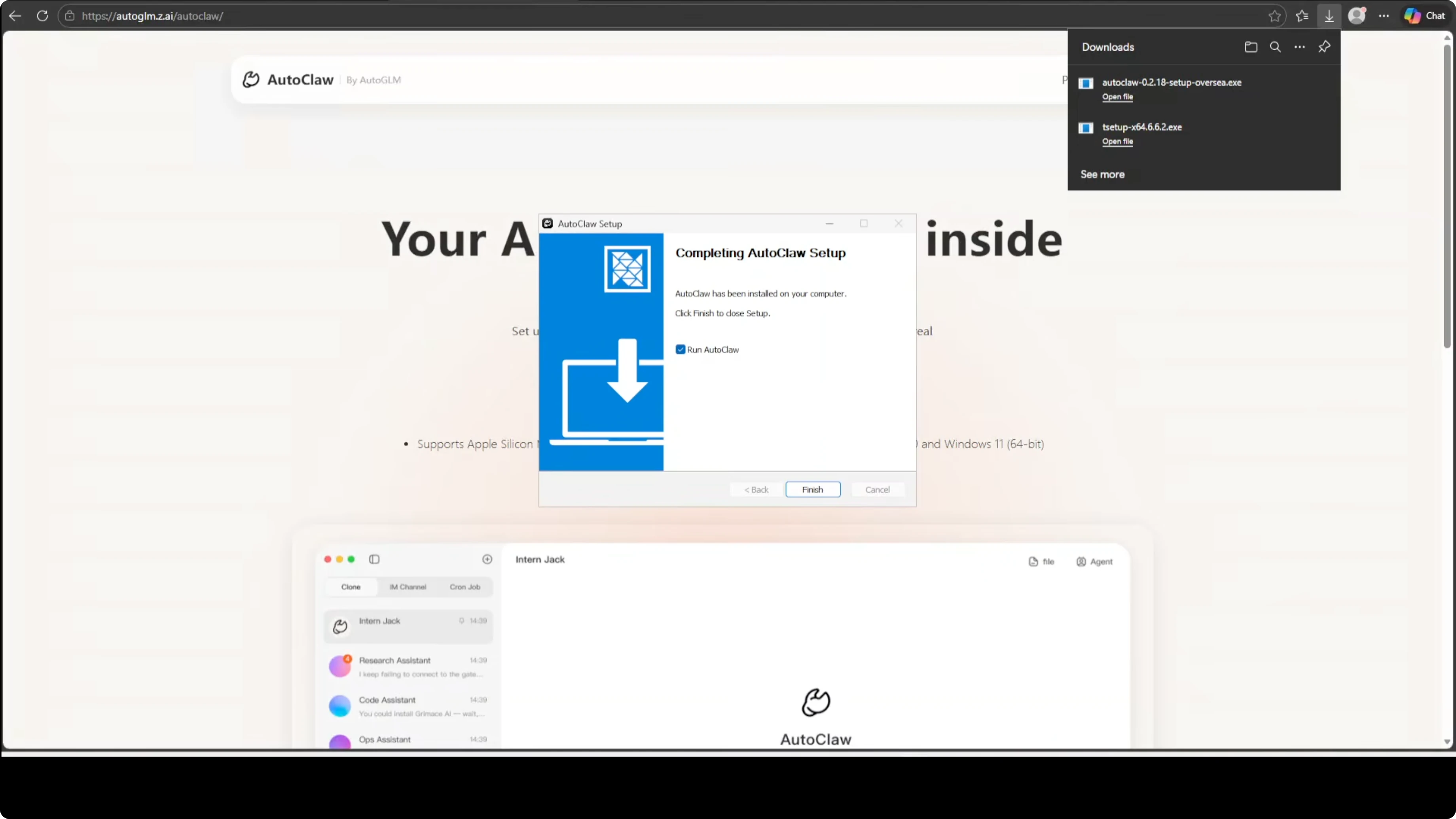
Download AutoClaw for Windows and run the installer. It is a single-click install and takes only a moment to complete.
Launch AutoClaw after installation. Continue with Z.ai or sign in with your Google account to unlock all features.
You may see a first-time security prompt and optional browser extension setup. You can skip the extension if you prefer. After agreeing to the terms, you will land in the AutoClaw app.
If you experiment with Google AI Ultra models in the OpenClaw stack and hit account restrictions, use this account restriction fix to get unblocked.
Connect Telegram
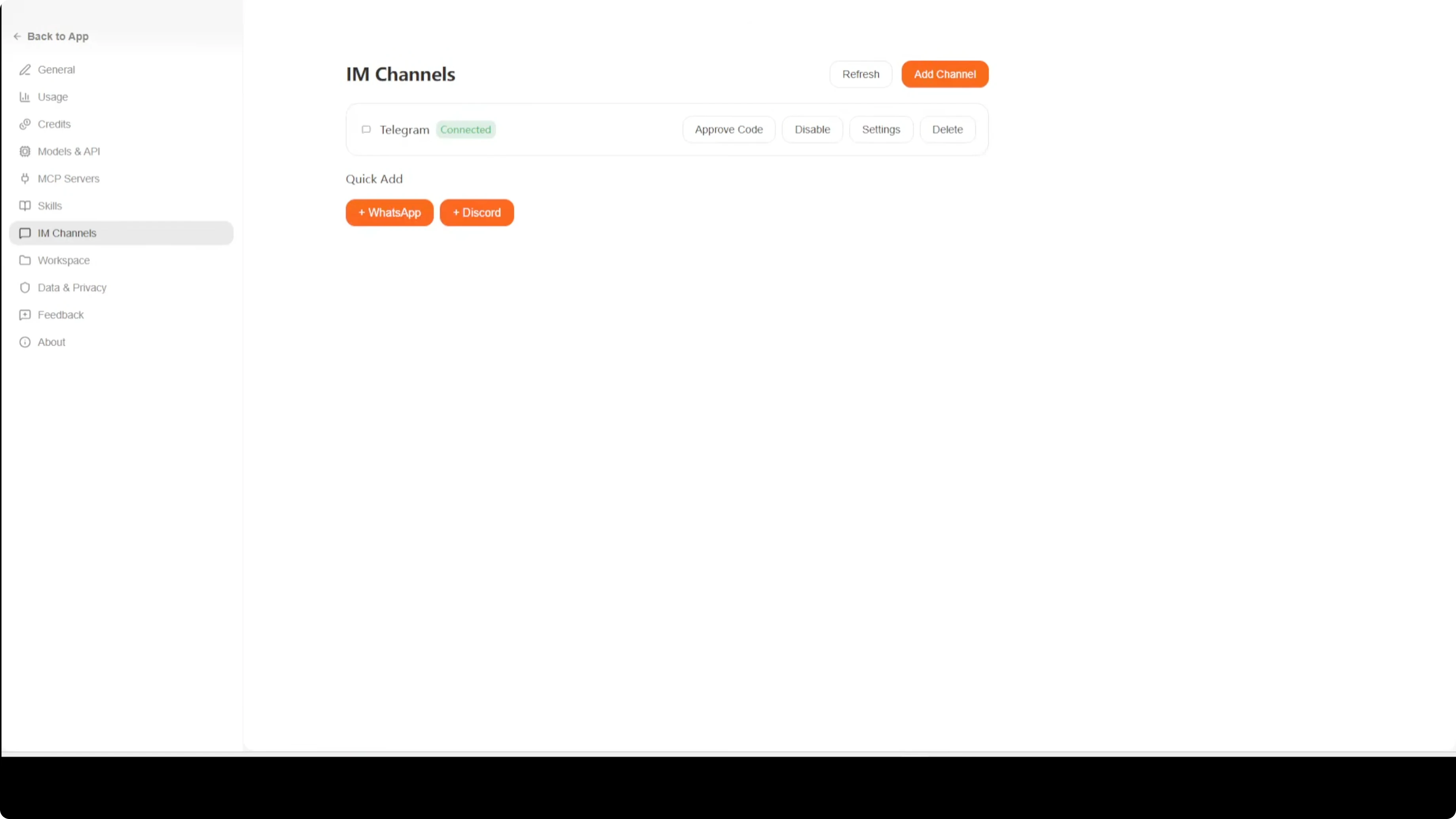
Open AutoClaw and go to IM Channels. Choose Telegram for the quick add.
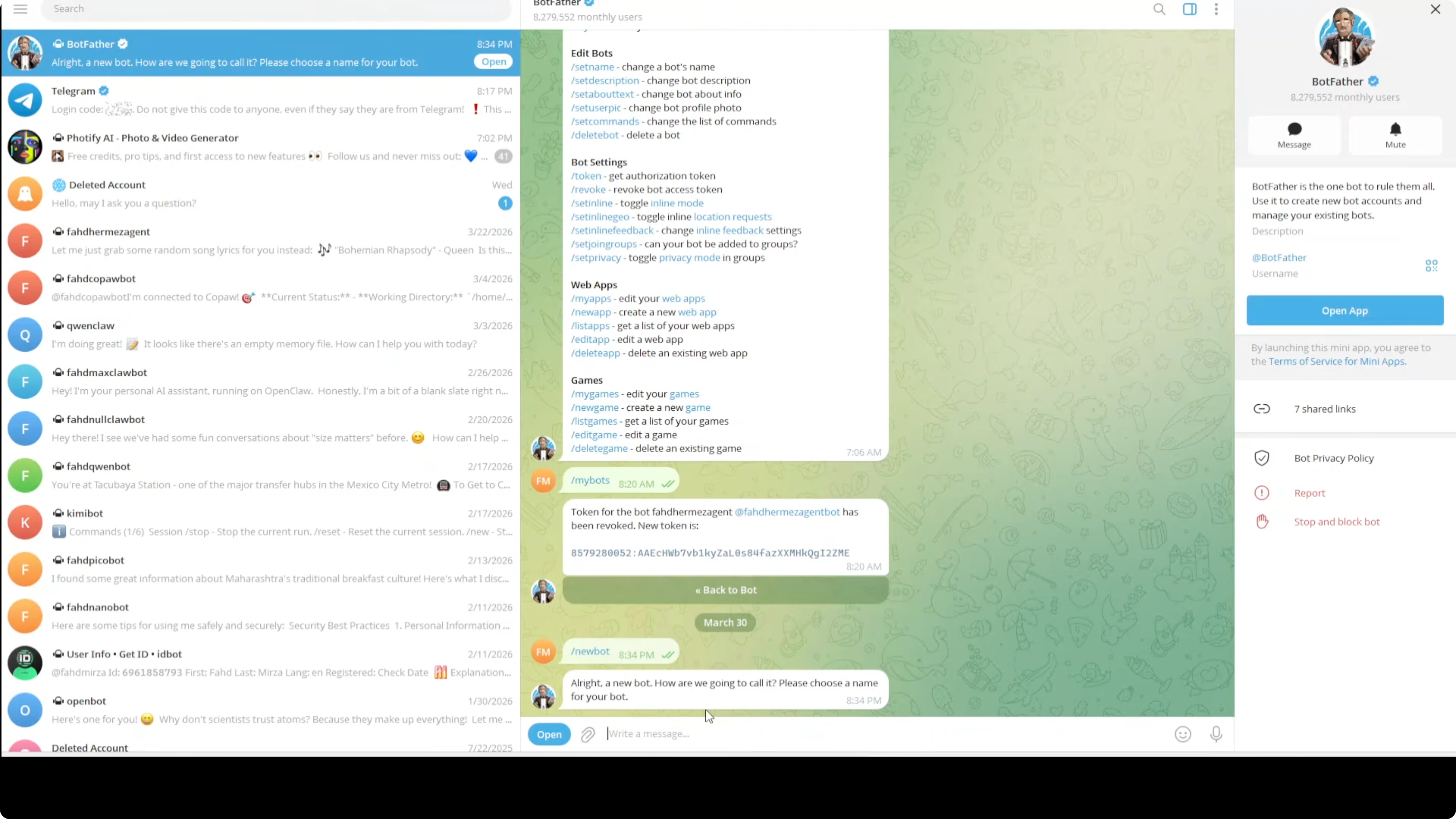
Telegram requires a bot token. In Telegram, open @BotFather and create a new bot by sending the command below.
/newbotBotFather will ask for a bot name and then for a unique username ending in “bot.” Provide both to receive your HTTP API token. Copy the token.
Back in AutoClaw, paste your bot token into the Telegram quick add form. Pair it for direct messages first, and add group policies later if you need them.
Start the new bot in Telegram by opening it and tapping Start. You will receive a pairing code from the bot.
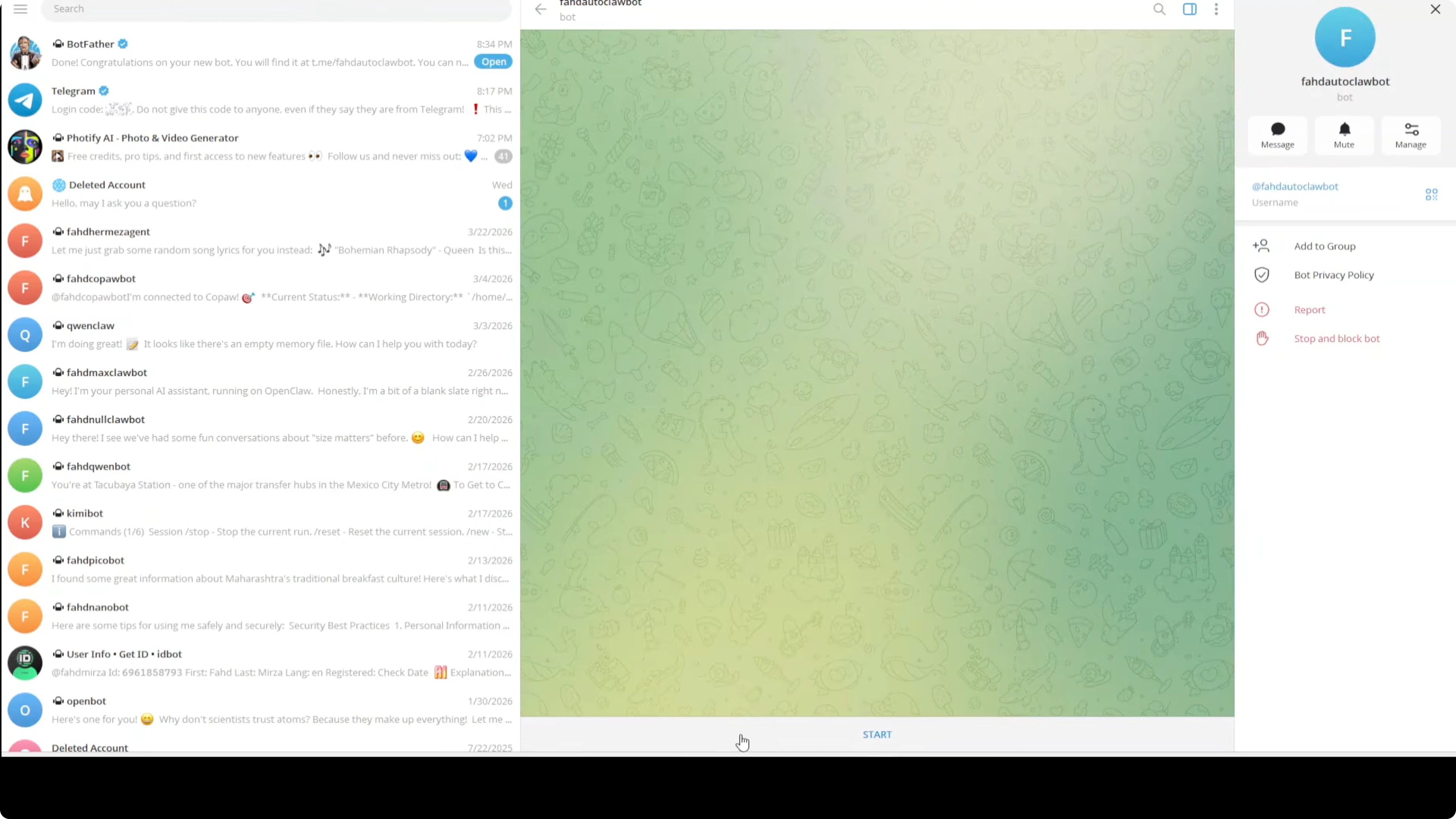
Return to AutoClaw and approve the pairing code. Refresh the Telegram integration if needed to confirm it is fully configured.
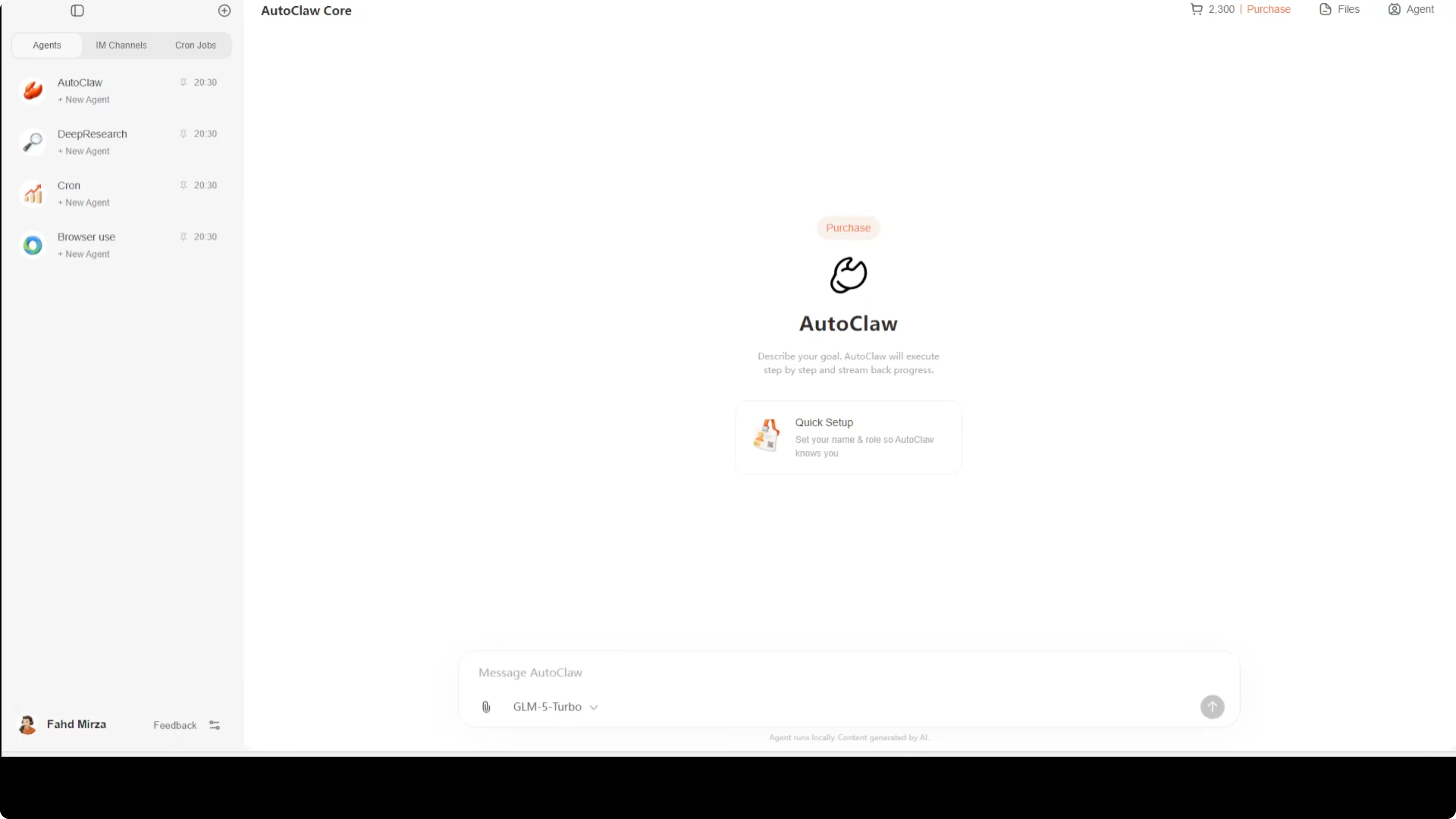
First look inside AutoClaw
On the left side, you will find multiple built-in agents for different use cases. You can connect IM channels like Telegram and others, and you can set up scheduled jobs.
Open Quick Setup and give your agent a name, then describe what you want it to focus on. Coding, writing, research, and devops are all solid starting roles.
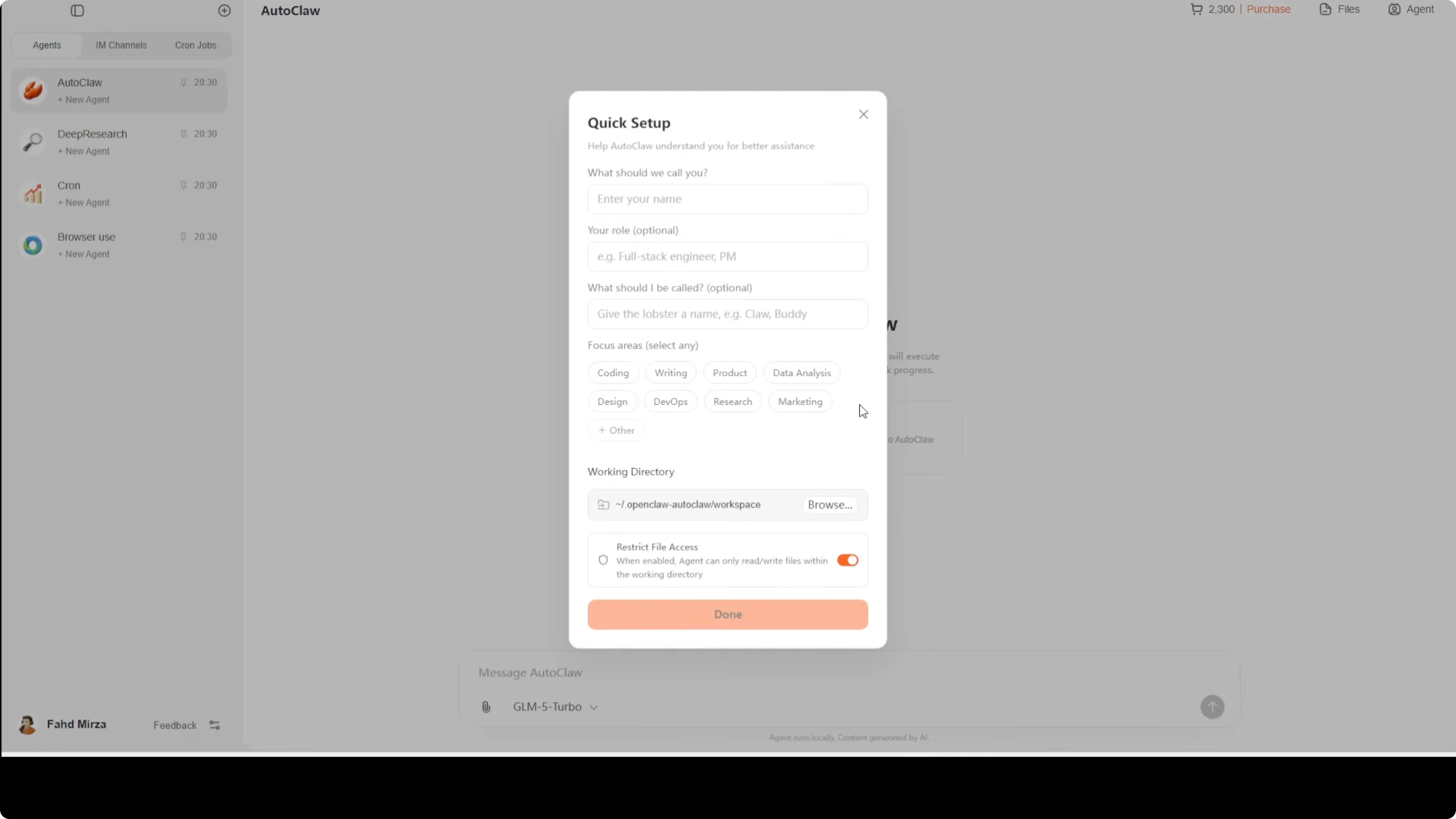
Set a working directory for file operations. AutoClaw includes file access restrictions to reduce risk, but you should still understand the security implications before granting broad access.
For a deeper grounding in why these agents work the way they do, see our overview of agentic AI concepts.
Model choices
AutoFlow may be selected by default. You can switch to other model providers like Anthropic if you have an API key.
AutoClaw can run browser use, web search, code execution, and multi-step plans from chat messages. You can also start fresh sessions with the plus button and define a role and a task for each session.
Run tasks from Telegram
Open your Telegram bot and say hello to confirm it is active. Your messages will appear under IM Channels inside AutoClaw.
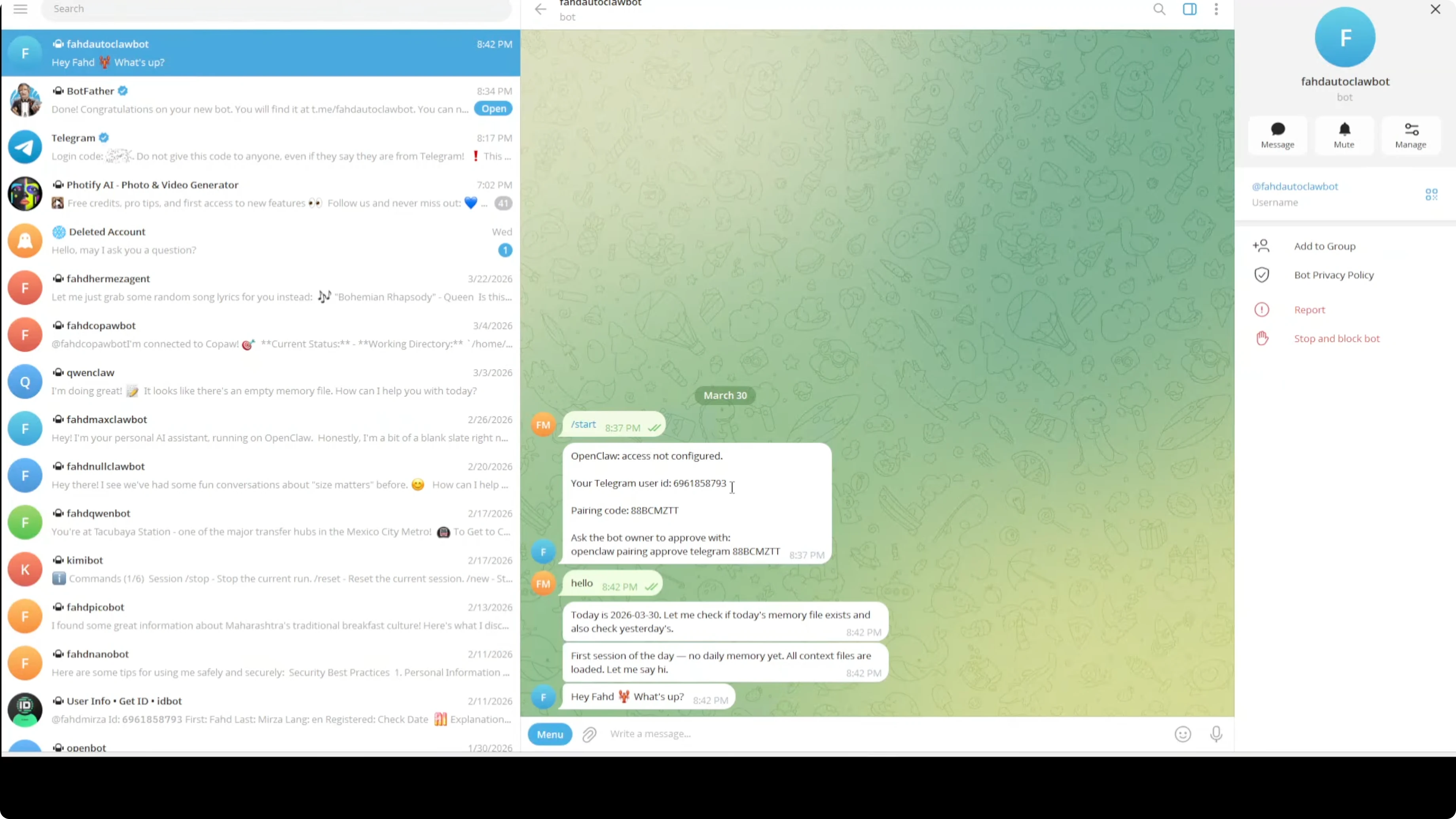
Send a natural language instruction from Telegram. AutoClaw will receive it, plan the steps, use the right tools, and send the result back to the same chat.
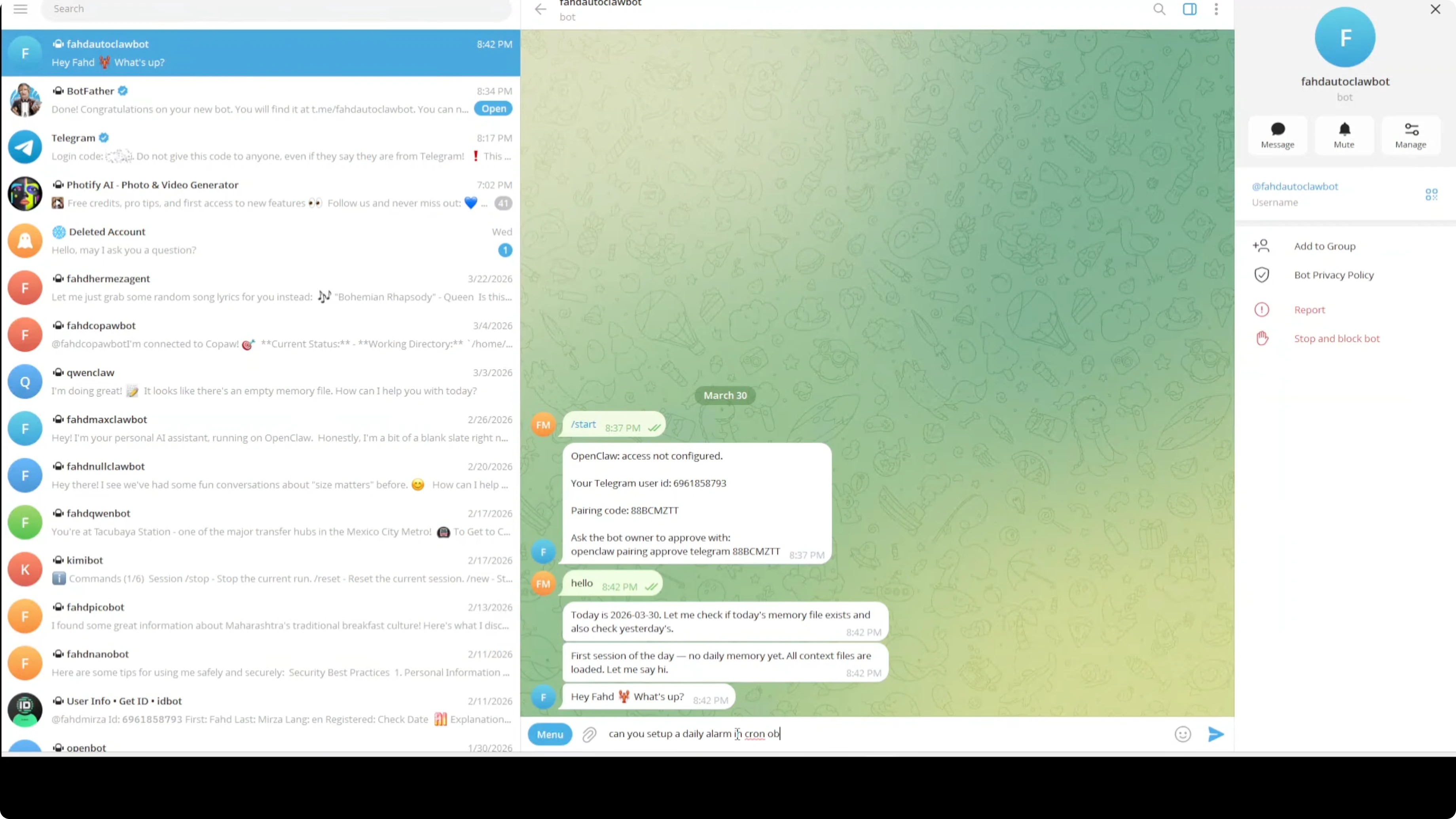
For example, to schedule a daily reminder through AutoClaw’s scheduler, send:
Can you set up a daily alarm in cron job for me at 6 a.m.?AutoClaw will parse the request and create a scheduled job that pings you at 6:00 a.m. in Telegram. You can view the job under scheduled tasks in AutoClaw.
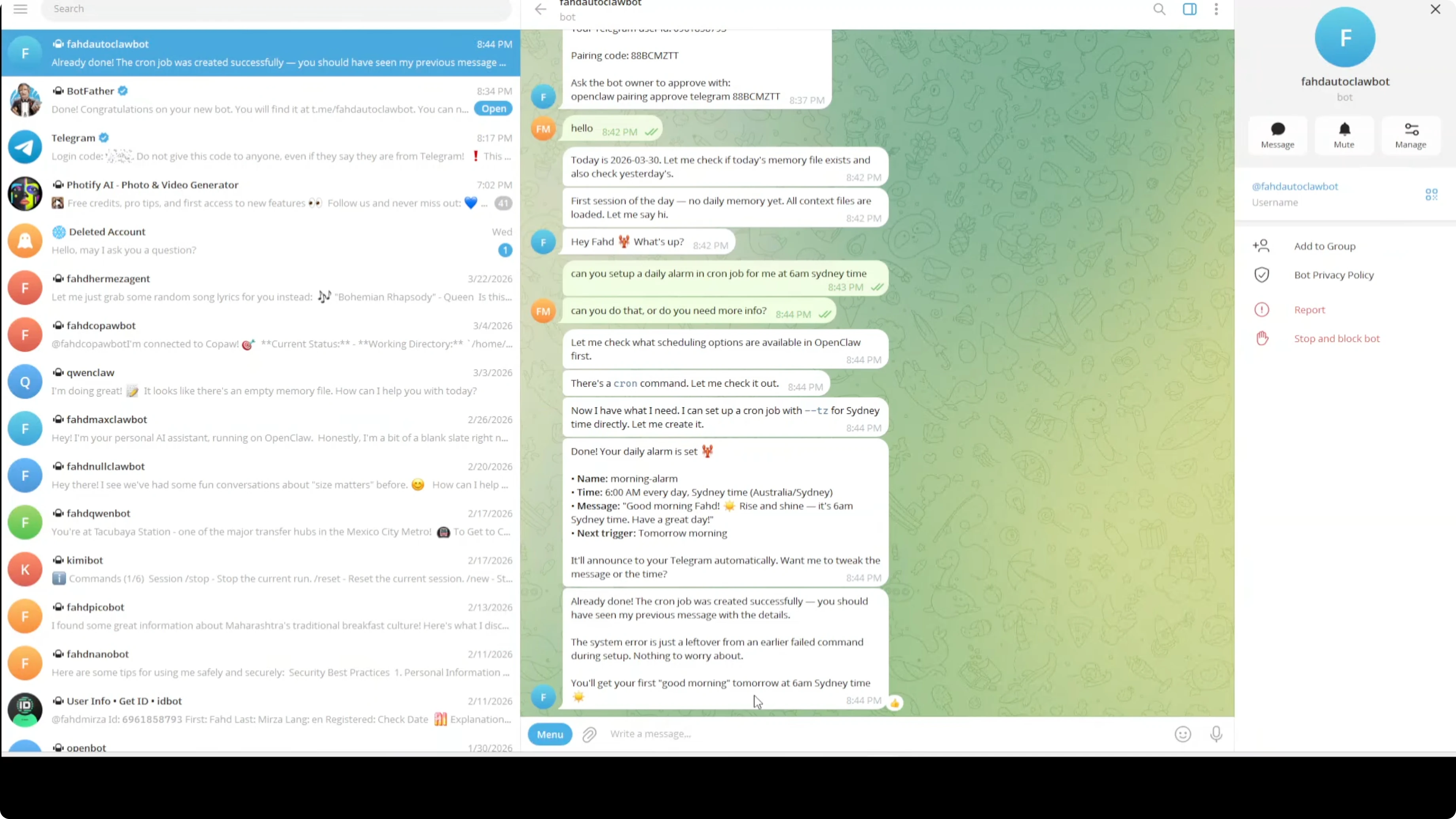
Scheduling and deep research
Cron setup lets you ask for daily or weekly tasks that run on their own. You can use this for reminders, status pings, or recurring automation.
Deep Research triggers a more in-depth search workflow and can take longer to complete. Browser Use runs targeted browsing steps for data gathering and validation.
Here are practical use cases I find useful. Ask for a morning brief that summarizes top technology headlines and your calendar highlights. Monitor a stock ticker and send a price alert when a threshold is crossed.
Kick off a code task that runs a script in your working directory and returns logs. Collect updated documentation links into a short summary you can scan.
If you put heavy jobs on a Windows machine and notice high memory usage, see this Windows high-memory guide for tuning tips.
Security notes
AutoClaw’s file access restrictions help limit risk, but they are not a substitute for good judgment. Keep its working directory scoped down and be careful with any action that writes, deletes, or executes files.
Review scheduled jobs and sessions regularly. Remove items you no longer need.
Final thoughts
AutoClaw puts the agent directly inside Telegram on Windows with an install that takes minutes. You type a request, it plans and executes with browsing, files, and code, and then replies in the same chat.
I found it simple and stable in day-to-day use. If you are moving between OpenClaw and this chat-first approach, the Google AI Ultra restriction guide and the OpenClaw dashboard notes can help you navigate model and setup differences.
Subscribe to our newsletter
Get the latest updates and articles directly in your inbox.

Related Posts

8 Best Claude Code Plugins in 2026 (You Need to Know)
8 Best Claude Code Plugins in 2026 (You Need to Know)

7 Best Claude Code Skills (You Need to Know)
7 Best Claude Code Skills (You Need to Know)

Claude Code Desktop IDE Features (You Need to Know)
Claude Code Desktop IDE Features (You Need to Know)