
Table Of Content
- How to fix Account restricted without warning for Google AI Ultra and OpenClaw in Antigravity?
- Solution Overview
- How to fix Account restricted without warning for Google AI Ultra and OpenClaw in Antigravity?
- Step-by-Step Solution
- macOS/Linux
- Windows (PowerShell)
- macOS/Linux
- Windows (PowerShell)
- setx GEMINI_API_KEY "YOUR_API_KEY" # Windows (new terminal after)
- Alternative Fixes & Workarounds
- Troubleshooting Tips
- Best Practices
- Final Thought
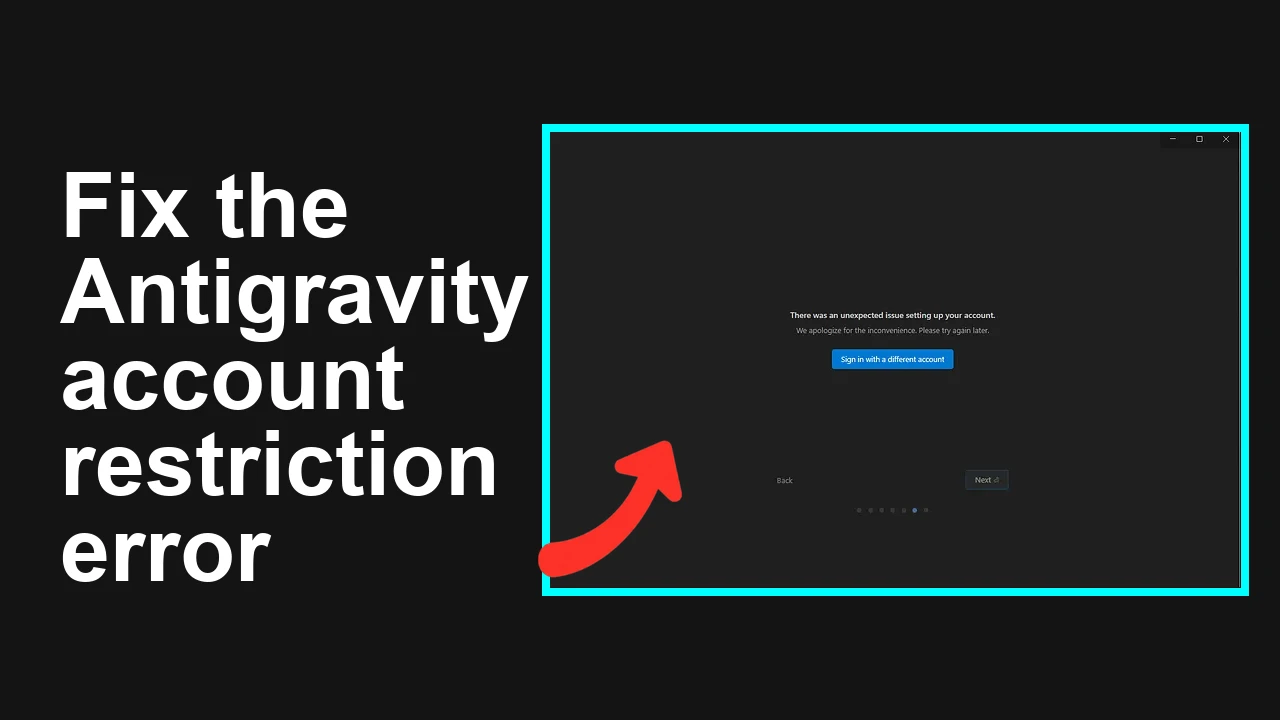
How to fix Account restricted without warning for Google AI Ultra and OpenClaw in Antigravity?
OpenClaw Error Fixer
Paste any OpenClaw error and get the exact fix instantly — cause, steps, copy-ready commands, and related guides.
Table Of Content
- How to fix Account restricted without warning for Google AI Ultra and OpenClaw in Antigravity?
- Solution Overview
- How to fix Account restricted without warning for Google AI Ultra and OpenClaw in Antigravity?
- Step-by-Step Solution
- macOS/Linux
- Windows (PowerShell)
- macOS/Linux
- Windows (PowerShell)
- setx GEMINI_API_KEY "YOUR_API_KEY" # Windows (new terminal after)
- Alternative Fixes & Workarounds
- Troubleshooting Tips
- Best Practices
- Final Thought
You paid for Google AI Ultra/Antigravity access and were suddenly locked out with an “Account restricted” message. The app signs you out, you can’t use the Gemini CLI or related tools, and support has been unresponsive. Several users later received a final decision: the account was suspended for using Antigravity credentials with a third‑party tool called “OpenClaw,” which Google considers a violation because it routes Antigravity servers to power a non‑Antigravity product. For some, this was marked as a zero‑tolerance, non‑reversible suspension. If you’re seeing access blocked or unexpected “restricted” behavior, follow the steps below to remediate, appeal, or, if needed, rebuild clean access on a new account.
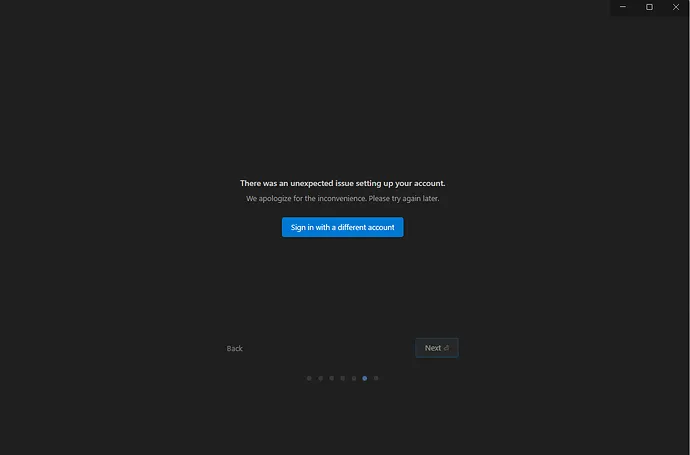
If your symptom is a “Permission denied” style error in AI Studio rather than an account restriction, see this targeted fix: AI Studio permission error guide.
How to fix Account restricted without warning for Google AI Ultra and OpenClaw in Antigravity?
Users report:
- Forced sign-out from the Antigravity app and inability to log back in.
- No response from support channels for days or weeks.
- Final emails (in some cases) stating the account was suspended for using “OpenClaw” with Antigravity credentials, classified as a policy violation with zero-tolerance enforcement.
If your goal is to restore access, the fastest path is to immediately remove any third‑party connections, clean local tokens, request review, and prepare a clean environment that aligns with policy.
Solution Overview
| Aspect | Detail |
|---|---|
| Root Cause | Using Antigravity credentials with a third‑party tool (e.g., OpenClaw) that routes traffic through Antigravity for a non‑Antigravity product, which violates policy/ToS. |
| Primary Fix | Revoke OpenClaw (and other third‑party) access, purge local tokens, request review, and re-onboard using only supported clients and public APIs. If the suspension is declared final, migrate to a fresh Google account and avoid third‑party routing. |
| Complexity | Medium |
| Estimated Time | 30–60 minutes (plus support response time) |
How to fix Account restricted without warning for Google AI Ultra and OpenClaw in Antigravity?
Step-by-Step Solution
- Stop using OpenClaw with any Google credentials
- Uninstall or sign out of OpenClaw. Do not connect it to Antigravity, Gemini CLI, or any private endpoints.
- Revoke third‑party access from your Google Account
- Open your browser and navigate to: https://myaccount.google.com/security
- Under “Third‑party access,” select “Manage third‑party access.”
- Remove any access for OpenClaw or similar developer tools that have Gmail/Drive/Cloud/Gemini/Antigravity scopes.
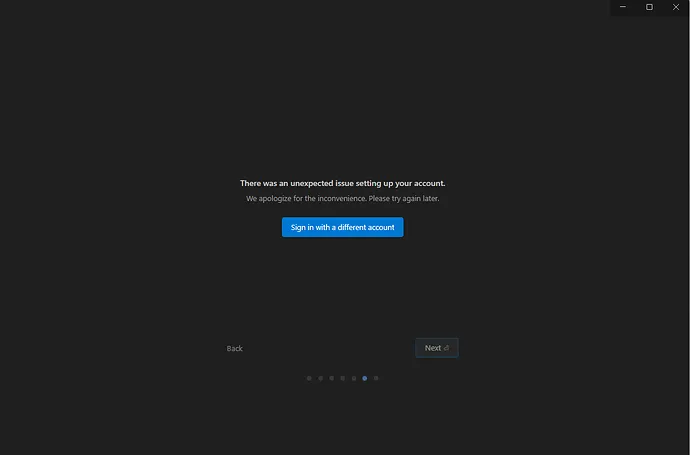
- Purge local OAuth tokens and cached credentials on your workstation(s)
- Revoke all gcloud user tokens:
gcloud auth list
gcloud auth revoke --all
gcloud auth application-default revoke- Optionally clear residual cached files (only if you understand the impact):
# macOS/Linux
rm -f ~/.config/gcloud/application_default_credentials.json
rm -rf ~/.config/gcloud/credentials.db

# Windows (PowerShell)
Remove-Item -Force "$env:APPDATA\gcloud\application_default_credentials.json"
Remove-Item -Recurse -Force "$env:APPDATA\gcloud\credentials.db"- If OpenClaw created local token caches, remove them too. If you’re unsure where they are, you can search:
# macOS/Linux
find ~ -type f -iname "*openclaw*" 2>/dev/null

# Windows (PowerShell)
Get-ChildItem -Recurse -Path $env:USERPROFILE -Filter *openclaw* -ErrorAction SilentlyContinue- Rotate API keys and OAuth secrets (if you created any in Google Cloud)
- In Google Cloud Console: APIs & Services → Credentials, rotate or delete any OAuth client secrets or API keys that might have been connected to OpenClaw or shared environments.
- IAM & Admin → Service Accounts → Keys: delete any exposed or unused keys.
- Request a review/appeal immediately
- If your Google Account is disabled or restricted, submit an appeal: Appeal a suspended Google Account.
- If your Cloud project/billing is impacted, follow Google’s suspension guidance: Troubleshoot suspended Cloud projects.
- Explain clearly that you’ve revoked third‑party access, purged tokens, and will only use supported clients going forward. Provide timestamps of revocations and screenshots if possible.
- Re-onboard with supported tools only
- Use official clients and public Gemini API endpoints documented at ai.google.dev.
- Avoid any third‑party proxying of Antigravity services. Keep Antigravity features within their official apps/IDEs/CLI only.
- If you’re stuck on sign‑in loops or app login failures, see this focused article: Antigravity login troubleshooting.
- Validate access using the public Gemini API (not Antigravity private endpoints)
- Python quick test:
pip install --upgrade google-generativeai
export GEMINI_API_KEY="YOUR_API_KEY" # macOS/Linux
# setx GEMINI_API_KEY "YOUR_API_KEY" # Windows (new terminal after)
python - << 'PY'
import google.generativeai as genai, os
genai.configure(api_key=os.environ["GEMINI_API_KEY"])
for m in genai.list_models():
 if "generateContent" in m.supported_generation_methods:
 print(m.name)
PY- cURL quick test:
curl -s -H "Content-Type: application/json" \
 -H "x-goog-api-key: $GEMINI_API_KEY" \
 -d '{"contents":[{"parts":[{"text":"Say hello"}]}]}' \
https://generativelanguage.googleapis.com/v1/models/gemini-1.5-flash:generateContent- You should receive a 200 response with model output when your API key and account are in good standing.
- If Google confirms the suspension is final
- Create a new Google Account (preferably dedicated to development), then onboard cleanly using only approved tools and public APIs.
- Keep third‑party integrations isolated to non‑privileged API keys; do not route Antigravity through third‑party products.
- Before trying AI Studio again, review this checklist: AI Studio “failed to generate content” fix.
Alternative Fixes & Workarounds
- Use public Gemini APIs directly in your code instead of Antigravity‑specific/private endpoints. Keep tokens scoped and project‑specific.
- If you must test third‑party tools, bind them to a separate project with a restricted API key and confirm the tool calls public endpoints only.
- If you pre‑paid for a year and access is refused, request a refund through your original payment channel (Google One, Google Payments, or your reseller). Keep a paper trail of revocations and correspondence.
- Separate personal and development accounts to prevent one service policy from impacting your primary identity.
Troubleshooting Tips
- Confirm what’s restricted. Is it only Antigravity, or your broader Google Account? Test sign‑in to Gmail/Drive and run a simple Gemini API call with a fresh API key.
- Check if an organization admin enforced restrictions. Corporate policies can block certain scopes or apps.
- Review Security → Third‑party access again. Some apps appear under different names; remove anything suspicious.
- Wait for token expiry. Even after revocation, some sessions may take minutes to fully expire across systems.
- If AI Studio throws permission errors (not account suspension), here’s a targeted walkthrough: resolve AI Studio permission issues.
Best Practices
- Keep Antigravity access within official apps/IDEs/CLI. Do not connect it to third‑party proxies or wrappers.
- Use separate accounts and projects for experiments. Never share OAuth tokens or service account keys with external tools.
- Limit API scopes and rotate keys regularly.
- Maintain an audit log: what clients you connected, when you revoked them, and why.
- Review and honor the relevant policies: Google AI terms and your product’s acceptable use.
Final Thought
The fastest path is to remove third‑party access, purge tokens, and appeal with a clear remediation story. If Google confirms a final suspension, start fresh on a new account and only use supported clients and public endpoints. That keeps you compliant and reduces the chance of another abrupt lockout.
Subscribe to our newsletter
Get the latest updates and articles directly in your inbox.

Related Posts
How to fix Agent stuck and can't be stopped error in Antigravity?
How to fix Agent stuck and can't be stopped error in Antigravity?
How to fix Agent is not responding error in Antigravity?
How to fix Agent is not responding error in Antigravity?
How to fix Antigravity won't work with any Gemini models error?
How to fix Antigravity won't work with any Gemini models error?