
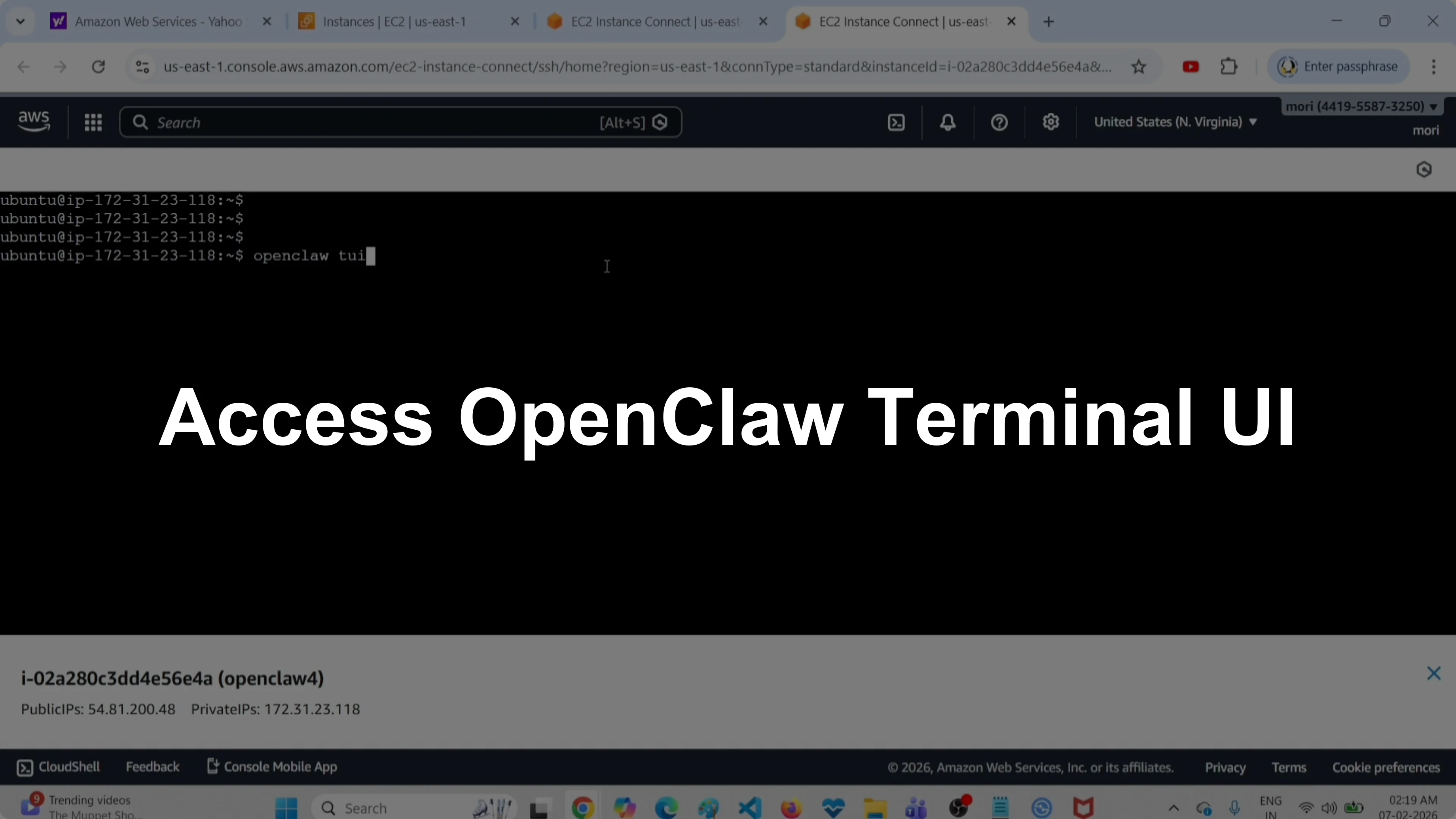
How to Access Terminal UI Instead of Web UI in OpenClaw
OpenClaw Error Fixer
Paste any OpenClaw error and get the exact fix instantly — cause, steps, copy-ready commands, and related guides.
I show how to open the terminal UI instead of the web UI in OpenClaw. If you prefer the browser view, see this guide to the AI dashboard. The steps below are quick.
Access Terminal UI Instead of Web UI in OpenClaw
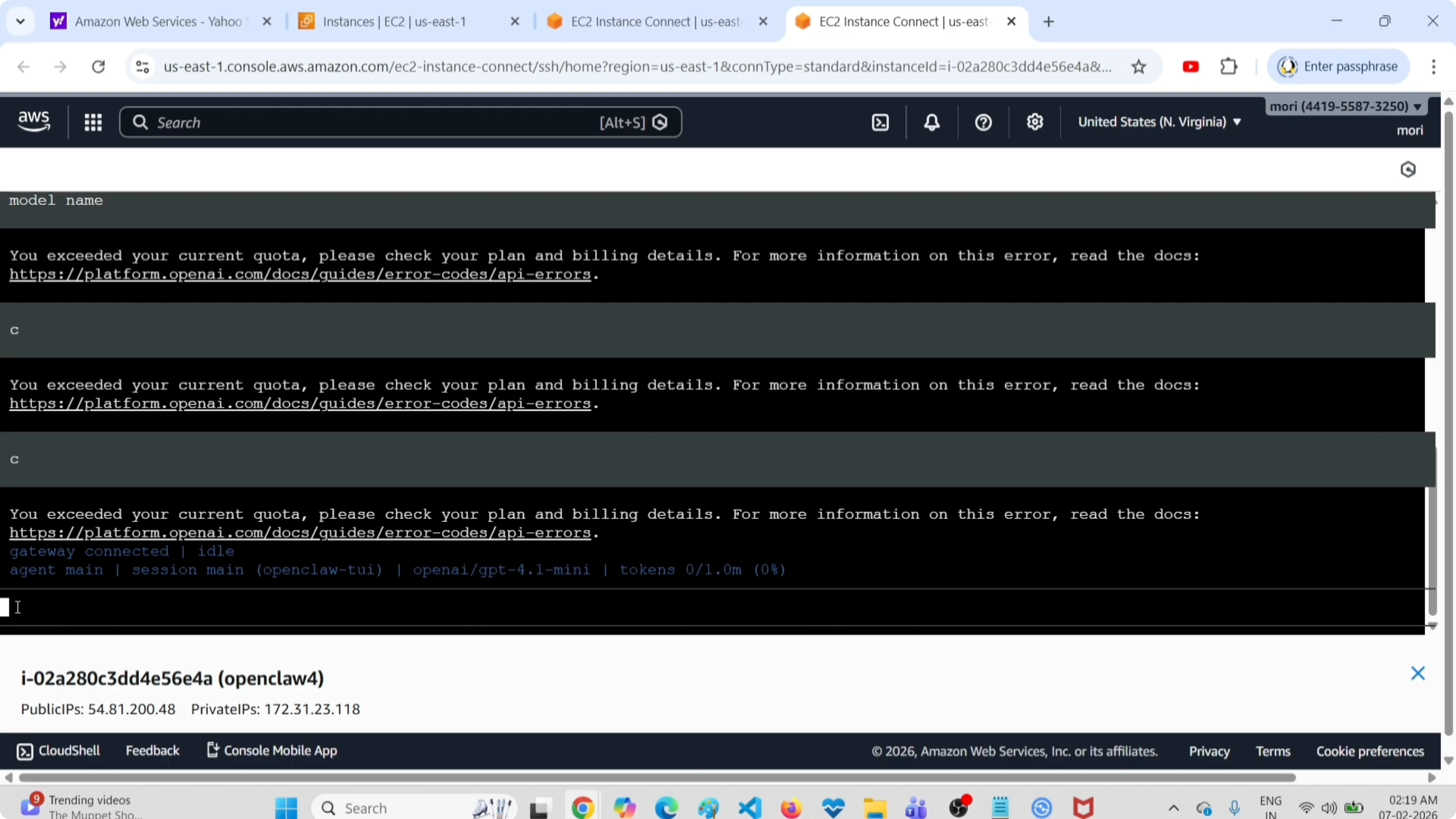
You can open the terminal UI using a single command. Run this and wait for it to start. It will open the terminal UI where you can type and submit messages.
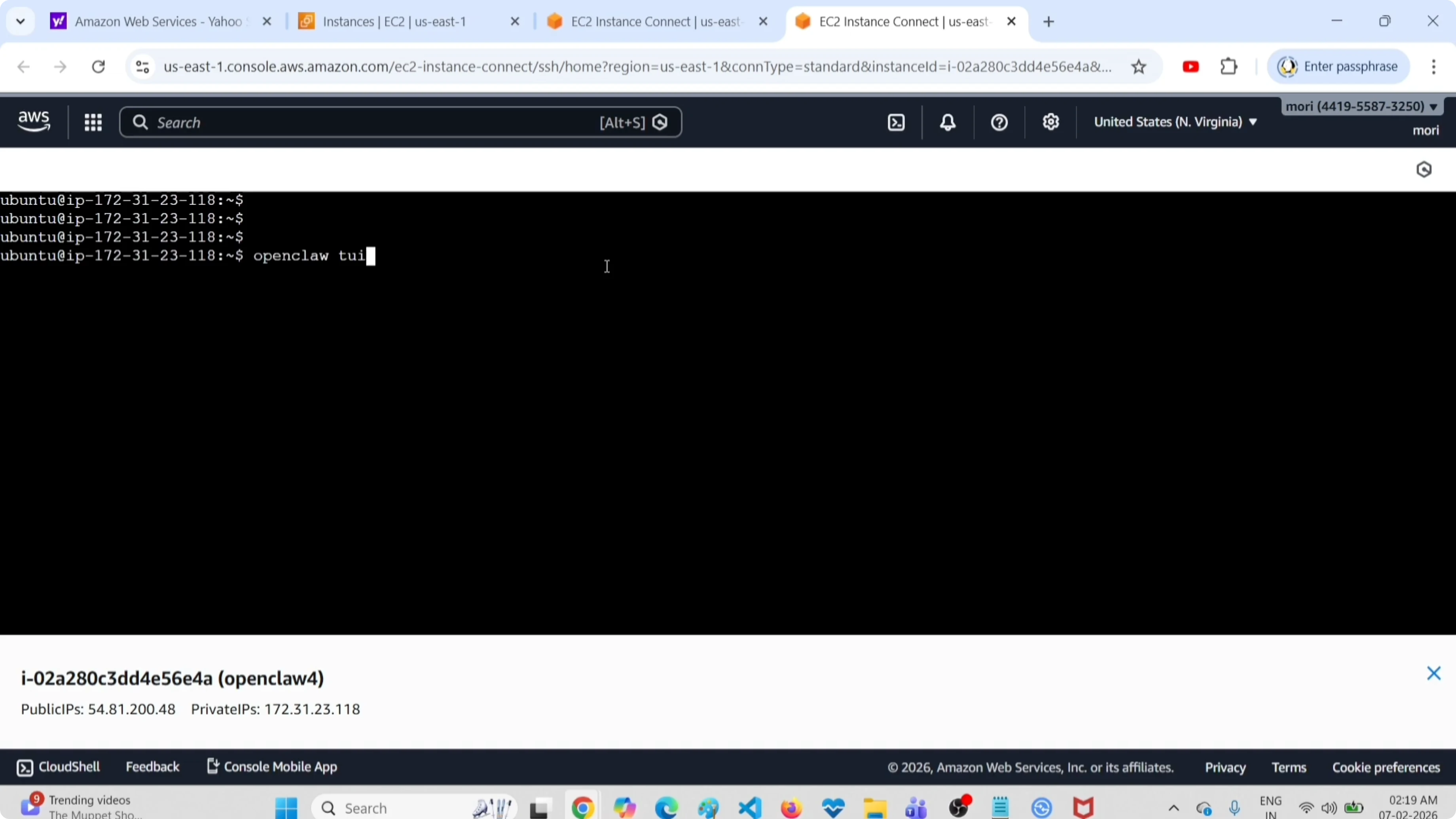
openclaw tui
Run the command
Open your terminal. Run the command above and wait for the interface to appear. It will show the terminal UI.
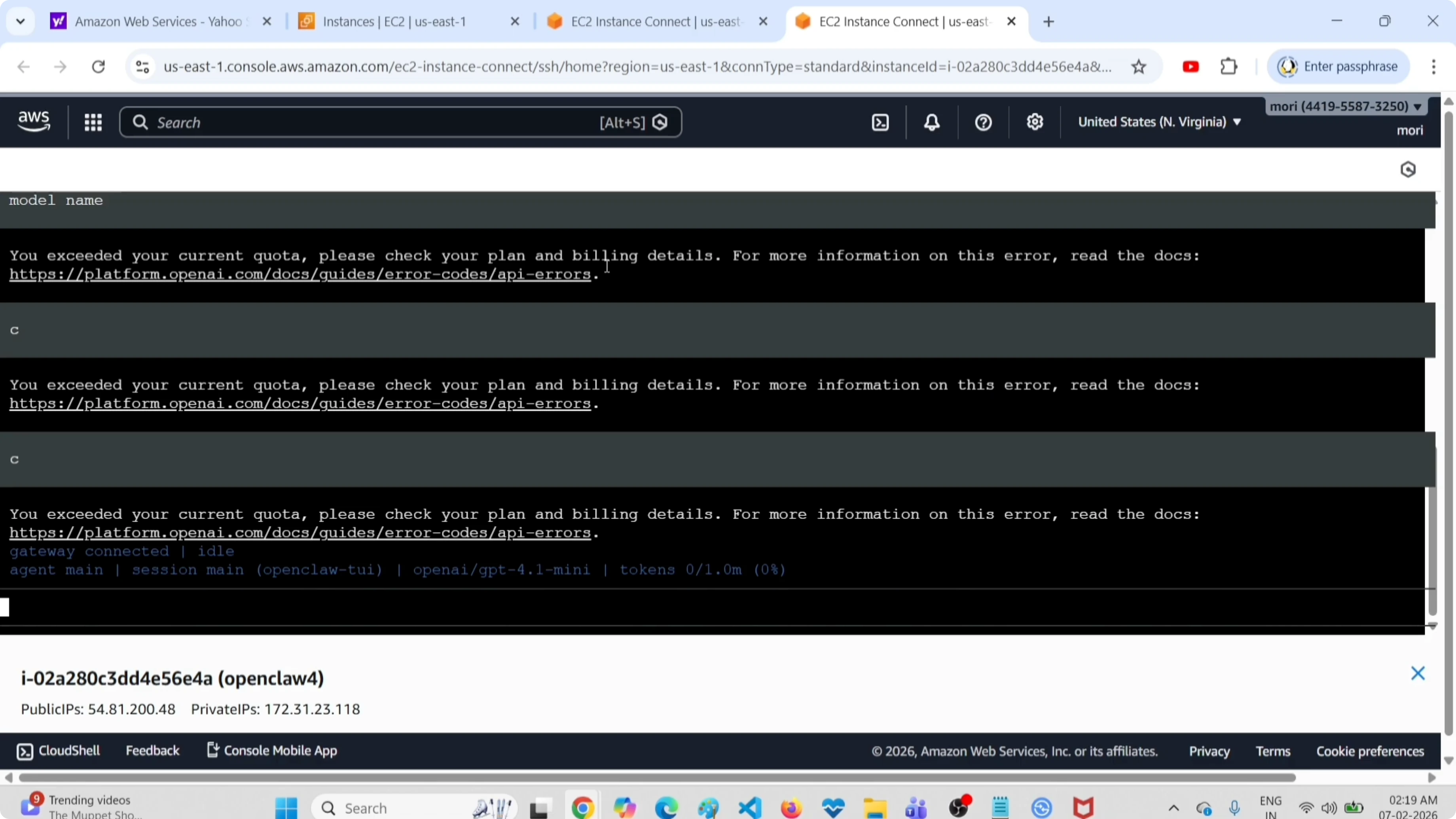
Type and submit
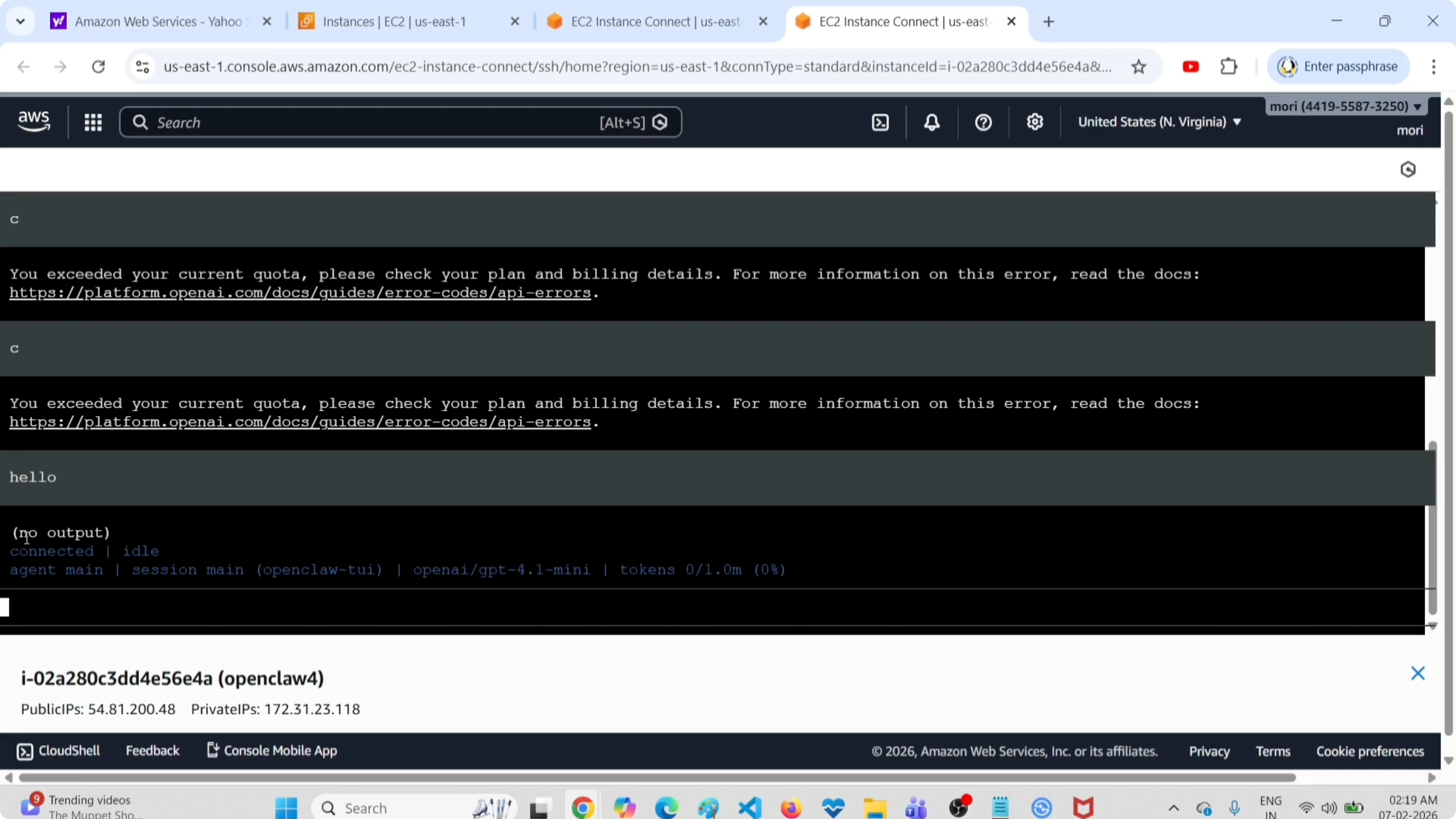
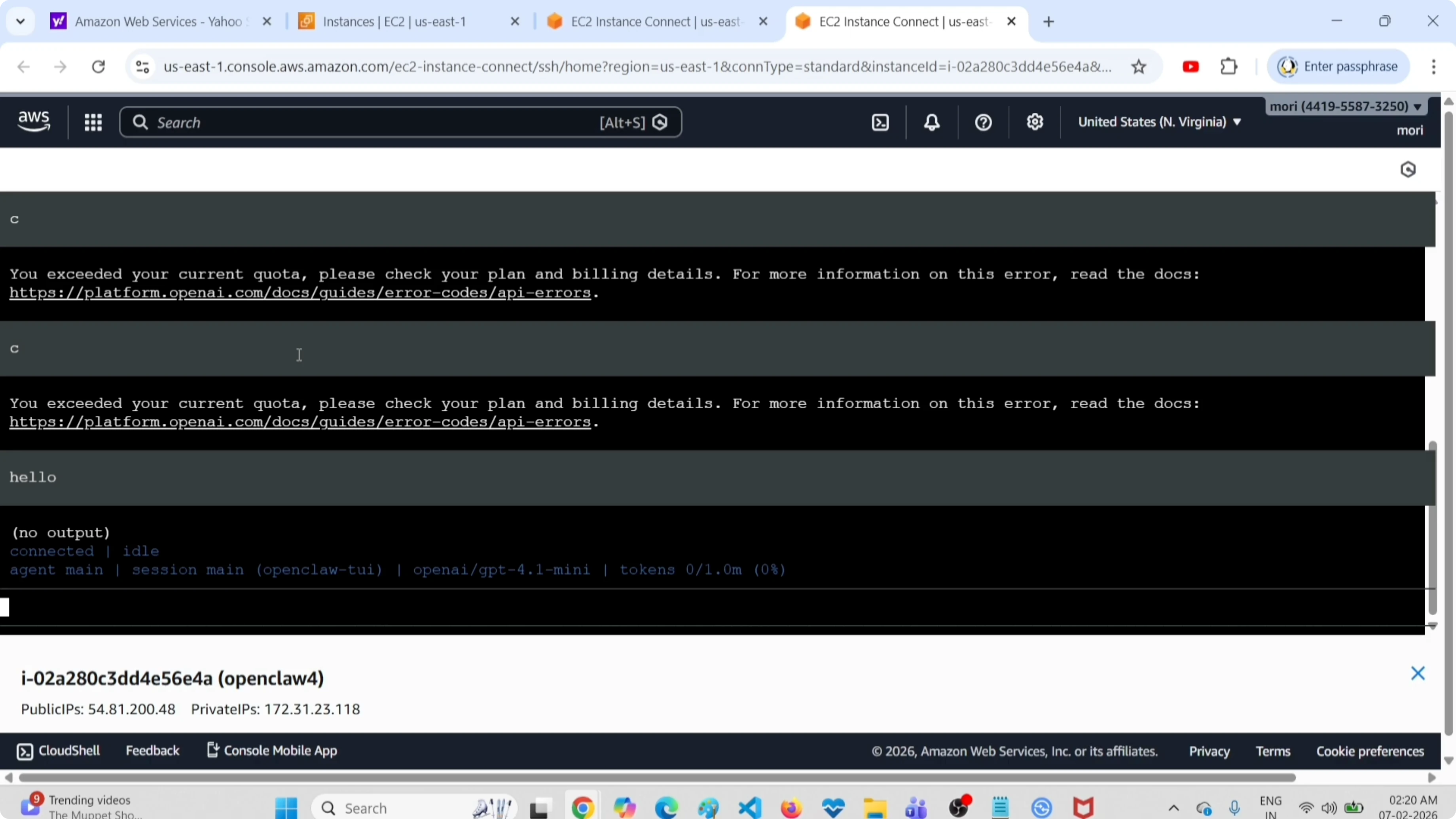
Here you can type a message and submit. Type your prompt and press Enter. If it shows no output, that is fine.
Read More: Clear Fallback Models Openclaw Tools
Exit
To exit from the terminal UI, press Ctrl-C. That will close it and return you to the shell. Done.
If you want to chat from Telegram instead of the terminal, you can set up Clawdbot by following this Telegram integration guide. For model management via Clawdbot, here is how to delete a model with Clawdbot. You can also browse more tips in the OpenClaw collection.
Final thoughts
Run openclaw tui to launch the terminal UI and press Ctrl-C to exit. Type a prompt, press Enter, and proceed even if you see no output. That is all you need to access the terminal UI instead of the web UI in OpenClaw.
Subscribe to our newsletter
Get the latest updates and articles directly in your inbox.

Related Posts

8 Best Claude Code Plugins in 2026 (You Need to Know)
8 Best Claude Code Plugins in 2026 (You Need to Know)

7 Best Claude Code Skills (You Need to Know)
7 Best Claude Code Skills (You Need to Know)

Claude Code Desktop IDE Features (You Need to Know)
Claude Code Desktop IDE Features (You Need to Know)