
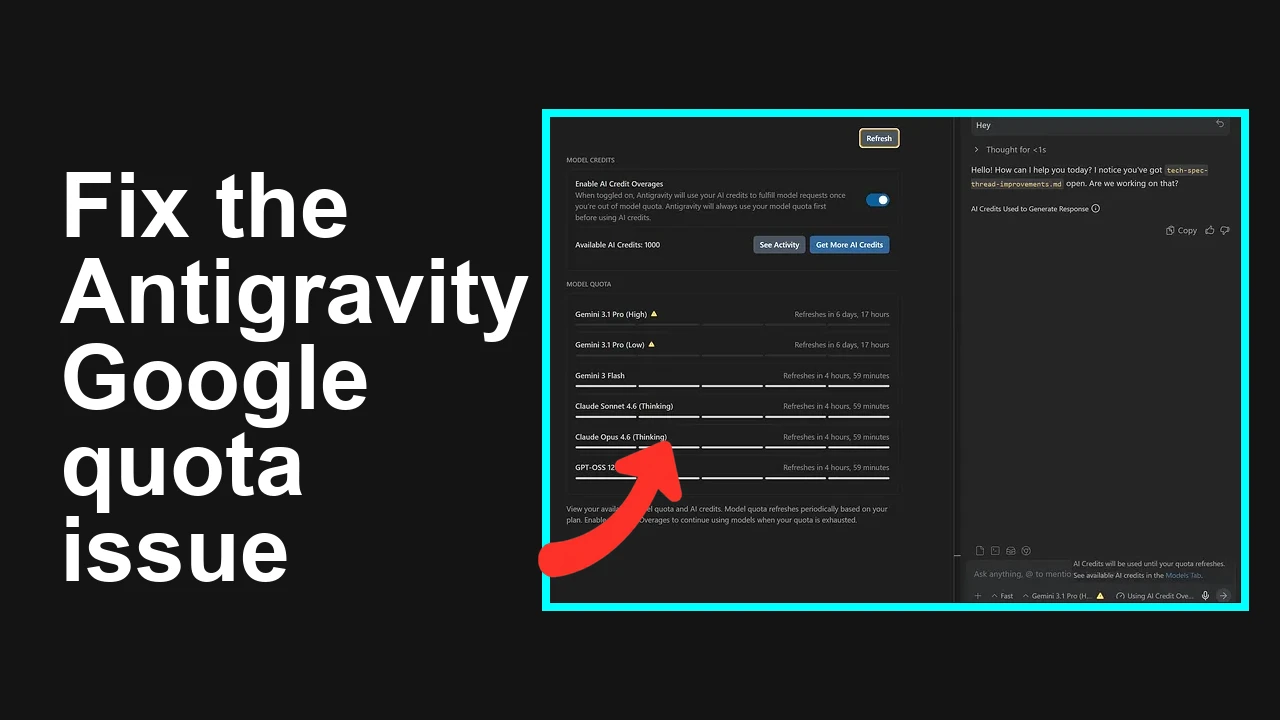
How to fix Google Antigravity quota issue?
You open Google Antigravity and see your quota is already exhausted, even if you didn’t use it. Resets don’t behave as expected, and switching app versions doesn’t help. This is a server-side change tied to AI credits, not a client bug.
How to fix Google Antigravity quota issue?
Many users report that Antigravity shows “quota exhausted” or drains quota without active usage. Several confirmed that downgrading to an older app version works only briefly and then fails again.
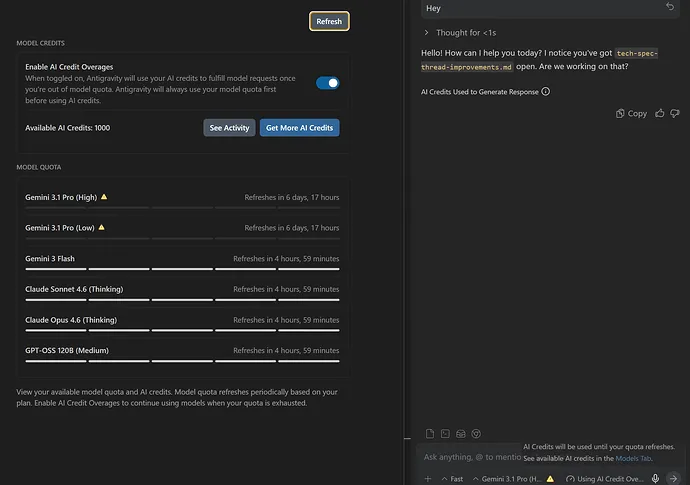
What’s really happening: Google is migrating Antigravity from legacy per-app quota to shared AI credits across products (Flow, Whisk, Antigravity). That shift can leave your account on exhausted “quota” while credits are available, or your reset doesn’t appear to work because credits, not the old quota, govern usage.
For additional background on why login/entitlements sometimes get stuck during this change, see our quick guide on sign-in problems: fixing Antigravity login issues.
Solution Overview
| Aspect | Detail |
|---|---|
| Root Cause | Backend migration from fixed “quota” to AI credits with stale entitlements and model tier mismatches. |
| Primary Fix | Enable/verify AI credits and overage in Google One, refresh your Antigravity entitlements (sign out/in and clear site/app data), and switch to an available model tier (e.g., Flash). |
| Complexity | Medium |
| Estimated Time | 10–20 minutes |
How to fix Google Antigravity quota issue?
Step-by-Step Solution
1) Confirm your Google One AI plan and credits
- Open Google One on web or mobile and check your AI plan (Pro/Ultra) and credit balance.
- Reference: Manage AI credits documentation: Manage your AI credits with Google One.
- If your legacy “quota” shows as exhausted but credits exist, your account is on the credits system and Antigravity must refresh entitlements.
- If you’re out of credits, top up credits or upgrade your plan.
2) Turn on “AI overage” or add credits
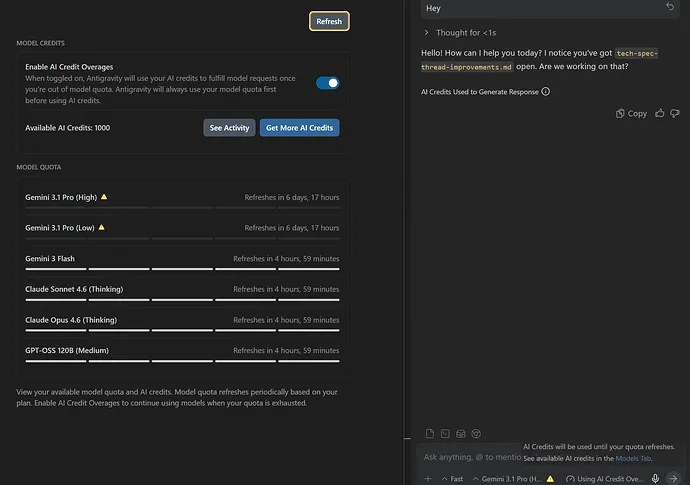
- Some users regained access by agreeing to AI overage or buying a small top-up.
- In Google One: Plans or Credits > enable overage if offered, or purchase credits.
- Tip: Pro users often see a baseline credit allocation (e.g., 1000 credits reported by users) that can be consumed even if “quota” reads as exhausted.
3) Force an entitlement refresh in Antigravity
- Sign out of Antigravity on all devices, then sign in again.
- On web (Chrome): Settings > Privacy and security > Site settings > View permissions and data stored across sites > search for the Antigravity domain > Clear data, then sign back in.
- On mobile apps: Sign out, then clear app cache/storage via system settings, reopen, and sign in.
- If sign-in loops or fails, see this quick help: Antigravity login troubleshooting.
4) Select an available model tier
- Inside Antigravity settings, switch to a non-premium model (e.g., Gemini Flash) if premium models show exhausted.
- Premium models may require more credits or a higher tier (e.g., Ultra). Picking Flash helps confirm your credits are active.
5) Allow for the reset window
- “Quota resets” shown in the UI may not apply once credits are active. Credits don’t always reset in the same daily pattern as the old quota.
- If you just made plan or credit changes, wait up to a few hours and relaunch the app after step 3.
6) If usage still drains “without activity”
- Check connected products (Flow, Whisk, other AI features) under the same Google account—they can consume the shared credits pool.
- Review family sharing in Google One; shared members may be using credits.
- If the counter still drops with no linked usage, contact Google One support and attach timestamps/screenshots: Google One Support.
For a deeper explanation of the quota-to-credits switch and its impact on Antigravity, see this practical explainer: how Antigravity quota behaves under AI credits.
Alternative Fixes & Workarounds
- Use lower-cost models for routine tasks
- Keep Gemini Flash as the default model to stretch credits.
- Top up small credits to unblock immediately
- If you’re mid-sprint, a minimal top-up often restores access right away.
- Avoid “version swaps”
- Forum reports confirm downgrading “1.20.x” or similar is not a stable fix—the problem returns because it’s server-side.
- Check for background automations
- Disable any auto-run workflows in Flow/Whisk that might be consuming credits.
- Temporary second account
- For time-critical work, a separate account with its own plan/credits can be a short-term bypass while your main account is fixed.
If you want a compact checklist you can reference later, we put one here: quick checklist for Antigravity quota issues.
Troubleshooting Tips
- Verify the active Google account in Antigravity matches the Google One subscription.
- Check model availability in your region; pick a supported model if premium access is restricted.
- Turn off VPN/proxy and try a different network in case entitlement checks time out.
- Look for concurrent usage: other devices, teammates, or family members on the same plan can drain credits.
- If you recently changed plans, wait 2–4 hours and relaunch after clearing app/site data.
Best Practices
- Prefer Flash for frequent tasks; reserve premium models for specific workloads.
- Review your Google One credits page weekly and set personal reminders to top up before projects.
- Keep sign-in stable: one primary account for Antigravity reduces entitlement glitches.
- Document model settings per project to avoid accidentally using premium tiers.
- Avoid relying on “quota reset” timing—plan around credits instead.
Final Thought
This isn’t a client bug—it's a billing/entitlement shift to AI credits. By enabling credits/overage, refreshing entitlements, and choosing the right model tier, you can restore Antigravity access quickly and prevent surprise lockouts during your work.
Subscribe to our newsletter
Get the latest updates and articles directly in your inbox.

Related Posts
How to fix Agent stuck and can't be stopped error in Antigravity?
How to fix Agent stuck and can't be stopped error in Antigravity?
How to fix Agent is not responding error in Antigravity?
How to fix Agent is not responding error in Antigravity?
How to fix Antigravity won't work with any Gemini models error?
How to fix Antigravity won't work with any Gemini models error?