
Table Of Content
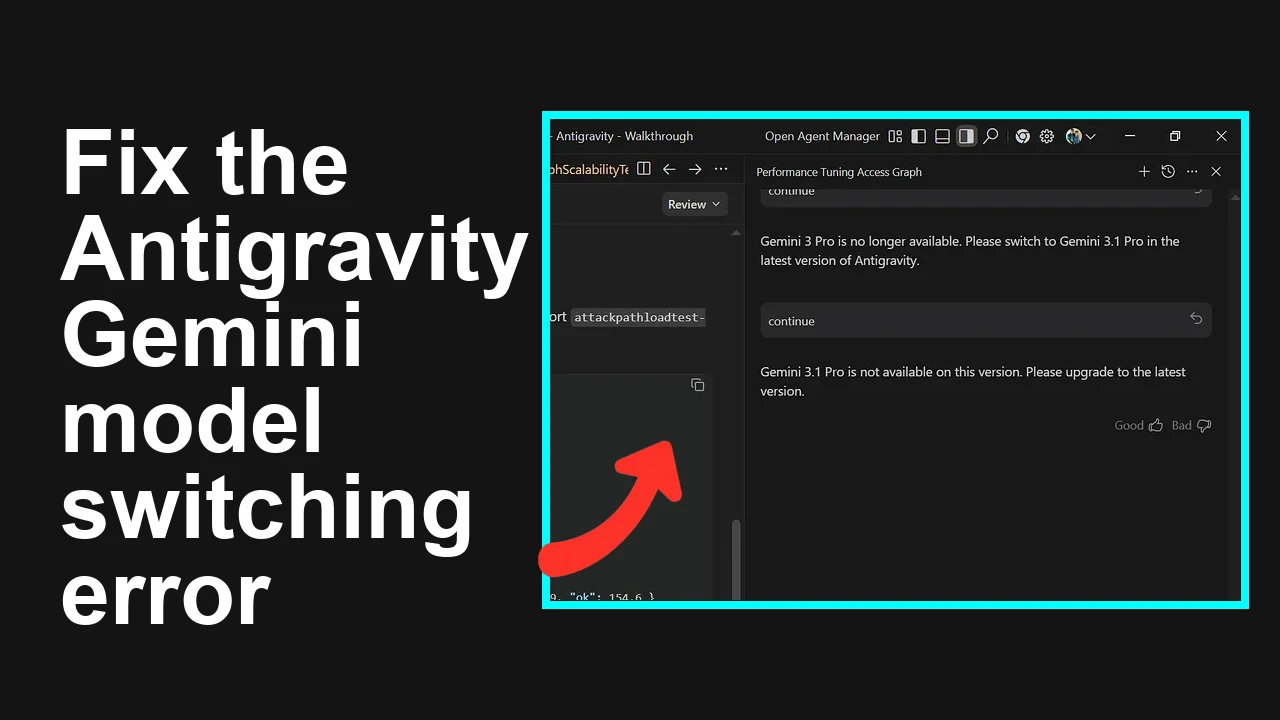
How to fix Issue switching between Gemini 3 Pro and Gemini 3.1 Pro in Antigravity?
Gemini API Pricing Calculator
Dynamically estimate your Google Gemini API costs for text, audio, images, and context caching. Covers new 3.1 Pro, Flash, and 2.5 models.
Table Of Content
You try to switch models in Antigravity and get locked in a loop. Gemini 3.1 Pro tells you to upgrade, and Gemini 3 Pro tells you it is no longer available.
The Problem
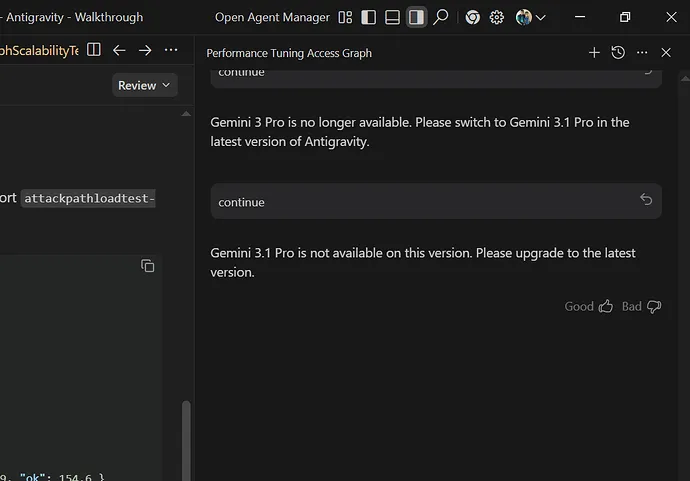
Antigravity shows conflicting messages when you switch between Gemini 3 Pro and Gemini 3.1 Pro. You see prompts like “Gemini 3.1 Pro is not available on this version. Please upgrade to the latest version” and then “Gemini 3 Pro is no longer available. Please switch to Gemini 3.1 Pro in the latest version of Antigravity.”
This usually happens when the installed Antigravity build is older than the model cutoff where Gemini 3 Pro was retired and Gemini 3.1 Pro became the default. If you need added context and app specific checks, see this Antigravity error fix guide.
How to fix Issue switching between Gemini 3 Pro and Gemini 3.1 Pro in Antigravity?
You are facing a version mismatch. The app you have cannot enable Gemini 3.1 Pro, while Gemini 3 Pro has been removed from that build line. The fix is to install the latest Antigravity release and select Gemini 3.1 Pro once signed in.
Solution Overview
| Aspect | Detail |
| Root Cause | An outdated Antigravity build that deprecated Gemini 3 Pro but does not yet support Gemini 3.1 Pro |
| Primary Fix | Install the newest Antigravity package from the official site, then select Gemini 3.1 Pro |
| Complexity | Easy |
| Estimated Time | 10 to 15 minutes |
How to fix Issue switching between Gemini 3 Pro and Gemini 3.1 Pro in Antigravity?
Step by Step Solution
- Confirm you are on the newest Antigravity build
- In Antigravity open Settings then About and note the version number. If the app cannot open skip to the next step.
Windows
winget list AntigravitymacOS
brew list antigravityLinux
apt list antigravity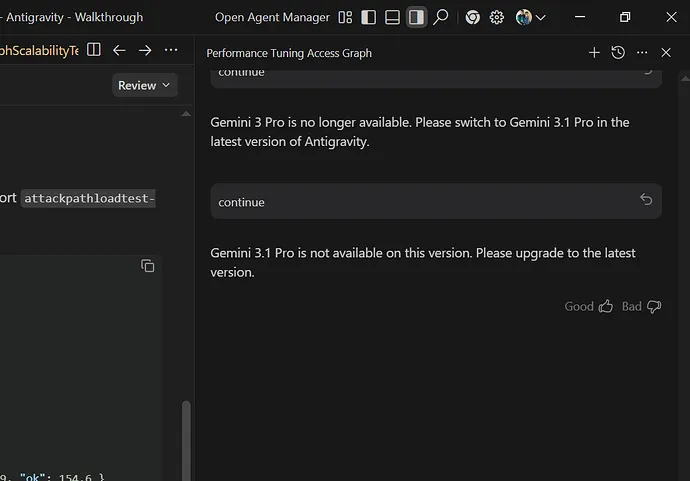
- Remove the old build then install the latest package from the official site
- Download the newest Antigravity installer from the official Antigravity website.
- Fully remove the old app first to avoid leftover files.
Windows
winget uninstall AntigravitymacOS
brew uninstall antigravityLinux
sudo apt remove antigravity- Install the fresh package and sign in
- Run the installer you downloaded.
- Open Antigravity and sign in with the same account that holds your Gemini subscription.
- Select Gemini 3.1 Pro as the active model
- In Antigravity open Settings then Models.
- Pick Gemini 3.1 Pro.
- Create a new chat or session and start with a short prompt to confirm there is no availability message.
- Confirm the model is active and no deprecation prompts appear
- You should no longer see the prompts that request an upgrade or indicate that Gemini 3 Pro is unavailable.
- If you still see prompts, sign out and sign back in, then repeat the model selection.
- Optional check with the Gemini API to confirm availability in your region and account
- This is helpful when you suspect a plan or region constraint.
Python
import os
import requests

api_key = os.environ.get("GOOGLE_API_KEY", "")
if not api_key:
 raise SystemExit("Set GOOGLE_API_KEY environment variable first")

url = "https://generativelanguage.googleapis.com/v1beta/models"
headers = {"Authorization": f"Bearer {api_key}"}
resp = requests.get(url, headers=headers, timeout=30)
print(resp.status_code)
print([m.get("name") for m in resp.json().get("models", [])])
If Gemini 3.1 Pro appears in the list, the model is available to your key. See the official model catalog and availability in the Gemini docs at Model list.
Alternative Fixes & Workarounds
-
Use the newest Antigravity web experience if desktop updates are blocked
-
Sign in on the web version and pick Gemini 3.1 Pro to verify your account can access the model. If it works on the web, the desktop install is the blocker and needs an update.
-
Refresh your Antigravity profile data
-
Sign out, close the app, and rename or remove the local profile folder, then sign in again.
Paths to check
-
Windows: C:\Users%USERNAME%\AppData\Roaming\Antigravity
-
macOS: ~/Library/Application Support/Antigravity
-
Linux: ~/.config/Antigravity
-
Check plan and region availability
-
Verify your subscription tier and region support for Gemini 3.1 Pro in the public docs: Model availability and Release notes.
-
Confirm you are not hitting usage limits
-
If you see limits or throttling, address them before switching models. For deeper quota guidance, review this focused note on quota limits in Antigravity with Gemini 3.1 Pro article.
Troubleshooting Tips
-
Sign out and back in after install
-
This refreshes tokens and model entitlements.
-
Create a new workspace or profile inside Antigravity
-
Old workspaces can pin models that no longer exist.
-
Clear local app caches if the app supports it
-
Use the built in Clear cache option in Settings if present.
-
Check network filters and corporate device controls
-
Proxies or security software can block version checks and model metadata calls.
-
Verify system time is correct
-
Large time drift can break sign in and entitlement checks.
-
Try a different network
-
A quick test on a phone hotspot can rule out local firewall blocks.
For additional steps and screenshots, see this background on the Gemini 3.1 Pro Antigravity error overview.
Best Practices
-
Always install the latest Antigravity release before changing core models
-
Model retirement and new defaults are enforced in newer builds.
-
Avoid mixing very old profiles with new builds
-
Create a fresh profile after a major upgrade when model defaults change.
-
Pin your preferred model per workspace
-
This prevents surprises if the global default changes.
-
Monitor deprecation notes and release logs
-
New model rollouts often arrive with app updates and sunset timelines.
If you want a quick checklist style walkthrough, check this short Antigravity error fix reference.
Final Thought
The conflict appears because Antigravity was behind the model rollout. Install the latest Antigravity build and select Gemini 3.1 Pro to clear the loop instantly. If anything still blocks you, confirm quotas and region, then refresh your profile and sign in again.
Subscribe to our newsletter
Get the latest updates and articles directly in your inbox.

Related Posts
How to fix Agent stuck and can't be stopped error in Antigravity?
How to fix Agent stuck and can't be stopped error in Antigravity?
How to fix Agent is not responding error in Antigravity?
How to fix Agent is not responding error in Antigravity?
How to fix Antigravity won't work with any Gemini models error?
How to fix Antigravity won't work with any Gemini models error?