
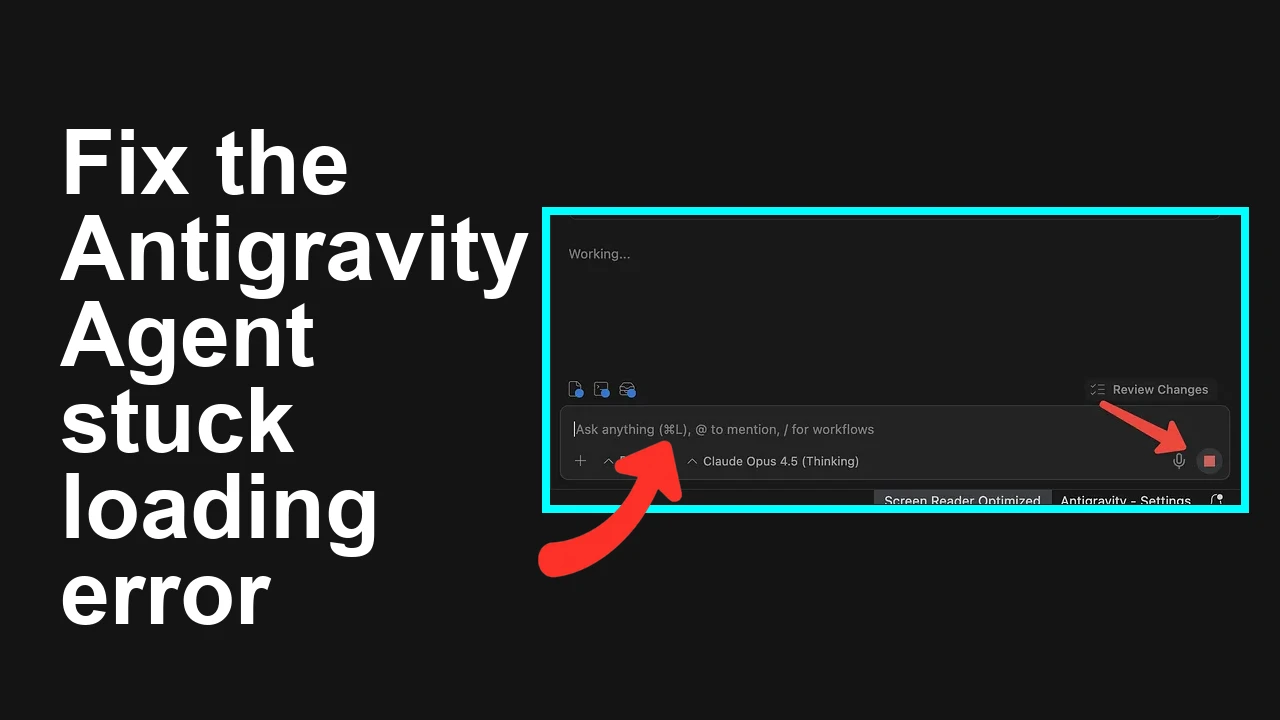
How to fix Agent stuck and can't be stopped error in Antigravity?
Your Antigravity agent is stuck in a running state and the Stop button does nothing. You can only recover by closing the workspace or quitting the app, which is frustrating and disrupts work.
How to fix Agent stuck and can't be stopped error in Antigravity?
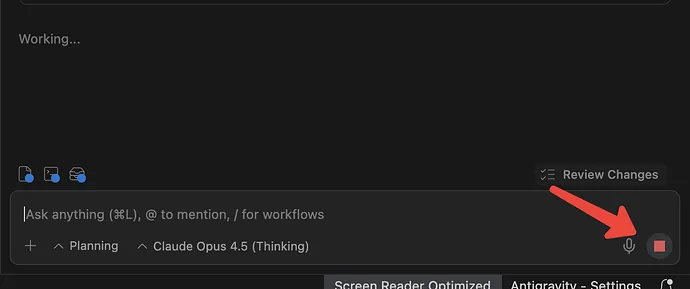
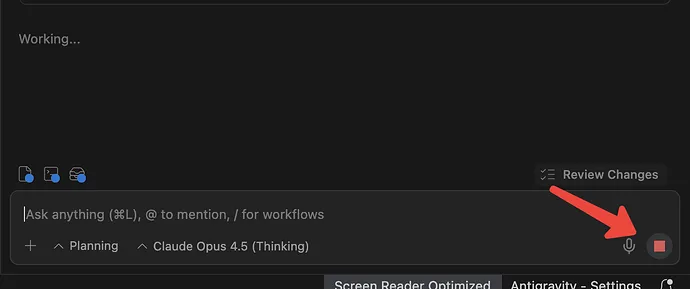
This issue presents as the agent running forever with no response, and the UI control to stop it does not work. The only apparent way out is to close the workspace or exit Antigravity entirely.
In many cases the run is held by a background worker process or a stale lock file. That keeps the session pinned in running state and prevents normal shutdown.
Solution Overview
| Aspect | Detail |
|---|---|
| Root Cause | Background agent process or stale lock keeps the run active even after the UI stop request |
| Primary Fix | Force terminate the agent backend process and clear any local agent lock or cache then relaunch |
| Complexity | Easy |
| Estimated Time | 5 to 15 minutes |
Read More: Stuck on loading the agent
How to fix Agent stuck and can't be stopped error in Antigravity?
Step by Step Solution
Step 1. Save your work and snapshot the project
- Do this first so you can safely restart components without losing changes.
Step 2. Force stop the agent process
- macOS or Linux
ps aux | grep -i antigravity
pkill -f "antigravity"
If you know the listening port and need to free it:
lsof -iTCP -sTCP:LISTEN -P | grep -i anti
kill -9 <PID>- Windows
tasklist | findstr /I antigravity
taskkill /IM antigravity.exe /F
If you only know the port:
netstat -ano | findstr LISTENING
taskkill /PID <PID> /F
Reference docs: Use Activity Monitor on Mac, Task Manager on Windows, lsof manual
Step 3. Clear stale lock and transient state in the workspace In the project root, remove common transient folders and any agent lock files. Only delete files you recognize as cache or locks.
- macOS or Linux
find . -maxdepth 2 -type f -name "agent.lock" -delete
rm -rf .antigravity
rm -rf .cache/antigravity
rm -rf ~/.cache/antigravity- Windows PowerShell
Get-ChildItem -Path . -Recurse -Filter agent.lock | Remove-Item -Force
Remove-Item -Recurse -Force .antigravity, .cache\antigravity
Remove-Item -Recurse -Force "$env:USERPROFILE\AppData\Local\antigravity"
If your last run failed with an execution error before this stuck state, see this quick checklist in our guide to help you reset cleanly: agent execution terminated fixes.
Step 4. Relaunch Antigravity and start a fresh agent session
- Open the workspace again.
- Start a new agent run rather than resuming an old one.
- Confirm the Stop button now ends the session within a few seconds.

Step 5. Update to the latest build Keeping Antigravity current reduces stuck run bugs.
- Check in app for updates or fetch the latest installer.
- If you manage it through a package manager, update from there.
Why this works
- Killing the background process breaks the hold on the session.
- Deleting stale locks and cache removes the state that can re pin the agent as running.
- Relaunching starts a clean control loop that responds to Stop correctly.
Alternative Fixes & Workarounds
Use the system task manager or activity monitor instead of in app Stop
- On Mac, end the Antigravity and helper processes from Activity Monitor if the UI is frozen.
- On Windows, end task for the main app and background helper then relaunch.
Switch model or disable the last tool then retry Some runs hang on a blocking tool call. Switch to a simple model, disable the slow tool, then start the agent again.
Run in a fresh workspace Copy your project to a new folder and start the agent there. This bypasses broken local state in the original workspace.
Network timeout tweak If the hang is network bound, temporarily move to a reliable network and retry. Add or lower any request timeout in your agent configuration if that is exposed.
Reinstall or repair the app If the issue returns every session, reinstall Antigravity or repair the extension that hosts the agent runtime.
Read More: Fixing terminated runs in Antigravity
Troubleshooting Tips
-
Check ports in use If the agent binds a port that never frees, free it then retry. Commands are shown above.
-
Look for repeating log lines A repeating RPC or tool line usually means a loop. Reduce tool concurrency or disable the problematic tool and try again.
-
Test with minimal prompt or empty context Start a run with a trivial instruction to rule out prompt content that triggers a loop.
-
Confirm permissions If the agent writes to a read only path, it can stall on I O. Run with proper permissions and a writable project directory.
-
Disk space Low disk space can freeze background workers. Free space and retry.
-
Antivirus or EDR Security software that injects into processes can block termination. Whitelist the Antigravity install and workspace folders, then retry.
Best Practices
- Keep Antigravity and extensions updated to pick up agent control fixes.
- Use short tool timeouts and add cancellation in long running tools where possible.
- Avoid resuming very old sessions after upgrading. Start fresh runs.
- Monitor logs during development so you can spot loops and cancel early.
- Automate a cleanup script that removes transient folders and lock files before CI or demo runs.
Read More: If the agent never loads, use this reset
Final Thought
A stuck agent is almost always a background worker or stale lock that never cleared. Terminate the process, remove transient state, then relaunch and the Stop button should work again. If it keeps happening, apply the best practices above and review our related Antigravity fixes to keep runs healthy.
Subscribe to our newsletter
Get the latest updates and articles directly in your inbox.

Related Posts
How to fix Agent is not responding error in Antigravity?
How to fix Agent is not responding error in Antigravity?
How to fix Antigravity won't work with any Gemini models error?
How to fix Antigravity won't work with any Gemini models error?
How to fix Issue switching between Gemini 3 Pro and Gemini 3.1 Pro in Antigravity?
How to fix Issue switching between Gemini 3 Pro and Gemini 3.1 Pro in Antigravity?