
How to fix Antigravity stuck at loading agent?
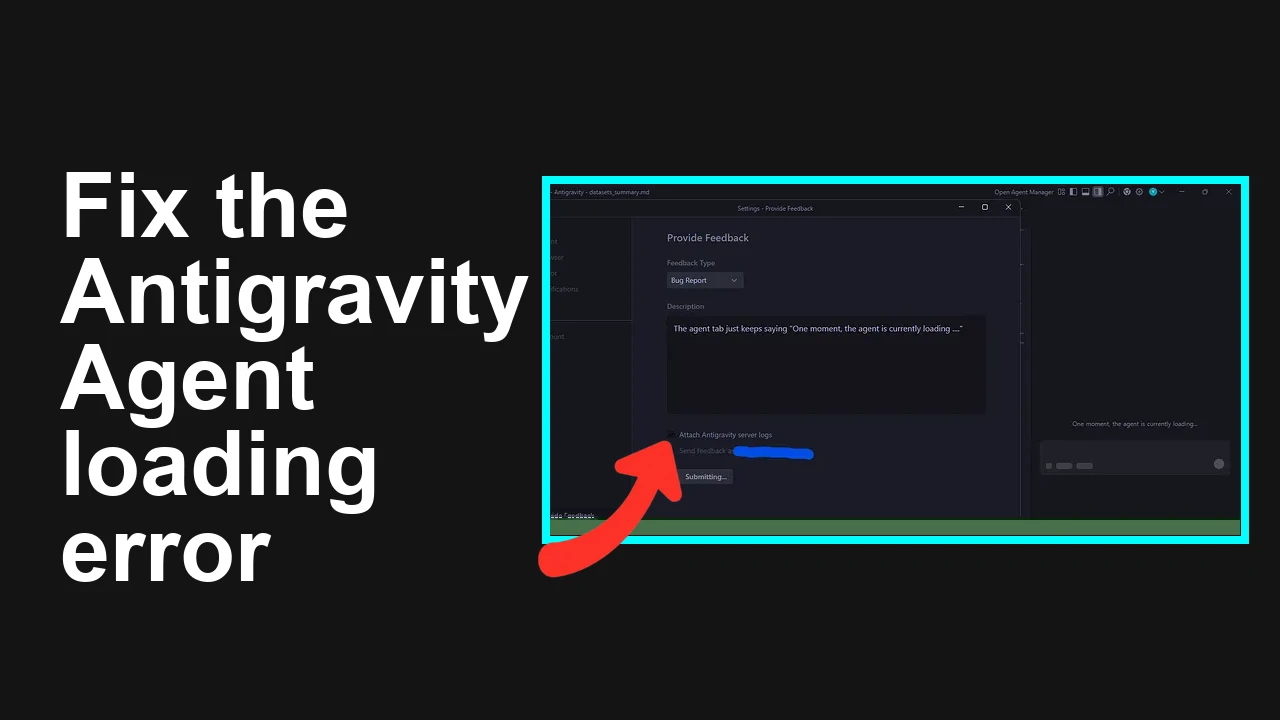
Antigravity starts but hangs on “One moment, the agent is currently loading” and even the in‑app feedback form stalls. The most consistent fix reported is to refresh your account session and restart the app.
How to fix Antigravity stuck at loading agent?
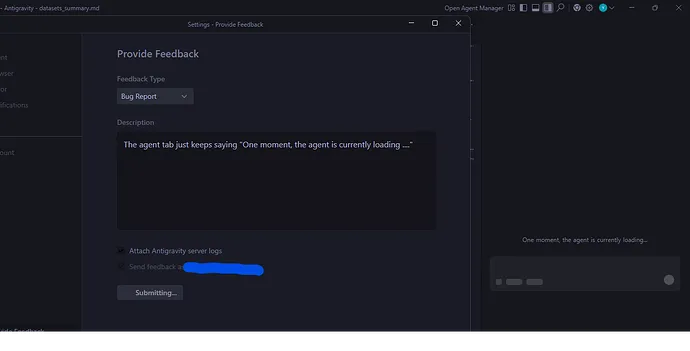
Users report Antigravity freezing on launch with the banner: “One moment, the agent is currently loading.” On some machines, even feedback submission never completes. This has occurred across macOS, Linux, and Windows, and a bug has been acknowledged by the team.
The Problem
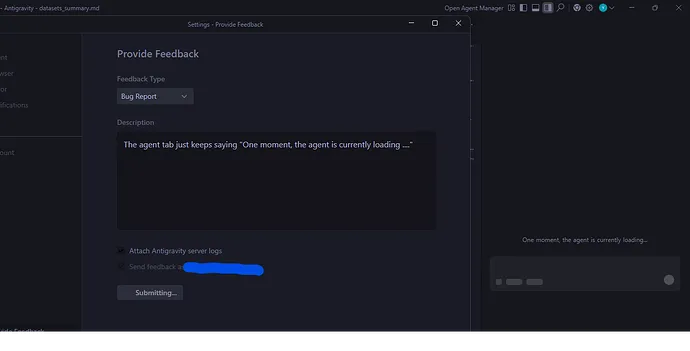
In many cases, the app stalls because of a stale/invalid sign‑in session or corrupted local state in the Antigravity data folder. This prevents the agent from fully initializing. If your symptom escalates to a hard crash with an explicit agent error, also see our related guide on fixing agent crashes: troubleshooting agent terminated errors.
Solution Overview
| Aspect | Detail |
|---|---|
| Root Cause | Stale/invalid authentication session or corrupted local Antigravity state blocks agent initialization. |
| Primary Fix | Sign out of Antigravity, sign back in, then fully restart the app. |
| Complexity | Easy |
| Estimated Time | 3–8 minutes |
How to fix Antigravity stuck at loading agent?
Step-by-Step Solution
1) Sign out, sign back in, then restart Antigravity (primary fix)
- Open Antigravity.
- From the app menu, select Account → Sign out.
- Fully quit the app:
- macOS:
killall Antigravity 2>/dev/null || true- Linux:
pkill -f Antigravity || true- Windows (PowerShell):
taskkill /IM Antigravity.exe /F- Relaunch Antigravity and sign in again with your Google account.
- Create or open a project and wait ~30–60 seconds for the agent to initialize.
If this alone fixes it, you’re done.
2) Clear Antigravity’s local scratch/state (safe reset) If the hang persists, back up the local workspace and reset the app’s data folder. This targets corrupted state that can trap the agent during startup.
- macOS/Linux: Back up and reset the Antigravity folder.
# Back up
mkdir -p ~/.gemini/backup
if [ -d ~/.gemini/antigravity ]; then
mv ~/.gemini/antigravity ~/.gemini/backup/antigravity_$(date +%s)
fi

# Relaunch the app afterwards- Windows (PowerShell):
$src = "$env:USERPROFILE\.gemini\antigravity"
$dst = "$env:USERPROFILE\.gemini\backup\antigravity_$(Get-Date -UFormat %s)"
if (Test-Path $src) {
New-Item -ItemType Directory -Force -Path (Split-Path $dst) | Out-Null
Move-Item $src $dst
}- Relaunch Antigravity, sign in again, and let it re-create its local state.
Tip (macOS): Projects were reported at:
/Users/<username>/.gemini/antigravity/scratchThis folder is hidden by default. In Finder, press:
- cmd + shift + . Then copy your work out before resetting. You can also open it via Terminal:
open ~/.gemini/antigravity/scratch
ls -la ~/.gemini/antigravity/scratch
3) Verify network and account context
- Disable VPN/proxy temporarily and retry.
- Confirm you’re signed into the intended Google account inside Antigravity (mismatch can stall model bootstrapping).
- If your models never initialize or keep failing to load, see this guide: troubleshoot models not loading.
Alternative Fixes & Workarounds
Reinstall Antigravity (clean)
- Uninstall Antigravity.
- Delete/backup the local data folder:
- macOS/Linux:
rm -rf ~/.gemini/antigravity- Windows (PowerShell):
Remove-Item -Recurse -Force "$env:USERPROFILE\.gemini\antigravity"- Install the latest build and sign in again.
Start a new scratch project
- If one project stalls consistently, create a fresh project to confirm it’s not a workspace-specific lockup.
- Move needed files from:
- macOS/Linux:
~/.gemini/antigravity/scratch- Windows:
%USERPROFILE%\.gemini\antigravity\scratchUse stable connectivity
- Switch to a wired/well-performing Wi‑Fi network.
- Some corporate firewalls block model endpoints; try a personal network to confirm.
Submit feedback with logs (if available) If the in-app feedback spinner is stuck, capture details externally and attach logs/files when contacting support. For similar send failures in Antigravity, also see: fixing send failures in Antigravity.
Troubleshooting Tips
- Confirm hidden files are visible so you can access .gemini:
- macOS: Press cmd + shift + . in Finder. Apple’s guide: view hidden files on Mac.
- Windows: Follow Microsoft’s instructions: show hidden files.
- Check for service or quota issues. If you’re building with Gemini APIs, review limits: Gemini API rate limits.
- Sign out of all Google accounts in your default browser, sign back into the one used by Antigravity, then repeat the app sign-in.
- If you run multiple AI tools, close them before launching Antigravity to avoid local port/session conflicts.
- Keep the app updated; newer builds often include startup and auth fixes. Learn more about the platform at Google AI Studio.
Best Practices
- Always close Antigravity cleanly to prevent workspace corruption.
- Keep a backup of the scratch folder, especially before resets.
- Maintain a stable, low‑latency network when starting the agent for the first time in a session.
- Use a single, consistent Google account in both your system browser and Antigravity.
- Update Antigravity routinely to capture fixes for session handling and agent startup.
Final Thought
The fastest path is simple: sign out, sign back in, and restart the app. If that fails, back up and reset the local Antigravity folder, then verify network/account context for a clean agent boot. These steps resolve the vast majority of “loading agent” stalls quickly.
Subscribe to our newsletter
Get the latest updates and articles directly in your inbox.

Related Posts
How to fix Agent stuck and can't be stopped error in Antigravity?
How to fix Agent stuck and can't be stopped error in Antigravity?
How to fix Agent is not responding error in Antigravity?
How to fix Agent is not responding error in Antigravity?
How to fix Antigravity won't work with any Gemini models error?
How to fix Antigravity won't work with any Gemini models error?