
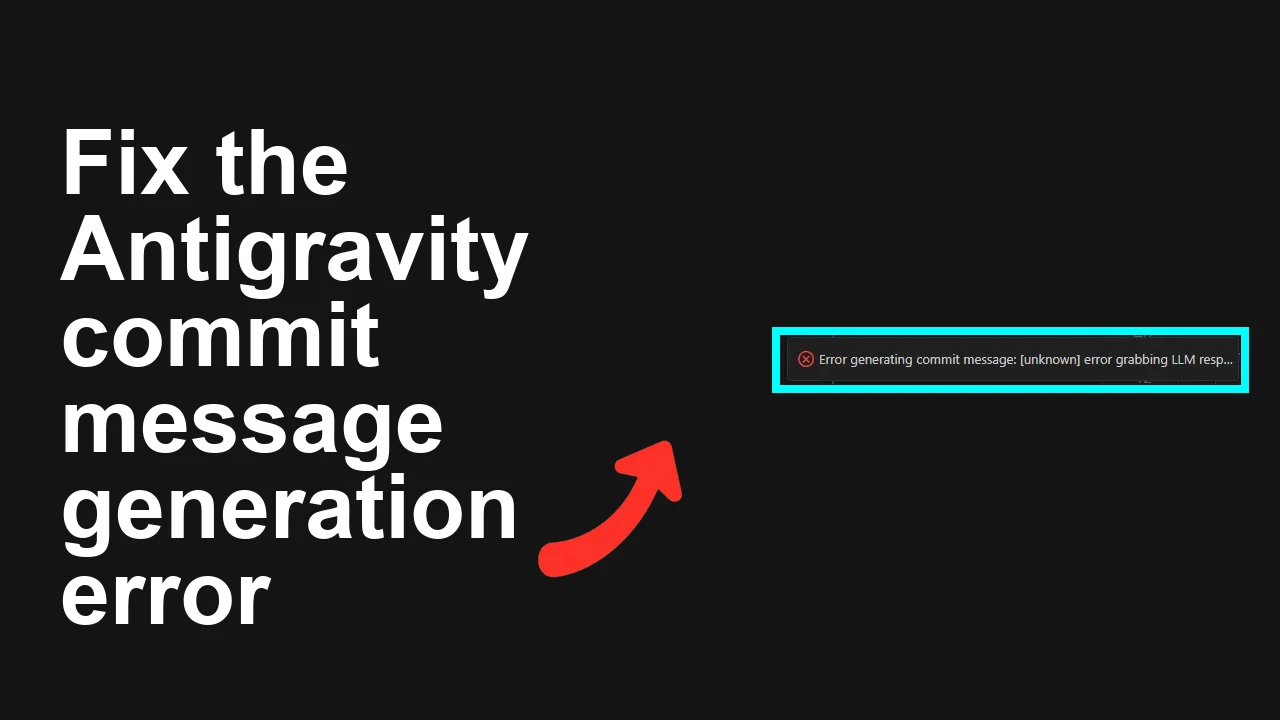
How to fix Error generating commit message in Antigravity?
You click “Generate commit message” in Antigravity and it fails with an error. No message is produced, and you can’t proceed with a normal AI-assisted commit.
The Problem

This issue shows as “Error generating commit message” in Antigravity. It typically occurs when there are no staged changes, the diff is too large, the app can’t reach the AI service (network/proxy/VPN), or Antigravity is out of date. If you need a quick checklist, see this compact walkthrough: step-by-step checklist.
Solution Overview
| Aspect | Detail |
|---|---|
| Root Cause | Missing staged changes, oversized diffs, network/proxy/VPN blocks, API rate limits, or an outdated/buggy Antigravity build |
| Primary Fix | Ensure a valid Git repo with staged changes, update Antigravity, and verify network access (no blocking proxy/VPN) |
| Complexity | Easy |
| Estimated Time | 10–20 minutes |
How to fix Error generating commit message in Antigravity?
Step-by-Step Solution
1) Confirm you’re in a Git repo and have staged changes
- Antigravity generally needs a staged diff to summarize.
- Run these commands in your project root:
git rev-parse --is-inside-work-tree
git status
git add -A
git diff --staged --stat- If nothing is staged, stage only the files you intend to commit, then try again.

2) Reduce an oversized or noisy diff
- Very large diffs or binary changes can cause failures or timeouts.
- Split your commit into smaller chunks:
git reset
git add path/to/file1 path/to/file2
git diff --staged --stat- Track large assets with Git LFS to keep diffs manageable:
git lfs install
git lfs track "*.psd"
git add .gitattributes
3) Update Antigravity to the latest version
- Outdated builds often include bugs already fixed in newer releases.
- Open Antigravity, select Help > Check for Updates (or your platform’s update path) and install the latest build.
- Restart Antigravity after updating.
4) Re-authenticate and re-enable the AI commit feature
- Sign out, then sign back in.
- In Settings/Preferences, disable and re-enable “AI commit messages” (wording may vary).
- Restart Antigravity and try again.
For broader context and screenshots, you can also review this explainer: common commit-message errors in Antigravity.
5) Verify network access, proxies, VPNs, and certificates
- Many failures are network-related. Test connectivity:
curl -I https://ai.google.dev
curl -I https://www.googleapis.com- If you’re behind a corporate proxy/VPN, temporarily disconnect or add exceptions. Check environment variables:
- macOS/Linux:
echo $HTTP_PROXY
echo $HTTPS_PROXY
echo $NO_PROXY- Windows (PowerShell):
$Env:HTTP_PROXY; $Env:HTTPS_PROXY; $Env:NO_PROXY- If these are set, confirm they allow outbound HTTPS to AI endpoints or unset them for a quick test.
6) Check API quotas and rate limits (if your setup uses an API key)
- Heavy usage can hit rate limits and produce generation errors. See official guidance on Gemini API rate limits.
- If you’re rate-limited, wait a few minutes, reduce batch operations, and try again.
7) Clear temporary data and retry
- Close all project windows in Antigravity, then reopen the project.
- If the app offers a Settings > Privacy or Settings > AI section with a “Clear cache/model data” option, clear it and retry.
8) Collect diagnostics if it still fails
- In Antigravity, open the Feedback icon > Report Issue to include logs and diagnostics.
- Reproduce the error once, then submit the report so the team can pinpoint your environment issue.
Alternative Fixes & Workarounds
Generate a message from a smaller subset
- Stage only the most relevant files first, generate the commit message, commit, then repeat for the rest.
Manually prompt using the staged diff
- Run:
git diff --staged > /tmp/staged.patch- Paste the contents of /tmp/staged.patch into Antigravity’s chat/AI pane and ask it to propose a commit message. Copy the result into your commit dialog.
Temporarily disable binary or vendor directories
- Ensure they’re ignored to keep diffs small:
echo "node_modules/" >> .gitignore
echo "dist/" >> .gitignore
echo "*.png" >> .gitignore
git add .gitignore
Troubleshooting Tips
- Hook conflicts: Client-side hooks (prepare-commit-msg, commit-msg) can interfere. Temporarily move .git/hooks/ scripts and retry.
- File encoding issues: Rarely, odd encodings in diff output can break parsing. Normalize line endings:
git config core.autocrlf input # macOS/Linux
git config core.autocrlf true # Windows- Workspace path length (Windows): Very long paths can cause tool failures. Enable long paths:
git config --system core.longpaths true- Agent failures: If you see agent crashes, compare with this fix guide: agent terminated troubleshooting.
Best Practices
- Keep commits focused and small to improve AI context quality and reduce timeouts.
- Maintain a solid .gitignore to exclude build outputs and large assets.
- Stay updated with the latest Antigravity build.
- Use Git LFS for large/binary files to avoid bloated diffs.
- Stable network: Avoid restrictive VPNs/proxies during generation, or whitelist required endpoints.
If you want a quick, printable version of these steps, here’s a concise reference: Antigravity commit-message quick fix.
Final Thought
In most cases, this error disappears after you stage the right files, reduce the diff, update Antigravity, and ensure network access. If it persists, sending diagnostics via the in-app feedback tool helps the team resolve environment-specific issues fast.
Subscribe to our newsletter
Get the latest updates and articles directly in your inbox.

Related Posts
How to fix Agent stuck and can't be stopped error in Antigravity?
How to fix Agent stuck and can't be stopped error in Antigravity?
How to fix Agent is not responding error in Antigravity?
How to fix Agent is not responding error in Antigravity?
How to fix Antigravity won't work with any Gemini models error?
How to fix Antigravity won't work with any Gemini models error?