

vLLM-Omni Local Setup Guide: Multimodal AI in Minutes
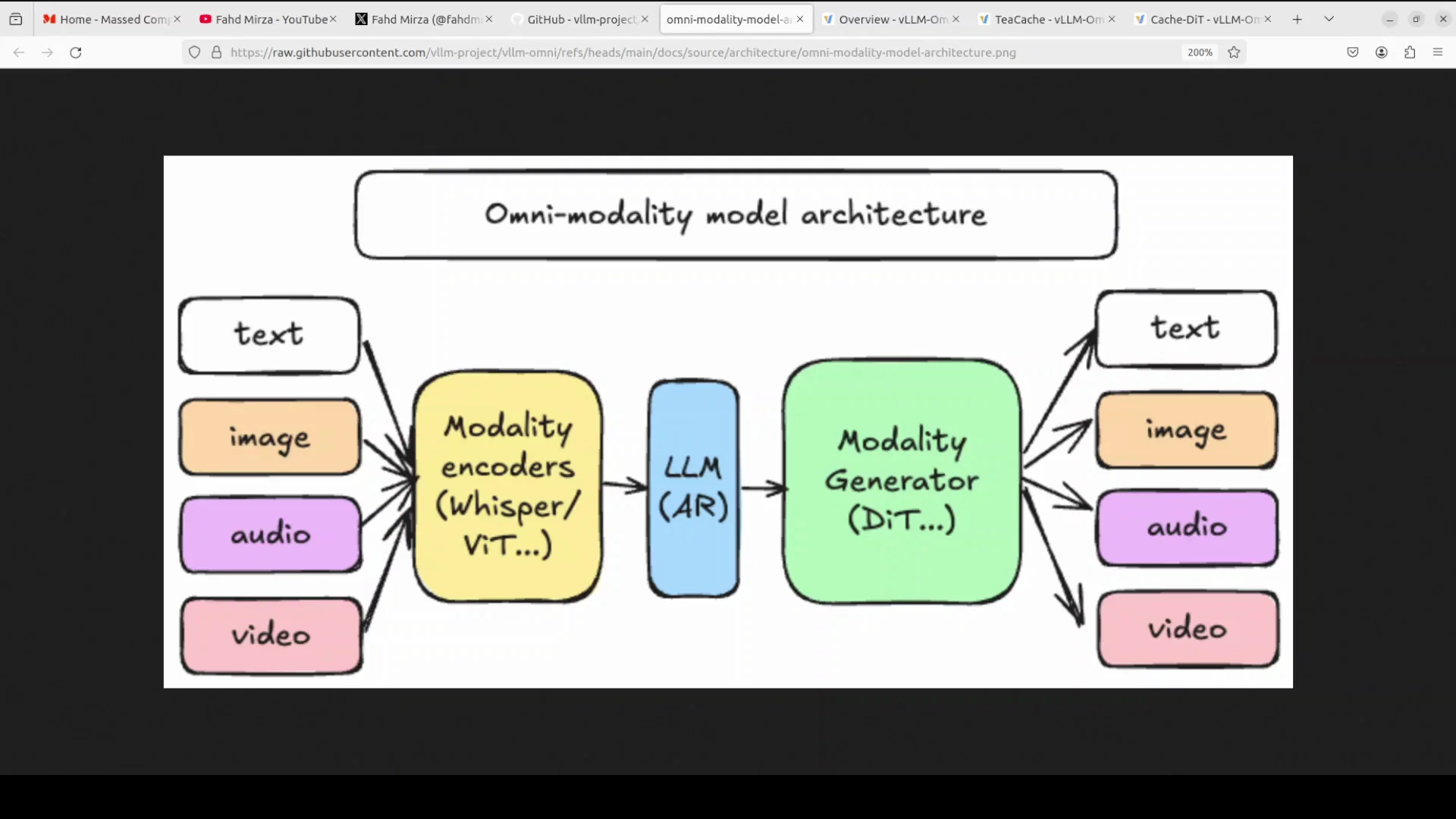
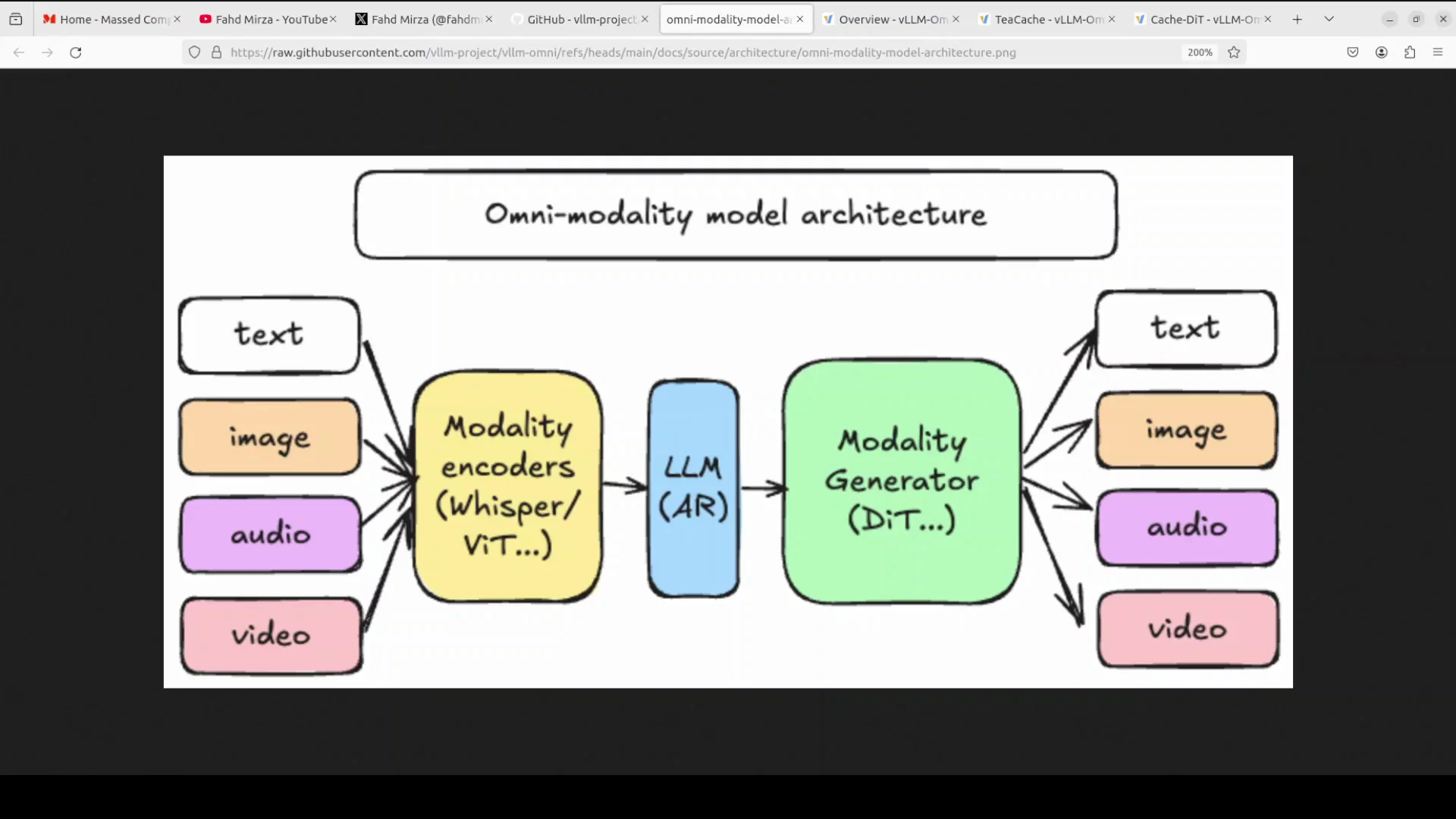
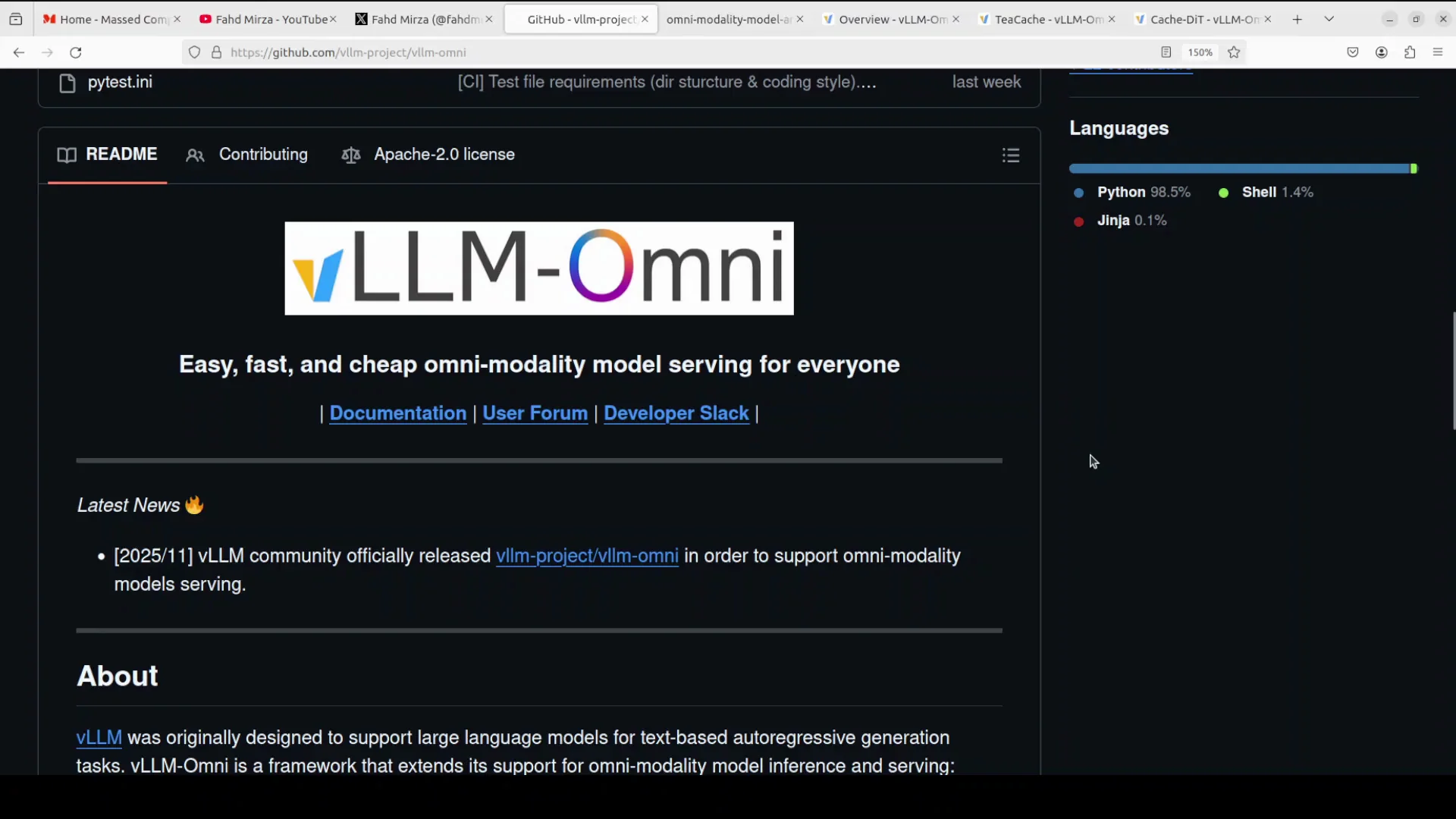
It doesn't get better than this. vLLM community has given us the best end-of-year gift. Today we explore vLLM-Omni, a framework that takes the already powerful vLLM inference engine and supercharges it with omni-modal capabilities. Instead of just handling text like traditional language models, vLLM-Omni can process text, images, video, and audio while maintaining the blazing fast inference speed that vLLM is famous for.
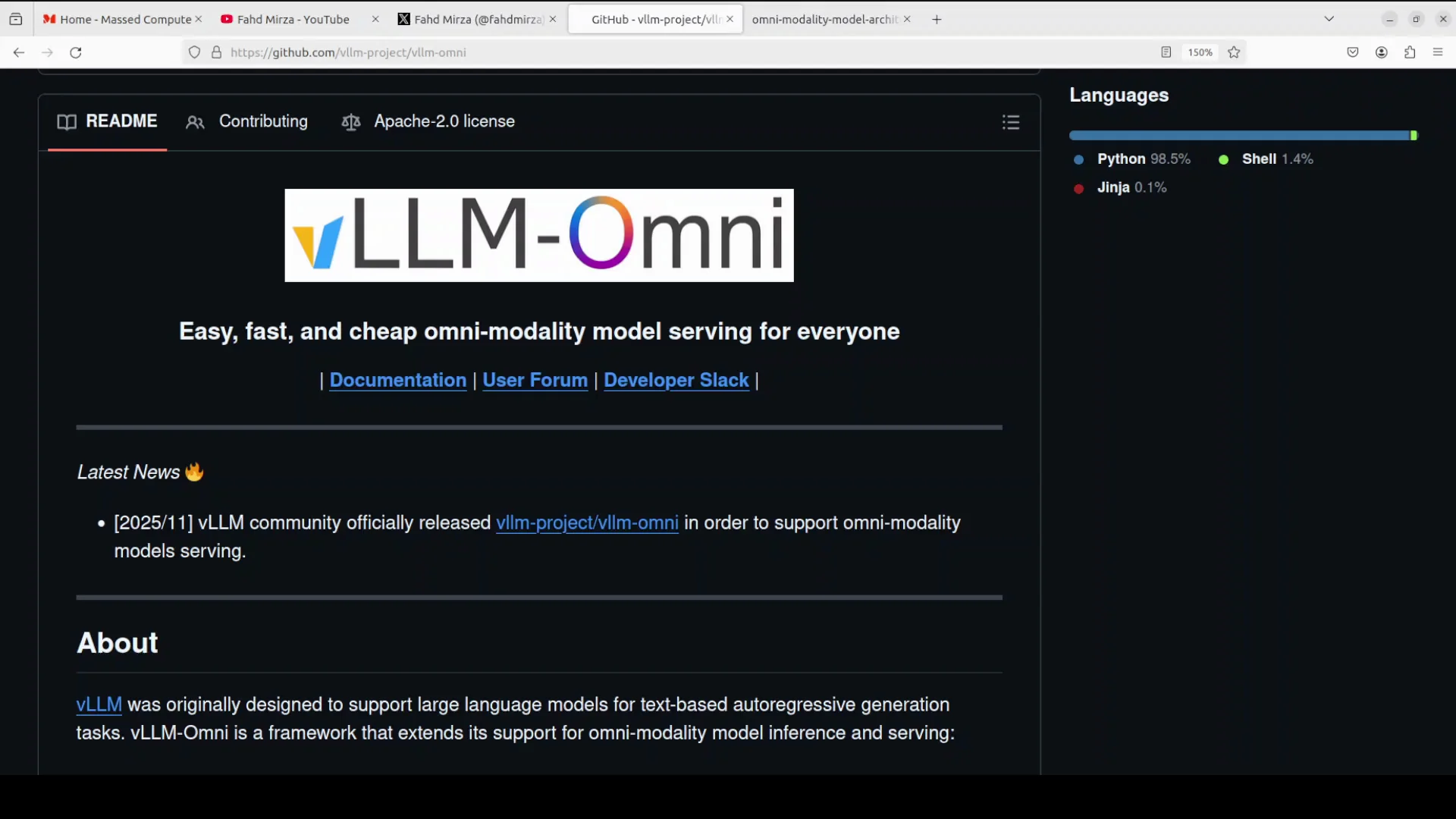
I am going to install vLLM-Omni on a local system and show exactly how that works. If you are interested in its architecture, I also explain how diffusion acceleration is tackled.
Install vLLM-Omni Locally
Environment I’m using
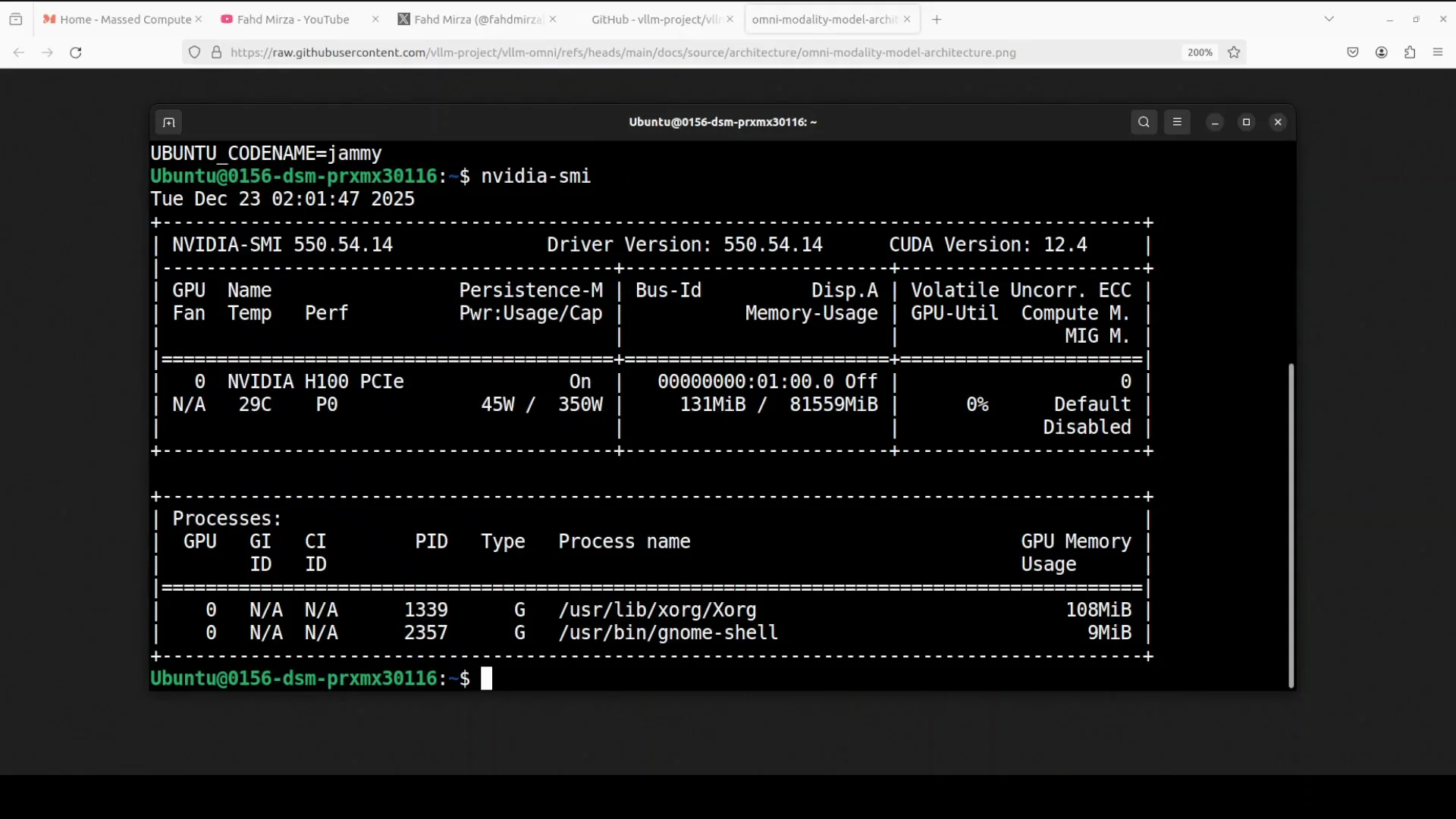
I’m going to use this Ubuntu system. I have one GPU card, Nvidia RTXs, Nvidia H100 with 8GB of VRAM because I want to use Omni model.
Step-by-step setup with UV
- Install UV, a fast Python package manager, and source it in the environment.
- Create a Python environment with UV and source it.
- Install vLLM first, since vLLM-Omni is based on vLLM. I’m installing with the Torch backend. This takes a couple of minutes.
- Install vLLM-Omni with UV. This should be fairly quick.
- Verify the installation with a simple script that imports vLLM and Omni and prints installation successful. If everything goes right, installation is done.
Serving a model locally
You can serve the model by simply using the z image turbo model in Omni. Use the Omni flag if you are using an Omni model. This will download the model and serve it at localhost on port 8000.
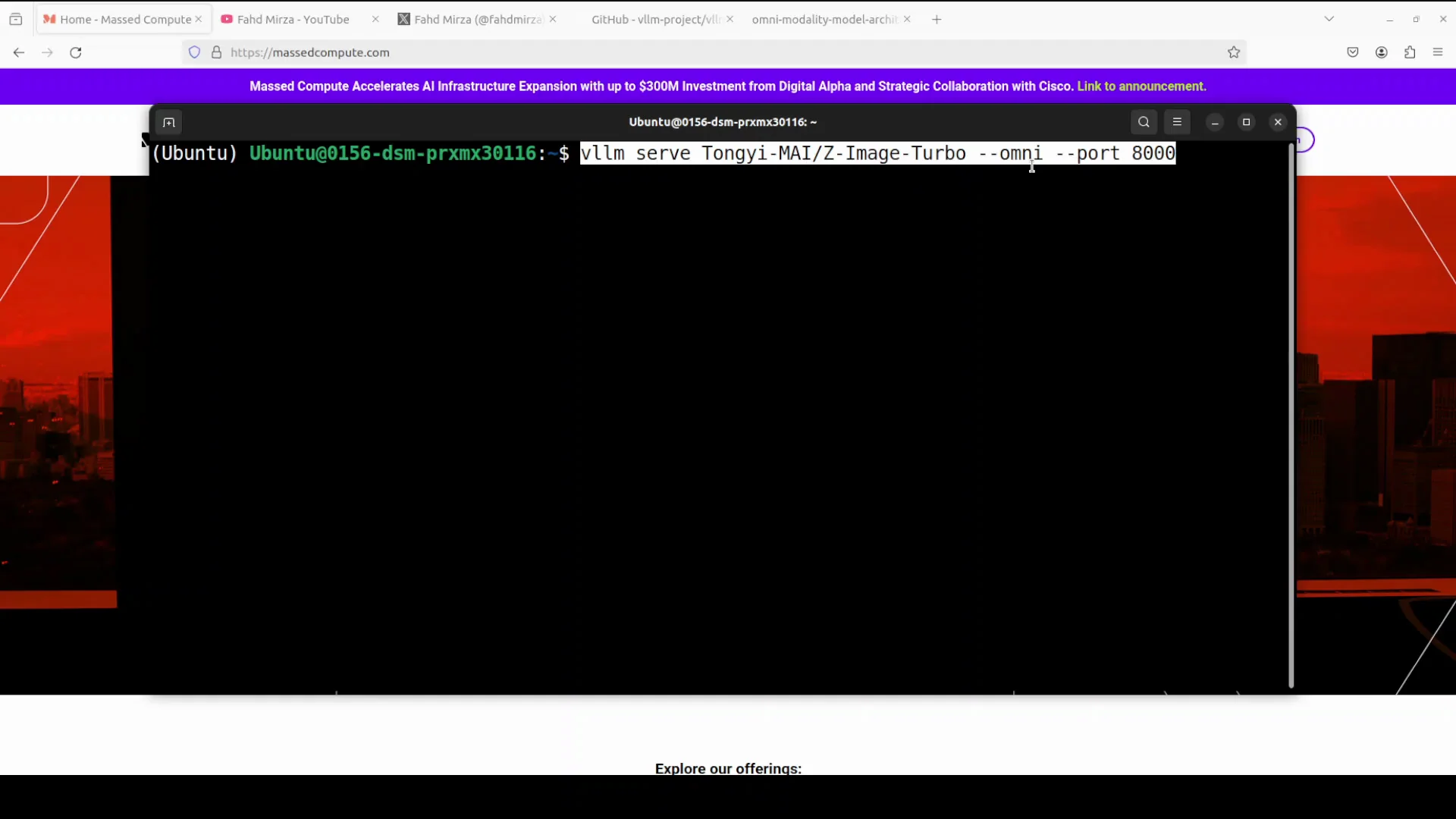
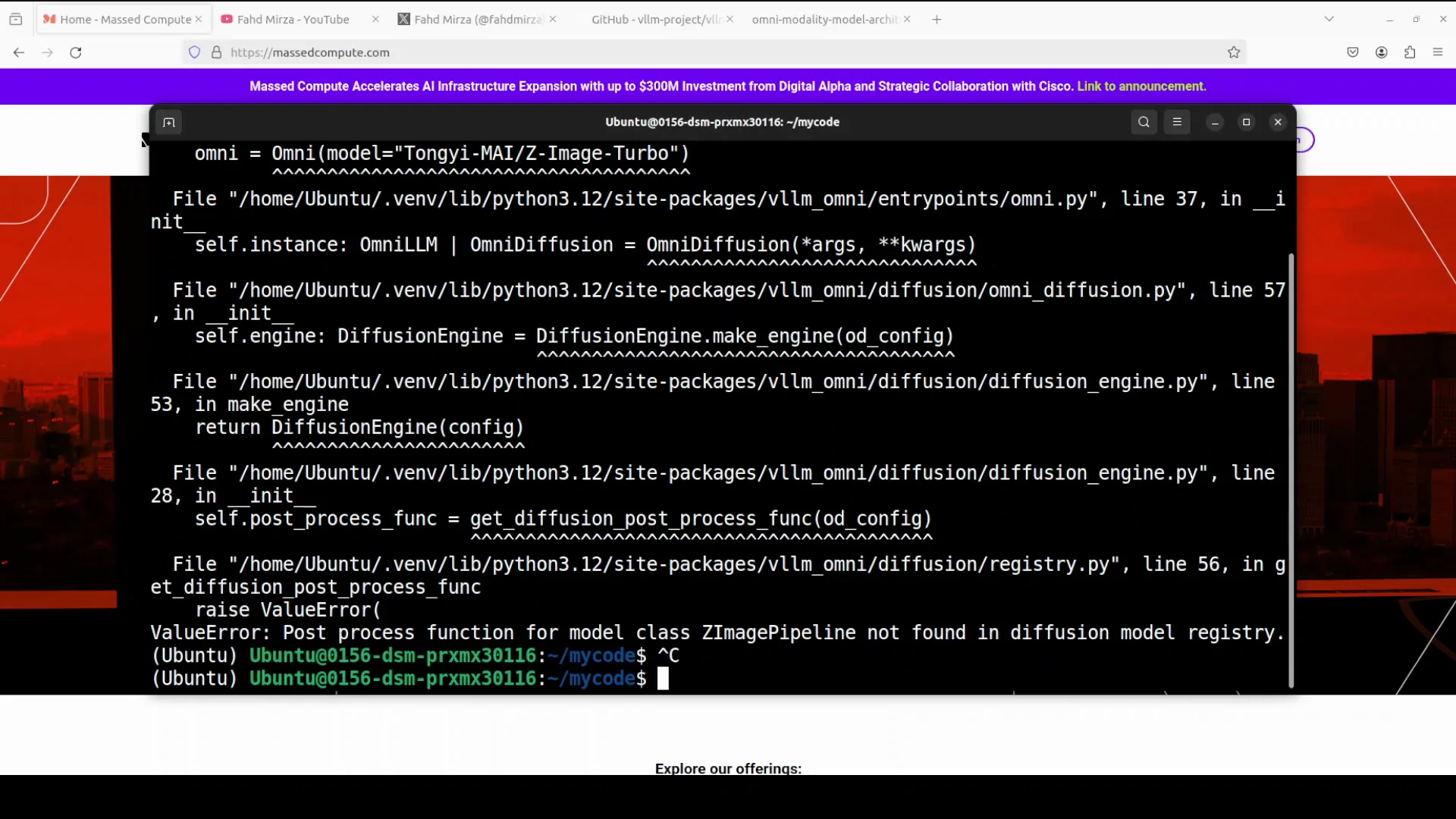
You will get an error. At the moment they don’t support online serving of the diffusion model. It doesn’t matter z image or any other Omni model for that purpose. For now you need to use offline serving. The PR is already in their GitHub repo. It will be in a couple of weeks, but not now. When it becomes available, the same command is all you need to use.
Offline inference method
This is how you do the offline inference:
- Run a Python script that loads the model, generates images, and then exits.
- No API servers, just local batch processing.
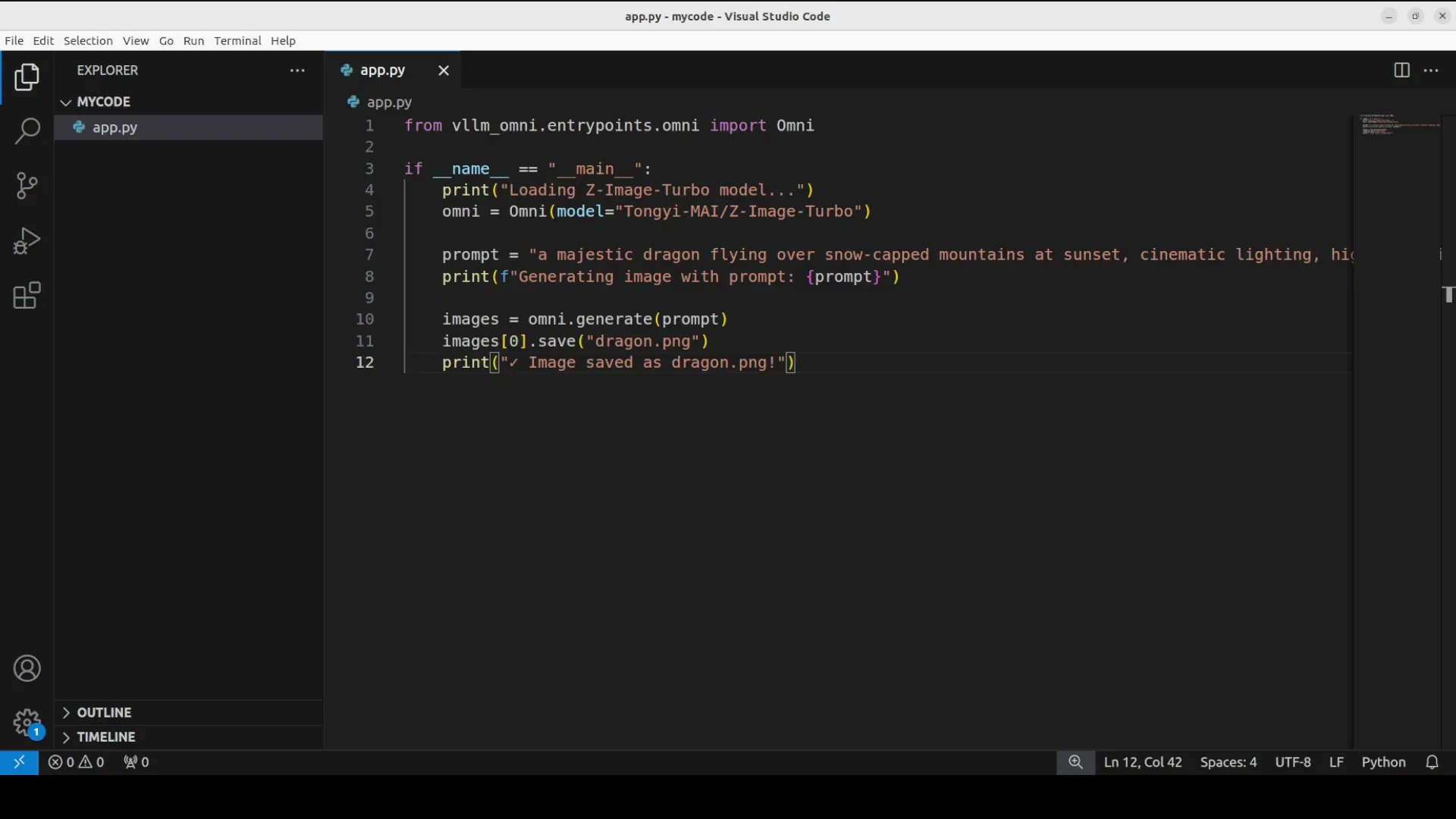
For comparison, online serving runs a persistent API server with vllm serve that multiple clients can connect to via HTTP, like running your own API endpoint for a model.
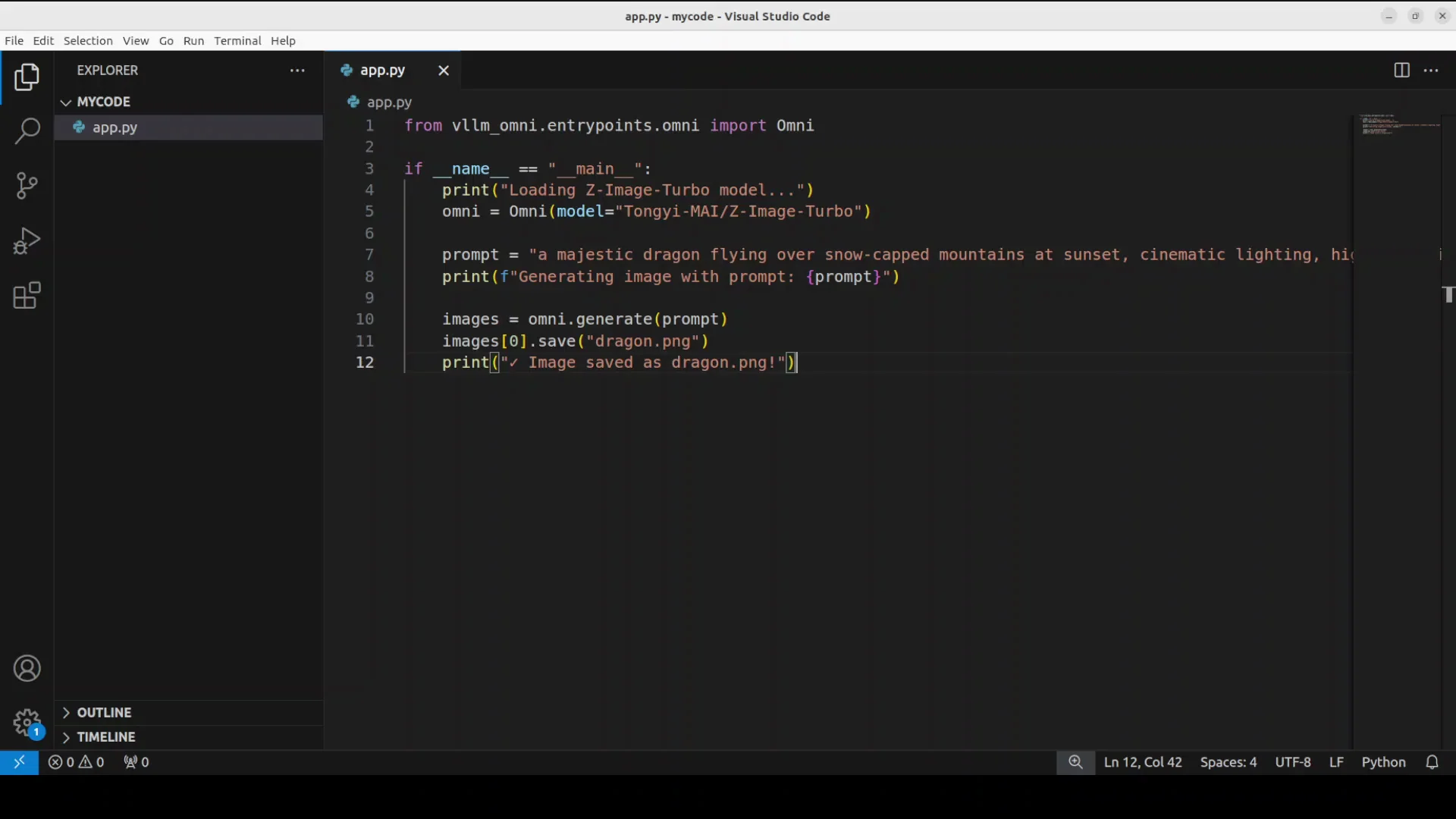
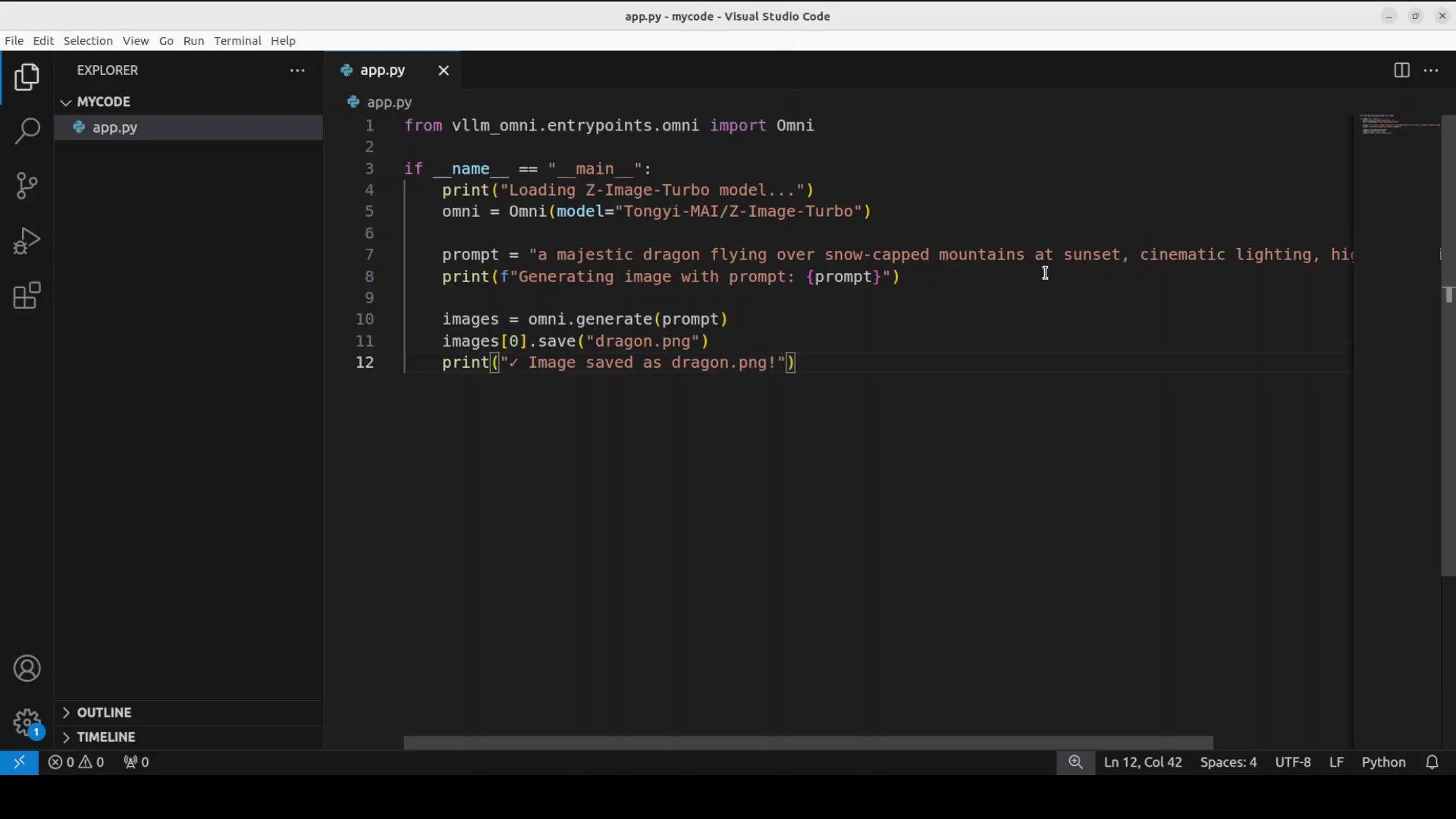
Run the offline script. The model is downloaded, then it generates the image defined in the code. I used the prompt a majestic dragon flying over snow capped mountain and it is saved on the local system.
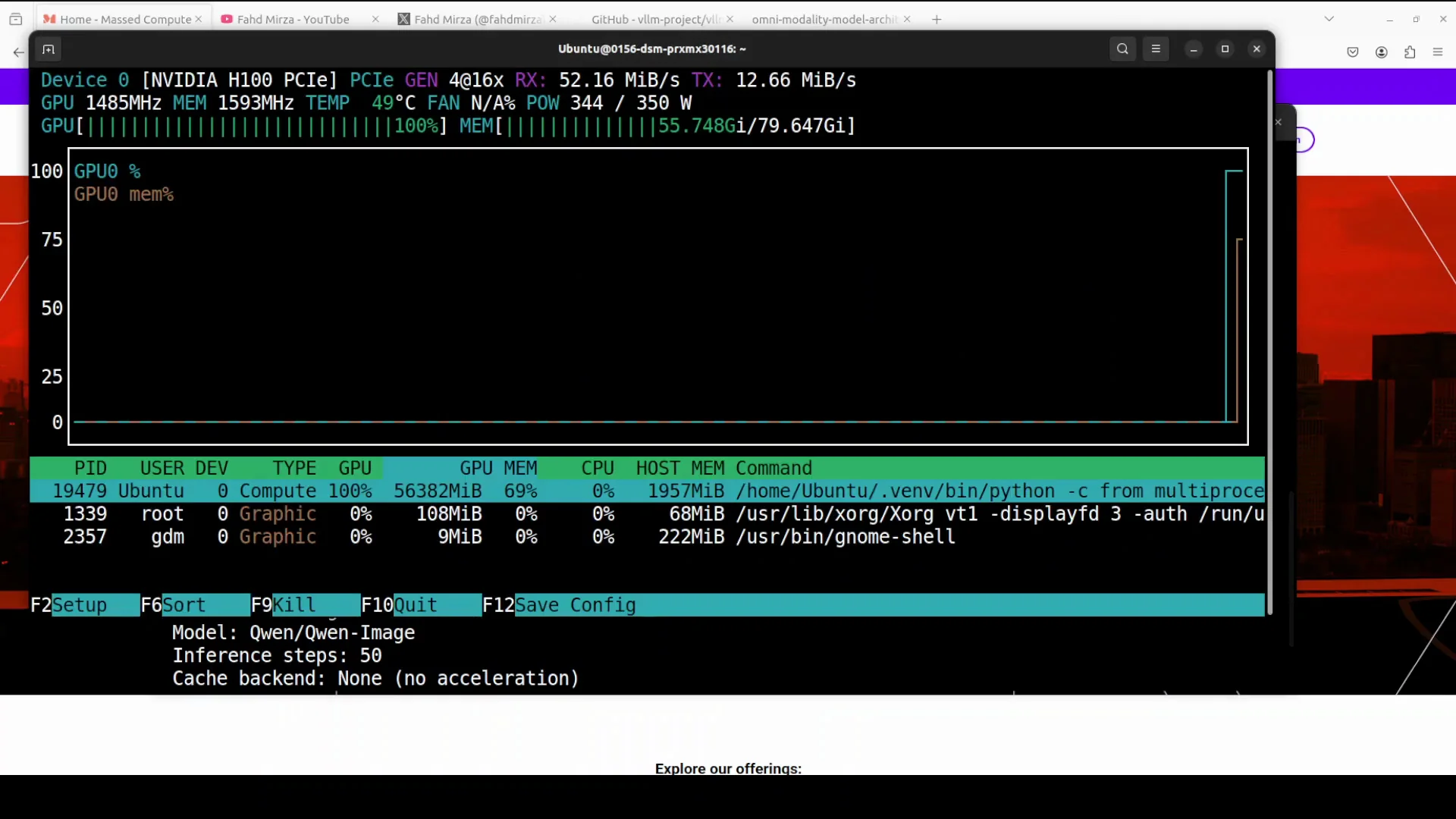
VRAM consumption and result
Let’s check the VRAM consumption. Under 60 gig. The VRAM consumption is the same with vLLM or not. The image generation is done and this is what it created on the local system. This is our dragon created with the new z image turbo model with the help of vLLM in offline inference.
Diffusion acceleration in vLLM-Omni
The problem
Diffusion models generate images through 50 plus iterative denoising steps. Each step runs the entire transformer model, which is slow and repetitive since consecutive steps often produce very similar intermediate results.
Techniques used for acceleration
vLLM-Omni introduces a set of techniques to speed this up.
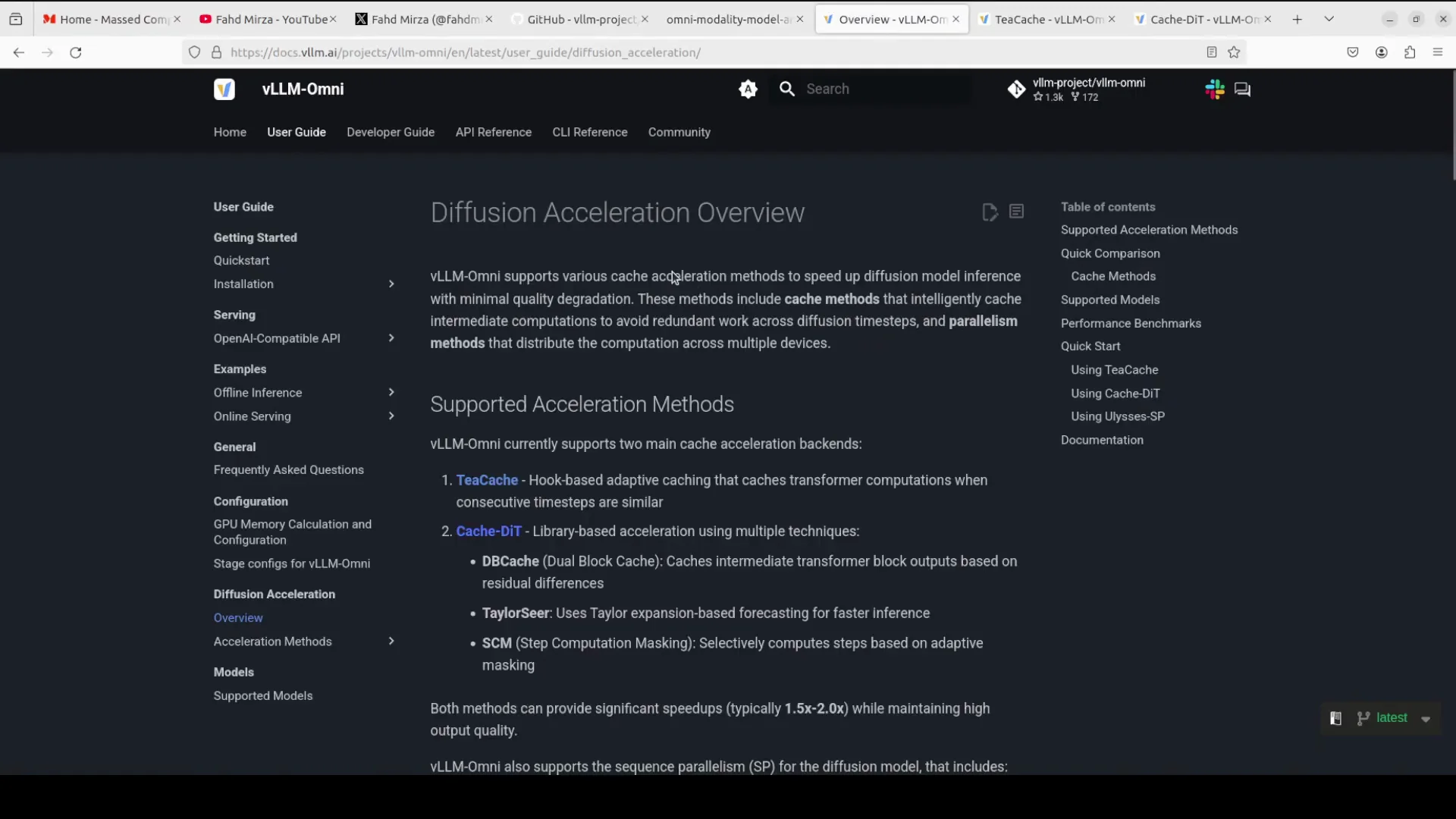
- TCache
- Monitors how much intermediate results change between consecutive time steps.
- When the change is small below a threshold, it reuses cached computation instead of recalculating.
- Uses a hook-based approach to automatically intercept model operations without modifying code.
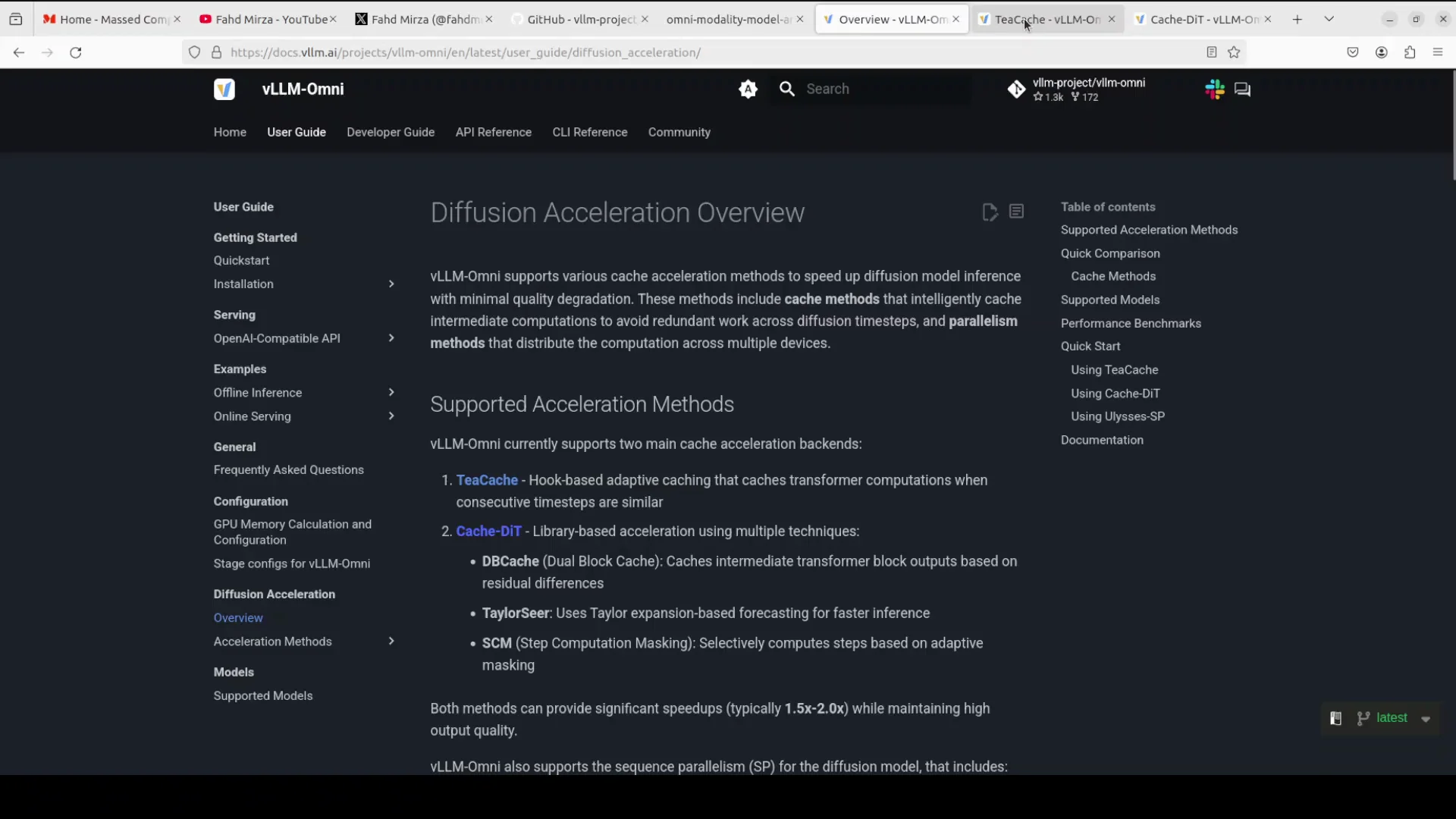
- Cache DiT or diffusion transformer
- Combines three major techniques:
- DB cache: caches transformer block outputs and only recomputes blocks where the residual difference exceeds a threshold.
- Taylor series: uses Taylor series polynomial extrapolation to predict the next step output from previous steps, reducing actual computation.
- SCM, step computation masking: masks out entire computation steps dynamically when they are predicted to have minimal impact.
- Combines three major techniques:
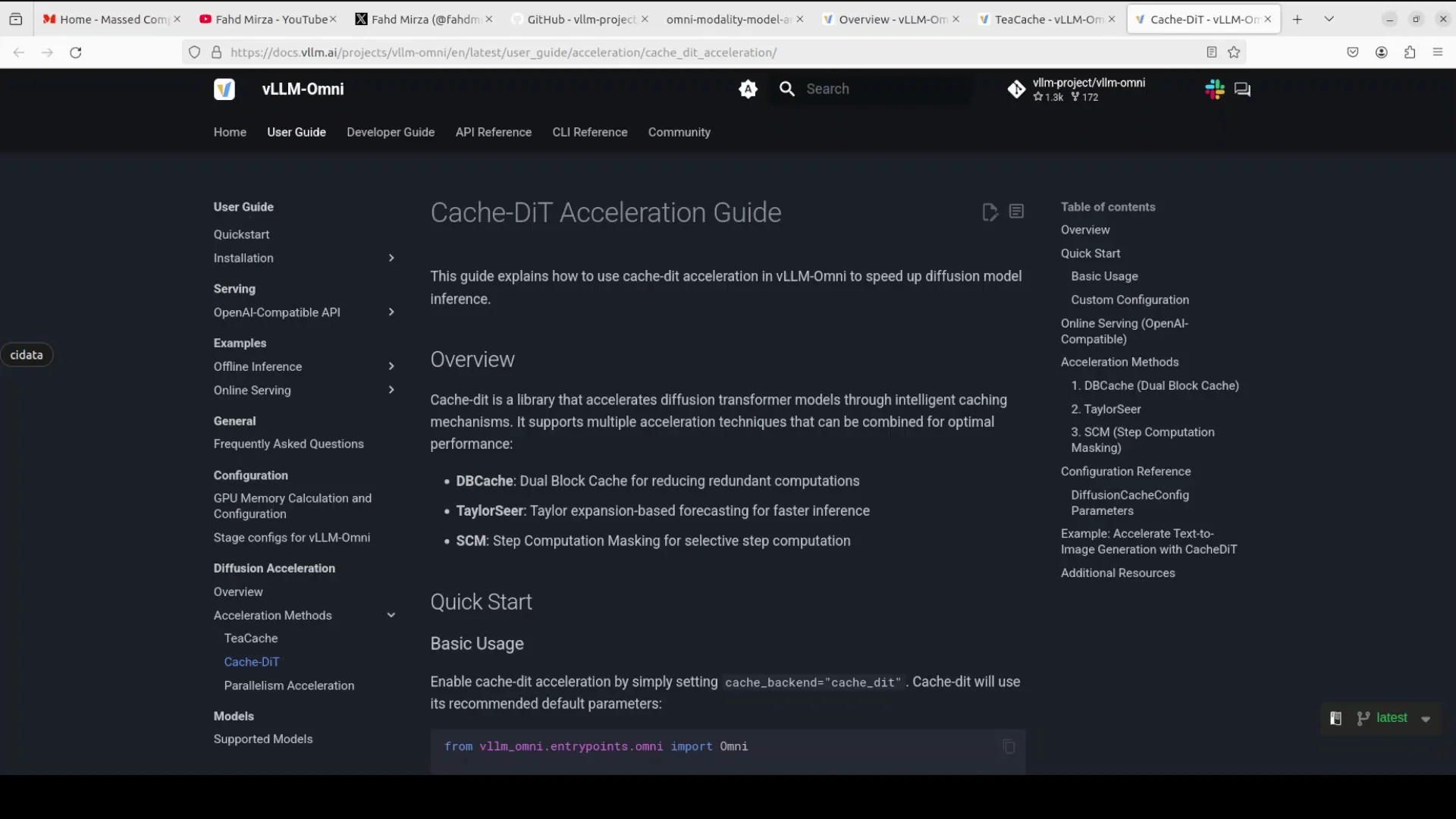
The purpose of all of this is to speed up diffusion model inference. They have done wonderfully well. The only thing now is to iron out issues with online inference. Once that’s done, this is going to be as superb as vLLM.
Final Thoughts
- vLLM-Omni extends vLLM to text, image, video, and audio while keeping fast inference.
- Installation is straightforward with UV: install vLLM, then vLLM-Omni, and verify.
- Online serving for diffusion models is not supported yet; use offline inference for now. A PR is in progress.
- Diffusion acceleration comes from caching, hook-based interception, Taylor series extrapolation, and step masking to avoid redundant computation.
Subscribe to our newsletter
Get the latest updates and articles directly in your inbox.

Related Posts

8 Best Claude Code Plugins in 2026 (You Need to Know)
8 Best Claude Code Plugins in 2026 (You Need to Know)

7 Best Claude Code Skills (You Need to Know)
7 Best Claude Code Skills (You Need to Know)

Claude Code Desktop IDE Features (You Need to Know)
Claude Code Desktop IDE Features (You Need to Know)