
Table Of Content
- What Microsoft VibeVoice-Realtime Lightweight Is Built For
- Microsoft VibeVoice-Realtime Lightweight on Google Colab
- Colab Setup and Runtime
- Clone the Repo and Download the Model
- Launch the Realtime Demo
- Microsoft VibeVoice-Realtime Lightweight: Local Installation
- Environment and Hardware
- Clone and Install
- Run the Realtime Demo Locally
- Microsoft VibeVoice-Realtime Lightweight Architecture
- Core Components
- Data Flow and Timing
- Variant and Deployment Notes
- Using the Demo: Settings, Logs, and Output
- CFG Guidance and Speaker Choice
- Logs, Saving, and Performance
- Realtime Behavior in Practice
- Additional Tests: Singing and Emotion
- Google Colab Walkthrough: Quick Reference
- Runtime and Setup
- Launch and Access
- Output and Logs
- Local Installation Walkthrough: Quick Reference
- Prerequisites
- Installation Steps
- Microsoft VibeVoice-Realtime Lightweight: Specs and Notes
- Quick Specs Table
- Practical Notes
- What Stood Out
- Final Thoughts
Run Microsoft Vibe Voice Realtime TTS: Local + Google Colab Setup
Table Of Content
- What Microsoft VibeVoice-Realtime Lightweight Is Built For
- Microsoft VibeVoice-Realtime Lightweight on Google Colab
- Colab Setup and Runtime
- Clone the Repo and Download the Model
- Launch the Realtime Demo
- Microsoft VibeVoice-Realtime Lightweight: Local Installation
- Environment and Hardware
- Clone and Install
- Run the Realtime Demo Locally
- Microsoft VibeVoice-Realtime Lightweight Architecture
- Core Components
- Data Flow and Timing
- Variant and Deployment Notes
- Using the Demo: Settings, Logs, and Output
- CFG Guidance and Speaker Choice
- Logs, Saving, and Performance
- Realtime Behavior in Practice
- Additional Tests: Singing and Emotion
- Google Colab Walkthrough: Quick Reference
- Runtime and Setup
- Launch and Access
- Output and Logs
- Local Installation Walkthrough: Quick Reference
- Prerequisites
- Installation Steps
- Microsoft VibeVoice-Realtime Lightweight: Specs and Notes
- Quick Specs Table
- Practical Notes
- What Stood Out
- Final Thoughts
Microsoft has released a realtime version of their Vibe voice model. This is one of those models I suggest downloading as soon as possible before it gets removed again. VibeVoice-Realtime is a lightweight, deployment friendly text to speech model designed for realtime applications, capable of producing audible speech in approximately 300 milliseconds.
In this article, I will install it locally and also show you how to set it up on Google Colab with a free T4 GPU. You can also try it on CPU because it is very lightweight. I will also cover its architecture, features, and practical notes from testing.
What Microsoft VibeVoice-Realtime Lightweight Is Built For
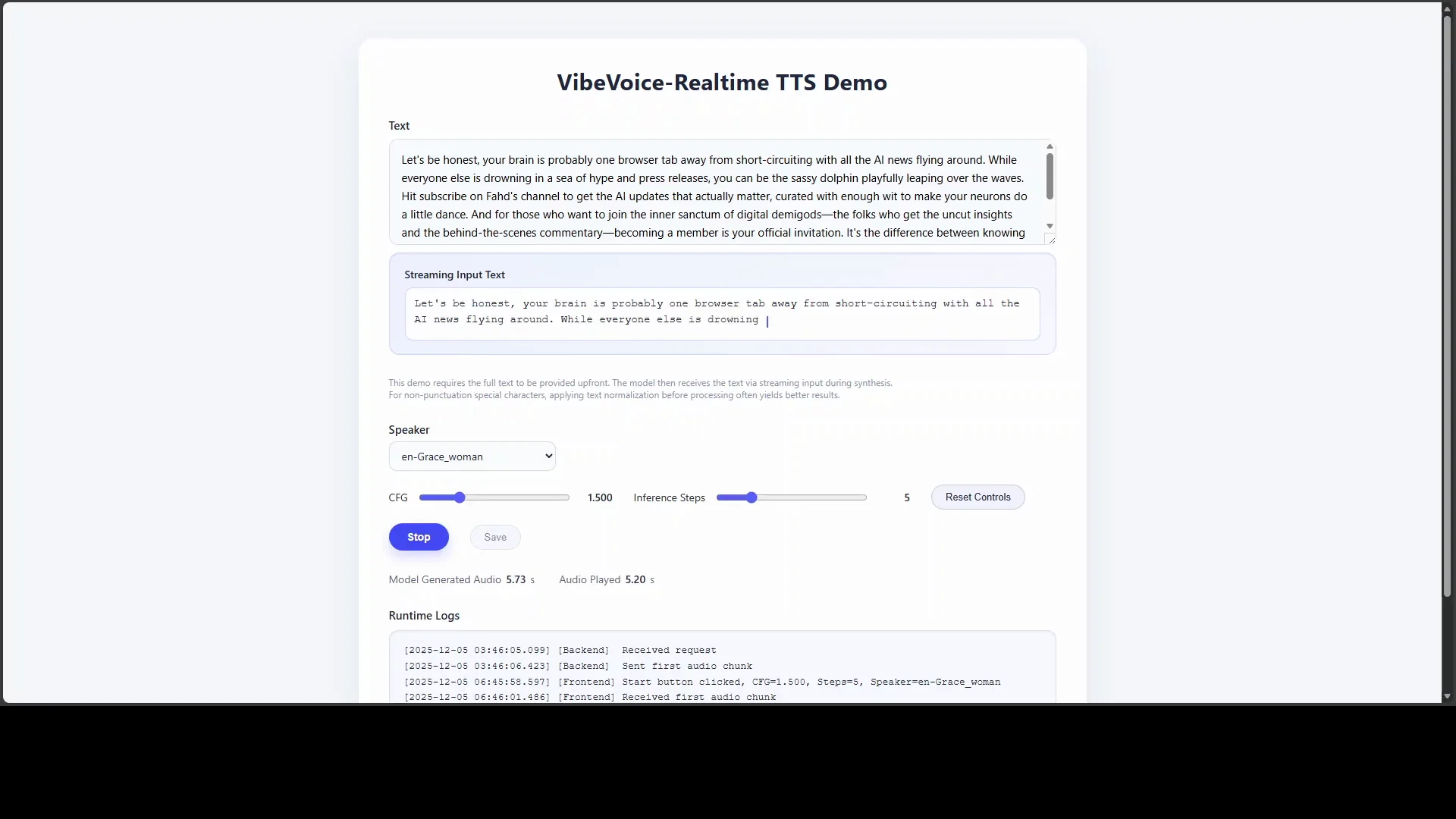
The model’s primary purpose is to enable streaming text input that allows it to narrate live data or allow large language models to speak as soon as the first text token is generated, rather than waiting for a complete response.
It uses an interleaved window design, which means it incrementally processes incoming chunks of text in parallel while generating speech from the previous context. This ensures smooth and continuous output.
The specific variant shown here is optimized for a single speaker and for the English language only. It features a compact 0.5 billion parameter size for efficient deployment almost anywhere.
Microsoft VibeVoice-Realtime Lightweight on Google Colab
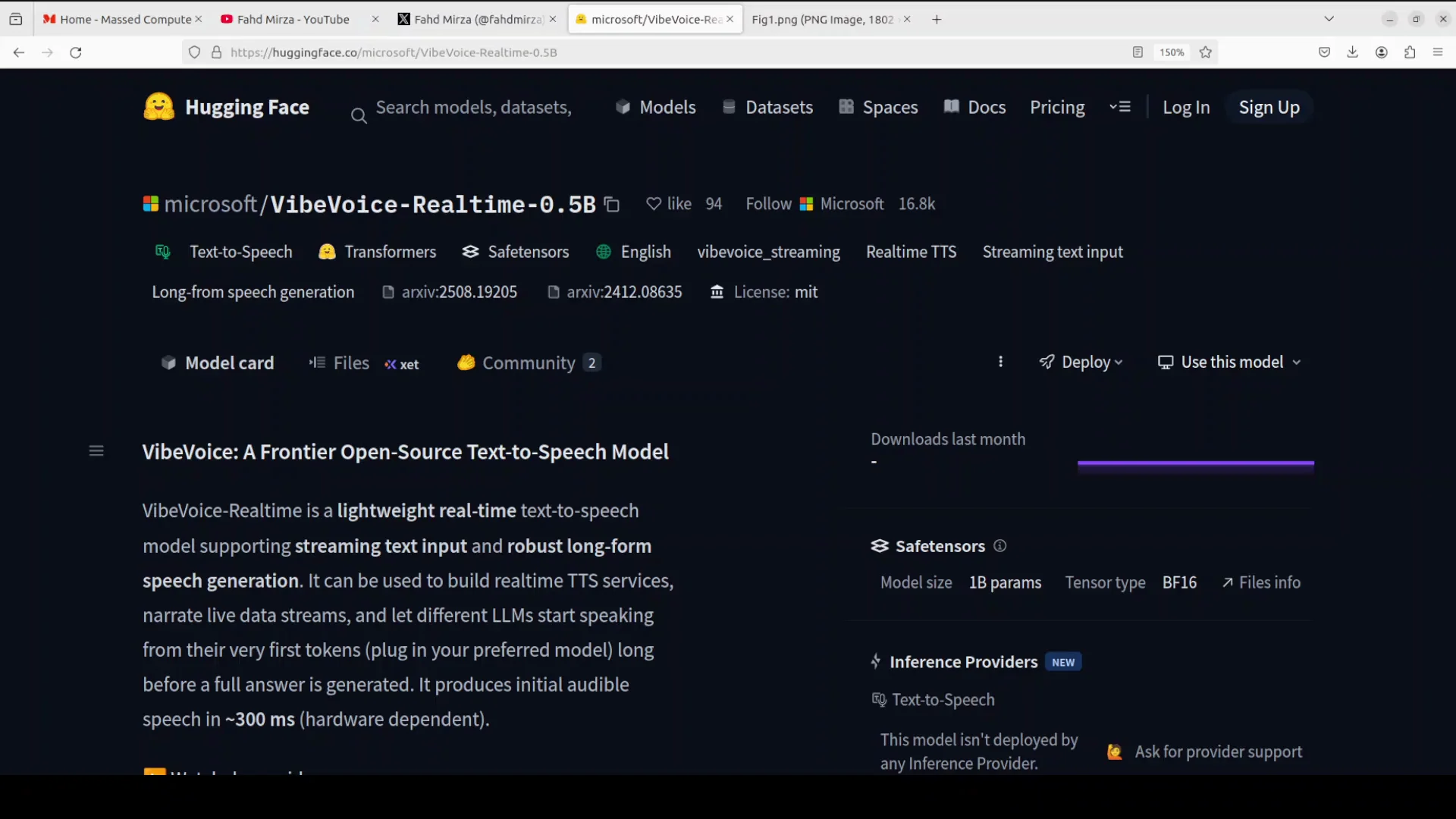
Colab Setup and Runtime
Follow these steps to run the model on a free T4 GPU.
Step by step:
- Go to colab.research.google.com and sign in with a free Gmail account.
- Open a new notebook.
- Go to Runtime - Change runtime type - Select GPU, then choose T4.
Notes:
- T4 is provided at no cost in many regions and works well for this model.
- If T4 is not available, try any available GPU or test on CPU for smaller inputs.
Clone the Repo and Download the Model
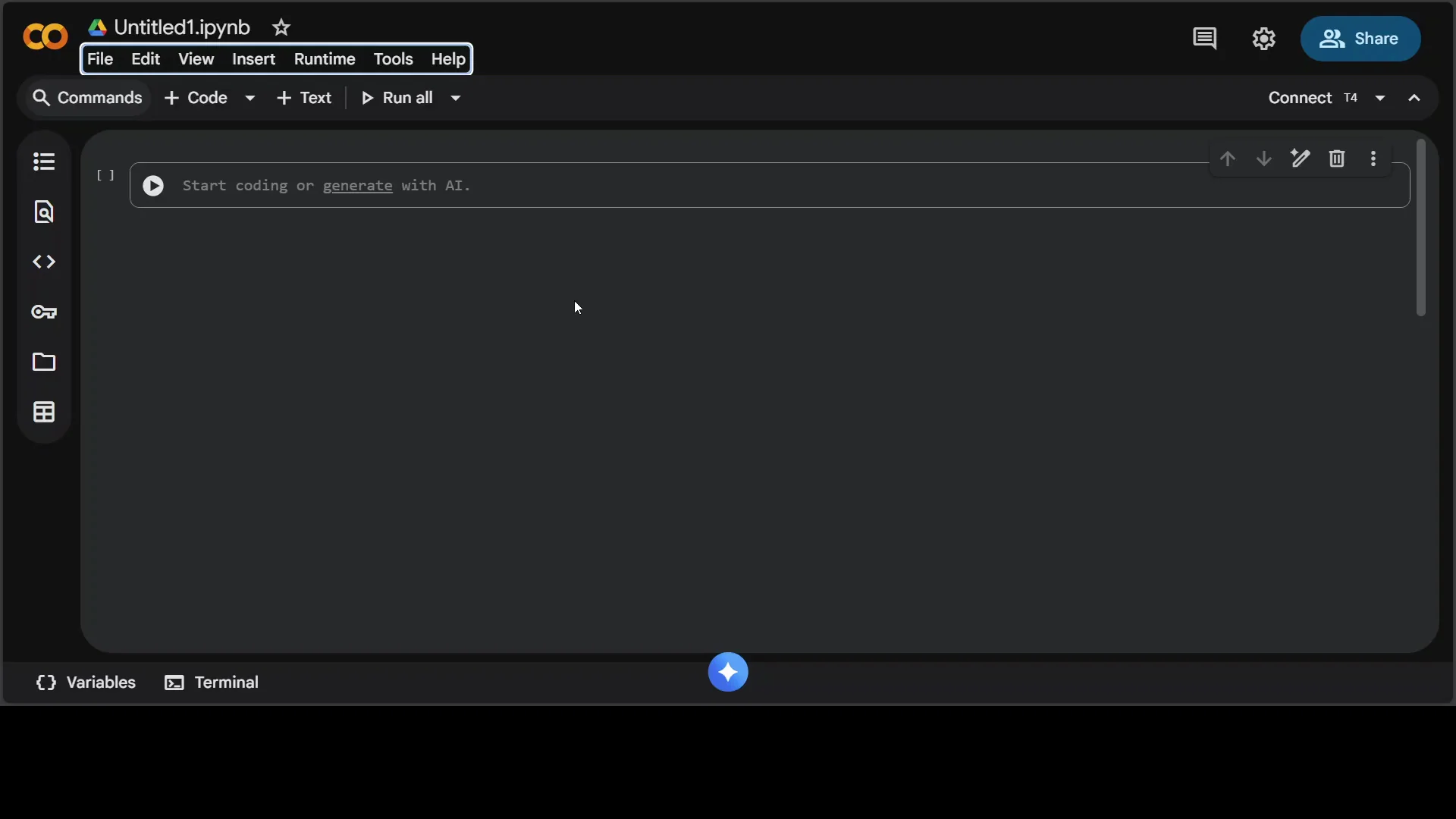
The workflow is simple: clone the repository, install dependencies, and download the 0.5B model.
Step by step:
- Git clone the VibeVoice repository.
- Install the requirements from the repo root.
- Download the 0.5B model checkpoint.
Expectation:
- This setup typically takes 2 to 3 minutes.
While the setup runs, keep in mind what makes this model useful:
- Streaming text input allows speech to begin as soon as the first tokens are ready.
- Interleaved processing means text is handled in chunks while audio is generated continuously.
- The variant tested is single speaker and English only, with a 0.5B parameter footprint.
Launch the Realtime Demo
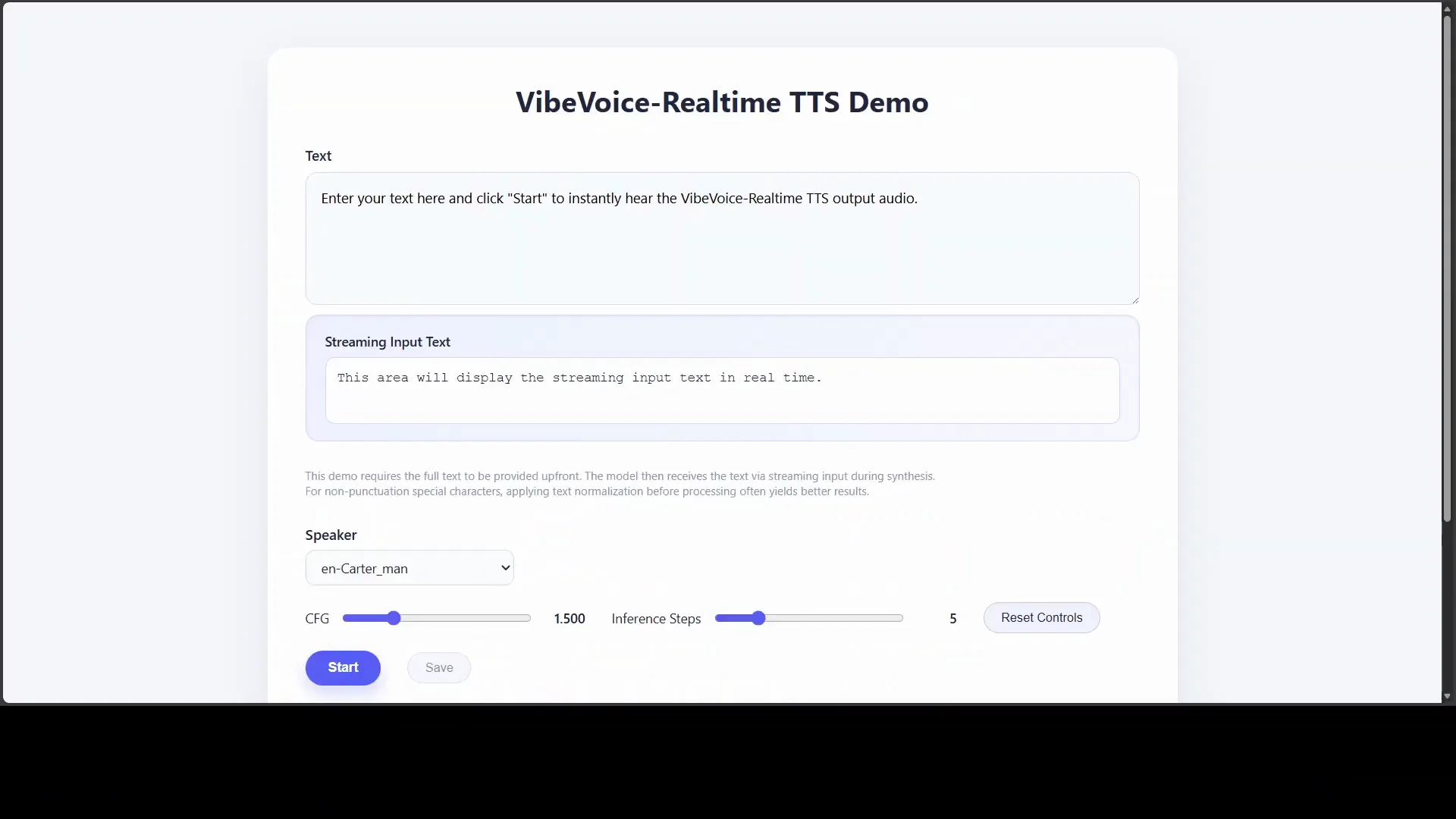
Once the repo is cloned and the model is downloaded, launch the realtime demo from the notebook.
What happens:
- The demo creates a temporary URL via a proxy to make the TTS interface accessible, including from a local laptop with a mic.
- You get a public URL for the TTS demo.
Using the demo:
- Paste text into the input field.
- Choose a voice. For example, I selected the Grace Women speaker.
- Set CFG (guidance). This controls instruction following or how strictly the model adheres to prompts.
- Click Start.
Behavior:
- Standard TTS models wait to convert all text before speaking.
- VibeVoice-Realtime starts speaking immediately while text continues streaming.
Logs and output:
- You can view logs for timing and streaming behavior.
- The audio output can be saved.
- There are adjustable steps that can increase performance.
Summary:
- The Colab demo is quick to set up and demonstrates the streaming strengths of the model.
Microsoft VibeVoice-Realtime Lightweight: Local Installation
Environment and Hardware
I ran this on an Ubuntu server with a single NVIDIA RTX 6000 GPU with 48 GB of VRAM. A virtual environment was already created.
This model is lightweight, so CPU-only testing is also possible for smaller tasks, and GPU memory use is modest.
Clone and Install
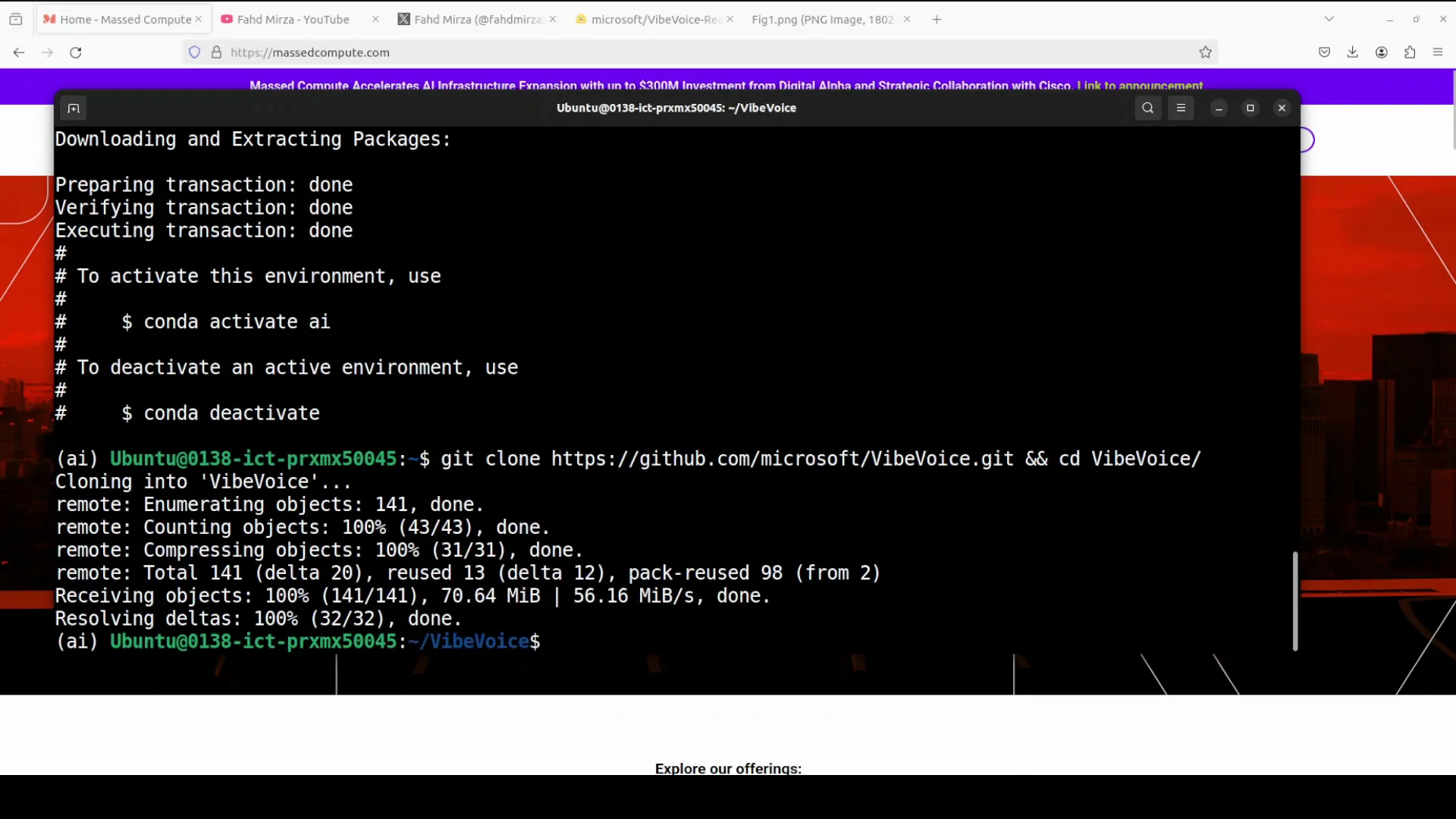
From the server terminal:
Step by step:
- Git clone the VibeVoice repository.
- From the repo root, install all prerequisites.
- Wait 1 to 2 minutes for dependencies to finish installing.
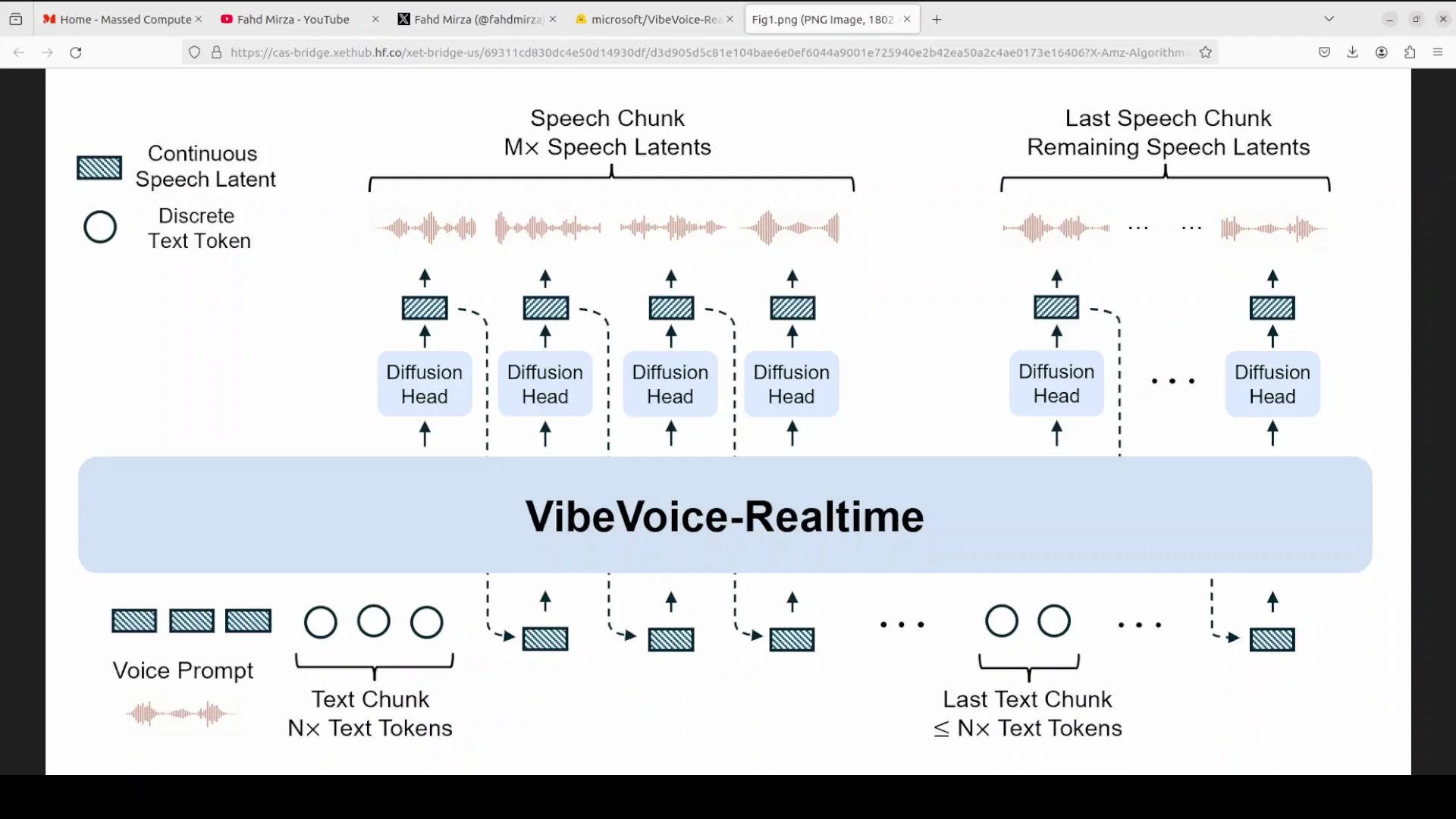
During installation, here is the architecture in simple terms:
- The model centers on three components:
- A transformer-based LLM at about 2.5 billion parameters.
- An efficient acoustic tokenizer.
- A lightweight diffusion head.
Processing flow:
- Incoming text is processed as discrete tokens by the LLM.
- In parallel, the model handles continuous speech latents, which are highly compressed representations of audio, generated by the acoustic tokenizer operating at a low 7.5 Hz frame rate.
- The diffusion head acts as a bridge, taking guidance from the LLM’s hidden states to predict the next set of acoustic features.
- Conditioned on a voice prompt for speaker characteristics, the system generates speech chunk by chunk, creating a long form audio stream from continuous text input.
Run the Realtime Demo Locally
After installation completes:
Step by step:
- From the repo root, run the realtime demo command.
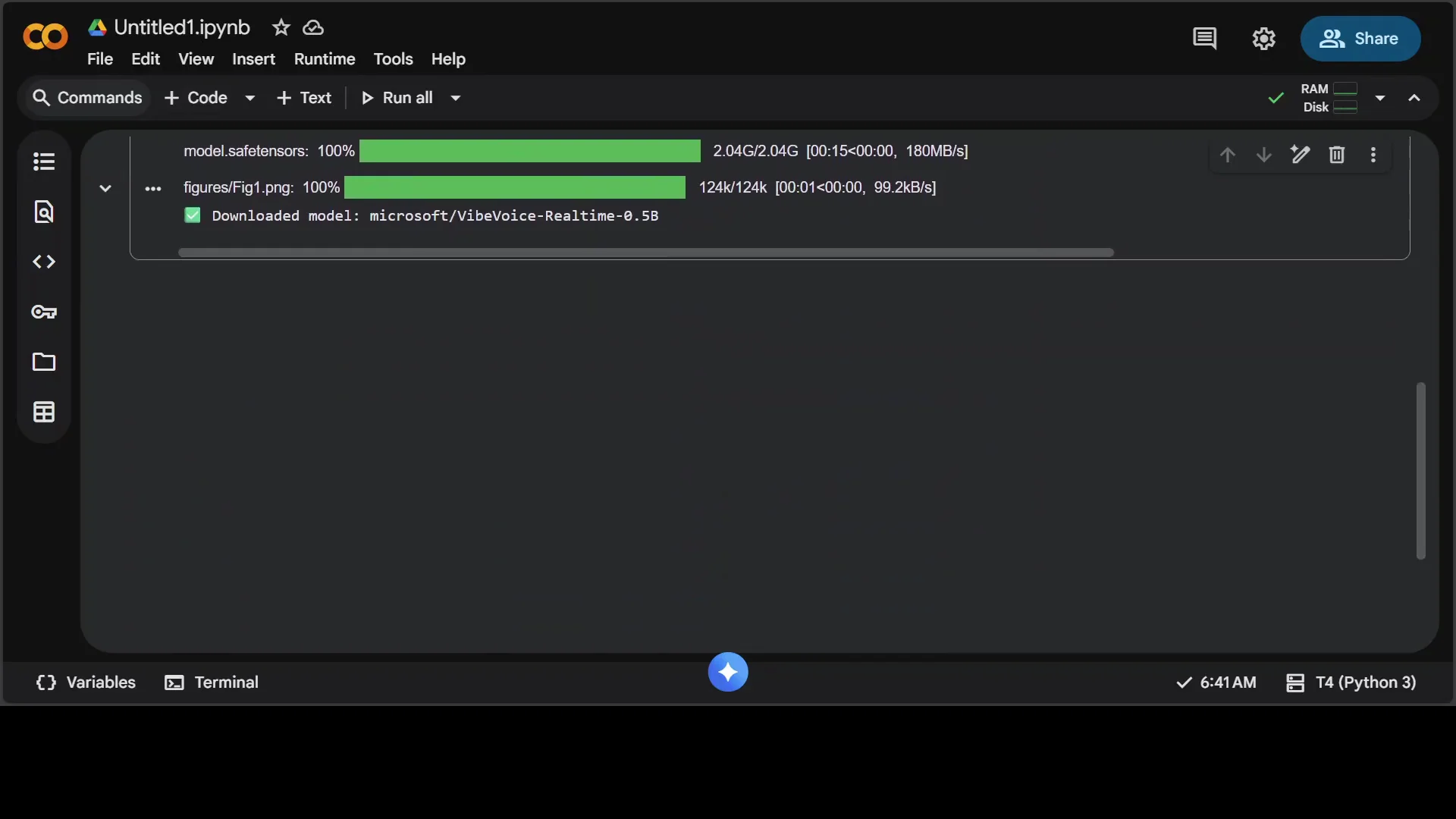
- On first run, it downloads a small model of about 2 GB.
- The demo serves on localhost, typically at port 3000.
Resource use:
- VRAM consumption is just over 2 GB in my test.
- Running on CPU is feasible for lighter workloads.
Interface:
- The web interface lets you type text and select a speaker.
- The experience mirrors what I showed on Colab.
Microsoft VibeVoice-Realtime Lightweight Architecture
Core Components
Three core components define the system:
- Transformer-based LLM at about 2.5 billion parameters.
- Efficient acoustic tokenizer for compressing audio into latents.
- Lightweight diffusion head to predict the next acoustic features.
Why this matters:
- Text tokens inform the speech generation process step by step.
- Parallel handling of text and audio latents enables low latency start and steady streaming.
- The diffusion head uses LLM context to maintain continuity and voice characteristics.
Data Flow and Timing
End to end:
- Text enters the LLM and is parsed into discrete tokens.
- An acoustic tokenizer runs at 7.5 Hz to maintain a compressed audio representation.
- The diffusion head, guided by LLM hidden states, predicts the next acoustic features for each chunk.
- A voice prompt conditions speaker traits, keeping identity and tone stable across a long form stream.
Result:
- Speech begins in about 300 milliseconds and continues smoothly as text arrives.
Variant and Deployment Notes
Model variant tested:
- Single speaker.
- English language.
- 0.5B parameter size for the TTS component used in deployment.
- Designed for efficient deployment on modest GPUs or CPU.
Recommendation:
- For realtime applications, keep inputs streaming and chunked to maintain low start latency.
Using the Demo: Settings, Logs, and Output
CFG Guidance and Speaker Choice
Settings:
- CFG (guidance) controls how strictly the model follows instructions in the prompt.
- Speakers include options like Grace Women, Emma, and Davis.
Best practices:
- Keep CFG moderate for natural output.
- Choose a speaker that matches the intended tone.
Logs, Saving, and Performance
What to check:
- Logs show streaming behavior and timing.
- Audio output can be downloaded and saved.
Performance tuning:
- Increase inference steps for higher quality at the cost of latency.
- Keep text inputs chunked for faster start.
Realtime Behavior in Practice
Testing behavior:
- The model starts speaking immediately after text is pasted or streaming begins.
- It maintains continuity while new text arrives.
Speech quality:
- It handled narration and expressive prompts well in my tests.
Additional Tests: Singing and Emotion
I tried a singing style prompt by entering: Let me try to sing a part of it for you.
With the Emma speaker selected and a short song excerpt, the output was:
- Let me try to sing a part of it for you. It's been a long day without you, my friend. And I'll tell you all about it when I see you again.
I also tried an emotional prompt with the Davis speaker:
- I can't believe you did it again. I waited for two hours. Two hours. Not a single call, not a text. Do you have any idea how embarrassing that was just sitting there alone?
Both tests produced convincing intonation for the prompt style.
Google Colab Walkthrough: Quick Reference
Runtime and Setup
- Open Colab and set Runtime - Change runtime type - GPU - T4.
- New notebook, then:
- Git clone the VibeVoice repo.
- Install requirements.
- Download the 0.5B model.
Time:
- Setup usually completes in 2 to 3 minutes.
Launch and Access
- Run the realtime demo cell.
- A temporary URL is created via proxy for public access.
- Open the URL for the TTS interface.
In the interface:
- Paste text into the input.
- Select a speaker like Grace Women.
- Set CFG guidance.
- Click Start to begin streaming speech.
Output and Logs
- View logs for streaming details.
- Save the generated audio.
- Adjust steps for performance and quality.
Local Installation Walkthrough: Quick Reference
Prerequisites
- Ubuntu server or a local machine.
- Optional GPU. Tested with NVIDIA RTX 6000 48 GB, but the model can run on CPU for lighter use.
- Python virtual environment recommended.
Installation Steps
Step by step:
- Clone the repo.
- From the repo root, install prerequisites.
- Launch the realtime demo.
First run notes:
- Downloads a small model of about 2 GB.
- Serves on localhost at port 3000 by default.
Resource usage:
- GPU VRAM was just over 2 GB during testing.
Microsoft VibeVoice-Realtime Lightweight: Specs and Notes
Quick Specs Table
| Item | Detail |
|---|---|
| Start latency | About 300 ms |
| TTS variant size | 0.5B parameters |
| LLM backbone | About 2.5B parameters |
| Language | English |
| Speaker | Single speaker optimized |
| Acoustic tokenizer rate | 7.5 Hz |
| Inference head | Lightweight diffusion head |
| Streaming | Yes, chunked text with interleaved processing |
| Typical VRAM use | Just over 2 GB in my test |
| CPU support | Feasible for smaller tasks |
Practical Notes
- The model begins speaking as soon as initial tokens are available.
- Chunked, streaming inputs produce the best realtime behavior.
- CFG helps balance instruction adherence and naturalness.
- A modest GPU improves throughput, but CPU can work for small jobs.
What Stood Out
- Fast start and consistent streaming.
- Compact footprint with reliable performance.
- Clear architecture that balances an LLM, acoustic compression, and a diffusion head.
Final Thoughts
This is a strong effort from Microsoft. In testing, speech started almost immediately and remained steady as text continued streaming. The demo was quick to set up on Google Colab and straightforward to run locally. Previous voice models from Microsoft were also solid, and this realtime variant continues that trend.
If you need a lightweight, realtime text to speech system for English and a single speaker, Microsoft VibeVoice-Realtime Lightweight is well worth installing and testing today.
Subscribe to our newsletter
Get the latest updates and articles directly in your inbox.

Related Posts

8 Best Claude Code Plugins in 2026 (You Need to Know)
8 Best Claude Code Plugins in 2026 (You Need to Know)

7 Best Claude Code Skills (You Need to Know)
7 Best Claude Code Skills (You Need to Know)

Claude Code Desktop IDE Features (You Need to Know)
Claude Code Desktop IDE Features (You Need to Know)