
Table Of Content
- Easily Set Up and Run MiniMax M2.5 Locally?
- Install llama.cpp
- CUDA build for Nvidia GPUs
- or CMake
- cmake -S . -B build -DLLAMA_CUBLAS=ON
- cmake --build build -j
- GGUF and Unsloth’s quantization
- Download the MiniMax M2.5 GGUF
- Replace ORG/REPO and FILE with the exact model card path and filename
- Run with llama.cpp
- From the llama.cpp directory or your build directory
- Monitor VRAM, CPU, and memory
- VRAM
- CPU
- Memory
- Prompt and quality check
- Notes on resource fit
- Final thoughts
How to Easily Set Up and Run MiniMax M2.5 Locally?
Table Of Content
- Easily Set Up and Run MiniMax M2.5 Locally?
- Install llama.cpp
- CUDA build for Nvidia GPUs
- or CMake
- cmake -S . -B build -DLLAMA_CUBLAS=ON
- cmake --build build -j
- GGUF and Unsloth’s quantization
- Download the MiniMax M2.5 GGUF
- Replace ORG/REPO and FILE with the exact model card path and filename
- Run with llama.cpp
- From the llama.cpp directory or your build directory
- Monitor VRAM, CPU, and memory
- VRAM
- CPU
- Memory
- Prompt and quality check
- Notes on resource fit
- Final thoughts
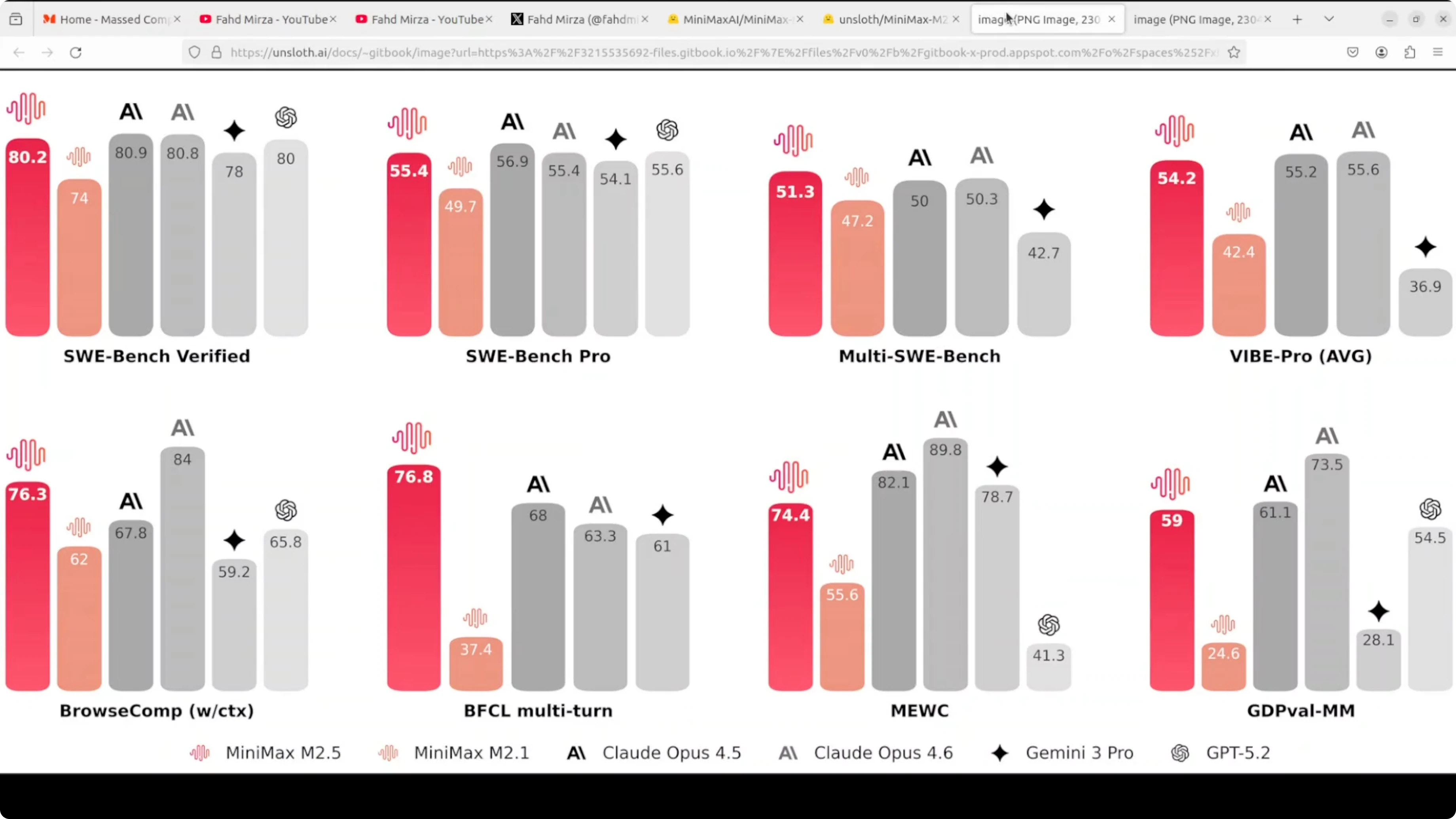
Minimax M2.5 is trained on hundreds of thousands of complex real world tasks and is state-of-the-art in coding, agentic tool use and search, office work, and other economically valuable tasks. Thanks to Unsloth’s GGUF format, you can run it locally. I’m installing and running it on Ubuntu with a single Nvidia H100 80 GB GPU and reporting tokens per second, VRAM consumption, and performance.
Easily Set Up and Run MiniMax M2.5 Locally?
I’m using llama.cpp, a very efficient C/C++ inference engine you can install on your local system. I’ll fetch the repo, build it, download the Unsloth-quantized GGUF, and run a realistic coding prompt to validate quality. You can adapt the quant and offload settings to your hardware.
Install llama.cpp
Clone the repository.
Build it for your local system - on Nvidia GPUs, enable cuBLAS for GPU offload.

Compilation and linking can take a long time, even up to an hour.
git clone https://github.com/ggerganov/llama.cpp.git
cd llama.cpp

# CUDA build for Nvidia GPUs
make -j LLAMA_CUBLAS=1
# or CMake
# cmake -S . -B build -DLLAMA_CUBLAS=ON
# cmake --build build -j
GGUF and Unsloth’s quantization
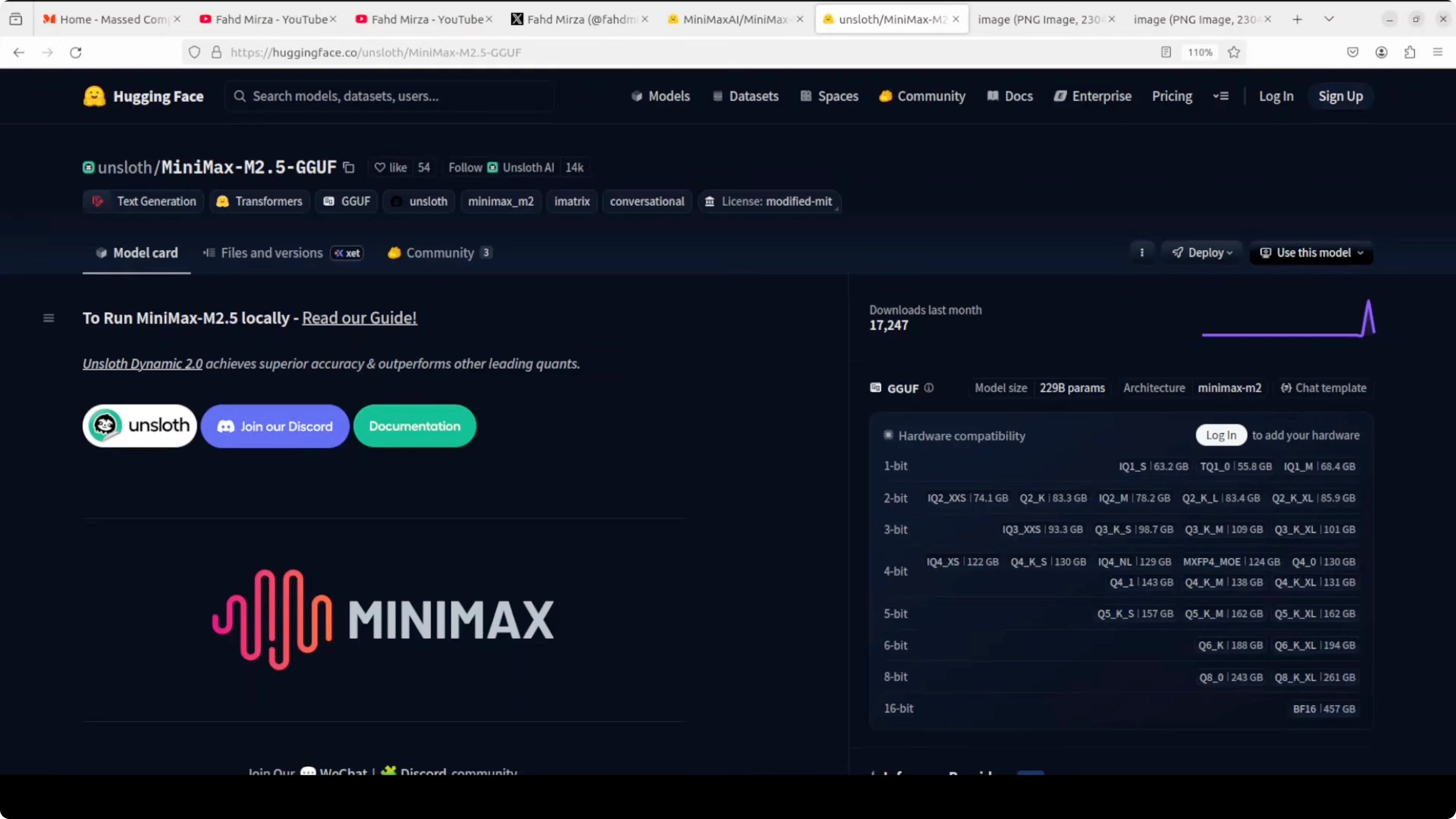
GGUF stores models in a compressed optimized format so they can run locally on your own hardware instead of multi-GPU clusters. The original MiniMax 2.5 model is massive at around 457 GB in BF16. Unsloth applies a dynamic quantization technique that shrinks the model to about 101 GB at 3-bit by reducing weight precision while keeping the most critical layers at 8-bit or 16-bit, so quality loss is minimal.
The result is about 62 percent smaller size and the ability to run on a single GPU or even a Mac with 128 GB RAM. Performance remains close to the full precision model based on our testing. I’ll run the UTQ 3K XL 3-bit quant here, which is roughly 101 GB on disk.
Download the MiniMax M2.5 GGUF
Select the 3-bit UTQ/Q3_K_XL GGUF file from the model card - it is about 101 GB.
Use the Hugging Face CLI to download directly into a local models folder.
Pick a smaller quant if you have less VRAM.
pip install -U "huggingface_hub[cli]"

# Replace ORG/REPO and FILE with the exact model card path and filename
huggingface-cli download ORG/REPO Minimax-2.5-Q3_K_XL.gguf \
  --local-dir models/minimax-m2.5 \
  --local-dir-use-symlinks False
Run with llama.cpp
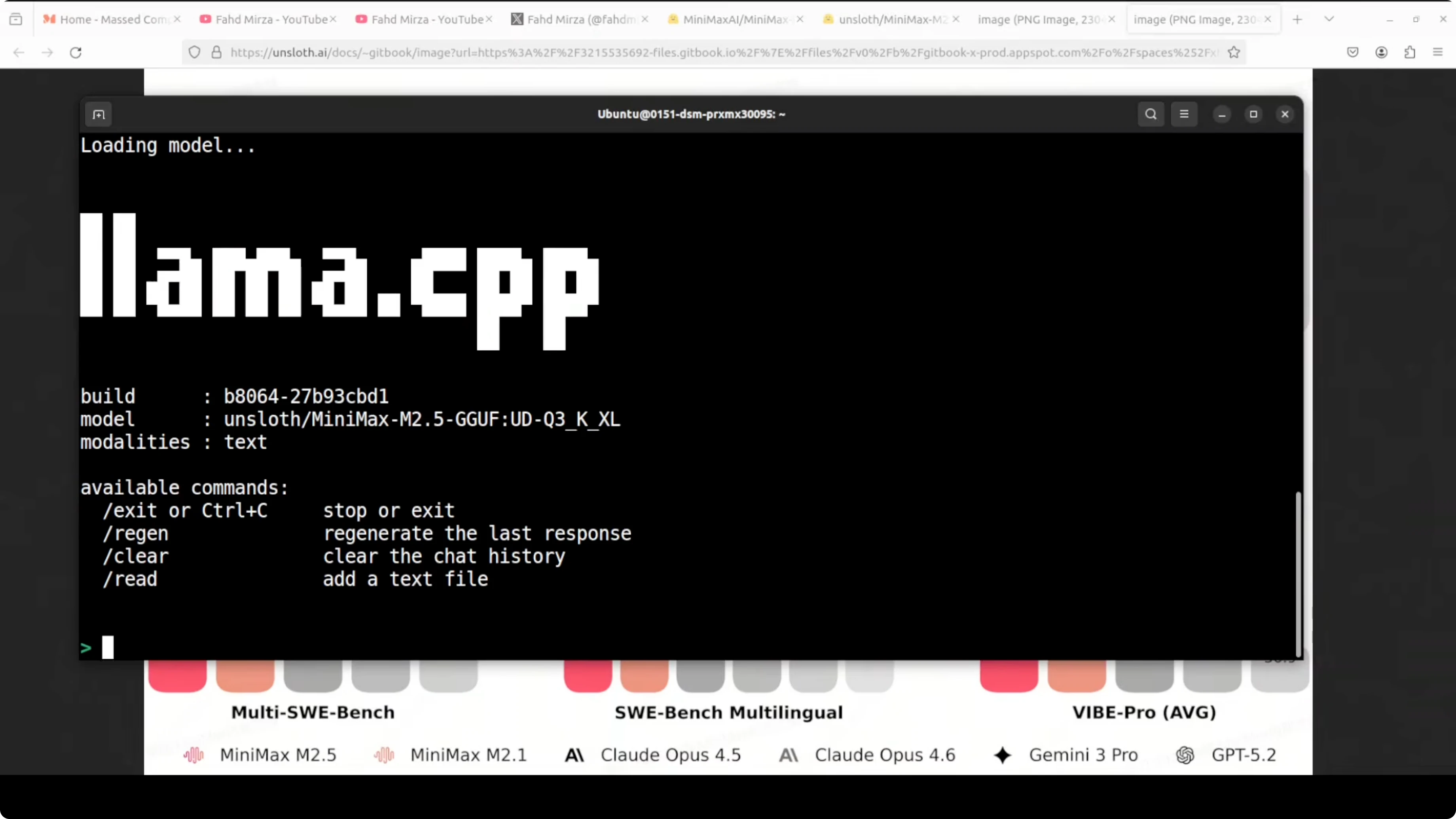
Load the model in llama.cpp and provide your prompt. It will offload to GPU and use CPU and RAM as needed, and with cuBLAS builds you can increase GPU offload via -ngl.
If you have sufficient VRAM, -ngl 999 requests maximal GPU offload and llama.cpp will fit what it can.
# From the llama.cpp directory or your build directory
./llama-cli \
  -m models/minimax-m2.5/Minimax-2.5-Q3_K_XL.gguf \
  -p "Your prompt here" \
  -t $(nproc) \
  -ngl 999
Monitor VRAM, CPU, and memory
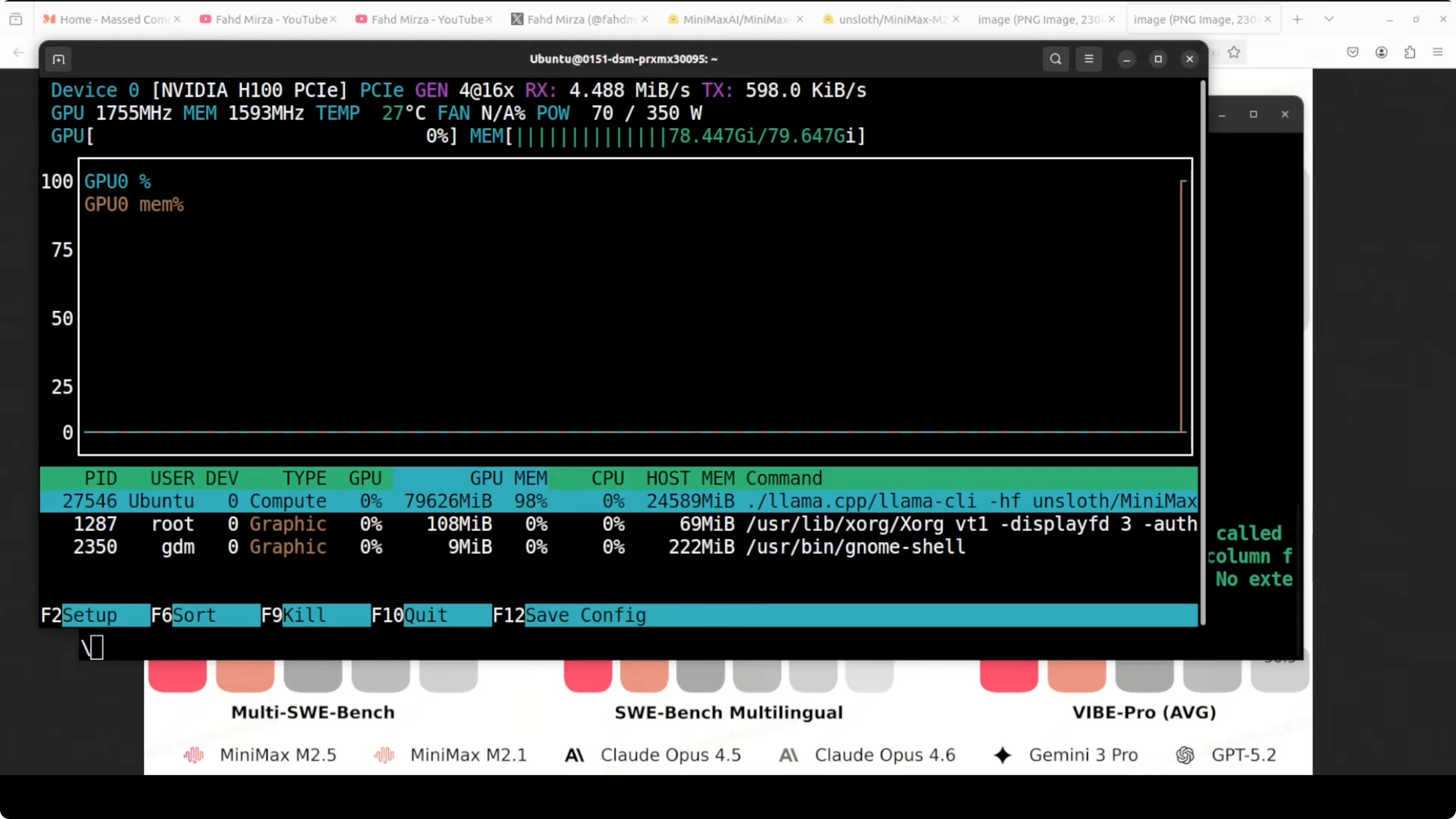
Check VRAM usage during load and generation.
Inspect CPU usage and system memory while tokens are generated.
Expect significant GPU VRAM use and heavy CPU activity during generation with this quant.
# VRAM
nvidia-smi

# CPU
top -p $(pgrep -d',' -f llama-cli)

# Memory
free -h
Prompt and quality check
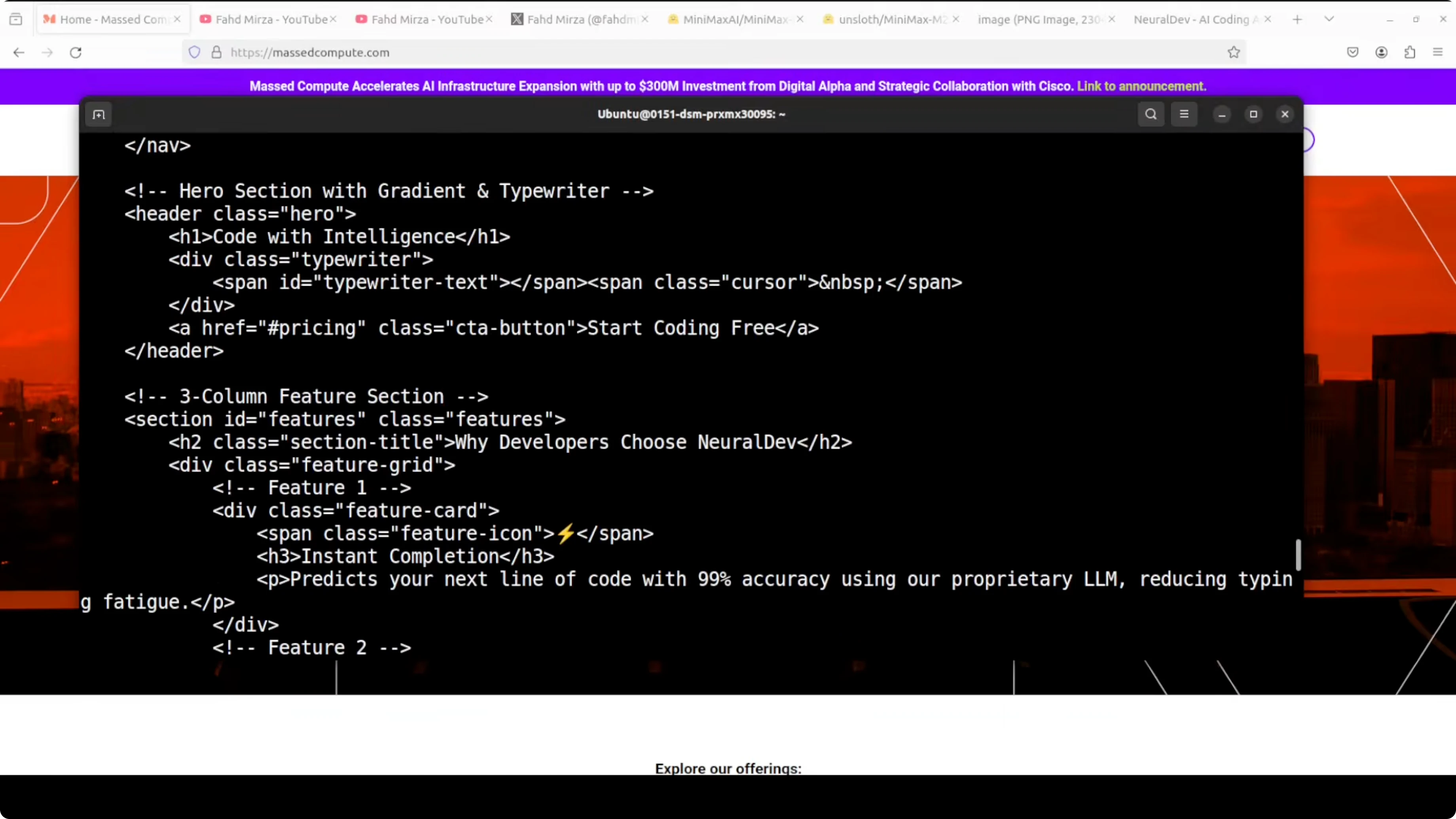
I used a single-file prompt that tests DOM manipulation, CSS animations, layout complexity, and JS logic for a dark mode SaaS landing page for an AI coding assistant. The goal was to see if the model hallucinates, repeats, or prints gibberish, and to check overall correctness. With Q3_K_XL, even 60 to 70 percent correctness would be a success for this kind of prompt.
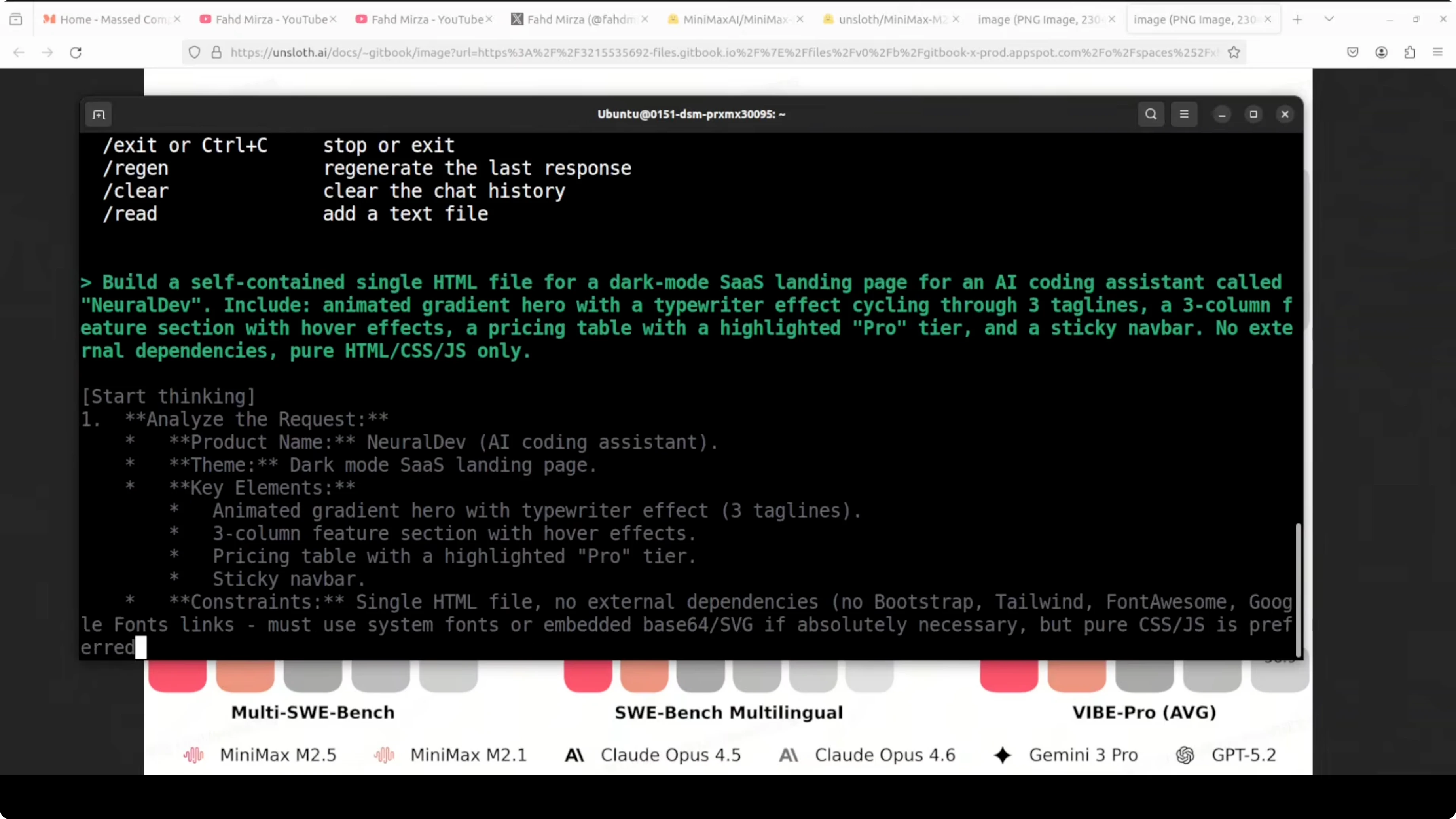
The model followed the prompt tightly and planned its approach well before emitting code. After a brief thinking phase, it produced a concise synopsis and then streamed the code. Throughput was 24.9 tokens per second on the H100 80 GB.
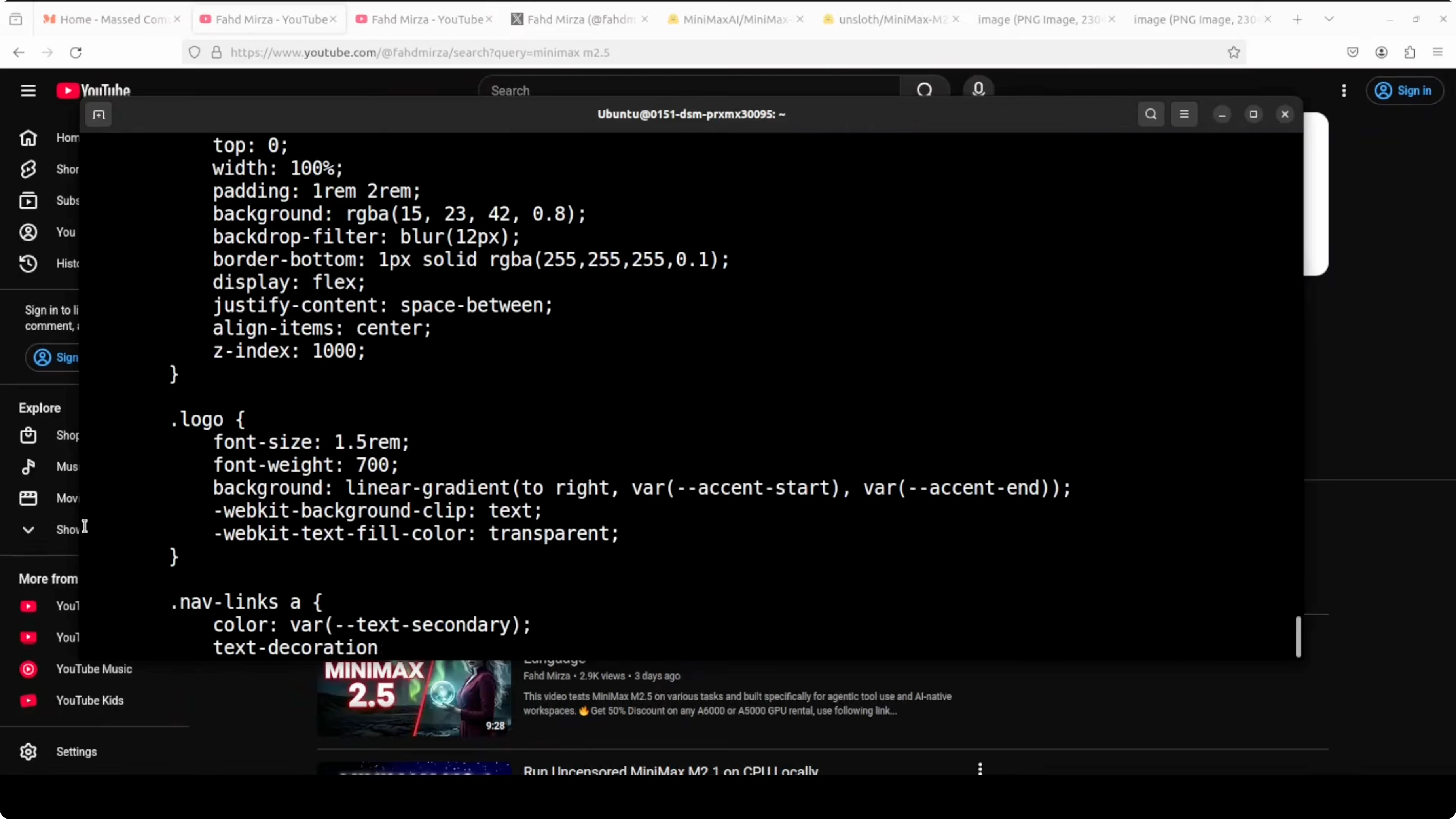
I saved the output and opened it in a browser to validate. All elements were responsive, the dark mode styling and animated sections rendered correctly, and the pricing section matched the request. There were no malformed parts or obvious mistakes.
Notes on resource fit
VRAM was fully consumed and llama.cpp adjusted offload to fit within the device. CPU usage spiked during generation, and system memory was also used as expected. If you have less VRAM, pick a lower quant from the model card so it fits.
Final thoughts
MiniMax M2.5 in Unsloth’s GGUF format runs locally with llama.cpp and produces high quality code on realistic prompts. The 3-bit Q3_K_XL quant at about 101 GB delivered around 25 tokens per second on an H100 80 GB with accurate, responsive output and no gibberish. Huge credit to Unsloth, the GGUF community, and the llama.cpp project for making local runs of large models practical.
Subscribe to our newsletter
Get the latest updates and articles directly in your inbox.

Related Posts

8 Best Claude Code Plugins in 2026 (You Need to Know)
8 Best Claude Code Plugins in 2026 (You Need to Know)

7 Best Claude Code Skills (You Need to Know)
7 Best Claude Code Skills (You Need to Know)

Claude Code Desktop IDE Features (You Need to Know)
Claude Code Desktop IDE Features (You Need to Know)