
Table Of Content
- What Is Seedream 4.5?
- Seedream 4.5 Overview
- Key Features of Seedream 4.5
- What Changed in Seedream 4.5
- Early Model Comparisons
- Where You Can Use Seedream 4.5
- Quick Overview: Costs and Settings
- Cost Snapshot
- Step-by-Step: Connect the Photoshop Plugin to Replicate
- How to Use Seedream 4.5 in Photoshop
- Prompt Library and Upscaling
- Early Hands-On Results
- Generation Speed
- What the Official Examples Show
- Using Seedream 4.5 in the New Video Editor
- Generate an Image for Your Video
- Turn Images into Videos
- Other Video Models
- Plans and Credits in the Video Editor
- Photoshop vs. Video Editor Workflows
- Practical Notes and Best Uses
- Step-by-Step: A Focused Photoshop Test
- Troubleshooting and Tips
- What to Expect Next
- Final Thoughts
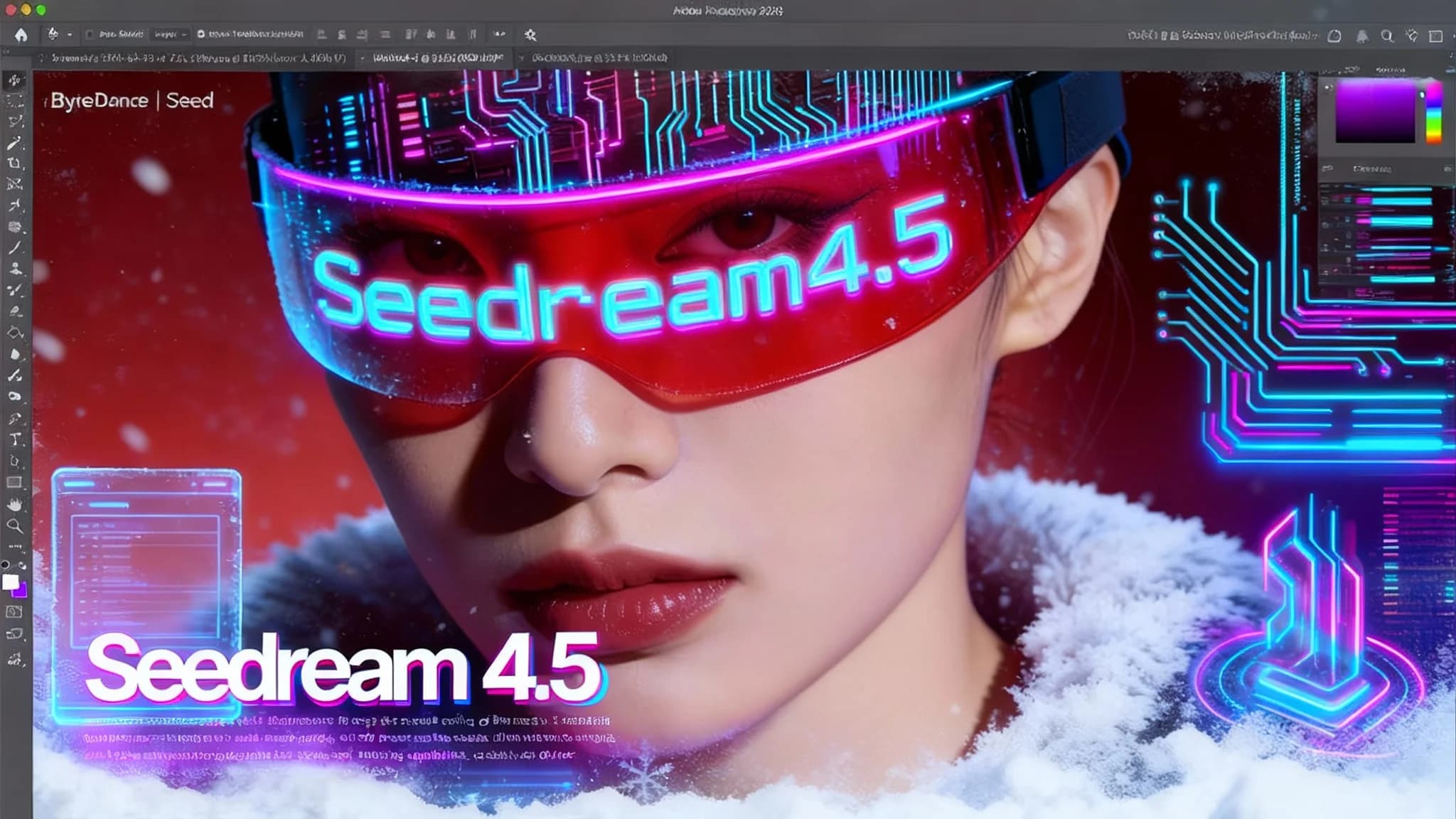
Seedream 4.5 Photoshop Plugin Review
Table Of Content
- What Is Seedream 4.5?
- Seedream 4.5 Overview
- Key Features of Seedream 4.5
- What Changed in Seedream 4.5
- Early Model Comparisons
- Where You Can Use Seedream 4.5
- Quick Overview: Costs and Settings
- Cost Snapshot
- Step-by-Step: Connect the Photoshop Plugin to Replicate
- How to Use Seedream 4.5 in Photoshop
- Prompt Library and Upscaling
- Early Hands-On Results
- Generation Speed
- What the Official Examples Show
- Using Seedream 4.5 in the New Video Editor
- Generate an Image for Your Video
- Turn Images into Videos
- Other Video Models
- Plans and Credits in the Video Editor
- Photoshop vs. Video Editor Workflows
- Practical Notes and Best Uses
- Step-by-Step: A Focused Photoshop Test
- Troubleshooting and Tips
- What to Expect Next
- Final Thoughts
Seedream 4.5 just launched, and I immediately added it to our Photoshop plugin. In this article, I cover what changed, what’s new, where it fits best, and how to use it inside Photoshop. I also share a new video editor I’ve been building that already supports Seedream 4.5.
If you use image models for layout-heavy work, typography, product visuals, or consistent multi-image edits, Seedream 4.5 is worth a close look. It’s still in beta, but the early results are strong.
What Is Seedream 4.5?
Seedream 4.5 is the latest image model by ByteDance (the maker of Seedance and related models). It improves on Seedream 4 in consistency, layout comprehension, text handling, and multi-image composition. It also shows better adherence to references and materials.

Right now, Seedream 4.5 is available through our Photoshop plugin and in our new video editor. The model currently outputs at 2K resolution and supports aspect ratios that match the input or a square format.
Seedream 4.5 Overview
| Item | Detail |
|---|---|
| Model | Seedream 4.5 (beta) |
| Developer | ByteDance |
| Key Strengths | Layouts (posters/ads), text/typography, reference consistency, materials |
| Supported Output | 2K images |
| Aspect Ratios | Match input or square |
| Availability | Photoshop plugin (Core + Pro), new video editor app |
| Relative to Seedream 4 | More consistent, stronger in layout/text/materials |
| Example Use Cases | Graphic ads, product displays, poster layouts, multi-image composition |
Key Features of Seedream 4.5
- Stronger reference consistency
- Robust day-to-night conversions with stable scene structure
- Reliable text generation and translation
- Material changes that keep object form and context
- Product display generation from a single image
- Poster and logo layout capability with accurate typography and placement
- Multi-image composition that correctly identifies and combines subjects
- Style-preserving multi-layout poster variations from a single base banner
What Changed in Seedream 4.5
Seedream 4.5 is still in beta, but its visible improvements over Seedream 4 are clear:
- Reference adherence: Keeps key subjects and context intact across edits.
- Scene transformations: Converts lighting and time-of-day while preserving composition.
- Text and typography: Produces legible, styled text and can translate it across languages.
- Materials: Swaps surface materials while maintaining structure and edges.
- Product visuals: Generates polished product displays ready for ads and landing pages.
- Poster/logo layouts: Handles hierarchy, spacing, text, and composition with precision.
- Multi-image editing: Selects correct subjects from several images and merges them coherently.
- Style-based variations: Produces multiple poster designs that keep the brand’s look consistent.
These changes directly address common pain points in advertising, e-commerce visuals, and editorial layouts.
Early Model Comparisons
On the developer’s charts, Seedream 4.5 shows stronger overall scores than Seedream 4 in consistency, text handling, material edits, and compositional tasks. While benchmarks are helpful, hands-on tests inside production workflows matter most—those results are below.
Where You Can Use Seedream 4.5
- Inside Photoshop via our plugin (Core and Pro)
- Inside our new video editor (Windows and Mac), which supports image and video AI workflows
In Photoshop, the Core version currently includes:
- Seedream 4
- Seedream 4.5
- Nano Banana
- Nano Banana Pro
- Qwen
- Flux
The Pro tab adds:
- AI upscalers (including Crystal)
- Fast actions
- A prompt library you can click to load preset prompts for any model
Quick Overview: Costs and Settings
Seedream 4.5 runs through Replicate billing inside the plugin. Current notes:
- Seedream 4: ~$0.03 per 2K image
- Seedream 4.5: ~$0.04 per 2K image
- Nano Banana Pro: ~$0.15 per 2K image
At the time of writing:
- Output resolution: 2K only (no 4K yet)
- Aspect ratios: Match input or square
Cost Snapshot
| Model | 2K Cost (USD) | Notes |
|---|---|---|
| Seedream 4 | $0.03 | Prior version |
| Seedream 4.5 | $0.04 | Beta; improved layouts and consistency |
| Nano Banana Pro | $0.15 | Higher cost tier |
Step-by-Step: Connect the Photoshop Plugin to Replicate
Payment is handled through Replicate. Credits do not expire.
- Create a Replicate account
- Sign up on Replicate.
- Go to your account billing page and add credit.
- Create an API token
- Visit the API tokens page.
- Name your token and generate it.
- Copy the token.
- Add the token to the Photoshop plugin
- Open the plugin inside Photoshop.
- Go to the API section.
- Paste your token and save.
From there, the plugin sends requests to Replicate, which forwards them to the model provider. Replicate deducts from your credit and returns the result to the plugin.
How to Use Seedream 4.5 in Photoshop
Seedream 4.5 is included in the Core tab, and Pro tools are available in the Pro tab.
- Prepare your image
- Open an image in Photoshop.
- Make a selection if you want the model to match a custom aspect ratio.
- Choose the model
- Select Seedream 4.5.
- Set aspect ratio to Match Input or Square.
- Note: Output is currently 2K only.
- Add a prompt
- Enter what you want changed (e.g., wardrobe, environment, materials, text).
- You can also load prompts from the Pro tab’s library.
- Generate
- Click Generate.
- Typical return time ranges from ~9–34 seconds.
- The result appears inside the plugin and can be placed into your document.
Prompt Library and Upscaling
- Prompt Library: Click a preset to auto-fill your prompt field with structured requests.
- Upscalers: In the Pro tab, use models like Crystal to increase detail and perceived resolution.
Early Hands-On Results
I ran a few controlled prompts to compare Seedream 4 and Seedream 4.5.
- Lighting and composition: Seedream 4.5 produced richer, more coherent backlighting and context, while Seedream 4 delivered simpler lighting and a less cohesive scene.
- Wardrobe and environment edits: With the prompt “change clothes to warm clothes for winter and it’s snowing,” Seedream 4.5 kept my pose, the room, and the window view, then added snowfall outside and appropriate clothing. Seedream 4 changed the entire environment, replacing the background rather than updating it in place.
These early tests reflect the advertised strengths: better consistency, controlled changes, and context awareness.
Generation Speed
- Seedream 4.5 returned results in about 9–34 seconds in my tests.
- Speed varies by prompt complexity and server load.
What the Official Examples Show
On the model’s page, several examples highlight real strengths:
- Reference consistency: Keep the chosen subject intact across edits; remove other characters when required.
- Day-to-night: Maintain composition and object placement while changing time-of-day cues, clouds, and moon.
- Text handling: Generate and translate text with strong font control and layout accuracy.
- Material changes: Alter surfaces while preserving form and context.
- Product displays: Produce clean, ad-ready setups based on a source image.
- Poster and logo layouts: Solid spacing, hierarchy, typography, and visual balance across varied designs.
- Multi-image edits: Identify and combine subjects from up to eight inputs into one coherent output.
- Style-preserving variations: Generate several poster layouts from one banner while retaining style and elements.
These categories align closely with design and advertising workflows.
Using Seedream 4.5 in the New Video Editor
I’ve been building a video editor focused on AI workflows. It’s available for Windows and Mac. Most tools are free to use; AI features are paid via credits.
Current highlights:
- Media tab for your assets
- Effects tab (with more on the way)
- AI image tab with Seedream 4 and Seedream 4.5
- AI video tab with a range of models
- Capture stills from any point on the timeline as image inputs
- Send AI outputs back to the timeline automatically
Generate an Image for Your Video
- Capture a frame
- Navigate to the frame you want in the timeline.
- Click the capture button to save that exact image as a still.
- Choose model and settings
- Go to AI > Image.
- Select Seedream 4.5.
- Choose aspect ratio (Match Input or Square).
- Note: 2K output is currently the only option.
- Enter your prompt and generate
- Describe the change (e.g., background color, clothing material, scene cues).
- Click Generate.
- The result will appear in the Media tab and be placed on the timeline.
Turn Images into Videos
The video tab hosts multiple generation/editing models. You can sort by price and pick what you need.
- Select start and end frames: Capture or pick frames from your timeline to set the motion targets.
- Write your prompt: Define how the scene should evolve between those frames.
- Choose a model: For example, Veo 3.1 Fast (from Google) can generate video with audio.
- Generate: The result is added to your timeline when ready.
I combined Seedream 4.5 (to create a winter scene and adjust wardrobe/age) with Veo 3.1 Fast to produce a short clip with audio. Prompt quality had a clear impact on the final output.
Other Video Models
- Seedance 1 Pro (by ByteDance) is also available and produces strong visual results.
- More models will be added over time.
Plans and Credits in the Video Editor
- The app can be downloaded for free (Windows and Mac).
- Most editing tools are free.
- AI features use credits. You can subscribe and get credits from within the app.
- Additional plans and ways to purchase credits will be added.
You can open the AI section or the top bar menu to manage credits and subscriptions.
Photoshop vs. Video Editor Workflows
| Workflow | Photoshop Plugin | Video Editor App |
|---|---|---|
| Primary Use | Image generation/editing | Image+video workflows |
| Seedream 4.5 Support | Yes (Core tab) | Yes (AI > Image) |
| Aspect Ratios | Match Input or Square | Match Input or Square |
| Output Resolution | 2K (current) | 2K for images; video resolution depends on selected model |
| Prompt Library | Yes (Pro tab) | Not yet (manual prompts) |
| Upscaling | Yes (Crystal and others in Pro tab) | Coming as pipeline steps |
| Billing | Replicate credits | App credits/subscription |
| Turnaround Time | ~9–34 seconds per 2K image (observed) | Varies by model, length, and prompt |
| Notable Extras | Fast actions, preset prompts, upscalers | Frame capture, timeline integration, model price sorting |
Practical Notes and Best Uses
- Posters and ads: Strong control over layout, text, and typography makes Seedream 4.5 a solid choice for clean, on-brand visuals.
- Product displays: Good for promo shots, feature highlights, and storefront images.
- Targeted edits: Keep the subject and setting while changing clothing, weather, or materials.
- Multi-image compositions: Combine selected subjects and design elements into a coherent final frame.
- Batch variations: Generate multiple layouts from a single base banner while maintaining style.
Step-by-Step: A Focused Photoshop Test
Here’s a direct process to replicate the kind of tests that showed clear differences between Seedream 4 and 4.5:
- Prepare a controlled input
- Choose a portrait or product close to your regular use case.
- Keep the background and lighting consistent between tests.
- Define one precise change
- Example: “Change outfit to warm winter clothes and add snowfall outside the window.”
- Avoid multiple goals in one prompt.
- Run both models
- Generate with Seedream 4.
- Generate with Seedream 4.5 using the same prompt and settings.
- Compare outcomes
- Check if the scene and pose are preserved.
- Look for lighting coherence, material quality, and text legibility (if included).
- Note any unintended background changes.
- Document timing and cost
- Track seconds to result and per-image cost for your workflow planning.
Troubleshooting and Tips
- If results drift: Tighten prompts and name key subjects explicitly.
- For text: Include desired font style, casing, and placement in the prompt.
- For materials: Specify the surface, gloss/matte preference, and keep the object name consistent across edits.
- For product visuals: Provide brand or product names consistently and ask for specific camera angles or lighting style.
- Batch work: Save prompts in the Pro tab to repeat runs with minimal changes.
What to Expect Next
- Seedream 4.5 is still in beta; expect new options such as higher resolutions as updates roll out.
- I’ll continue running structured comparisons with models like Nano Banana Pro, Flux, and Qwen to map strengths and limits across tasks.
- The video editor will gain more AI models, presets, and credit options, along with quality-of-life improvements for timeline workflows.
Final Thoughts
Seedream 4.5 raises the bar for layout-heavy design, text handling, and consistent subject edits. In early tests, it kept composition and pose intact while applying targeted changes, something Seedream 4 struggled with in the same prompts. The pricing is reasonable for 2K outputs, and integration into both Photoshop and the new video editor makes it practical for daily use.
If your work centers on posters, ads, product displays, and multi-image compositions, Seedream 4.5 is a strong addition to your toolkit. As the beta matures, I expect even better control and higher-resolution options to follow.
Subscribe to our newsletter
Get the latest updates and articles directly in your inbox.

Related Posts

8 Best Claude Code Plugins in 2026 (You Need to Know)
8 Best Claude Code Plugins in 2026 (You Need to Know)

7 Best Claude Code Skills (You Need to Know)
7 Best Claude Code Skills (You Need to Know)

Claude Code Desktop IDE Features (You Need to Know)
Claude Code Desktop IDE Features (You Need to Know)