
Table Of Content
- SAM-Audio Segment Anything: Isolate Any Sound With AI
- What SAM-Audio Segment Anything Is Doing
- Try SAM-Audio Segment Anything Online
- Step-by-Step: Isolate a Sound With the Demo
- Effects You Can Apply
- What SAM-Audio Segment Anything Can Isolate
- Prompting Options
- Prompt Types at a Glance
- Architecture of SAM-Audio Segment Anything
- Why This Setup Works
- Using Text, Visual, and Span Prompts
- Practical Workflow With Prompts
- Observations From Hands-on Use
- Output Management
- Access, Models, and What’s Next
- Licensing Notes
- SAM-Audio Segment Anything Demo Walkthrough
- Prepare and Upload
- Isolate a Target Sound
- Review Outputs
- Apply Effects
- Architecture Summary Table
- Key Capabilities of SAM-Audio Segment Anything
- Limitations and Notes
- Closing
SAM Audio Demo: Text-Prompt Sound Separation from Video
Table Of Content
- SAM-Audio Segment Anything: Isolate Any Sound With AI
- What SAM-Audio Segment Anything Is Doing
- Try SAM-Audio Segment Anything Online
- Step-by-Step: Isolate a Sound With the Demo
- Effects You Can Apply
- What SAM-Audio Segment Anything Can Isolate
- Prompting Options
- Prompt Types at a Glance
- Architecture of SAM-Audio Segment Anything
- Why This Setup Works
- Using Text, Visual, and Span Prompts
- Practical Workflow With Prompts
- Observations From Hands-on Use
- Output Management
- Access, Models, and What’s Next
- Licensing Notes
- SAM-Audio Segment Anything Demo Walkthrough
- Prepare and Upload
- Isolate a Target Sound
- Review Outputs
- Apply Effects
- Architecture Summary Table
- Key Capabilities of SAM-Audio Segment Anything
- Limitations and Notes
- Closing
SAM-Audio Segment Anything: Isolate Any Sound With AI
I started with a short video clip that had voices and a loud siren in the background. The background siren made the conversation hard to hear. I typed a simple text prompt - siren - pressed isolate sound, and the system separated that sound from the rest of the audio.
I could then compare the original audio and the isolated audio. With the isolated layer enabled, only the siren remained. Traffic noise and voices were removed. Switching back to the original restored all sounds. The isolation was clean and focused.
To verify, I toggled the original track off and played only the isolated layer. The result was exactly what I asked for. Then I turned isolation off and played the original again to compare. The separation worked as intended.
What SAM-Audio Segment Anything Is Doing
Meta has introduced a universal audio separation model that brings the Segment Anything concept from vision to sound. The model is available in small and large versions. Access is gated at the moment, and I am waiting for approval. I have code ready and will share local installation steps as soon as model downloads are accessible. For now, I am using the hosted interface.
I hope the access requirement is removed. If a release is already on Hugging Face, it should be open to use. In addition to the model release, there is a benchmark and a judge model that I plan to test. There are also small and large TV models that I will cover separately. It is an interesting set of releases.
Try SAM-Audio Segment Anything Online
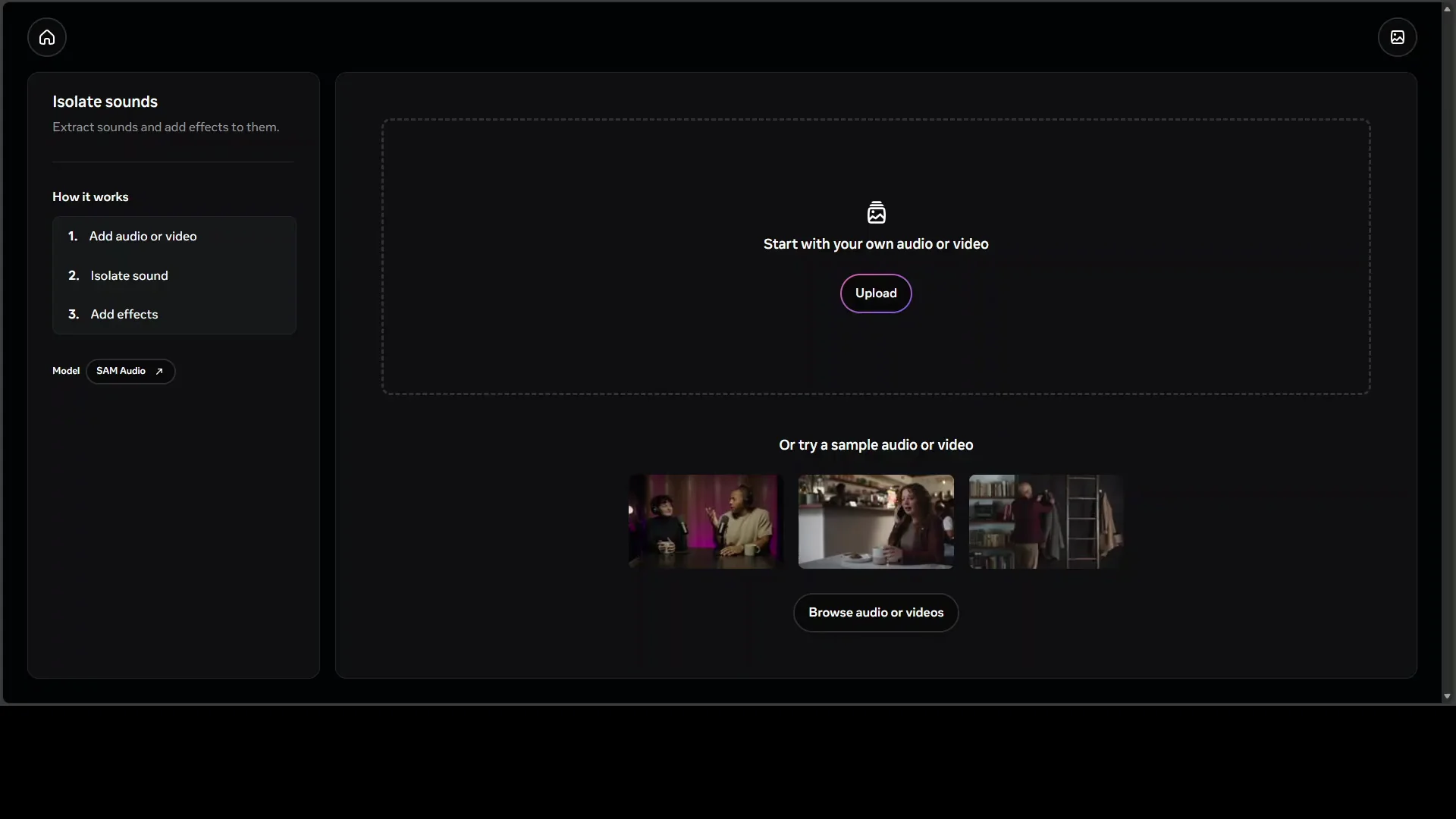
You can try the hosted demo at aid demos.mmeta.com. Choose isolate sound to open the tool. From there, you can start over at any time and repeat the process. You can also return to the homepage and select isolate sound again.
I attempted to upload one of my own videos with audio. The uploader returned fail to upload media for many attempts. After about 20 tries, it finally worked. I then used a text prompt to separate music from speech and ran the isolation.
After isolation, I played only the isolated layer. Music remained while the voice was removed. Then I disabled the isolated track and played the remaining audio. Only the voice stayed, with no music present. It matched the prompt and produced two useful outputs.
Step-by-Step: Isolate a Sound With the Demo
- Go to aid demos.mmeta.com.
- Click isolate sound.
- Click start over if you want a clean workspace.
- Upload an audio or video file.
- Enter a text prompt describing the target sound, such as siren or music.
- Click isolate sound.
- Toggle between original sound, isolated sound, and without isolated sound to compare results.
If the upload fails, try again. It may take multiple attempts to succeed.
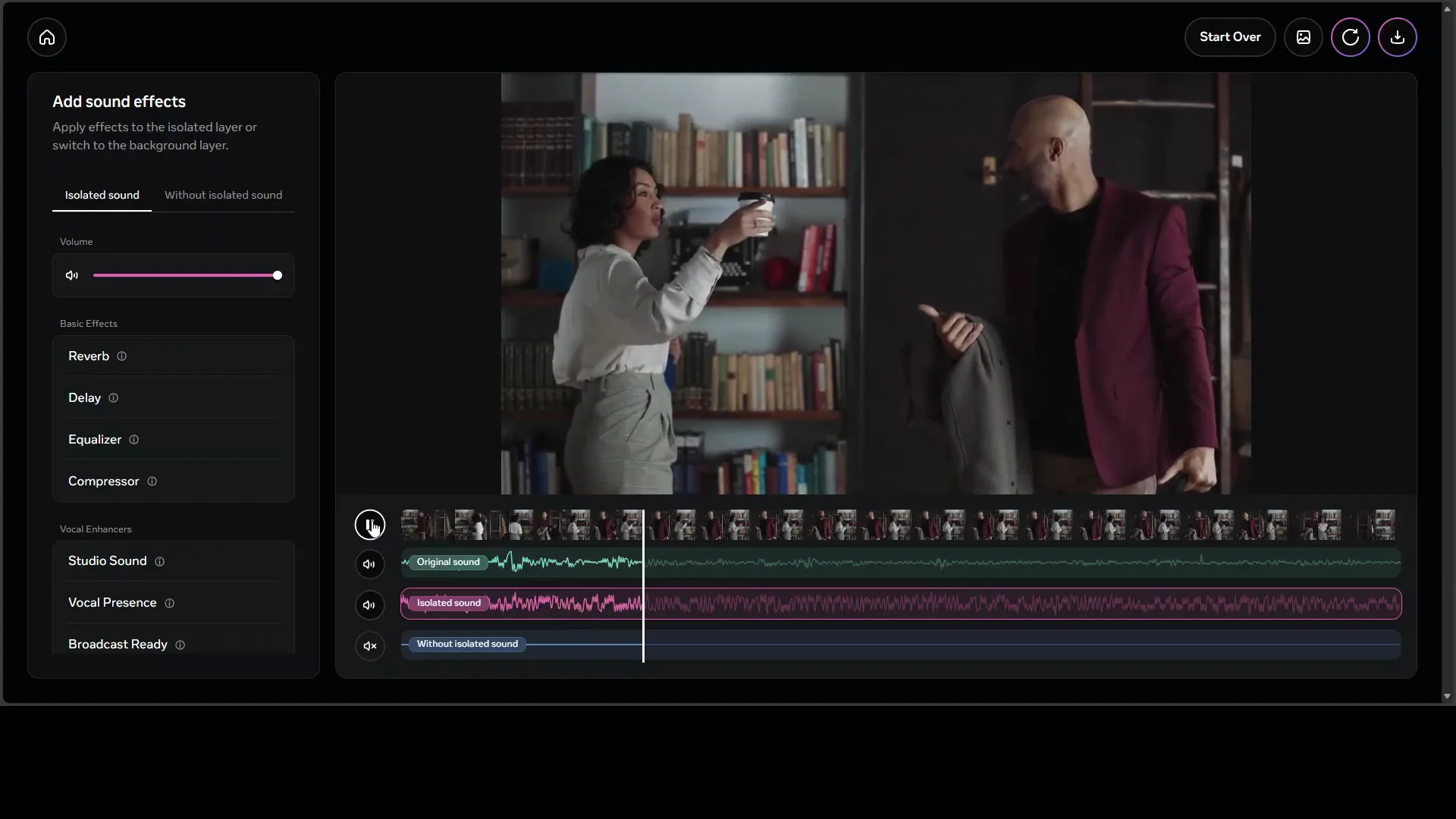
Effects You Can Apply
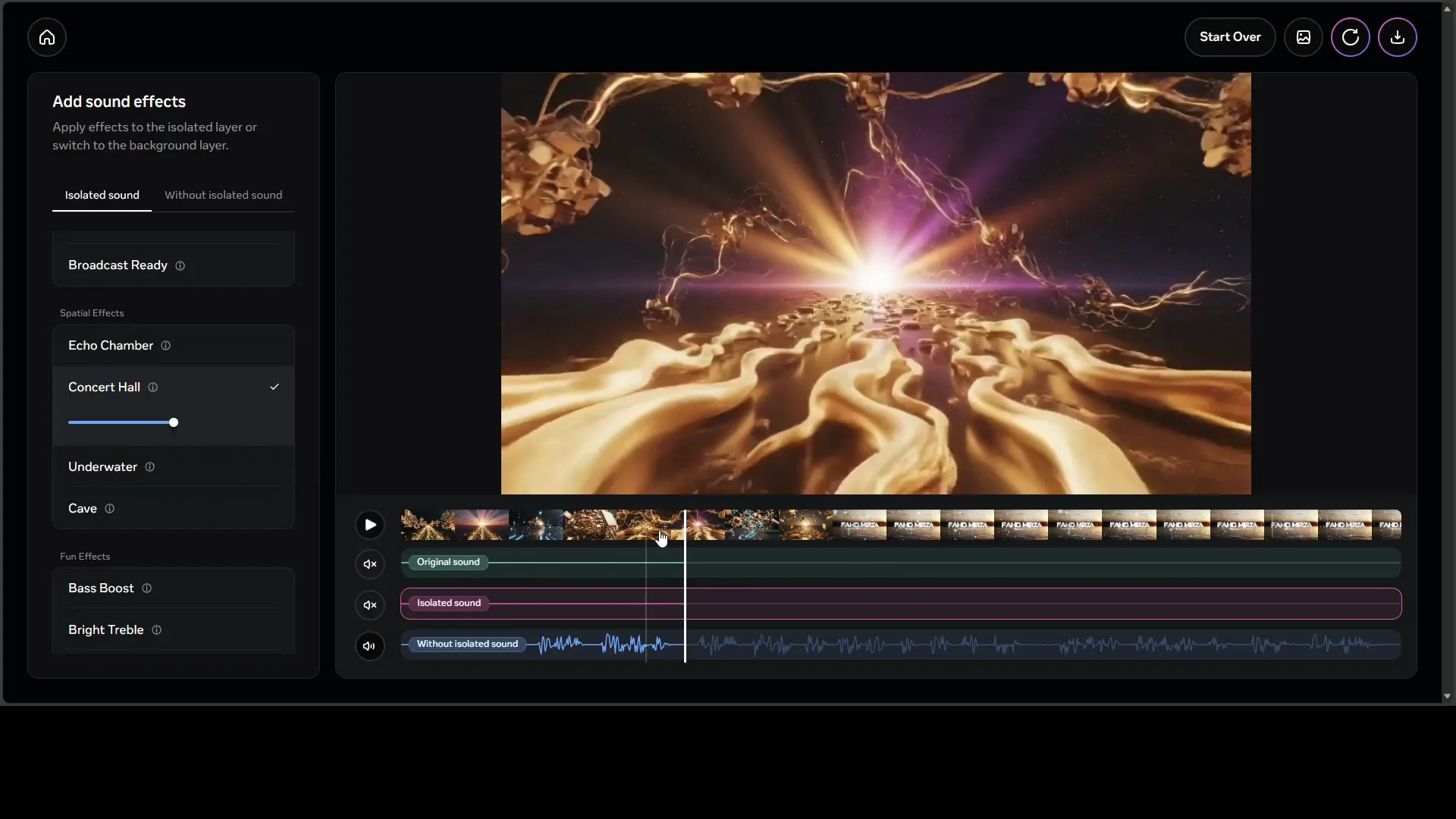
The interface also includes audio effects that you can apply to the output:
- Reverb
- Equalizer
- Visual enhancer
- Studio sound
- Echo chamber
- Concert hall
I selected concert hall and played the result. The change was audible. There is no separate apply button in the interface. Select an effect and audition it on the output.
What SAM-Audio Segment Anything Can Isolate
The model isolates specific sounds from complex audio mixtures. That includes:
- Speech
- Music
- Environmental noises
It outputs two tracks:
- Target sound - the isolated element based on your prompt
- Residual audio - everything else in the mixture
This two-track output is practical. You can edit, mix, or remove a sound without affecting the rest of the recording.
Prompting Options
The model supports multimodal prompting. You are not limited to text.
- Text prompt - describe the target sound in words, like siren or music
- Visual prompt - provide masked audio frames from tools such as SAM 3 to link a sound to an onscreen object
- Span prompts - mark time intervals where the sound is present or absent
This unified prompting setup makes control direct and flexible. It is useful across speech, music, and general sound. It can replace several single-purpose tools with one consistent method.
Prompt Types at a Glance
| Prompt type | What you provide | Purpose |
|---|---|---|
| Text | Short description of the target sound | Fast isolation by name or category |
| Visual | Masked frames linked to an onscreen area | Tie a sound to a visible source |
| Span | Time intervals with present or absent tags | Pinpoint when a sound occurs |
Architecture of SAM-Audio Segment Anything
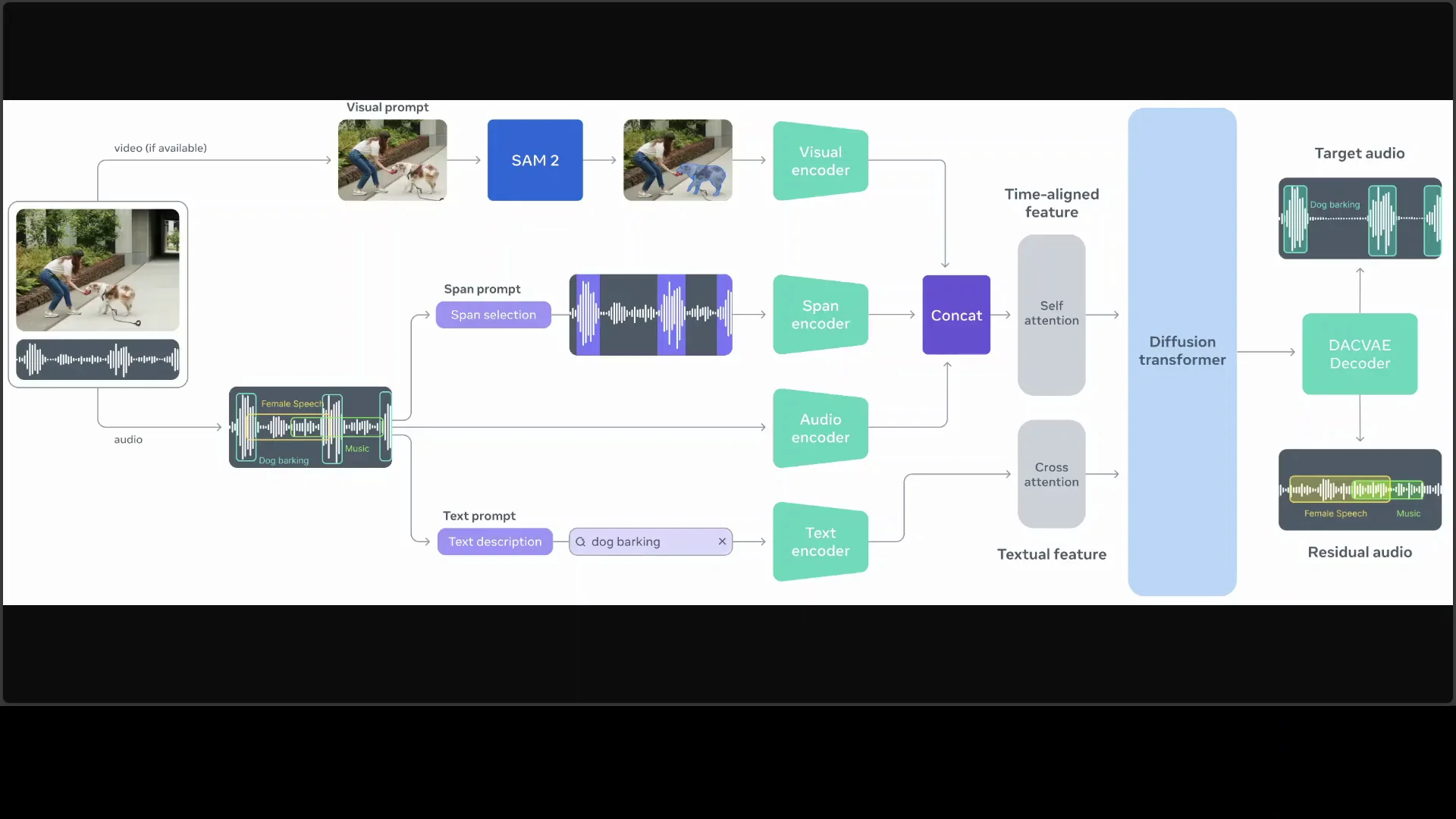
Here is the architecture in clear terms. The system operates in a compressed latent space. Latent space is not directly visible audio. It is a compact representation created for efficient processing.
A Descript Audio Codec Variational Autoencoder, referred to as DAC V or DACV, encodes raw waveforms into a low-dimensional representation. This step compresses the audio while preserving the information needed for separation. Working in this space reduces computational load and improves generative control.
A central flow matching diffusion transformer is the core generative component. It models and generates both the target and the residual audio in the latent domain. Prompts condition the generation process so the system knows what to isolate and what to leave in the residual.
Prompt features are extracted by dedicated encoders:
- Text prompt features are generated by a text encoder.
- Visual prompt features are produced by a visual encoder.
- Span prompt features are generated by a span encoder that highlights selected waveform segments over time.
The audio encoder processes the mixed input signal. The system then fuses the prompt features and the audio features through self attention and cross attention within the diffusion transformer. This fusion directs the generator to produce two outputs that match the prompt: the isolated target and the residual.
Why This Setup Works
- Latent compression through DAC V reduces the size of the problem while preserving detail that matters for separation.
- A flow matching diffusion transformer can generate precise target and residual audio under prompt control.
- Separate encoders for text, visual, and span prompts keep each signal clean and informative.
- Self attention and cross attention fuse what the prompt says with what the audio contains.
The result is fine-grained isolation. In use, it pulls out the sound you describe and leaves everything else intact in a separate layer.
Using Text, Visual, and Span Prompts
The text prompt is the simplest. A word or short phrase guides the system to the sound class you want to isolate. This is how I isolated a siren and music.
Visual prompting adds a link between sound and an onscreen region. Masked frames from SAM 3 can mark an object. The system associates that region with a sound and focuses separation accordingly.
Span prompts mark time windows. You can indicate where the sound appears or where it does not. This temporal guidance is helpful for intermittent sounds and for avoiding false positives in silent windows.
Practical Workflow With Prompts
- Start with a text prompt for speed.
- If the target has a clear onscreen source, add a visual prompt to reinforce it.
- If the sound is intermittent, add span prompts to mark presence and absence across time.
This layered prompting strategy refines the model’s focus and improves separation quality in complex mixes.
Observations From Hands-on Use
- The hosted demo isolated sounds cleanly, matching the text prompts I entered.
- The user interface makes it easy to switch between original audio, isolated audio, and without isolated audio to confirm results.
- Effects can be applied to the outputs, which is useful for quick enhancement or creative treatment.
- Uploading large files can fail. Multiple upload attempts may be required.
Output Management
The two outputs are useful for editing:
- Keep the isolated target and lower it in the final mix.
- Keep the residual and remove the target.
- Process each output with different effects.
Because the outputs are separate, you can control them independently without degrading the other.
Access, Models, and What’s Next
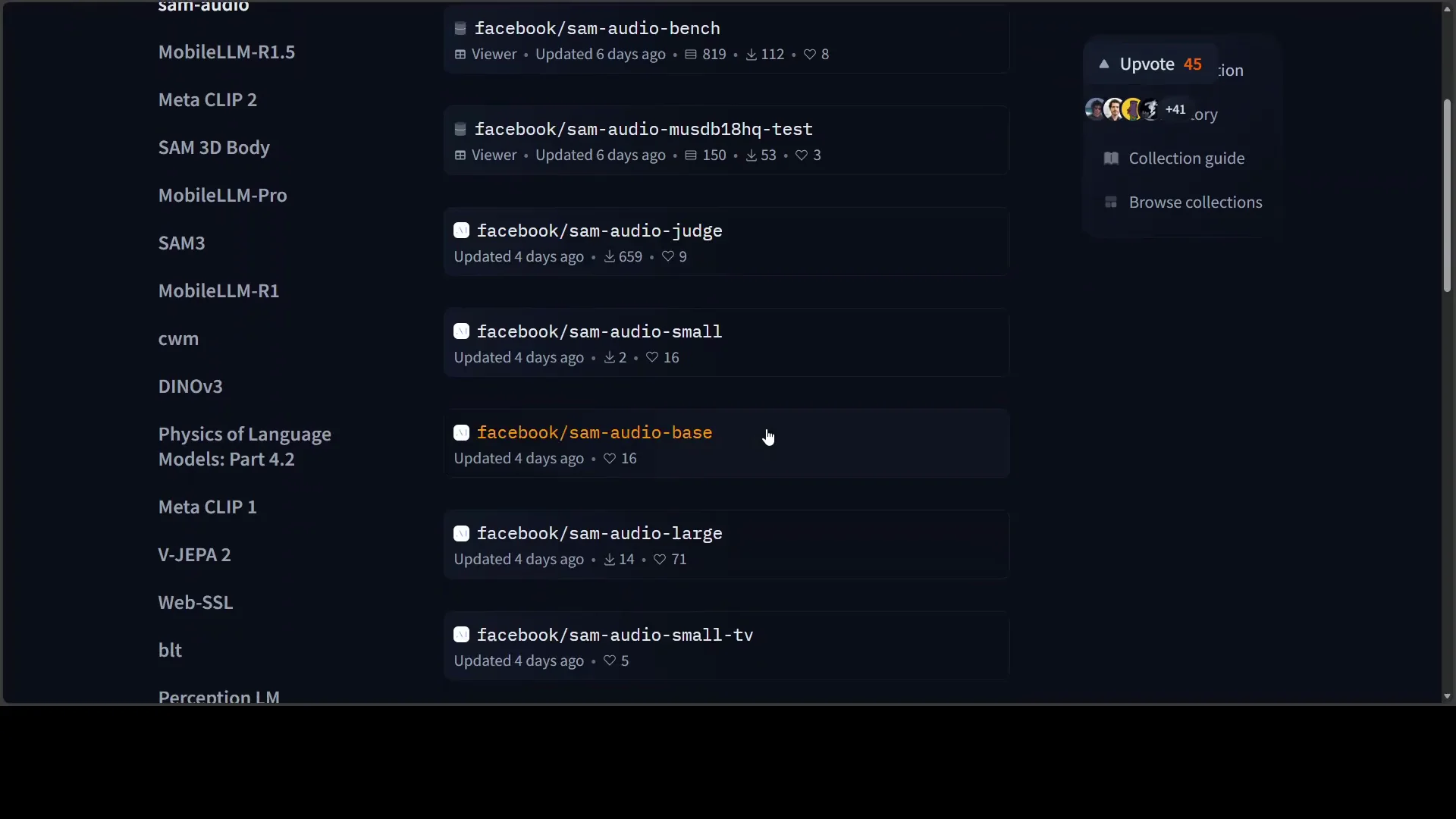
At the time of testing, model access required approval, and I am waiting for download access. I have the code ready. As soon as access is granted, I will show how to install and run the models locally.
There is a small model and a large model. There is also a benchmark and a judge model that I plan to test. Small and large TV models are listed as well, and I will cover those in a separate write-up.
I would prefer the access gate to be removed. If compliance requires it, approvals should be fast. A wait of more than 24 hours slows practical evaluation.
Licensing Notes
The license appears to be restrictive. It is the same license seen in other recent releases and includes several limitations. This is a broader discussion for the community. I prefer permissive licenses such as MIT or Apache for research and integration.
SAM-Audio Segment Anything Demo Walkthrough
Here is a concise walkthrough based on the current hosted interface.
Prepare and Upload
- Visit aid demos.mmeta.com.
- Select isolate sound.
- Click start over if needed.
- Upload your audio or video file. If you see fail to upload media, try again.
Isolate a Target Sound
- Enter a text prompt with the sound you want to separate, such as siren or music.
- Click isolate sound.
- Wait for processing to complete.
Review Outputs
- Original sound - the unmodified audio.
- Isolated sound - only the target you prompted for.
- Without isolated sound - the residual audio with the target removed.
Use the toggles in the bottom bar to turn layers on or off. Play each layer to confirm the separation.
Apply Effects
- Select an effect such as reverb, equalizer, visual enhancer, studio sound, echo chamber, or concert hall.
- Play the output to hear the effect applied.
- There is no separate apply button. Select and audition.
Architecture Summary Table
| Component | Role |
|---|---|
| DAC V codec VAE | Encodes raw waveform into a compact latent space |
| Audio encoder | Processes mixed input audio |
| Text encoder | Extracts features from text prompts |
| Visual encoder | Extracts features from masked frames |
| Span encoder | Encodes temporal anchors for present or absent cues |
| Flow matching diffusion transformer | Generates target and residual in latent space |
| Self and cross attention | Fuses audio and prompt features for guided generation |
This arrangement allows prompt-conditioned generation of both the isolated target and the residual. Working in the latent domain keeps processing efficient and control precise.
Key Capabilities of SAM-Audio Segment Anything
- Isolates specific sounds from complex audio mixtures based on prompts.
- Produces two outputs per run - the target and the residual.
- Accepts text, visual, and span prompts.
- Operates in a compressed latent space for efficient processing.
- Supports playback comparison and effect application in the demo interface.
Limitations and Notes
- Hosted access may require approval to download models.
- Uploads can fail and may require multiple attempts.
- The current license includes restrictions that limit some uses.
These constraints do not affect the core function of isolating sounds through prompts, but they shape how and where you can deploy the model.
Closing
The model separated a siren from speech and removed music from narration using short text prompts. The outputs were clean and aligned with the prompts. The architecture is clear: compressed latent processing, a diffusion transformer guided by prompt encoders, and attention to fuse features correctly.
I will share local installation and usage steps as soon as model downloads are open.
Subscribe to our newsletter
Get the latest updates and articles directly in your inbox.

Related Posts

8 Best Claude Code Plugins in 2026 (You Need to Know)
8 Best Claude Code Plugins in 2026 (You Need to Know)

7 Best Claude Code Skills (You Need to Know)
7 Best Claude Code Skills (You Need to Know)

Claude Code Desktop IDE Features (You Need to Know)
Claude Code Desktop IDE Features (You Need to Know)