
Table Of Content
- How-To Install OpenCode: Installation and Setup
- How-To Install OpenCode: Initialize a Project
- How-To Install OpenCode: Connect Ollama as a Provider
- Create the Ollama provider configuration
- Connect to the Ollama provider
- How-To Install OpenCode: First Interactions
- Planning and Build modes
- Commands
- Codebase operations
- Protocol and skills support
- How-To Install OpenCode: Model Notes for Production
- Final Thoughts
How to Set Up OpenCode with Ollama (Step-by-Step)
Qwen Model Recommender
Not sure which Qwen model fits your GPU? Pick your VRAM, use case, and task type — get matched to the right model instantly. Covers Qwen3, QwQ, QVQ, Qwen2.5-VL, Qwen3-Coder, Qwen3-TTS, and 80+ models.
Table Of Content
- How-To Install OpenCode: Installation and Setup
- How-To Install OpenCode: Initialize a Project
- How-To Install OpenCode: Connect Ollama as a Provider
- Create the Ollama provider configuration
- Connect to the Ollama provider
- How-To Install OpenCode: First Interactions
- Planning and Build modes
- Commands
- Codebase operations
- Protocol and skills support
- How-To Install OpenCode: Model Notes for Production
- Final Thoughts
OpenCode is an open-source AI coding agent that I am installing with Ollama on an Ubuntu system with a GPU. I am using the Qwen 3 Coder 30B model, but you can use any model of your choice.
Ollama is one of the easiest tools to run models locally. If you are starting out, I think Ollama might be a good option.
How-To Install OpenCode: Installation and Setup
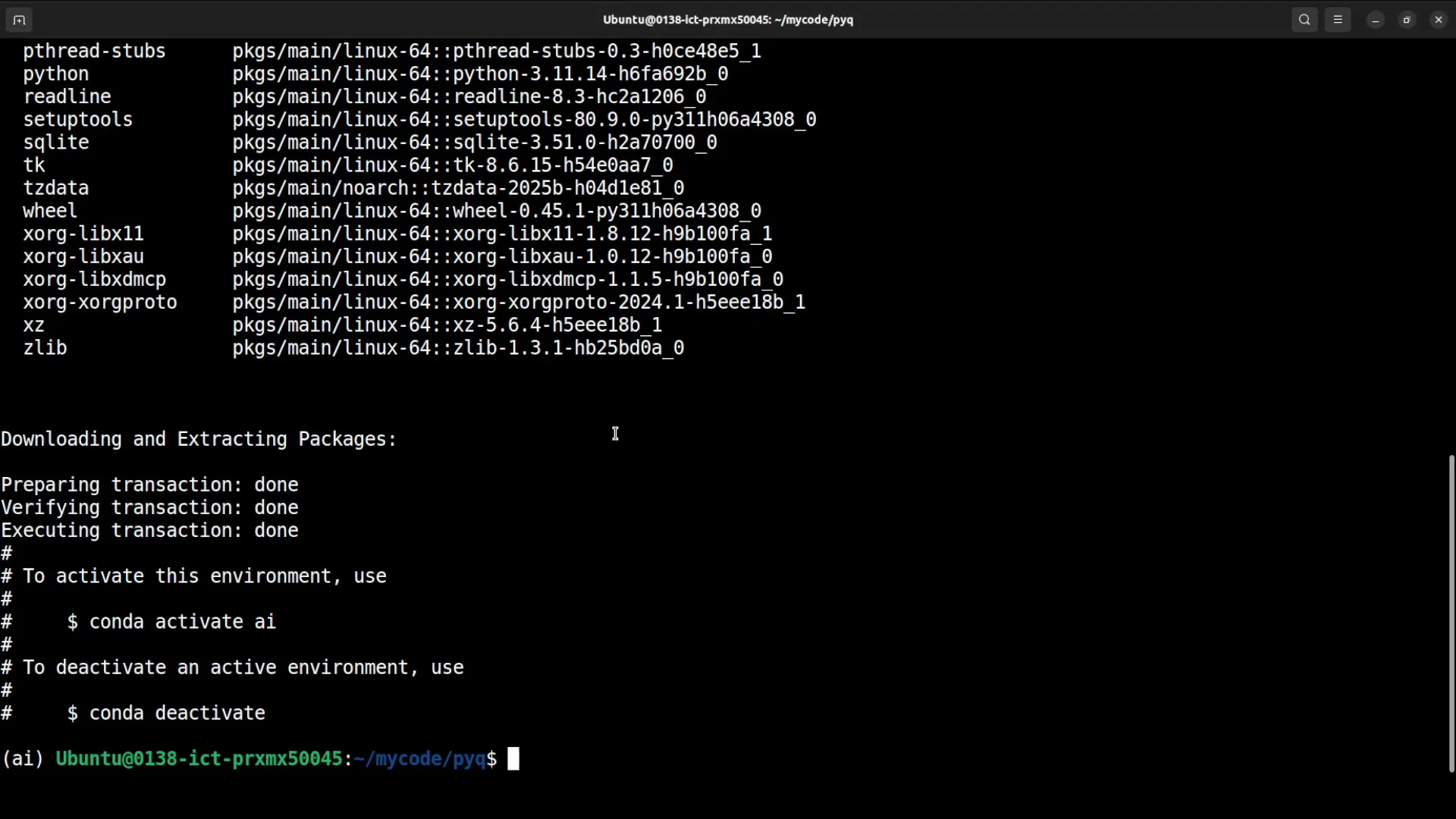
You can install OpenCode in CLI, in TUI (terminal user interface), or as a VS Code extension. I am going with the TUI.
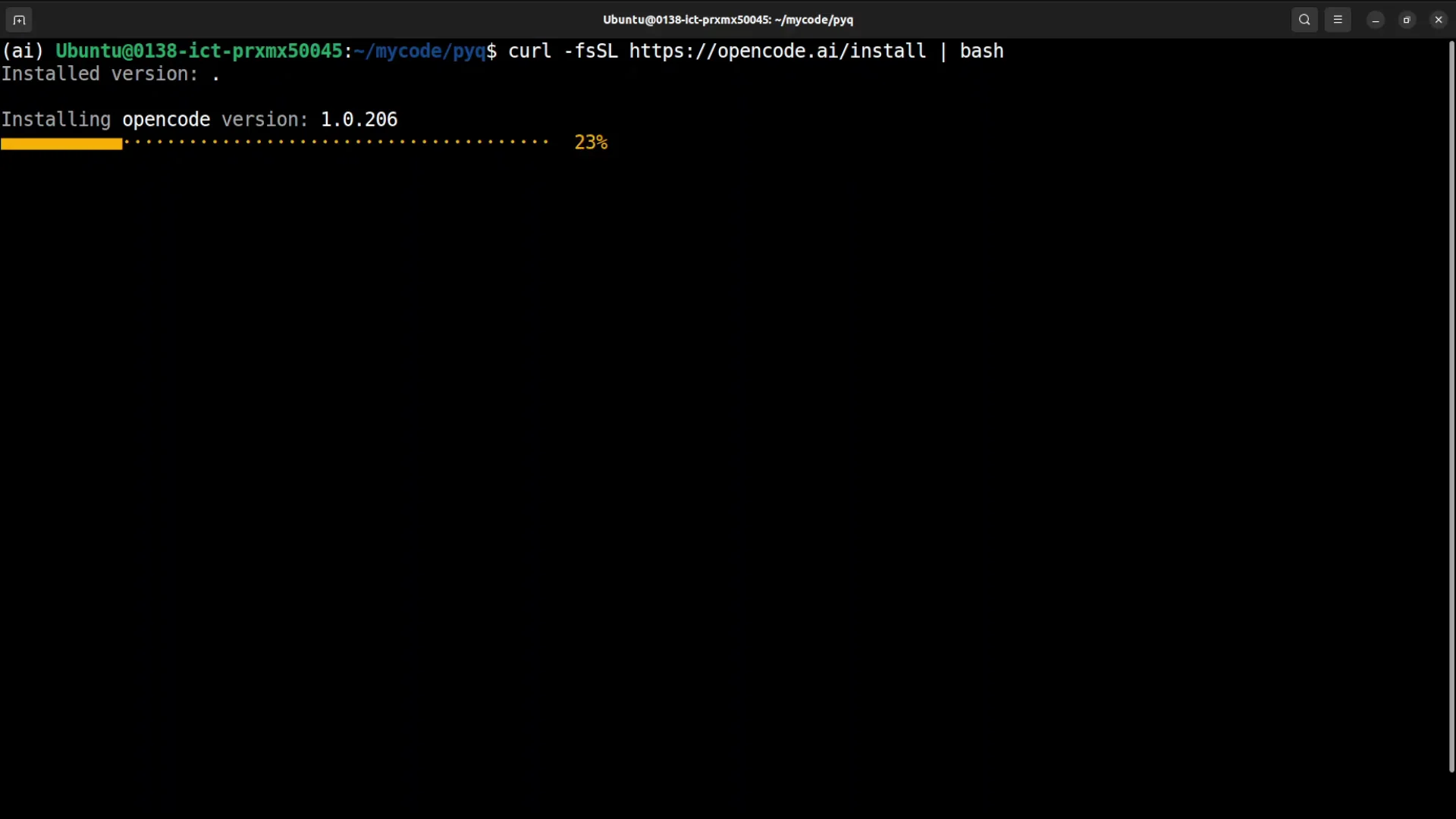
- Install OpenCode by running the shell command.
- Add it to your PATH.
- Reload your shell configuration.
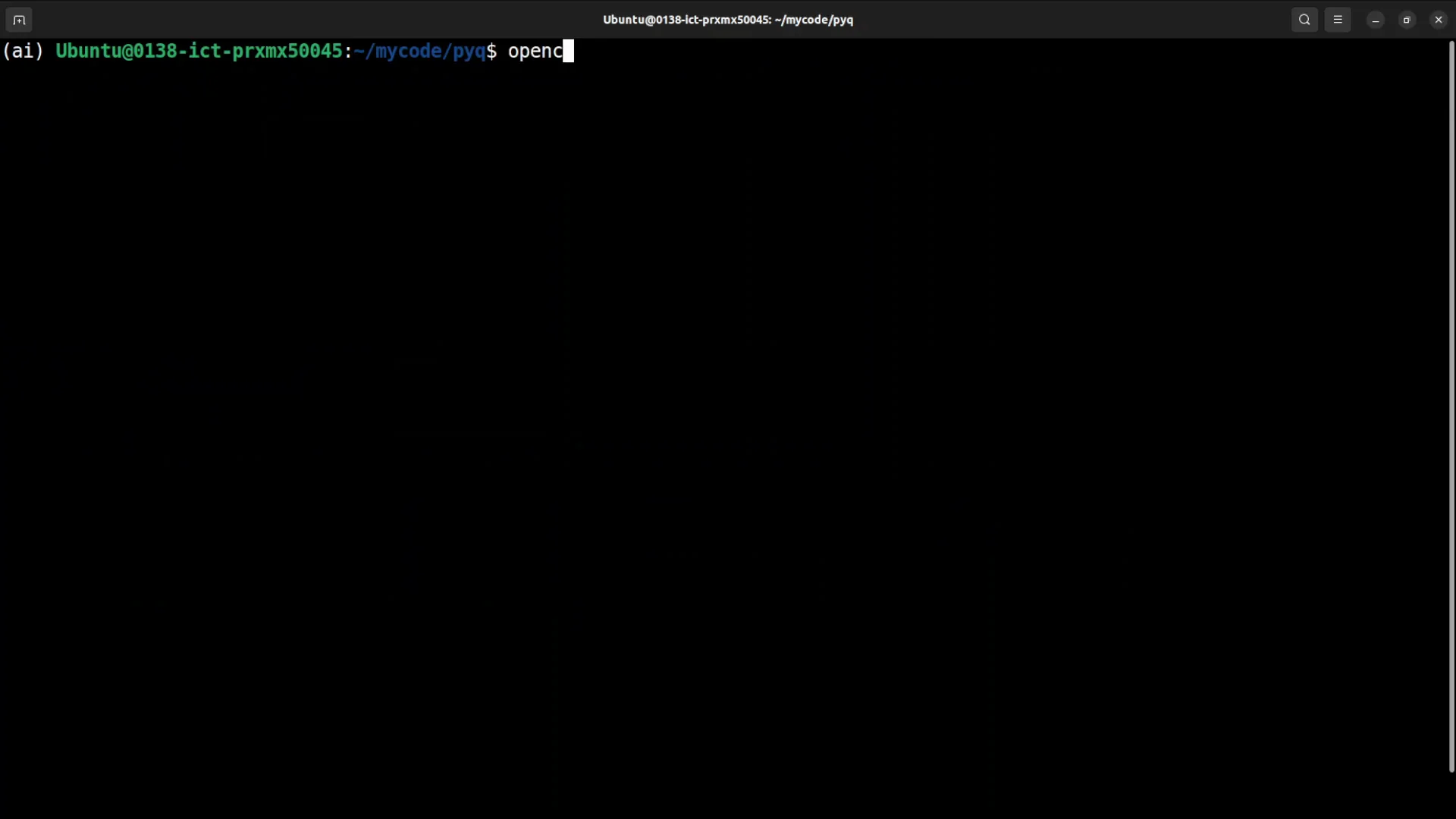
- Run
opencode.
How-To Install OpenCode: Initialize a Project
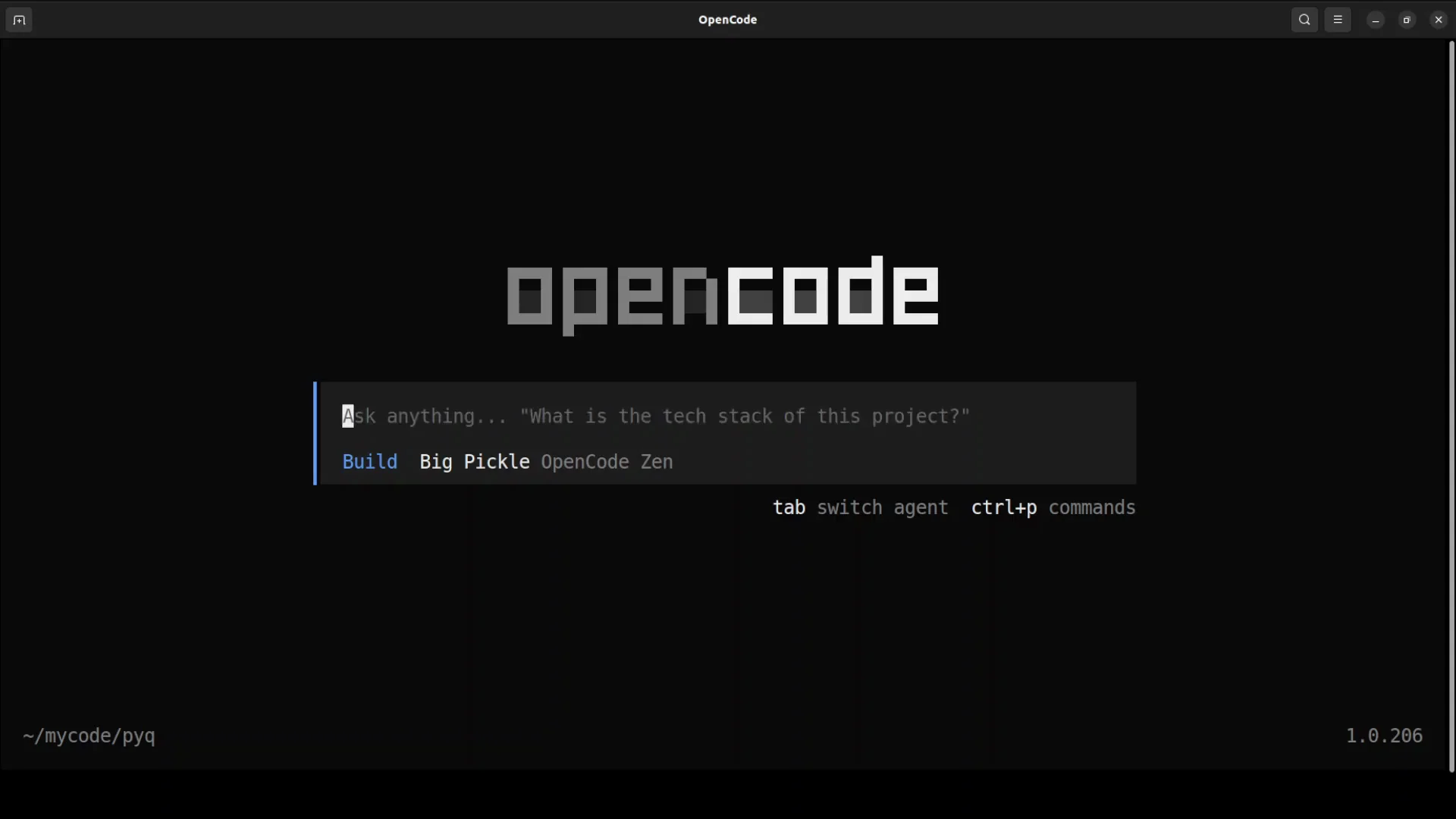
First step, run init. It initializes your existing project wherever you are. I am already in a directory with an app.py file.
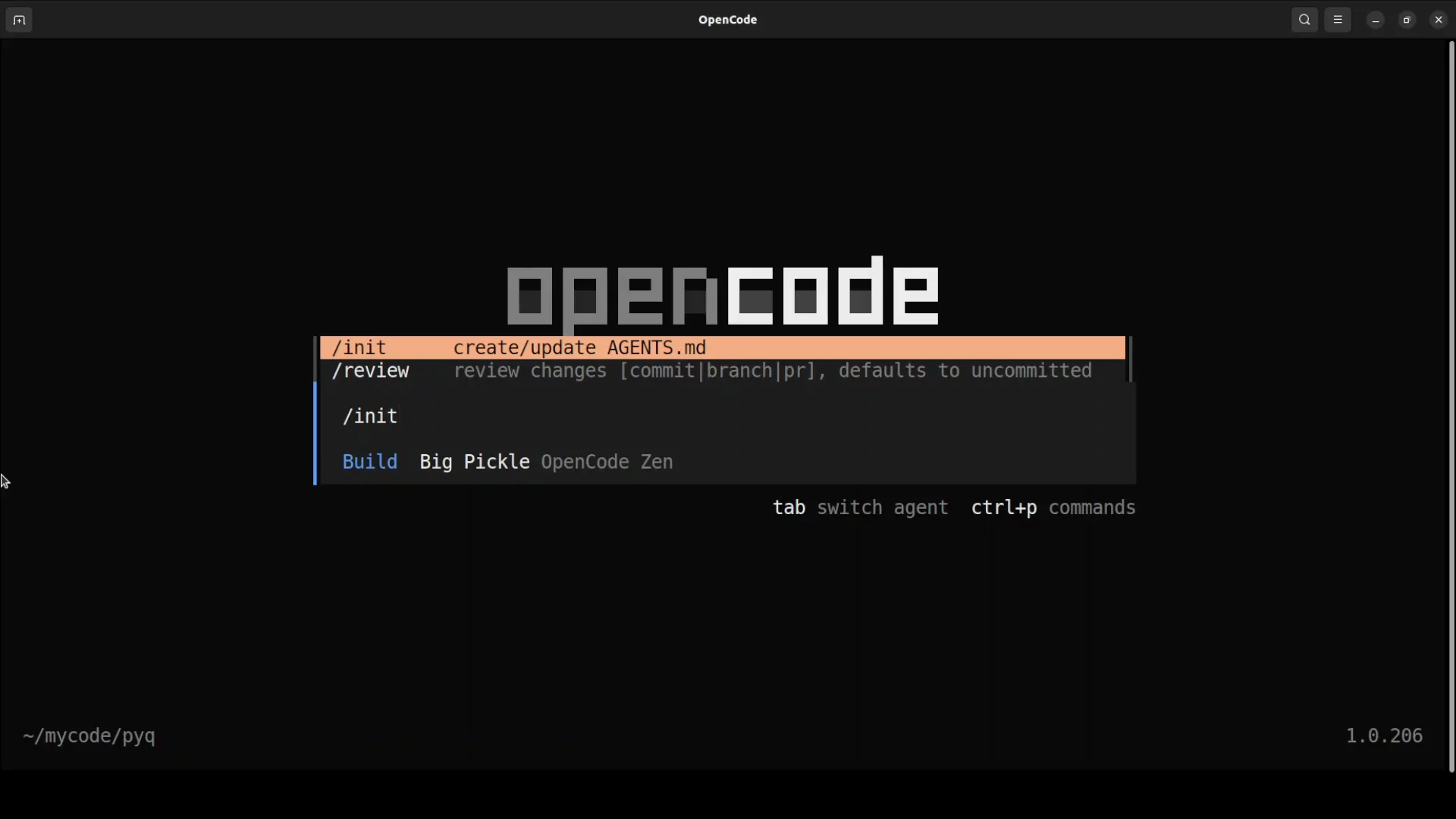
initcreates something calledagents.mmd. It has already created thatagents.mmdfile.
How-To Install OpenCode: Connect Ollama as a Provider
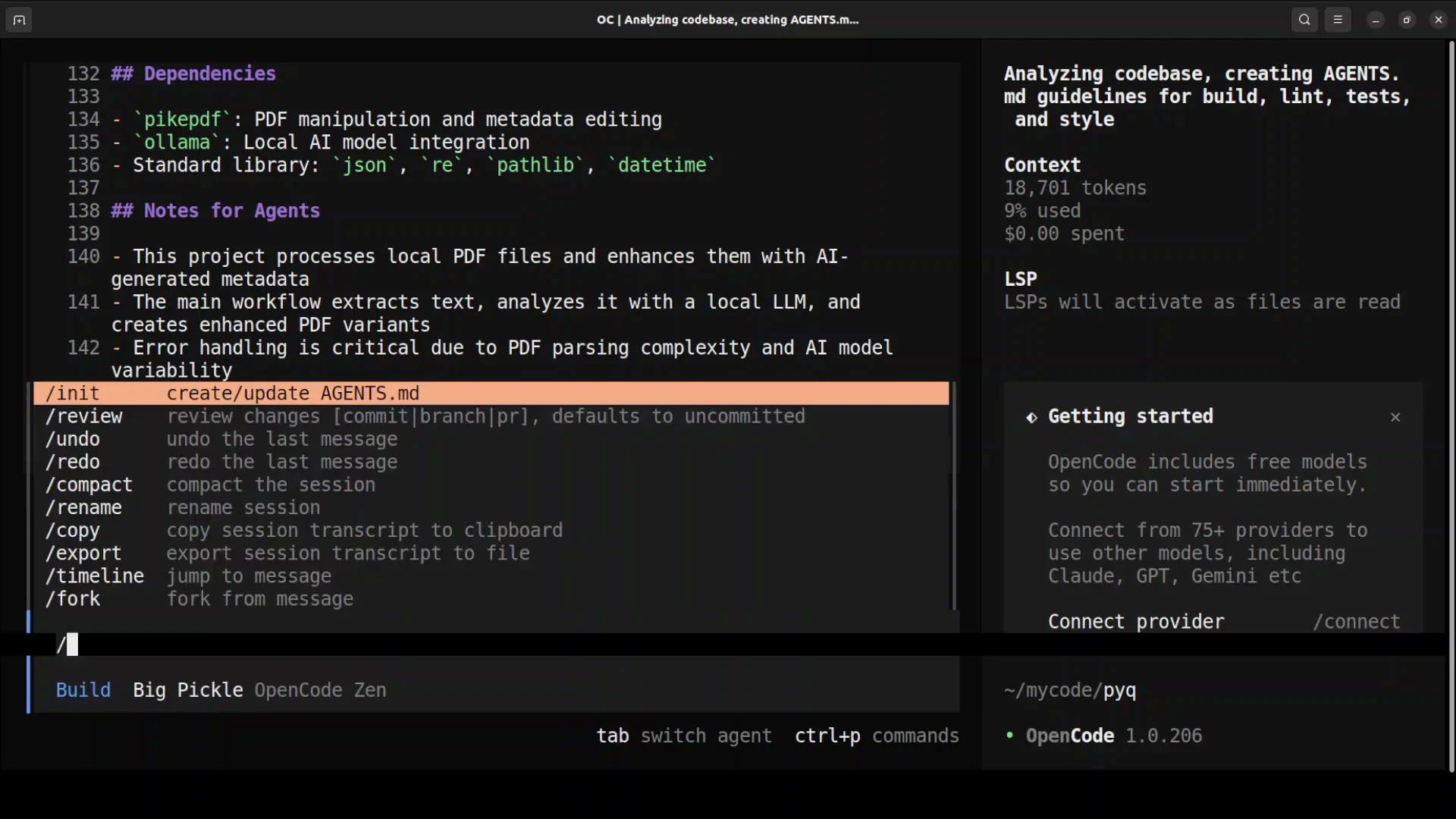
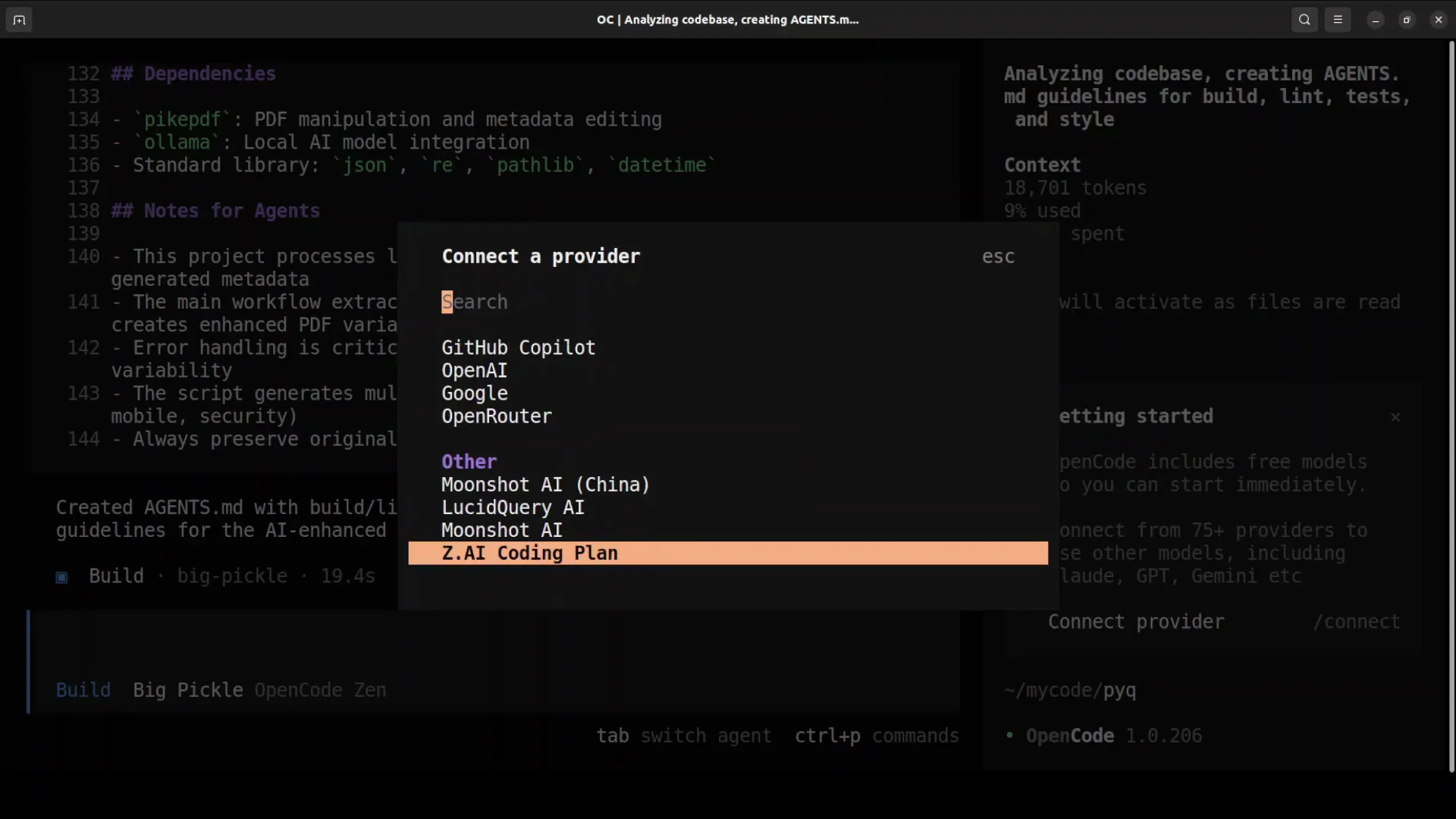
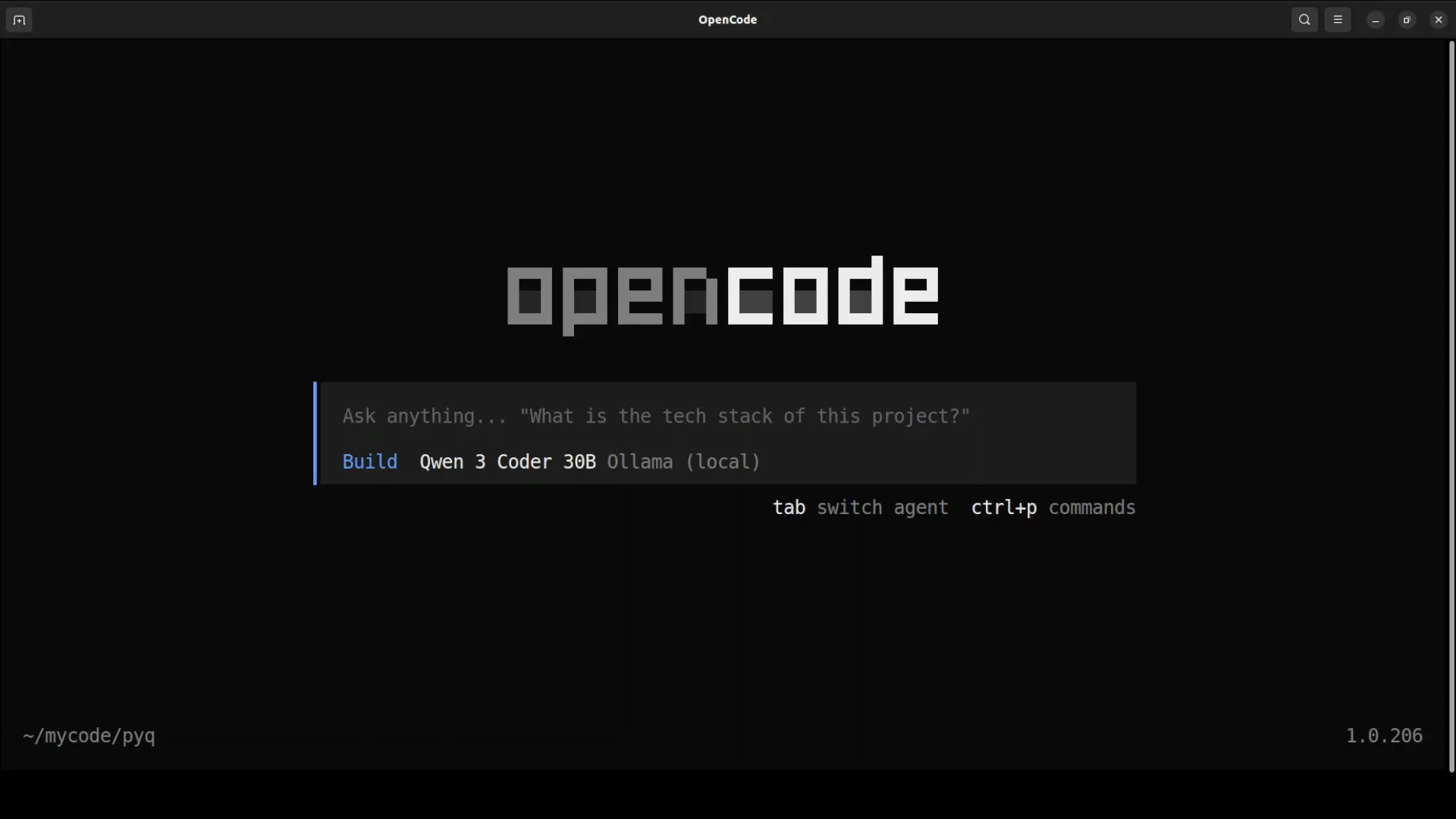
Next step is to connect the provider, which means connecting Ollama.
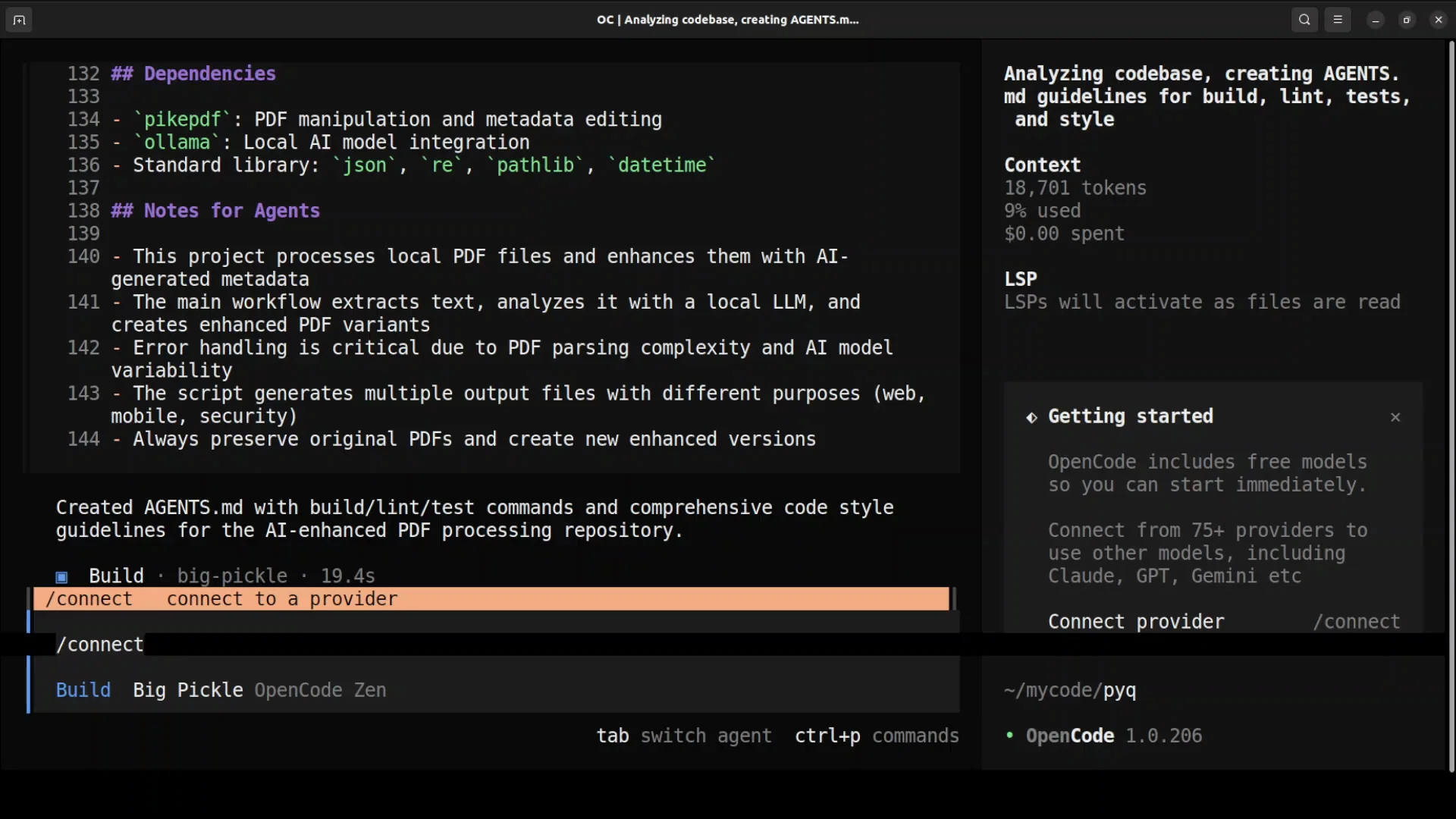
- Run
/connectto see all providers. - Under Others, there is no Ollama. Ollama Cloud is there but that is a paid option.
- Create an Ollama provider manually.
Create the Ollama provider configuration
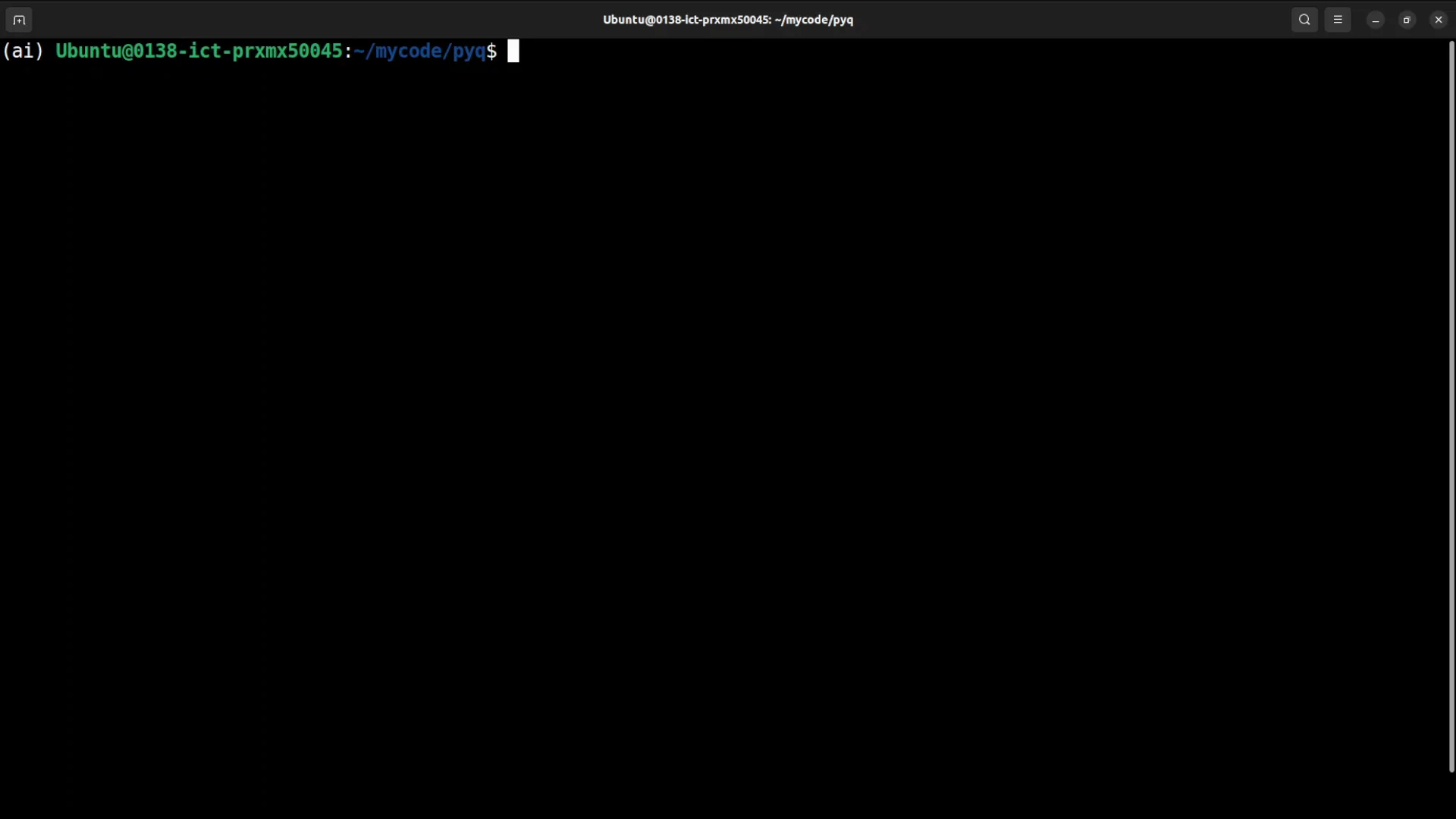
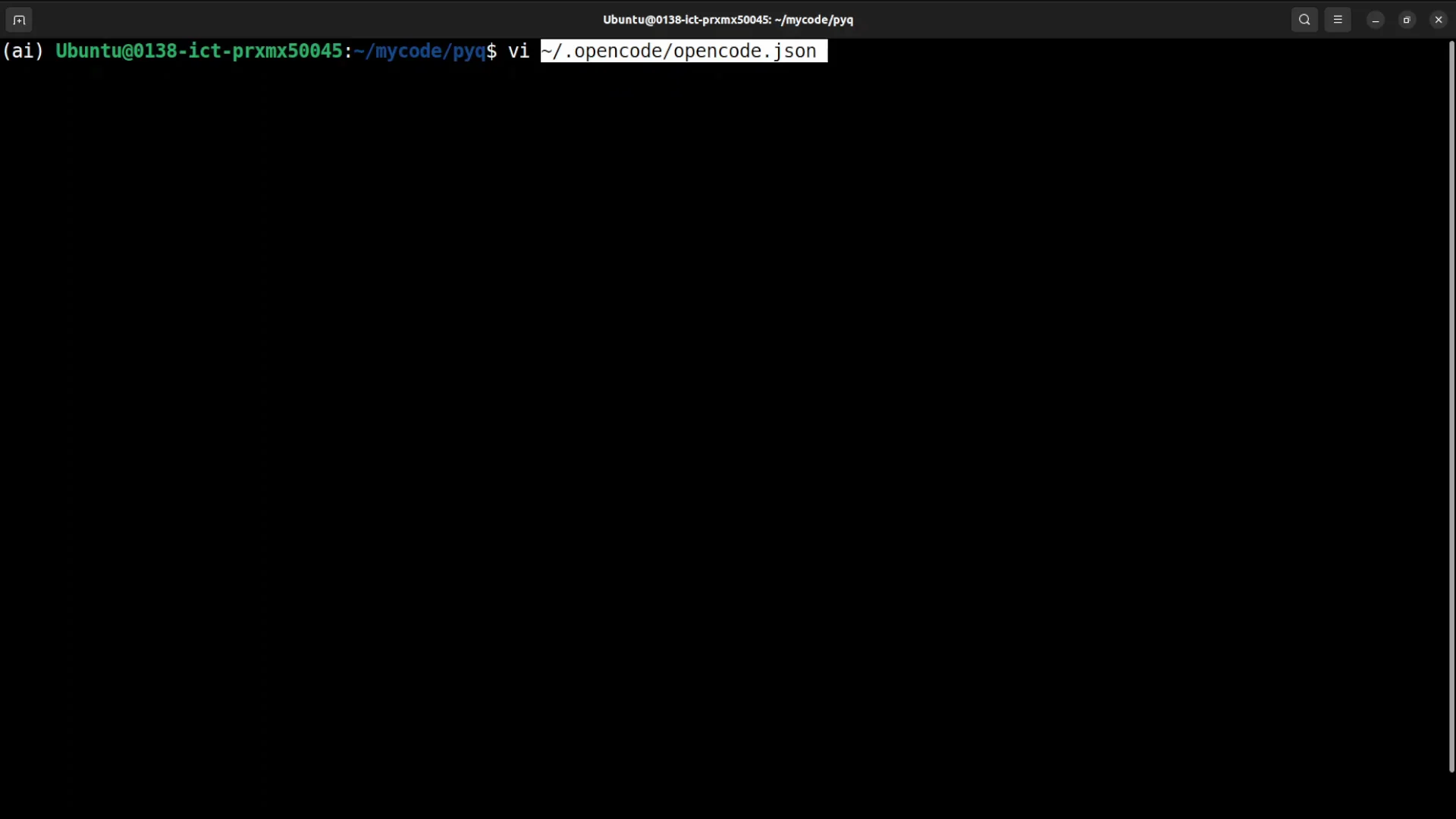
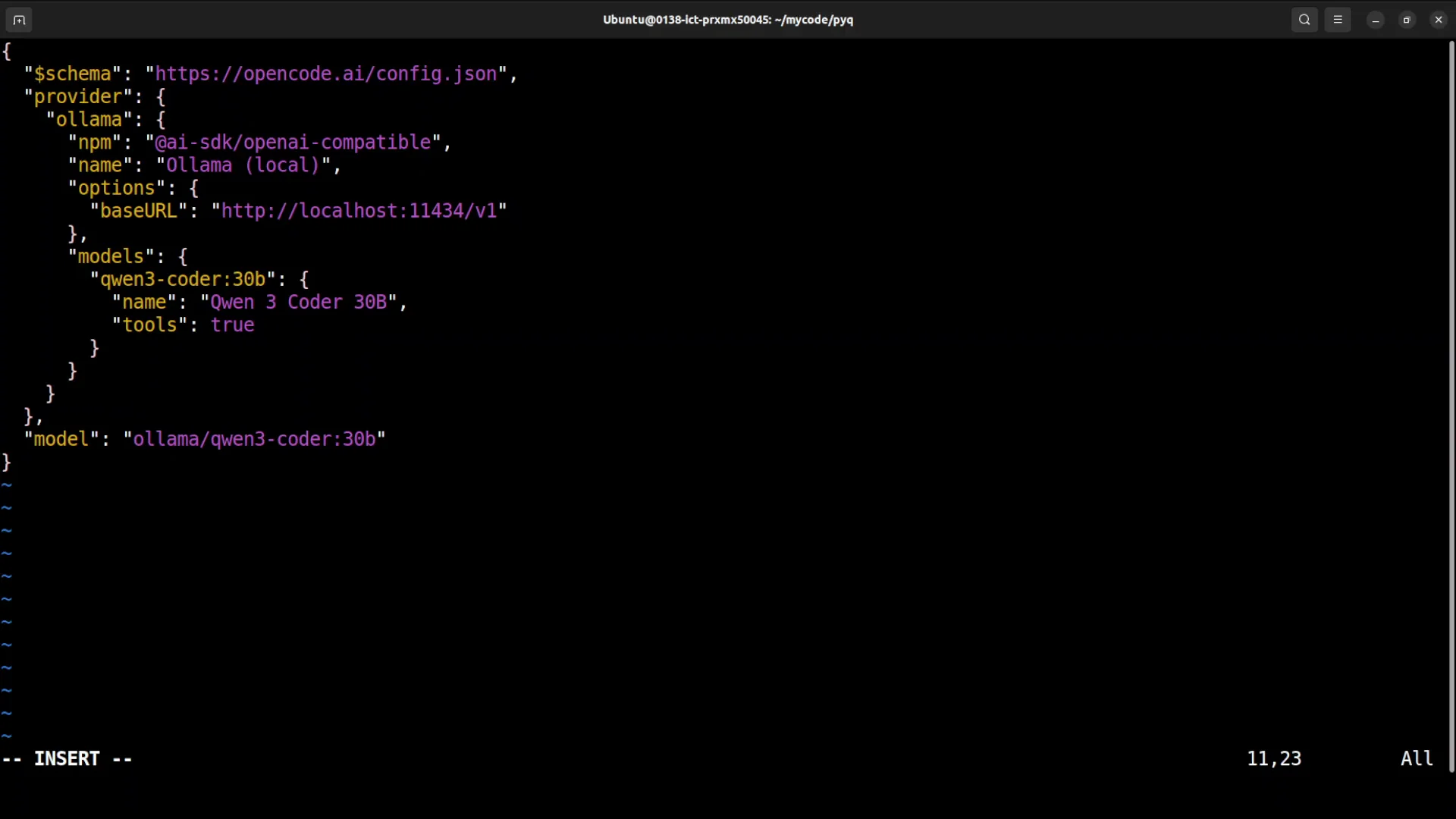
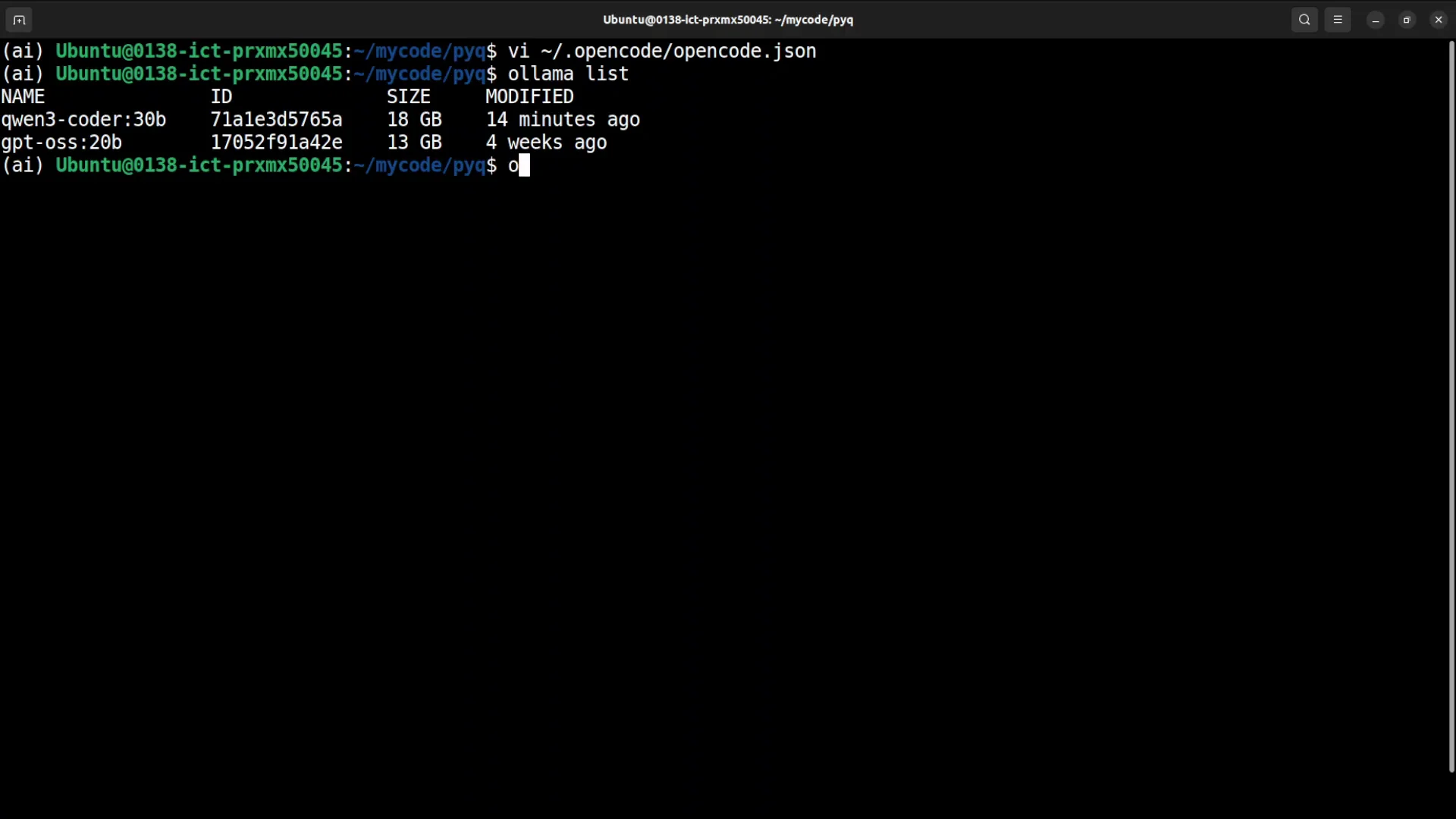
Go to your OpenCode directory, open opencode.json in your editor, and add a new provider configuration for Ollama local.
What this configuration is doing:
- Creating a new provider with Ollama.
- The name is
ollama-local. - Point it to where your Ollama service is running.
- Set your model name. I am using Qwen 3 Coder 30B.
- Use a model with at least an 8K context window. 32K is even better.
- The model should support tool use so it can call external functionality.
If you do not already have the model, pull it by name in Ollama. After that, start OpenCode again.
Connect to the Ollama provider
- Run
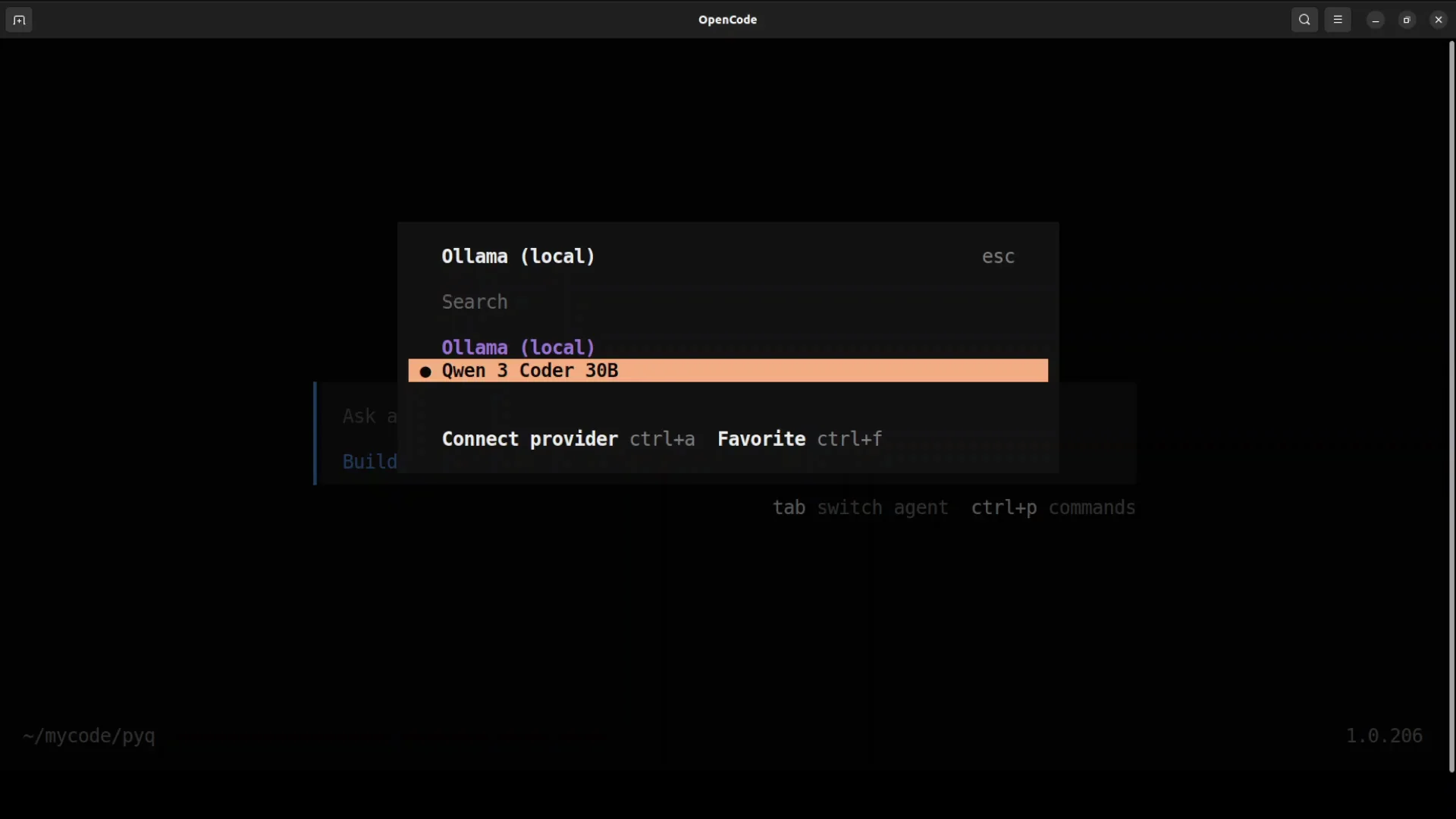
connect, then typeollama. - Select the new provider you created.
- Select your model. I am selecting Qwen 3 Coder 30B.
- You can specify multiple models as a comma-separated list in the configuration file.
How-To Install OpenCode: First Interactions
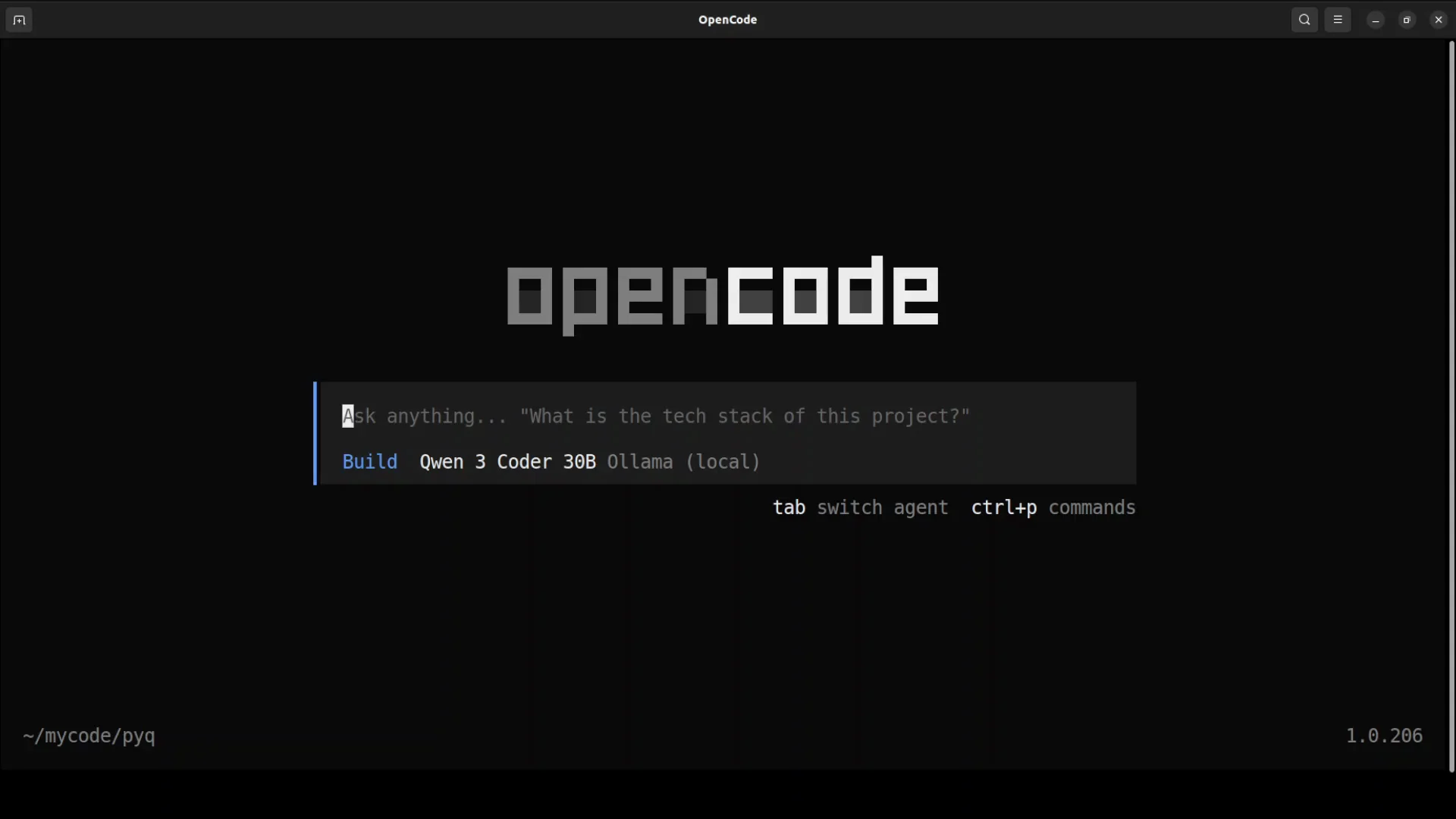
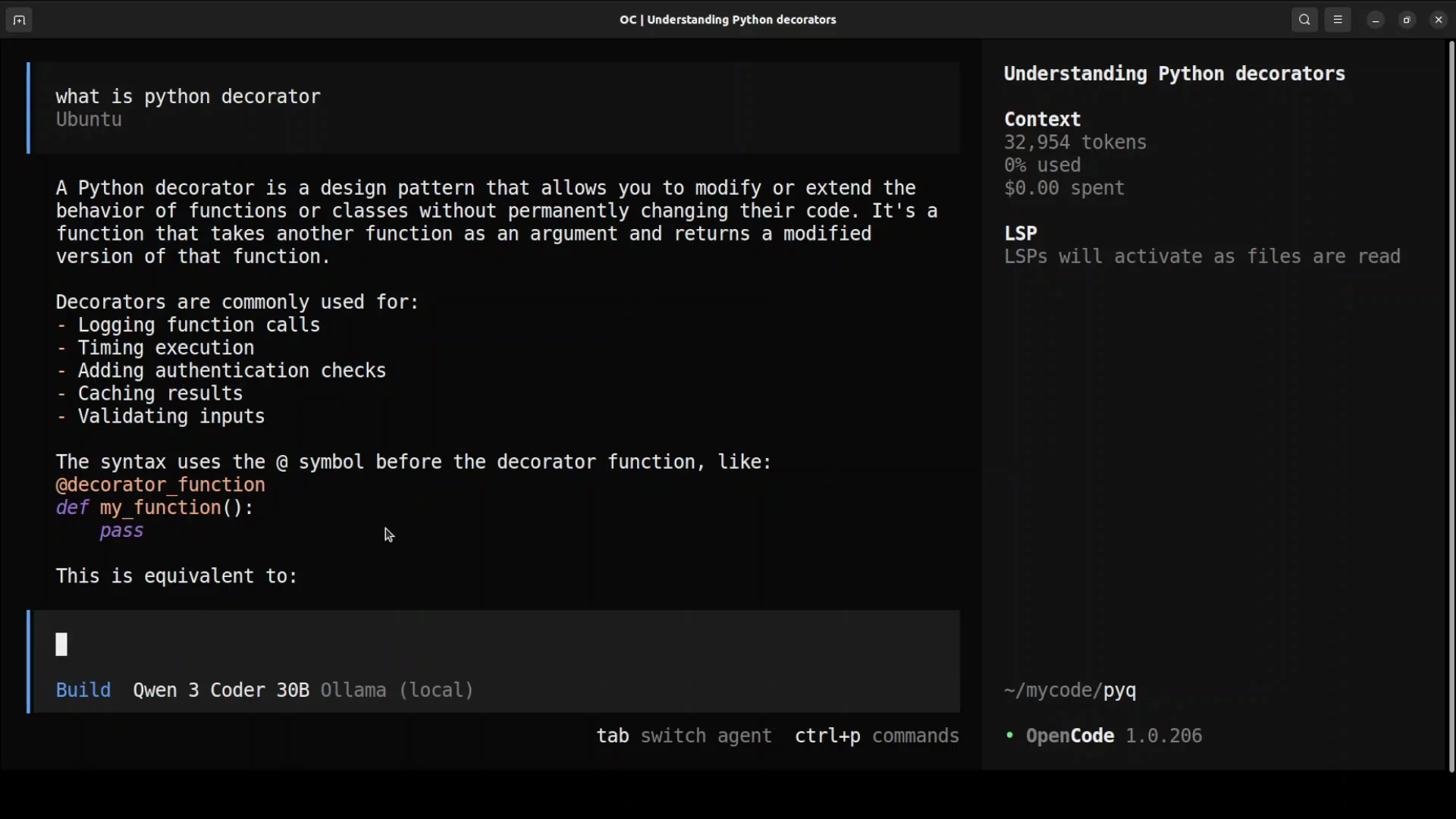
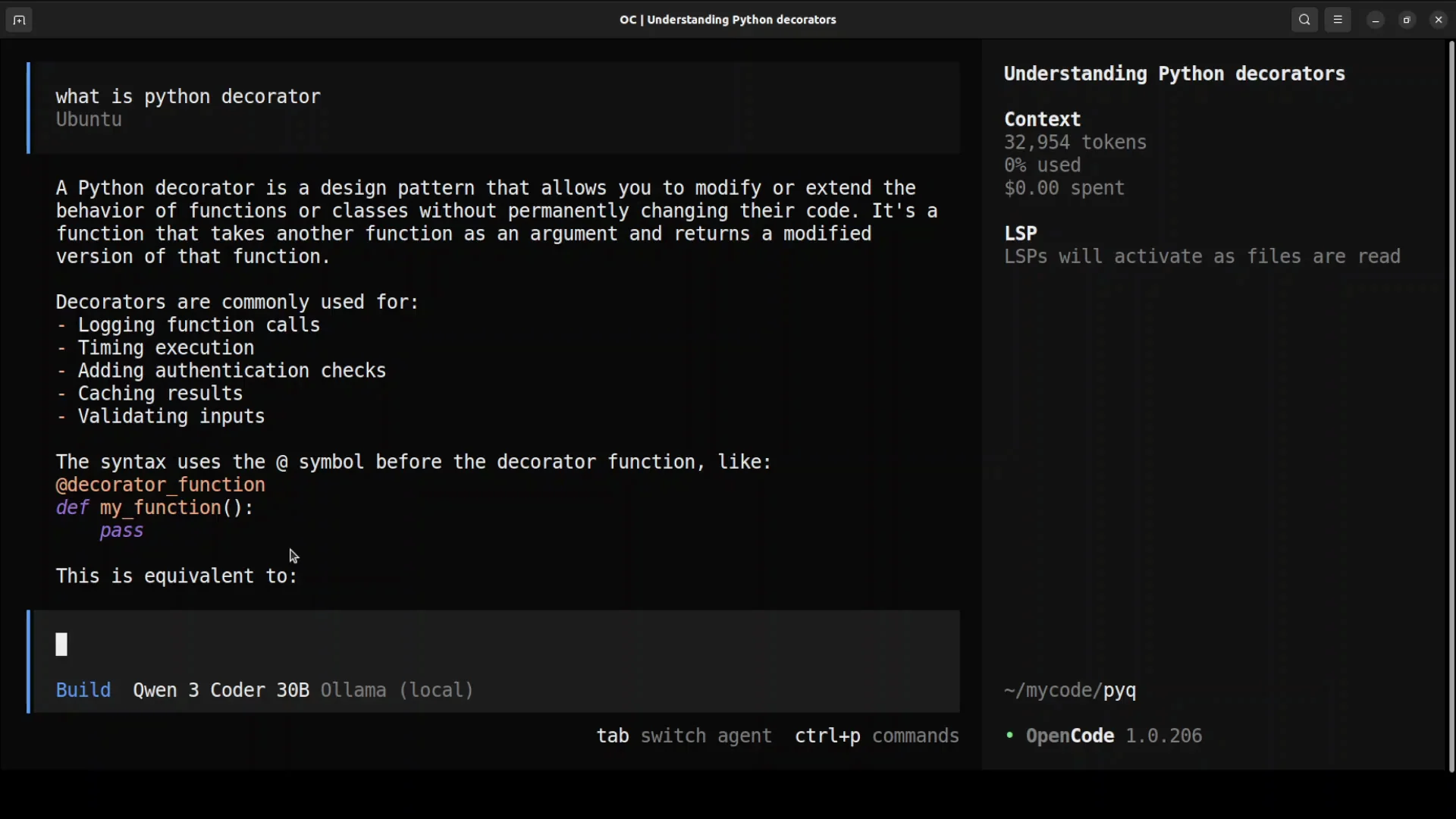
You can ask a general question to confirm things are working, for example: What is a Python decorator? It will think and give you the answer.
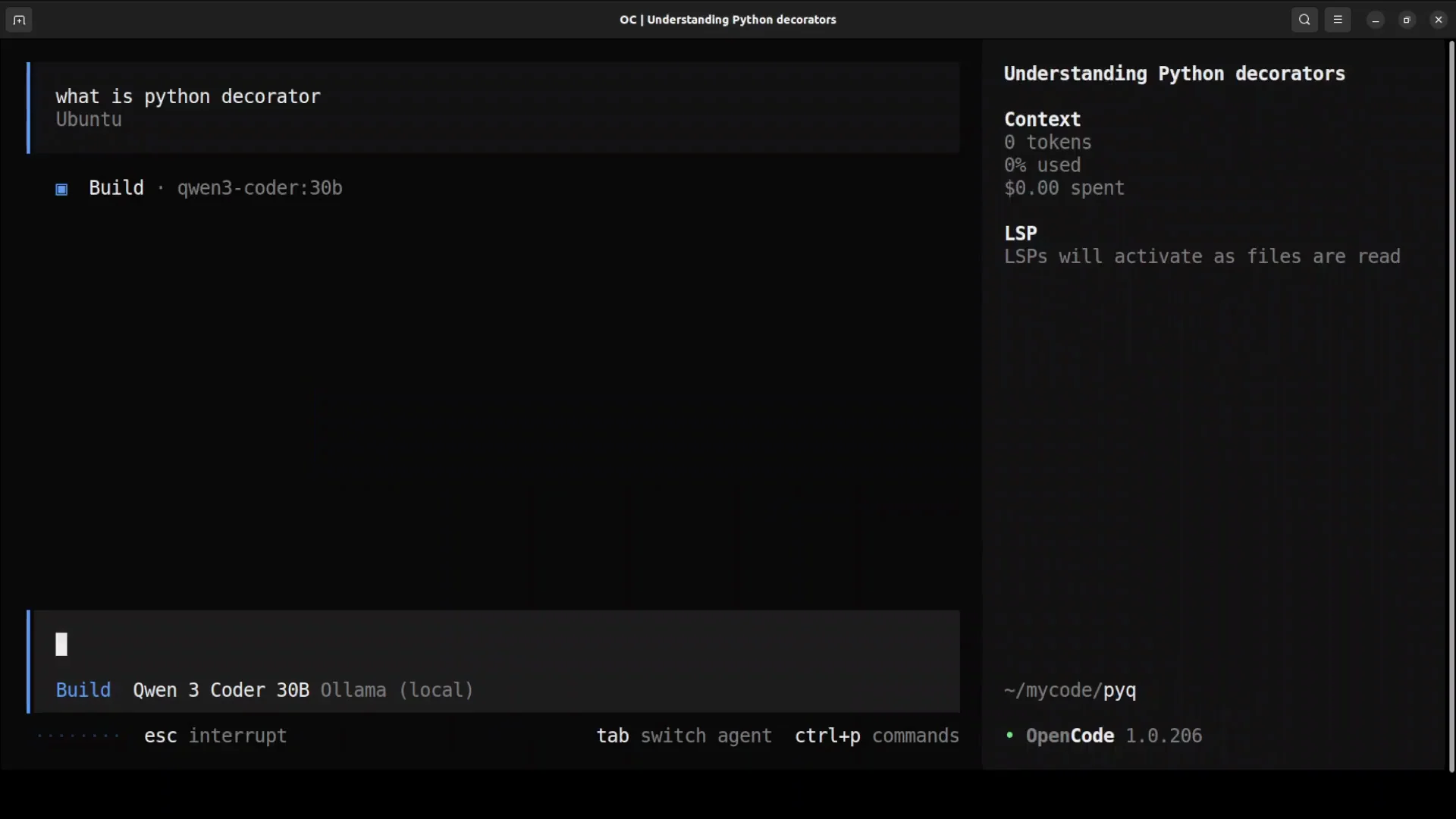
From here you can start talking with it about your codebase. You can debug your code and add new features.
Planning and Build modes
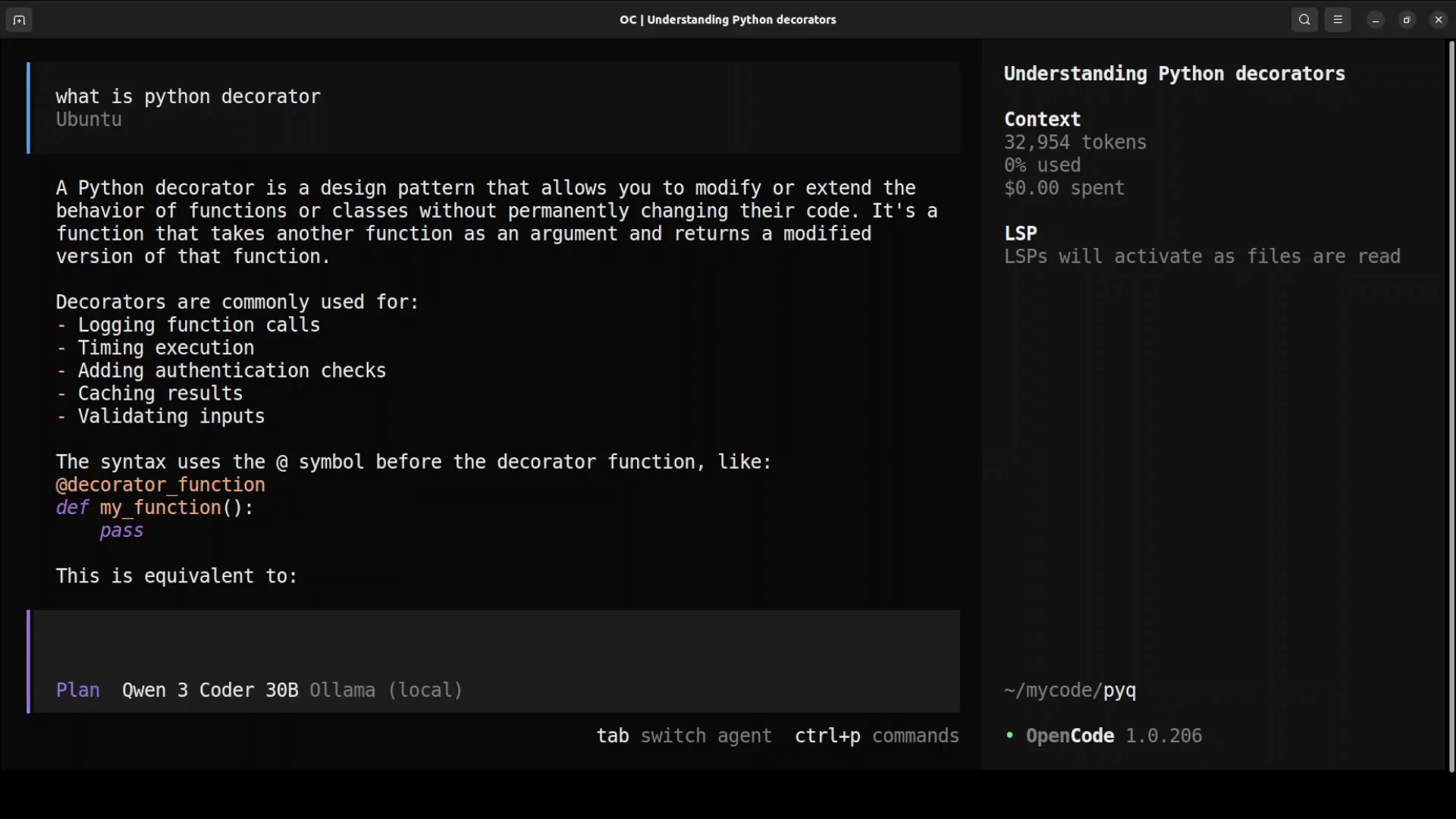
- Press Tab to toggle modes: Plan and Build.
- In Plan, it does not execute changes. It shows you the plan.
- Toggle between Plan and Build with Tab.
Commands
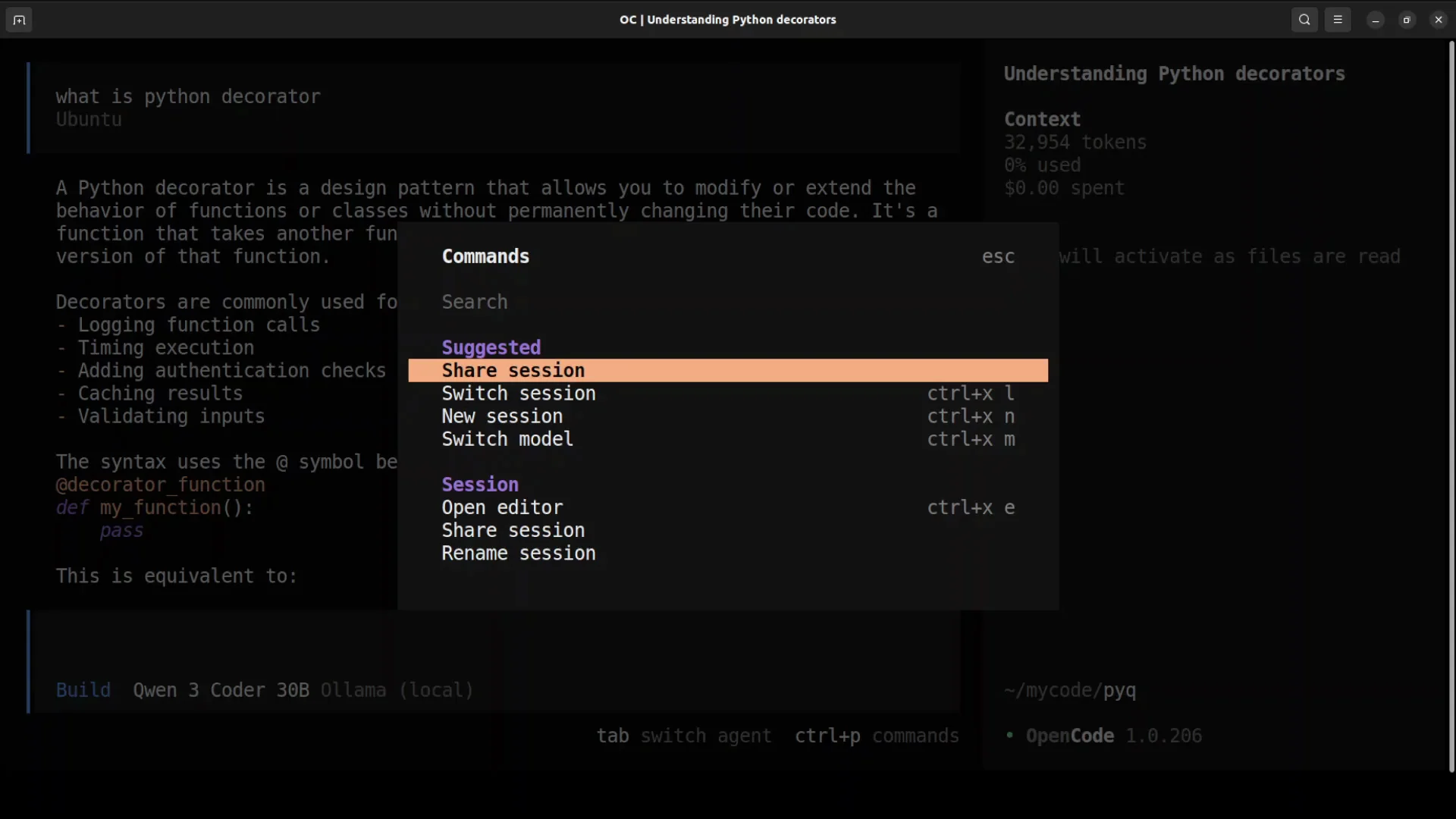
- Press Ctrl P to see all commands.
- Examples include rename, session, switch, and more.
- Press Escape to exit the command list.
Codebase operations
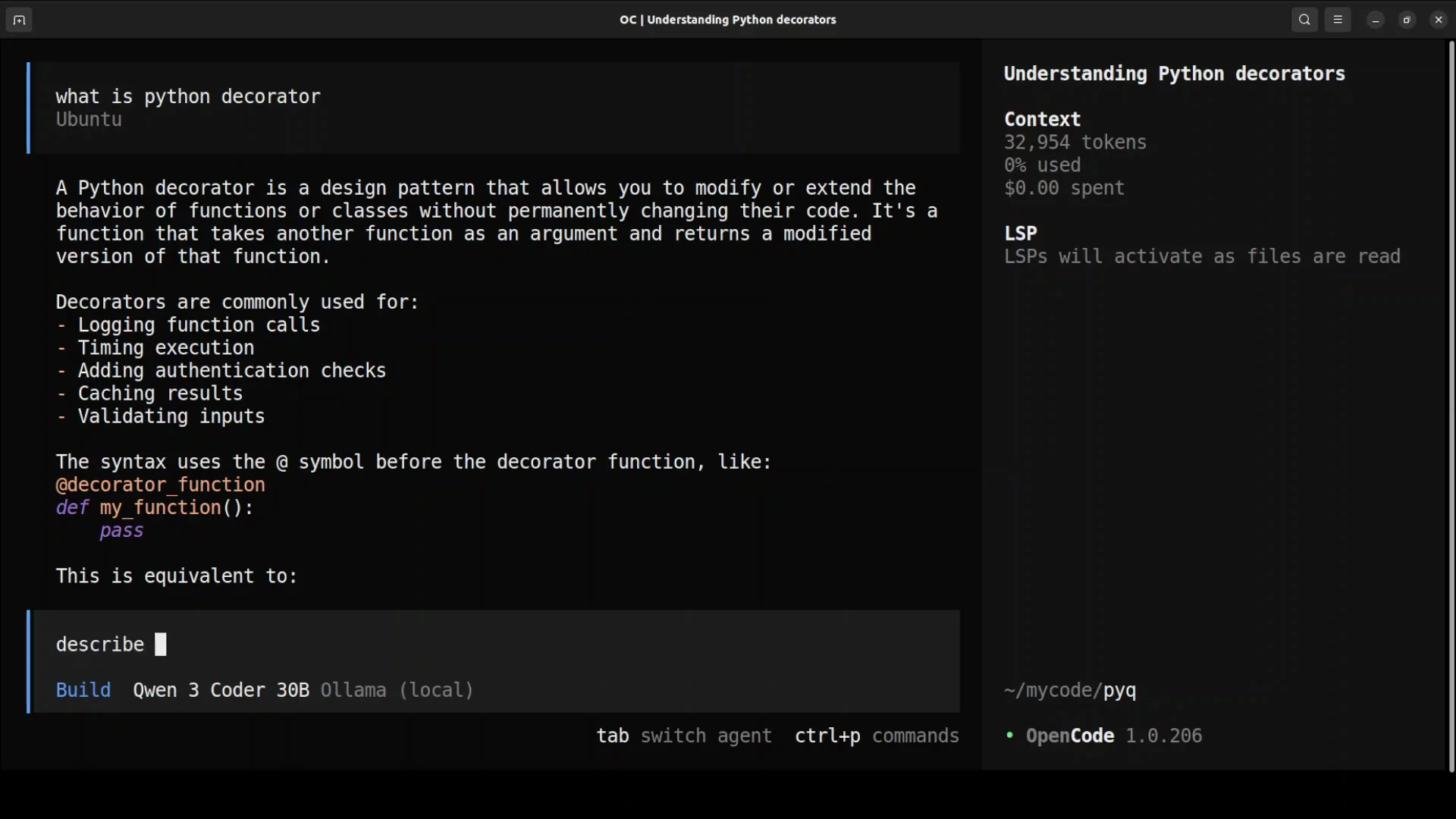
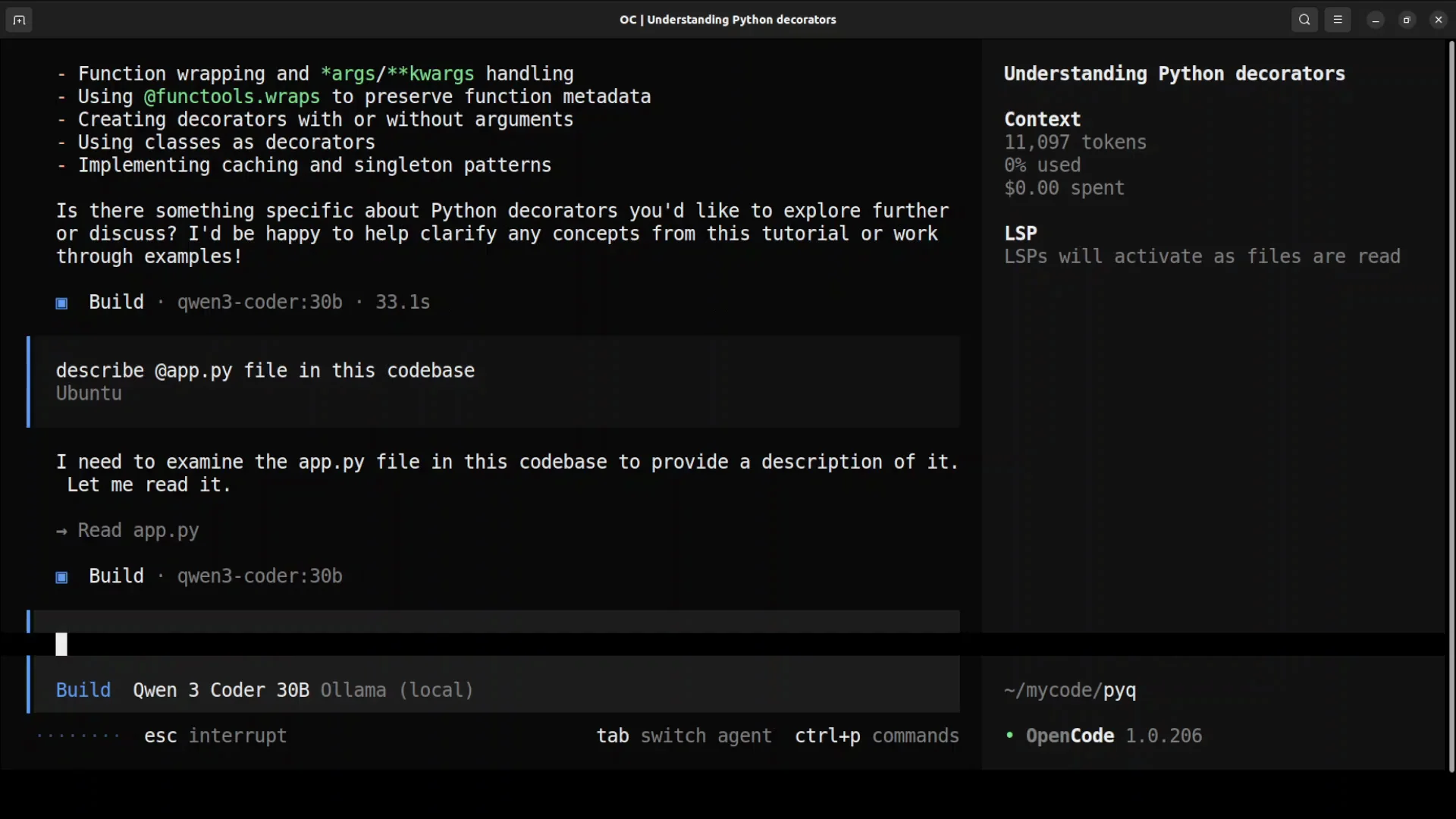
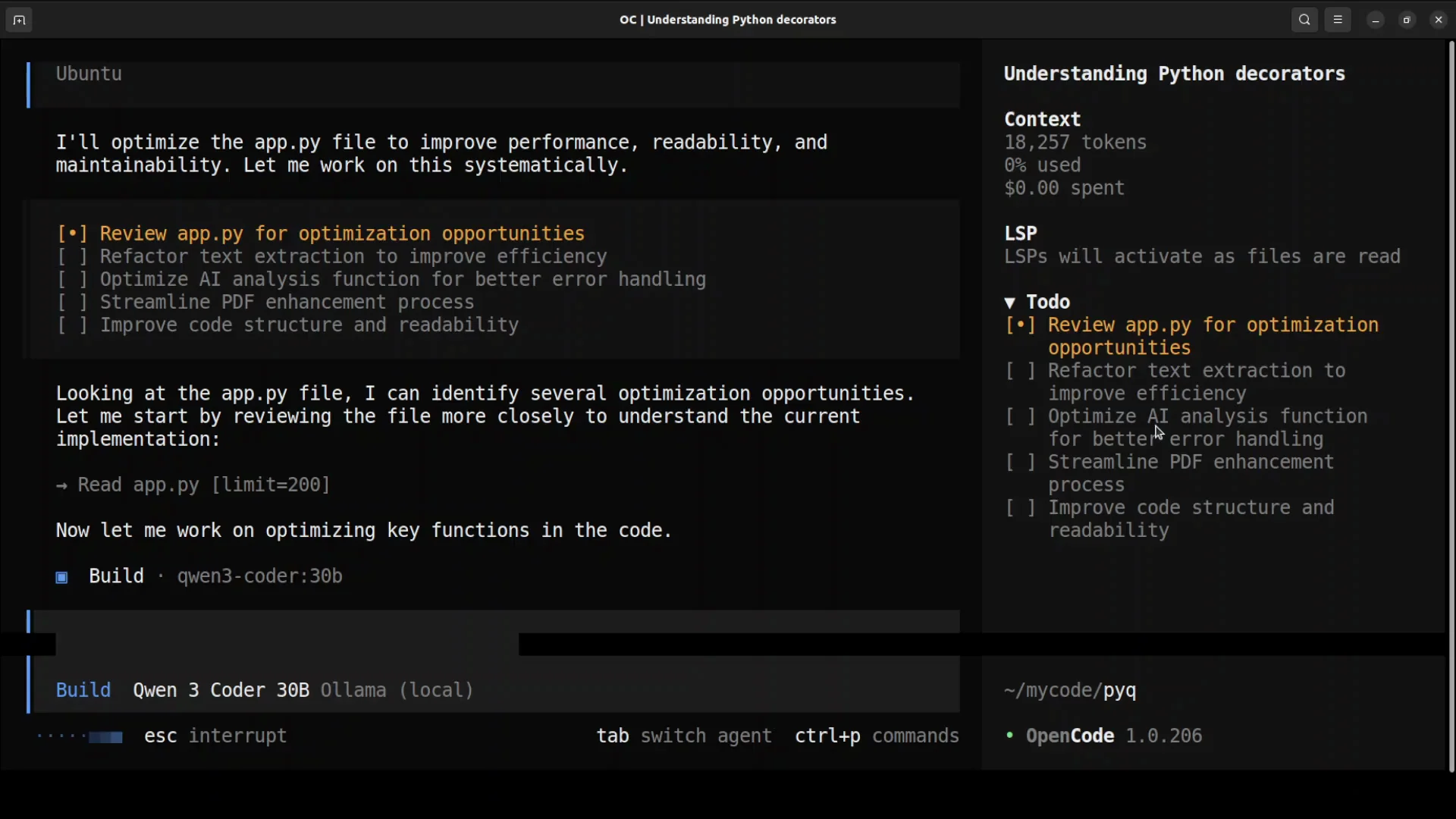
- You can chat with your codebase, ask it to describe files, review code, and add features.
- Example: describe a file by referencing it, such as
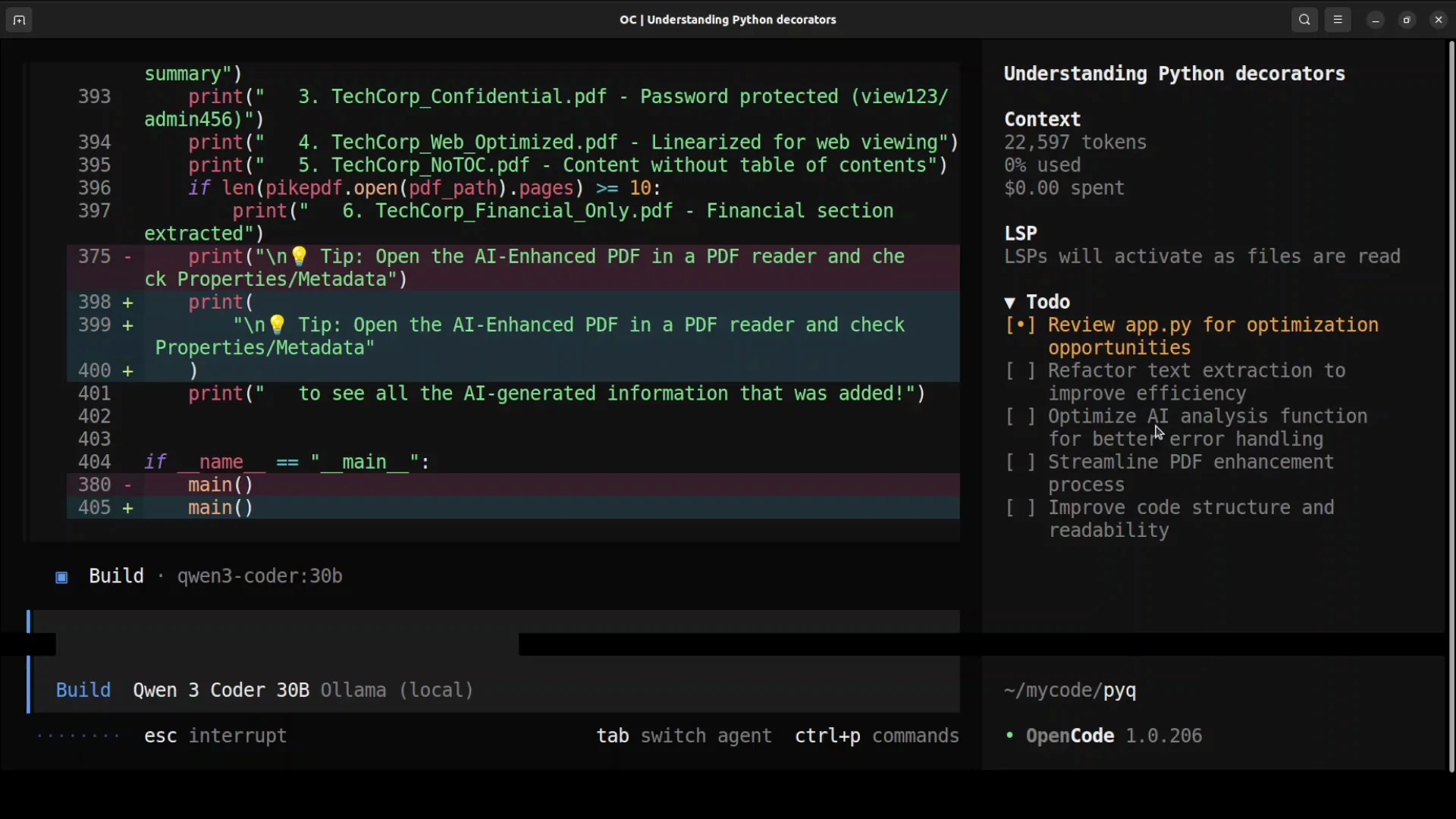
@app.py. It will explore, read, and describe the file. - Ask it to optimize code in a file like
app.py. It will review and optimize it. - On the right side there is a to-do list. It tracks the steps and ticks them off as it proceeds.
Protocol and skills support
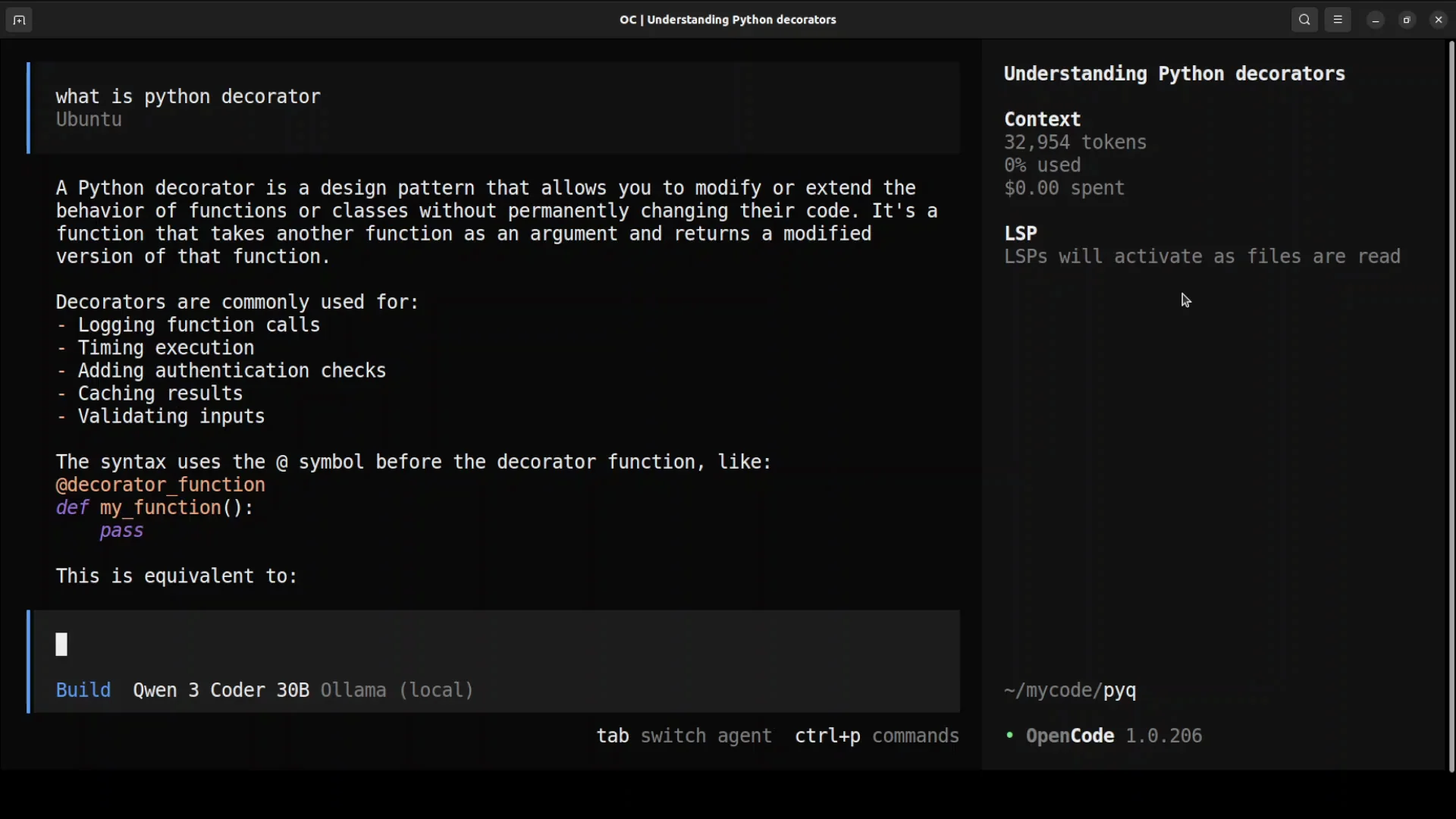
- LSP support (language server protocol) for different languages.
- MCP support (model context protocol).
- Agent skills to give your AI coding agents a consistent expertise.
How-To Install OpenCode: Model Notes for Production
If you are looking to do this sort of coding with coding agents in a production environment, as I speak in December 2025, I would say Opus 4.5 is one of the best models for pair programming if you can afford it. I do not know what will happen next week, but on 29th of December 2025, Opus 4.5 is best for this sort of pair programming.
Final Thoughts
- OpenCode installs cleanly, runs in a TUI, and initializes your project with
init. - Add Ollama as a custom provider via
opencode.json, pick a suitable model with a large context window and tool use support, and connect. - Use Plan vs Build modes, the command palette, and codebase-aware features to describe, review, and modify files.
- LSP, MCP, and agent skills expand language support and repeatable expertise.
Subscribe to our newsletter
Get the latest updates and articles directly in your inbox.

Related Posts

8 Best Claude Code Plugins in 2026 (You Need to Know)
8 Best Claude Code Plugins in 2026 (You Need to Know)

7 Best Claude Code Skills (You Need to Know)
7 Best Claude Code Skills (You Need to Know)

Claude Code Desktop IDE Features (You Need to Know)
Claude Code Desktop IDE Features (You Need to Know)