
Table Of Content
- Install Open WebUI Desktop App on Linux, Windows & Mac?
- Windows install
- Mac install
- Linux install
- Download the latest amd64 build
- Install the package
- Launch the app
- First launch and setup
- Early alpha status
- Fix blank window or crash on Linux and Mac
- Shared memory permissions
- Restore expected permissions for shared memory
- Launch again
- Container or proxy environments
- Launch with flags that avoid shared memory and sandbox issues
- Configure providers and models
- Tips for agents and integrations
- Use cases
- Final thoughts
How to Install Open WebUI Desktop App on Linux, Windows & Mac?
Table Of Content
- Install Open WebUI Desktop App on Linux, Windows & Mac?
- Windows install
- Mac install
- Linux install
- Download the latest amd64 build
- Install the package
- Launch the app
- First launch and setup
- Early alpha status
- Fix blank window or crash on Linux and Mac
- Shared memory permissions
- Restore expected permissions for shared memory
- Launch again
- Container or proxy environments
- Launch with flags that avoid shared memory and sandbox issues
- Configure providers and models
- Tips for agents and integrations
- Use cases
- Final thoughts
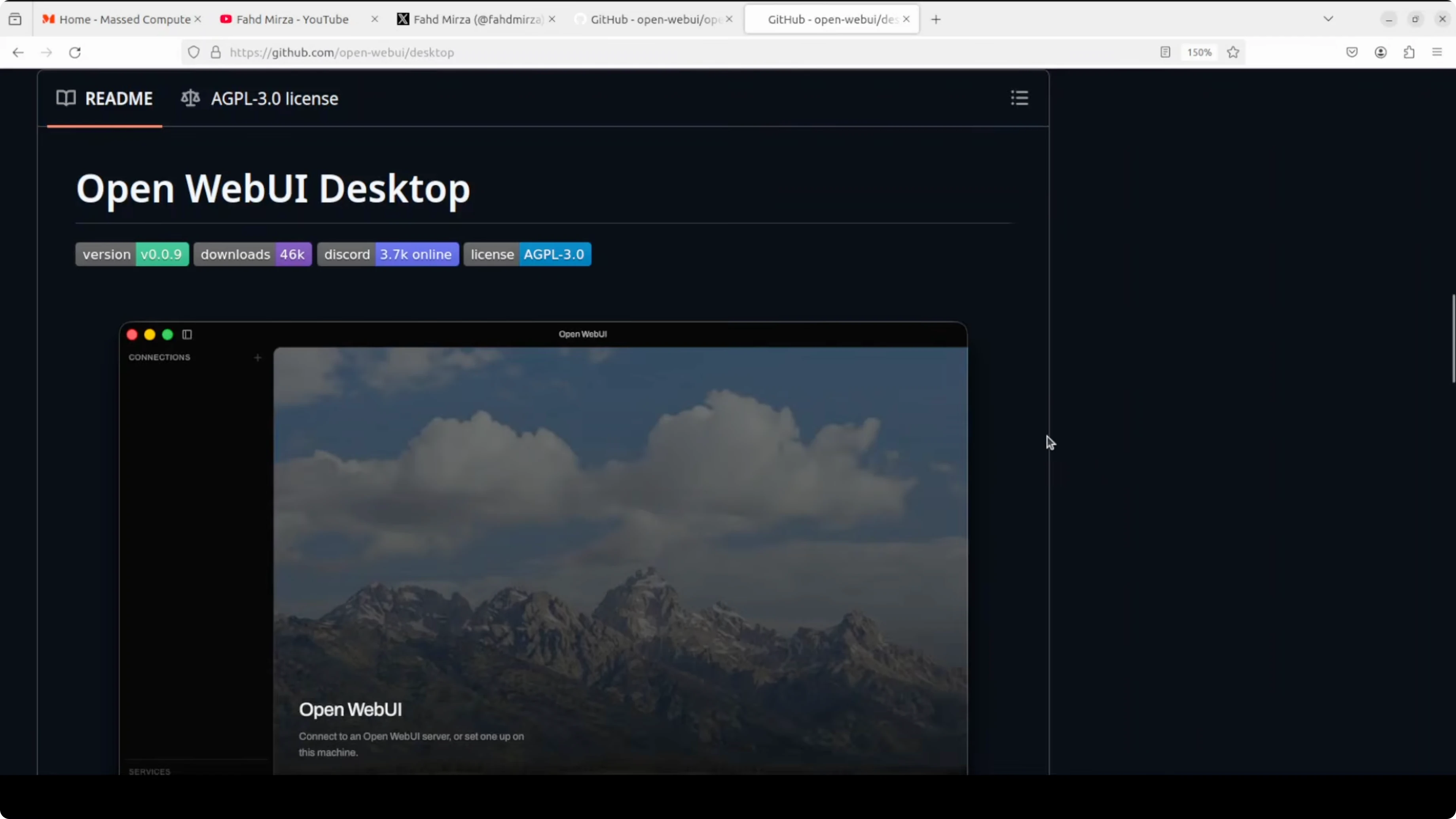
Christmas comes early when your favorite LLM GUI gets a desktop app. Open WebUI is one of the most popular self hosted AI interfaces supporting Ollama, the OpenAI API, and pretty much any LLM backend you can think of. A native desktop build means no container to manage and no browser tab to babysit, plus a system wide floating chat bar you can pop over any window with a shortcut.
People have been running it via Docker or direct install, and I have been running it in a browser for ages. The new desktop app lands on Windows, Mac, and Linux with a familiar UI and a faster path to first prompt. If your container stack ever causes trouble, see this fix guide for tough Docker issues here Docker install problems.
Install Open WebUI Desktop App on Linux, Windows & Mac?
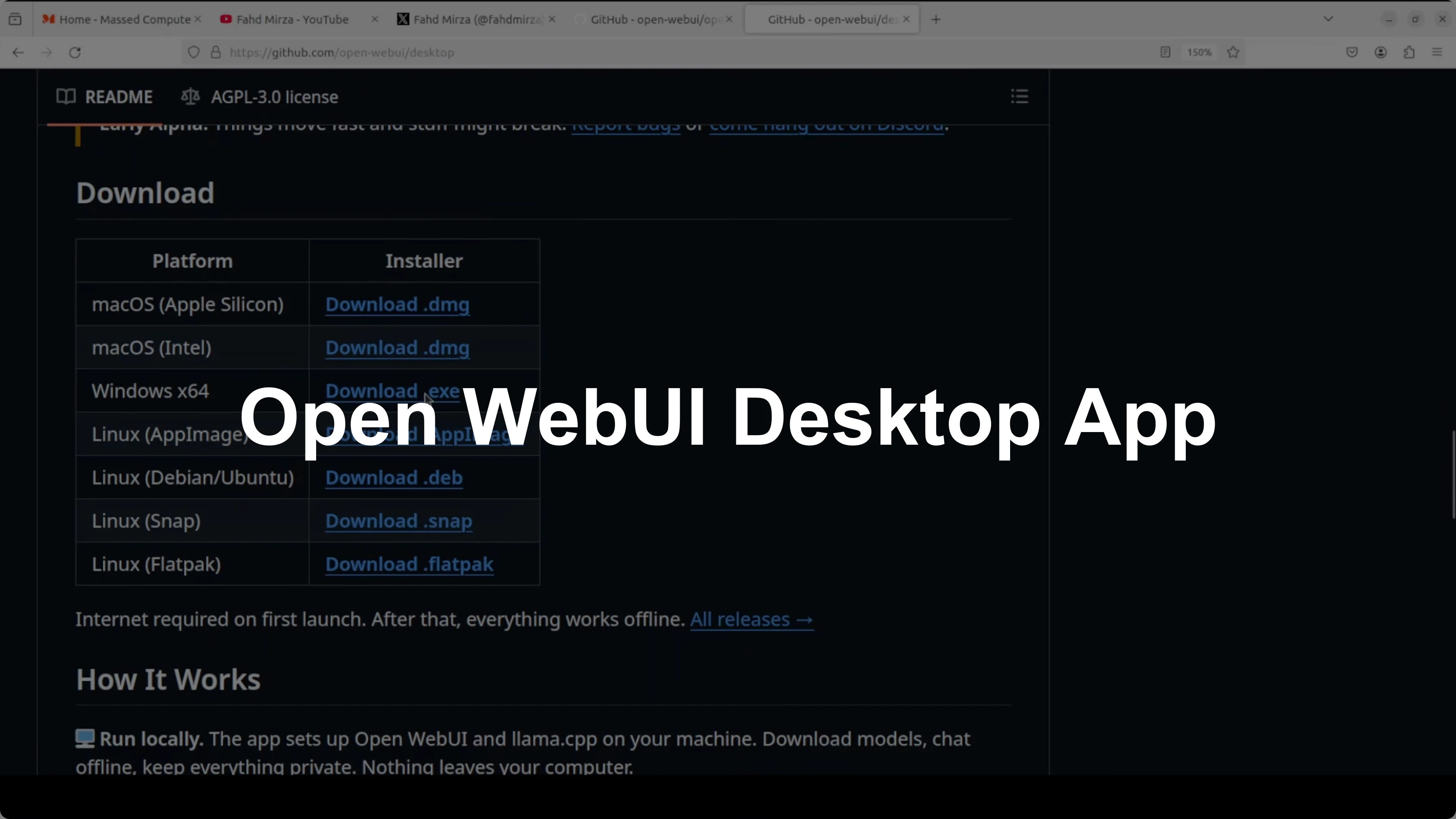
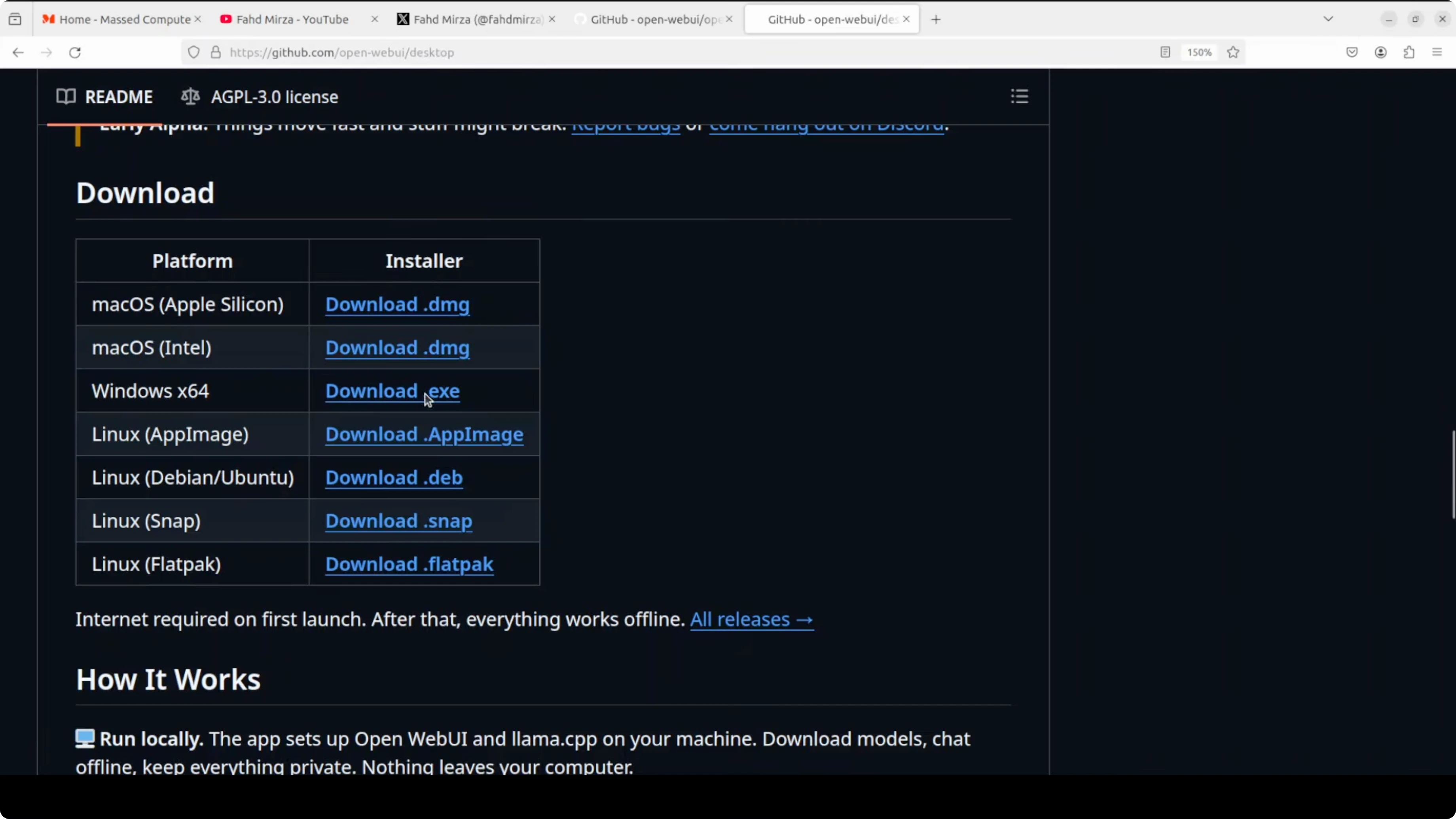
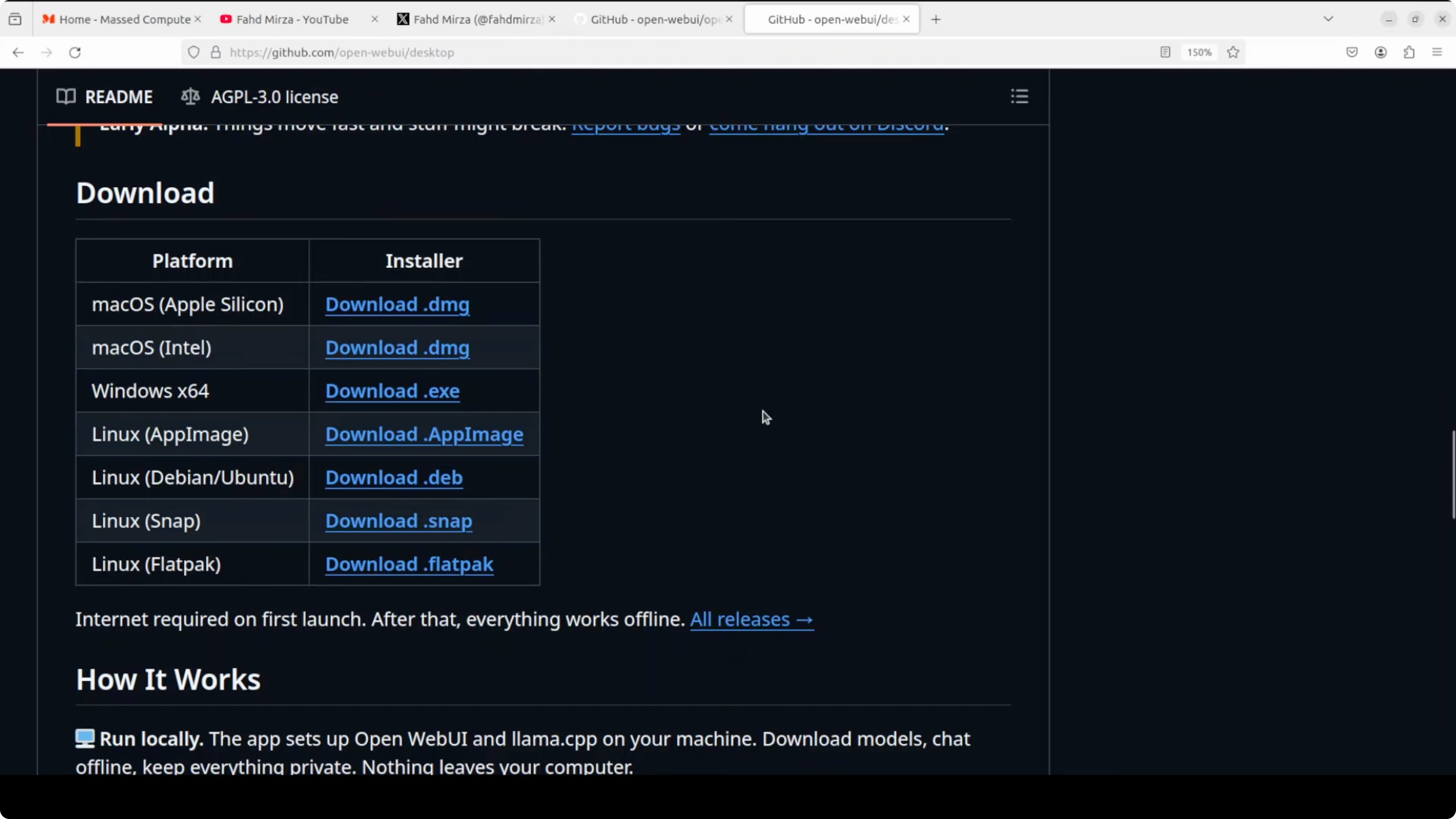
The goal is a quick and clean install on your machine. You will download the installer for your operating system from the official GitHub releases page. Then you will run through first launch and connect your models.
Windows install
Download the EXE for Windows from the releases page. Double click the installer, accept prompts, and finish the setup. Launch Open WebUI Desktop from the Start menu.
If your system hits unusual memory use during long chats, see this practical Windows fix here Windows memory tuning. It can help keep large context sessions from stuttering on heavy workloads.
Mac install
Download the Mac build from the releases page. Open the app and approve it in Gatekeeper if prompted by macOS security. Launch Open WebUI Desktop from Applications.
If you later want a voice generation stack to pair with your chats, this guide will get you from zero to audio in minutes TTS WebUI setup. It complements local model workflows very well.
Linux install
Download the Debian or Ubuntu package, then install it with your package manager. This is a fast path and works on common distros.
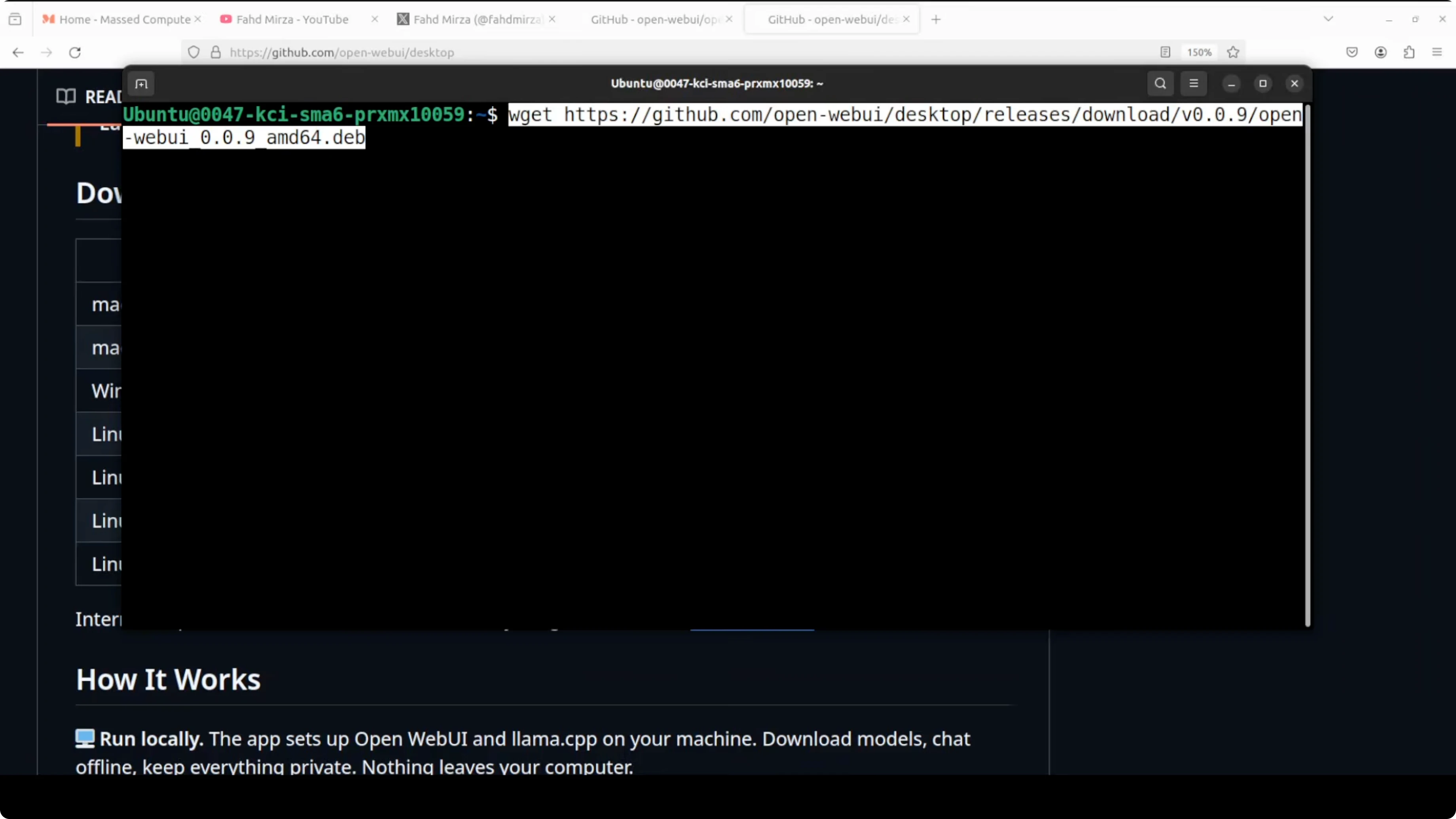
# Download the latest amd64 build
curl -L -o open-webui-desktop_amd64.deb \
  https://github.com/open-webui/open-webui-desktop/releases/latest/download/open-webui-desktop_amd64.deb

# Install the package
sudo dpkg -i open-webui-desktop_amd64.deb || sudo apt -f install -y

# Launch the app
open-webui-desktop
If you are on arm64, grab the arm64 package from the same releases page and adjust the filename in the commands. You can also launch the app from your desktop environment if you prefer a launcher search.
First launch and setup
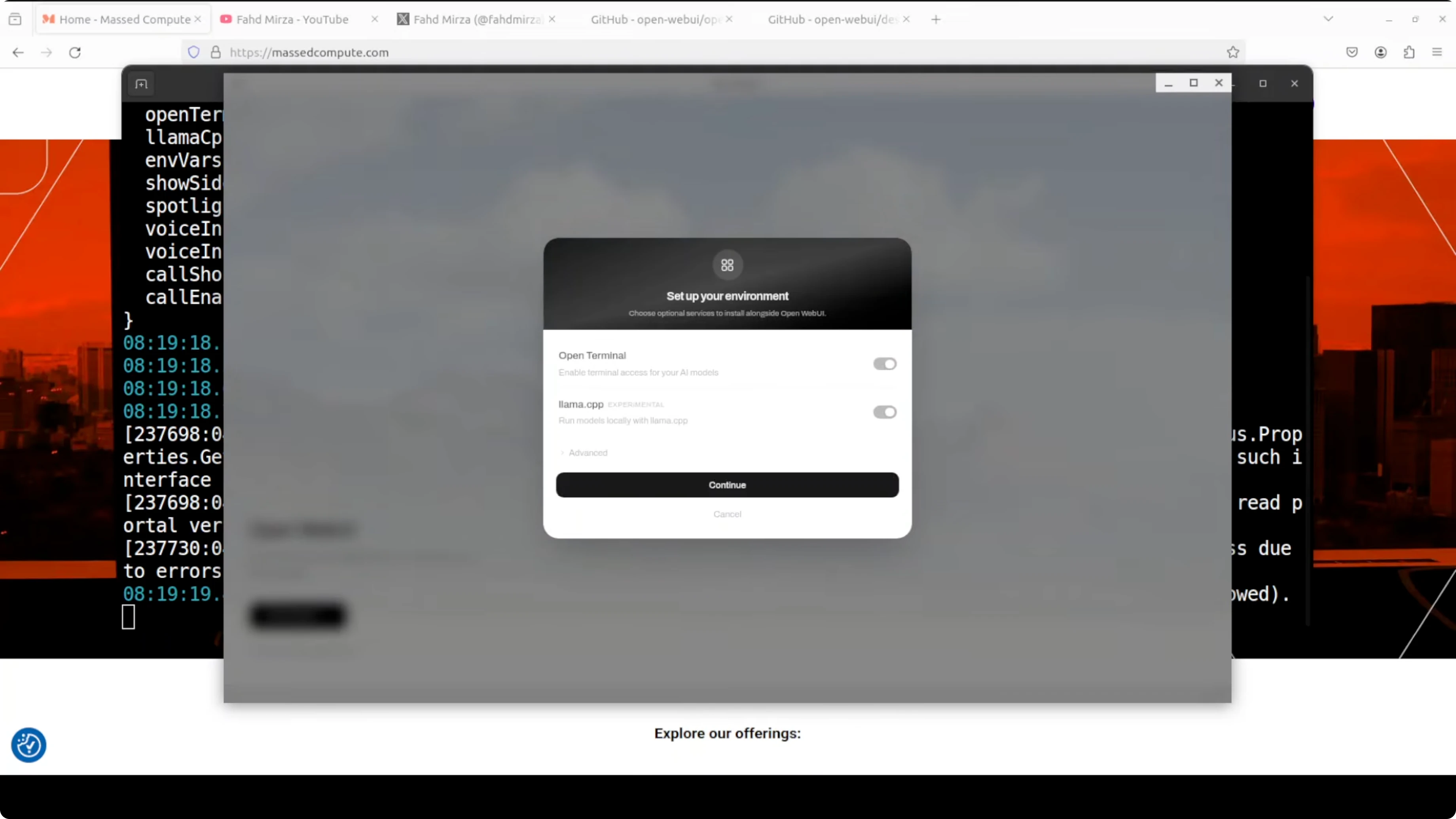
On first run you will see a clean welcome screen. Click Get started and decide if you want to enable terminal access to your AI models and install llama.cpp support. You can keep both toggled on.
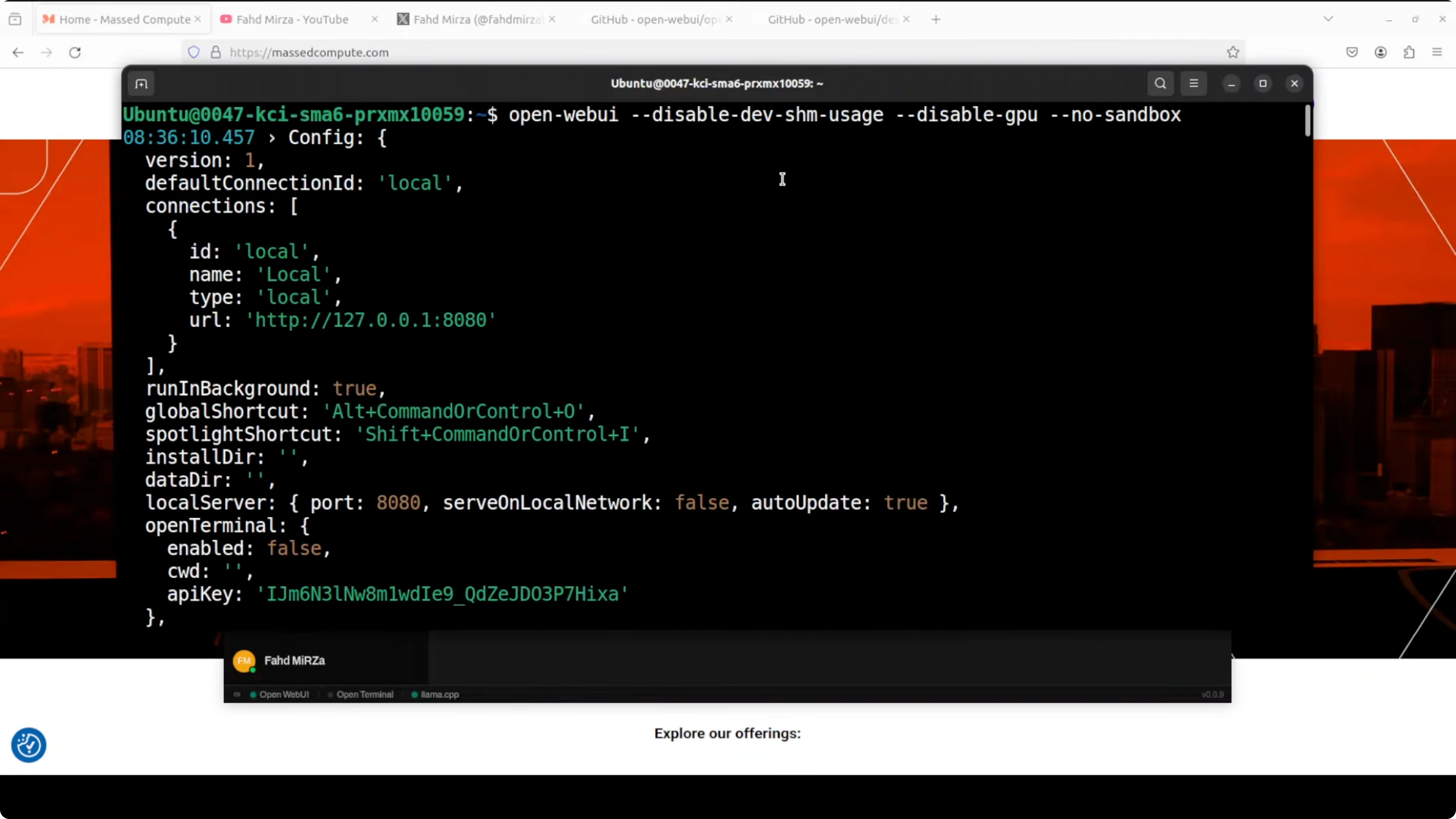
The app will pull dependencies and prepare the environment. You might see uv and other pieces being installed in the background. Let it finish and return you to the main screen.
Early alpha status
This build is very early alpha. The project warns that things move fast and some parts can break. If something does not behave on your machine, remember you are testing a fresh release.
Fix blank window or crash on Linux and Mac
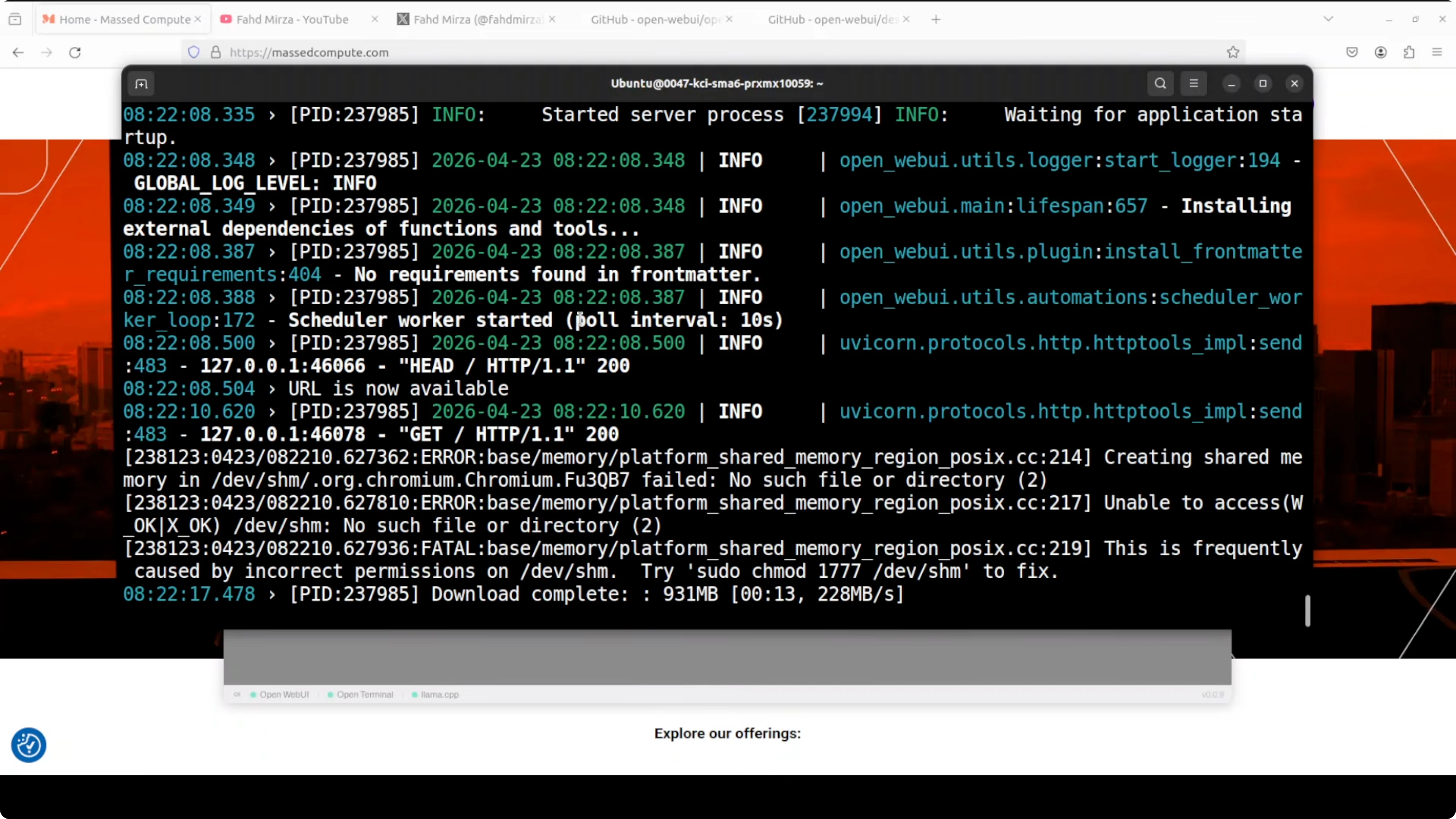
If the window fails to load or the UI appears blank, it is usually a Chromium shared memory or sandbox issue. Electron uses Chromium, and on Linux and Mac it needs shared memory access, especially to the system path that Chromium expects. Some environments restrict that by default.
Shared memory permissions
On certain Linux systems the shared memory directory has tight permissions. Reset them and relaunch the app.
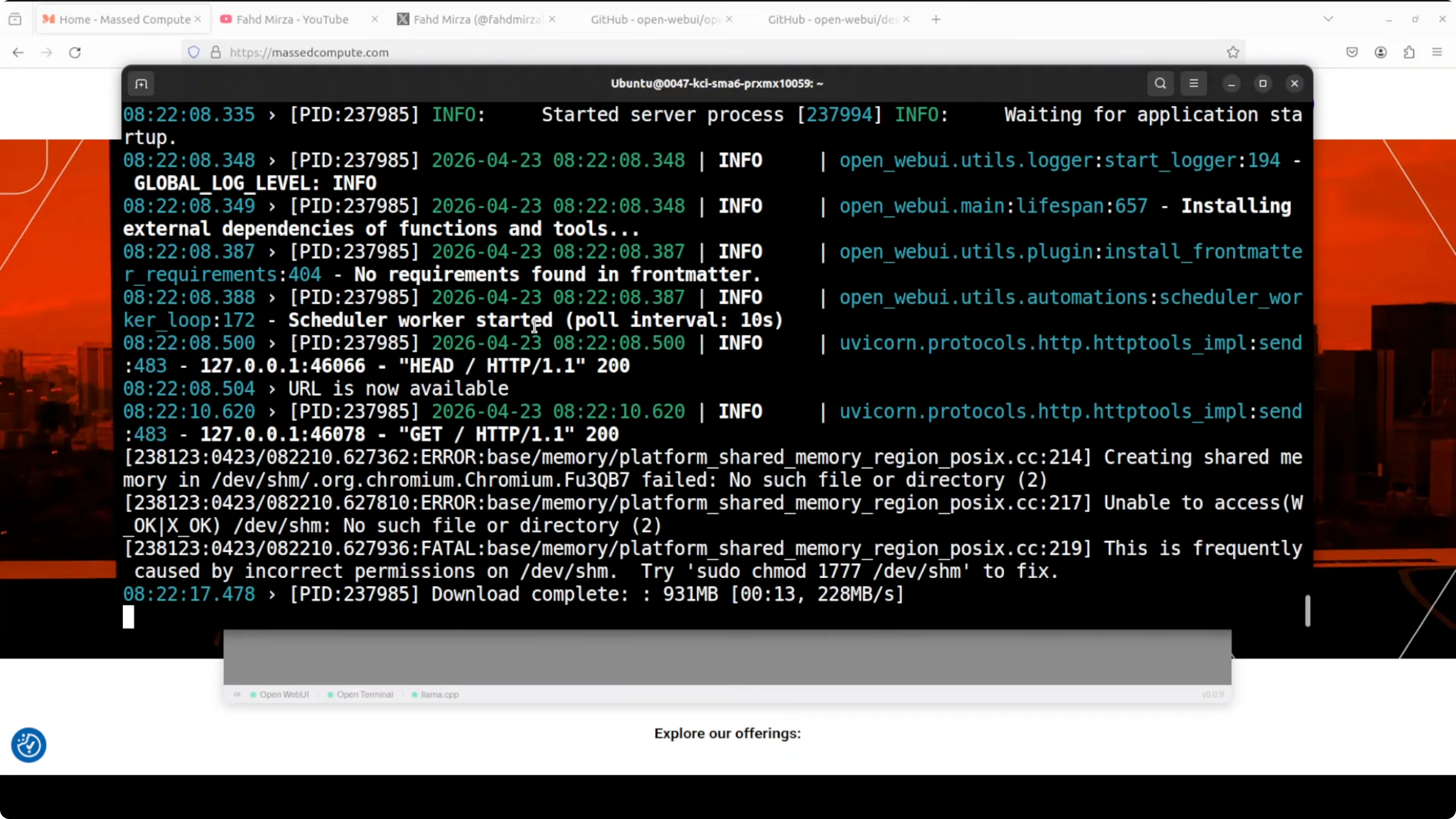
# Restore expected permissions for shared memory
sudo chmod 1777 /dev/shm

# Launch again
open-webui-desktop
Container or proxy environments
If you are running on a cloud VM, an LXC container, or behind a strict proxy, the Chromium sandbox can collide with kernel level isolation. Launch the app with flags that relax those constraints.
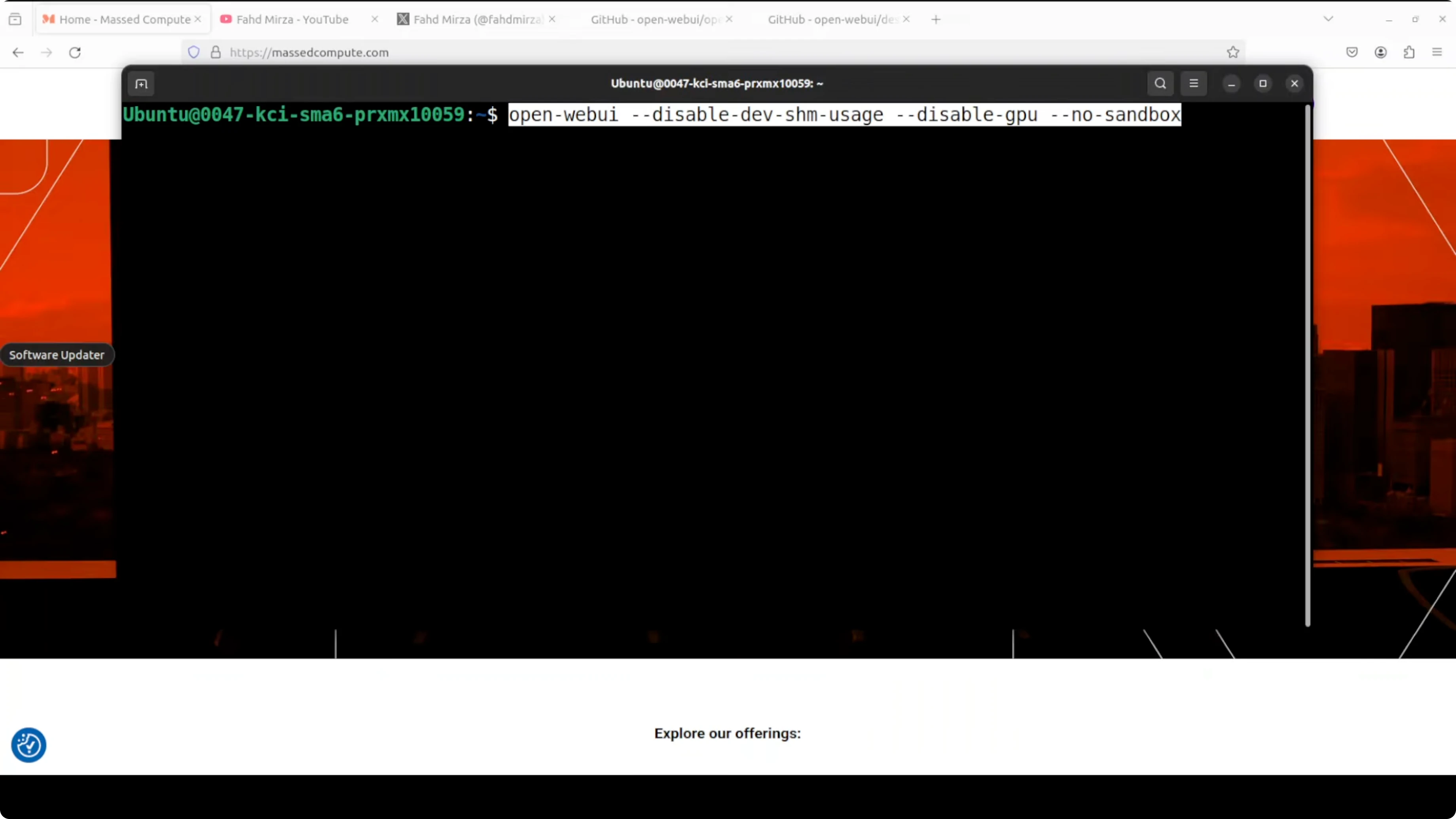
# Launch with flags that avoid shared memory and sandbox issues
open-webui-desktop --disable-dev-shm-usage --disable-gpu --no-sandbox
Here is what each flag does. --disable-dev-shm-usage tells Chromium to avoid the usual shared memory mount and use temporary storage. --disable-gpu turns off GPU acceleration for the UI renderer only, not your AI inference in Ollama or other backends. --no-sandbox disables the Chromium process sandbox so the window can open in containerized environments.
Configure providers and models
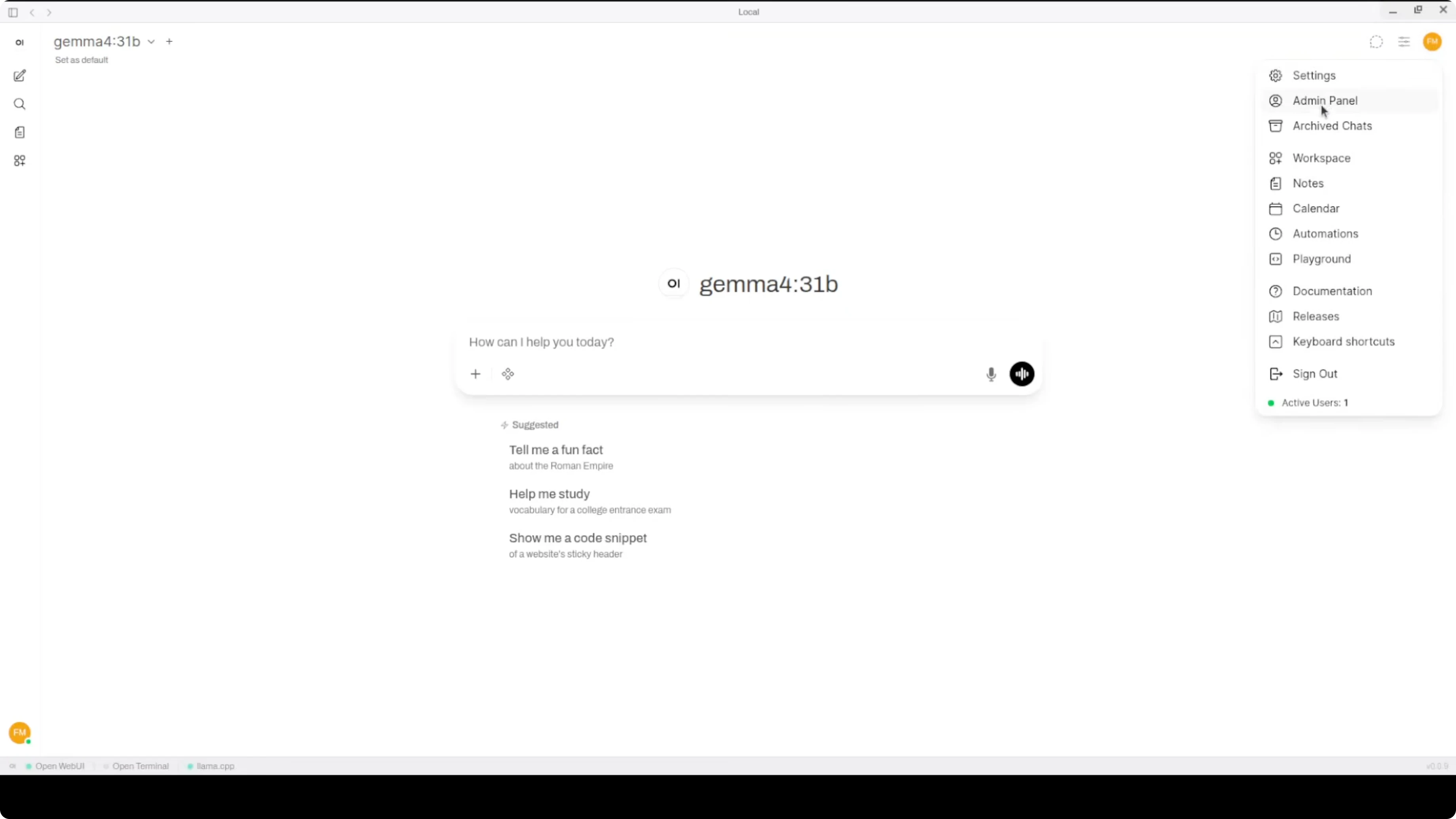
From the top right menu, open the Admin Panel. Go to Settings, then Connections, and confirm your providers. If you already run Ollama, the app will usually auto detect your local models.
You can add your OpenAI API key and pick a default provider. Go back and start a new chat with the selected model. You can switch themes in General and choose Dark if you prefer low light.
If you need a desktop sidekick for repeatable tasks and quick automations, you might like this companion desktop agent option. It pairs well when you want persistent workflows beyond chat.
Tips for agents and integrations
The system wide floating chat bar makes quick prompts over any app very handy. For chat that needs to notify or interact outside your machine, a Telegram agent is a fast bridge from local to remote. If that is on your roadmap, start here for a Windows friendly path to bots Telegram agent setup.
If you still prefer running pieces in containers for certain services, keep a known fix nearby for tough cases Docker troubleshooting. It saves time when you mix desktop and containerized tools.
Use cases
Local privacy focused chat with your own models is the big win. You get fast iteration for prompts and tools without a browser and you can pin the app like any editor. The floating bar makes it easy to ask model questions while coding or writing.
Teams that rent GPUs or run a lab can keep the app on laptops while models run on local or remote backends. It is a good fit for prompt drafting, documentation help, and snippets generation while jumping across windows. If you want a quick voice generation step for results, pair your workflow with this guide local TTS setup.
If you plan to extend beyond the desktop into messaging channels or lightweight automations, keep a dedicated desktop agent handy agent for the desktop. For Windows tuning under heavy sessions, this walkthrough can help stabilize memory use memory fix for Windows.
Final thoughts
The desktop build gives you the same familiar Open WebUI experience in a tidy app with a useful floating chat bar. It is alpha, and the Electron plus Chromium stack can bump into shared memory and sandbox limits, but the fixes above work well. Install it, hook up Ollama or the OpenAI API, and start chatting locally with fewer moving parts.
Subscribe to our newsletter
Get the latest updates and articles directly in your inbox.

Related Posts

8 Best Claude Code Plugins in 2026 (You Need to Know)
8 Best Claude Code Plugins in 2026 (You Need to Know)

7 Best Claude Code Skills (You Need to Know)
7 Best Claude Code Skills (You Need to Know)

Claude Code Desktop IDE Features (You Need to Know)
Claude Code Desktop IDE Features (You Need to Know)