
Table Of Content
- LTX2 Long-Length Image-to-Video: Avatars & Narration Explained
- Talking Avatars With Native Audio
- Overlap, Multi-Image Inputs, and Sampler Behavior
- Single-Pass Method With Distilled Models
- Making the Avatar Talk With This Method
- Stitching Blocks and Node Connections
- High Motion Scenes: Overlap and Consistency
- Audio Behavior and Voice Refinement
- Prompting Tips That Matter
- Final Thoughts
LTX2 Long-Length Image-to-Video: Avatars & Narration Explained
Table Of Content
- LTX2 Long-Length Image-to-Video: Avatars & Narration Explained
- Talking Avatars With Native Audio
- Overlap, Multi-Image Inputs, and Sampler Behavior
- Single-Pass Method With Distilled Models
- Making the Avatar Talk With This Method
- Stitching Blocks and Node Connections
- High Motion Scenes: Overlap and Consistency
- Audio Behavior and Voice Refinement
- Prompting Tips That Matter
- Final Thoughts
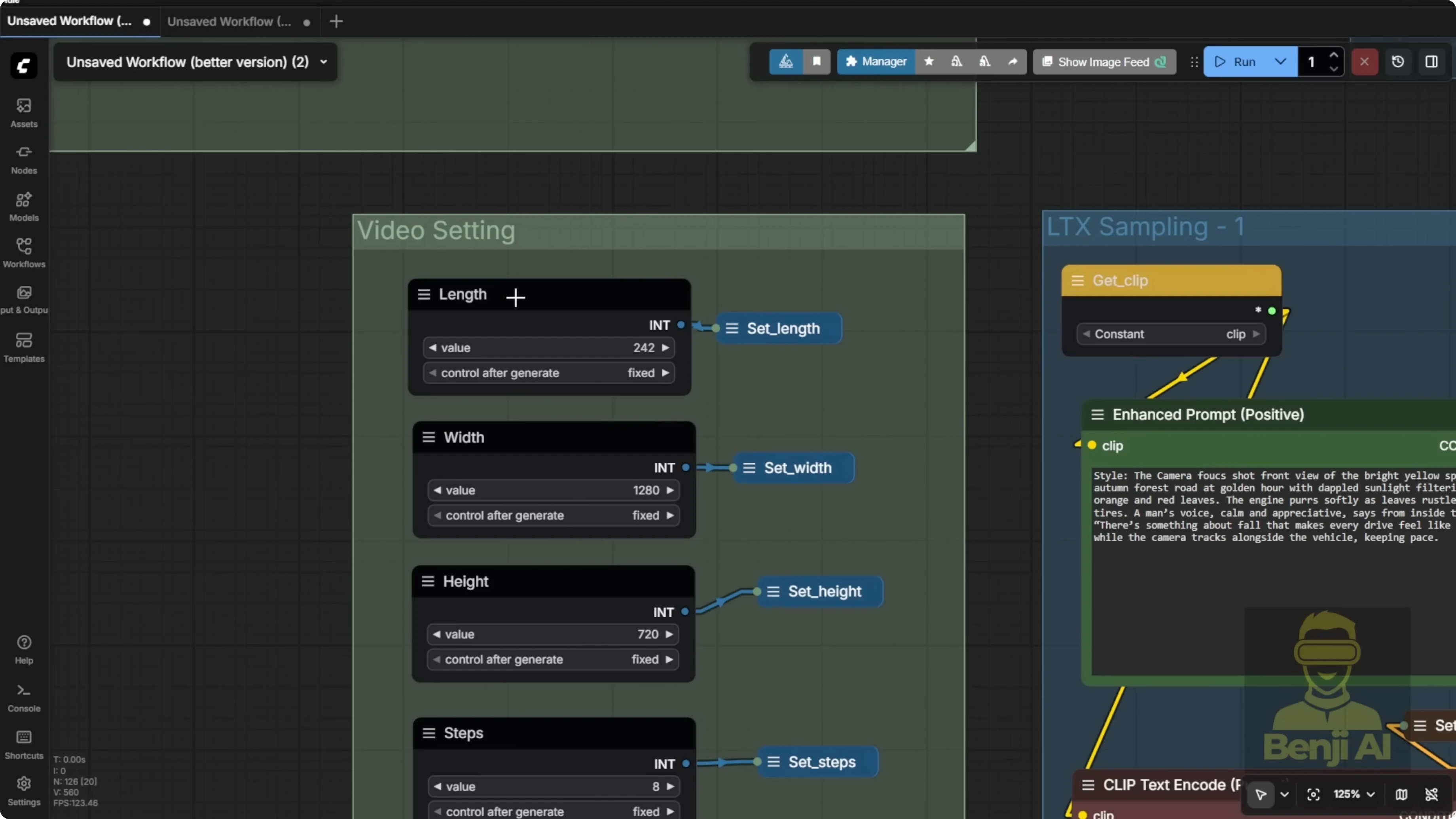
We're going to talk about how to use image to video in LTX2 and generate long length videos. You can keep extending the video. Even though LTX2 gives you 242 frames per sampler, you can stitch those together over and over to make much longer videos. There are new GGUF quantized models out now. You can check those out if you're working with low VRAM or high VRAM. For this workflow, I've set up two different configurations so you can pick what works best for your system.
LTX2 Long-Length Image-to-Video: Avatars & Narration Explained
Talking Avatars With Native Audio
Here's one of the results I got. This example uses LTX2 to create a long length video, specifically a character speaking. I used LTX2's native audio feature. You put the transcript directly into your text prompt. Whatever your character is supposed to say, wrap it in double quotes inside the prompt and LTX2 will generate speech for it automatically.
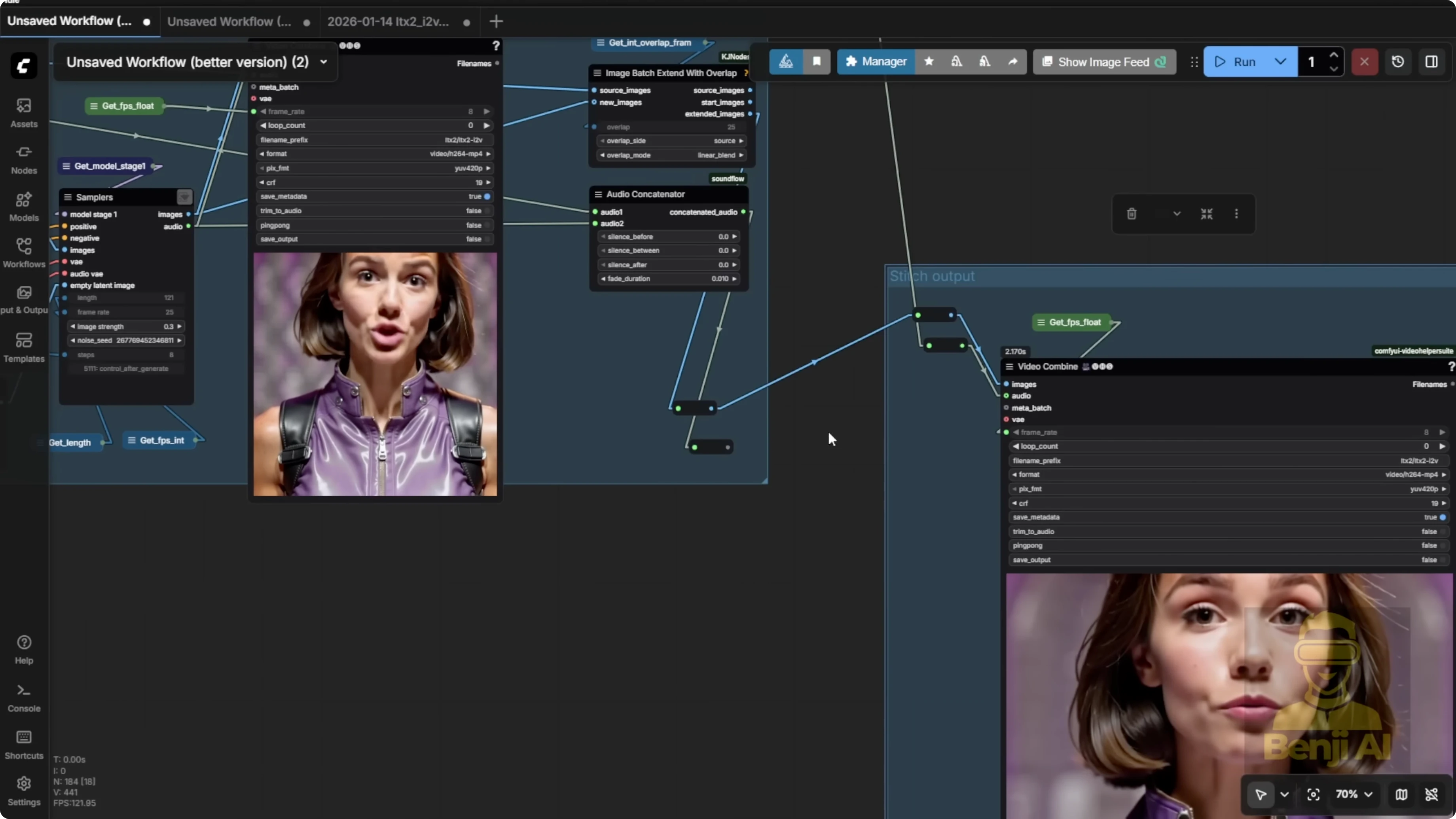
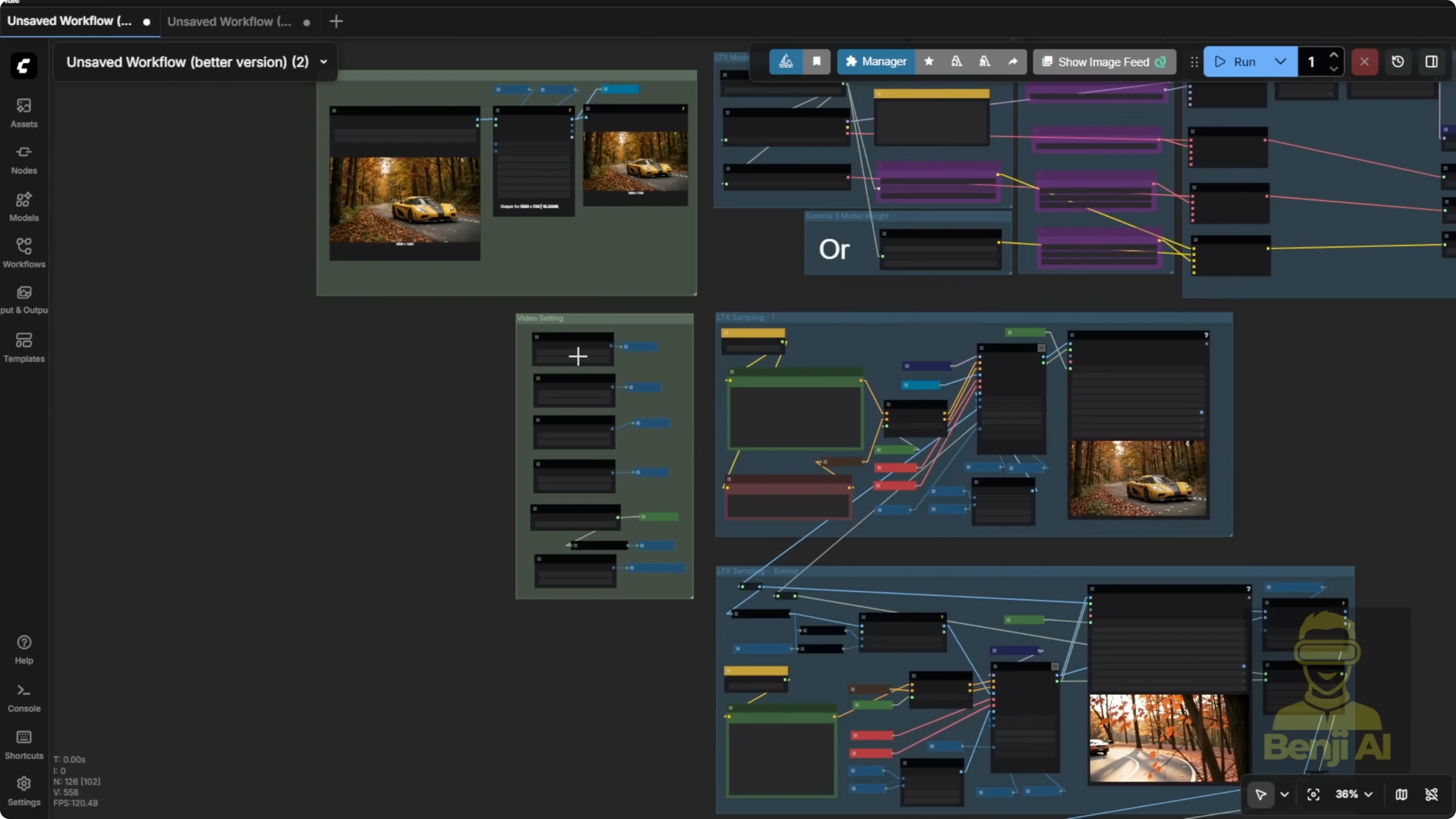
Once that's done, you'll get your final stitched output on the right side. You can keep extending your video. Just keep adding more sampling groups. Connect the input and output points properly. Stitch the image and audio inputs to the image and audio outputs. You'll notice there are two dots, one blue and one white. The blue dot is for the image and the white dot is for the audio. Connect those from your input to the corresponding dots in the stitch output group. When your audio and video lengths match up, you'll get a clean, continuous result.
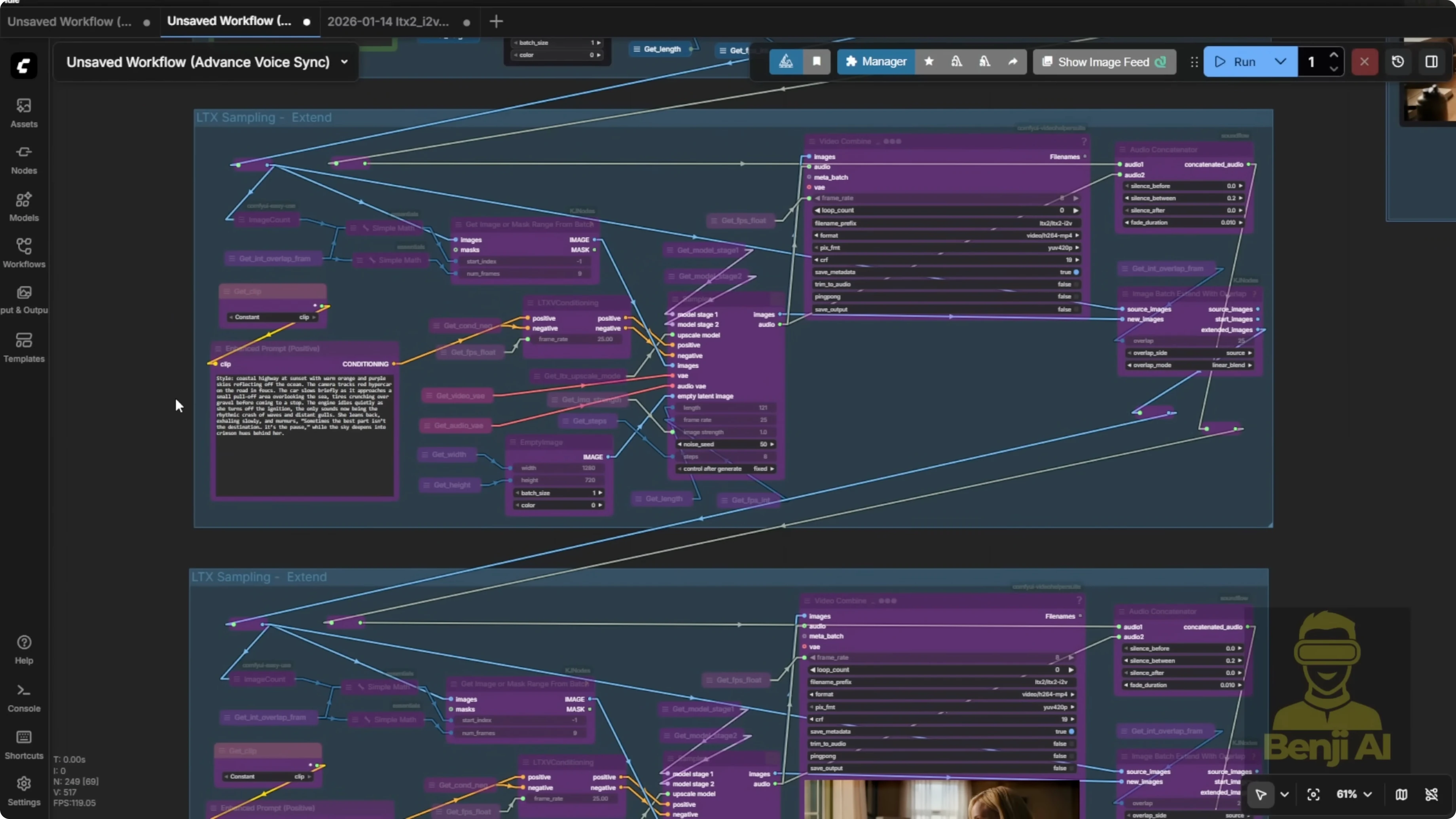
Heads up: if you're generating really long videos, the audio timestamps might start drifting. The audio and video lengths can end up mismatched as you extend further.
Overlap, Multi-Image Inputs, and Sampler Behavior
In LTX2, your image input isn't limited to just one frame. I'm using the minimum overlap value, just two frames. I've also tested higher values like 10 or more to get smoother transitions between segments.
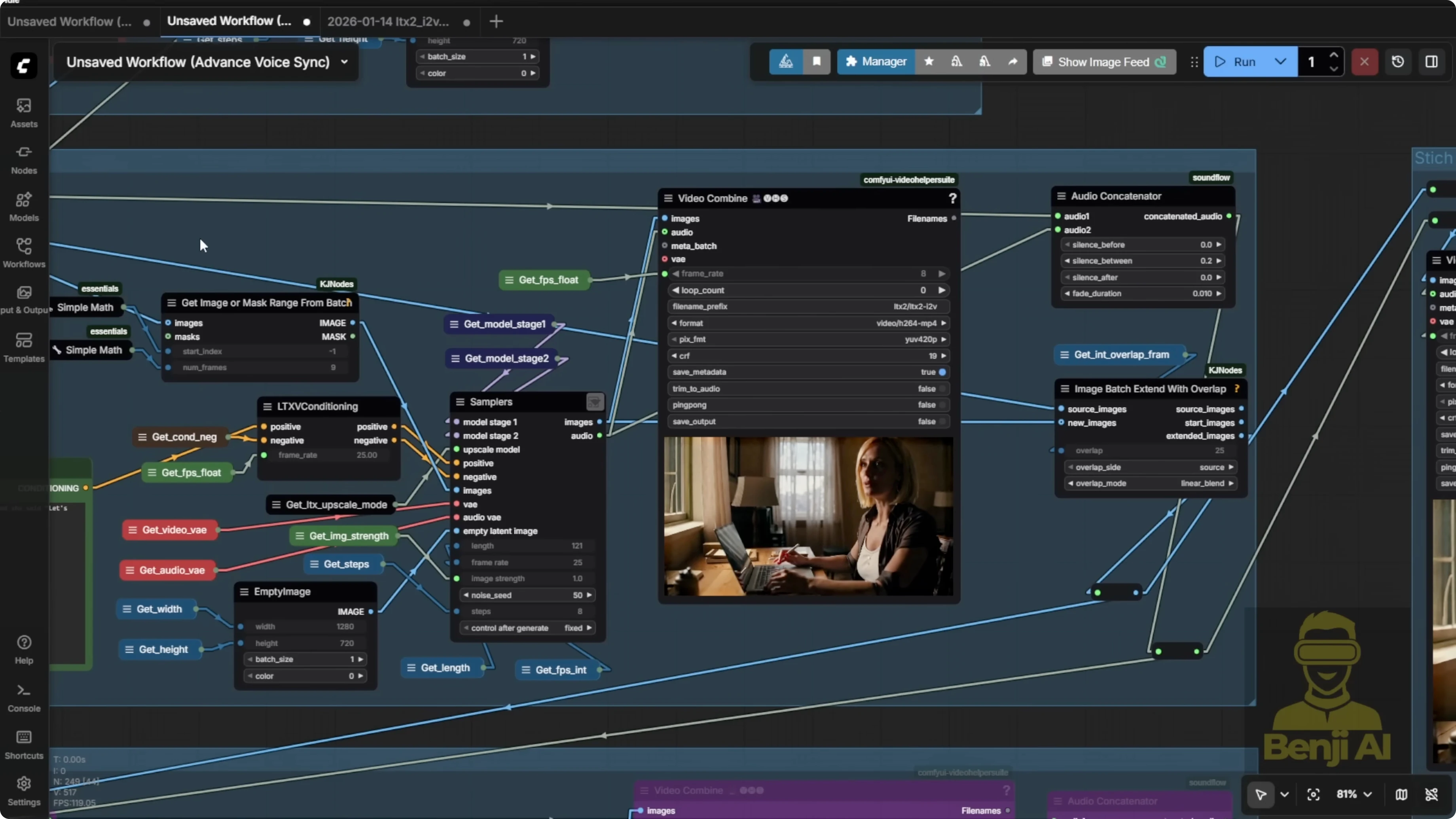
The sampler supports multiple input images, not just a single one. You can feed it a sequence of images to help guide continuous motion throughout the video. This is actually the default behavior in the sampler.
You can also go a simpler route. I've tried using a custom sampler without the upscaler and with fewer sampling steps. It's faster, but the quality won't be as good as when you use LTX2's two-stage upscaler pipeline. Still, it's totally usable, especially if you're on a low RAM system.
Single-Pass Method With Distilled Models
Here's another example using the long length stitching technique. In this case, each sampler only runs for about 8 seconds. I'm using a single sampler pass. No downscaling in stage one, no upscaling in stage two. I start directly from an empty latent image at full resolution and run just one sampling pass. With low sampling steps, like eight or 12, you can still get pretty decent results.
This method relies on distilled models or distilled loris to work. If your LTX2 model is already a distilled version, like a GGUF model labeled as distilled, then it'll work fine. But be careful. If you're using a distilled model, you should turn off the distilled Laura. Otherwise, you'll end up with double distillation, and that'll mess up your output big time.
In my setup, I'm using FP8 safe tensor files. Since the base model isn't distilled, I do need to enable the distilled Laura. I've also added two model loader options, one for high VRAM and one for low VRAM. You can toggle between them up top. Make sure you've selected the correct file names in the model loader section based on what you're actually using. Once you've got that sorted, you shouldn't run into any issues.
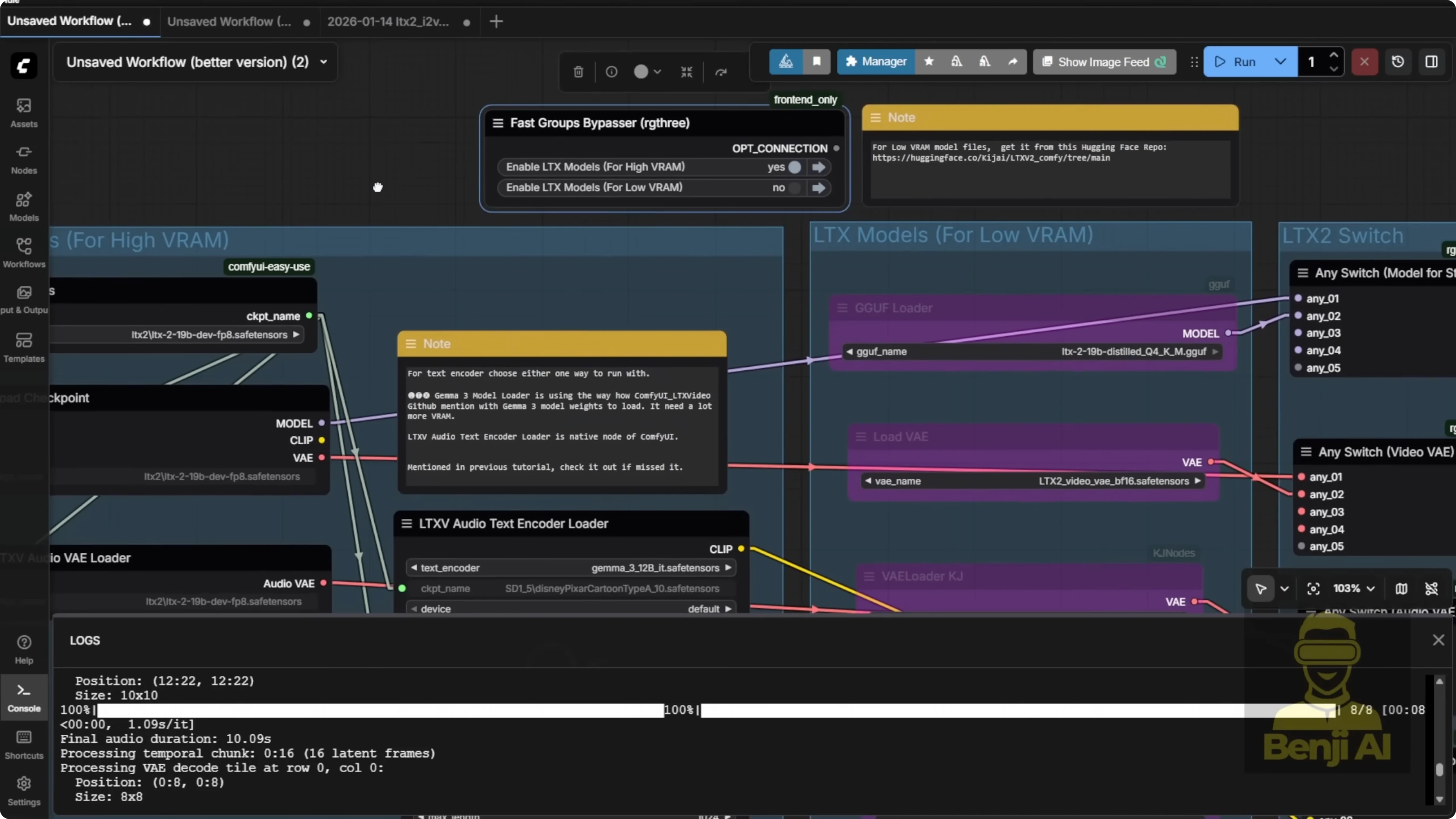
There's a switch node here. It acts like a toggle for whichever input model you're using. If you bypass the low RAM path, it'll automatically pass through the high RAM model loader data into the rest of the workflow. I've left some extra space for stacking additional loris.
Making the Avatar Talk With This Method
You can create a talking avatar style video with this method. Feed in your transcript via the text prompt and use the extension groups to stitch everything together. You'll get a character that speaks and moves along with the audio.
Sometimes it doesn't work perfectly. The character might not actually talk. In those cases, try changing the seed number. Different seeds can trigger different facial movements, and you might finally get her to speak naturally.
I'm not using looping here. Unlike one 2.2, LTX2 isn't super stable for looped animations. You'll often need to regenerate certain sections, especially if something looks off.
If the mouth isn't moving and the facial expression is frozen:
- Tweak the seed number.
- Adjust the image strength slightly.
- Rerun the generation.
- If needed, tweak the text prompt to encourage better motion.
Once you've got a segment you like, copy that whole block to extend your video further. Chain it like we used to do with one 2.2, the spaghetti chain method where you pass the output image into the next input.
Stitching Blocks and Node Connections
Keep the Comfy UI color coding in mind: blue is for image, white is for audio.
Step-by-step:
- Build your first segment with image and audio connected to the stitch group inputs.
- Take the stitched output from the bottom right corner of the stitch group.
- Connect that to the top left input of your next extension block.
- Repeat for each segment you want to add.
- For the final segment, connect the stitch output to your final video output node so everything gets stitched into one continuous file.
High Motion Scenes: Overlap and Consistency
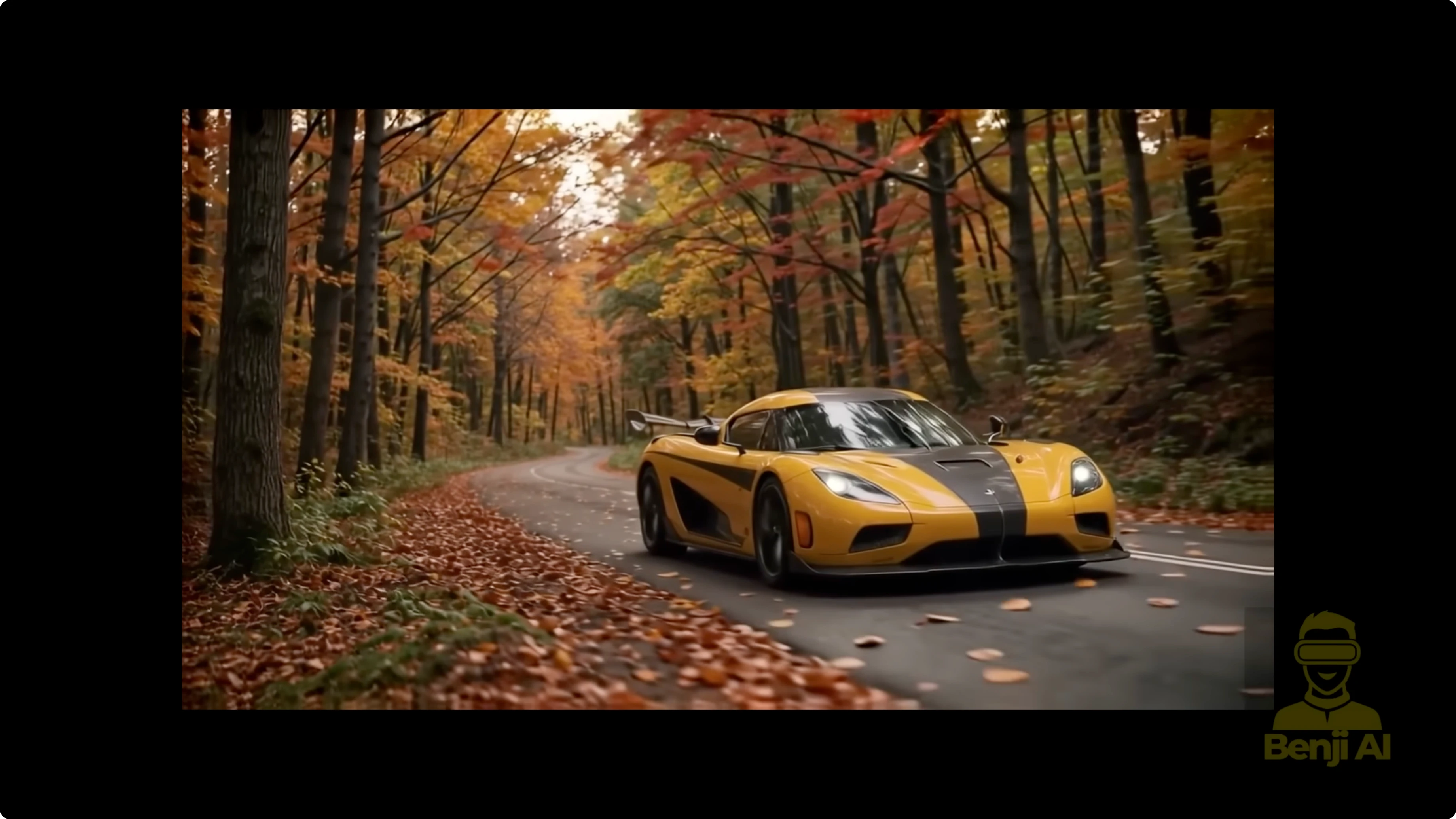
Here's another example with high motion, like a car driving. For talking avatars, I usually stick with two overlap frames. If you've got more dynamic motion, like a vehicle moving fast or complex background action, bump that overlap up to 10 or higher. When I set the overlap to 10, the motion becomes smoother across segments.
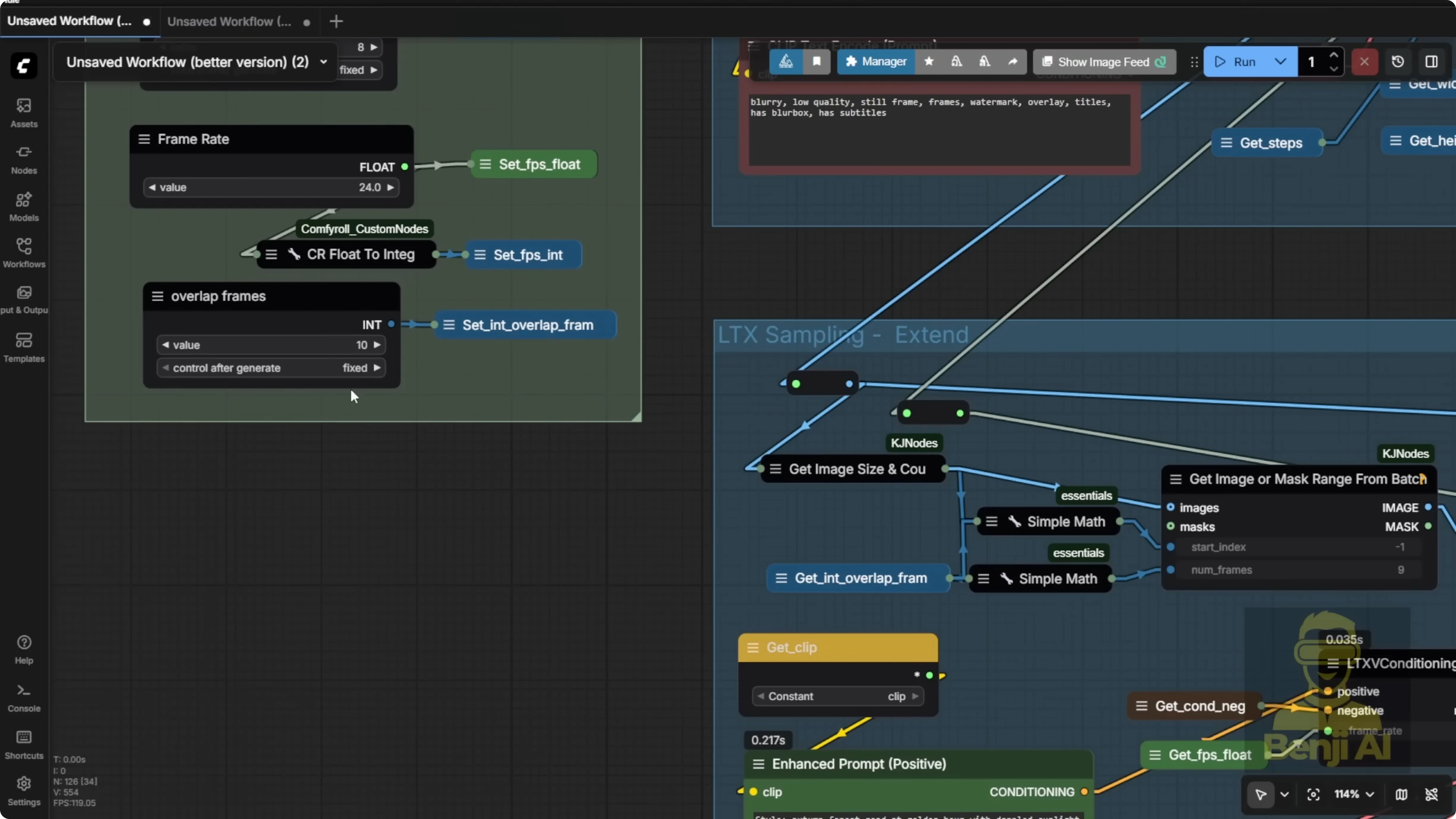
Big caveat: the audio timeline might no longer line up properly. For a talking head or anything that needs precise lip sync, stick with two overlap frames max. Higher overlaps work better for voiceovers or scenes where lip sync isn't critical, like narration over scenic drives or background storytelling.
At the end of each segment, LTX2 renders extra frames for the overlap. If you ask for 10 overlap frames, it'll give you nine usable ones. The math deducts one frame internally. You can check the rendered frames from the previous segment to confirm. Those become the input for the next sampler, ensuring continuity.
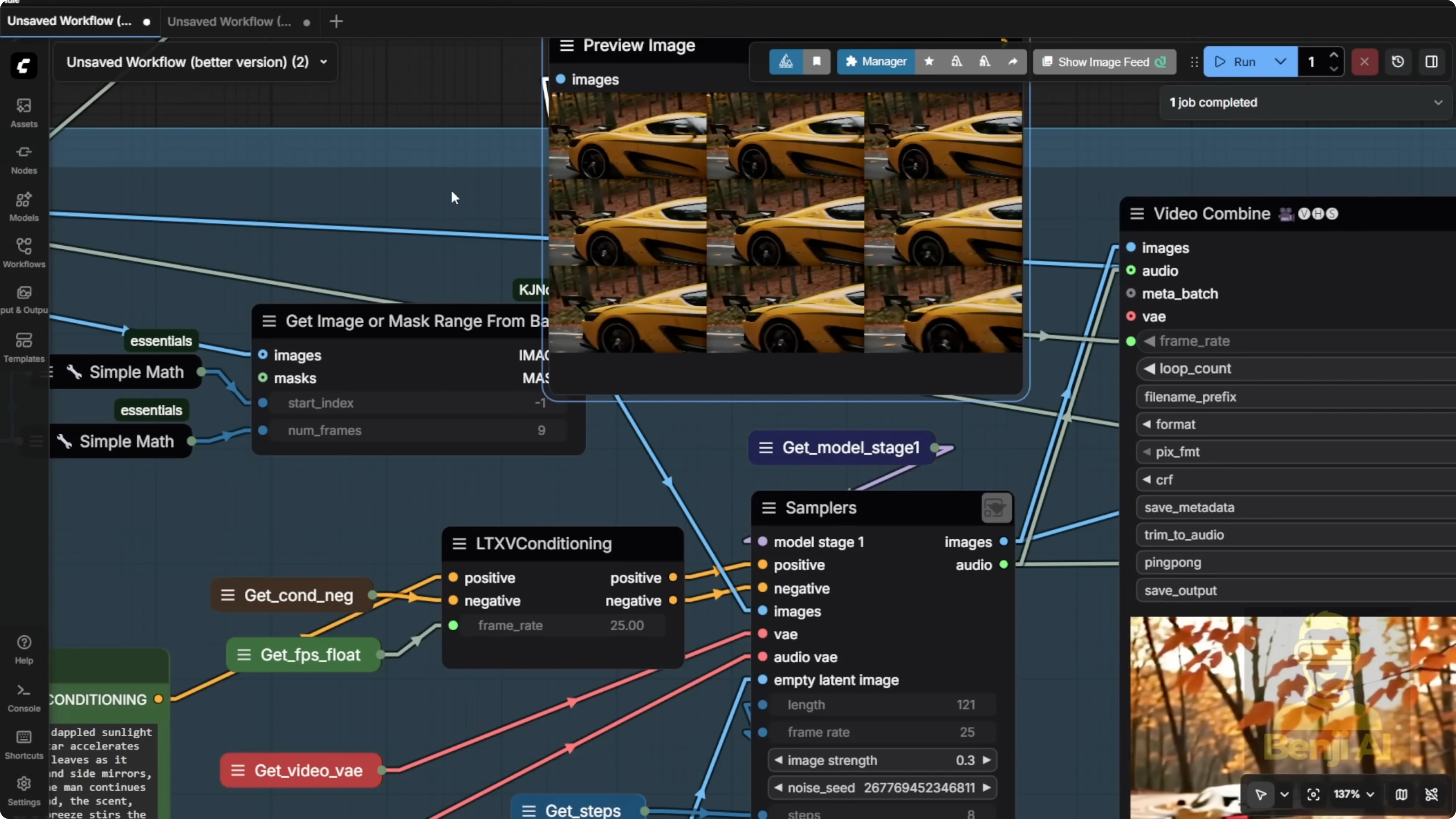
It won't be 100% coherent every time. In the car example, the style and shape of the vehicle shift between segments. To fix that, add a dedicated Laura for the car or whatever main object you're animating to lock in consistency. Even without that, you can get smooth motion by feeding multiple image frames into each sampler. It helps bridge the gap between segments, even when the scenes change slightly.
As you keep chaining more blocks, second segment, third segment, and so on, you end up with a full flowing video. This particular clip is about 15 seconds long. You can make these way longer.
LTX2 supports up to 242 frames per sampler. That's roughly 10 to 11 seconds per segment at standard frame rates. Chain three samplers at 10 seconds each and you've got a 30 second video. Using the full 242 frames per segment gives plenty of room for motion. Even with the same input image and text prompt, the AI starts introducing more natural movement over a longer duration.
With more frames, you can pass clearer, more detailed overlap images. That makes the car look sharper and more consistent, with no weird popping in and out of frame. With enough length, you can even simulate a tracking shot. Keep the camera locked on the car as it drives down the road. That's more cinematic than a choppy short clip where the object keeps disappearing. In the final output, the car cruises along a mountain road. Even when it drifts slightly off center, it stays fully visible in frame, thanks to the longer context and better overlap handling.
Audio Behavior and Voice Refinement
The voiceover script stays the same, but with longer videos, the AI has more length to play with background music and ambient sound. Sometimes it adds nice atmospheric layers. Other times it can get a little messy.
To refine the voice, I used Chatterbox VC:
- Take the generated video and extract its audio.
- Use that as the target voice input in Chatterbox.
- Resynthesize the voice.
- Blend it back with the background music or instrumentals.
This gives you a more consistent vocal tone throughout the video.
Prompting Tips That Matter
You'll still need to tweak things, adjust prompts, seeds, image strength to get the best results. Don't copy paste the exact same text prompt across wildly different scenes. LTX2 is super sensitive to prompt structure. If your situation changes, like switching from a close-up to a wide shot, adjust the wording to match the new context. A lot of the time, success in LTX2 comes down to how you write your prompt. Small phrasing changes can lead to big differences in motion, coherence, and overall quality.
Final Thoughts
That's how you create long form image to video content in LTX2. Once you get the hang of stitching, overlap, and audio sync, you can build impressive talking avatars and narration-heavy scenes. Keep an eye on overlap settings, avoid double distillation, use seeds and image strength to fix stuck expressions, and refine the voice with a post pass if needed.
Subscribe to our newsletter
Get the latest updates and articles directly in your inbox.

Related Posts

8 Best Claude Code Plugins in 2026 (You Need to Know)
8 Best Claude Code Plugins in 2026 (You Need to Know)

7 Best Claude Code Skills (You Need to Know)
7 Best Claude Code Skills (You Need to Know)

Claude Code Desktop IDE Features (You Need to Know)
Claude Code Desktop IDE Features (You Need to Know)