
Table Of Content
- How Kimi Slides with Nano Banana Pro Works
- Free Access and What You Can Upload
- Model Options in Kimi Slides with Nano Banana Pro
- Tips While Generating
- First Project in Kimi Slides with: Quantum Resistant Encryption Pitch Deck
- Editing and Exporting in Kimi Slides with
- Second Project in Kimi Slides with: Boardroom Ready Enterprise AI and Cloud Deck
- Results of the Second Project
- Third Project in Kimi Slides with: Three Slide Dating Website Concept
- Results of the Third Project
- Step by Step: Using Kimi Slides with Nano Banana Pro
- Quick Reference: Kimi Slides with Features
- Observations from the First Project
- Observations from the Second Project
- Observations from the Third Project
- Practical Tips for Kimi Slides with Nano Banana Pro
- Small Comparison: Image Model Options in Kimi Slides with
- Why This Collaboration Matters
- Final Walkthrough Highlights
- Conclusion: Kimi Slides with Nano Banana Pro for Free
- Kimi Slides with Quick Checklist
Create AI Pitch Decks Free with Kimi K2 + Google Nano Banana Pro
Table Of Content
- How Kimi Slides with Nano Banana Pro Works
- Free Access and What You Can Upload
- Model Options in Kimi Slides with Nano Banana Pro
- Tips While Generating
- First Project in Kimi Slides with: Quantum Resistant Encryption Pitch Deck
- Editing and Exporting in Kimi Slides with
- Second Project in Kimi Slides with: Boardroom Ready Enterprise AI and Cloud Deck
- Results of the Second Project
- Third Project in Kimi Slides with: Three Slide Dating Website Concept
- Results of the Third Project
- Step by Step: Using Kimi Slides with Nano Banana Pro
- Quick Reference: Kimi Slides with Features
- Observations from the First Project
- Observations from the Second Project
- Observations from the Third Project
- Practical Tips for Kimi Slides with Nano Banana Pro
- Small Comparison: Image Model Options in Kimi Slides with
- Why This Collaboration Matters
- Final Walkthrough Highlights
- Conclusion: Kimi Slides with Nano Banana Pro for Free
- Kimi Slides with Quick Checklist
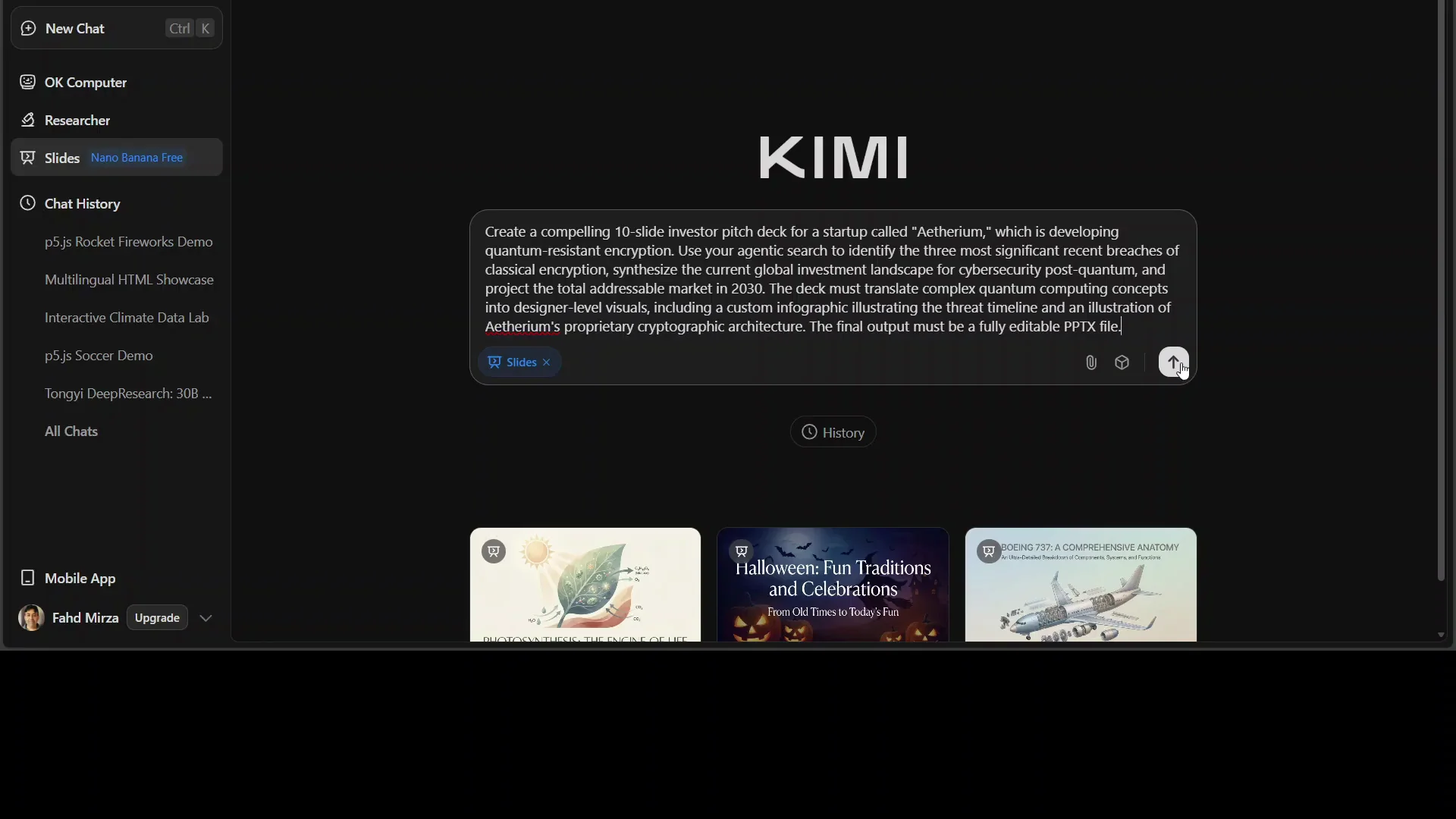
When Kimi meets Google, great things happen. I set out to generate a slide deck with Kimi K2 and Google's Nano Banana Pro. I gave it a simple text prompt asking the model to create a compelling 10 slide investor pitch deck for a startup developing quantum resistant encryption. I kept it high level and asked it to include infographics and visuals. Then I got started.
Slides was already selected. It analyzed everything, prepared everything, and then produced the output. Here is what happened, step by step, and what I learned across three projects in a single session.
How Kimi Slides with Nano Banana Pro Works
Kimi's agentic model, Kimi K2, is a reflex grade model focused on long chat and agentic experiences. It gathers facts with its agentic capabilities and provides language support. The images are generated by Google's Nano Banana Pro, built on the Gemini 3 Pro framework. It offers enhanced image creation and editing capabilities, producing a wide range of visuals.
I had not covered Banana Pro earlier, so this session was a good chance to put it through its paces. Kimi was offering it for free for a limited time, which made it even more appealing to try.
Free Access and What You Can Upload
For a 48 hour window, you can try this for free on kimi.com. You can provide simple text prompts, files, images, or even Word documents. It generates fully editable PowerPoint slides that you can export to PPTX or to Google Slides. The claim is that it creates designer level visuals, which I wanted to check in practice.
For the next two days, you can generate as many slides as you like. Keep in mind there could be throttling or delay because many people are trying it at the same time. I ran it in real time and it generated quickly, with occasional pauses.
Model Options in Kimi Slides with Nano Banana Pro
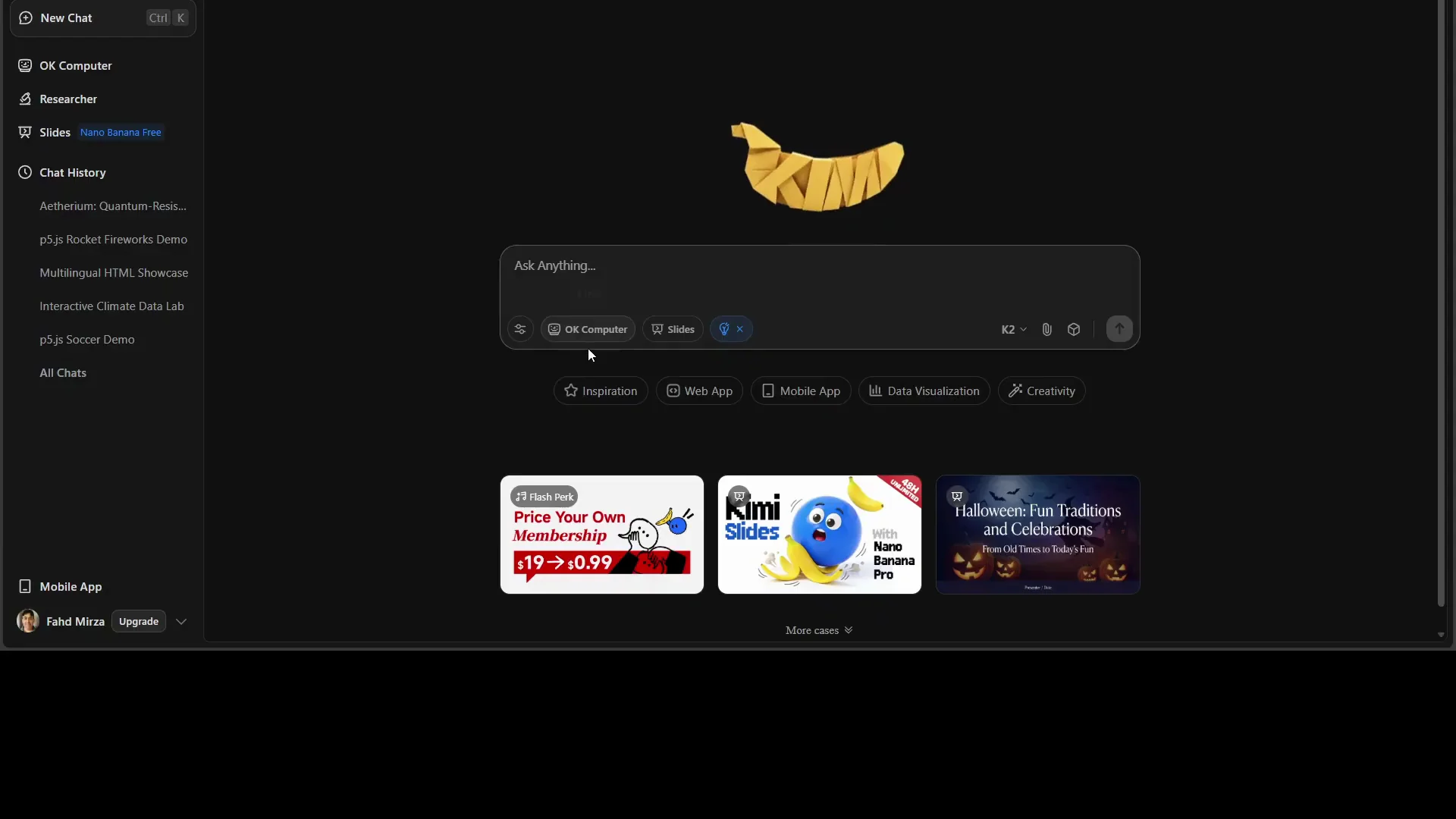
On the right side, it displayed the research it had done in the last few minutes. It also presented image model options: Banana, Adaptive, or Classic. Because I wanted to test Banana, I selected it. It loaded and gathered information again.
The first step ran with Kimi K2, then it started generating images, infographics, and slides with Nano Banana Pro from Google. During this process, I let it work without interruption.
Tips While Generating
I noticed in a previous attempt that sometimes you might get a message saying the request does not comply with Google's secure browser. In that case, simply reload your browser and try again. In my session, it started creating right away. The early preview already looked strong at around 10 percent complete, so I let it finish before reviewing.
First Project in Kimi Slides with: Quantum Resistant Encryption Pitch Deck
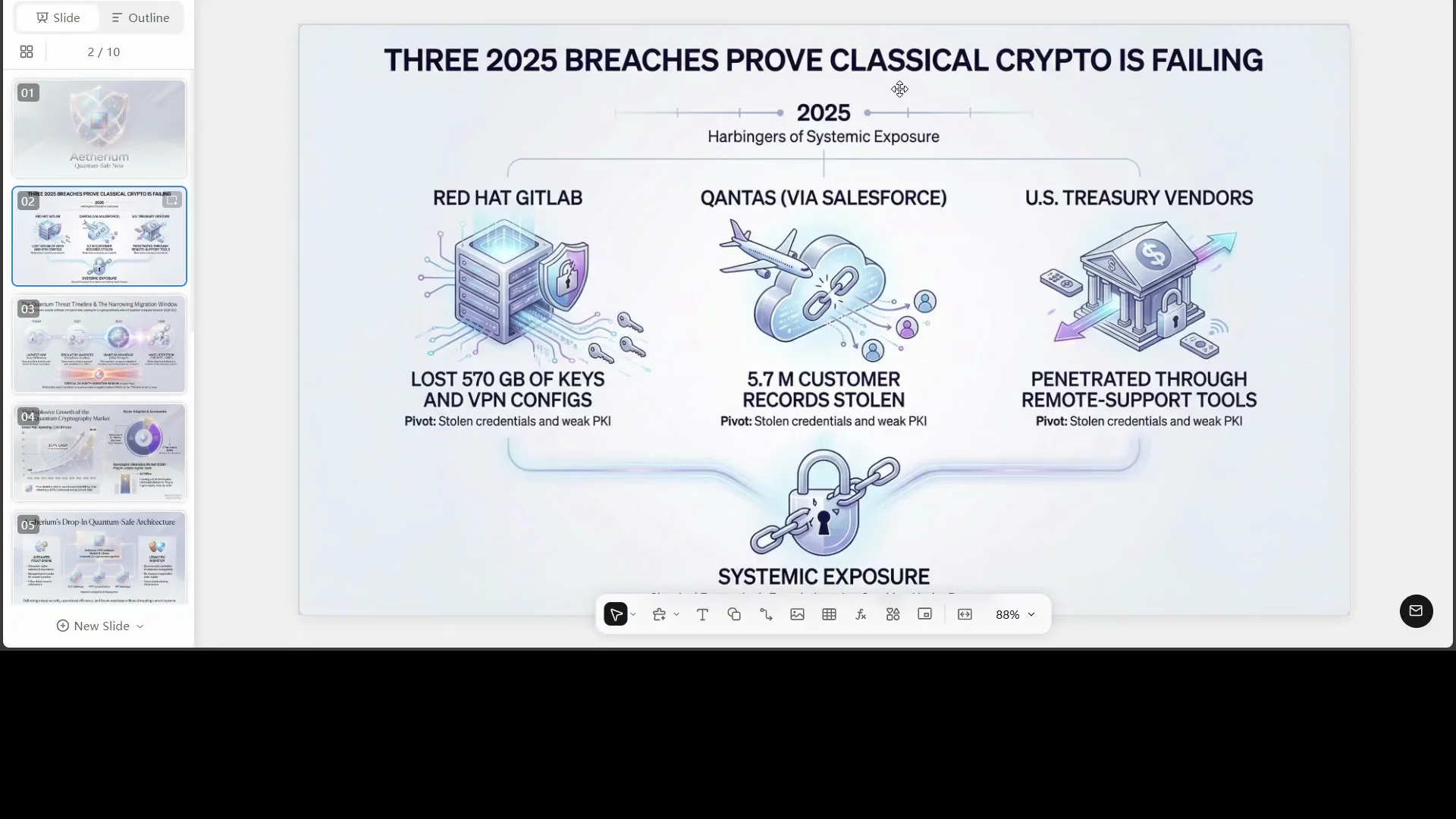
When it completed, I walked through the output. The first slide was clean and structured, and the second slide continued with a cohesive layout. It built the case around quantum safe encryption, even referencing items like quantas and the US treasury in context. It was not just images: it generated substantive content, infographics, and narrative flow.
The image quality was strong. The text on images was clear, and the spelling was correct. The graphics included items like clocks and dashboards arranged on a professional grid. I had not provided a color scheme, but it came up with a palette that worked across the deck. It looked professional and usable right away.
If you create presentations for a living, this level of output is worth noting. Adapting your workflow to use tools like this could help you go faster and focus on higher value refinement. You can present, export, and download in your preferred format.
Editing and Exporting in Kimi Slides with
You can edit by clicking into the editor. Sometimes it might not enter edit mode immediately, so wait a moment, click Edit page, and let it load. You can replace the current page or switch into full edit mode. From there, you can adjust slides, visuals, and text, and then export to PPTX or Google Slides.
Second Project in Kimi Slides with: Boardroom Ready Enterprise AI and Cloud Deck
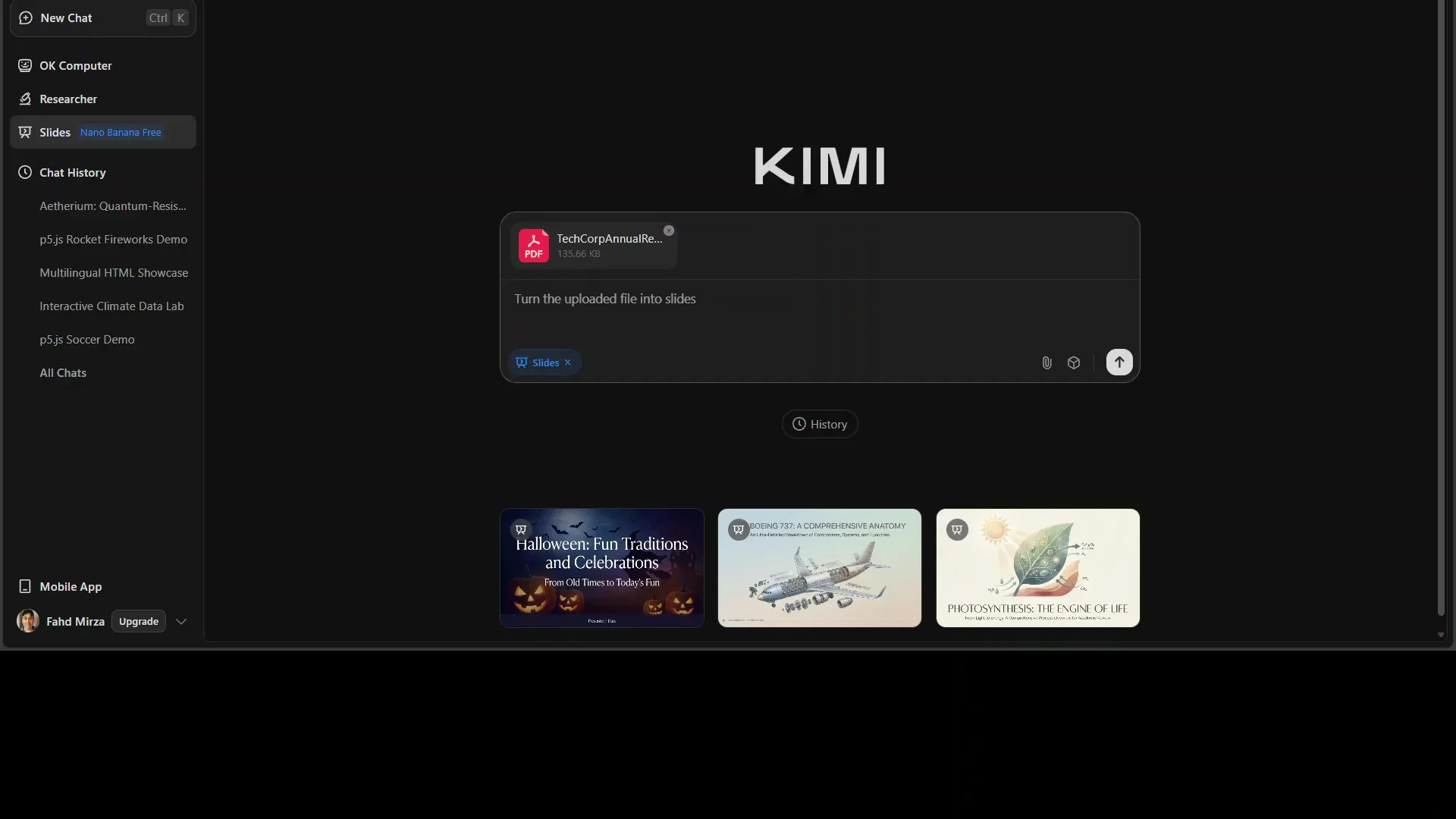
For the next example, I opened a new chat. I clicked Slides to ensure it was in slides mode. I uploaded an AI generated corporate report of a fictitious company. For the prompt, I asked for a boardroom ready presentation that positions this tech corp as a definitive enterprise AI and cloud solutions leader, featuring worldclass data visualizations. I started the run and waited.
Kimi K2 handled the analysis, and then the images and visuals were generated with Nano Banana Pro. Google's DeepMind site highlights the model, and it is encouraging to see collaboration like this. If AI is to evolve and be widely useful, companies collaborating rather than working in silos helps.
Results of the Second Project
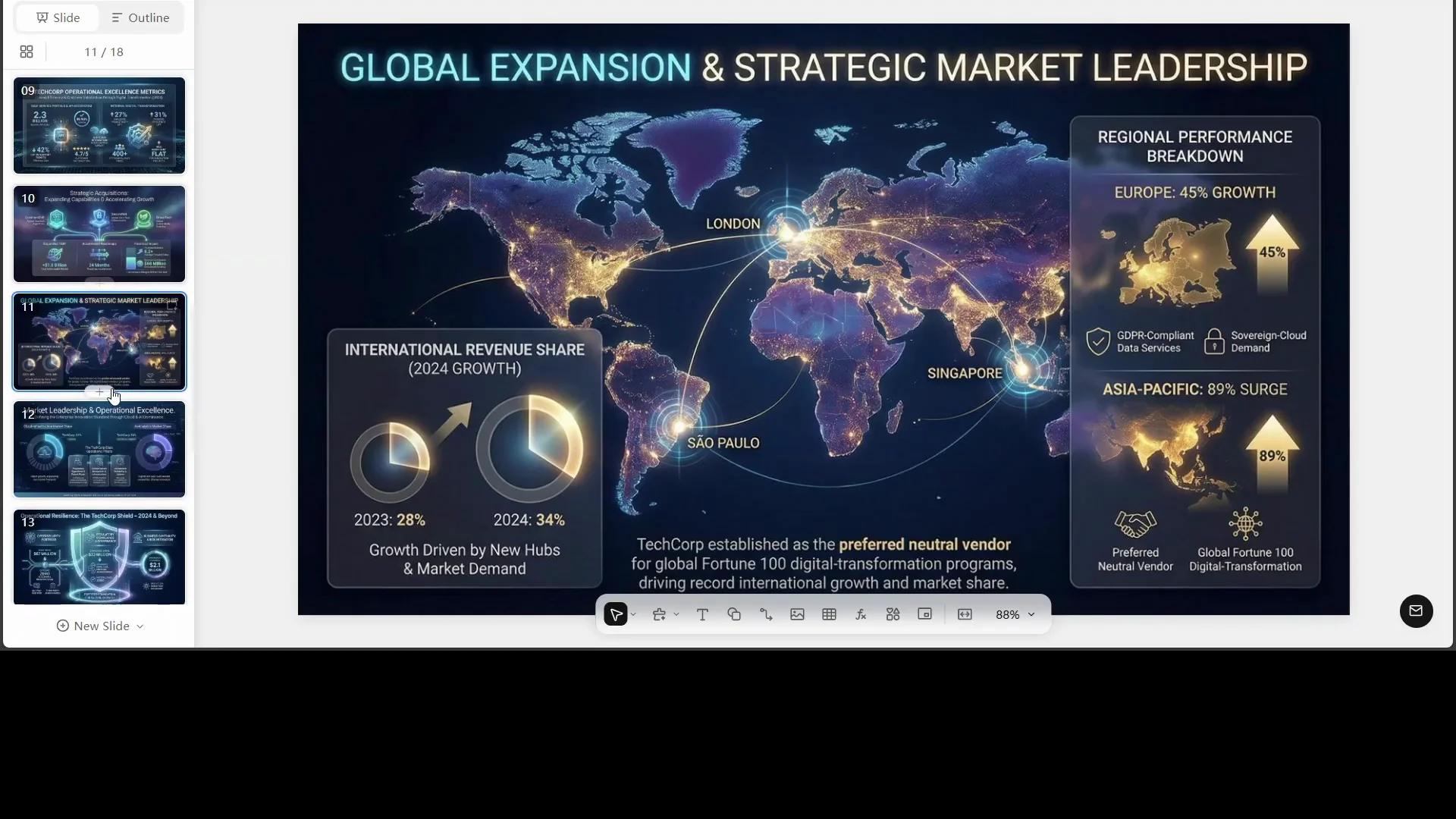
It generated an 18 slide presentation. The first slide looked strong. The visuals, dashboards, and graphs were modern. The color scheme resembled the previous project, which is minor and easy to adjust later. I had included fictitious numbers in the uploaded report, and it pulled them into some slides correctly. The output looked ready for a board setting.
Maps and glowing accents appeared where appropriate. I continued scrolling and found the output consistent throughout. This was a big step up in speed and polish for turning a corporate report into a deck without manual slide building.
Third Project in Kimi Slides with: Three Slide Dating Website Concept
To test color and copy changes, I prompted a new deck: create a vibrant romantic dating website concept with only three slides. I asked for eye catching design and specified the requirements for each slide. I asked for a call to action on the third slide and a matching algorithm section on the second slide. I wanted to see how well it followed specific slide level requirements.
Results of the Third Project
It named the concept Love Spark. The engine produced a cohesive set of three slides. The front page looked inviting and fit the theme. It included a 99 percent compatibility score as requested. The features section was present. Messaging was presented as smooth and immediate. Spelling was correct, and the numbers I requested were in place.
The call to action appeared on the third slide. Phrases like Join the spark fit the brief. The colors were consistent and appropriate for the concept. For a quick concept pitch with exact slide requirements, this was on point.
Step by Step: Using Kimi Slides with Nano Banana Pro
Follow these steps to reproduce what I did:
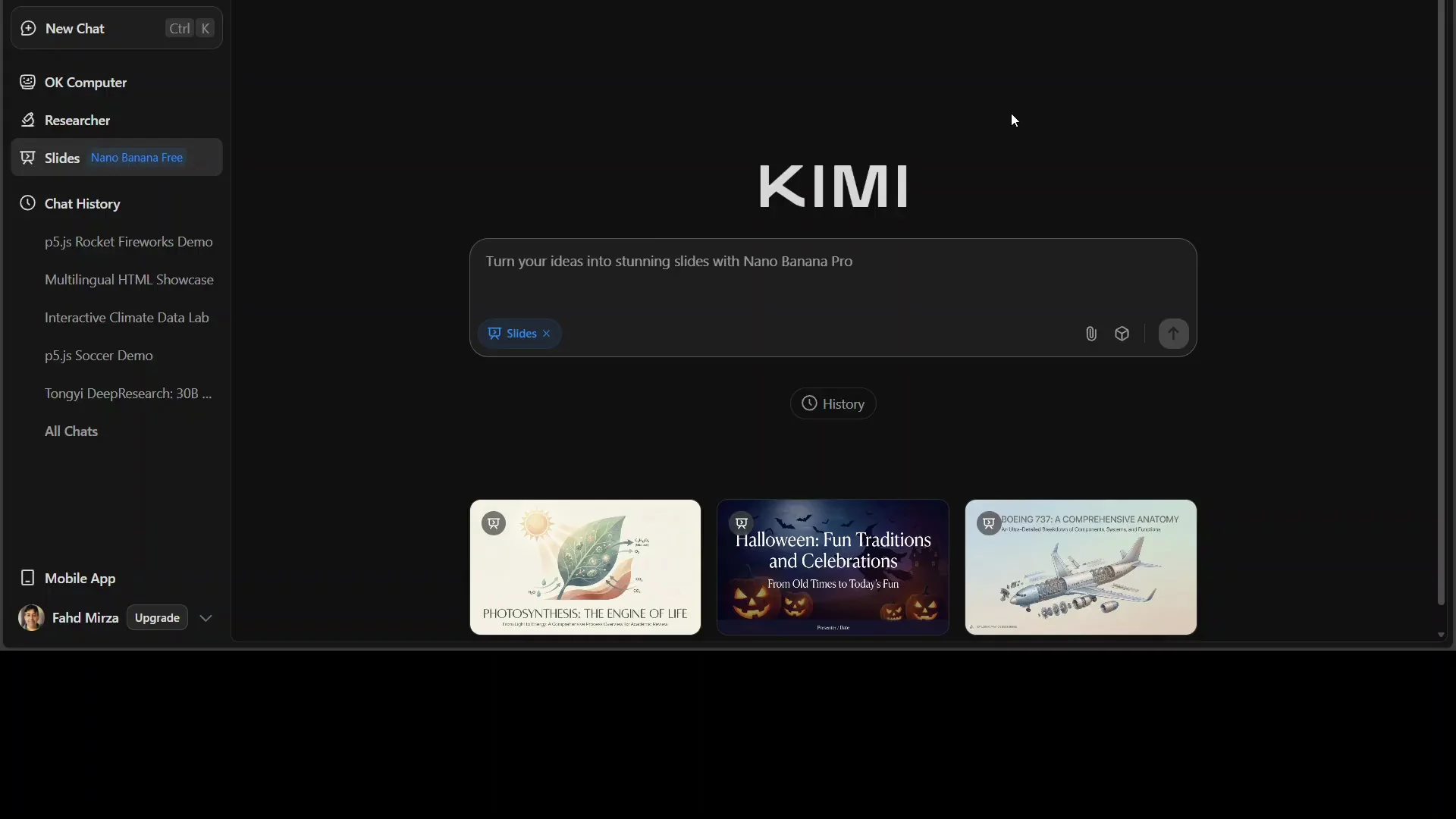
- Start in Slides mode
- Open Kimi.
- Ensure Slides is selected before you begin.
- Provide your input
- Enter a clear text prompt describing the deck you want, slide count, and key requirements like infographics or visuals.
- Optionally upload a file such as a corporate report, images, or a Word document to guide the content.
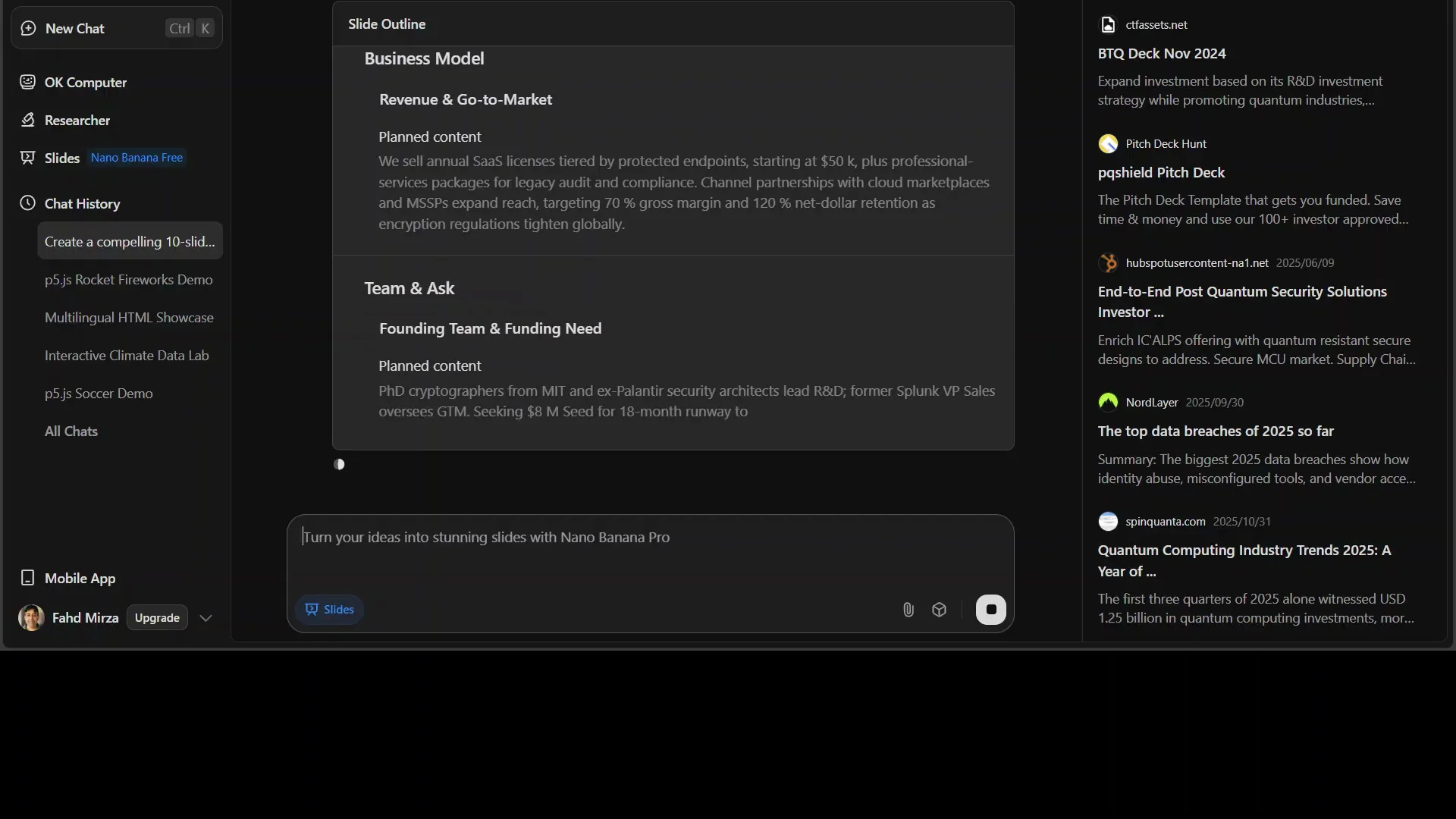
- Choose image model
- Review the right side panel.
- Under image model options, select Banana, Adaptive, or Classic. I selected Banana.
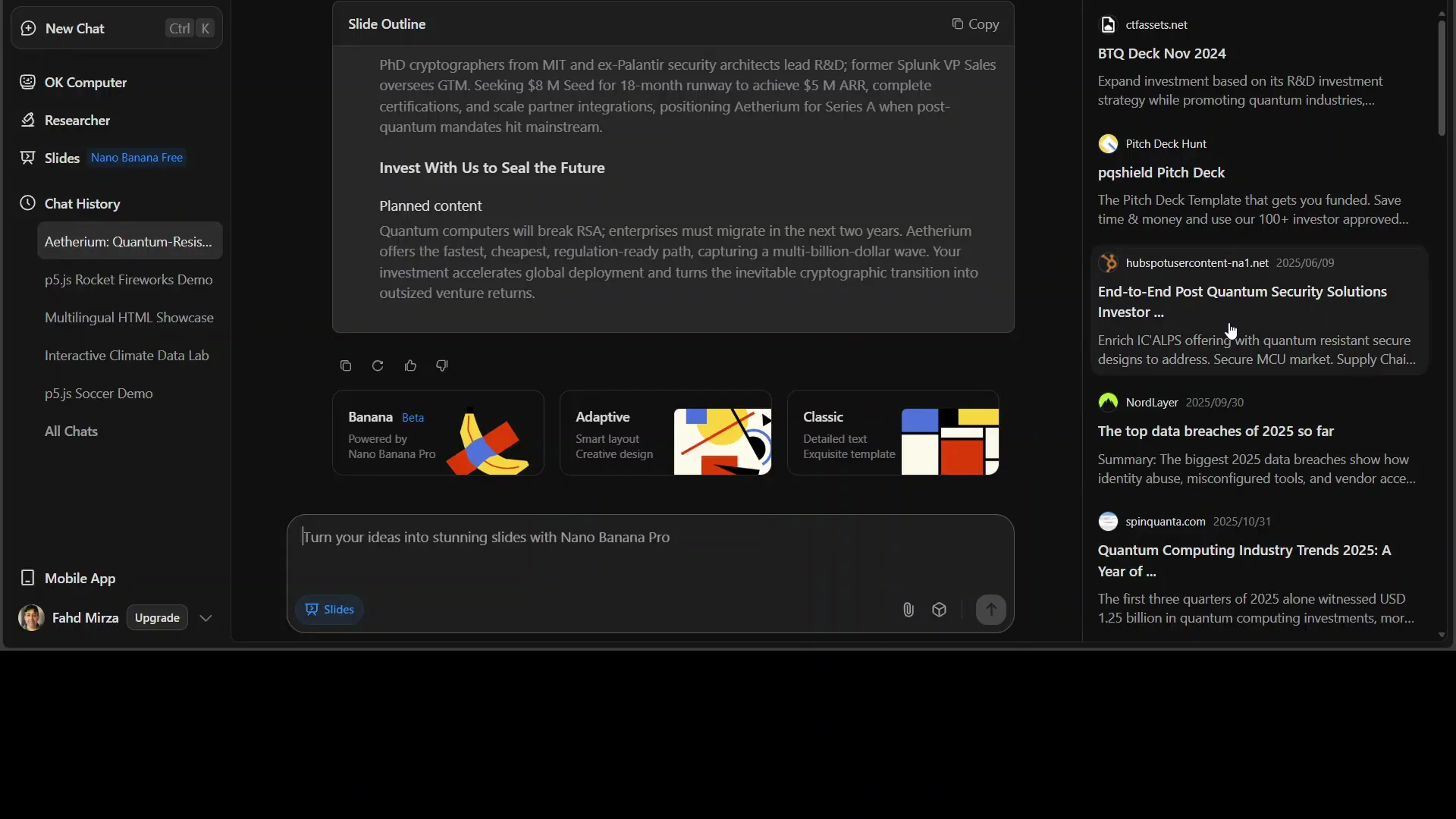
-
Generate
- Let Kimi K2 analyze the prompt or file.
- Wait for Nano Banana Pro to generate images and infographics.
- If you see a secure browser message, reload and retry.
-
Review and refine
- Inspect the slides for structure, data accuracy, and visual coherence.
- Check spelling and text on images.
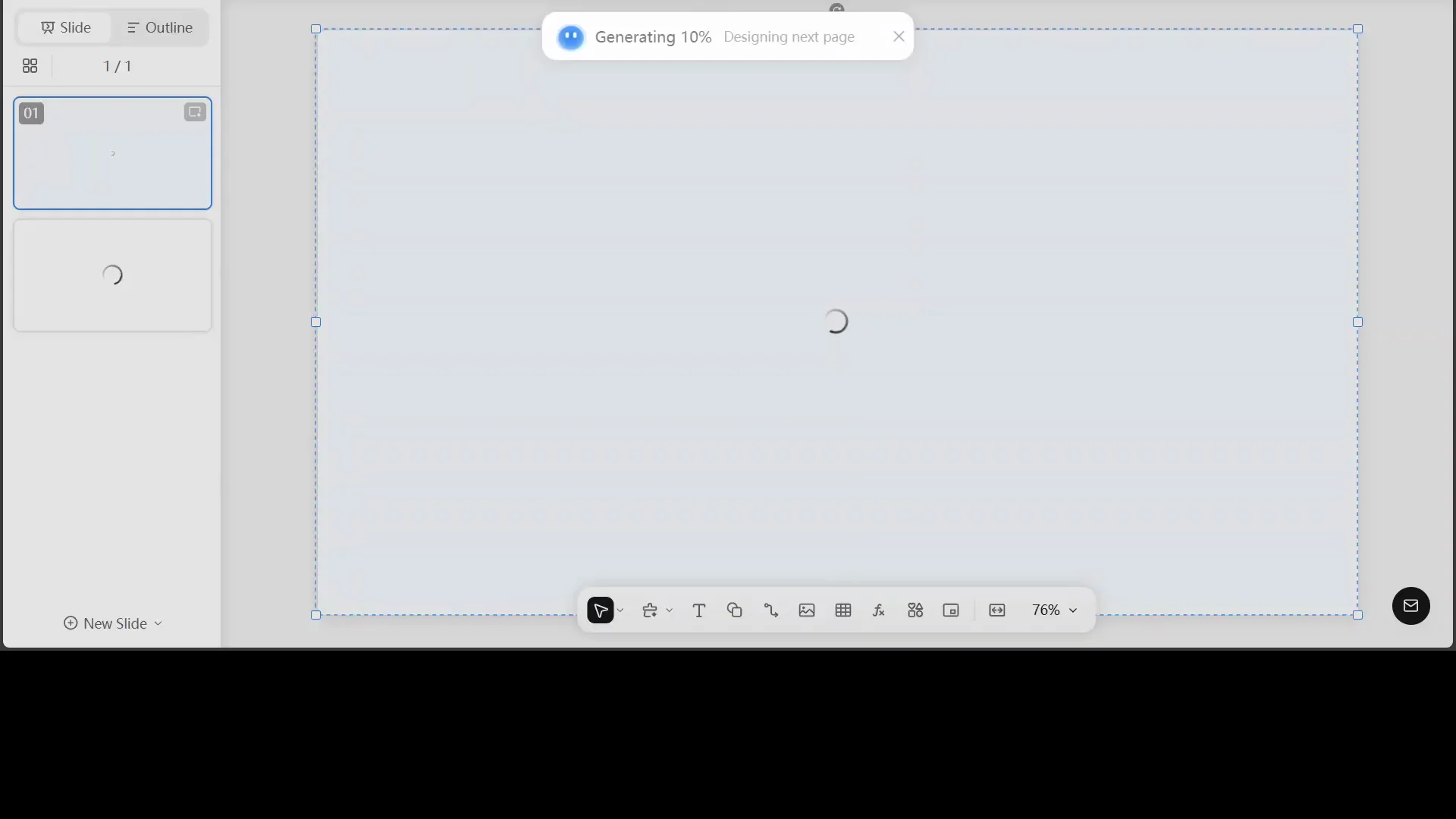
- Edit
- Click into Edit page.
- Replace the current page or switch to edit mode for full control.
- Make copy edits, adjust colors, and swap visuals if needed.
- Export
- Export to PPTX or Google Slides.
- Use the deck as is or make final tweaks in your presentation tool of choice.
Quick Reference: Kimi Slides with Features
-
Inputs
- Text prompts
- Files, images
- Word documents
-
Generation flow
- Kimi K2 handles analysis and language
- Nano Banana Pro generates images and infographics
-
Output formats
- PPTX
- Google Slides
-
Image model options
- Banana
- Adaptive
- Classic
-
Availability
- Free for a limited 48 hour window
Observations from the First Project
-
Content depth
- It did more than populate images. It generated a storyline around quantum safe encryption.
- References such as quantas and the US treasury appeared in context to build the case.
-
Visual quality
- Sharp images and readable text within visuals.
- Professional grid layouts.
-
Color choices
- Auto selected palette worked across the deck without manual direction.
-
Performance
- Some waiting during high demand periods.
- Real time generation was smooth overall.
Observations from the Second Project
-
Scale
- It produced 18 slides from a corporate report with correct data inclusion.
-
Visual style
- Modern dashboards and charts.
- Similar palette to the previous deck, easy to customize later.
-
Suitability
- Fit for executive and board level presentations after light review.
Observations from the Third Project
-
Prompt adherence
- Followed slide level requirements, including the call to action on slide three and the matching algorithm on slide two.
-
Theming
- Presented a cohesive concept with appropriate tone and visuals.
-
Detail
- Included requested numbers and features, with correct spelling.
Practical Tips for Kimi Slides with Nano Banana Pro
-
Be specific in your prompt
- Include the slide count, the theme, and requirements like infographics, data visualizations, or specific sections.
-
Use an uploaded file for alignment
- A corporate report or draft document helps Kimi K2 align content and numbers.
-
Choose Banana for rich visuals
- Banana produced strong images and infographics in my tests.
-
Anticipate brief delays
- During heavy usage, generation can take longer. Let it finish before reviewing.
-
Handle secure browser checks
- If a request does not comply message appears, reload your browser and run again.
-
Edit and export
- Use Edit page to refine slides.
- Export to PPTX or Google Slides once satisfied.
Small Comparison: Image Model Options in Kimi Slides with
| Option | Notes from session |
|---|---|
| Banana | Selected for all tests in this article. |
| Adaptive | Available to select. |
| Classic | Available to select. |
I chose Banana throughout to keep the results consistent. Adaptive and Classic are there if you want to experiment with different aesthetics.
Why This Collaboration Matters
Kimi K2 and Nano Banana Pro complement each other. Kimi K2 handles the language and structure, and Nano Banana Pro adds visuals and infographics. The result is a system that can take a high level prompt or a corporate report and turn it into a cohesive, polished slide deck.
Seeing tools from different teams work together this way is encouraging. It aligns with a broader view that AI systems get better when strengths are combined instead of kept apart.
Final Walkthrough Highlights
-
Quantum encryption investor deck
- Clear structure and case building.
- Quality visuals and professional layout.
- Auto color scheme that worked without guidance.
-
Boardroom enterprise AI and cloud deck
- 18 slides from an uploaded report.
- Correct inclusion of fictitious numbers from the source.
- Modern dashboards and charts that looked ready for executive review.
-
Three slide dating website concept
- Correct slide level adherence.
- Themed design with a fitting name and tone.
- Strong call to action on slide three.
Across all three runs, the workflow was consistent. Analysis began with Kimi K2, then visuals were generated with Nano Banana Pro. The outputs were coherent, and editing options allowed quick adjustments.
Conclusion: Kimi Slides with Nano Banana Pro for Free
Kimi Slides with Nano Banana Pro demonstrated strong end to end performance across prompt only and file based projects. It analyzed requirements, generated structured content, produced high quality visuals, and delivered editable decks in PPTX and Google Slides formats.
The free access window made it an easy decision to test. The ability to start from a text prompt or a corporate report, choose an image model, let it build the slides, and then edit and export, made the experience straightforward. If you need investor decks, boardroom presentations, or quick concept pitches, this is well worth trying during the free period.
Below is a compact checklist you can keep on hand.
Kimi Slides with Quick Checklist
- Select Slides mode before you start
- Enter a clear prompt with slide count and key requirements
- Upload a file if you want data aligned content
- Pick Banana under image model options
- Let Kimi K2 analyze and Nano Banana Pro generate visuals
- Reload if you see a secure browser message
- Edit slides as needed
- Export to PPTX or Google Slides
Kimi Slides with Nano Banana Pro for Free made it possible to go from prompt or report to presentation with strong structure and visuals, minimal friction, and practical export options.
Subscribe to our newsletter
Get the latest updates and articles directly in your inbox.

Related Posts

8 Best Claude Code Plugins in 2026 (You Need to Know)
8 Best Claude Code Plugins in 2026 (You Need to Know)

7 Best Claude Code Skills (You Need to Know)
7 Best Claude Code Skills (You Need to Know)

Claude Code Desktop IDE Features (You Need to Know)
Claude Code Desktop IDE Features (You Need to Know)