
Table Of Content
- Installing OpenClaw on Android: Free Model and Telegram Guide
- Prepare Termux
- Install Ubuntu in Termux with proot-distro
- Update Ubuntu and install dependencies
- Install Node.js and OpenClaw
- Fix bionic kernel crash
- Configure OpenClaw
- Choose free model
- Configure Telegram
- Start the gateway and open the dashboard
- Fix the disconnected status
- Test chat and Telegram
- Final thoughts
Installing OpenClaw on Android: Free Model and Telegram Guide
OpenClaw Error Fixer
Paste any OpenClaw error and get the exact fix instantly — cause, steps, copy-ready commands, and related guides.
Table Of Content
- Installing OpenClaw on Android: Free Model and Telegram Guide
- Prepare Termux
- Install Ubuntu in Termux with proot-distro
- Update Ubuntu and install dependencies
- Install Node.js and OpenClaw
- Fix bionic kernel crash
- Configure OpenClaw
- Choose free model
- Configure Telegram
- Start the gateway and open the dashboard
- Fix the disconnected status
- Test chat and Telegram
- Final thoughts
I am going to show how I install and set up OpenClaw on an Android phone using Termux, Ubuntu in proot, and a free model via OpenRouter. I also connect Telegram as a channel and fix the dashboard disconnected error by using the gateway token. Follow the steps carefully and run each command exactly as shown.
If you plan to run models locally later, check this guide on the Ollama model for OpenClaw.
Installing OpenClaw on Android: Free Model and Telegram Guide
Prepare Termux
Install Termux from Google Play Store on your Android phone and open it. Termux gives a Linux terminal where I can run commands and install software. I will first update Termux and grant storage access.
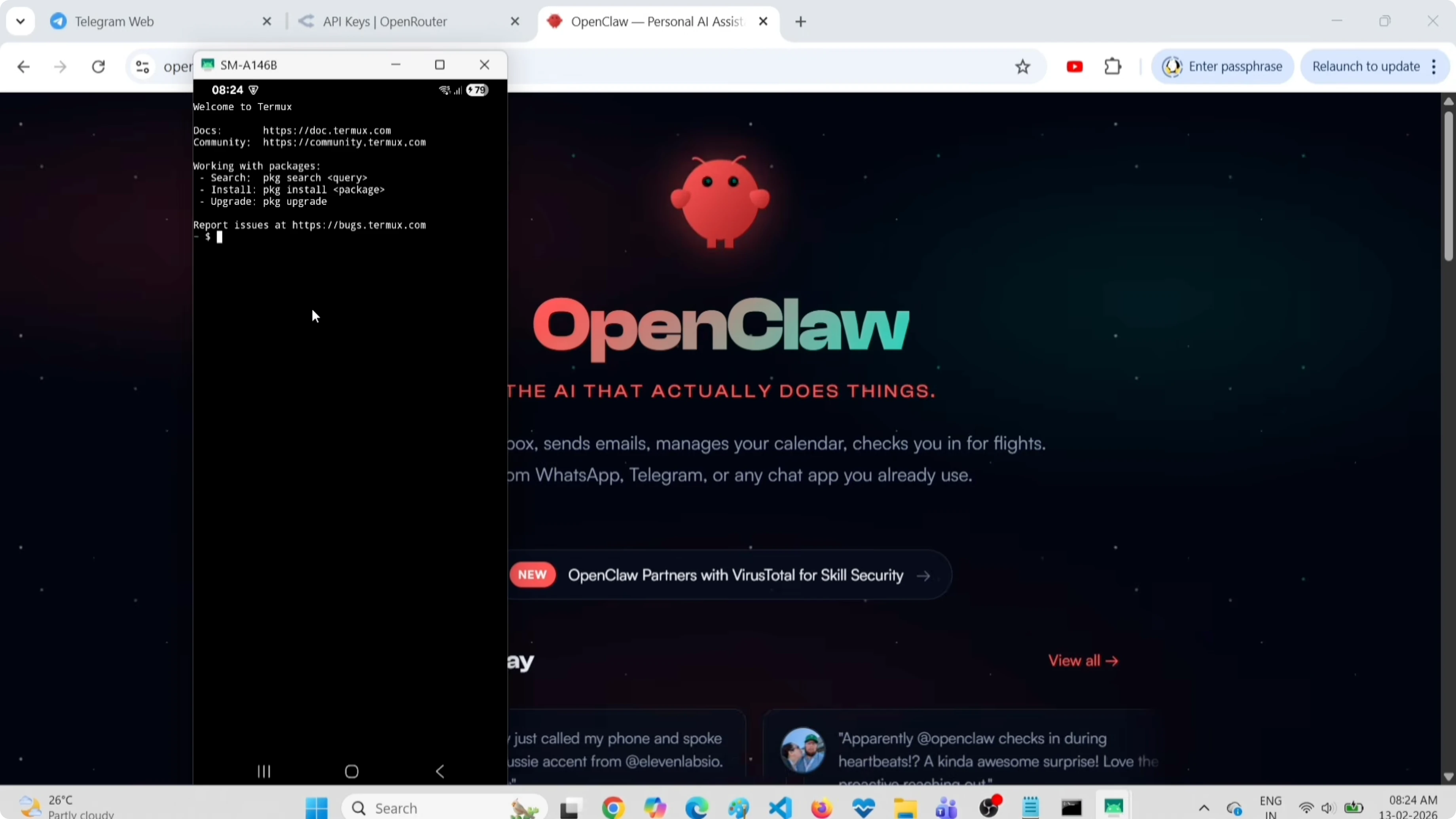
Run:
pkg update && pkg upgrade -y
termux-setup-storage
Scroll to find Termux in the permission screen, enable the file access toggle, and go back. Storage access is now set.
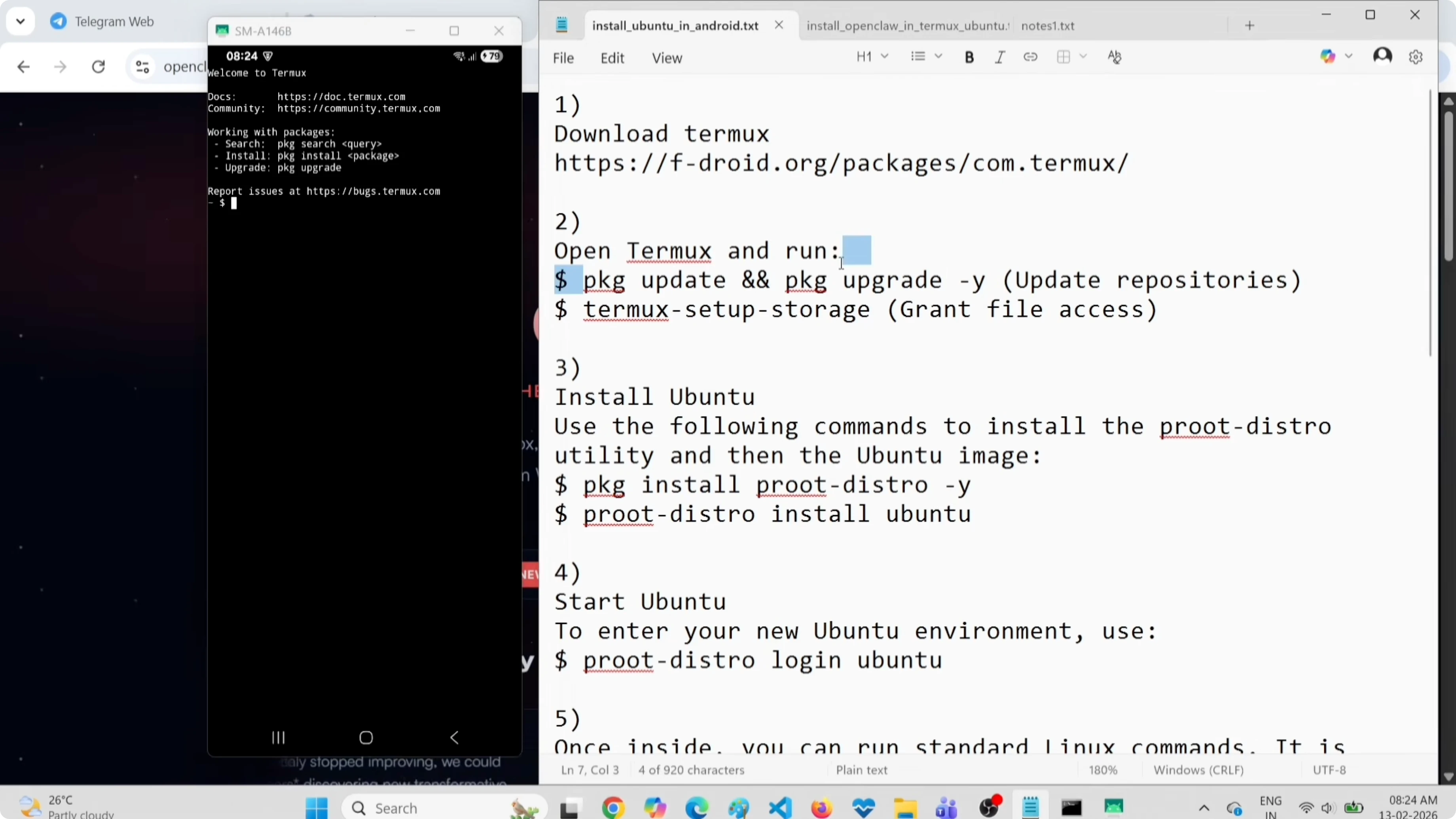
Install Ubuntu in Termux with proot-distro
I install proot-distro so I can run Ubuntu inside Termux. Then I install and log into Ubuntu.
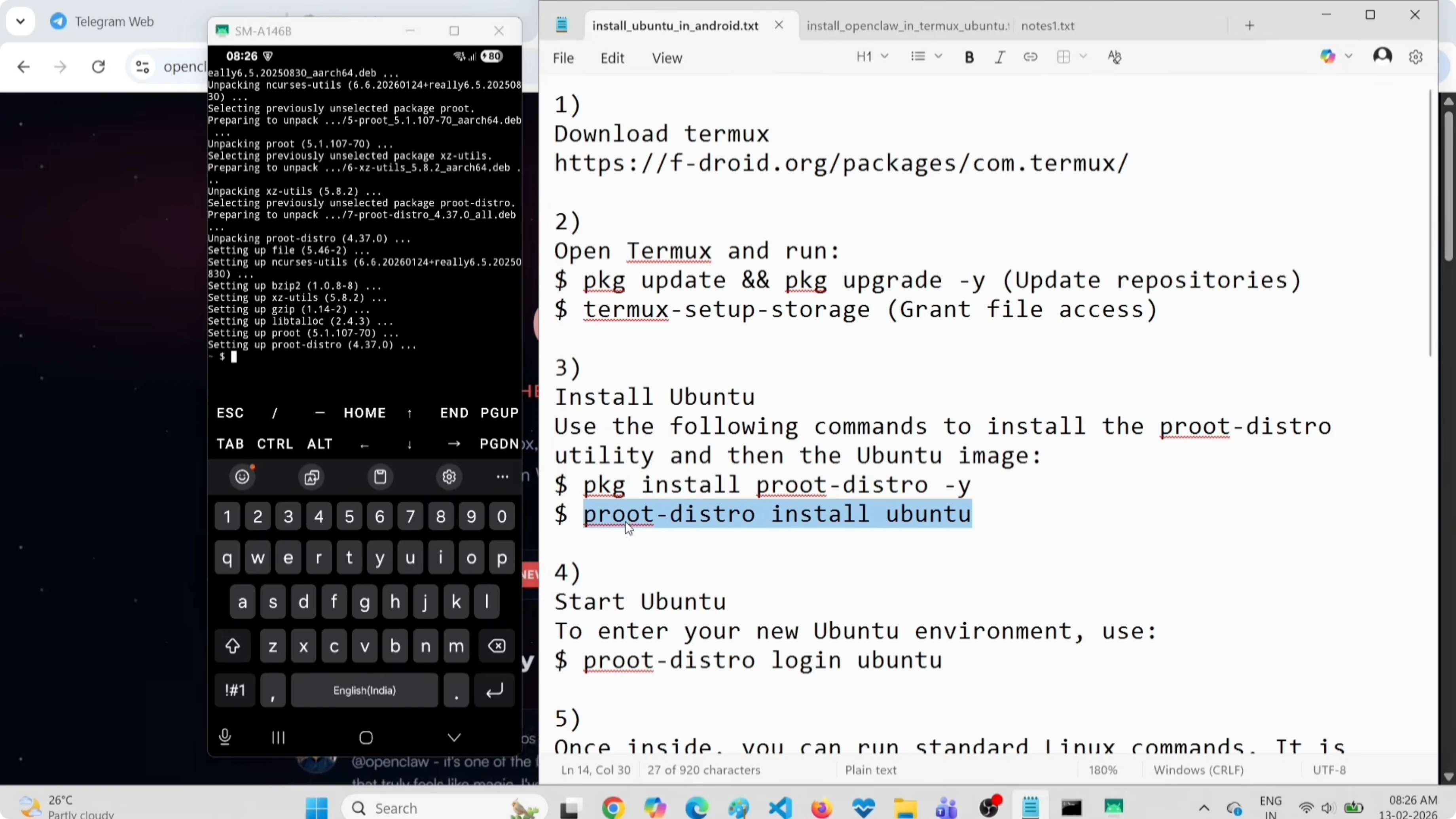
Run:
pkg install proot-distro -y
proot-distro install ubuntu
proot-distro login ubuntu
Now I am inside Ubuntu Linux. I can run Ubuntu commands and install Ubuntu packages here.
Update Ubuntu and install dependencies
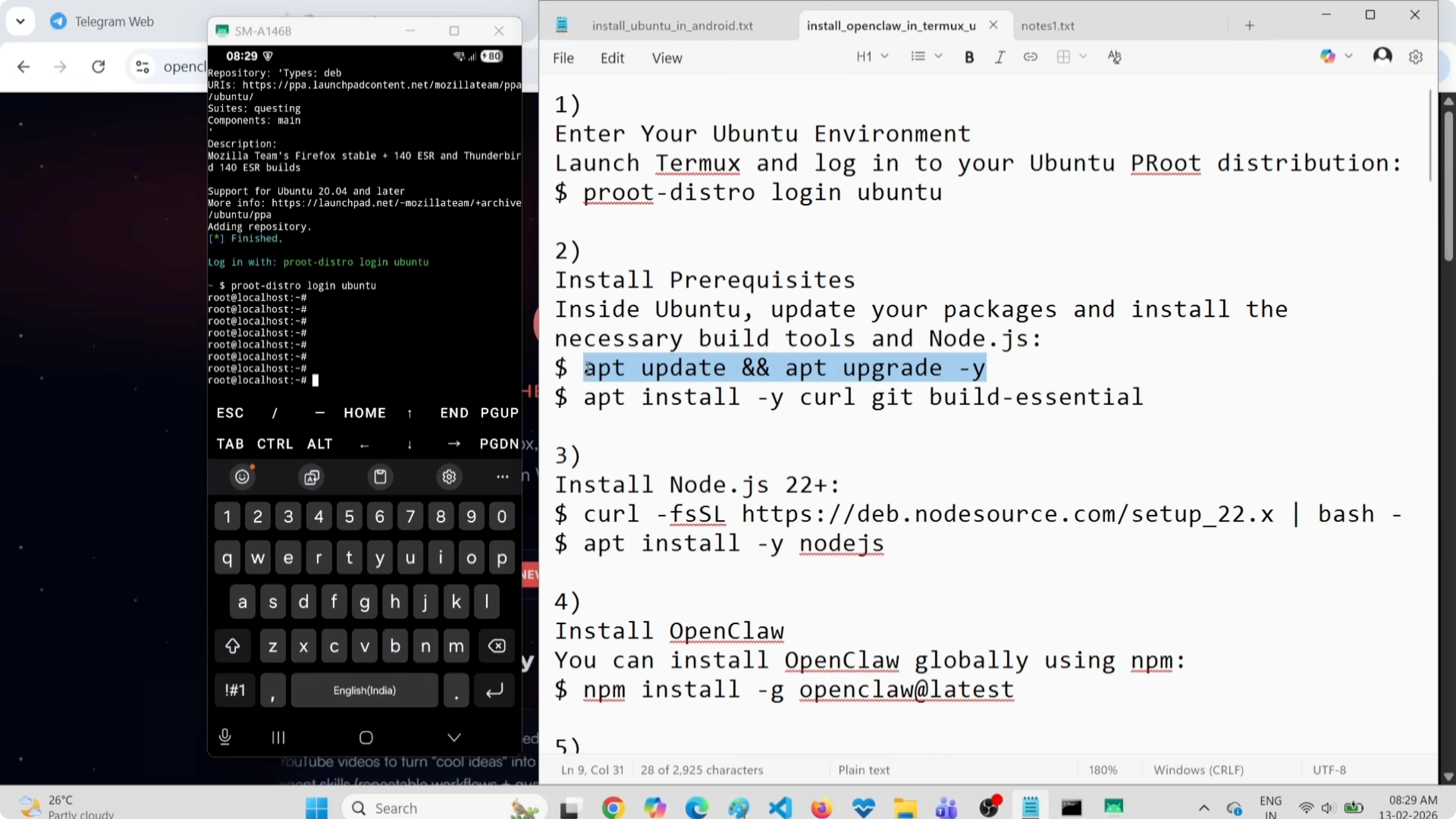
I update Ubuntu repositories and upgrade packages so I get the latest versions. Then I install curl, git, and build-essential.
Run:
apt update && apt upgrade -y
apt install -y curl git build-essential
This step can take time and it is important for a smooth setup of OpenClaw.
Install Node.js and OpenClaw
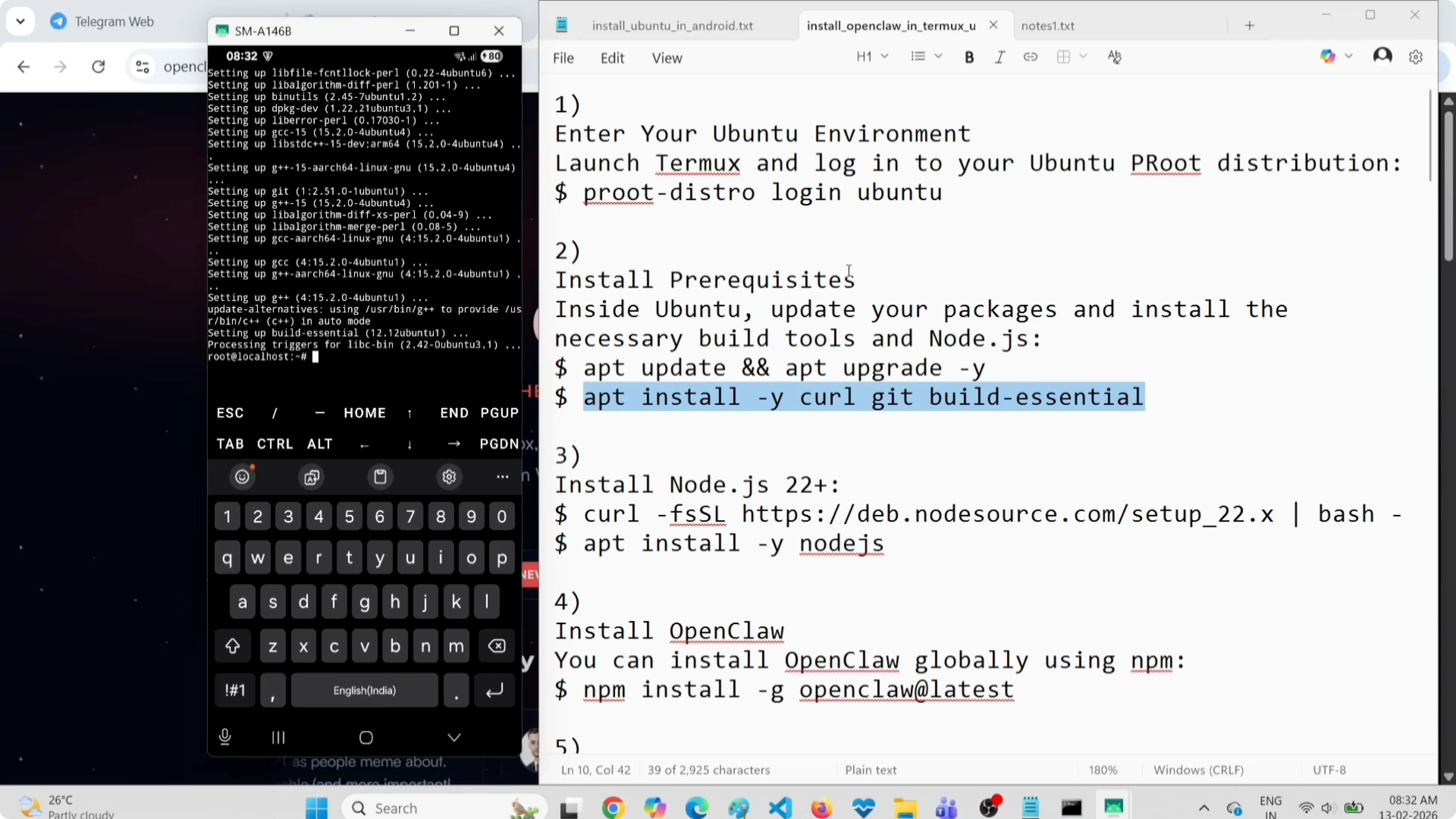
I install a recent Node.js using NodeSource, then I install OpenClaw globally with npm. If you see Node.js issues later, use this OpenClaw bot fix.
Run:
curl -fsSL https://deb.nodesource.com/setup_20.x | bash -
apt install -y nodejs
node -v
npm -v
npm install -g openclaw
Now OpenClaw is installed.
Fix bionic kernel crash
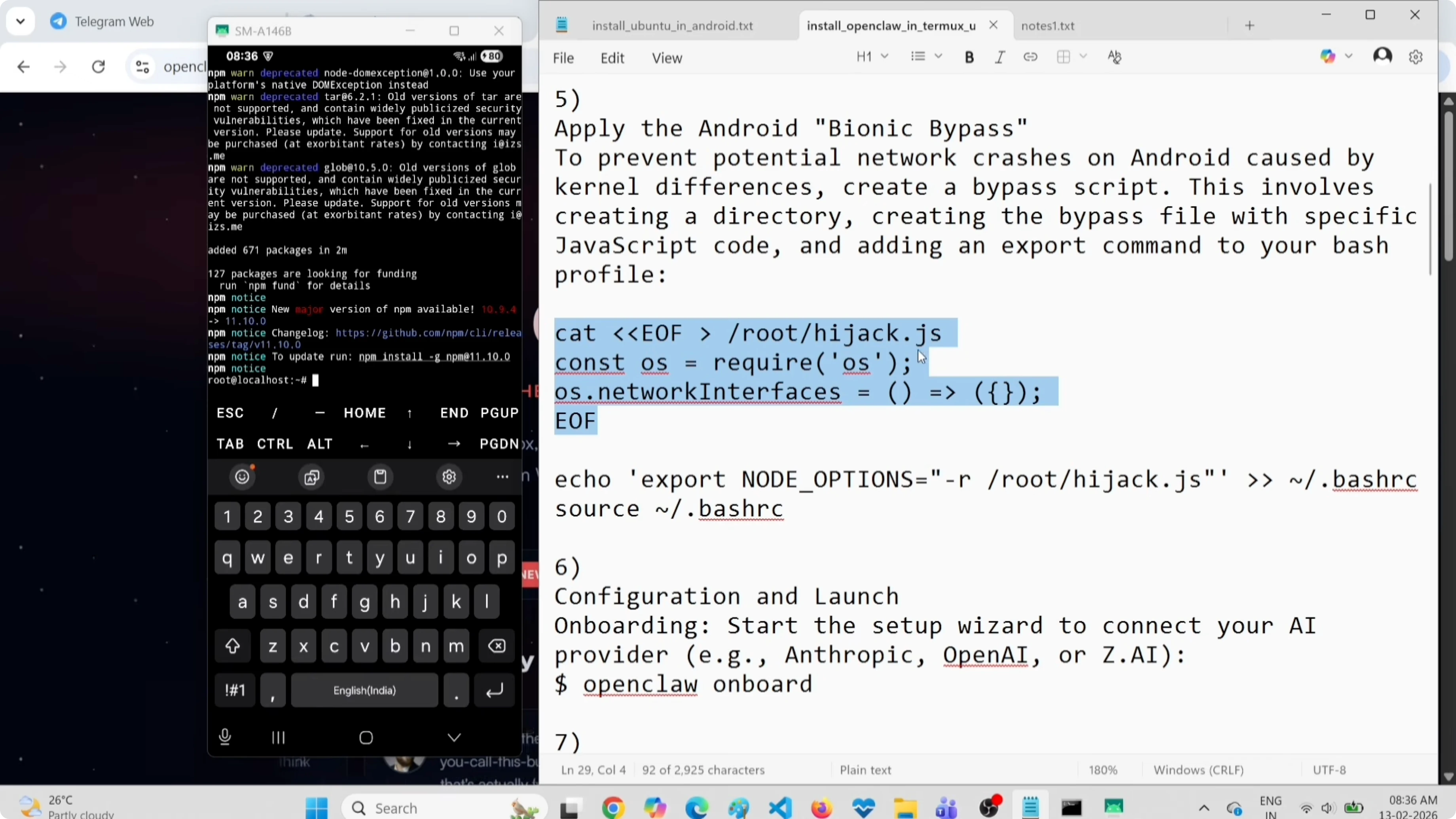
Before running OpenClaw, I fix a bionic kernel crash by loading a small JS shim at Node start. I create a hijack.js file and export NODE_OPTIONS to require it automatically.
Create the file:
nano ~/hijack.jsPaste this minimal patch, then save and exit:
/* Minimal shim to avoid potential bionic crash */
try {
  const os = require('os');
  if (typeof os.cpus === 'function') {
    const one = (Array.isArray(os.cpus()) && os.cpus()[0]) || { model: 'unknown', speed: 0, times: {} };
    os.cpus = () => [one];
  }
} catch {}
Export NODE_OPTIONS and reload bash:
echo 'export NODE_OPTIONS="--require=$HOME/hijack.js"' >> ~/.bashrc
source ~/.bashrc
This loads hijack.js automatically for Node processes.
Configure OpenClaw
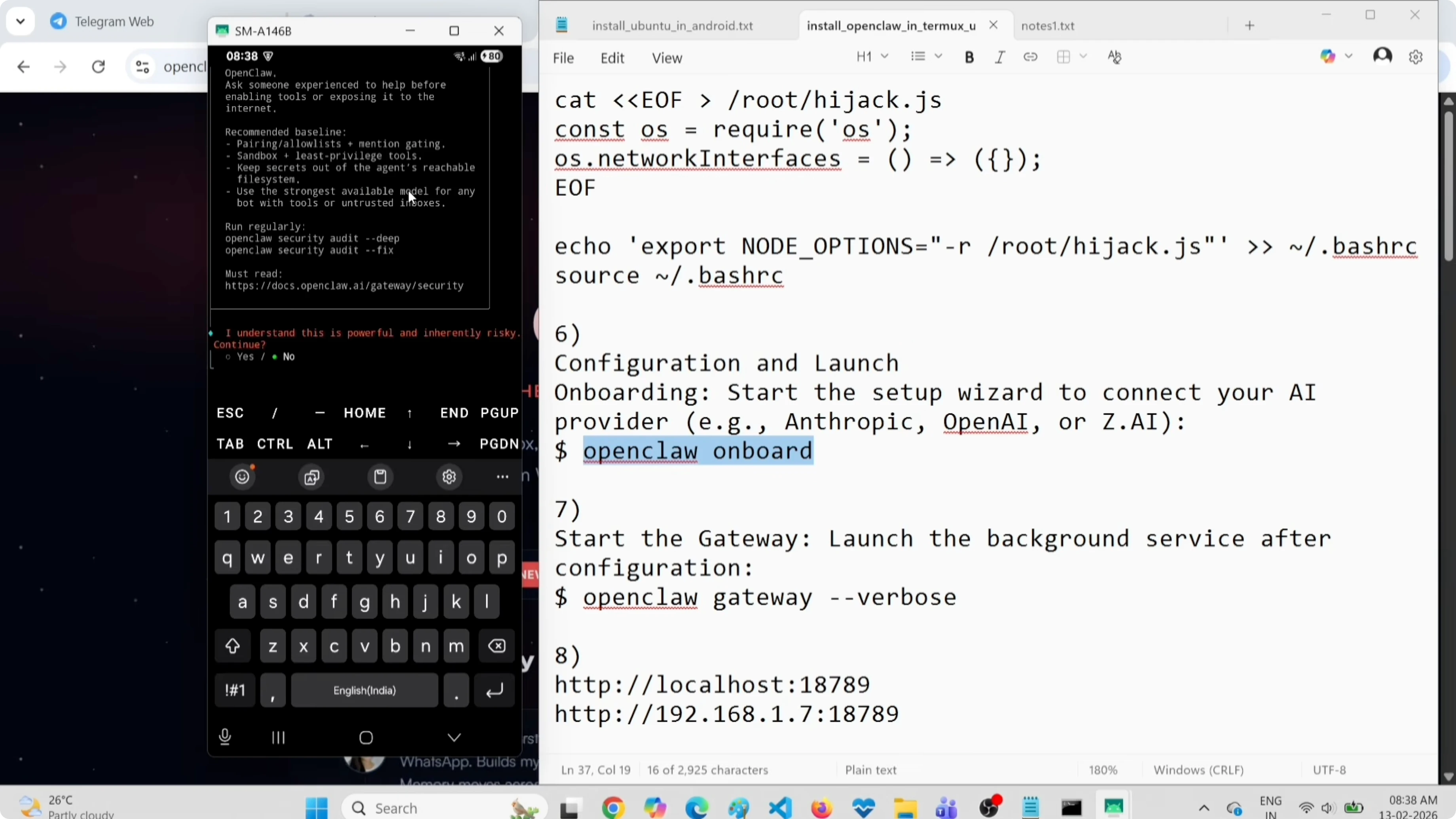
I start OpenClaw onboarding to configure provider, model, and the Telegram channel. I select OpenRouter as the provider and use a free model.
Run:
openclaw onboardSelect Yes at the prompt and choose Quick Start. Pick OpenRouter as the API provider and paste your OpenRouter API key from your account settings.
Choose free model
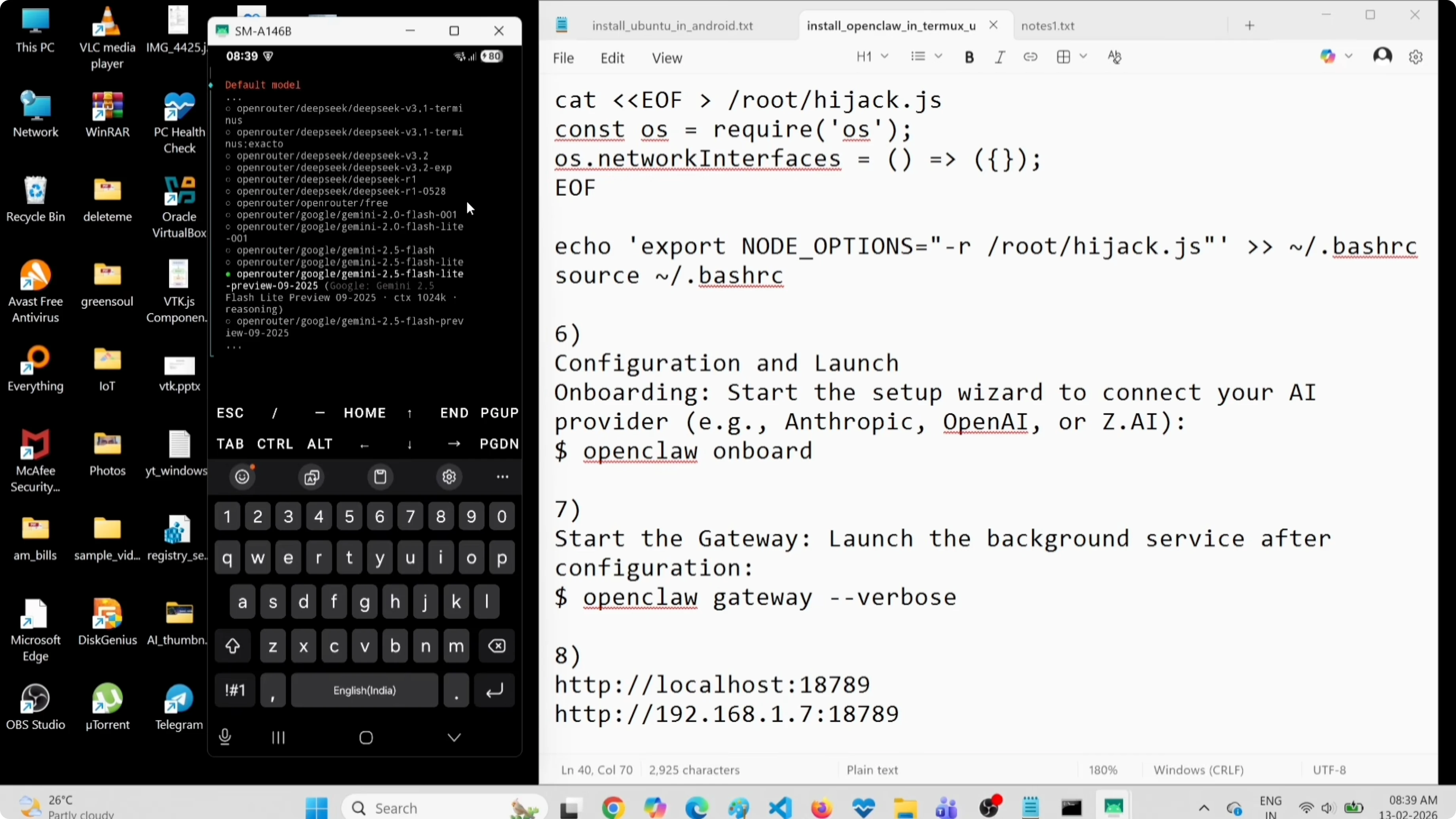
I select a free model so it runs without charges. Pick:
openrouter/google/gemini-flash-1.5-previewYou can switch models later. If you want a compact option for general chat, look into Clara 7B as another choice.
Configure Telegram
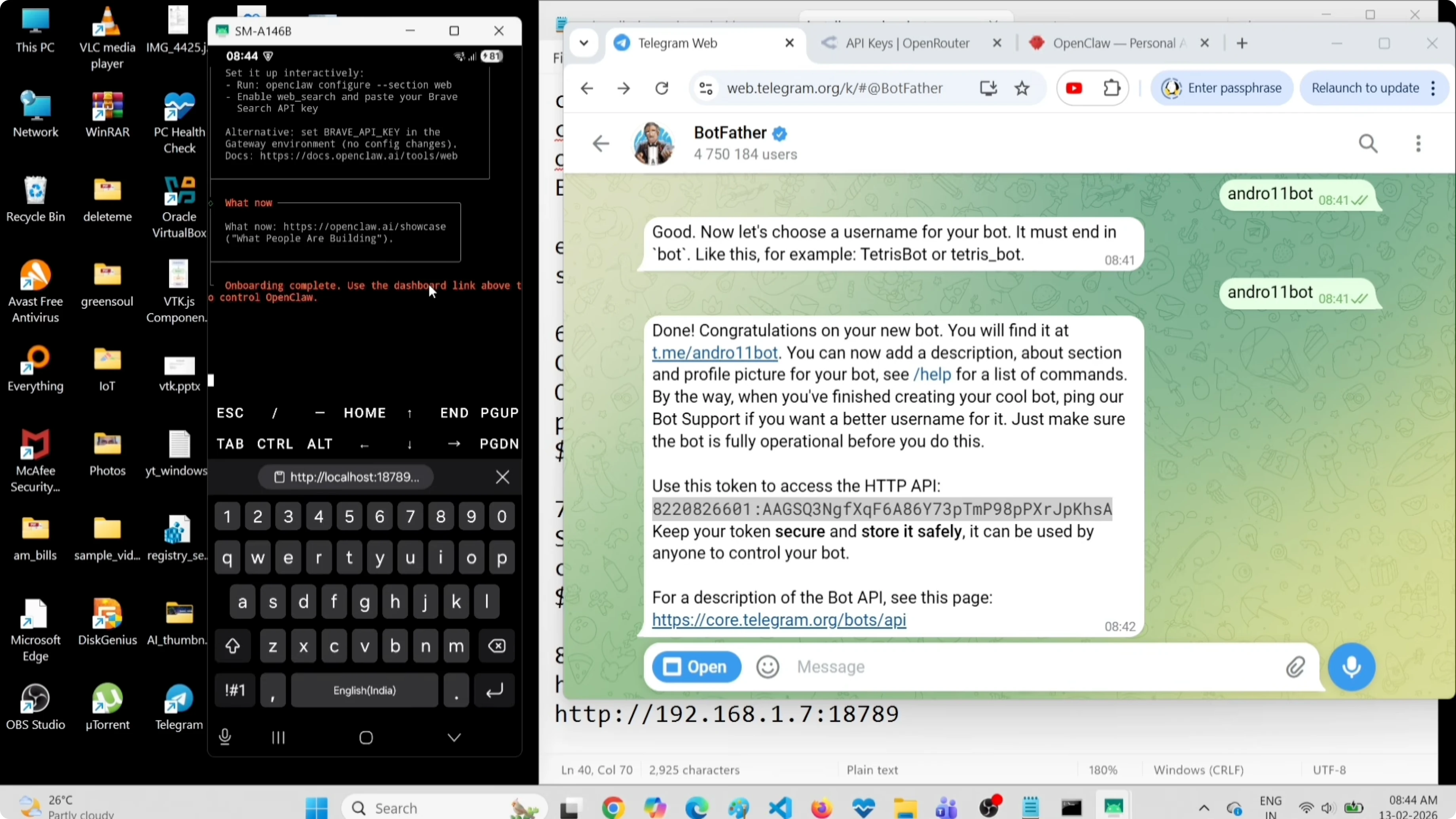
I add Telegram as the channel. I create a bot token using BotFather by starting a chat with BotFather, sending /newbot, choosing a name, and choosing a unique username.
Copy the bot token and paste it into the OpenClaw onboarding prompt. When asked about skills, I skip that for now. The onboarding completes and shows a local URL for the OpenClaw Gateway dashboard.
Read more: Best Ocr Model
Start the gateway and open the dashboard
At this point, the dashboard will not load yet because the gateway is not running. I exit the onboarding screen with Ctrl+C if needed and start the gateway in verbose mode.
Run:
openclaw gateway --verboseOpen your browser on the phone and go to:
http://localhost:18789You might see a Disconnected status. I will fix that by pasting the gateway token.
Fix the disconnected status
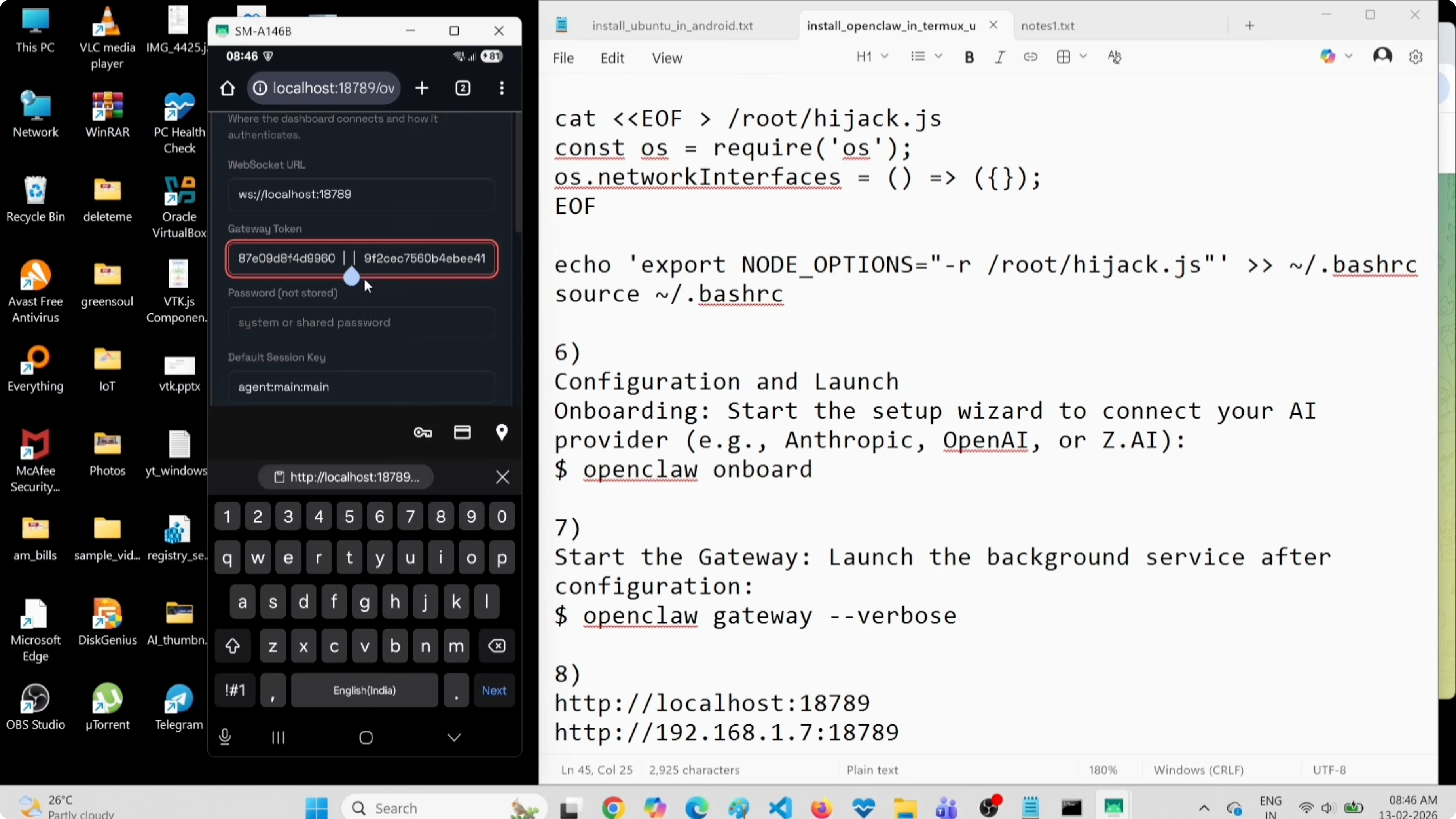
Open another Termux session and log into Ubuntu again. I read the OpenClaw config file to get the gateway token, then paste it into the dashboard Overview section.
Run:
proot-distro login ubuntu
cat ~/.openclaw/openclaw.json
Find the gateway section and copy the token string. Paste it into the dashboard token field, remove any quotes, and click Connect so the status changes to Connected.
For extra projects with 3D generation, see this short read on the Diffsplat 3D tool.
Test chat and Telegram
Go to the Chat tab in the dashboard and send a prompt. I test with a simple prompt and wait for the reply to confirm the model works.
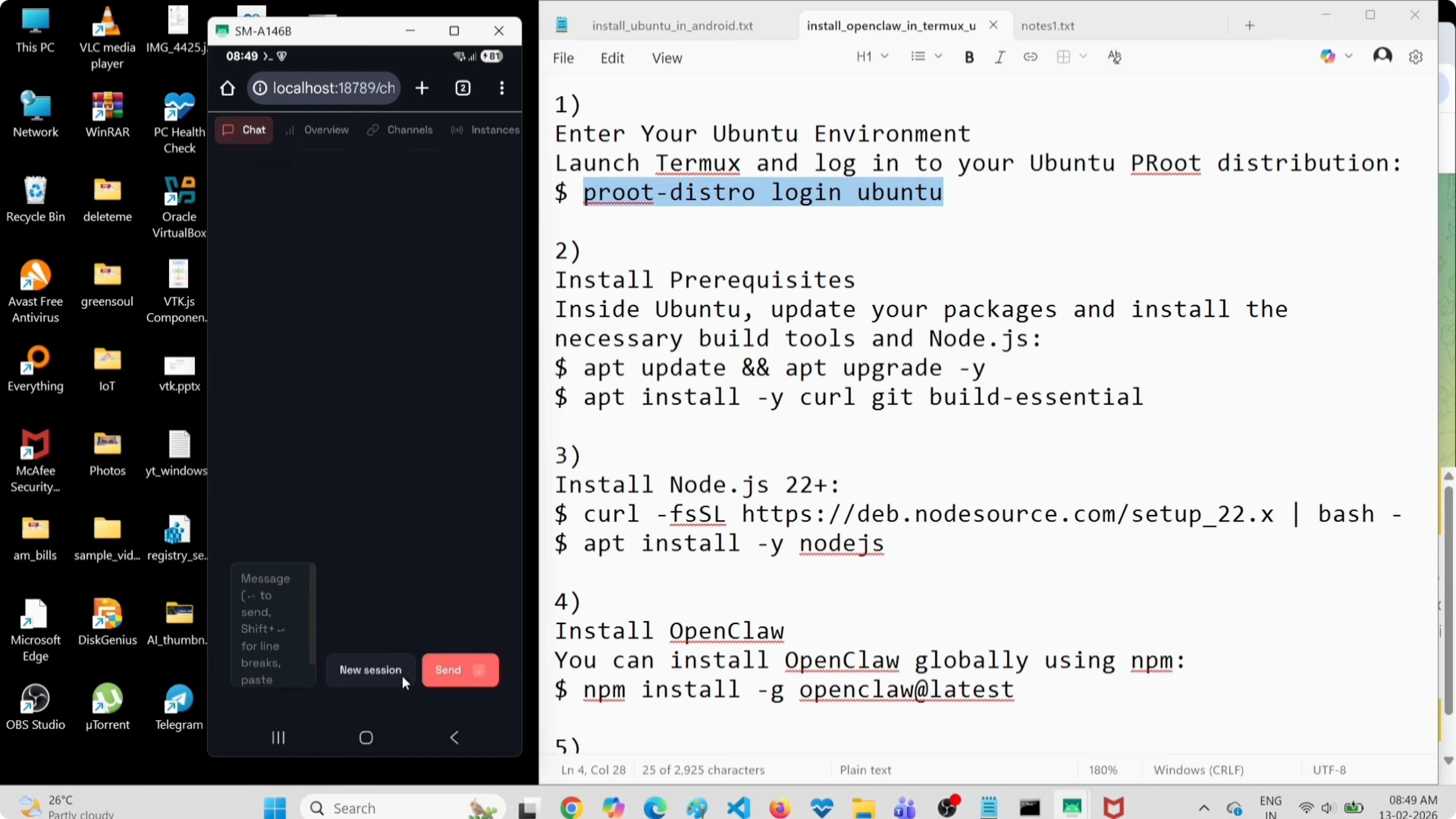
I also test Telegram. Open your new bot in Telegram, tap Start, then copy the pairing command shown by the bot and paste it into the Ubuntu terminal to approve pairing. After approval, send a prompt in Telegram and confirm the same reply appears in both Telegram and the OpenClaw dashboard.
If you later move OpenClaw to a local PC with Ollama, keep this quick pointer to the Ollama model setup handy.
Final thoughts
I installed Termux on Android, added Ubuntu with proot-distro, and updated essential packages. I installed Node.js, added a small hijack for stability, installed OpenClaw, and completed onboarding with OpenRouter and a free Gemini Flash preview model. I connected Telegram, started the gateway, fixed the dashboard token issue, and verified prompts from both the dashboard and Telegram.
If you face Node-related issues with the bot, revisit this quick Node.js fix. For model options beyond general chat, explore compact choices like Clara 7B or task-focused pieces such as the OCR model and Diffsplat 3D.
Subscribe to our newsletter
Get the latest updates and articles directly in your inbox.

Related Posts

8 Best Claude Code Plugins in 2026 (You Need to Know)
8 Best Claude Code Plugins in 2026 (You Need to Know)

7 Best Claude Code Skills (You Need to Know)
7 Best Claude Code Skills (You Need to Know)

Claude Code Desktop IDE Features (You Need to Know)
Claude Code Desktop IDE Features (You Need to Know)