
Table Of Content
- OpenClaw Update Guide: Upgrade or Downgrade on Windows, Linux, Mac
- Fast update on Linux (recommended)
- Prompts you may see
- Verify and health checks
- Windows via WSL2
- Mac options
- Other update methods
- Channels: stable, beta, dev
- Downgrade to a previous version
- Gateway service and doctor tips
- Final Thoughts

OpenClaw Update: Upgrade or Downgrade on Windows, Linux, Mac
OpenClaw Error Fixer
Paste any OpenClaw error and get the exact fix instantly — cause, steps, copy-ready commands, and related guides.
Table Of Content
- OpenClaw Update Guide: Upgrade or Downgrade on Windows, Linux, Mac
- Fast update on Linux (recommended)
- Prompts you may see
- Verify and health checks
- Windows via WSL2
- Mac options
- Other update methods
- Channels: stable, beta, dev
- Downgrade to a previous version
- Gateway service and doctor tips
- Final Thoughts
OpenClaw is moving fast. The project is pre 1.0 and actively adding new features, bug fixes and improvements almost daily. If you are using OpenClaw in production or even experimenting, you need to know how to update it properly. I am on Ubuntu on a production system and this is how I upgrade or downgrade on Linux, Windows via WSL2, and Mac.
OpenClaw Update Guide: Upgrade or Downgrade on Windows, Linux, Mac
Fast update on Linux (recommended)
The recommended way is to run the installer or update command. The primary command to safely update OpenClaw is:
openclaw updateIt downloads the latest version, detects your existing installation and upgrades in place. It updates the core and the CLI, runs the doctor to check for any issues, and restarts services if needed. This is the safest and most reliable way to update.
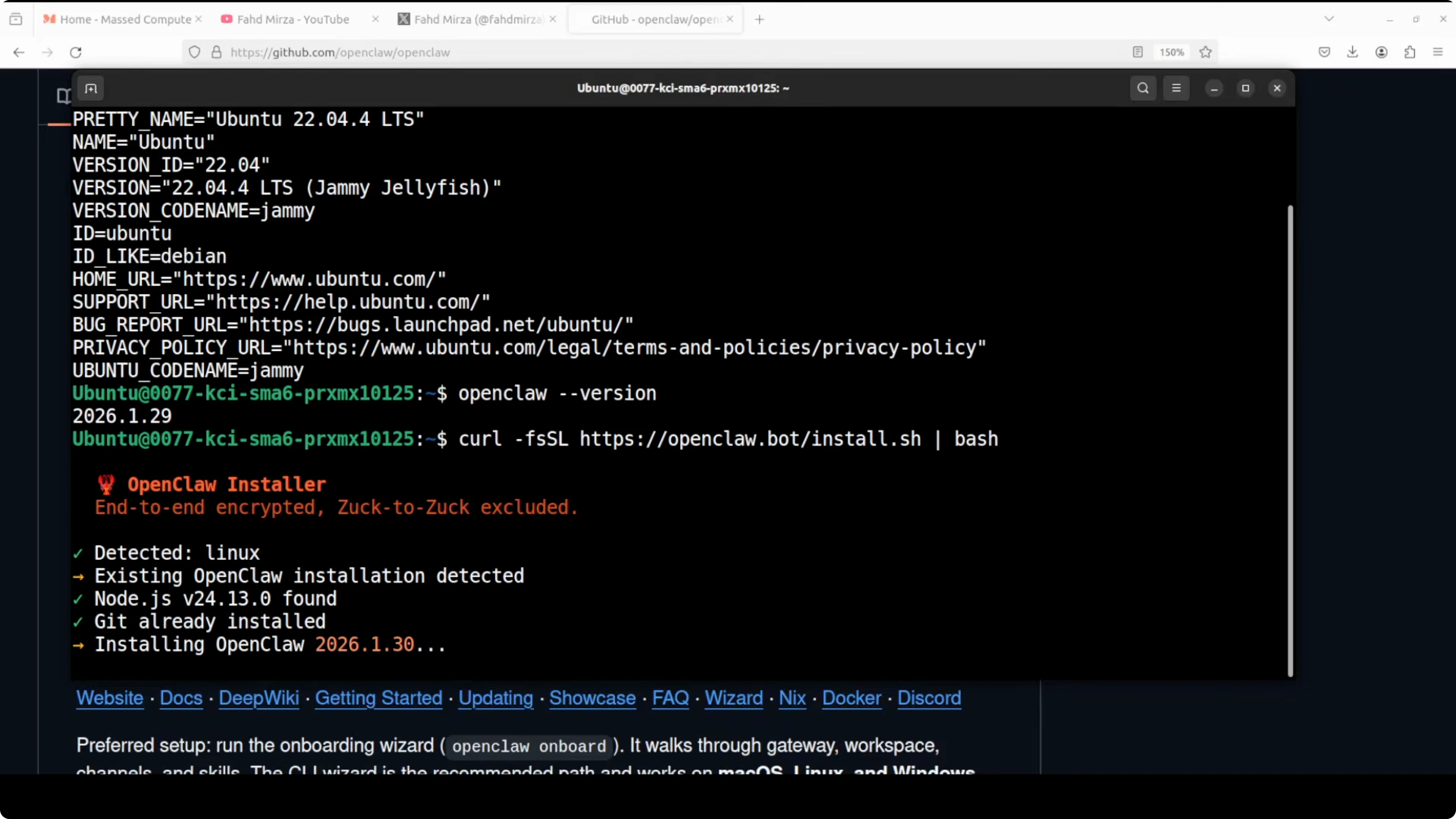
Step-by-step:
- Run the installer or update command.
- It detects the installation and upgrades in place.
- It updates the core and the CLI.
- It runs the doctor for health and integrity checks and restarts services if needed.
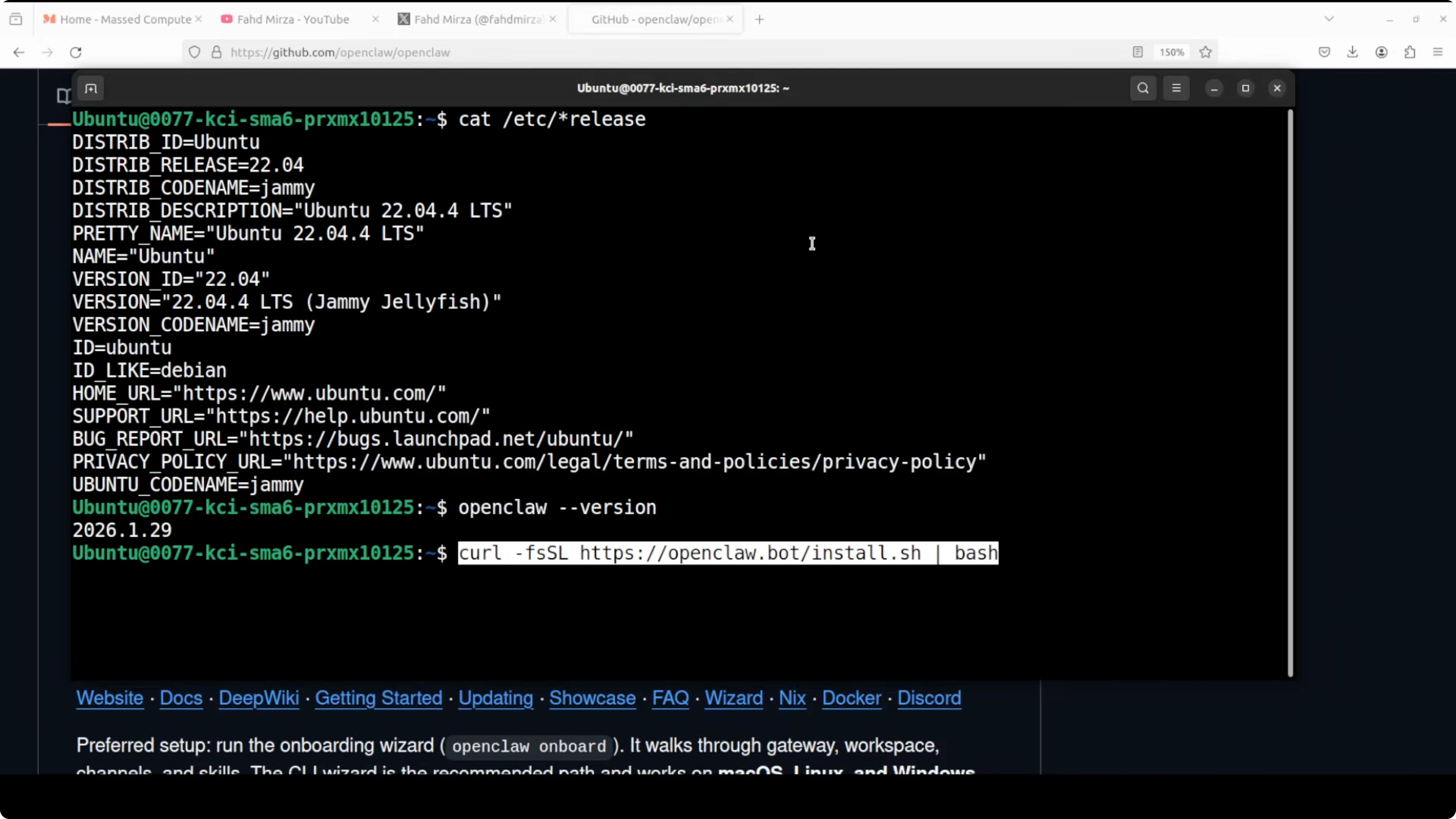
You will see logs as it updates plugins and restarts the service. If you did not install any extra plugins, it will skip those.
Prompts you may see
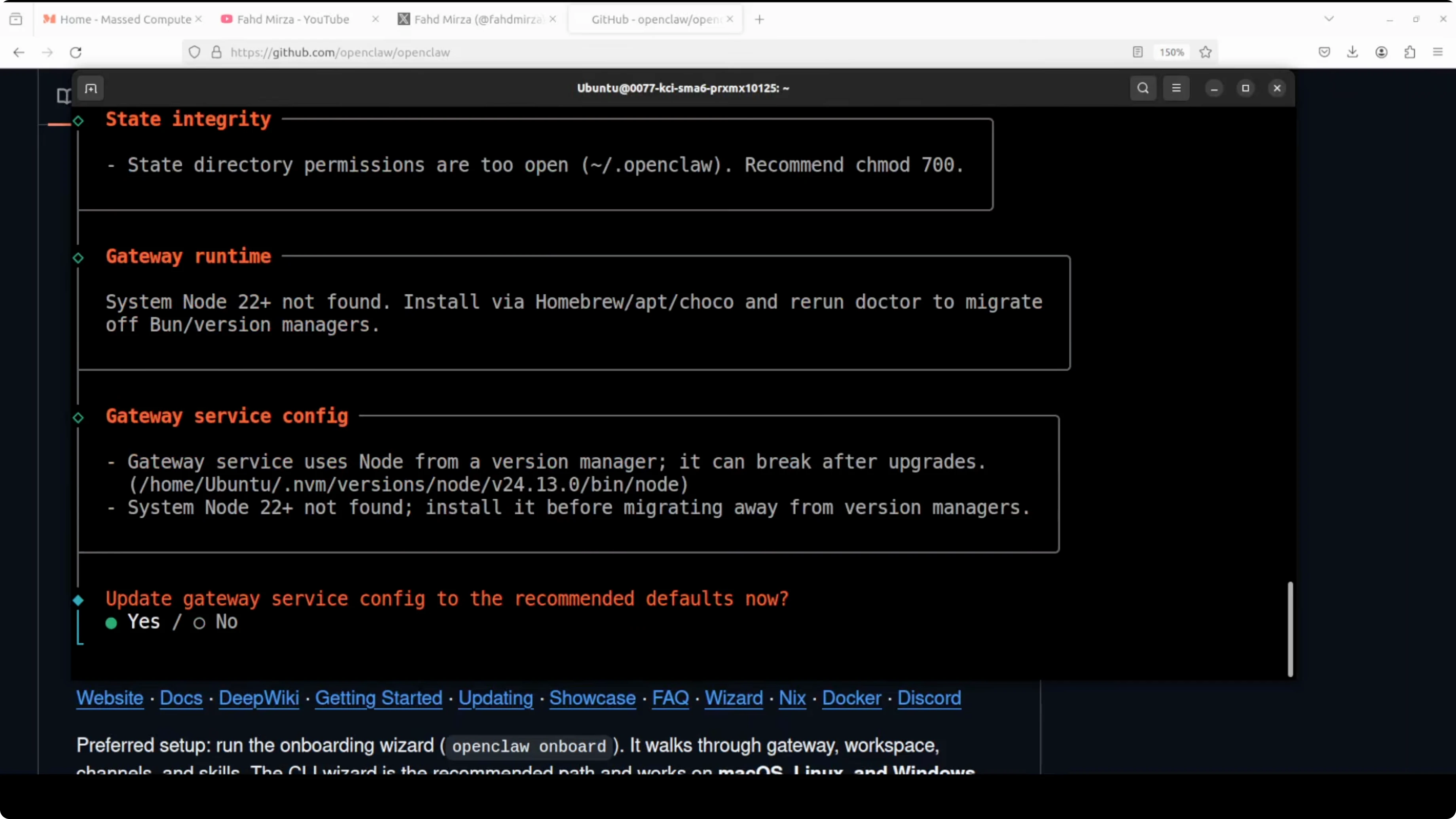
- Tighten permissions to 700: if you are in production, I suggest you choose yes to harden permissions.
- Upgrade gateway service config: if you have integrated OpenClaw with Anthropic or OpenAI, select yes. If you installed with Ollama and LM Studio, you can skip and just restart the service.
Verify and health checks
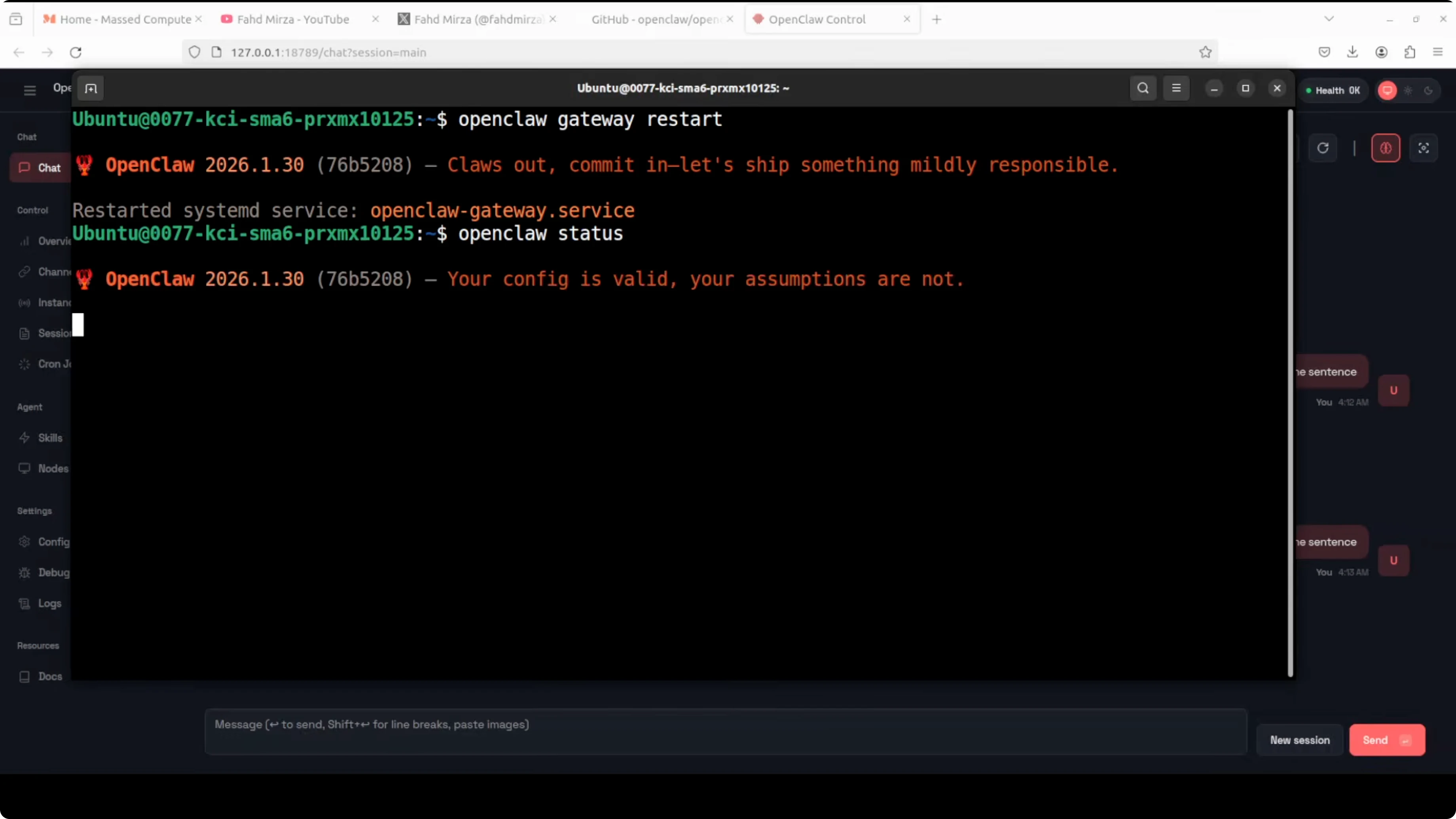
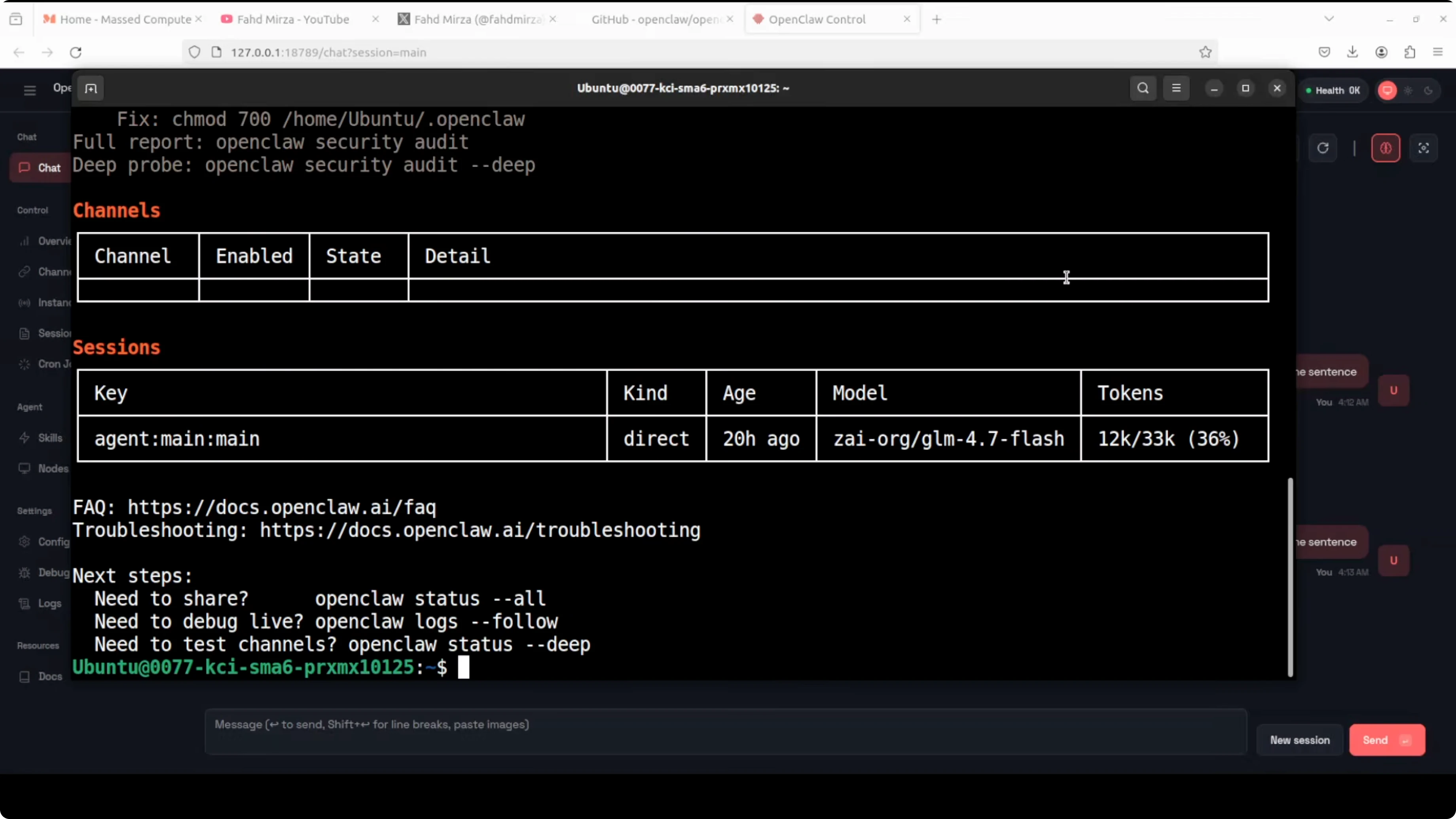
The doctor handles config migrations, checks for deprecated settings, audits security configuration, and ensures that gateway services are properly configured. After any changes in the config file or OpenClaw, I highly recommend restarting the gateway service.
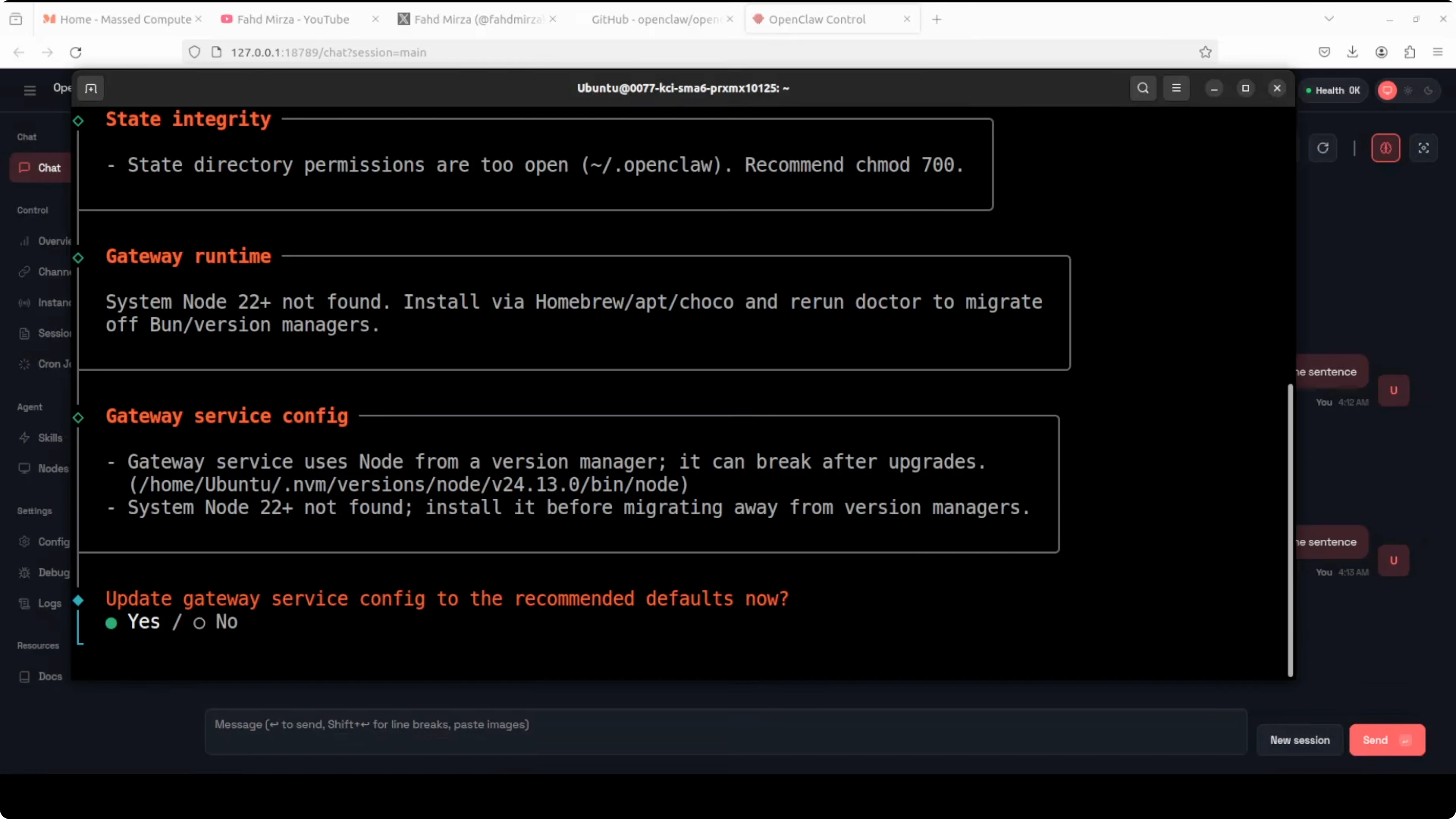
The status command now works and shows all services. You can ignore warnings about group privileges where they are making it more secure.
Windows via WSL2
On Windows, use WSL2 and run the same commands inside the Linux environment. This is the best way to run and update OpenClaw on Windows.
Mac options
On macOS you can:
- Use the universal installer.
- Use Node and npm globally.
- Use PNPM if you prefer that package manager.
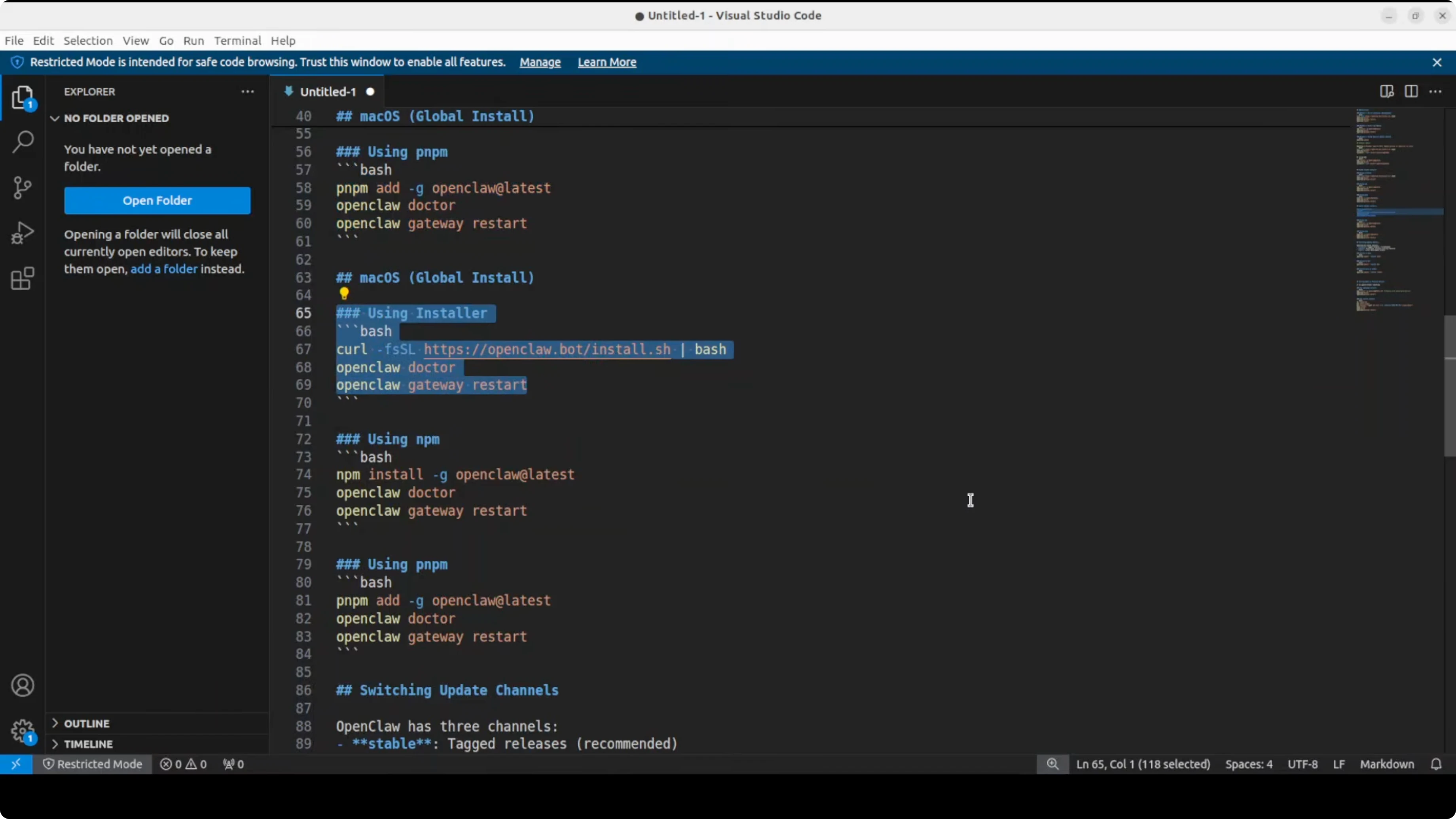
Commands are very similar across operating systems with slight variations.
Other update methods
- Node and npm globally: this is another way to install and update. The command is typically:
npm install -g openclaw@latest - The update command: you can simply run the update command in the CLI (
openclaw update). It handles git pull, dependency install, build, doctor, and restart. - Docker installations: The update process involves stopping the current container, pulling the latest image, and restarting it:
docker stop openclaw && docker pull openclaw/openclaw:latest && docker run -d --name openclaw openclaw/openclaw:latest
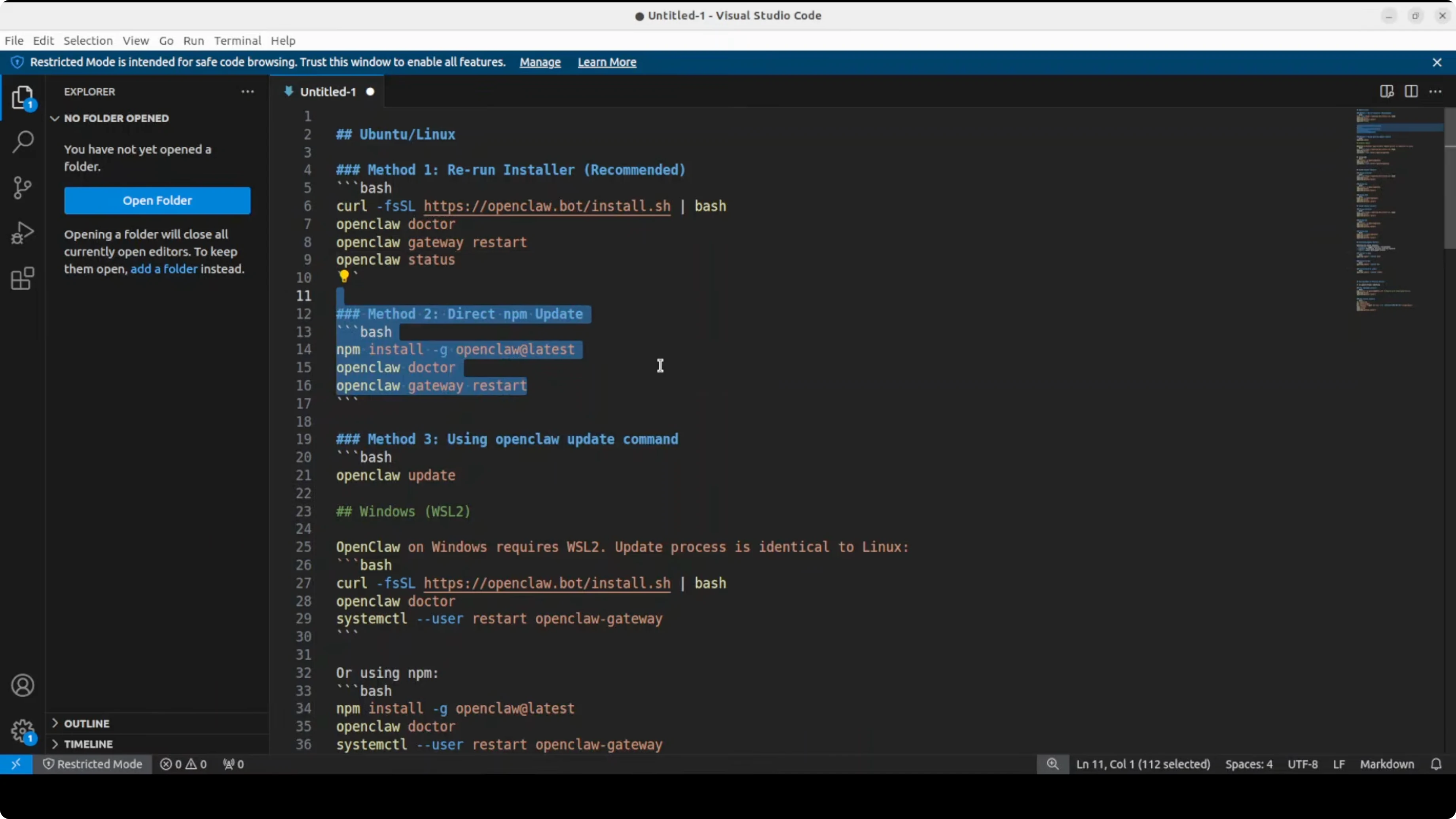
Choose what fits your setup and CI/CD pipeline. npm and PNPM commands are similar.
Channels: stable, beta, dev
OpenClaw has three channels: stable, beta, and dev.
- Stable: recommended for production or proper use cases.
- Beta or dev: use these if you want to play around with new features at the updating edge.
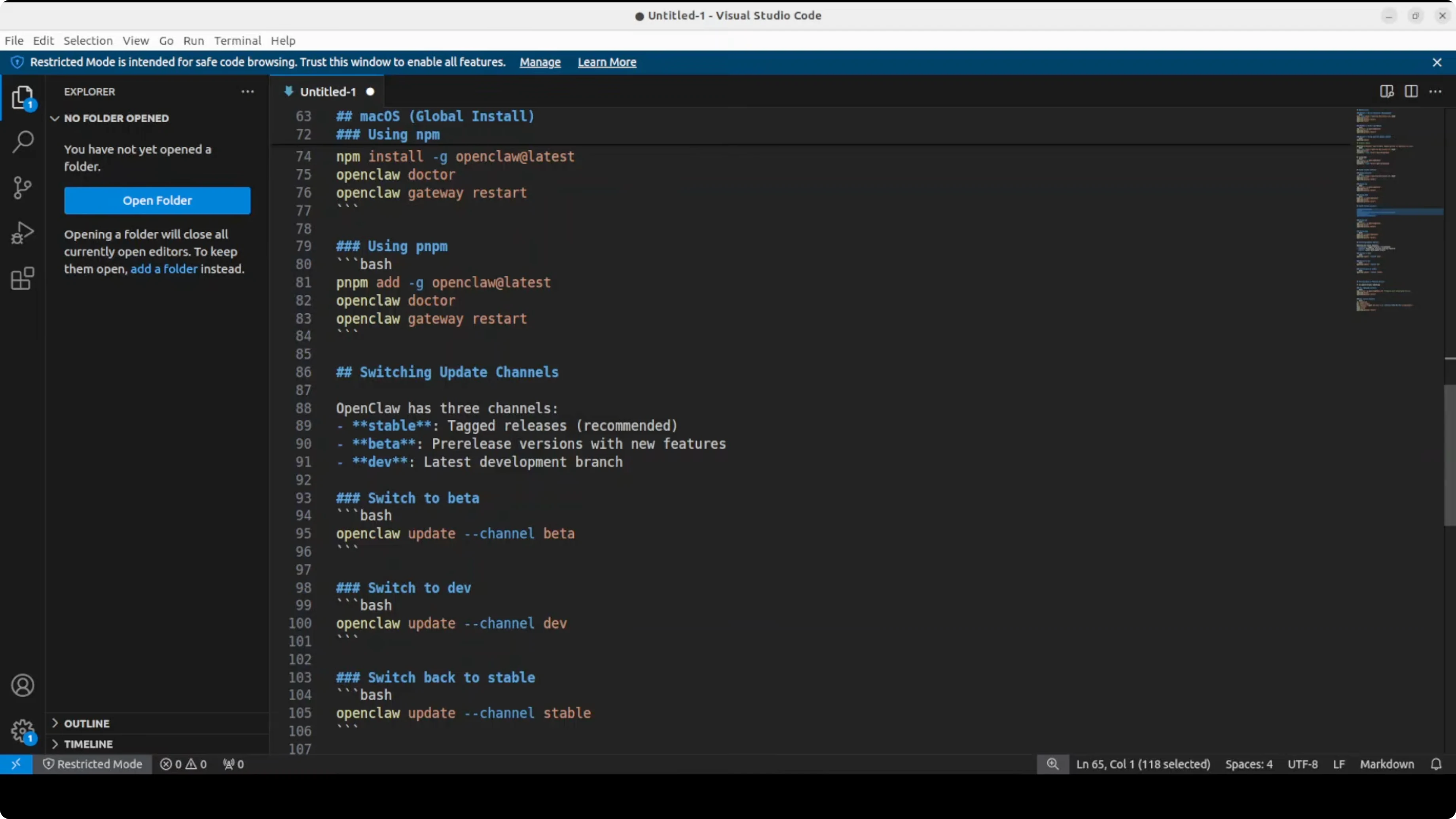
You can switch to beta, dev, or back to stable through the channel setting or by using the update command with a flag:
openclaw update --channel betaTo preview planned actions without applying them, you can also use:
openclaw update --dry-runDowngrade to a previous version
If you need to go back to a previous version because something broke, you have two options.
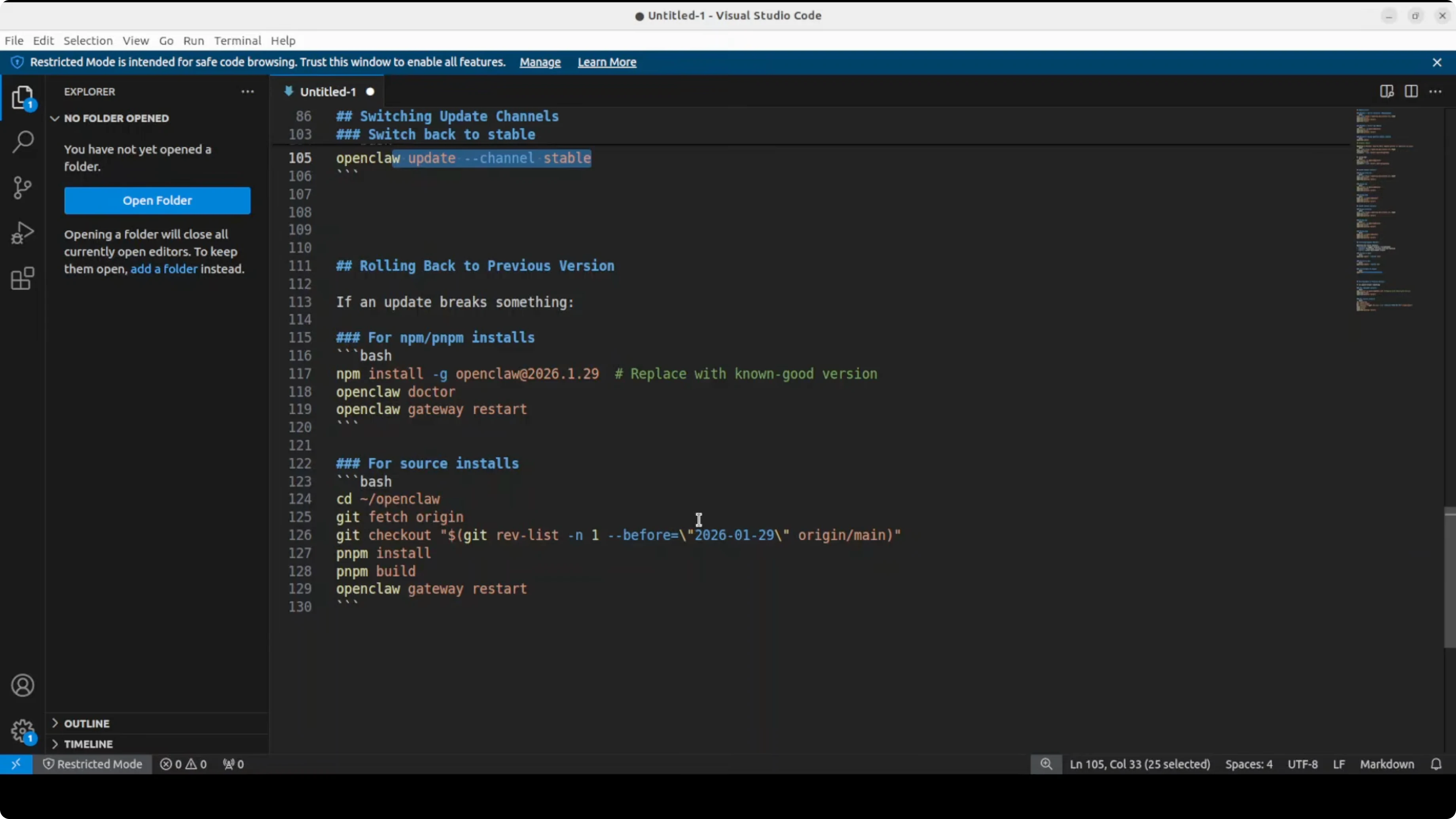
-
npm:
- Install a specific version by providing the version name with npm.
- You need Node and npm installed.
-
Source:
- Fetch from origin.
- Check out the version or branch you want.
- Build again with PNPM.
Gateway service and doctor tips
- The gateway is a core that manages or integrates your OpenClaw with messaging services and other external stuff.
- After any config changes, restart the gateway service.
- If something is not working, run the doctor. It handles migrations, flags deprecated settings, audits security, and ensures the gateway is configured correctly.
Final Thoughts
Use the recommended installer or update command to upgrade on Linux and in WSL2 on Windows, and similar commands on macOS. Prefer the stable channel for production, and use beta or dev to try new features. After changes, run the doctor and restart the gateway service. If needed, downgrade with npm by specifying a version or build from source by checking out the desired version and rebuilding with PNPM.
Subscribe to our newsletter
Get the latest updates and articles directly in your inbox.

Related Posts

8 Best Claude Code Plugins in 2026 (You Need to Know)
8 Best Claude Code Plugins in 2026 (You Need to Know)

7 Best Claude Code Skills (You Need to Know)
7 Best Claude Code Skills (You Need to Know)

Claude Code Desktop IDE Features (You Need to Know)
Claude Code Desktop IDE Features (You Need to Know)