
Table Of Content
- Run Z-Image-Turbo on Google Colab
- Run Z-Image-Turbo on Google Colab - Setup
- Connect to a T4 GPU
- Install and prepare ComfyUI
- The generate function and parameters
- Run Z-Image-Turbo on Google Colab - Prompts and Workflow
- Picking prompts and negative prompts
- Basic settings for normal users
- Run Z-Image-Turbo on Google Colab - Performance, RAM, and Troubleshooting
- RAM limits on free Colab
- If the session disconnects
- Memory observations
- Run Z-Image-Turbo on Google Colab - Previewing and Downloading
- Run Z-Image-Turbo on Google Colab - Examples
- Movie poster prompt
- Mount Fuji prompt
- Final Thoughts

How to Set Up Z-Image Turbo on Google Colab (Hugging Face)
Table Of Content
- Run Z-Image-Turbo on Google Colab
- Run Z-Image-Turbo on Google Colab - Setup
- Connect to a T4 GPU
- Install and prepare ComfyUI
- The generate function and parameters
- Run Z-Image-Turbo on Google Colab - Prompts and Workflow
- Picking prompts and negative prompts
- Basic settings for normal users
- Run Z-Image-Turbo on Google Colab - Performance, RAM, and Troubleshooting
- RAM limits on free Colab
- If the session disconnects
- Memory observations
- Run Z-Image-Turbo on Google Colab - Previewing and Downloading
- Run Z-Image-Turbo on Google Colab - Examples
- Movie poster prompt
- Mount Fuji prompt
- Final Thoughts
Run Z-Image-Turbo on Google Colab
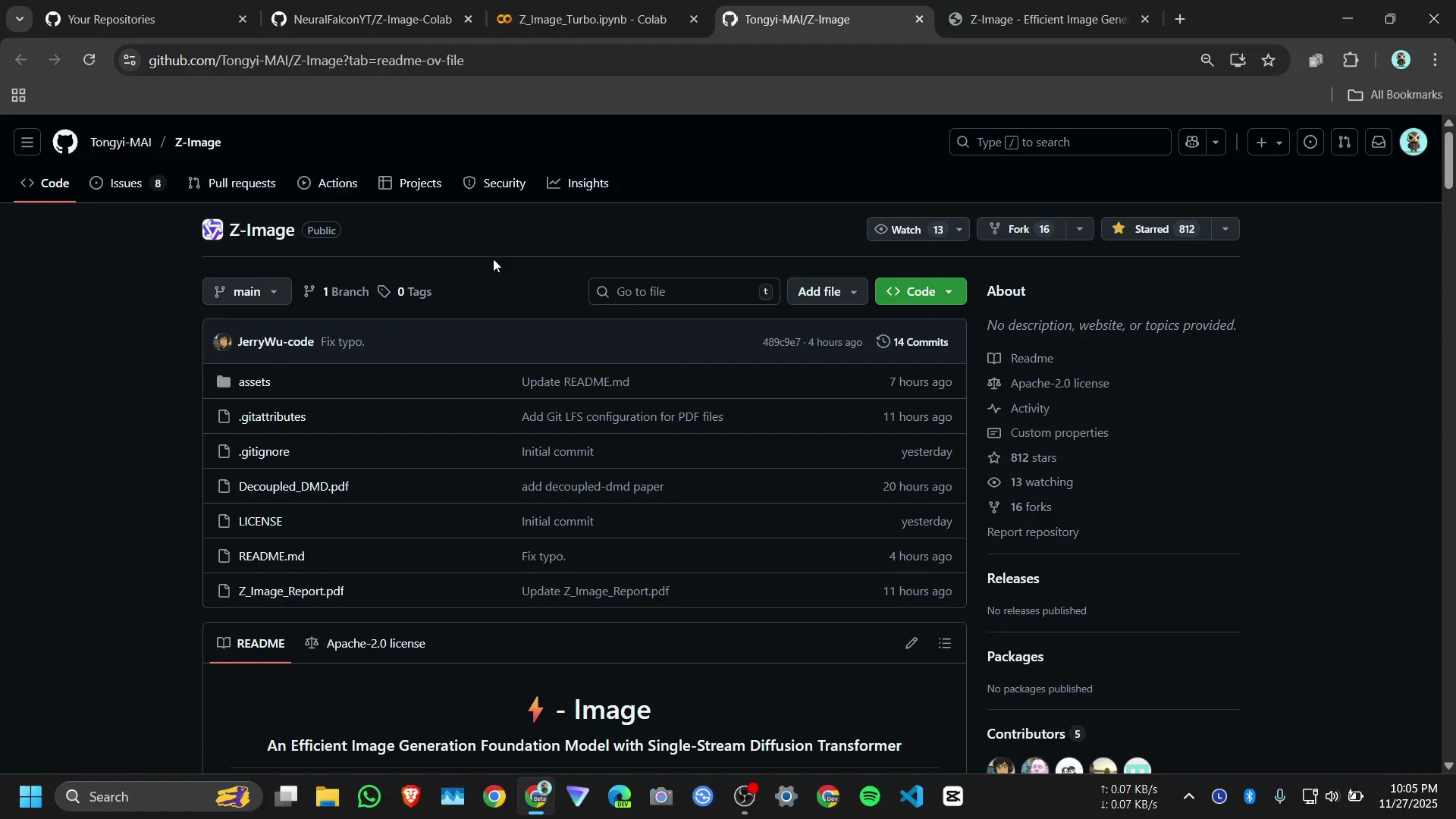
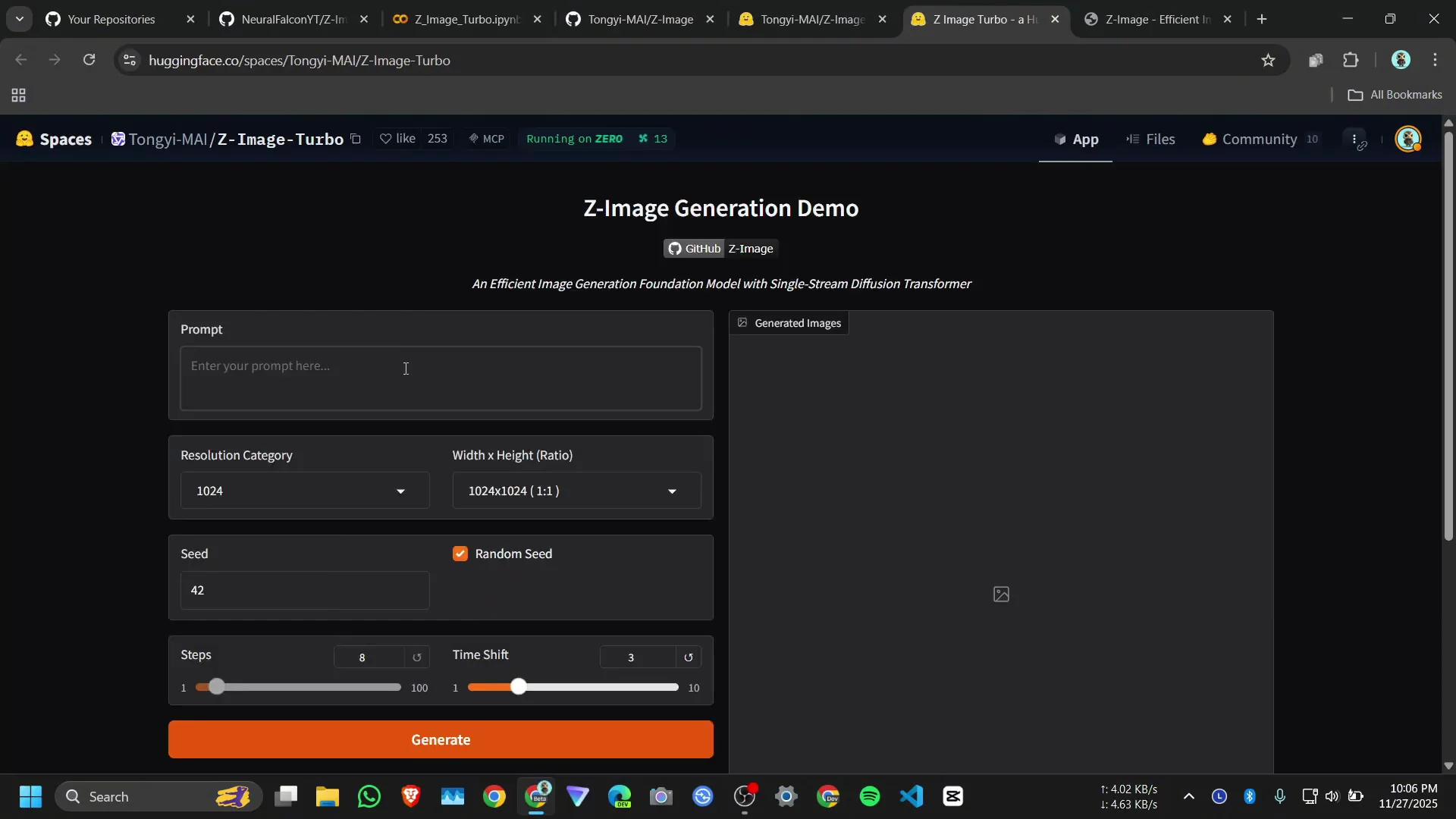
Here is how I run Alibaba Z-Image text-to-image on Google Colab. They have three versions: Z-Image-Turbo, Z-Image-Base, and Z-Image-Edit. For now I only have Z-Image-Turbo. You can try it on Hugging Face by writing a prompt and clicking generate. This one is the Z-Image-Turbo Starboard model checkpoint on Hugging Face.
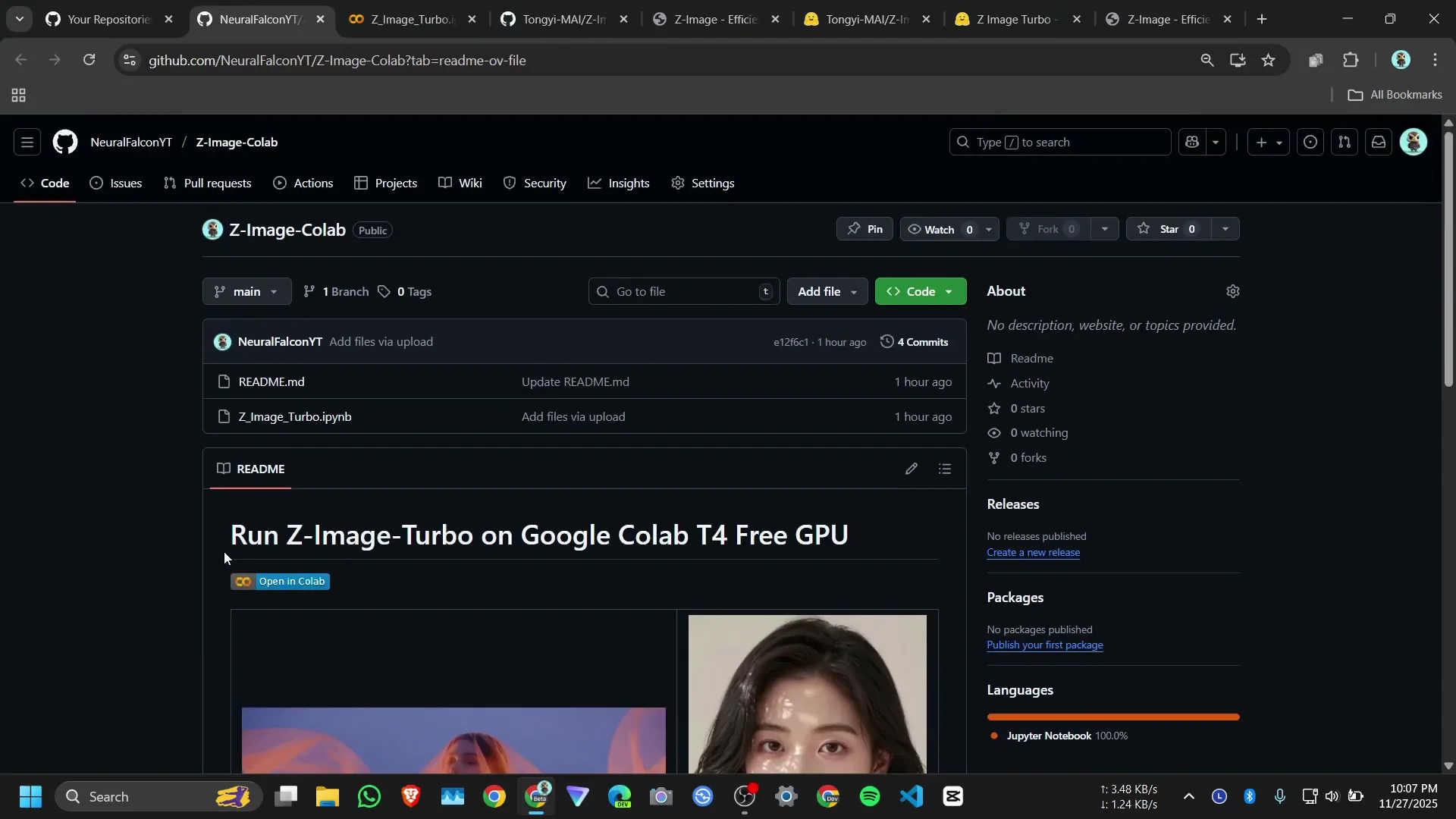
Run Z-Image-Turbo on Google Colab - Setup
Connect to a T4 GPU
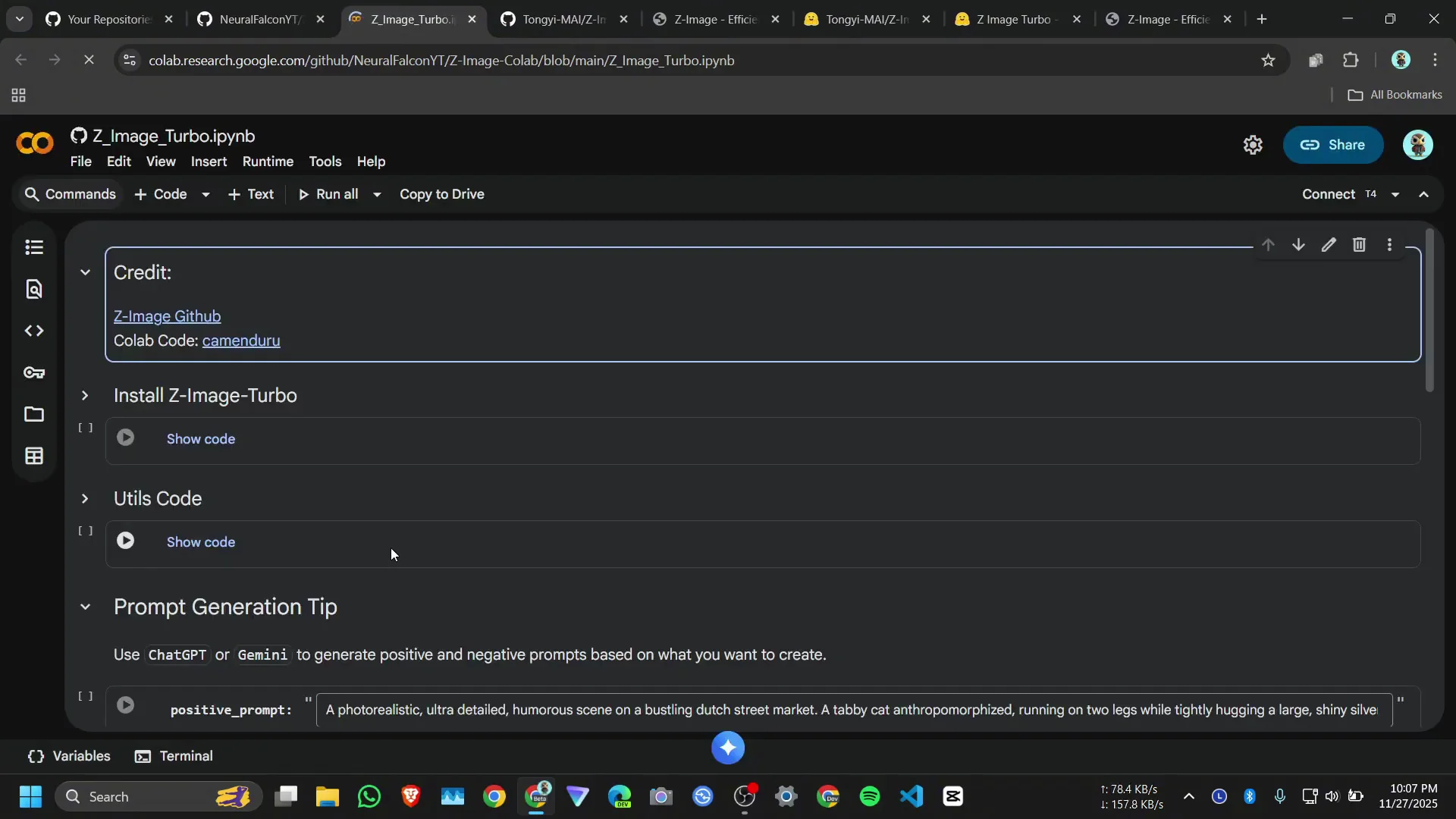
Connect to a T4 GPU. It can take some time. Once connected, install the dependencies and run the setup cells.
Install and prepare ComfyUI
I am not going to use diffusers. I will use ComfyUI. First install the ComfyUI requirement packages. Then download the models you need. After that, use the ComfyUI code and the generate function.
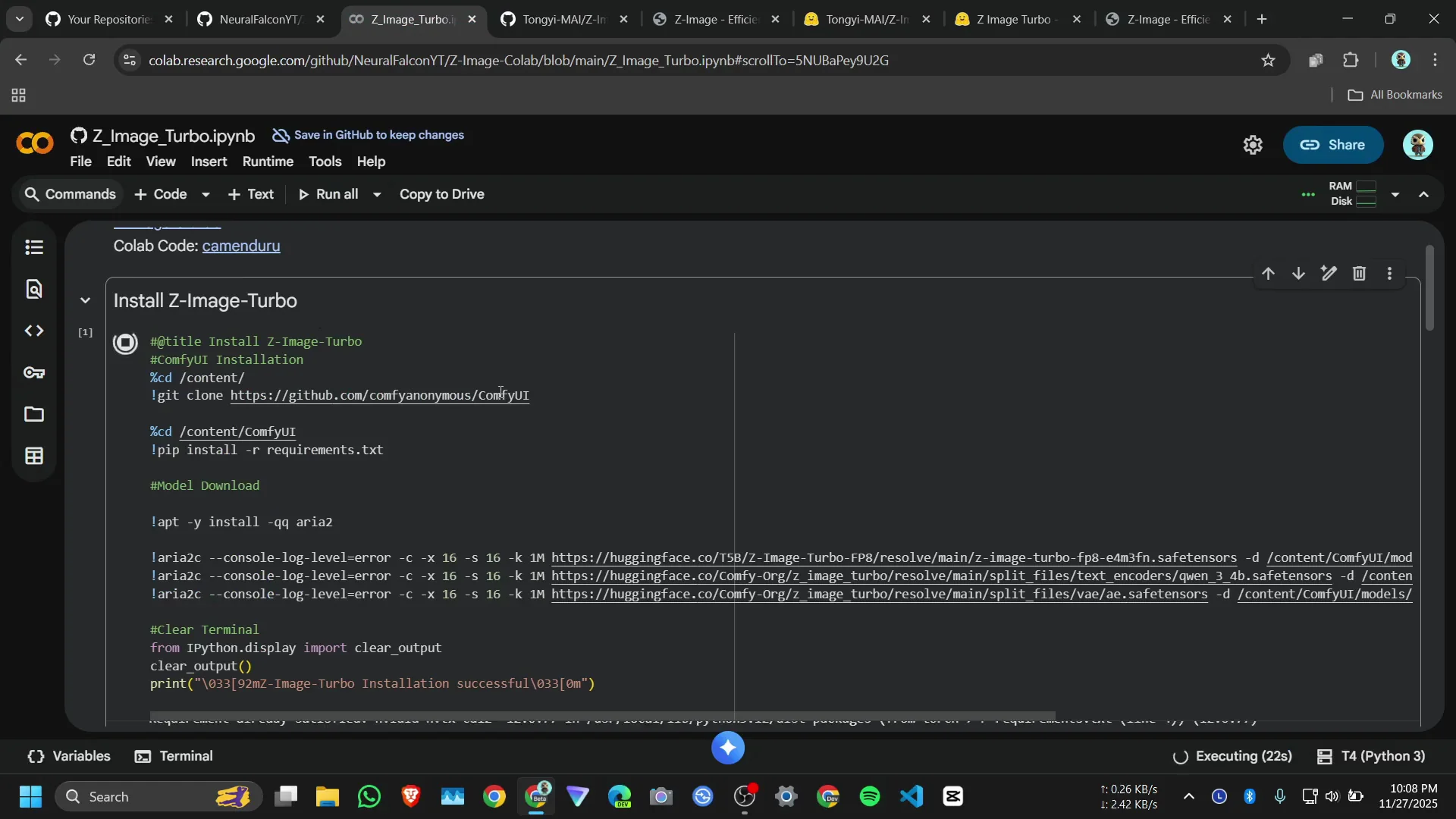
The generate function and parameters
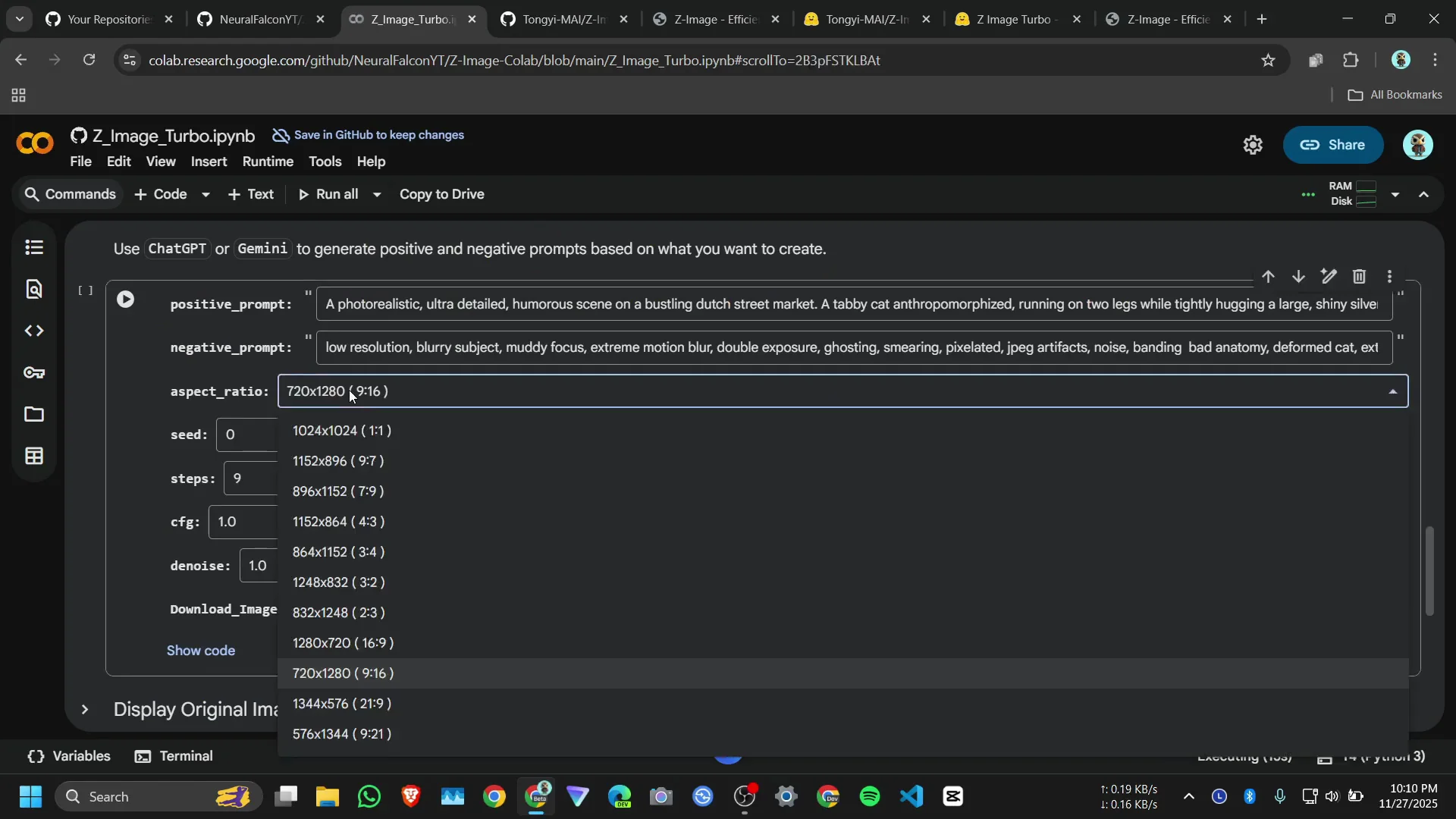
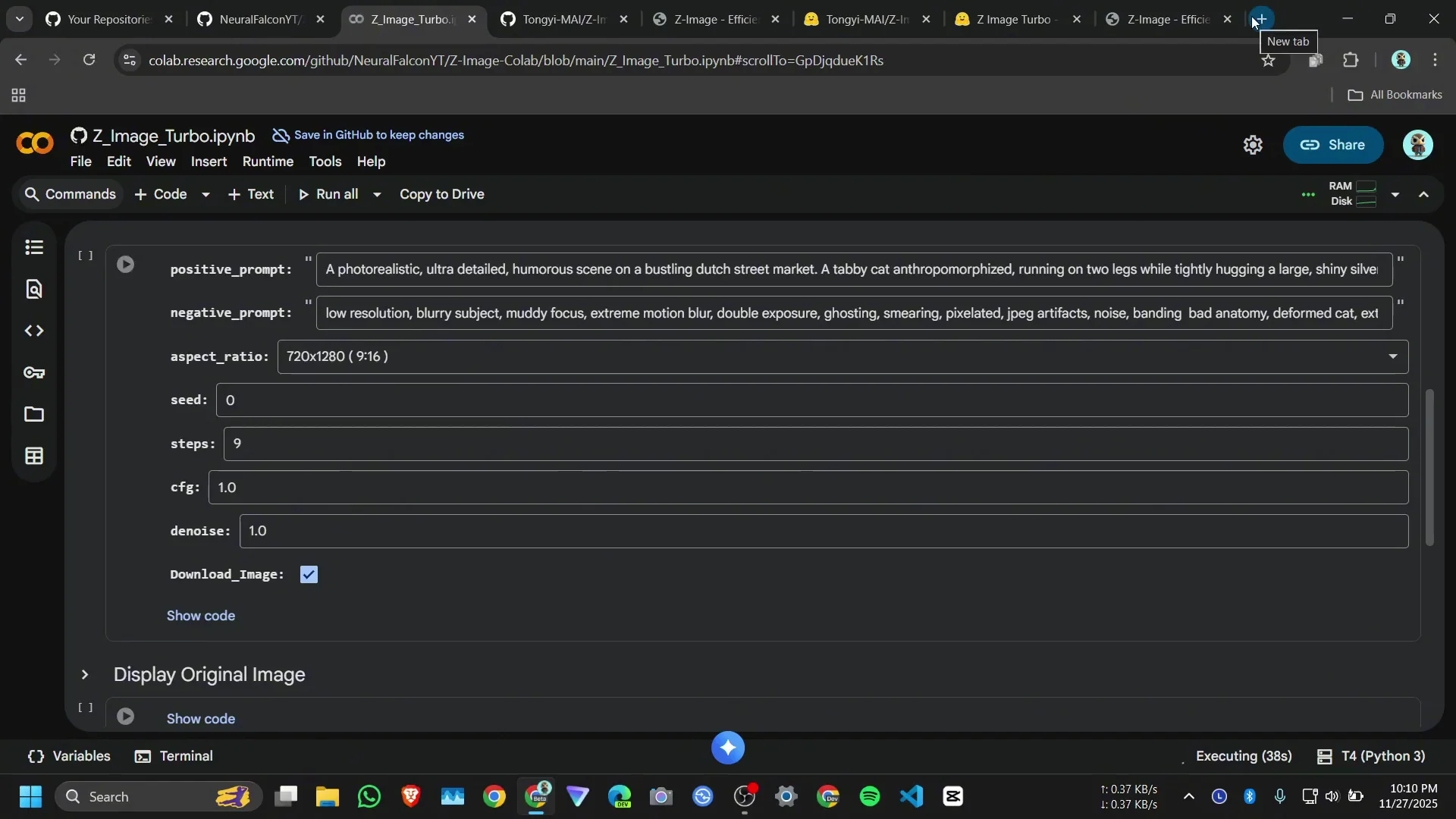
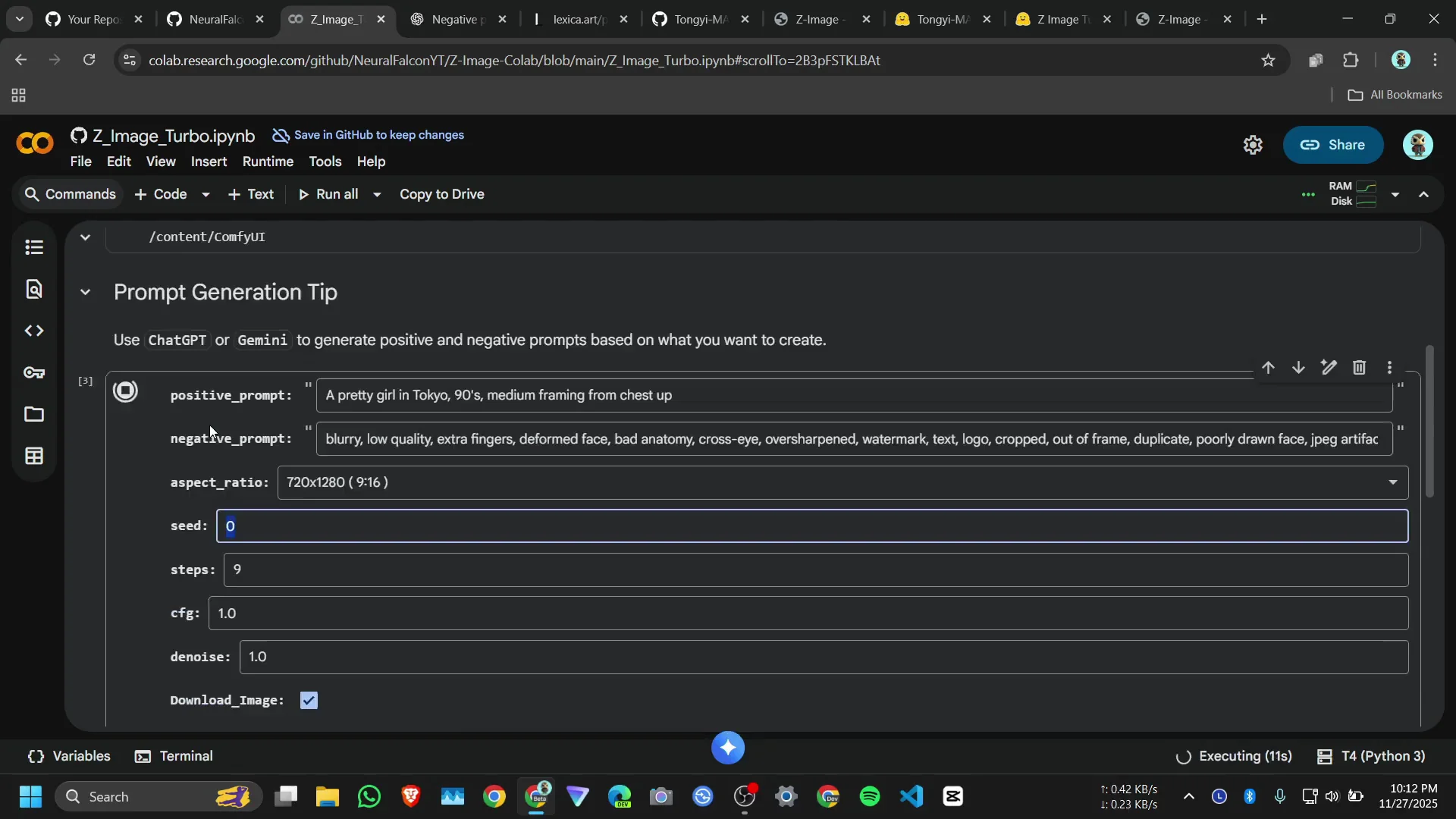
In the function I pass the positive prompt, negative prompt, aspect ratio, seed, steps, CFG, and denoise. What you generate depends on your prompt. I will copy some text-to-image prompts and use them directly.
Run Z-Image-Turbo on Google Colab - Prompts and Workflow
Picking prompts and negative prompts
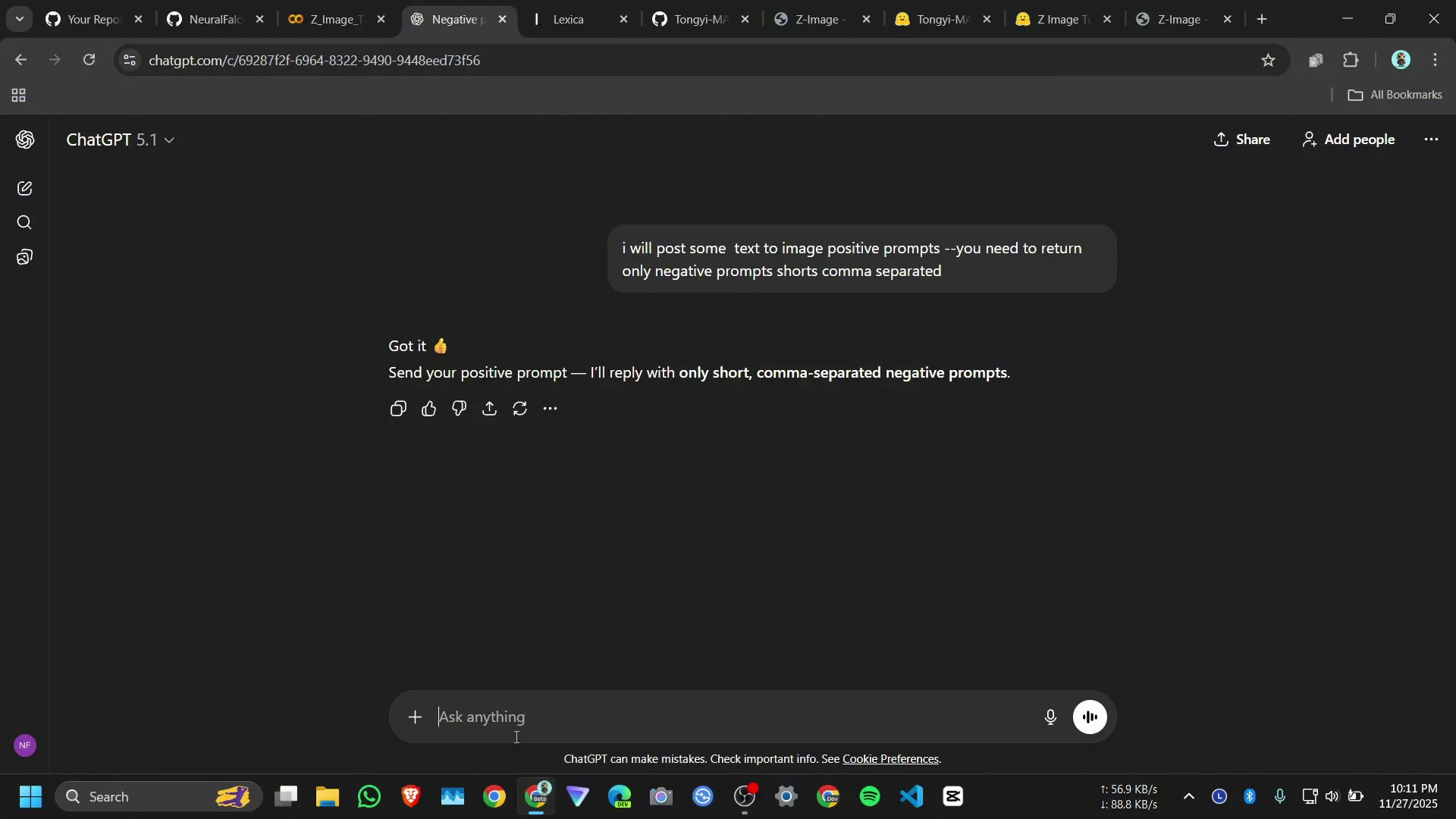
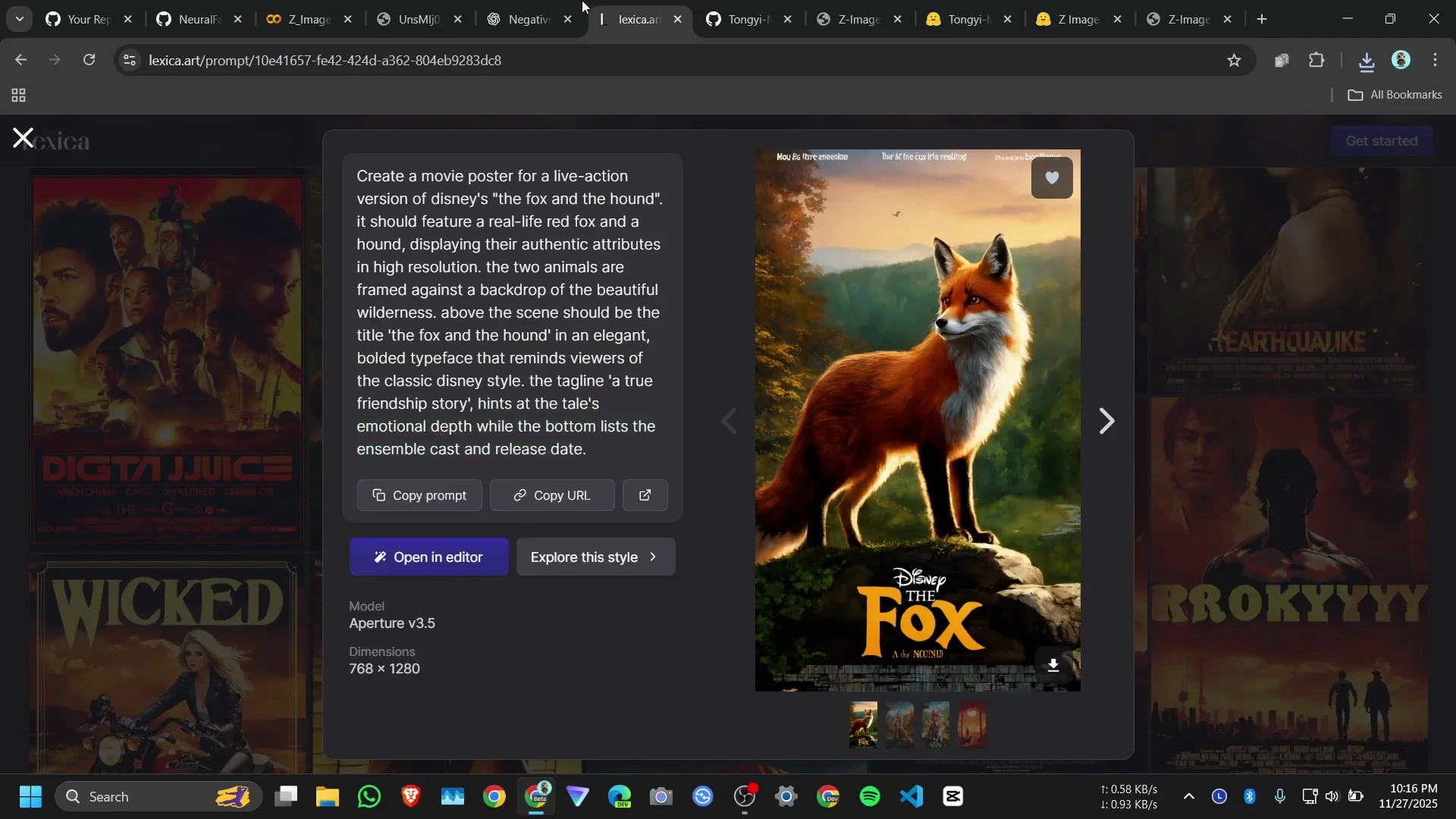
I use ChatGPT for prompts. There is a huge art gallery, so I can copy any prompt. For negative prompts I use ChatGPT. Choose an image you like, copy the prompt, paste the prompt, then paste a negative prompt. I often go with 9:16 and run.
Basic settings for normal users
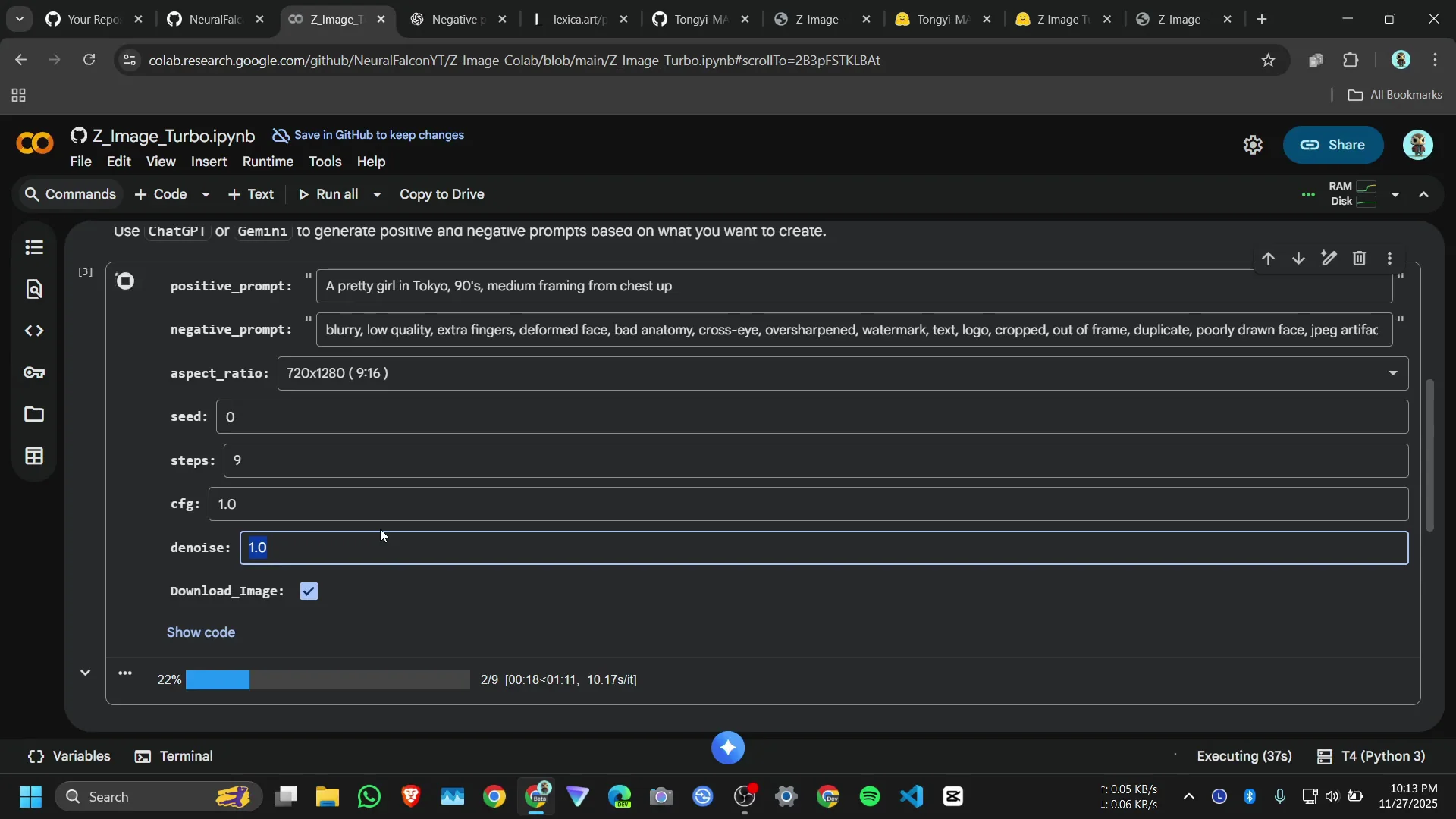
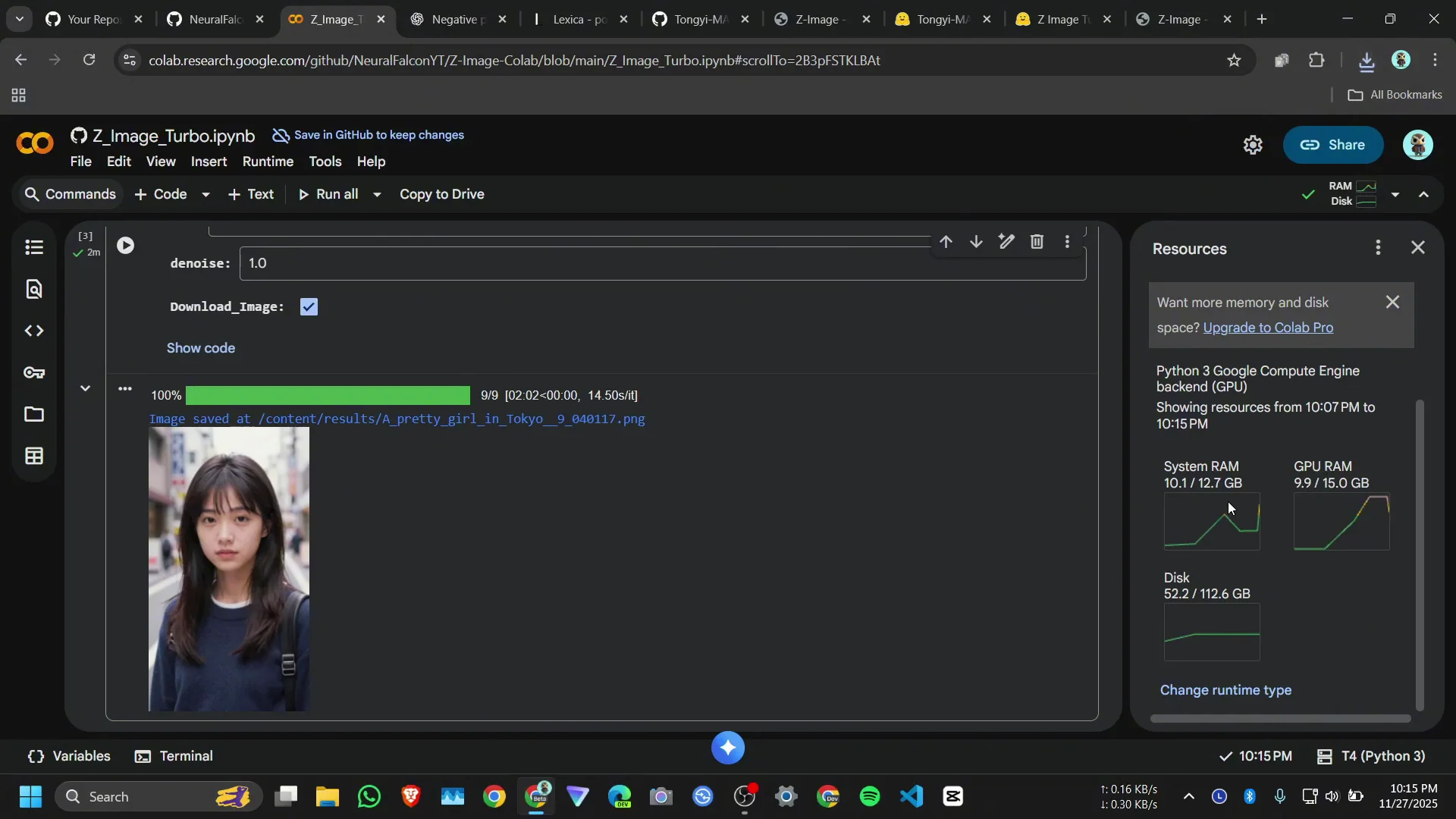
If you are a normal user, just give a positive prompt, a negative prompt, and the aspect ratio. If you set the seed to 0, it will generate a random seed. Each image takes around 2 to 2.5 minutes.
Run Z-Image-Turbo on Google Colab - Performance, RAM, and Troubleshooting
RAM limits on free Colab
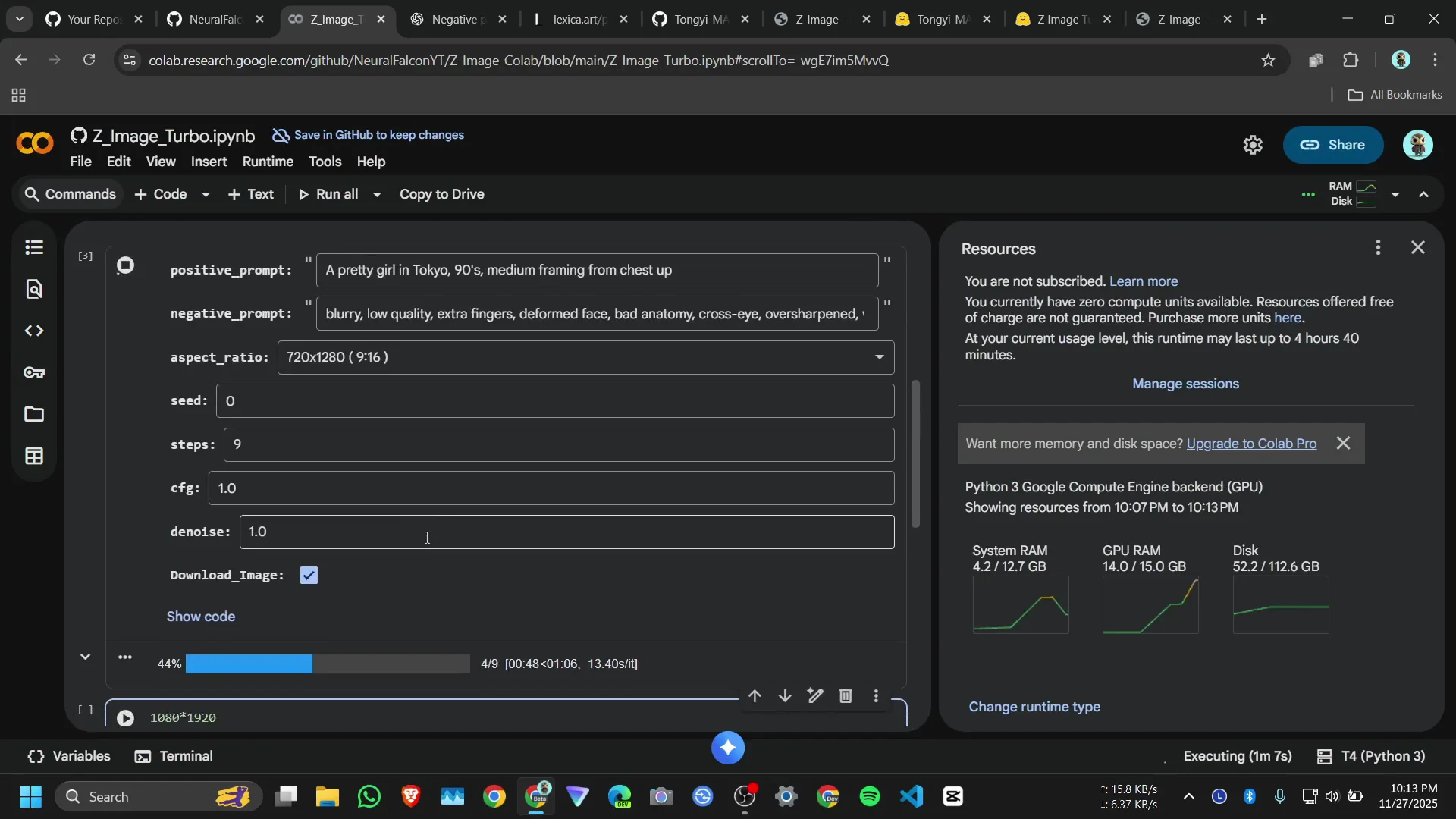
I also created a Gradio interface because the Google Colab RAM was crashing due to memory. If we want to create higher quality images like 1080 by 1920, it can crash. That is why we are limited to this resolution on the free Google Colab server.
If the session disconnects
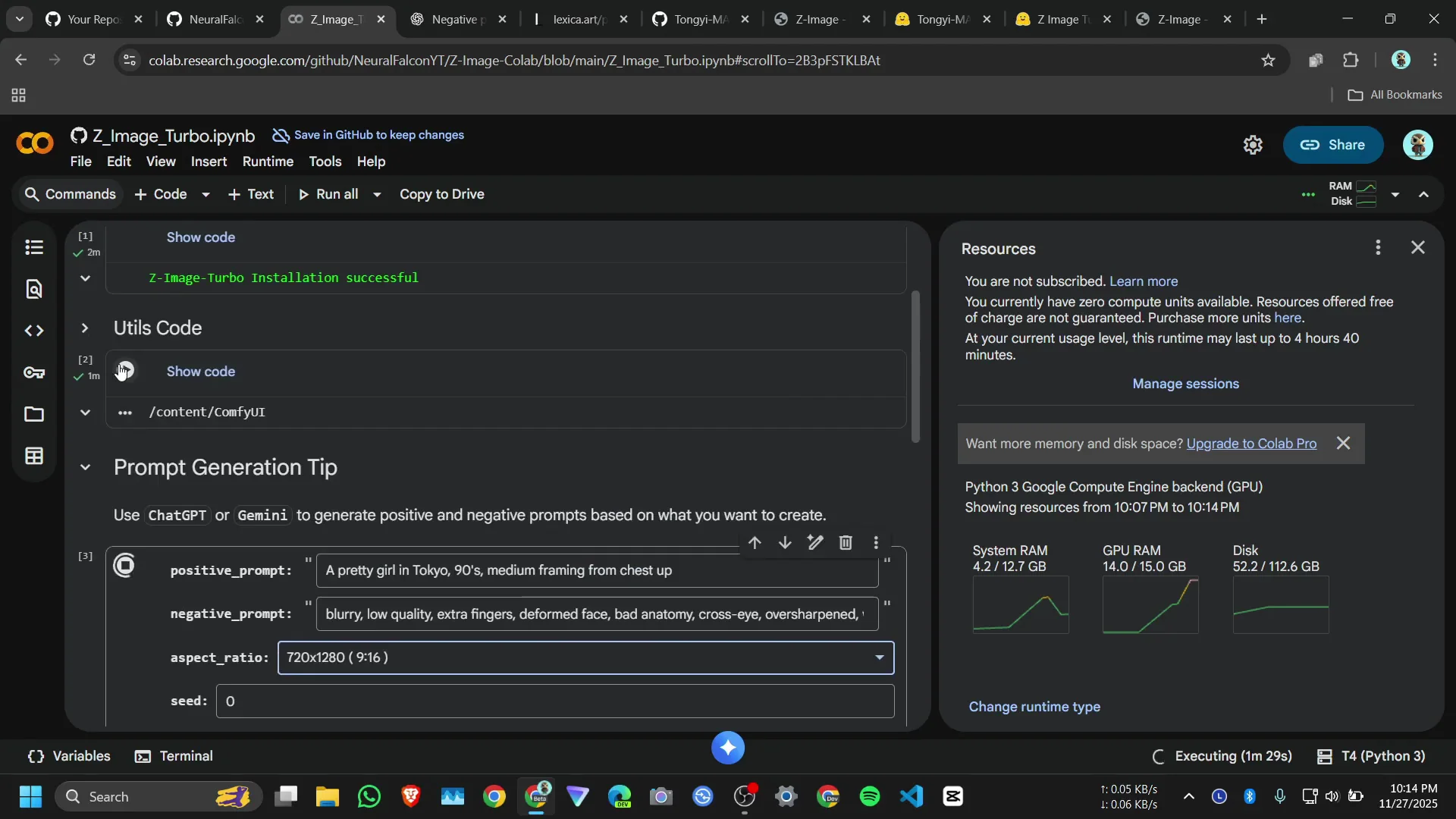
If your Colab server gets disconnected while generating images, rerun the setup cell, then rerun the next cell.
Memory observations
After generating an image, GPU memory drops to about 9.9 GB. If I run it again, CPU RAM goes down to around 5 GB. It works on Colab.
Run Z-Image-Turbo on Google Colab - Previewing and Downloading
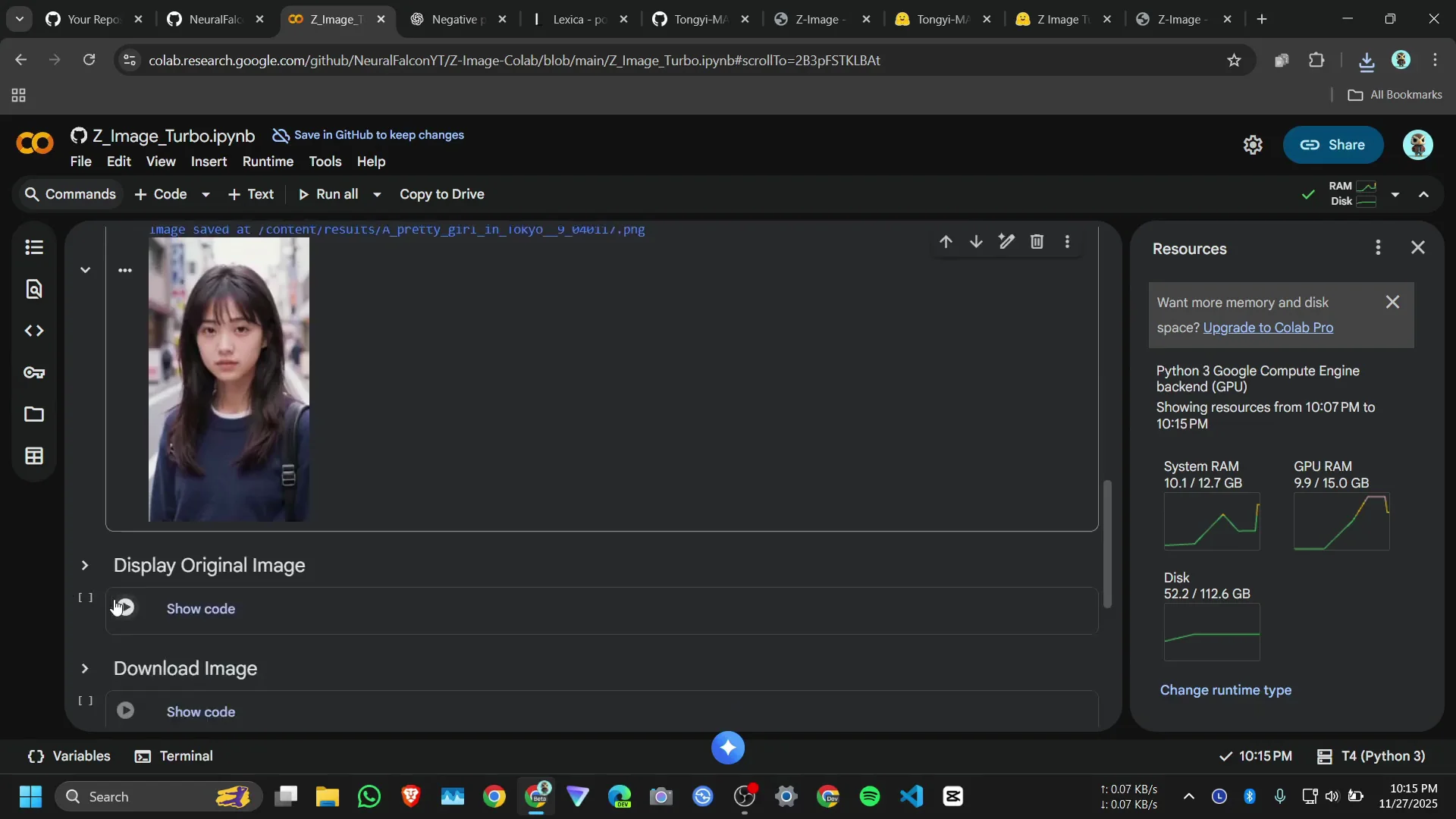
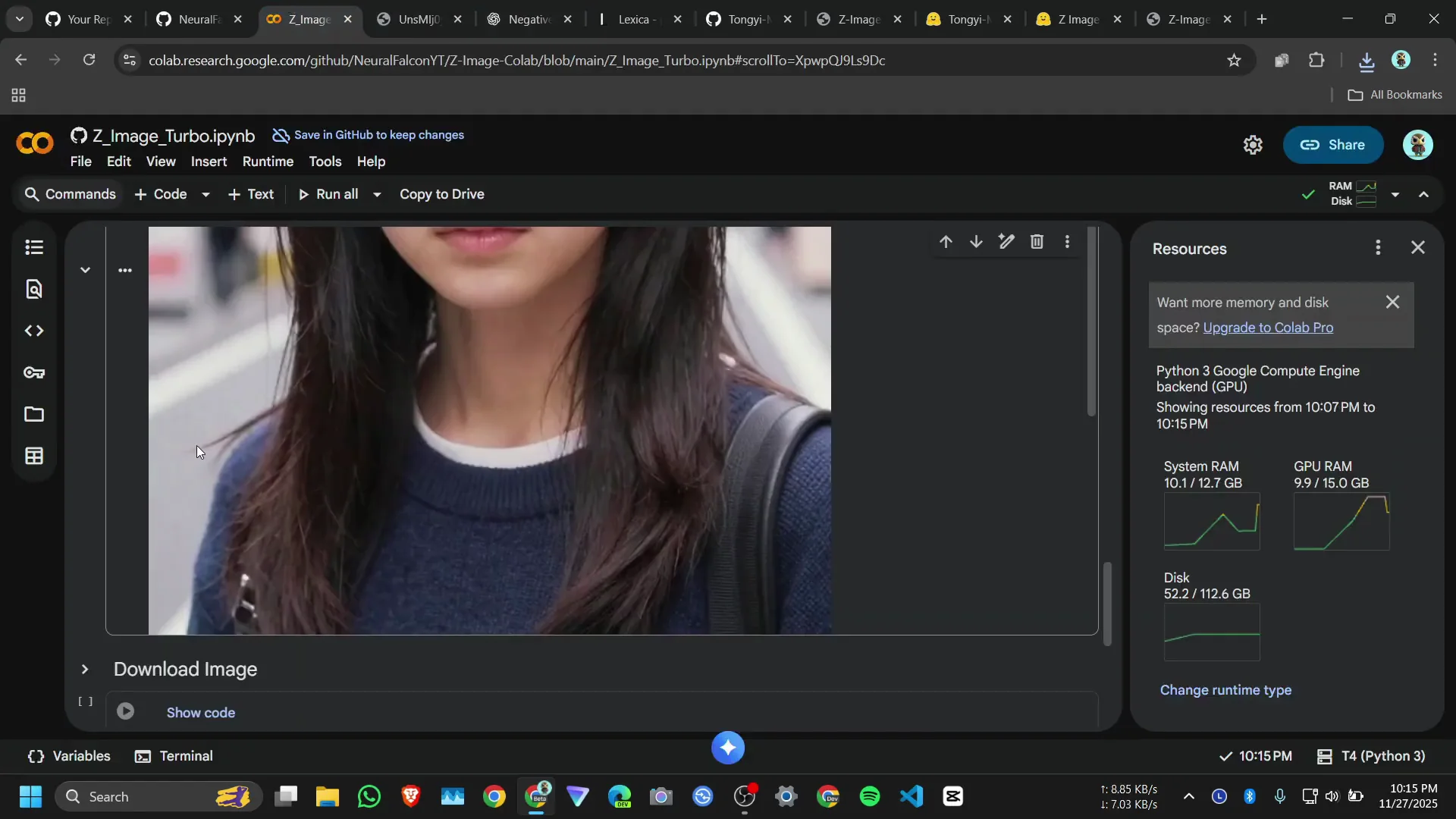
You get a small preview. To display the original size, run the full preview cell. You can also open the image in a new tab. I like the image quality and the skin tone. To download the image, click on it and it will download.
Run Z-Image-Turbo on Google Colab - Examples
Movie poster prompt
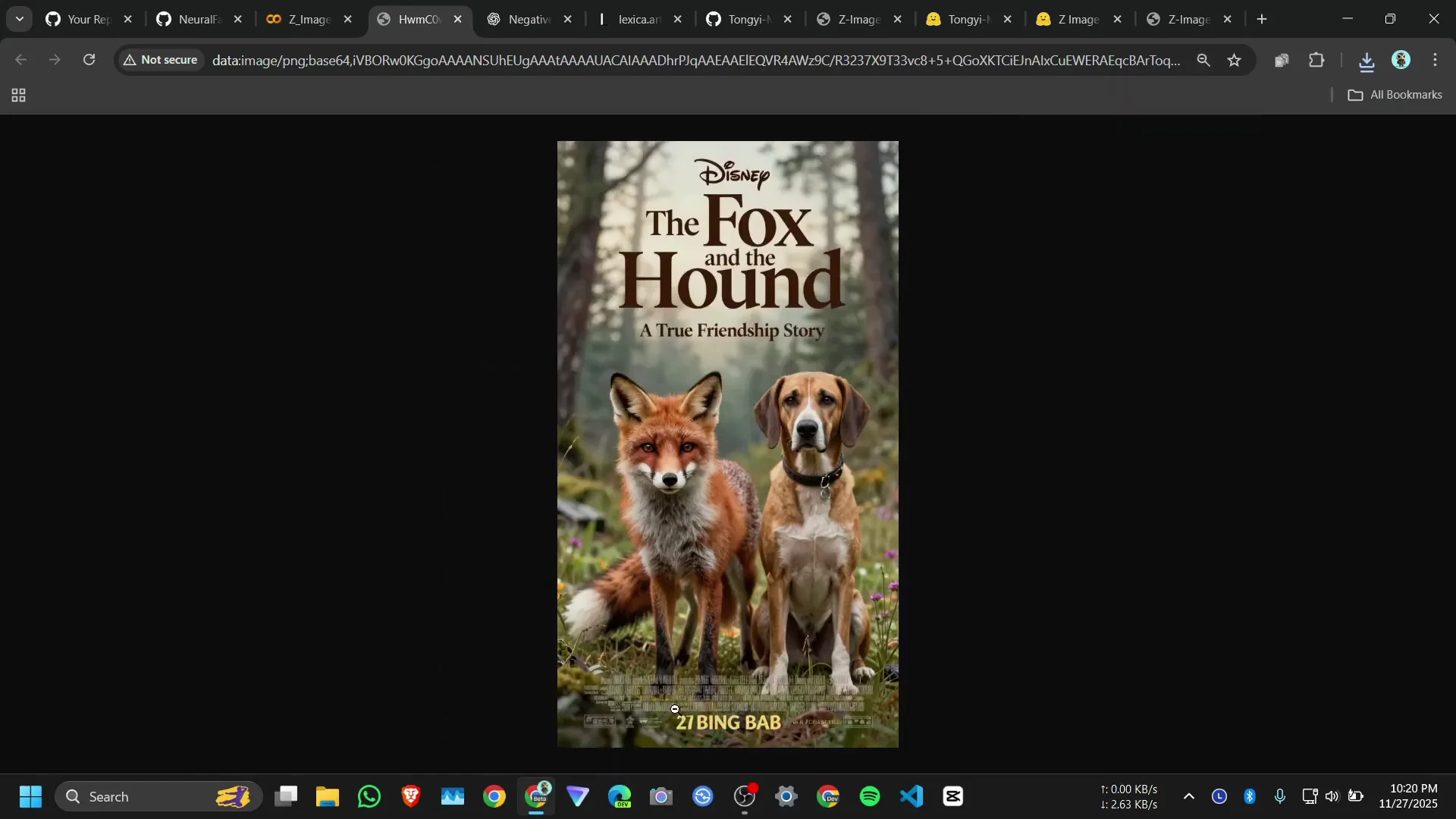
I created a movie poster. I pasted the positive and negative prompts and ran it. System RAM goes down to around 5 GB to 4.5 GB, so it works. It is hallucinating here because I did not give any actual names, so it randomly adds some blurred text. It is a 6 billion parameter model.
Mount Fuji prompt
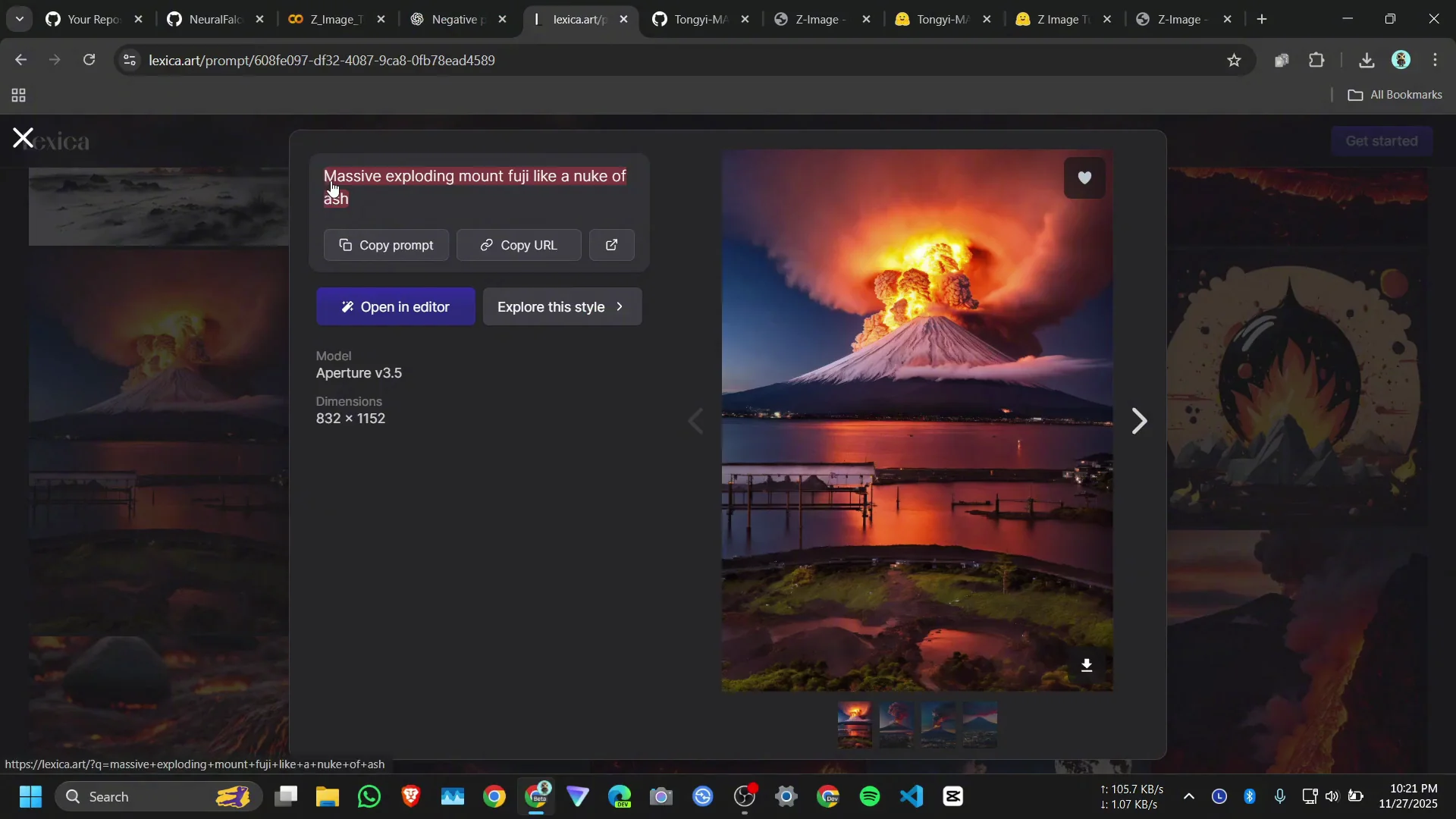
I used this one: Massive exploding Mount Fuji like a nuke. I chose 1:1 and ran it. It is Mount Fuji and it is good. Then I copied the prompt and the negative prompt again and tried 9:16. That is better. I set steps to 10 and ran it. The details are impressive for only 10 steps. It is a 6 billion parameter model and it is running on Google Colab.
Final Thoughts
Z-Image-Turbo runs well on Google Colab with ComfyUI. Use a positive prompt, a negative prompt, and an aspect ratio for a simple workflow, and set seed to 0 for randomness. Expect about 2 to 2.5 minutes per image on a T4 GPU. On the free Colab tier, keep resolutions modest to avoid RAM crashes, and if the session disconnects, rerun the setup cells and continue.
Subscribe to our newsletter
Get the latest updates and articles directly in your inbox.

Related Posts

8 Best Claude Code Plugins in 2026 (You Need to Know)
8 Best Claude Code Plugins in 2026 (You Need to Know)

7 Best Claude Code Skills (You Need to Know)
7 Best Claude Code Skills (You Need to Know)

Claude Code Desktop IDE Features (You Need to Know)
Claude Code Desktop IDE Features (You Need to Know)